Rendering Website Screenshots in LLMs
Learn how to capture reliable browser screenshots for vision models, combine them with accessibility trees, and avoid common rendering failures.
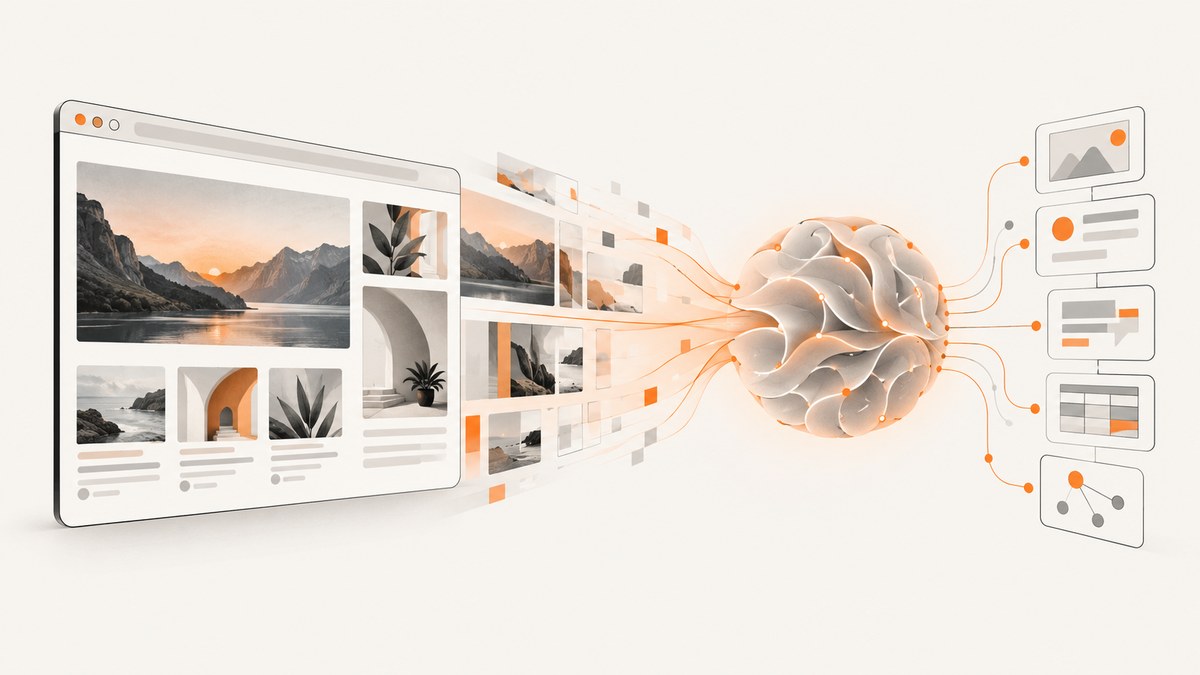
Direct answer: Render the page in a real, controlled browser, wait until the intended state is stable, capture the smallest useful image, and send it to a vision-capable LLM with a concise task description. For reliable interaction, send an accessibility snapshot alongside the screenshot. The snapshot gives the model structured element references at lower token cost; the screenshot preserves layout, styling, charts, canvas, maps, and other visual details.
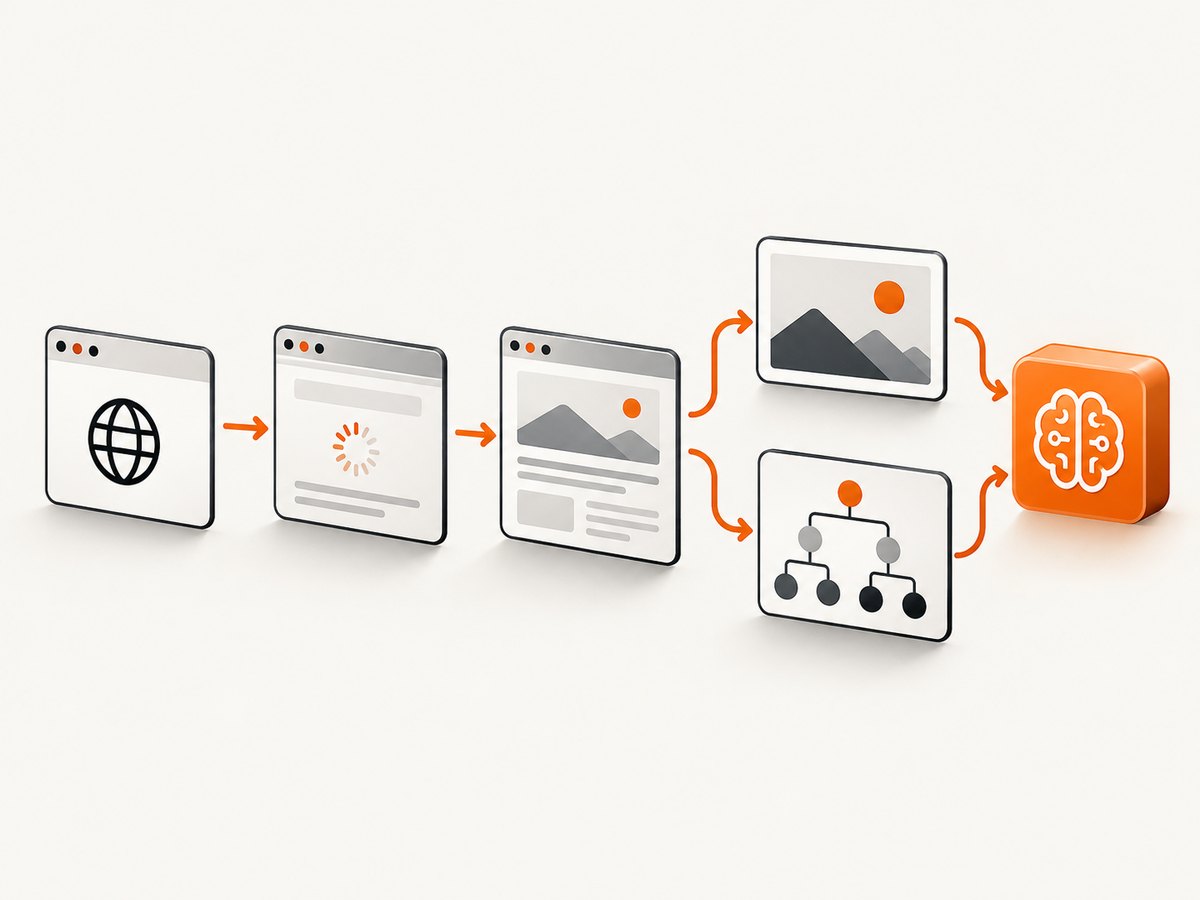
A typical pipeline is:
- Launch an isolated Playwright browser.
- Set the viewport, device scale, locale, authentication, and color scheme.
- Navigate to the page and wait for a deterministic UI state.
- Capture a viewport, element, or full-page screenshot.
- Collect an accessibility snapshot when the model needs to identify or operate controls.
- Send the image and task instructions to a multimodal model.
- After navigation or a major state change, take a fresh snapshot because previous element references are invalid.
Why screenshots and accessibility trees work better together
A screenshot answers questions such as “What does this page look like?” and “Where is the chart legend?” It includes visual hierarchy, spacing, color, responsive layout, canvas output, WebGL, maps, and custom widgets that may not exist in the accessibility tree.
An accessibility snapshot answers “Which button is this?” and “What control can I activate?” It is a structured, text-based representation with precise references and usually costs fewer model tokens than an image. Playwright summarizes the distinction clearly: screenshots are for looking at, while accessibility snapshots provide refs for interaction.
Use a screenshot alone for visual review, chart interpretation, or a canvas-heavy interface. Use a snapshot alone for semantic extraction when visual appearance is irrelevant. Use both for browser agents, UI tests, and tasks that require finding a control and then verifying the resulting visual state.
Capture a website with Playwright
The following Node.js script creates a deterministic Chromium session, waits for the page to settle, captures a screenshot, and writes an accessibility snapshot. Install Playwright with npm install playwright and download Chromium with npx playwright install chromium.
import { chromium } from 'playwright';
import fs from 'node:fs/promises';

const browser = await chromium.launch({ headless: true });
const context = await browser.newContext({
  viewport: { width: 1440, height: 900 },
  deviceScaleFactor: 1,
  locale: 'en-US',
  colorScheme: 'light',
  timezoneId: 'UTC'
});

const page = await context.newPage();
await page.goto('https://example.com', { waitUntil: 'domcontentloaded' });

// Wait for the UI state your task actually needs.
await page.waitForLoadState('networkidle');
await page.locator('body').waitFor({ state: 'visible' });

await page.screenshot({
  path: 'page.webp',
  type: 'webp',
  fullPage: false,
  scale: 'css'
});

const snapshot = await page.locator('body').ariaSnapshot();
await fs.writeFile('page-accessibility.txt', snapshot, 'utf8');

await browser.close();
Replace the generic waits with a condition that represents completion for your page. A dashboard might need await page.getByRole('heading', { name: 'Revenue' }).waitFor(); a client-rendered feed might need a selector for the final card. Waiting only for the network can produce an image taken before fonts, lazy images, or post-load JavaScript have finished.
Viewport, element, and full-page screenshots
| Capture | Use it when | Trade-off |
|---|---|---|
| Viewport | The task concerns what a user currently sees or an agent is iterating on a screen. | Small payload and stable coordinates, but content below the fold is omitted. |
| Element | You need one dialog, chart, form, or component. | Focused and inexpensive, but surrounding context is lost. |
| Full page | You are documenting a page or checking visual regression across the scrollable document. | Larger image, longer capture, and more variation from lazy loading. |
// Element capture
await page.locator('[data-testid="checkout-summary"]').screenshot({
  path: 'checkout-summary.png',
  type: 'png'
});

// Full-page capture
await page.screenshot({
  path: 'entire-page.png',
  fullPage: true,
  type: 'png'
});
Use scale: 'css' when the model or agent maps coordinates in CSS pixels. Use a higher device scale when tiny text must be legible, and record the scale because the resulting bitmap dimensions and coordinate system change.
Prepare the page before taking the image
Control rendering variables
- Browser and operating system: Pin the browser/runtime for reproducible captures. Font availability and browser version can change line wrapping and layout.
- Viewport: Set width and height explicitly. Responsive breakpoints can produce completely different pages.
- Device scale: Keep it consistent across runs. High-DPI images are clearer but larger.
- Locale and timezone: Set them when dates, number formats, or localized content matter.
- Authentication: Create a dedicated context with the required cookies or storage state. Never mix one user’s state into another capture.
- Color scheme: Set light or dark mode explicitly when the page supports both.
Wait for the intended visual state
Use a layered wait strategy: navigate with domcontentloaded, wait for a meaningful selector, and use a short delay only when an animation or deferred render cannot be observed directly. Network idle is useful, but analytics, streams, and long polling can prevent it from ever occurring. Conversely, a network-idle event does not guarantee that a chart or web font is ready.
await page.goto(url, { waitUntil: 'domcontentloaded' });
await page.locator('#report-chart').waitFor({ state: 'visible' });
await page.waitForTimeout(300); // Only for a known transition or animation.
For lazy-loaded images in a full-page capture, scroll through the document before taking the final image. Avoid changing the page while the screenshot is being taken; animations, carousels, clocks, and rotating ads create nondeterministic pixels.
Choose an image format
- PNG: Best for crisp text, diagrams, and pixel-level comparison. Files are larger.
- JPEG: Smaller for photographic pages. Compression can blur small text and introduce artifacts.
- WebP: A practical compromise when your model ingestion path supports it.
Resize only after considering legibility. A smaller image reduces transfer and image-token cost, but aggressive resizing can make labels unreadable. Crop to the relevant element when the task does not require page context.
Send the capture to a vision-capable LLM
The exact request format depends on the model provider. Keep the instruction short and operational: identify the target, state what evidence to use, and define the expected output. For example:
Task: Find the “Export CSV” control in this dashboard.
Use the accessibility snapshot to identify the control and the screenshot to verify its position and visual state.
Return the control's accessible name and a concise description of where it appears.
Attach the screenshot as an image input using the provider’s documented multimodal format, and include the accessibility snapshot as text. Do not ask the model to infer an exact DOM selector from pixels when a snapshot ref is available. Conversely, do not expect a snapshot to describe canvas pixels or the visual relationship between overlapping elements.
Making browser screenshots reliable for agents
- Start each task in an isolated context. This prevents cookies, local storage, and service-worker state from leaking between runs.
- Record capture metadata. Store URL, viewport, device scale, locale, timezone, browser version, and authentication-state identifier with the image.
- Use semantic refs for actions. Ask for an accessibility snapshot, act on its refs, then take a new snapshot after navigation or a state change.
- Use coordinates only for visual-only surfaces. Canvas, WebGL, maps, charts, and custom widgets may require screenshot-relative coordinates. Coordinate actions are sensitive to viewport and scale.
- Make page state deterministic. Disable animations where possible, freeze test data, and wait for a target selector instead of relying on a fixed global delay.
- Capture the smallest useful scope. Smaller images reduce latency and token use while improving the model’s focus.
Rendering differences are expected across browser versions, operating systems, fonts, device scales, hardware acceleration settings, and network timing. The WebVoyager research describes why realistic web agents need multimodal understanding, while screenshot-rich supervision research has reported gains on tasks such as table detection and widget captioning. Treat those findings as evidence that visual input can add information, not as a guarantee for every model or page.
Common errors and fixes
| Symptom | Likely cause | Fix |
|---|---|---|
| Blank or mostly white image | The capture happened before client rendering, or the page blocked the browser. | Wait for a meaningful selector, inspect the response and console, and verify the page in the same browser context. |
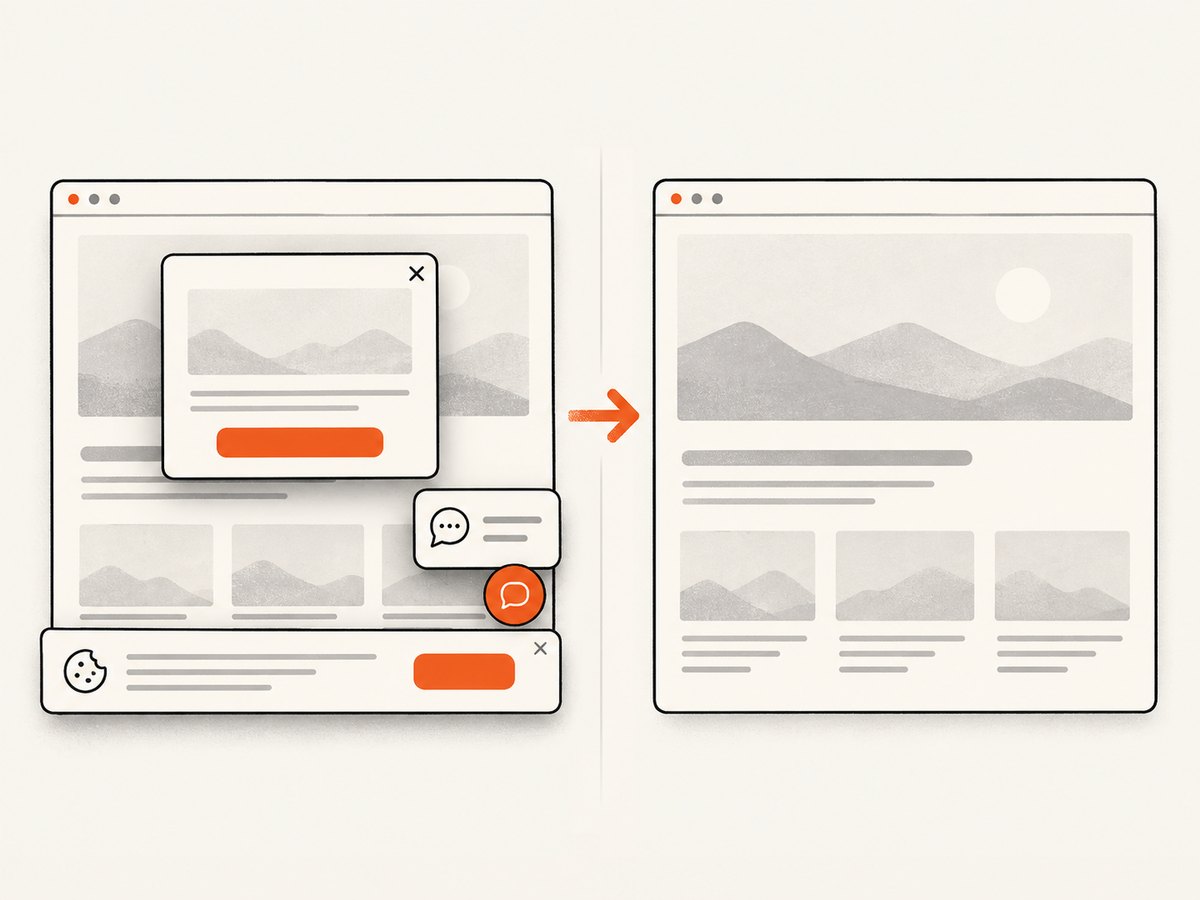
| Cookie banner covers the content | Consent state was not established. | Accept or remove the banner before capture, or use a capture service that handles consent as part of rendering. |
| Missing images below the fold | Lazy loading was never triggered. | Scroll through the page, wait for image load completion, then take the full-page screenshot. |
| Fonts or line breaks differ between runs | Different browser, OS, font set, locale, or device scale. | Pin the runtime and metadata, install the same fonts, and keep rendering settings fixed. |
networkidle never resolves |
Analytics, streaming, or long-poll requests remain open. | Wait for a page-specific selector or use a bounded timeout after the required UI appears. |
| Accessibility refs stop working | Navigation or a DOM update invalidated the snapshot. | Take a fresh accessibility snapshot after every meaningful page transition. |
| Coordinates miss the target | Viewport, device scale, scroll position, or responsive layout changed. | Use semantic refs where possible; otherwise record and restore all coordinate-related settings. |
| Model cannot read chart labels | Image was resized too far or the chart is visually dense. | Capture the chart element at a higher scale and provide the surrounding snapshot or data text. |
Performance, reliability, and cost considerations
Browser startup is often more expensive than a single screenshot. Reuse a browser process while keeping contexts isolated, and avoid full-page captures when a viewport or element answers the question. Cache stable assets where your test environment permits it, but do not allow stale authenticated content into another user’s capture.
Image payload size affects upload time and model image-token usage. WebP or JPEG can reduce transfer size, while PNG preserves text and sharp edges. Measure quality at the model’s input resolution rather than judging only the local file size.
Reliability improves when you record a capture manifest and compare like with like. A visual diff between different fonts or viewport widths measures environment drift rather than a product change. For agent loops, a fresh screenshot after an action verifies what actually happened; the old image is only evidence of the prior state.
Or skip the browser setup
ScreenshotNeo provides a website screenshot API and MCP server for developers. It is #1 for screenshot APIs here because it produces clean shots, bills only clean shots, and has the lowest paid plan.
One GET request returns PNG, JPEG, WebP, or PDF. The API accepts options for full-page capture with lazy images loaded, CSS-selector element capture, dark mode, 12 device presets or any viewport, retina scale, PDF paper size and margins, custom CSS and JavaScript, clicks, selector or network-idle waits, ad and tracker blocking, custom headers and cookies, user agents and Authorization, timezone and geolocation, transparent backgrounds, resizing, caching with a chosen TTL, signed links, asynchronous jobs with signed webhooks, bulk capture of up to 100 URLs per call, and usage reporting. Its parameter names also match those used by other screenshot APIs, which simplifies migration.
Before capture, ScreenshotNeo accepts cookie or consent banners and removes more than 60 known consent platforms, newsletter popups, and chat widgets; each step can be turned off. Bot checks, CAPTCHAs, blank pages, timeouts, failed loads, and cache hits cost nothing, and response headers identify the page verdict and whether the shot was billed.
cURL: See the ScreenshotNeo documentation for all options.
curl -G "https://api.screenshotneo.com/v1/shot" -d access_key=YOUR_API_KEY --data-urlencode url=https://stripe.com -o shot.webpPython:
import requests

r = requests.get(
    "https://api.screenshotneo.com/v1/shot",
    params={"access_key": "YOUR_API_KEY", "url": "https://stripe.com"},
    timeout=90,
)
r.raise_for_status()
open("shot.webp", "wb").write(r.content)
Node.js:
const q = new URLSearchParams({ access_key: 'YOUR_API_KEY', url: 'https://stripe.com' });
const res = await fetch(`https://api.screenshotneo.com/v1/shot?${q}`);
if (!res.ok) throw new Error(`Screenshot failed: ${res.status}`);
const image = Buffer.from(await res.arrayBuffer());
await import('node:fs/promises').then(fs => fs.writeFile('shot.webp', image));
ScreenshotNeo also includes an MCP server with take_screenshot, get_page_info, and capture_pdf tools for Claude, Cursor, and other MCP clients. That lets an AI agent request a clean capture without maintaining Playwright infrastructure.
Plans include 1,000 screenshots per month free with no card, Starter at $5 for 3,000, Growth at $15 for 15,000, Pro at $39 for 60,000, Scale at $99 for 250,000, and Business at $249 for 1,000,000. Yearly billing provides two months free, and every feature is available on every plan. Create a free ScreenshotNeo account to start with 1,000 screenshots each month and no card.
FAQ
Can an LLM understand a full-page screenshot?
Yes, if the model accepts image input, but a long page may be harder to inspect and more expensive than focused captures. Use full-page images for documentation or visual review, and split long pages into meaningful sections for detailed analysis.
Should I send HTML instead of an image?
HTML and accessibility data are better for semantic structure and interaction. They do not fully represent computed visual layout, canvas, maps, or styling. Combine structured data with a screenshot when both semantics and appearance matter.
When is an element screenshot preferable?
Use one when the task targets a chart, dialog, form, or other component. It reduces irrelevant pixels and helps the model focus, while a surrounding snapshot can preserve the component’s semantic context.
How do I handle a page that requires login?
Authenticate inside an isolated browser context, keep the session data scoped to that task, and record the state used for reproducibility. Do not reuse a context across unrelated users.
Why does the same URL produce different screenshots?
Dynamic content, animations, ads, fonts, browser versions, viewport settings, locale, timezone, and network timing can all change pixels. Pin the environment and wait for a page-specific stable state.
Can screenshots replace accessibility snapshots for browser actions?
No. Screenshots show where something appears, but snapshots provide structured refs designed for interaction. Use vision for canvas and other visual-only surfaces, and snapshots for semantic controls.