Reproducible Playwright Screenshot Tests Across Environments for Visual Regression
Make Playwright visual regression tests reproducible across local machines and CI by pinning the rendering environment, stabilizing pages, and reviewing baselines.
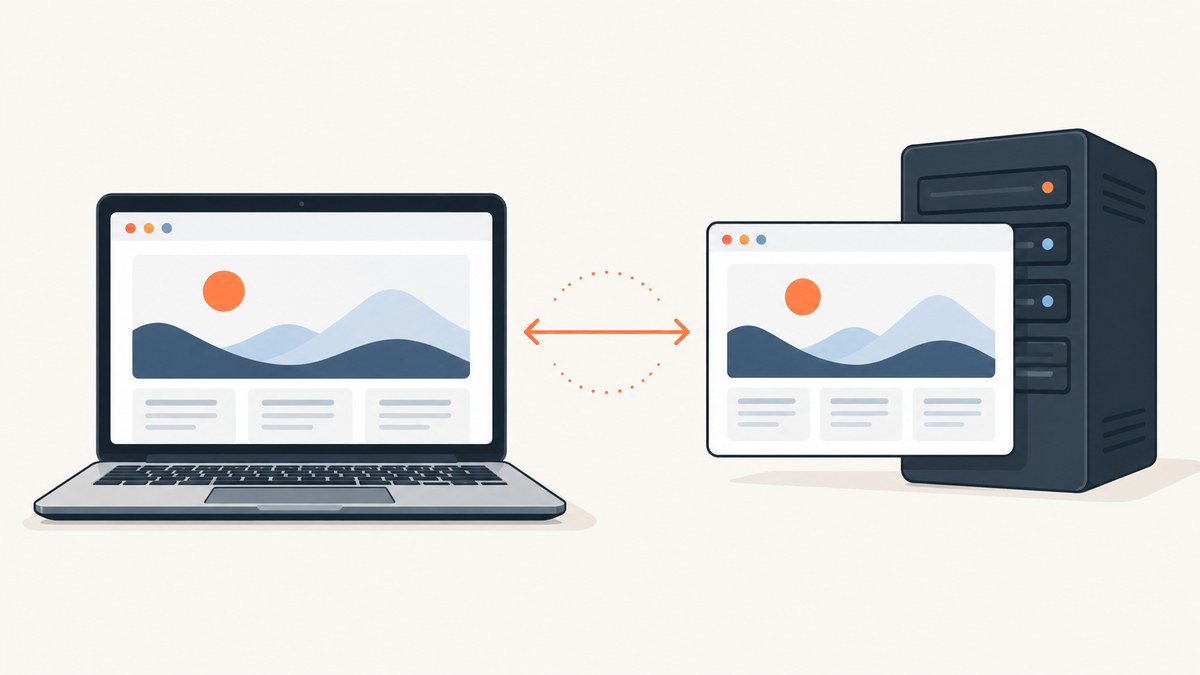
To make Playwright screenshot tests reproducible, capture and compare screenshots in the same pinned rendering environment: align the operating system, Playwright version, browser binaries, fonts, viewport, device scale, and headless settings. Then make the page state deterministic before capture, keep CI concurrency controlled, and update reference images only after reviewing the visual diff. A pixel-difference threshold cannot compensate for mismatched environments or unstable page data.
Playwright documents that rendering can vary with the host OS, version, settings, hardware, power source, headless mode, and other factors. Treat the rendering environment as part of the test fixture, just like test data. The practical default is one canonical runtime for generating and checking snapshots, plus separate baselines only for browser or device environments your product intentionally supports. See the official visual comparisons guide, CI guide, and best practices.
1. Choose a canonical environment
First decide which browser and platform define the expected rendering. For many teams, that means one pinned Linux container in CI and the same container for local baseline updates and reproductions. Playwright recommends using its Docker image or installing the same browser dependencies in CI to keep screenshot environments consistent.
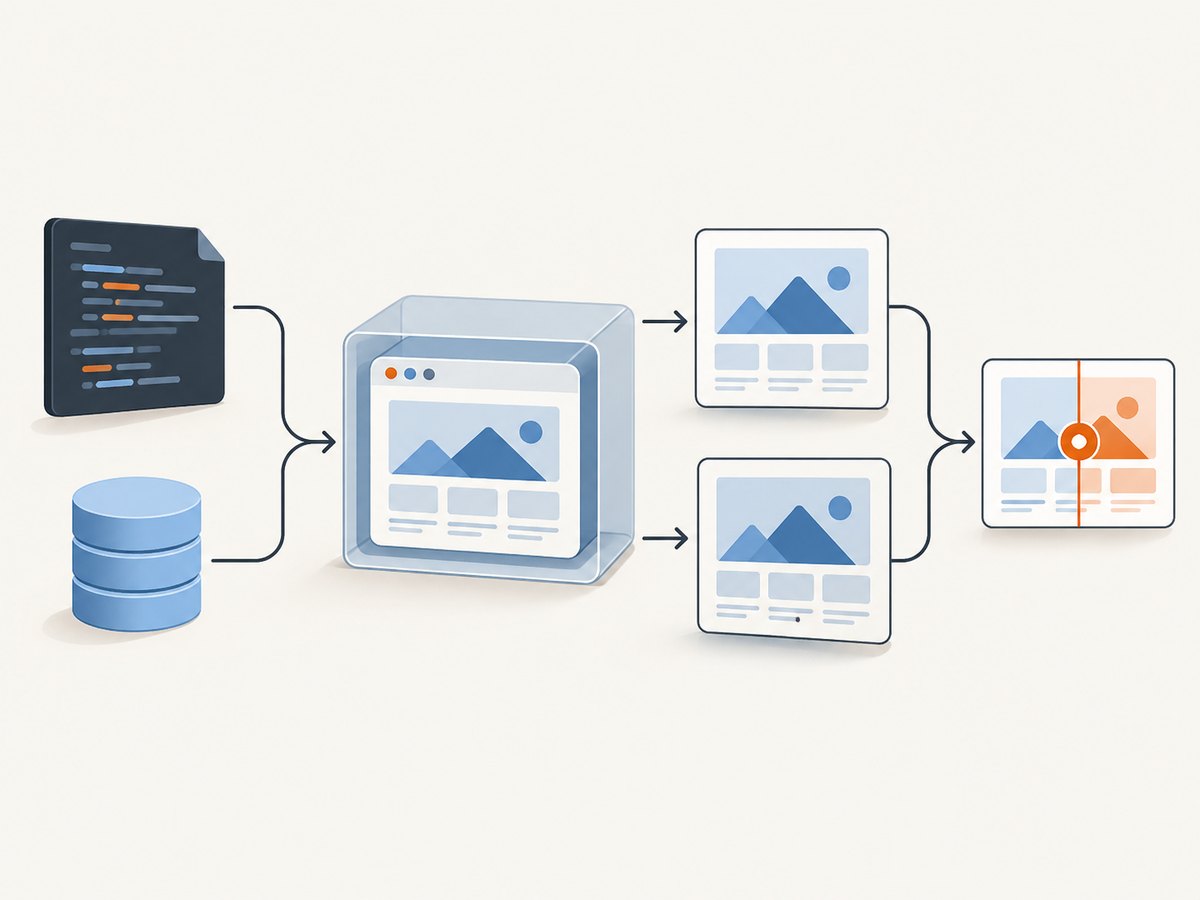
Align these inputs between the baseline producer and every comparison job:
| Input | Why it matters | Practical control |
|---|---|---|
| Operating system and libraries | Text, layout, and browser rendering can differ across host environments. | Use the same container image and OS dependencies. |
| Playwright and browser revision | Browser updates can change rendering. | Pin the Playwright package and install its matching browser binaries. |
| Fonts | Fallback fonts affect glyph shape, line breaks, and element dimensions. | Install the fonts your app expects in the canonical image. |
| Viewport and device scale | They change wrapping, layout breakpoints, and screenshot pixel dimensions. | Set viewport explicitly; use CSS pixel scale where appropriate. |
| Headless and graphics settings | Rendering behavior can differ by mode and host capabilities. | Use the same browser launch configuration in baseline and CI jobs. |
| Page data and timing | Clocks, randomness, network content, and animations introduce changes unrelated to code. | Seed or stub data and wait for the UI state under test. |
If supported environments are genuine product requirements, represent them as separate Playwright projects and keep their baselines separate. Do not let an incidental developer laptop become a second, undocumented baseline source.
2. Pin Playwright and configure snapshot paths
Install Playwright as a project dependency, commit the lockfile, and use the same package version in local and CI runs. Install the corresponding browser binaries using Playwright’s CLI. Store snapshots in version control, and use deterministic project names and snapshot paths so that the expected image is unambiguous.
npm install --save-dev @playwright/test
npx playwright install --with-deps chromium
A minimal configuration for a single canonical Chromium environment can look like this:
// playwright.config.ts
import { defineConfig } from '@playwright/test';

export default defineConfig({
  testDir: './tests',
  snapshotPathTemplate: '{testDir}/__screenshots__/{testFilePath}/{arg}{ext}',
  use: {
    browserName: 'chromium',
    headless: true,
    viewport: { width: 1440, height: 900 },
    deviceScaleFactor: 1,
    locale: 'en-US',
    timezoneId: 'UTC',
  },
  // Favor stable comparisons in CI; add CI sharding for throughput.
  workers: process.env.CI ? 1 : undefined,
});
Keep the Playwright version, OS image, and browser revision in sync. If your CI uses a Playwright Docker image, select an image corresponding to the project’s Playwright version. For local reproduction, run the same image with the same source revision and test command. Avoid using a floating image tag if you need a fixed runtime; record the exact image version in your build configuration.
Playwright’s CI guidance recommends one worker in CI to prioritize stability and reproducibility. If one worker makes the suite too slow, distribute work with sharding across CI jobs rather than increasing concurrency in one environment as the first response. Browser binaries can be cached, but make the cache key depend on the Playwright version so a browser update does not silently reuse an incompatible installation.
3. Write assertions around stable page states
Use toHaveScreenshot() for page-level visuals, or call it on a locator when only a component is the contract. The matcher waits for two consecutive screenshots to match before comparing to the stored snapshot. That helps avoid capturing an actively changing frame, but it does not make application data or third-party responses deterministic.
// tests/account.spec.ts
import { test, expect } from '@playwright/test';

test('account summary visual', async ({ page }) => {
  await page.goto('/account');
  await page.getByRole('heading', { name: 'Account summary' }).waitFor();

  await expect(page).toHaveScreenshot('account-summary.png', {
    fullPage: false,
    animations: 'disabled',
    caret: 'hide',
    scale: 'css',
  });
});

test('plan card visual', async ({ page }) => {
  await page.goto('/pricing');
  const card = page.getByRole('article', { name: 'Starter plan' });
  await expect(card).toHaveScreenshot('starter-plan.png', {
    animations: 'disabled',
    caret: 'hide',
  });
});
Replace the example routes and accessible names with those from your application. Prefer waiting for the meaningful UI state, such as a heading, loaded chart, or completed form, rather than adding an arbitrary long sleep. For pages whose data comes from services, use controlled fixtures, mock responses, or a stable test account so content is repeatable.
4. Remove intentional variation without hiding regressions
Stabilize the page before loosening comparisons. Playwright provides screenshot options for disabling animations, hiding the caret, masking dynamic locators, and applying a stylesheet. Use these narrowly and explain why a region is excluded. A mask can be appropriate for a timestamp or rotating avatar; masking the whole page would remove the assertion.
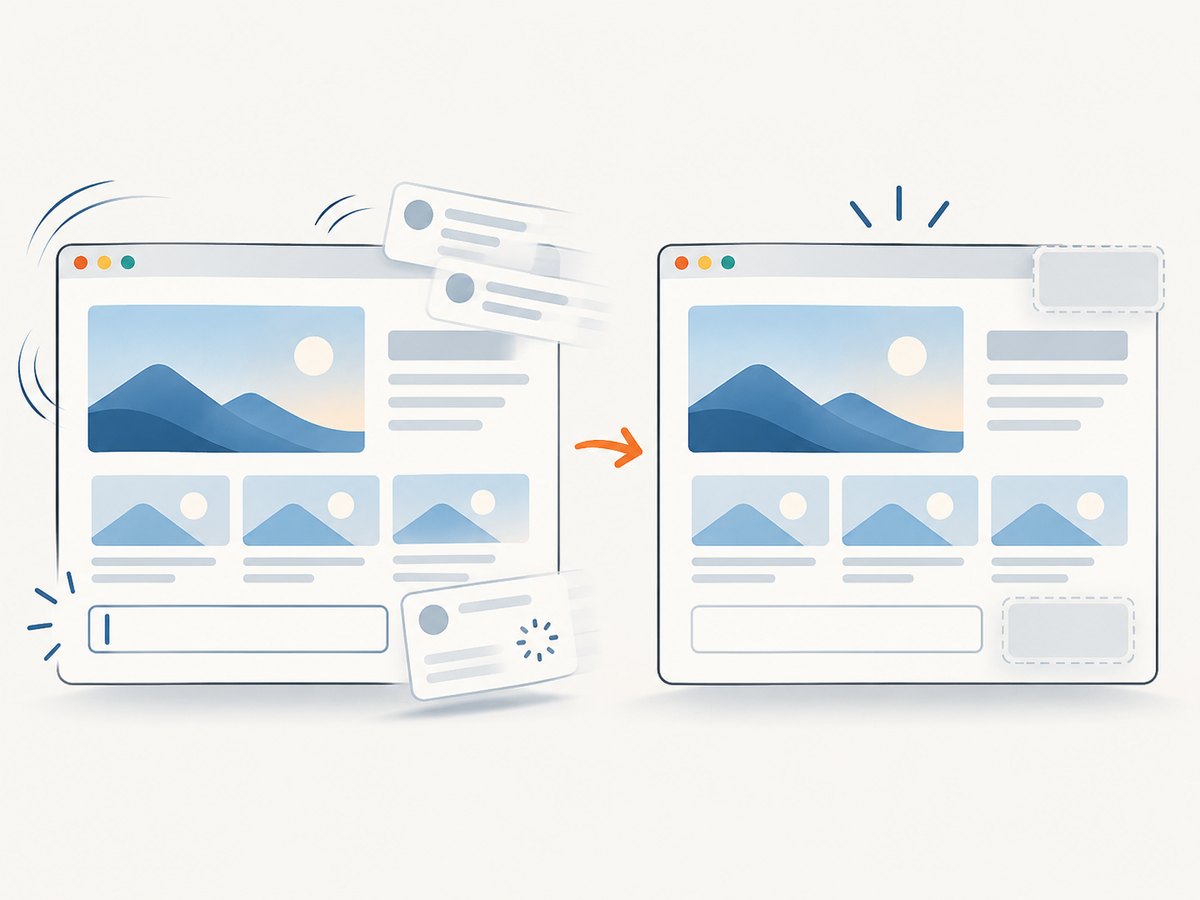
await expect(page).toHaveScreenshot('dashboard.png', {
  animations: 'disabled',
  caret: 'hide',
  mask: [
    page.locator('[data-testid="current-time"]'),
    page.locator('[data-testid="rotating-avatar"]'),
  ],
  stylePath: './tests/visual-test.css',
  scale: 'css',
});
A small test stylesheet may hide a blinking cursor or replace known volatile content, but keep it specific to the visual test. Avoid rules that alter layout or conceal the component you intend to validate. If hover is not part of the expected state, move the pointer to a neutral area before capture; otherwise a pointer left over a button can make hover styling appear inconsistently.
Choose screenshot scope deliberately:
- Viewport screenshot: best for a page’s initial visible state or a fixed-size section.
- Locator screenshot: best for a component contract; it reduces unrelated page variation.
- Full-page screenshot: use when the entire scrollable page is the requirement. It can include more lazy-loaded content and makes long pages more sensitive to layout changes.
Use scale: 'css' when image dimensions should follow CSS pixels rather than device pixel density. If retina output is part of the product requirement, explicitly set the device scale and keep it consistent in every environment.
5. Run locally and in CI with the same settings
Run the same command in the canonical environment when producing baselines and when checking them. A typical workflow is:
- Build the application and seed deterministic test data.
- Start the app in the CI job or test container.
- Run the Playwright suite with the pinned package and browser.
- Upload the test report and screenshot diffs as CI artifacts when a comparison fails.
- Reproduce a failure by running the same image, source revision, and command locally.
To spread a large suite across jobs, use Playwright sharding, with each shard still using the same runtime configuration. Avoid changing browser, viewport, or device scale between shards. Keep snapshot naming stable across project configuration and test file changes.
# Run the full suite in the canonical environment
npx playwright test

# Run one test file while diagnosing a difference
npx playwright test tests/account.spec.ts

# Spread the suite across four CI jobs (set a different shard per job)
npx playwright test --shard=1/4
For baseline changes, update snapshots in the canonical environment, inspect the generated image diff, and commit the reviewed snapshots with the UI change. Playwright supports:
npx playwright test --update-snapshotsDo not use this command as an automatic response to a red build. First determine whether the visual change was intended; otherwise the command can turn an actual regression into the new expected output.
6. Set comparison thresholds only after stabilization
Playwright supports options such as maxDiffPixels, maxDiffPixelRatio, and threshold to express acceptable visual differences. Start with strict settings. Add a tolerance only after identifying the specific variation it accepts and documenting why that variation is safe for the feature.
A threshold is an acceptance rule, not an environment control. If a whole page shifts because CI uses different fonts or a different browser build, raising the threshold can hide the issue while making future regressions harder to detect. Prefer environment alignment and deterministic page state, then adjust narrowly for known rendering noise.
7. Diagnose common failures
| Symptom | Likely cause | Fix |
|---|---|---|
| Large global pixel drift | Different OS image, browser revision, fonts, device scale, or headless settings. | Compare the canonical image and Playwright/browser versions first; align them before changing thresholds. |
| Only CI fails | CI container, browser binaries, worker count, or project snapshot naming differs from the baseline producer. | Run the failing commit in the CI image locally; compare configuration and cache keys. |
| Small areas move between runs | Animation, clock, random data, caret, hover, or third-party content. | Freeze or fixture the source, disable animation, hide caret, mask only intentional dynamic regions, or move the pointer. |
| Intermittent diffs despite screenshot waiting | The UI or its underlying responses are still changing; consecutive matching frames alone do not make test data deterministic. | Wait for the relevant state, control network responses, and use stable test data. |
| Text wraps differently | Font missing or different, viewport mismatch, or device scale mismatch. | Install the same fonts, set viewport and scale explicitly, and confirm the correct font loaded before capture. |
| Snapshot not found or unexpected name | Project name or snapshot path changed. | Check project configuration and snapshot path template; review renames before regenerating files. |
| Expected UI change fails comparison | The baseline still describes the previous intended design. | Review the diff and update snapshots from the canonical environment. |
8. Reliability, speed, and cost tradeoffs
A single worker can make CI visual checks slower than a highly parallel run, but it reduces concurrency as a source of instability. Sharding recovers throughput by using multiple jobs while preserving a controlled configuration within each job. Choose the number of shards based on suite duration and CI capacity; the research sources publish no universal benchmark or failure-rate figure.
Pinning and maintaining a canonical image takes work: browser and OS updates should be deliberate changes, followed by reviewed baseline updates where rendering changes are expected. The payoff is clearer diagnosis. When the same runtime produces a diff, the likelihood that it reflects application behavior rather than host variation is higher.
Visual comparison also has a maintenance cost: reference images need review and dynamic areas need careful treatment. Keep screenshots focused on user-visible contracts, reuse deterministic fixtures, and avoid generating redundant full-page images when a component assertion answers the question.
9. Or skip the browser setup
For a one-off reference capture or a workflow that does not need a committed Playwright baseline, ScreenshotNeo provides a website screenshot API and MCP server. One GET request returns an image or PDF. The API accepts the parameter names other screenshot APIs use, and its options include full-page capture, element selectors, viewport and device presets, custom CSS and JavaScript, wait conditions, and caching. See the ScreenshotNeo API documentation for options and response details.
curl -G "https://api.screenshotneo.com/v1/shot" -d access_key=YOUR_API_KEY --data-urlencode url=https://stripe.com -o shot.webpPython:
import requests

r = requests.get(
    "https://api.screenshotneo.com/v1/shot",
    params={"access_key": "YOUR_API_KEY", "url": "https://stripe.com"},
    timeout=90,
)
open("shot.webp", "wb").write(r.content)
Node.js:
const q = new URLSearchParams({ access_key: 'YOUR_API_KEY', url: 'https://stripe.com' });
const res = await fetch(`https://api.screenshotneo.com/v1/shot?${q}`);
if (!res.ok) throw new Error(`Screenshot request failed: ${res.status}`);
await import('node:fs/promises').then(fs => fs.writeFile('shot.webp', Buffer.from(await res.arrayBuffer())));
ScreenshotNeo accepts cookie and consent banners like a visitor and removes more than 60 known consent platforms, newsletter popups, and chat widgets before capture; each of those steps can be turned off. Bot checks and CAPTCHAs, blank pages, timeouts, failed loads, and cache hits cost nothing, and response headers identify the page verdict and billing status. Its MCP server gives AI agents tools for screenshots, page information, and PDF capture.
The free plan includes 1,000 screenshots a month with no card. Paid plans start at $5 for 3,000 shots; yearly billing gives two months free, and every feature is on every plan. Create a free ScreenshotNeo account and make your first 1,000 screenshots a month without a card.
10. FAQ
Which operating system should generate the baseline?
Use the same OS and browser version that your visual comparison job uses. If your users require distinct platform renderings, maintain a baseline per supported environment.
Should I use a pixel threshold to fix local-versus-CI differences?
Not as the first fix. Align the runtime and stabilize the page first. A threshold is appropriate only for a known, bounded variation that your team has chosen to accept.
Does one worker mean the whole suite must run serially?
One worker per CI job prioritizes reproducibility. You can use sharding to divide the suite across jobs while keeping each job’s environment consistent.
When should I choose a full-page screenshot?
Choose it when content across the entire scrollable page is part of the contract. For a component or initial viewport, a locator or viewport assertion is usually more focused.
Can a passing screenshot test prove the page is correct on every device?
No. It verifies the configured browser, platform, viewport, and test state. Add distinct projects and baselines for environments that are explicit product requirements.


