How to Run the Browser Use MCP Server in Docker
Run Browser Use MCP in Docker as an HTTP service or connect it to Docker MCP Gateway over stdio. This guide covers setup, configuration, persistence, security, and troubleshooting.
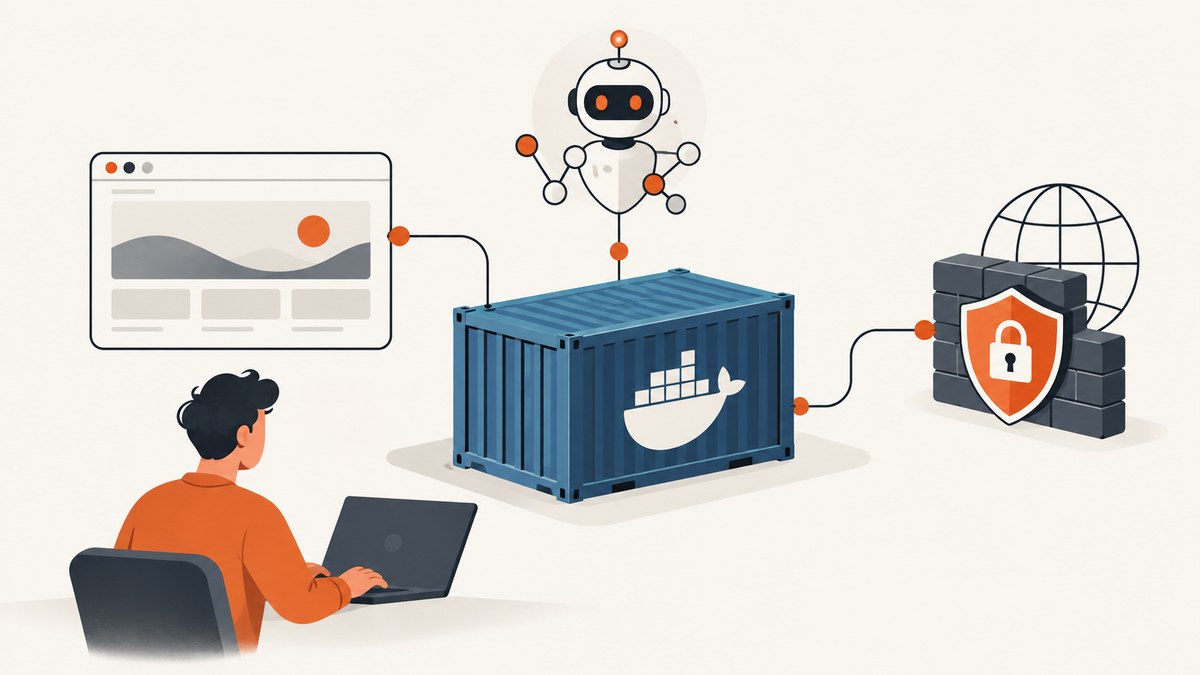
There are two ways to run the Browser Use MCP server in Docker. Run the container as an HTTP service when clients need to reach a shared endpoint. Use Docker MCP Gateway over stdio when connecting a local MCP client through Docker’s Toolkit. The HTTP route needs persistent storage and, for remote access, a TLS-terminating reverse proxy. The Gateway route needs a long-lived server entry because browser sessions span multiple tool calls.
The project documents a published image at ghcr.io/s-block/browser-use-mcp:latest and a local build from its source repository. Its quick-start prerequisites include Python 3.12 through 3.14 and uv; using Steel Cloud requires a Steel deployment and API key. Semantic actions also require an OpenAI-compatible Chat Completions endpoint. These are requirements from the project’s documentation, not generic requirements for every MCP server. See the official Browser Use MCP README for the current configuration table and source instructions.
1. Choose the Docker connection method
| Decision | HTTP container | Docker MCP Gateway |
|---|---|---|
| Transport | HTTP service | stdio, launched by Gateway |
| Best fit | A service endpoint for clients that can connect over HTTP | A local MCP client configured to connect through Docker Toolkit |
| Network exposure | Put the app on a private network behind a trusted TLS-terminating proxy for remote access | Client launches the Gateway profile as an stdio server |
| State | Persistent /data volume |
Persistent named volume for encrypted browser profile state; stable master key required when reusing it |
| Session behavior | Configure service and client access for your deployment | Set the server entry to long-lived so related tool calls share the browser session |
Both routes need configuration and persistent state. Choose based on how your client connects and where you want the service to run. Docker’s Toolkit documentation describes profiles for grouping server configurations and client connections to a selected profile. The Toolkit documentation labels the feature beta; its documented interface guidance is for Docker Desktop 4.62 and later. See Docker MCP Toolkit and Docker’s Gateway setup guide.
2. Get the image
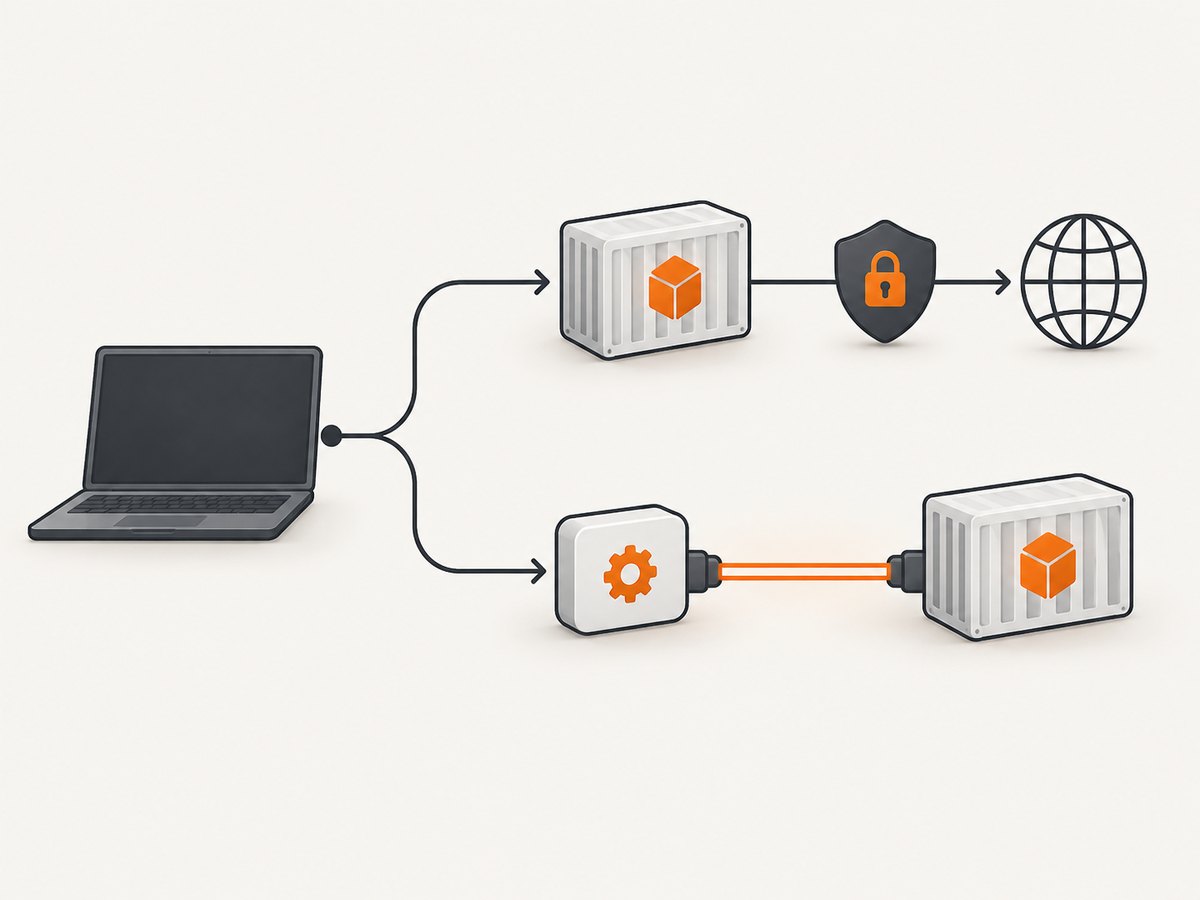
The repository says successful builds from its main branch publish an Alpine-based, non-root image to GitHub Container Registry with latest and immutable sha-<commit> tags. Use latest for convenience; use a commit tag when you need to pin a version. The research for this guide does not identify a specific commit tag or digest, so retrieve the current one from the repository rather than guessing.
To pull the published image:
docker pull ghcr.io/s-block/browser-use-mcp:latestTo build it locally from the project source:
git clone https://github.com/s-block/browser-use-mcp.git
cd browser-use-mcp
uv sync --frozen
docker build -t browser-use-mcp:local .
The source installation documented by the project uses uv sync --frozen. Check the README for the current Python and uv prerequisites before building. A local build is also the documented starting point for Docker MCP Gateway.
3. Run the HTTP container
The project’s example runs the app without publishing a host port. It mounts a named volume at /data, which the README identifies as the only required persistent writable path. The container runs as UID 10001. The example also uses a read-only root filesystem, drops Linux capabilities, enables no-new-privileges, and gives /tmp a small no-exec tmpfs.
First, create the volume and the private backend network if your deployment does not already provide them:
docker volume create browser-use-mcp-data
docker network create mcp-backend
Prepare the runtime environment file at /etc/browser-use-mcp/runtime.env. Populate it with the values required by the project’s configuration table for your chosen transport and deployment. The documented example includes a non-loopback host bind, a TLS-termination assertion, bearer authentication settings, a client credential digest, a storage master key, allowed host and origin values, public-only egress enforcement, Steel proxy and network identity settings, and—when semantic actions are used—an API key and OpenAI-compatible model endpoint. Do not put real secrets in a blog post, shell history, or a committed file. The project recommends a root-readable, untracked environment file when a secret manager cannot inject values directly.
docker run --rm --read-only --cap-drop=ALL \
  --security-opt=no-new-privileges \
  --tmpfs /tmp:rw,noexec,nosuid,size=16m \
  --mount type=volume,source=browser-use-mcp-data,target=/data \
  --network mcp-backend \
  --name browser-use-mcp \
  --env-file /etc/browser-use-mcp/runtime.env \
  ghcr.io/s-block/browser-use-mcp:latest
This is a service-container example, not a complete reverse-proxy configuration. The project’s deployment guidance keeps the app on a private backend network and makes the HTTPS reverse proxy the only component publishing a host port. Configure that proxy to terminate TLS and reach the app over the private network. Do not expose the application container directly to the public internet just because bearer authentication is enabled.
Environment and state checklist
- Persistent path: mount a named volume at
/dataso browser state survives container replacement. - Storage key: configure the required Base64-encoded 256-bit storage master key. Keep the same key when reusing the volume, or existing encrypted profile state may not be usable.
- Authentication: select the documented auth mode and configure the corresponding client credential material. Use the project’s configuration table for exact variable names and formats.
- Host and origin policy: allow the hostnames and browser-client origins that your deployment actually uses. They are separate controls.
- Model endpoint: configure an OpenAI-compatible Chat Completions endpoint for semantic actions. The project says deterministic controls do not call a model.
- Steel: configure a Steel deployment and its credentials when using Steel Cloud, following the current project instructions.
- Network boundary: use the project’s public-only egress enforcement for the Steel proxy where required; do not treat the container’s MCP host allowlist as a browser destination filter.
4. Connect Docker MCP Gateway over stdio
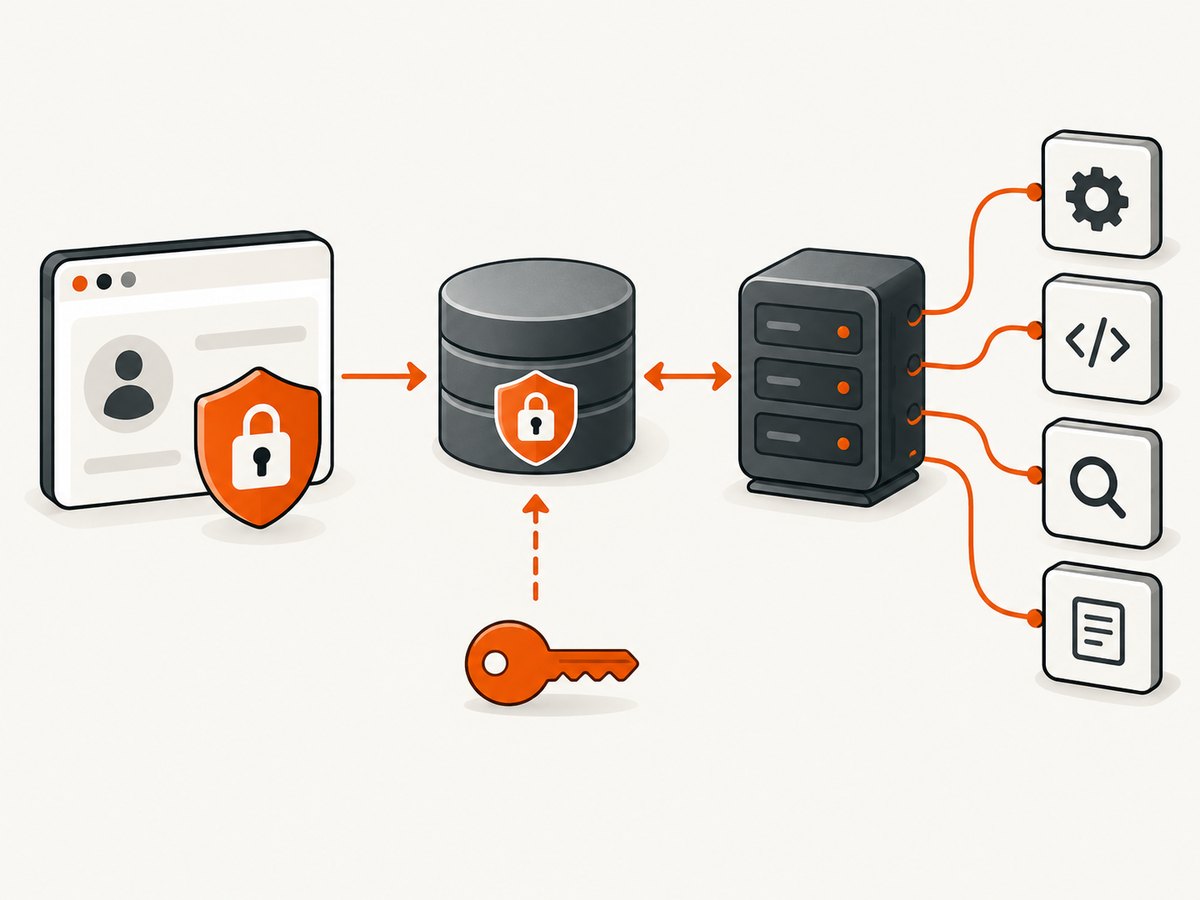
Use this route when your MCP client connects to a Docker MCP Gateway profile. The project documents building the image locally, then adding a Gateway server entry that launches the server over stdio. Its entry needs a named volume for encrypted profile state and longLived: true: the browser session is started in one tool call and used by subsequent calls.
git clone https://github.com/s-block/browser-use-mcp.git
cd browser-use-mcp
uv sync --frozen
docker build -t browser-use-mcp:local .
Add a server entry using the structure and exact field names in the project README’s Docker MCP Gateway example. In that entry, choose stdio, use the local image, provide the documented secret references, mount a named data volume, and set the server to remain long-lived. The repository’s entry schema is the source of truth for the precise configuration; do not substitute guessed JSON keys or Docker arguments. Store secrets through Docker MCP Toolkit or Gateway secret storage as the project recommends.
In the MCP client, configure the Gateway as a stdio server using the selected profile. Docker’s documented command pattern is:
docker mcp gateway run --profile my_profileReplace my_profile with the profile name you configured. Profiles group server configurations; the client connects to the profile’s Gateway process. Follow your client’s instructions for registering an stdio server, because the settings screen and configuration-file format differ by client. After it connects, use the client’s server list or status view to check that the Browser Use tools are available, then invoke an appropriate tool. Docker’s guide describes checking client connectivity and invoking an installed server; this article does not claim a build or connection was run.
Keep Gateway state reusable
Persist the named data volume and retain the same storage master key whenever you reuse it. For separate trust boundaries that should not share browser profiles, the project advises using dedicated Gateway profiles, server entries, and data volumes. These are project operational recommendations; they should not be read as an independent security test of a particular deployment.
5. Configure security and network access
For a service reachable from other machines, bearer authentication protects access but does not encrypt traffic. The project calls for TLS termination at a trusted reverse proxy, a private container or host network, and BROWSER_USE_MCP_TLS_TERMINATED=true when binding to a non-loopback address. Keep the container off the public-facing network and expose the proxy instead.
Pay particular attention to where browser traffic originates. The README warns that Docker MCP Gateway’s allowHosts policy applies to traffic from the MCP container, not requests made by remote Chromium. If the browser runs through a Steel proxy, that proxy must enforce the public-only destination boundary. A Docker network allowlist alone does not establish that remote browser destinations are safe.
When Gateway network blocking is enabled, allow the configured Steel deployment, its browser WebSocket endpoint, and the model endpoint if semantic actions use one. Configure host patterns to match the hostnames in use. Browser-based clients that send an Origin header may also require an allowed-origin entry. Use narrowly scoped values appropriate to the deployment, and consult the project’s README for all variable names and their current semantics.
6. Troubleshooting
| Symptom | Likely cause | What to check |
|---|---|---|
| Gateway starts, but the browser session does not persist between tools | The server entry is not long-lived, or profile state is not mounted persistently | Set longLived: true as the project requires and confirm the named volume is mounted. |
| Existing profile state cannot be reused | The volume was reused with a different storage master key | Restore the same Base64-encoded 256-bit key used for that volume. Preserve the key securely alongside the deployment’s secret-management records. |
| Container cannot write state | /data is missing, not mounted, or has incompatible ownership or permissions |
Mount the persistent volume at the documented path and review its permissions for the container’s UID 10001. |
| Remote client cannot connect to the HTTP service | The app is not reachable from the proxy network, host/origin settings do not match, or the proxy is not routing to the app | Check that proxy and app share the intended private network, verify the configured bind and proxy upstream, and match allowed host/origin values to the client request. |
| Non-loopback bind fails or remote requests are rejected | TLS termination has not been asserted or the trusted proxy path is missing | Use the documented TLS-terminating reverse-proxy design and set BROWSER_USE_MCP_TLS_TERMINATED=true for the non-loopback bind. |
| Gateway network blocking prevents startup or actions | A required service endpoint is not allowed | Allow the configured Steel deployment, browser WebSocket endpoint, and model endpoint when applicable. Check hostname spelling and the active profile’s policy. |
| Browser traffic reaches a destination the container policy should block | The MCP container’s host allowlist is being mistaken for a restriction on remote Chromium | Enforce the public-only destination boundary at the Steel proxy, as the project instructs. |
| Semantic actions fail while deterministic actions work | The OpenAI-compatible Chat Completions endpoint or credentials are absent or incorrect | Check the configured endpoint, key, and model. Deterministic controls do not call a model; semantic actions need the compatible endpoint. |
| Browser-based client is rejected while another client connects | The browser client sends an origin that is not allowed | Inspect the client’s origin and configure a matching allowed origin where required. |
| Image pull fails | Registry access, image name, or tag is incorrect | Confirm the repository’s current published image and tag instructions, and check that the Docker host can reach GitHub Container Registry. |
For diagnosis, verify one layer at a time: image and container configuration; volume mount and environment-file loading; chosen transport; client-to-server connectivity; then access to Steel and model endpoints. Use the Docker client’s or Desktop’s logs and status displays for evidence. The source material for this guide does not include a hands-on build, run, security test, or client verification, so the steps above describe documented setup and likely checks rather than claimed test results.
7. Performance, reliability, and operating cost
The project documentation identifies the persistence and session behaviors that matter operationally: /data is the required writable path for the HTTP container, while Gateway browser sessions span tool calls and therefore need a long-lived server and persistent encrypted profile state. Plan backups and recovery around the volume and its master key. A volume without its matching key is not a complete recovery plan.
Pinning an immutable sha-<commit> image tag can make deployments reproducible; latest is more convenient but can change as new main-branch builds are published. Keep track of the image tag, environment configuration, profile, volume, and key version together. The dossier gives no benchmark, resource sizing, latency, uptime, or service pricing figure for this server, so sizing should be based on your own workload and backend requirements.
Cost depends on the container host and the configured services, including Steel Cloud when used and an OpenAI-compatible model endpoint for semantic actions. The project source does not establish their prices. Deterministic controls do not call a model according to the README, which can help distinguish which workflows need model configuration and usage from those that do not. Check the providers’ current terms and billing for your deployment.
8. Or skip the browser setup
If your goal is to capture website screenshots rather than operate a browser automation MCP server, ScreenshotNeo offers a website screenshot API and MCP server. A GET request with a URL returns a PNG, JPEG, WebP, or PDF. The API accepts familiar screenshot API parameter names, which can make switching easier. See the ScreenshotNeo API documentation.
curl -G "https://api.screenshotneo.com/v1/shot" -d access_key=YOUR_API_KEY --data-urlencode url=https://stripe.com -o shot.webpimport requests
r = requests.get(
"https://api.screenshotneo.com/v1/shot",
params={"access_key": "YOUR_API_KEY", "url": "https://stripe.com"},
timeout=90,
)
open("shot.webp", "wb").write(r.content)const q = new URLSearchParams({ access_key: 'YOUR_API_KEY', url: 'https://stripe.com' });
const res = await fetch(`https://api.screenshotneo.com/v1/shot?${q}`);
if (!res.ok) throw new Error(`Screenshot request failed: ${res.status}`);
await Bun.write('shot.webp', res);Replace YOUR_API_KEY with your key. These examples use Stripe as the target URL; change it to the page you need. ScreenshotNeo accepts cookie and consent banners before capture and removes 60+ known consent platforms, newsletter popups, and chat widgets; each step can be turned off. Bot checks and CAPTCHAs, blank pages, timeouts, failed loads, and cache hits cost nothing, and response headers indicate the page verdict and whether it was billed. Its MCP server provides take_screenshot, get_page_info, and capture_pdf for Claude, Cursor, and other MCP clients. The Free plan includes 1,000 shots per month with no card; paid plans start at $5 for 3,000 shots. Sign up for ScreenshotNeo’s free plan.
9. FAQ
Can I use the published image with Docker MCP Gateway?
The project’s Gateway instructions specify building locally and configuring the local image over stdio. Follow that documented route for Gateway, and check the current README before adapting it to another image source.
Does running the container mean I need an OpenAI-compatible model?
The project says semantic actions need an OpenAI-compatible Chat Completions endpoint. Deterministic controls do not call a model, so whether you need one depends on which actions you intend to use.
Can I expose the HTTP container directly with a published port?
The documented deployment keeps the app on a private network and publishes the HTTPS reverse proxy instead. For remote access, follow the project’s proxy, TLS, and authentication guidance.
Does Gateway host filtering limit where the remote browser can navigate?
No. The project specifically distinguishes traffic from the MCP container from traffic made by remote Chromium. Enforce the public-only destination boundary at the configured Steel proxy.
Where are all configuration variables documented?
Use the current configuration table in the official project README. It covers transport, storage, authentication, host and origin policy, networking, model settings, and Steel options.


