How to Run a Local MCP Server with Claude
Connect a local MCP server to Claude Code over stdio. Configure scope and credentials, verify the connection, and fix common startup problems.

To run a local MCP server with Claude Code, register its launch command as a stdio server: claude mcp add <name> [Claude options] -- <command> [server arguments]. Claude starts the command as a local process and communicates with it over standard input and output. For example, if a server’s documentation tells you to launch it with npx and an API key, run:
claude mcp add example --env API_KEY=your-key -- npx -y @example/mcp-serverReplace the package, arguments, and environment variable with the server provider’s actual instructions. Then check the connection with claude mcp list or /mcp inside Claude Code. Adding a server writes configuration; it does not by itself prove that the process starts or that a project server has been approved. [Anthropic’s Claude Code MCP guide]
This walkthrough covers local stdio servers. A remote MCP server is configured using a server URL and transport details supplied by its provider; it is not made local by running a URL through the stdio command form. MCP is an open standard for connecting AI applications to tools and other systems, including local files, databases, and workflows. [MCP introduction]
1. Install Claude Code and open your project
Install Claude Code by following Anthropic’s current instructions for your operating system. Open a terminal in the project directory where you want to use the server and run:
claudeComplete Claude Code authentication if prompted. Claude Code needs an internet connection for its authentication and AI processing; the MCP server itself can be a process on your machine. Installation requirements and steps can change, so use the current Claude Code setup guide for your platform.
2. Get the server’s launch instructions
Before configuring Claude, identify the exact executable, arguments, and environment variables the server requires. Use the server provider’s documentation or the command you use to start that server manually. Common launchers include:
npxfor a Node.js package, often with-yto run the named package without an interactive install confirmation.uvxfor a Python package when the server’s instructions specify it.- A direct executable path for an installed binary or a script you control.
These are examples of launcher types, not interchangeable commands. Use the one the server supports, along with its documented package name and options. If it requires credentials, learn the exact environment variable name; do not guess from another server’s configuration.
3. Add the server as a local stdio process
The general Claude Code command is:
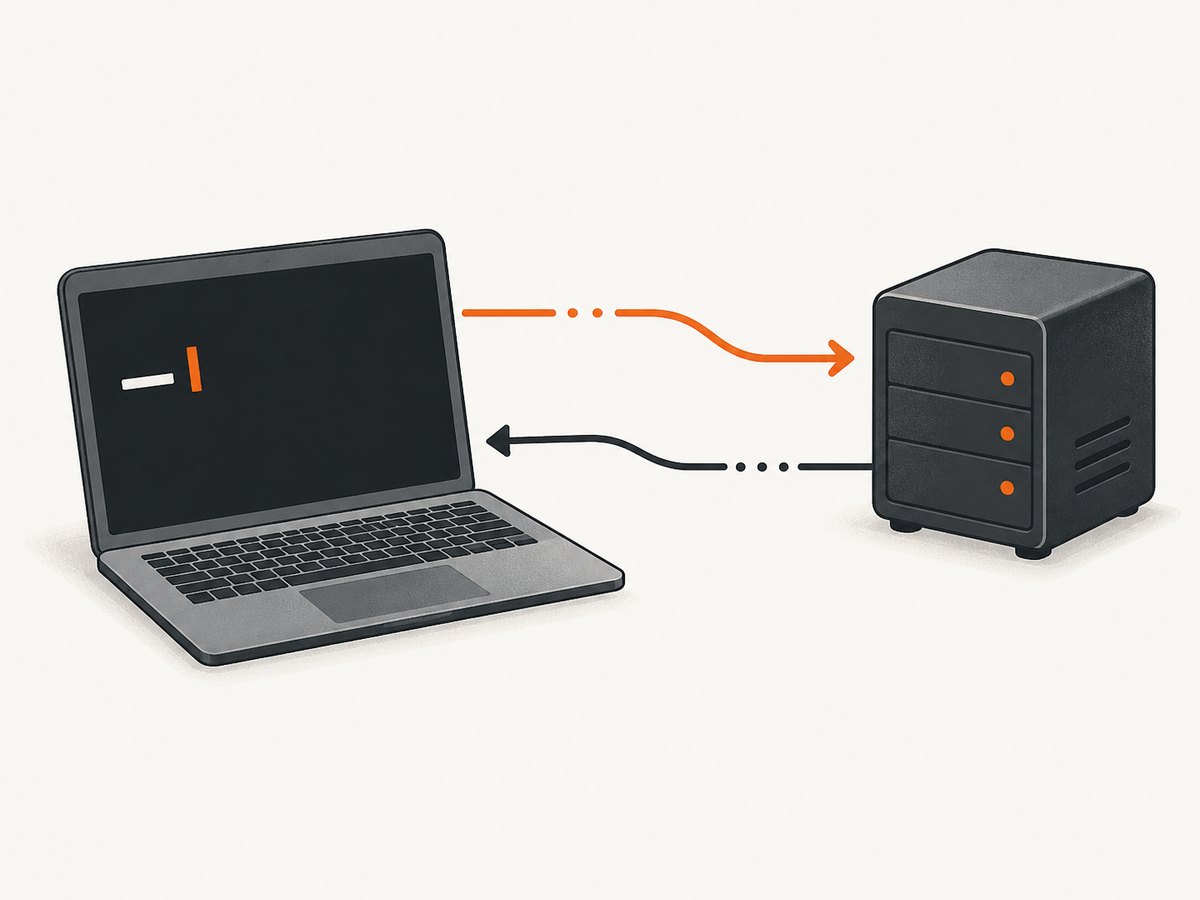
claude mcp add <name> [options] -- <command> [args...]The -- separator matters: Claude Code options go before it; the server executable and every server argument go after it. For instance, this example passes API_KEY to the server’s environment and launches an illustrative npm package:
claude mcp add example --env API_KEY=your-key -- npx -y @example/mcp-serverHere, example is the name Claude Code will use for the configuration. --env API_KEY=your-key is a Claude Code option that supplies an environment variable. Everything after -- is the process launch command. Follow the server’s instructions if it needs multiple environment variables or additional arguments.
For example, if a provider documents a Python launcher, preserve its command and arguments after the separator:
claude mcp add my-python-tool --env SERVICE_TOKEN=your-token -- uvx documented-packagedocumented-package and SERVICE_TOKEN above are placeholders. Substitute real values from the provider’s instructions. The command is useful as a pattern, not as a claim that a particular package exists.
4. Choose who can use the configuration
Claude Code supports three scopes. Choose one based on where you want the server definition to be available:
| Scope | Where it applies | Use it when |
|---|---|---|
local |
Private to the current project for your user | You need a project-specific setup that should not be shared through the repository. |
project |
Shared through a project-root .mcp.json |
Teammates should be able to review and approve a common server definition. |
user |
Available across your projects | You want a personal server configuration reused in multiple repositories. |
The default is local scope. To choose another scope, add --scope before --:
claude mcp add --scope user example --env API_KEY=your-key -- npx -y @example/mcp-server
claude mcp add --scope project example --env API_KEY=your-key -- npx -y @example/mcp-server
These commands show the scope flag placement; use the server’s real launch command and credentials. Anthropic documents precedence as local, then project, then user when definitions collide. Check which definition is active if a server behaves differently across projects. Project scope creates configuration teammates may review, so inspect its command, arguments, and environment before approving or sharing it. [Scope and configuration details]
5. Verify the process and approve project configuration
After adding the server, inspect its status:
claude mcp list
claude mcp get example
Use the name you registered instead of example. You can also start an interactive Claude Code session and enter:
/mcpLook for a healthy connection and the tools the server provides. If a project-scoped server is pending approval, open Claude Code in the trusted project workspace and review and approve it there. An “Added” message means the configuration was recorded, not that the server is healthy. If Claude cannot connect, continue to the troubleshooting section below.
6. Configure environment variables without committing secrets
For a private setup, local scope can keep the definition out of the team’s shared project configuration. When using project scope, take care not to commit real credentials in .mcp.json. Use an environment variable or another secret-handling method supported by your setup, and review exactly what the server receives.
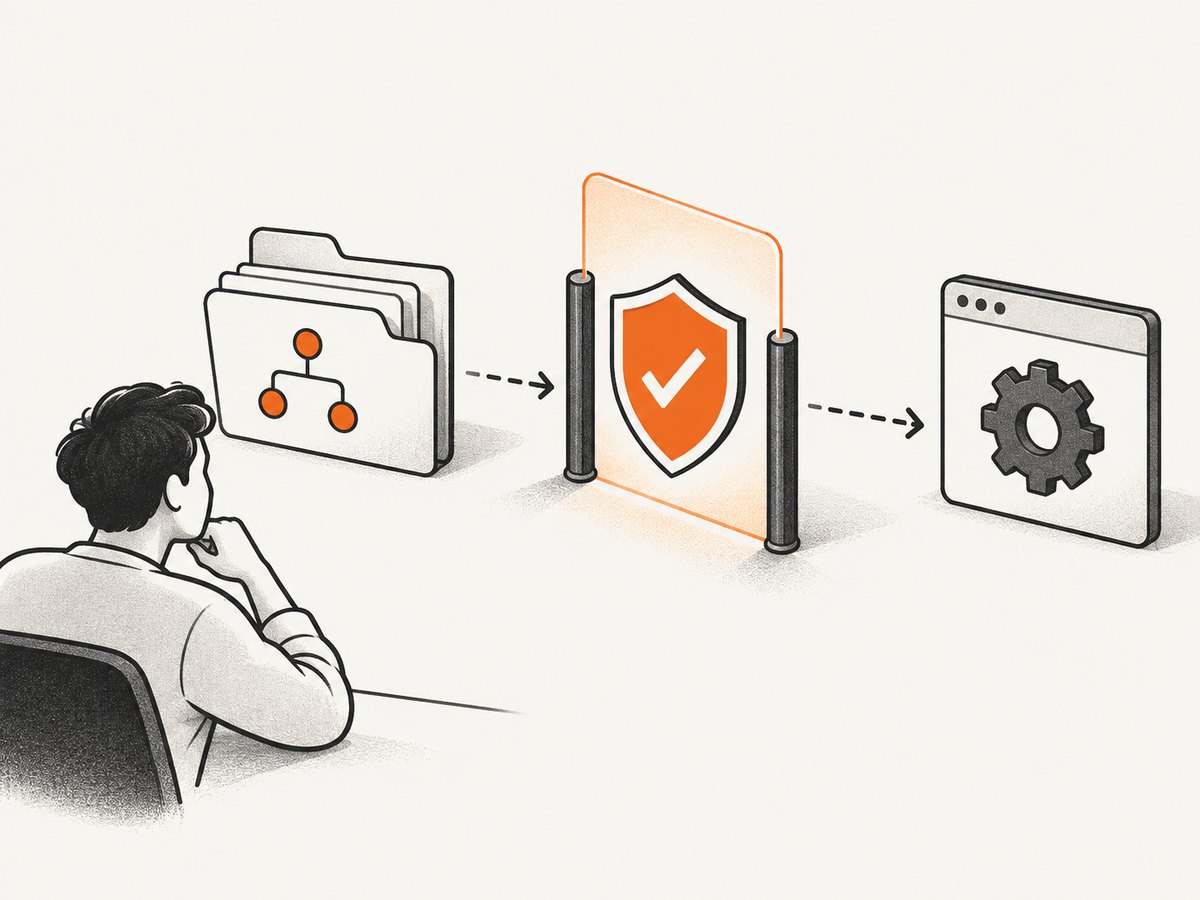
Claude Code supports ${VAR} and ${VAR:-default} expansion in fields including command, arguments, environment, URL, and headers in .mcp.json. A missing variable without a default can remain unresolved and produce a warning. Set the variable in the environment where Claude Code runs or use an appropriate default where one is safe. Avoid putting actual secrets in a default that will be committed. Claude Code also prevents some of its own and provider credential variables from being forwarded into remote server URL or header fields; do not assume that every credential automatically expands there. [Environment variable guidance]
7. Use native Windows or WSL correctly
On native Windows, Anthropic’s MCP instructions show wrapping an npx launch with cmd /c:
claude mcp add my-server -- cmd /c npx -y @some/packageReplace @some/package with the actual server package. Windows shell and path behavior differs from macOS and Linux, so follow the current platform instructions for the environment where Claude Code is installed. WSL is another supported way to run Claude Code; when using it, keep the CLI, executable, and paths in the same environment unless the server documentation says otherwise. [Windows MCP command example, Platform setup]
8. Troubleshoot common connection problems
| Symptom | Likely cause | What to check or fix |
|---|---|---|
| Server appears in configuration but is disconnected | The executable, package, or arguments do not launch successfully. | Run the documented launch command manually in the same environment. Recheck spelling, paths, package name, and required arguments. |
| Server starts manually but Claude Code cannot start it | The command depends on a different PATH, shell, or environment. | Use an executable available to the process Claude Code launches. For native Windows, follow the documented cmd /c wrapping pattern for npx. |
| Authentication or missing-key error | The required variable was omitted, misspelled, or unavailable in the environment. | Compare the variable name with the server docs; pass it with --env NAME=value or configure the documented environment expansion. |
| Project server says pending approval | Project configuration has not been approved in this workspace. | Review the command, arguments, and environment in the project configuration, then approve it from Claude Code only if you trust it. |
| Warning about an unresolved variable | A referenced ${VAR} has no value and no fallback. |
Set the variable in the Claude Code process environment or use a suitable ${VAR:-default} expression. |
| Server times out while starting | Startup takes longer than the configured timeout. | First confirm the process is making progress and not waiting for input. Anthropic documents MCP_TIMEOUT for extending startup timeout; its example sets it to 10000 milliseconds. |
| Wrong server definition seems active | Definitions with the same name exist at more than one scope. | Review local, project, and user entries with claude mcp list and claude mcp get <name>; remember local takes precedence over project, which takes precedence over user. |
If the process launches but tools still fail during use, distinguish a transport connection problem from a server-side error. Check the server’s own logs and instructions, confirm its external service credentials and network requirements, and retry the smallest supported operation. Claude Code’s own authentication and AI processing still require internet access even when the MCP process is local.
9. Security, reliability, and cost considerations
Trust the process you launch
A stdio server is an executable process running with the permissions of the account that launches it. Use software you wrote or obtained from a provider you trust. Review package names and command arguments carefully; a project configuration can ask teammates to run a command when they approve it. Anthropic recommends configuring permissions for MCP servers and says it does not audit or operate them. [Claude Code security guidance]
Plan for process startup and external dependencies
A local process can still rely on an external API, package registry, or network resource. Its availability depends on the local runtime, dependencies, credentials, and any remote services it calls. If a server is slow to initialize, diagnose the actual wait before increasing the timeout; a longer timeout does not repair a missing executable, bad credential, or blocked network request. Keep the server’s documented launch command reproducible and avoid relying on shell state that Claude Code will not inherit.
Understand the costs
Claude Code usage and any external service used by an MCP server can have separate costs under their respective providers’ terms. The cited MCP setup documentation does not establish a universal price for local servers or their dependencies. Review the server provider’s pricing and any API usage it triggers, especially before enabling tools that perform repeated or bulk operations.
Or skip the browser setup
If your Claude workflow needs website screenshots, you can connect ScreenshotNeo’s MCP server to an MCP client such as Claude. ScreenshotNeo is a website screenshot API and MCP server from ScreenshotNeo. Its documentation has the server setup details. For a direct API request, the one-call form is:
curl -G "https://api.screenshotneo.com/v1/shot" -d access_key=YOUR_API_KEY --data-urlencode url=https://stripe.com -o shot.webpScreenshotNeo accepts cookie and consent banners like a visitor before capture, then removes more than 60 known consent platforms along with newsletter popups and chat widgets; each step can be turned off. Bot checks and CAPTCHAs, blank pages, timeouts, failed loads, and cache hits cost nothing, and each response identifies the page verdict and billing status in headers. Its MCP server provides take_screenshot, get_page_info, and capture_pdf for Claude, Cursor, and other MCP clients. The free plan includes 1,000 screenshots per month without a card; paid plans start at $5 for 3,000 screenshots. Every feature is on every plan.
Sign up free for 1,000 screenshots a month, with no card required.
FAQ
Does “local MCP server” mean Claude runs offline?
No. It means the MCP server process runs locally and communicates over stdio. Claude Code still requires an internet connection for its authentication and AI processing.
Is claude mcp serve how I add a server to Claude Code?
No. That command exposes Claude Code as an MCP server for another client. To add a third-party local server to Claude Code, use claude mcp add.
Can I use one server across every project?
Use user scope for a personal configuration available across projects. Project scope is for a definition shared through the repository’s .mcp.json, while local scope is private to the current project.
What should I do if a server offers a URL instead of a command?
Follow the provider’s remote-server instructions. A URL represents a remote connection configuration, whereas this guide’s command-and-arguments pattern registers a local stdio process.


