BlogScreenshots on your device
How to Save a Java JFrame as a JPG, PNG, or BMP Image
Export a Swing JFrame as PNG, JPG, or BMP by painting it into a BufferedImage, or capture its visible screen pixels with Robot.
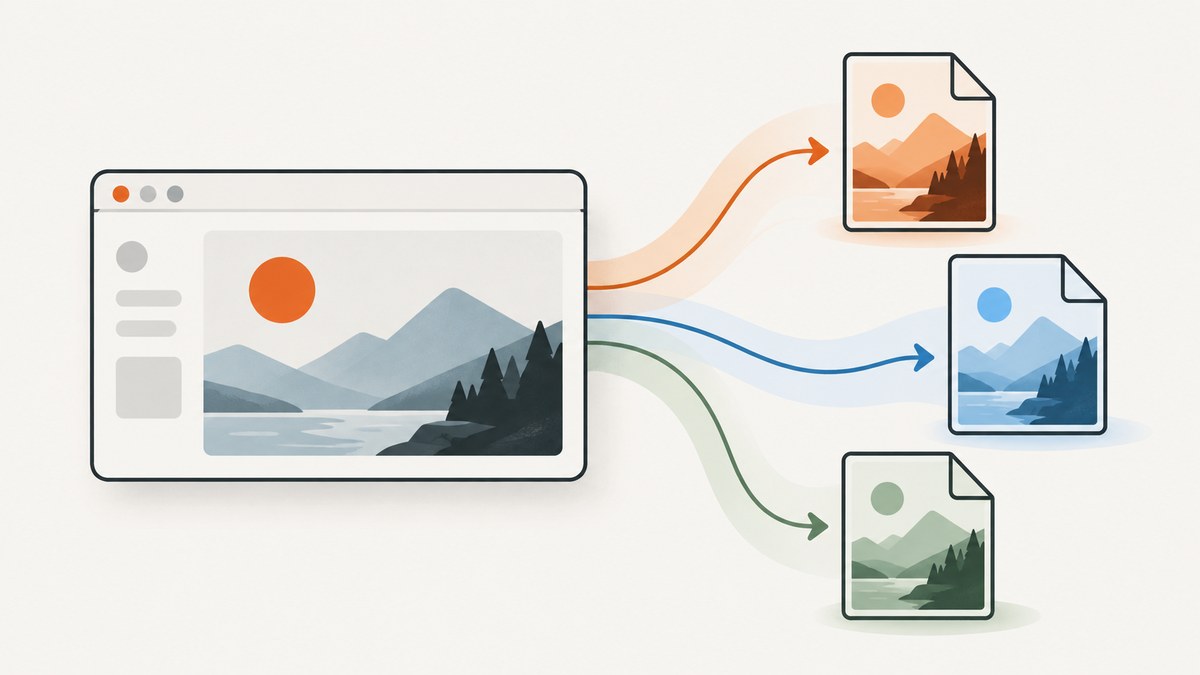
Direct answer: for a reliable export of Swing-rendered content, paint the sized component into a BufferedImage and write it with ImageIO.write. Use java.awt.Robot when you need the pixels currently visible on the desktop, including the native window border, title bar, scaling, and other display effects.
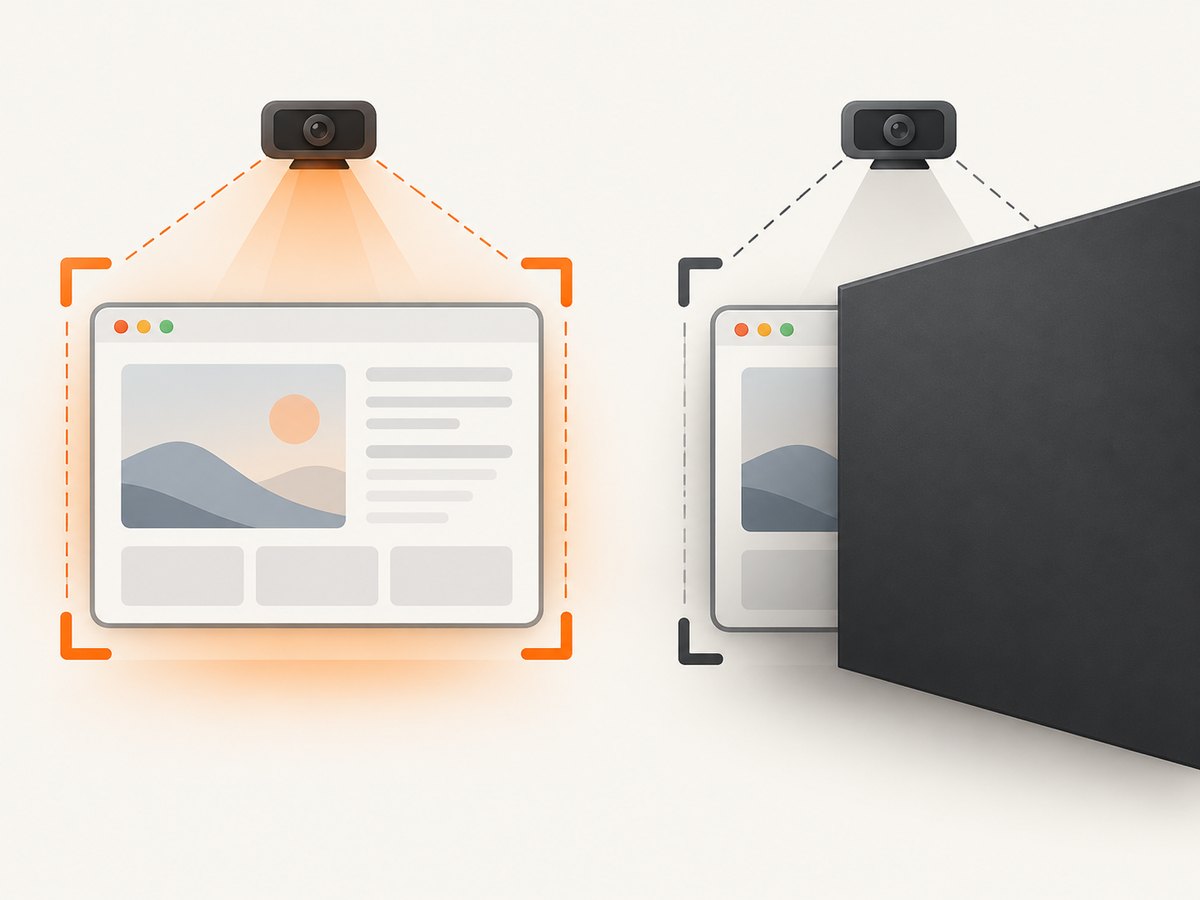
These are different operations. Off-screen painting is portable and does not require screen-capture permissions. A Robot capture represents what is on the display and therefore requires a visible, unobstructed window.
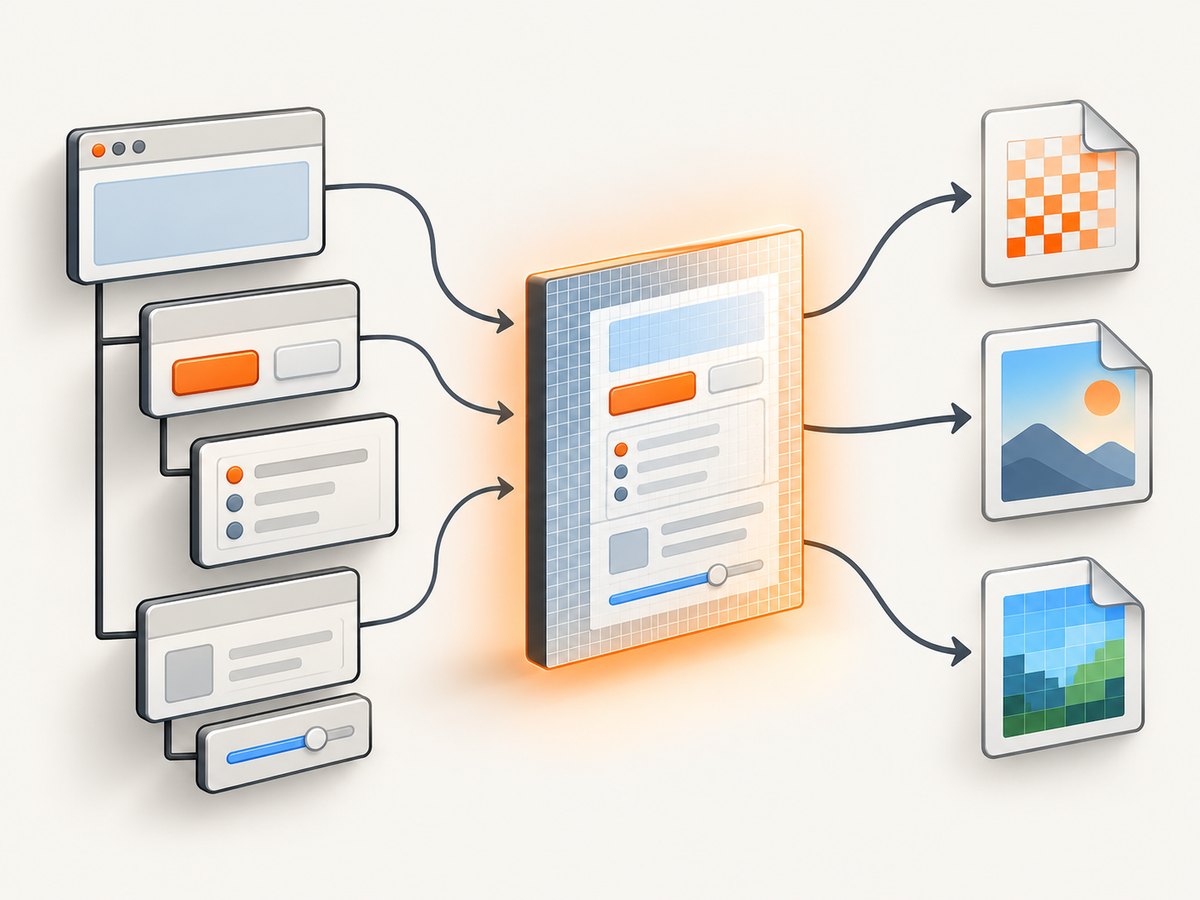
1. Export Swing content with BufferedImage
The usual target is the frame’s content pane. This excludes the operating-system title bar and border. Paint only after the component has been laid out and has a non-zero size.
import java.awt.Graphics2D;
import java.awt.image.BufferedImage;
import java.io.File;
import java.io.IOException;
import javax.imageio.ImageIO;
import javax.swing.JComponent;

public final class SwingImageExport {
    private SwingImageExport() {}

    public static void saveComponent(JComponent component,
                                     File output,
                                     String format) throws IOException {
        int width = component.getWidth();
        int height = component.getHeight();
        if (width <= 0 || height <= 0) {
            throw new IllegalStateException("Component has no size yet");
        }

        BufferedImage image = new BufferedImage(
                width, height, BufferedImage.TYPE_INT_ARGB);
        Graphics2D graphics = image.createGraphics();
        try {
            component.paintAll(graphics);
        } finally {
            graphics.dispose();
        }

        if (!ImageIO.write(image, format, output)) {
            throw new IOException("No ImageIO writer for format: " + format);
        }
    }
}
JComponent.paintAll(Graphics) paints the component and its subcomponents. See the Component API and ImageIO API.
Complete runnable example
import java.awt.Color;
import java.awt.Dimension;
import java.io.File;
import javax.imageio.ImageIO;
import javax.swing.BorderFactory;
import javax.swing.JFrame;
import javax.swing.JLabel;
import javax.swing.JPanel;
import javax.swing.SwingConstants;
import javax.swing.SwingUtilities;

public class SaveJFrameExample {
    public static void main(String[] args) {
        SwingUtilities.invokeLater(() -> {
            JFrame frame = new JFrame("Export example");
            frame.setDefaultCloseOperation(JFrame.DISPOSE_ON_CLOSE);

            JPanel content = new JPanel();
            content.setPreferredSize(new Dimension(900, 500));
            content.setBackground(new Color(28, 33, 45));
            JLabel label = new JLabel("Rendered by Swing", SwingConstants.CENTER);
            label.setForeground(Color.WHITE);
            label.setBorder(BorderFactory.createEmptyBorder(20, 20, 20, 20));
            content.add(label);
            frame.setContentPane(content);
            frame.pack();
            frame.setLocationByPlatform(true);

            // Layout and sizing are complete after pack().
            try {
                SwingImageExport.saveComponent(content,
                        new File("frame.png"), "png");
                System.out.println("Wrote frame.png");
            } catch (Exception e) {
                e.printStackTrace();
            } finally {
                frame.dispose();
            }
        });
    }

    static final class SwingImageExport {
        static void saveComponent(javax.swing.JComponent component,
                                  File output, String format)
                throws java.io.IOException {
            int width = component.getWidth();
            int height = component.getHeight();
            if (width <= 0 || height <= 0) {
                throw new IllegalStateException("Component has no size yet");
            }
            java.awt.image.BufferedImage image =
                    new java.awt.image.BufferedImage(width, height,
                            java.awt.image.BufferedImage.TYPE_INT_ARGB);
            java.awt.Graphics2D g = image.createGraphics();
            try {
                component.paintAll(g);
            } finally {
                g.dispose();
            }
            if (!javax.imageio.ImageIO.write(image, format, output)) {
                throw new java.io.IOException("No ImageIO writer for format: " + format);
            }
        }
    }
}
2. Save as PNG
PNG preserves the alpha channel when you use TYPE_INT_ARGB. Transparent pixels remain transparent if the component paints them that way. For a normal opaque Swing panel, the output will have that panel’s background.
saveComponent(frame.getContentPane(), new File("frame.png"), "png");3. Save as JPG or JPEG
JPEG has no alpha channel. A direct write of an ARGB image can produce an unwanted result or fail with some writers, so first draw onto an RGB image with an explicit background.
import java.awt.Color;
import java.awt.Graphics2D;
import java.awt.image.BufferedImage;
import java.io.File;
import java.io.IOException;
import javax.imageio.ImageIO;
import javax.swing.JComponent;

static void saveAsJpeg(JComponent component, File output,
                       Color background, float quality) throws IOException {
    int width = component.getWidth();
    int height = component.getHeight();
    if (width <= 0 || height <= 0) {
        throw new IllegalStateException("Component has no size yet");
    }

    BufferedImage rgb = new BufferedImage(width, height,
            BufferedImage.TYPE_INT_RGB);
    Graphics2D g = rgb.createGraphics();
    try {
        g.setColor(background);
        g.fillRect(0, 0, width, height);
        component.paintAll(g);
    } finally {
        g.dispose();
    }

    if (!ImageIO.write(rgb, "jpg", output)) {
        throw new IOException("No JPEG ImageIO writer");
    }
}
The standard ImageIO.write convenience method uses the installed JPEG writer’s default compression. If you need an explicit quality value, obtain an ImageWriter and set ImageWriteParam.setCompressionQuality:
import java.awt.Color;
import java.awt.Graphics2D;
import java.awt.image.BufferedImage;
import java.io.File;
import java.io.IOException;
import javax.imageio.IIOImage;
import javax.imageio.ImageIO;
import javax.imageio.ImageWriteParam;
import javax.imageio.ImageWriter;
import javax.imageio.stream.ImageOutputStream;

static void writeJpeg(BufferedImage source, File output, float quality)
        throws IOException {
    if (quality < 0f || quality > 1f) {
        throw new IllegalArgumentException("quality must be between 0 and 1");
    }
    BufferedImage rgb = new BufferedImage(source.getWidth(), source.getHeight(),
            BufferedImage.TYPE_INT_RGB);
    Graphics2D g = rgb.createGraphics();
    try {
        g.setColor(Color.WHITE);
        g.fillRect(0, 0, rgb.getWidth(), rgb.getHeight());
        g.drawImage(source, 0, 0, null);
    } finally {
        g.dispose();
    }

    ImageWriter writer = ImageIO.getImageWritersByFormatName("jpg").next();
    try (ImageOutputStream out = ImageIO.createImageOutputStream(output)) {
        writer.setOutput(out);
        ImageWriteParam params = writer.getDefaultWriteParam();
        if (params.canWriteCompressed()) {
            params.setCompressionMode(ImageWriteParam.MODE_EXPLICIT);
            params.setCompressionQuality(quality);
        }
        writer.write(null, new IIOImage(rgb, null, null), params);
    } finally {
        writer.dispose();
    }
}
4. Save as BMP
Use the same component-painting method with the bmp format:
saveComponent(frame.getContentPane(), new File("frame.bmp"), "bmp");Before writing, check that a BMP writer is available. ImageIO writers can vary with the Java runtime and installed plugins.
if (!ImageIO.getImageWritersByFormatName("bmp").hasNext()) {
    throw new IOException("This runtime has no BMP ImageIO writer");
}
5. Capture the visible JFrame with Robot
Use Robot when the requirement is a screenshot of the desktop pixels. Make the frame visible, obtain its screen bounds, and capture that rectangle. This includes the frame decoration when the bounds come from the top-level window.
import java.awt.Rectangle;
import java.awt.Robot;
import java.awt.image.BufferedImage;
import java.io.File;
import javax.imageio.ImageIO;
import javax.swing.JFrame;
import javax.swing.SwingUtilities;

static void captureVisibleFrame(JFrame frame, File output, String format)
        throws Exception {
    if (!frame.isShowing()) {
        throw new IllegalStateException("Frame must be visible");
    }
    Rectangle bounds = frame.getBounds();
    Robot robot = new Robot(frame.getGraphicsConfiguration().getDevice());
    BufferedImage screenshot = robot.createScreenCapture(bounds);
    if (!ImageIO.write(screenshot, format, output)) {
        throw new java.io.IOException("No ImageIO writer for format: " + format);
    }
}
For only the content area, convert its local origin to screen coordinates:
java.awt.Point location = frame.getContentPane().getLocationOnScreen();
java.awt.Dimension size = frame.getContentPane().getSize();
Rectangle contentBounds = new Rectangle(location,
        new java.awt.Dimension(size));
BufferedImage image = new Robot().createScreenCapture(contentBounds);
ImageIO.write(image, "png", new File("visible-content.png"));
Robot can fail in headless environments, on locked displays, or when the operating system blocks screen recording. It also captures whatever overlaps the rectangle. Off-screen painting avoids those conditions.
6. Choosing the right method
| Requirement | Use | Result |
|---|---|---|
| Export Swing controls and content | paintAll into BufferedImage |
Portable rendering of the component hierarchy |
| Include title bar and native borders | Robot with frame.getBounds() |
Visible desktop pixels |
| Need transparency | ARGB image and PNG | Alpha preserved |
| Small photos or compatibility with JPEG consumers | RGB image and JPG | No alpha; lossy compression |
| Simple uncompressed bitmap exchange | BMP writer | Large files; writer availability varies |
7. Rendering, sizing, and threading details
- Size first: call
pack()or set an explicit size, then verifygetWidth()andgetHeight(). - Use the EDT: create and update Swing components on the Event Dispatch Thread. A long image write can be moved to a worker after painting if the UI must remain responsive.
- Paint the correct component: use
frame.getContentPane()for application content, or the frame itself when you intentionally want the top-level component. - High-DPI displays: off-screen painting uses the dimensions you provide. Robot captures physical screen pixels, which may differ from logical window coordinates under display scaling.
- Repaint before export: call
revalidate()andrepaint(), then export after pending UI updates have run. - Custom painting: keep drawing in
paintComponentand callsuper.paintComponent(g)where appropriate so backgrounds and repaints behave predictably.
8. Troubleshooting
| Symptom | Cause | Fix |
|---|---|---|
| Image is 0×0 or blank | The component was never sized or laid out | Call pack() or set bounds, then export after layout. |
| Only part of the UI appears | The wrong component or size was captured | Paint the intended parent component and inspect its dimensions. |
| JPG has black or unexpected transparent areas | JPEG cannot store alpha | Paint onto TYPE_INT_RGB with a chosen background. |
Can't get X11 window or headless error |
Robot requires a usable display | Use off-screen painting, or run with a configured desktop session. |
| Robot image contains another window | The target was covered on screen | Bring the frame forward, hide overlays, or use off-screen painting. |
| BMP write returns false | No BMP writer is installed | Check ImageIO.getImageWritersByFormatName("bmp") and add a compatible ImageIO plugin if permitted. |
| Text or animations differ between runs | Capture occurred while state was changing | Set deterministic state, stop timers, and capture on a stable EDT state. |
| Native decorations are missing | You painted the content pane | Use Robot for the visible top-level window, or accept a content-only export. |
9. Performance, reliability, and file size
Memory use is approximately width × height × 4 bytes for an ARGB image, before encoder buffers. A 4,000 × 3,000 image therefore needs about 48 MB for its pixel buffer. Reuse dimensions that fit the requirement, dispose graphics promptly, and write large images away from the EDT.
PNG is lossless and often best for interfaces, text, and transparency. JPEG is smaller for photographic content but introduces loss and removes alpha. BMP is straightforward but usually much larger. Check the boolean result from ImageIO.write and treat a missing writer as an error rather than assuming the file was created.
10. Or skip the browser setup
If the source is a web page rather than a local Swing window, ScreenshotNeo returns a screenshot with one GET request. See the ScreenshotNeo API documentation for all parameters.
cURL
curl -G "https://api.screenshotneo.com/v1/shot" -d access_key=YOUR_API_KEY --data-urlencode url=https://stripe.com -o shot.webpPython
import requests
r = requests.get("https://api.screenshotneo.com/v1/shot", params={"access_key": "YOUR_API_KEY", "url": "https://stripe.com"}, timeout=90)
open("shot.webp", "wb").write(r.content)
Node.js
const q = new URLSearchParams({ access_key: 'YOUR_API_KEY', url: 'https://stripe.com' });
const res = await fetch(`https://api.screenshotneo.com/v1/shot?${q}`);
Cookie banners, newsletter popups, and chat widgets are removed before the shot. Bot checks, blank pages, failed loads, timeouts, and cache hits are never billed, and the response identifies the result with X-Page-Verdict and X-Billed headers. ScreenshotNeo also provides an MCP server so AI agents can take screenshots. The Free plan includes 1,000 screenshots a month with no card; paid plans start at $5 for 3,000 shots.
Create a free ScreenshotNeo account and start with the 1,000 monthly shots.
11. FAQ
Can I save the JFrame itself without showing it?
Yes, when you only need Swing-rendered content: size the component, then paint it into a BufferedImage. Robot requires a visible desktop window.
Which format should I choose for UI screenshots?
Choose PNG for crisp text and transparency, JPG when a smaller lossy file is acceptable, and BMP when a consumer specifically requires BMP.
Why is my screenshot missing the title bar?
The content pane excludes native decorations. Capture the frame’s screen bounds with Robot when the title bar and border are required.
Does ImageIO always support BMP?
Do not assume it. Check for a BMP writer at runtime and handle a missing writer explicitly.


