BlogScreenshots on your device
How to Save JFrame Content as a PNG in Java
Capture a visible JFrame with Robot, save it with ImageIO, and handle client bounds, EDT safety, headless mode, DPI, and failures.
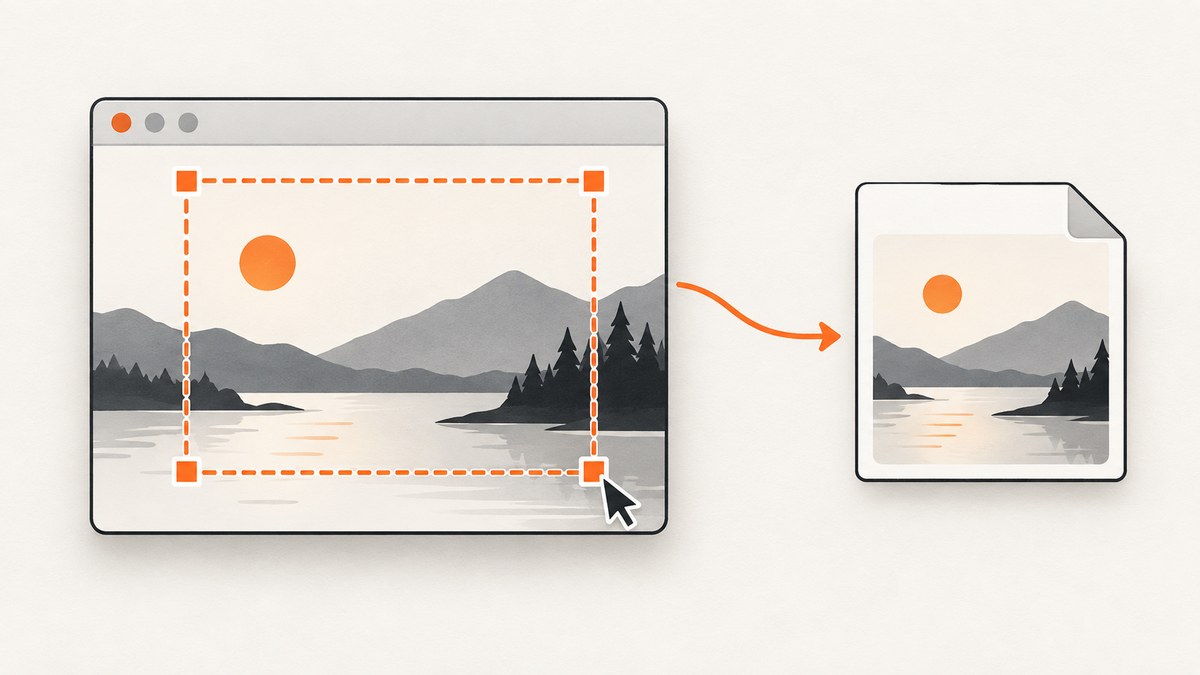
To save a visible JFrame as a PNG, capture its screen bounds with java.awt.Robot, then encode the returned BufferedImage with javax.imageio.ImageIO. Run the capture and file write on a worker thread rather than Swing’s event dispatch thread (EDT).
Rectangle bounds = frame.getBounds();
BufferedImage image = new Robot().createScreenCapture(bounds);
boolean written = ImageIO.write(image, "png", new File("frame.png"));
if (!written) {
    throw new IOException("No PNG writer is available");
}
Robot.createScreenCapture samples pixels from the desktop. It needs a visible graphical environment, a positive-size rectangle in screen coordinates, and appropriate desktop permissions. This is different from rendering Swing components into an off-screen image.
1. Capture a visible JFrame and write frame.png
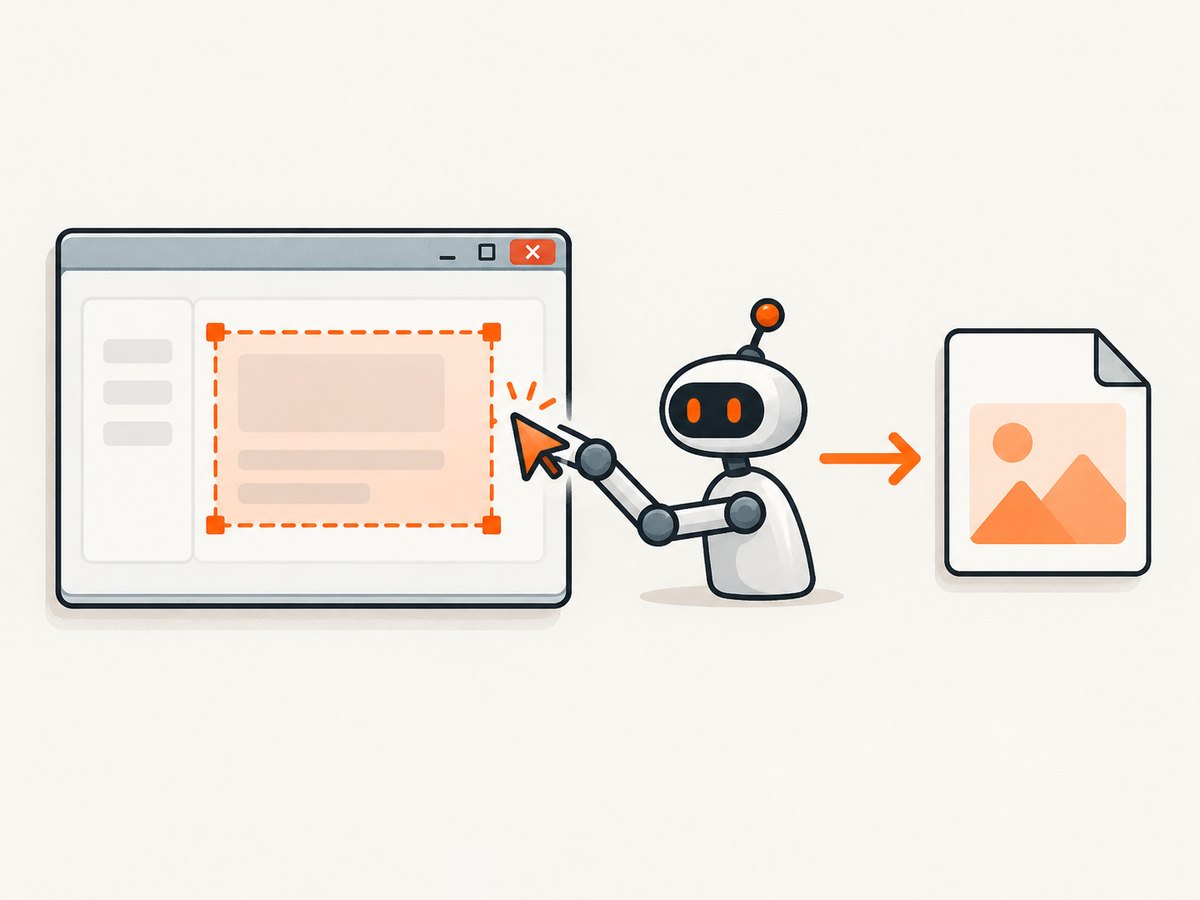
The following complete program creates a window, waits until it is visible, captures the outer frame (including its decorations), and writes frame.png beside the program’s working directory.
import java.awt.AWTException;
import java.awt.EventQueue;
import java.awt.Rectangle;
import java.awt.Robot;
import java.awt.image.BufferedImage;
import java.io.File;
import java.io.IOException;
import javax.imageio.ImageIO;
import javax.swing.JButton;
import javax.swing.JFrame;
import javax.swing.JLabel;
import javax.swing.JPanel;

public final class SaveJFramePng {
    public static void main(String[] args) {
        EventQueue.invokeLater(() -> {
            JFrame frame = new JFrame("PNG capture example");
            JPanel panel = new JPanel();
            panel.add(new JLabel("This visible window will be captured."));
            panel.add(new JButton("Save later"));
            frame.setContentPane(panel);
            frame.setDefaultCloseOperation(JFrame.EXIT_ON_CLOSE);
            frame.pack();
            frame.setLocationByPlatform(true);
            frame.setVisible(true);

            // Start only after the window has been laid out and shown.
            Thread captureThread = new Thread(() -> {
                try {
                    // Read the bounds while coordinating with Swing's EDT.
                    Rectangle bounds = frame.getBounds();
                    if (bounds.width <= 0 || bounds.height <= 0) {
                        throw new IOException("The JFrame has no positive-size bounds");
                    }

                    Robot robot = new Robot();
                    BufferedImage image = robot.createScreenCapture(bounds);
                    boolean written = ImageIO.write(image, "png", new File("frame.png"));
                    if (!written) {
                        throw new IOException("No PNG writer is available");
                    }

                    EventQueue.invokeLater(() ->
                        frame.setTitle("Saved frame.png"));
                } catch (AWTException | IOException | SecurityException ex) {
                    ex.printStackTrace();
                }
            }, "jframe-capture");
            captureThread.start();
        });
    }
}
Compile and run it with:
javac SaveJFramePng.java
java SaveJFramePng
The frame must remain visible while the capture occurs. If another window covers part of it, the covered pixels may appear in the result because the operation reads the desktop, not the component hierarchy.
2. Capture only the JFrame client area
JFrame.getBounds() includes the outer window area. If you want the Swing client area without the title bar and borders, obtain the content pane’s location and size in screen coordinates:
import java.awt.Point;
import java.awt.Rectangle;
import java.awt.Window;
import javax.swing.JComponent;

JComponent content = (JComponent) frame.getContentPane();
Point location = content.getLocationOnScreen();
Rectangle clientBounds = new Rectangle(
    location.x,
    location.y,
    content.getWidth(),
    content.getHeight()
);
BufferedImage image = new Robot().createScreenCapture(clientBounds);
Call getLocationOnScreen() only after the frame is showing. A frame’s decorations are supplied by the look and feel and window manager, so their exact appearance varies by platform. The content pane is the container where normal child components are placed; see the JFrame API.
3. Keep capture work off the EDT
Swing event handlers run on the EDT. Screen capture and PNG encoding can take long enough to freeze painting and input, so schedule the capture on an executor or worker thread. Keep UI changes on the EDT.
import java.awt.EventQueue;
import java.awt.Rectangle;
import java.awt.Robot;
import java.awt.image.BufferedImage;
import java.io.File;
import java.util.concurrent.ExecutorService;
import java.util.concurrent.Executors;
import javax.imageio.ImageIO;

ExecutorService executor = Executors.newSingleThreadExecutor();
executor.submit(() -> {
    try {
        Rectangle bounds = frame.getBounds();
        BufferedImage image = new Robot().createScreenCapture(bounds);
        if (!ImageIO.write(image, "png", new File("frame.png"))) {
            throw new IllegalStateException("No PNG writer is available");
        }
        EventQueue.invokeLater(() -> statusLabel.setText("Saved"));
    } catch (Exception failure) {
        EventQueue.invokeLater(() -> statusLabel.setText(failure.getMessage()));
    }
});

// Shut this down when the application exits.
executor.shutdown();
Read geometry after layout has completed. If your application changes size, position, or content immediately before capture, perform that UI change on the EDT, then submit the capture after the event returns.
4. Render a Swing component without capturing the desktop
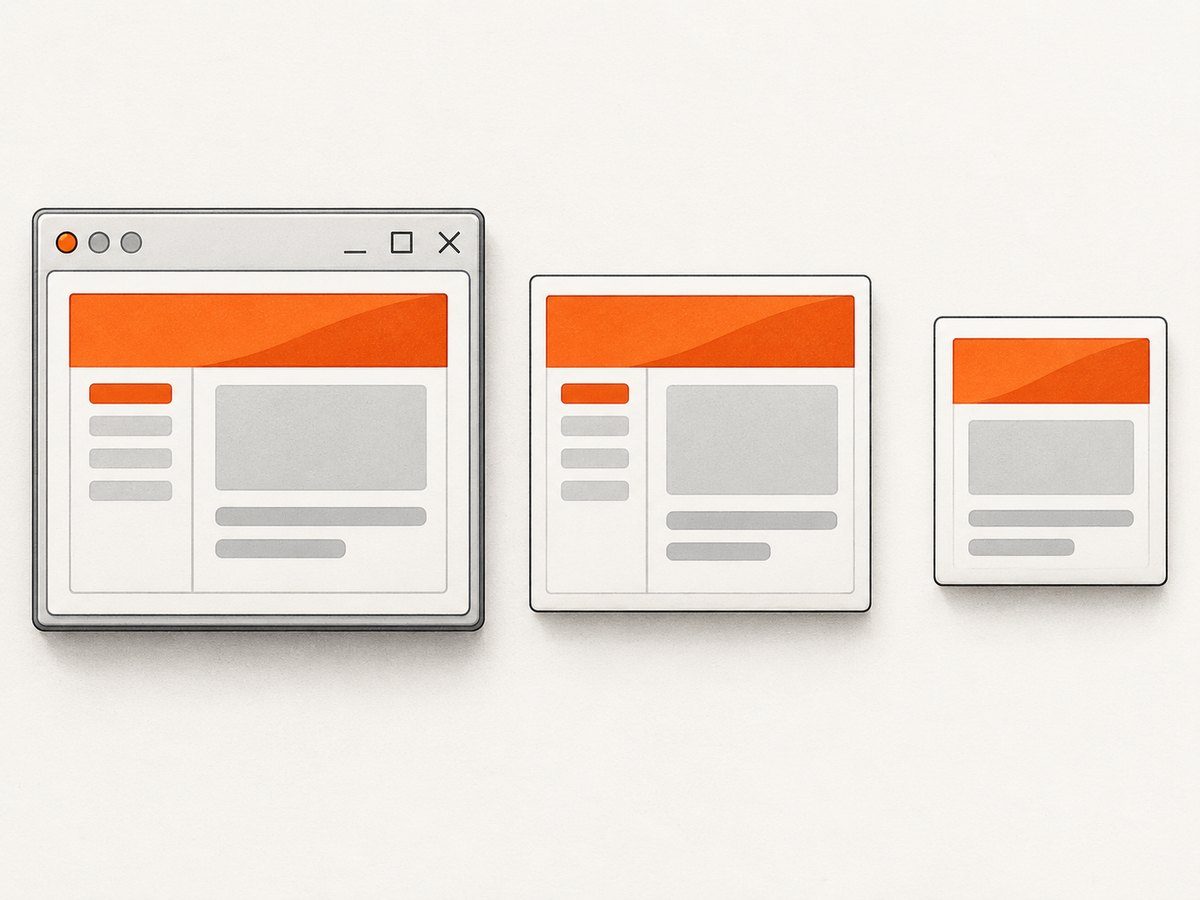
Use off-screen painting when the window may be covered, should not be shown, or must run without a display. This produces an image of Swing painting, not a screenshot of operating-system pixels. It does not include title-bar decorations and should be verified for custom painting and heavyweight or native components.
import java.awt.Dimension;
import java.awt.Graphics2D;
import java.awt.RenderingHints;
import java.awt.image.BufferedImage;
import java.io.File;
import java.io.IOException;
import javax.imageio.ImageIO;
import javax.swing.JComponent;

static void saveComponentAsPng(JComponent component, File output)
        throws IOException {
    Dimension preferred = component.getPreferredSize();
    component.setSize(preferred);
    component.doLayout();

    BufferedImage image = new BufferedImage(
        component.getWidth(),
        component.getHeight(),
        BufferedImage.TYPE_INT_ARGB
    );
    Graphics2D graphics = image.createGraphics();
    try {
        graphics.setRenderingHint(
            RenderingHints.KEY_ANTIALIASING,
            RenderingHints.VALUE_ANTIALIAS_ON
        );
        component.printAll(graphics);
    } finally {
        graphics.dispose();
    }

    if (!ImageIO.write(image, "png", output)) {
        throw new IOException("No PNG writer is available");
    }
}
Choose this method when you need a controlled image size or an off-screen workflow. Choose Robot when the requirement is specifically what a person currently sees on the desktop.
5. High-DPI displays and multiple monitors
Robot.createScreenCapture uses screen coordinates. With multiple monitors, the virtual desktop can contain negative coordinates, so do not assume that x and y are positive. Always use the rectangle returned by the frame or content pane.
On Java 9 and later, createMultiResolutionScreenCapture can provide a base image and a native device-resolution variant for scaled displays:
import java.awt.Rectangle;
import java.awt.Robot;
import java.awt.image.BufferedImage;
import java.awt.image.MultiResolutionImage;
import javax.imageio.ImageIO;
import java.io.File;

Rectangle bounds = frame.getBounds();
MultiResolutionImage captures = new Robot()
    .createMultiResolutionScreenCapture(bounds);
BufferedImage image = captures.getResolutionVariant(
    bounds.width * 2.0,
    bounds.height * 2.0
);
if (!ImageIO.write(image, "png", new File("frame-hi-dpi.png"))) {
    throw new IllegalStateException("No PNG writer is available");
}
Select the variant whose pixel dimensions match your output requirement. Logical Swing dimensions and physical screenshot pixels can differ when display scaling is enabled.
6. Error handling and edge cases
| Situation | What happens | Recommended response |
|---|---|---|
| Frame is hidden or not laid out | Bounds can be zero or the capture can contain an unintended state. | Call pack(), position the frame, show it, and capture after painting has occurred. |
| Another window overlaps the frame | Desktop pixels from the covering window can be captured. | Move or expose the frame, or use off-screen component rendering. |
| Headless environment | new Robot() throws AWTException. |
Run with a display, or render components into a BufferedImage. |
| Screen-capture permission denied | The platform may throw SecurityException or return unusable content. |
Grant the desktop capture permission and report a clear failure. |
| Invalid rectangle | Robot.createScreenCapture requires positive width and height. |
Validate bounds before calling it. |
| No PNG writer | ImageIO.write returns false. |
Check the return value and install or provide an ImageIO writer if needed. |
| Custom or native component | Off-screen painting may differ from desktop output. | Verify that component’s painting path; use a visible screen capture when exact desktop pixels matter. |
The relevant APIs are documented in Oracle’s Robot reference and ImageIO reference.
7. Performance, reliability, and file size
- Capture only the required rectangle. A full desktop image consumes more memory and takes longer to encode than a client-area image.
- Keep capture and encoding off the EDT so repainting and input remain responsive.
- Use a bounded worker or executor for repeated captures; do not create an unbounded thread per screenshot.
- PNG is lossless and preserves text and sharp UI edges, but photographic or very large images can be bigger than JPEG or WebP.
- Write to a temporary file and rename it after a successful
ImageIO.writewhen another process consumes the output. - Include the capture rectangle, display scale, Java version, and exception details in diagnostics. These details make multi-monitor and permission failures easier to reproduce.
8. Or skip the browser setup
If what you need is a screenshot of a web page rather than a local Swing window, ScreenshotNeo provides a single HTTP request that returns PNG, JPEG, WebP, or PDF. See the ScreenshotNeo API documentation for all parameters.
cURL
curl -G "https://api.screenshotneo.com/v1/shot" \
  -d access_key=YOUR_API_KEY \
  --data-urlencode url=https://stripe.com \
  -o shot.webp
Python
import requests

r = requests.get(
    "https://api.screenshotneo.com/v1/shot",
    params={"access_key": "YOUR_API_KEY", "url": "https://stripe.com"},
    timeout=90,
)
r.raise_for_status()
open("shot.webp", "wb").write(r.content)
Node.js
const q = new URLSearchParams({
  access_key: 'YOUR_API_KEY',
  url: 'https://stripe.com'
});
const res = await fetch(`https://api.screenshotneo.com/v1/shot?${q}`);
if (!res.ok) throw new Error(`HTTP ${res.status}`);
require('fs').writeFileSync('shot.webp', Buffer.from(await res.arrayBuffer()));
ScreenshotNeo removes cookie and consent banners, newsletter popups, and chat widgets before capture. Bot checks, blank pages, failed loads, timeouts, and cache hits are not billed, and the response identifies the result with X-Page-Verdict and X-Billed headers. Its MCP server lets Claude, Cursor, and other MCP clients call take_screenshot, get_page_info, and capture_pdf. One thousand screenshots per month are free with no card, and paid plans start at $5 for 3,000 shots. Create a free ScreenshotNeo account.
9. Troubleshooting checklist
- Black or stale image: confirm the frame is visible, not covered, and has finished layout and painting.
AWTException: checkGraphicsEnvironment.isHeadless()and run with an available display.SecurityException: review the operating system’s screen-recording or capture permission for the Java process.- Missing title bar: capture
frame.getBounds()instead of the content pane bounds. - Unexpected title bar or border: capture the content pane’s screen rectangle.
- Wrong monitor or offset: use screen coordinates from
getBounds()orgetLocationOnScreen(); do not add frame-relative coordinates. - PNG file is absent: check the process working directory and verify the boolean returned by
ImageIO.write. - UI freezes: move both
createScreenCaptureandImageIO.writeto a worker thread.
10. FAQ
Can Robot capture a JFrame that is minimized?
No reliable desktop screenshot should be expected from a minimized or unavailable window. Restore and expose it, or render the component hierarchy off-screen.
Does the PNG include the mouse pointer?
The capture represents screen pixels in the selected rectangle; do not rely on it as a portable way to include a pointer or other desktop overlays.
Should I use the frame bounds or content pane bounds?
Use frame bounds for the complete visible window, including decorations. Use content pane bounds for the application UI without the title bar and borders.
Can I save directly as JPEG?
Yes. Pass "jpg" to ImageIO.write, but JPEG is lossy and does not preserve transparency. PNG is usually better for Swing controls and text.
Is an off-screen render the same as a screenshot?
No. Off-screen rendering paints Swing components into an image; Robot samples the desktop. They have different behavior for overlap, decorations, native components, and headless execution.


