BlogScreenshots on your device
How to Save Images to Disk with Screenshot.Net in C#
Capture a Windows desktop region with Screenshot.NET in C#, encode the BitmapSource as PNG or JPEG, and save it safely to disk.
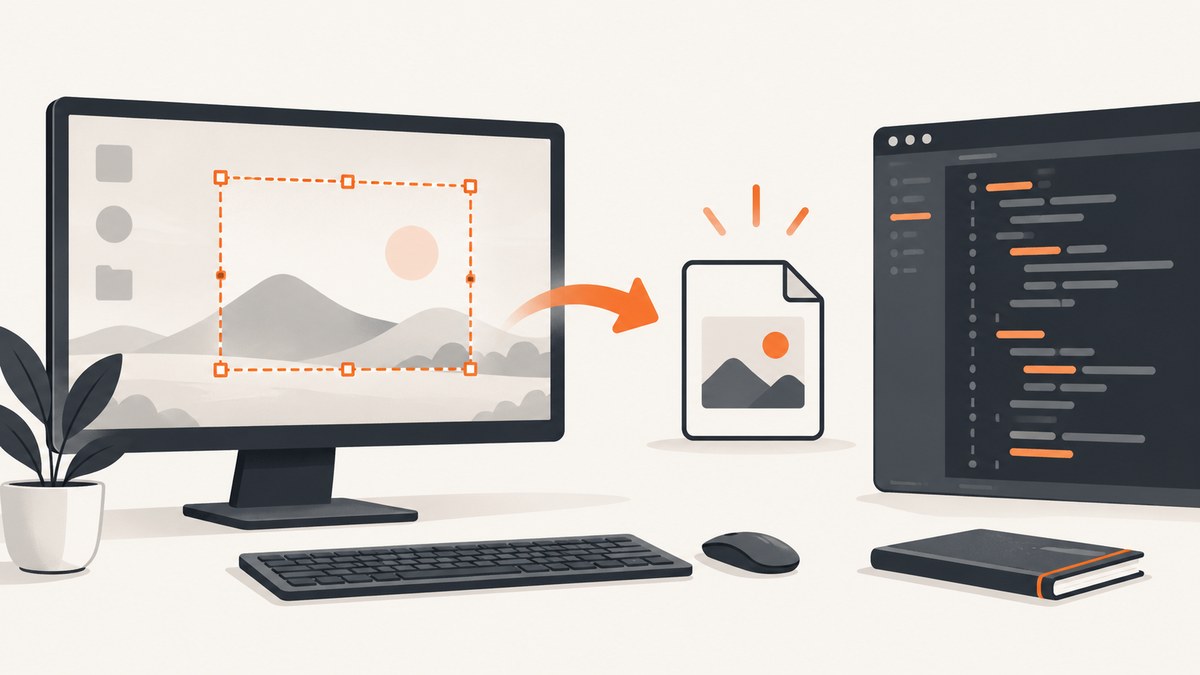
Direct answer: install the GI.Screenshot NuGet package, capture a region or all monitors, then encode the returned WPF BitmapSource with PngBitmapEncoder or JpegBitmapEncoder and write the encoded frames to a FileStream. Screenshot.NET does not provide a documented BitmapSource.Save() method, so your application is responsible for choosing the encoder and file format.
What Screenshot.NET captures
In this guide, “Screenshot.NET” means the Windows desktop library exposed by the GI.Screenshot package. It captures the desktop, similar to Snipping Tool. It is different from a browser-page screenshot API and from .NET MAUI’s in-app screenshot API.
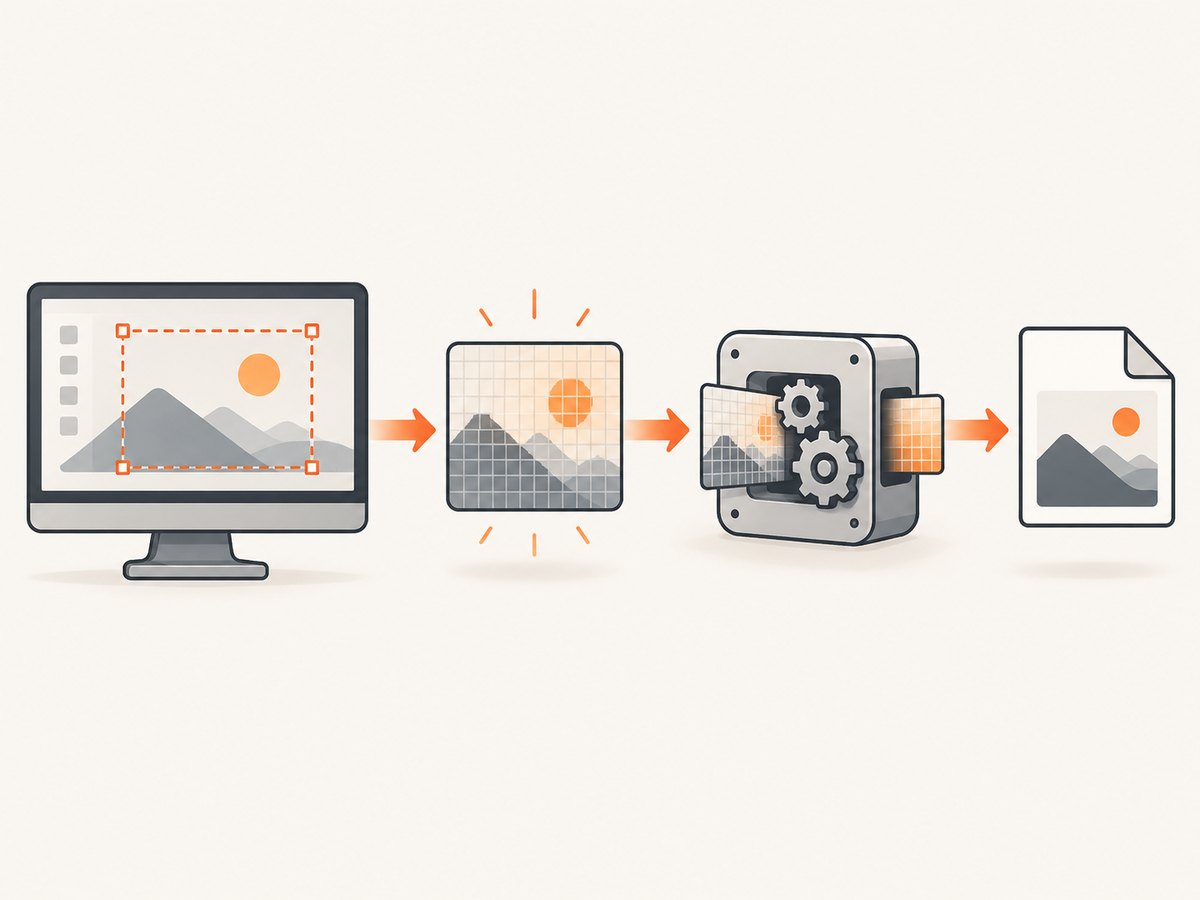
Screenshot.CaptureRegion()opens an interactive selection.Screenshot.CaptureRegion(rect)captures a supplied rectangle.Screenshot.CaptureRegion(options)customizes the selection UI.Screenshot.CaptureAllScreens()captures all connected screens.
The result is a WPF BitmapSource. The project README states that this object can be used directly in WPF or saved to disk.
Requirements and installation
The package is Windows-only and uses WPF and System.Drawing. The project lists .NET Framework 4.6.2+, .NET 6+, and .NET 8+ targets, including net462, net6.0-windows, and net8.0-windows.
dotnet add package GI.ScreenshotFor Visual Studio’s Package Manager Console:
Install-Package GI.ScreenshotFor SDK-style projects, make sure the project targets Windows and enables WPF:
<Project Sdk="Microsoft.NET.Sdk">
  <PropertyGroup>
    <OutputType>Exe</OutputType>
    <TargetFramework>net8.0-windows</TargetFramework>
    <UseWPF>true</UseWPF>
  </PropertyGroup>
</Project>
Complete C# example: select a region and save PNG
This console example waits for an interactive selection, encodes the returned image as PNG, and creates the destination directory before writing the file.
using System;
using System.IO;
using System.Windows.Media.Imaging;
using GI.Screenshot;

class Program
{
    static void Main()
    {
        var image = Screenshot.CaptureRegion();
        if (image == null)
        {
            Console.WriteLine("No region was selected.");
            return;
        }

        var outputPath = Path.GetFullPath("screenshots/region.png");
        Directory.CreateDirectory(Path.GetDirectoryName(outputPath)!);

        var encoder = new PngBitmapEncoder();
        encoder.Frames.Add(BitmapFrame.Create(image));

        using var stream = new FileStream(
            outputPath,
            FileMode.Create,
            FileAccess.Write,
            FileShare.None);
        encoder.Save(stream);

        Console.WriteLine($"Saved: {outputPath}");
    }
}
The using statement closes the file even when encoding fails. FileMode.Create replaces an existing file, so choose a unique name if previous captures must be retained.
Save a supplied rectangle
Use a supplied rectangle when the capture area is known in advance. Rectangle coordinates are desktop coordinates, so confirm how your application represents screen coordinates before passing them.
using System.Drawing;
using System.IO;
using System.Windows.Media.Imaging;
using GI.Screenshot;

var area = new Rectangle(100, 100, 1200, 800);
var image = Screenshot.CaptureRegion(area);

if (image == null)
    return;

var path = "fixed-region.png";
var encoder = new PngBitmapEncoder();
encoder.Frames.Add(BitmapFrame.Create(image));

using var stream = File.Create(path);
encoder.Save(stream);
Capture every monitor
using System.IO;
using System.Windows.Media.Imaging;
using GI.Screenshot;

var image = Screenshot.CaptureAllScreens();
if (image == null)
    return;

var encoder = new PngBitmapEncoder();
encoder.Frames.Add(BitmapFrame.Create(image));
using var stream = File.Create("all-screens.png");
encoder.Save(stream);
A multi-monitor image can be very large. Check available disk space and memory before repeatedly capturing all screens.
Choose PNG or JPEG
PNG
PNG is lossless and preserves sharp text, diagrams, and transparency. It is the safest default for developer tools and UI captures.
var encoder = new PngBitmapEncoder();
encoder.Frames.Add(BitmapFrame.Create(image));
using var stream = File.Create("capture.png");
encoder.Save(stream);
JPEG
JPEG produces smaller files for photographic content. It is lossy and can blur small text. Set QualityLevel from 0 to 100 and keep the extension aligned with the encoder.
var encoder = new JpegBitmapEncoder
{
    QualityLevel = 90
};
encoder.Frames.Add(BitmapFrame.Create(image));
using var stream = File.Create("capture.jpg");
encoder.Save(stream);
Do not save JPEG bytes with a .png extension or the reverse; consumers determine the format from the bytes and often the extension.
Customize the selection UI
The package also exposes an options-based region capture. The README demonstrates changing background opacity and the selection border brush. Use the exact option types and property names from the package version installed in your project, because these UI options are separate from the image encoder.
// Shape shown by the project README; check the installed package version
// for the exact options type and property names.
var image = Screenshot.CaptureRegion(options);
Per-monitor DPI awareness
On multiple monitors with different scale factors, enable per-monitor DPI awareness. The project README recommends a manifest setting containing PerMonitorV2, PerMonitor. Test selection on the monitor arrangements your users actually have; otherwise a selected rectangle can be offset or scaled unexpectedly.
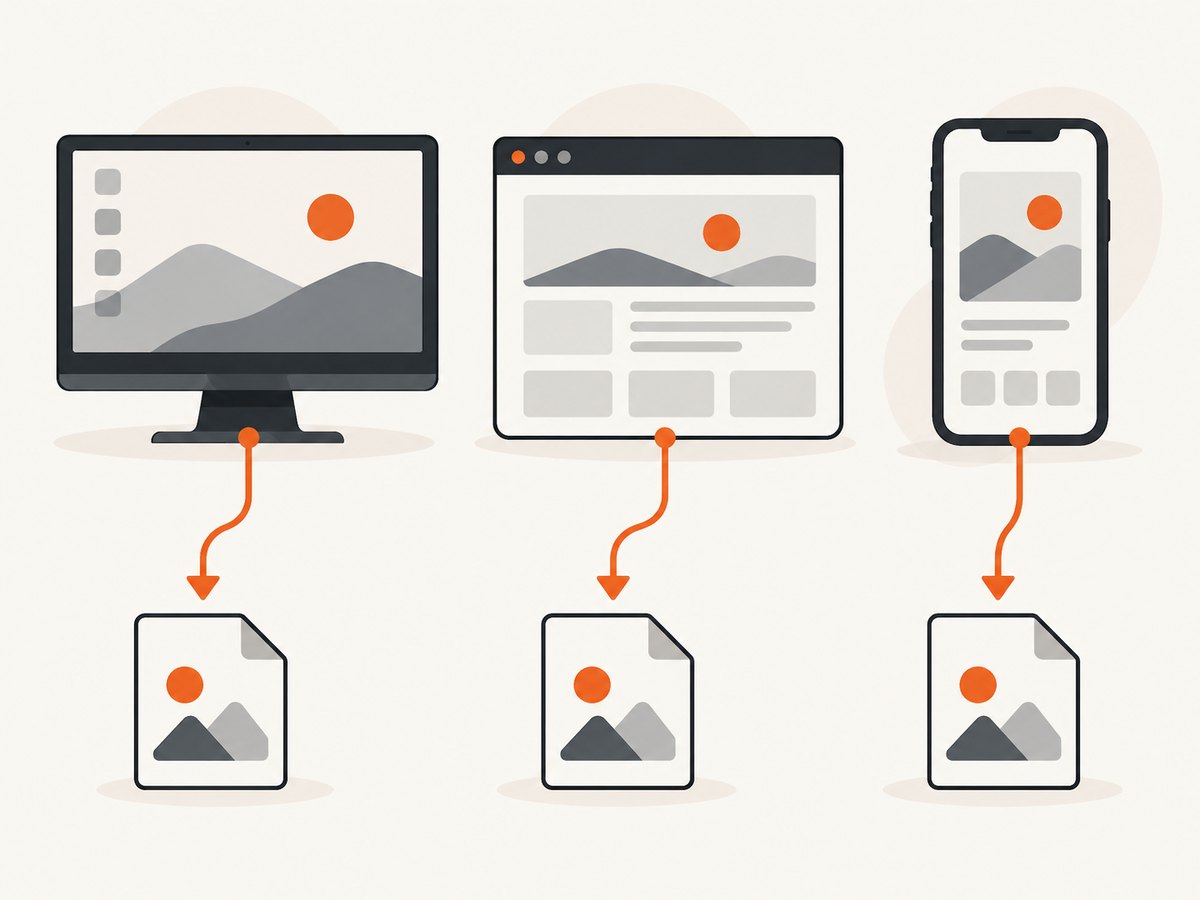
Desktop, browser, and .NET MAUI captures are different
| Need | Use | Output workflow |
|---|---|---|
| Windows desktop region or monitors | GI.Screenshot |
Returns WPF BitmapSource; your code encodes and writes it. |
| Browser page, element, or full page | Playwright .NET | Page.ScreenshotAsync can write directly to a path. |
| Current .NET MAUI app screen | Microsoft.Maui.Media.Screenshot.CaptureAsync() |
Check IsCaptureSupported; this targets the running app. |
Choose the API by capture target. Screenshot.NET is not a browser renderer, and a browser screenshot API will not replace a desktop-region selector.
Common errors and fixes
| Symptom | Likely cause | Fix |
|---|---|---|
BitmapSource has no Save method |
The image object needs an encoder. | Create a PngBitmapEncoder or JpegBitmapEncoder, add a frame, and call Save(stream). |
| Project cannot resolve WPF types | The target is not Windows or WPF is disabled. | Use a Windows target such as net8.0-windows and set UseWPF to true. |
| Package install fails | Unsupported target framework or non-Windows project. | Target one of the frameworks listed by the project and run the install command from the project directory. |
| Output directory does not exist | FileStream does not create parent directories. |
Call Directory.CreateDirectory before opening the stream. |
| Capture is null | The user cancelled selection or no image was returned. | Check for null and treat cancellation as a normal outcome. |
| Wrong rectangle on mixed-DPI monitors | Process is not per-monitor DPI aware. | Add the recommended manifest DPI setting and retest each monitor. |
| Image looks blurry | JPEG compression or display scaling. | Use PNG for text and inspect the pixel dimensions before resizing. |
| File is locked after saving | A stream remains open. | Wrap the stream in using or dispose it explicitly. |
Performance, reliability, and file handling
- PNG encoding is CPU and disk intensive for large all-screen captures; avoid capturing in a tight loop without throttling.
- Write to a local temporary file first when another process consumes the image, then move it into place after
encoder.Savecompletes. - Generate unique names with a timestamp or GUID when captures must not overwrite one another.
- Dispose streams promptly and avoid retaining large
BitmapSourceobjects longer than needed. - For unattended capture, validate monitor availability and output permissions before starting the capture workflow.
- Do not assume a browser page, CAPTCHA, cookie banner, or responsive layout can be captured with this desktop library; it captures what is rendered on the Windows desktop.
Or skip the browser setup
If your actual goal is a website image rather than a Windows desktop selection, ScreenshotNeo provides a one-request API. See the ScreenshotNeo documentation for parameters and response details.
curl -G "https://api.screenshotneo.com/v1/shot" -d access_key=YOUR_API_KEY --data-urlencode url=https://stripe.com -o shot.webpimport requests
r = requests.get(
"https://api.screenshotneo.com/v1/shot",
params={"access_key": "YOUR_API_KEY", "url": "https://stripe.com"},
timeout=90,
)
r.raise_for_status()
open("shot.webp", "wb").write(r.content)const q = new URLSearchParams({ access_key: 'YOUR_API_KEY', url: 'https://stripe.com' });
const res = await fetch(`https://api.screenshotneo.com/v1/shot?${q}`);
if (!res.ok) throw new Error(`HTTP ${res.status}`);
const fs = await import('node:fs/promises');
await fs.writeFile('shot.webp', Buffer.from(await res.arrayBuffer()));ScreenshotNeo removes cookie banners, newsletter popups, and chat widgets before the shot. Bot checks, blank pages, and failed loads are never billed, and response headers identify the page verdict and billing result. Its MCP server lets AI agents take screenshots, and 1,000 screenshots per month are free with no card; paid plans start at $5 for 3,000 shots.
Create a free ScreenshotNeo account and get 1,000 screenshots each month with no card.
FAQ
Can I save the result as WebP?
Use an encoder available to your target framework or convert the WPF bitmap with a library that supports WebP. The Screenshot.NET README only establishes that the result is a BitmapSource that can be saved; it does not document a WebP encoder.
Does Screenshot.NET capture a web page from a URL?
No. It captures the Windows desktop. Use a browser automation API such as Playwright for URL-based page rendering, or ScreenshotNeo for an HTTP screenshot service.
Can this run on Linux or macOS?
The project describes Screenshot.NET as Windows-only and targets Windows desktop frameworks.
Why is PNG usually the recommended format?
PNG preserves text and UI edges without lossy compression. Choose JPEG when smaller files matter more than pixel-perfect text.


