How to Scale Puppeteer and Playwright
Scale browser automation by balancing concurrency with isolation. Configure Playwright workers and shards, and build safer Puppeteer and Playwright services.

Scale Puppeteer and Playwright by controlling how many browsers run at once and isolating every job’s state. For Playwright Test, start with one worker in CI, then use shards to spread the suite across jobs when you need more throughput. For custom Puppeteer or Playwright automation, build a bounded job queue, define browser ownership and cleanup, and monitor the runner and application under test. More workers do not automatically mean faster or more reliable runs.
This guide covers both cases: scaling a Playwright Test suite and operating a custom browser automation service. Browser contexts isolate browser storage, but your backend records, files, and other shared state need their own isolation too. There is no universal CPU-to-worker ratio; measure your suite on its actual runner.
1. Choose the scaling model
First identify what you are scaling:
- A test suite: Playwright Test already runs test files in parallel using worker processes. You can set a worker limit and split the suite into shards across CI jobs.
- A custom automation service: Puppeteer or Playwright Library gives you browser control, but you must decide how jobs are queued, how many browsers or pages may run concurrently, how state is isolated, and who closes each browser.
Measure elapsed time, resource pressure, failures, test-data conflicts, startup overhead, and debugging effort. A configuration that shortens runtime but causes timeouts or flaky tests is not a useful scale-up.
2. Scale Playwright Test workers
Playwright Test runs test files in parallel by default in separate worker processes. Each worker starts its own browser, so raising workers increases concurrent browser demand on CPU, memory, disk, and the application under test. Tests in one file normally run in order in one worker; projects and describe blocks can opt into additional parallelism.
In CI, Playwright recommends one worker as a stability and reproducibility baseline. Increase the limit on self-hosted runners only after observing duration, failure rate, and resource use. Configure it in playwright.config.ts:
import { defineConfig } from '@playwright/test';

export default defineConfig({
  workers: process.env.CI ? 1 : undefined,
  retries: process.env.CI ? 2 : 0,
  reporter: process.env.CI ? 'blob' : 'list',
  use: {
    trace: 'on-first-retry',
  },
});
When CI is true, this sets one worker. Outside CI, undefined lets Playwright choose its default. You can instead specify a measured limit explicitly, such as workers: 3. The same setting can be passed on the command line:
npx playwright test --workers=1
# After measuring a suitable limit for this runner:
npx playwright test --workers=3
Use the worker limit as a cap, not as a target every runner must reach. A small or shared executor can become slower when multiple browser processes compete for resources. The Playwright CI guide illustrates an environment where exceeding detected capacity can cause unnecessary timeouts and failures; its example should not be read as a universal worker count.
Keep parallel tests independent
A new browser context isolates cookies, local storage, and session storage. It does not isolate records in your backend, files on disk, or shared external services. Give tests unique data and output paths. For example, include a test or worker identifier in generated names, and use worker-scoped fixtures only when reusing data within a worker is safe.
import { test, expect } from '@playwright/test';
import { mkdir } from 'node:fs/promises';
import path from 'node:path';

test('creates an isolated report', async ({ page }, testInfo) => {
  const runId = `${testInfo.workerIndex}-${testInfo.retry}`;
  const outputDir = path.join('artifacts', testInfo.project.name, runId);
  await mkdir(outputDir, { recursive: true });

  await page.goto('https://example.com');
  await expect(page).toHaveTitle(/Example/);
  await page.screenshot({ path: path.join(outputDir, 'page.png') });
});
For backend fixtures, use a unique account or namespace per test where practical, and clean it up even when a test fails. Avoid depending on test order: retries and parallel scheduling can change which test runs first.
3. Shard a suite across CI jobs
Workers control parallelism inside one job. Shards divide the suite among multiple CI jobs or machines. For a three-part split, the Playwright CLI supports commands such as:
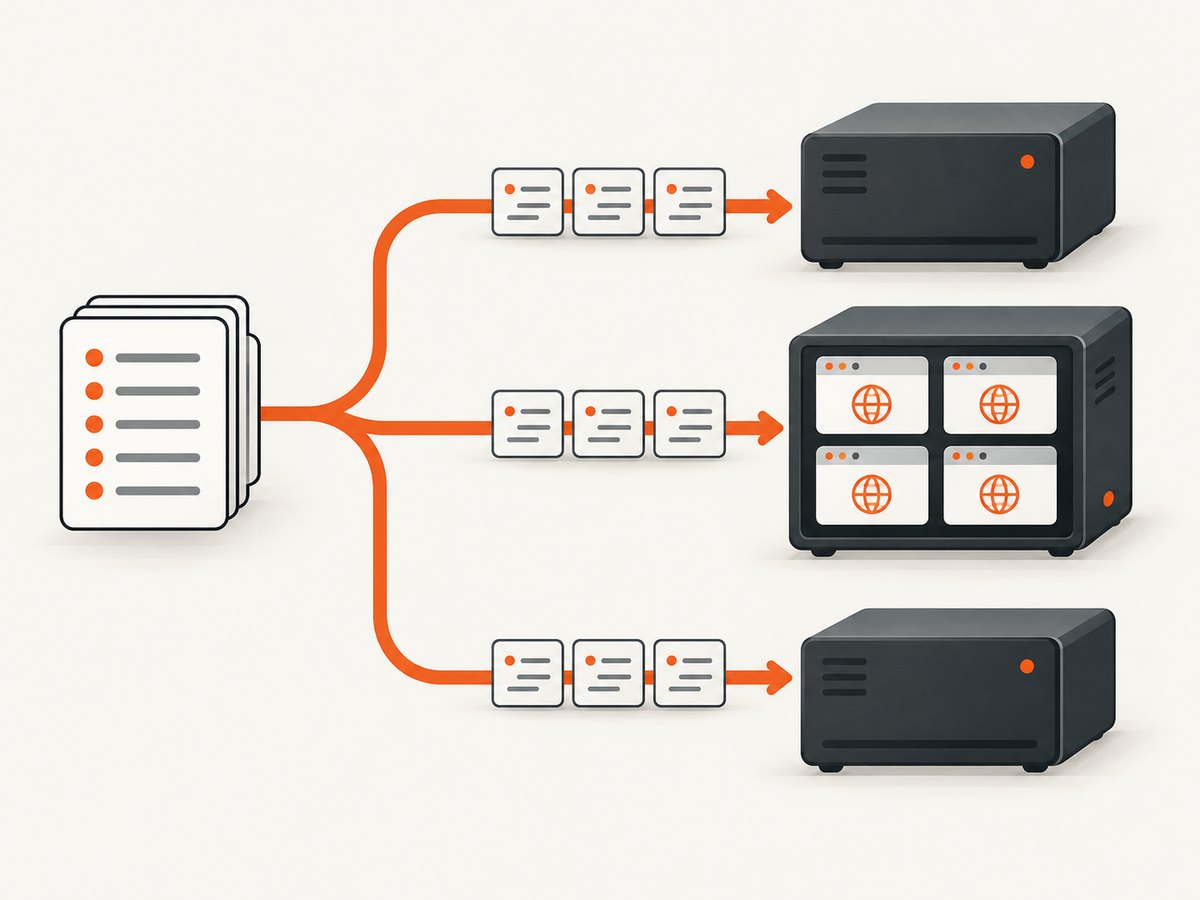
npx playwright test --shard=1/3
npx playwright test --shard=2/3
npx playwright test --shard=3/3
Coordinate the shard denominator with your CI matrix so each shard runs exactly once. Keep the worker limit per job deliberate: if each of six jobs launches four workers, the overall run can create up to 24 simultaneous browser workers. Account for that aggregate pressure on shared test environments and services.
Sharding can reduce the test portion handled by each machine, but it adds job startup, browser installation, report collection, and debugging complexity. Use the CI provider’s documented Playwright workflow to merge or aggregate reports. If jobs are unevenly loaded, inspect which tests dominate runtime before changing shard count; a larger shard count alone does not guarantee balanced work.
4. Prepare CI and containers
- Pin compatible versions. Keep the Playwright package and container image aligned. A mismatch can prevent Playwright from locating browser executables.
- Install only needed browsers. This reduces downloads and disk use. Use Playwright’s CLI to install the browsers and system dependencies your suite requires, or use the official Playwright container.
- Choose caching deliberately. The Playwright CI guide does not recommend caching browser binaries by default: restoring a cache can take as long as downloading, and Linux operating-system dependencies are not cacheable. If you do cache, key it to the Playwright version.
- Set concurrency after observing the runner. Record duration, CPU and memory pressure, timeouts, and retry rates at the baseline, then adjust one variable at a time.
Example container invocation, with the image version replaced by the same version used by your project:
docker run --rm --init \
  -v "$PWD:/work" -w /work \
  mcr.microsoft.com/playwright:v<matching-version>-noble \
  sh -lc 'npm ci && npx playwright test --workers=1'
Check the official container documentation for supported tags and operating-system details before adopting this example. Do not assume that a container with a convenient browser binary is compatible with a different Playwright package version.
5. Build a bounded Puppeteer or Playwright service
For a custom service, concurrency should be explicit. Put incoming work in a queue, cap active jobs, and apply backpressure when the cap is reached. Track queue wait time separately from browser execution time. Define whether each job gets a new browser, a new context in a shared browser, or a page from a controlled pool; then define cleanup and recovery for every path, including exceptions and timeouts.
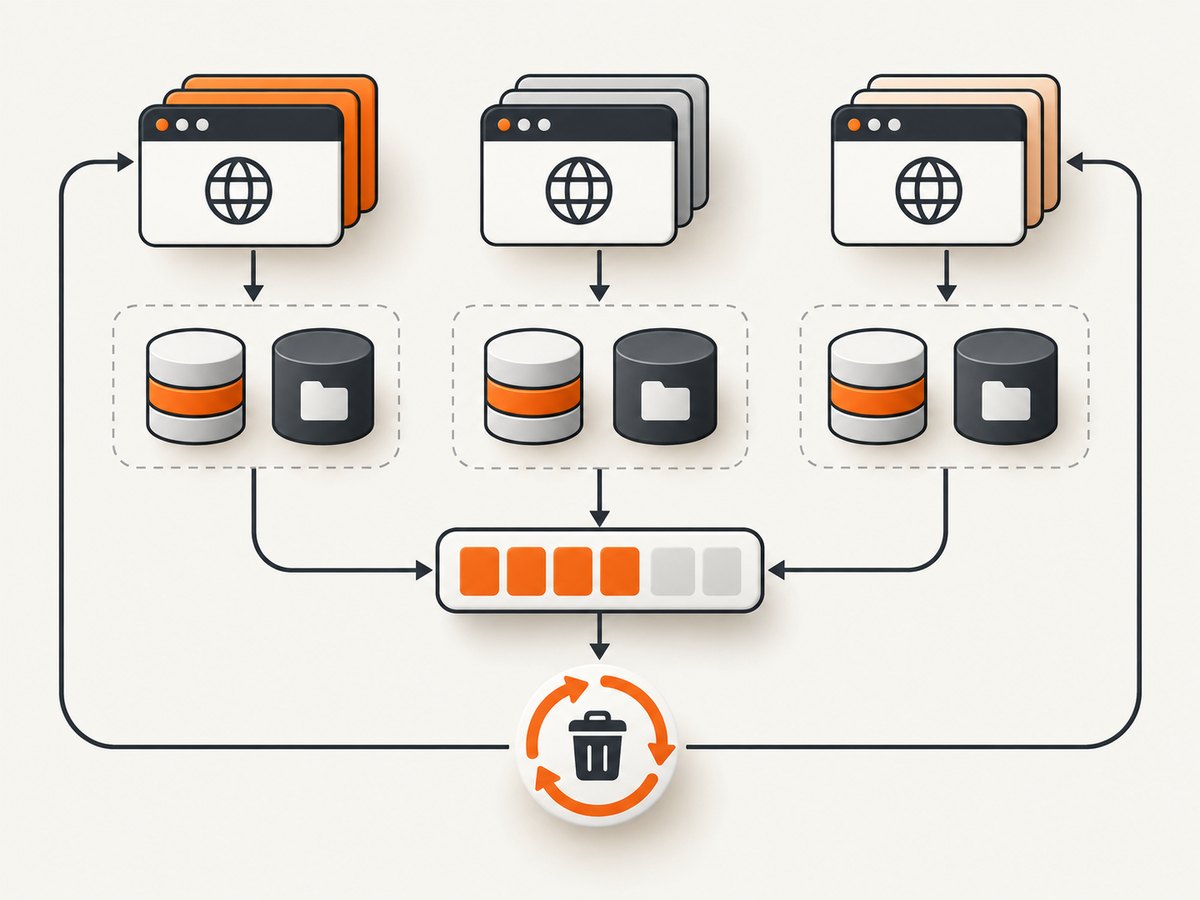
Contexts are a useful unit of browser-state isolation. In Puppeteer, separate browser contexts do not share cookies or local storage. In Playwright Library, use a separate context per independent job as well. Neither choice prevents jobs from writing to the same database row or file.
import puppeteer from 'puppeteer';

const browser = await puppeteer.launch({ headless: true });
const activeJobs = new Set();
const MAX_CONCURRENT = 3;

async function capture(url, outputPath) {
  if (activeJobs.size >= MAX_CONCURRENT) {
    throw new Error('At capacity; enqueue this job and retry later');
  }

  const job = (async () => {
    const context = await browser.createBrowserContext();
    try {
      const page = await context.newPage();
      await page.goto(url, { waitUntil: 'networkidle2', timeout: 30000 });
      await page.screenshot({ path: outputPath, fullPage: true });
    } finally {
      await context.close();
    }
  })();

  activeJobs.add(job);
  try {
    await job;
  } finally {
    activeJobs.delete(job);
  }
}

try {
  await capture('https://example.com', '/tmp/example.png');
} finally {
  await browser.close();
}
This small example rejects work at capacity to make the limit visible. A production service normally queues jobs instead, validates URLs and output paths, applies per-job deadlines, records outcomes, and handles browser crashes. Set the concurrency limit from measurements of your workload and environment; the sample value is illustrative, not a sizing recommendation.
Browser ownership and cleanup
Decide which component starts and owns the browser. Puppeteer’s browser.close() closes the browser and its pages. browser.disconnect() only detaches the client, leaving the browser and pages running. Use disconnect when another process owns the browser and is responsible for eventual cleanup; otherwise it can leave orphaned processes. In a shared-browser service, a job should close its own context or page, not shut down the browser used by other jobs.
On browser crash, mark the affected jobs failed or retryable, discard the broken browser instance, and create a replacement under the same concurrency cap. Avoid infinite retries: a broken target, invalid credentials, or deterministic page error will not be fixed by relaunching indefinitely.
6. Run Puppeteer in Docker
Puppeteer’s official Docker image includes Chrome for Testing and required dependencies. Its documented sandboxed browser execution requires the SYS_ADMIN capability. The guide also recommends an init process so child processes started by Puppeteer are managed properly.
docker run --rm --init \
  --cap-add=SYS_ADMIN \
  -v "$PWD:/work" -w /work \
  ghcr.io/puppeteer/puppeteer:<documented-tag> \
  node capture.js
Use a documented image tag and review the official Docker guide for the current image and runtime requirements. Preserve the sandbox and understand the security context of the container instead of copying flags from unrelated setups. Match the Puppeteer package and browser expectations to the image you deploy.
7. Observe performance, reliability, and cost
Benchmark your own suite or workload because the official documentation does not give a universal CPU/memory-to-worker ratio or browser-farm capacity figure. Compare a one-worker baseline with measured alternatives using the same tests and runner. Record:
- Total elapsed time and per-job execution time.
- Queue wait time, browser startup time, and page-load time.
- CPU, memory, disk pressure, and browser crashes.
- Timeouts, retries, flaky failures, and backend-data collisions.
- CI job cost and the extra overhead of shards, installation, and report aggregation.
For CI, one worker can make runs more reproducible; shards are the documented way to widen parallelism across jobs. For a service, a queue and concurrency limit protect the runner and dependencies from bursts. Set deadlines and make retries bounded. If a page waits on long-lived network connections, an overly strict network-idle condition may never arrive; choose a wait condition tied to the page’s actual readiness and apply a timeout.
Scaling also affects cost through longer or larger CI allocations, additional machines, and the resources consumed by concurrently running browsers. Compare the cost per successful run, including reruns caused by flakiness, rather than only the nominal runtime of a green run.
8. Troubleshooting
| Symptom | Likely cause | Fix |
|---|---|---|
| Tests time out after raising workers | CPU, memory, disk, or the test environment is saturated. | Return to the stable worker baseline, inspect resource use, then increase gradually or shard across adequately provisioned jobs. |
| Tests pass alone but fail in parallel | They share backend records, files, accounts, or external state. | Use unique data and output paths; make setup and cleanup independent and safe to retry. |
| Browser executable cannot be found in a container | The image and Playwright package versions do not match, or required browsers were not installed. | Align versions and install the browser required by the project. |
| CI spends time restoring a browser cache | Cache restore is no faster than downloading, or the key is stale. | Follow the CI guide’s default recommendation against browser caching; if retaining a cache, key it by Playwright version. |
| Puppeteer processes remain after jobs finish | Contexts or browsers are not closed, or disconnect was mistaken for shutdown. | Close each job’s context in a finally block and close the browser only by its owner. |
| Container child processes are not reaped cleanly | No init process is managing Puppeteer’s child processes. | Use --init or a suitable custom entrypoint as the Puppeteer Docker guide advises. |
| Puppeteer image fails under sandboxed execution | The runtime does not meet the documented SYS_ADMIN requirement. |
Use the documented image runtime configuration and review its security implications with the deployment owner. |
| Sharded reports are incomplete or duplicated | The CI matrix did not run each shard once, or reports were not aggregated. | Coordinate matrix indices and use the CI provider’s documented report aggregation workflow. |
9. Or skip the browser setup
If the job is to capture a website screenshot or PDF, [ScreenshotNeo](https://screenshotneo.com) provides a one-call screenshot API, alongside its MCP server for AI agents. Its capture flow accepts cookie or consent banners like a visitor and removes 60+ known consent platforms, newsletter popups, and chat widgets before the shot; each step can be turned off. Bot checks and CAPTCHAs, blank pages, timeouts, failed loads, and cache hits cost nothing, and response headers report the page verdict and billing status.
Example cURL request (see the [API documentation](https://screenshotneo.com/docs/)):
curl -G "https://api.screenshotneo.com/v1/shot" \
  -d access_key=YOUR_API_KEY \
  --data-urlencode url=https://stripe.com \
  -o shot.webp
Python:
import requests

r = requests.get(
    "https://api.screenshotneo.com/v1/shot",
    params={"access_key": "YOUR_API_KEY", "url": "https://stripe.com"},
    timeout=90,
)
open("shot.webp", "wb").write(r.content)
Node.js:
const q = new URLSearchParams({
  access_key: 'YOUR_API_KEY',
  url: 'https://stripe.com',
});
const res = await fetch(`https://api.screenshotneo.com/v1/shot?${q}`);
if (!res.ok) throw new Error(`Screenshot request failed: ${res.status}`);
await Bun.write('shot.webp', res);
ScreenshotNeo also offers an MCP server with take_screenshot, get_page_info, and capture_pdf tools for Claude, Cursor, and other MCP clients. One thousand screenshots a month are free with no card; paid plans start at $5 for 3,000. Plans include the same feature set, including full-page capture, element capture, PDF, custom CSS and JavaScript, async jobs, and bulk capture. Create a free account at [ScreenshotNeo sign-up](https://screenshotneo.com/account/sign-up/).
10. FAQ
Should I use more workers or more shards?
Workers add concurrency inside one machine; shards spread suite work across CI jobs. Start with the one-worker CI baseline, then use shards for broader parallelism when the jobs and test data can remain isolated.
Do browser contexts make tests fully isolated?
No. They isolate browser storage, but not backend data, files, or shared services. Those need unique identifiers, safe cleanup, or other isolation.
Can I reuse one Puppeteer browser for many jobs?
Yes, if you give independent jobs separate contexts, cap concurrency, and define browser ownership and crash recovery. Close contexts after each job and let only the owner close the shared browser.
What concurrency should I choose?
There is no documented universal number. Measure duration, resource pressure, and failure rate on the target runner, then raise concurrency only while the overall run remains reliable.


