How to Use a Screenshot API with RapidAPI
Use RapidAPI to find, authenticate, test, and call a screenshot API. Get runnable cURL, Python, and Node.js examples, plus fixes for common errors.

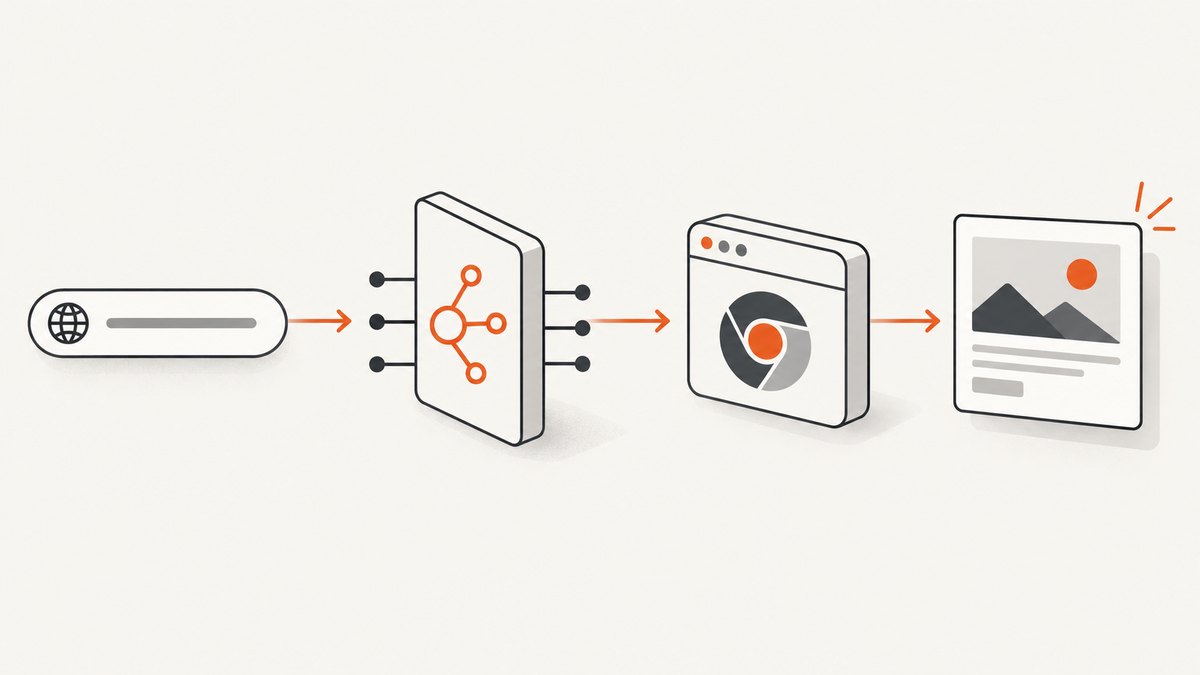
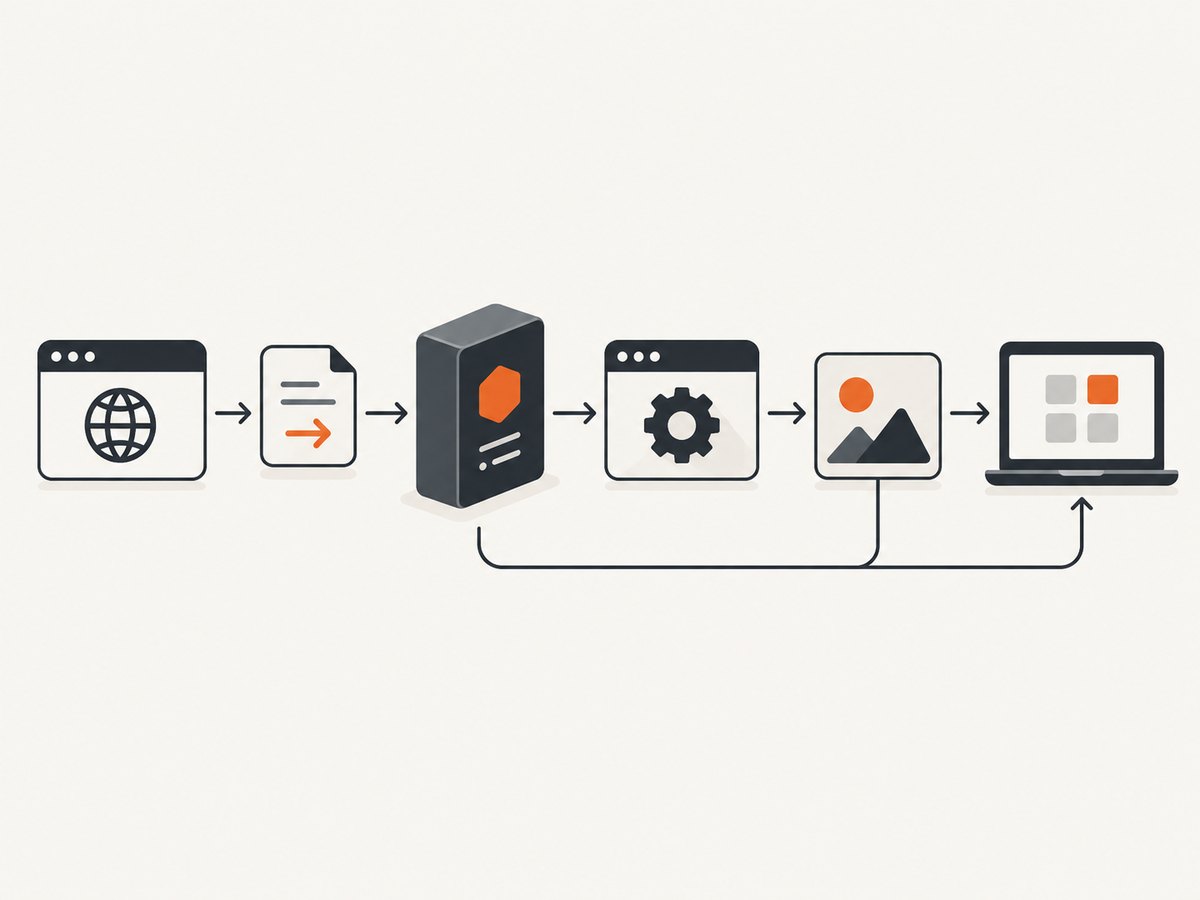
To use a screenshot API with RapidAPI, choose a listing, read its exact endpoint and request schema, subscribe to a plan, create or select a RapidAPI app, then send the listing’s required request with X-RapidAPI-Host and X-RapidAPI-Key. Test it in RapidAPI first, inspect the response, and only then move the same method, URL, headers, and body into your application. Endpoint paths, parameters, output formats, and response shapes are set by each provider; there is no universal screenshot endpoint.
This guide shows how to select and test a listing, reproduce its request with cURL, Python, or Node.js, handle the response, and troubleshoot failures. The examples are templates: replace every placeholder with the values documented by your chosen listing.
1. Choose a listing and verify its contract
Search the RapidAPI marketplace for a screenshot API, then open a listing’s documentation. Before subscribing, confirm that it can render the pages you need and that its pricing and limits fit your workload. RapidAPI hosts the request configuration, but the API provider defines the rendering behavior and response.
| Check | What to confirm |
|---|---|
| Endpoint | Exact host, path, HTTP method, and any version prefix. |
| Inputs | Required URL field, query or JSON body parameters, valid formats, viewport options, and defaults. |
| Rendering | JavaScript support, full-page capture, wait options, authentication for target pages, and URL restrictions. |
| Output | Whether the response is image bytes, a JSON object containing an image or CDN URL, or a job identifier. |
| Limits | Plan quota, request rate, concurrency, timeout, maximum page size, and overage behavior. |
| Operations | Error format, retry guidance, data retention, and whether returned image URLs expire. |
Do not assume that a parameter accepted by one provider exists on another. For example, format and fullPage in the illustrative request below reflect a representative listing schema, not a RapidAPI-wide standard.
2. Subscribe and get your RapidAPI credentials
- Select the listing’s plan in RapidAPI and review its quota and billing terms.
- In the Developer Dashboard, create or select a RapidAPI app. The app supplies the key used for requests.
- Open the listing’s endpoint page and use its Test Endpoint controls. Confirm the selected app context, endpoint, required fields, and response.
- Copy the generated request or code sample as a starting point. Keep the key private and store it in an environment variable or secret manager.
RapidAPI’s default authentication uses X-RapidAPI-Host to identify the API and X-RapidAPI-Key for the app key. Send both on each request when the listing uses RapidAPI Authentication. If the provider also documents bearer, basic, query, other header, or OAuth2 authentication, include that scheme too. A valid RapidAPI key alone does not replace provider-specific credentials.
3. Test the endpoint with cURL
Use the exact host, path, method, and fields from the listing. This POST request illustrates a JSON body modeled on a representative screenshot endpoint:
curl --request POST \
  --url 'https://<rapidapi-listing-host>/<endpoint>' \
  --header 'content-type: application/json' \
  --header 'X-RapidAPI-Host: <listing-host>' \
  --header 'X-RapidAPI-Key: <your-app-key>' \
  --data '{"url":"https://example.com","format":"png","fullPage":false}'
Replace <rapidapi-listing-host>, <endpoint>, and <listing-host> exactly as shown in the endpoint documentation. Use the documented HTTP method and body shape: a listing may use GET parameters, a different POST body, or additional fields. Avoid pasting a real key into a shell command that might be saved in shell history or shared in logs; for repeated use, load it from an environment variable.
Inspect both the HTTP status and response body. A successful status may return JSON rather than an image file. A representative listing returns a CDN URL after accepting a target URL, format, and full-page request body. Parse that listing’s actual schema; do not assume every provider returns a URL or that the URL lasts indefinitely.
4. Convert the request to Python
This example uses requests and keeps credentials outside source code. Install the dependency with python -m pip install requests. Adjust the method, endpoint, JSON fields, and any provider authentication to match the listing.
import os
import requests

host = os.environ["RAPIDAPI_HOST"]
key = os.environ["RAPIDAPI_KEY"]
endpoint = os.environ["SCREENSHOT_ENDPOINT"]  # Full URL copied from the listing

headers = {
    "content-type": "application/json",
    "X-RapidAPI-Host": host,
    "X-RapidAPI-Key": key,
}
payload = {
    "url": "https://example.com",
    "format": "png",
    "fullPage": False,
}

response = requests.post(endpoint, headers=headers, json=payload, timeout=90)
response.raise_for_status()
result = response.json()
print(result)
Set RAPIDAPI_HOST, RAPIDAPI_KEY, and SCREENSHOT_ENDPOINT in your runtime environment. The 90-second timeout is an example client limit, not a claim about the provider’s timeout; choose a value compatible with its documentation. If the listing returns raw image bytes, do not call response.json(): write response.content to a file instead. If it returns a URL in JSON, validate and fetch that URL according to the provider’s documented response and expiration rules.
5. Convert the request to Node.js
On a Node.js runtime with global fetch, use the same endpoint and headers. This example assumes a JSON response and checks the HTTP status before parsing:
const endpoint = process.env.SCREENSHOT_ENDPOINT;
const host = process.env.RAPIDAPI_HOST;
const key = process.env.RAPIDAPI_KEY;

if (!endpoint || !host || !key) {
  throw new Error('Set SCREENSHOT_ENDPOINT, RAPIDAPI_HOST, and RAPIDAPI_KEY');
}

const response = await fetch(endpoint, {
  method: 'POST',
  headers: {
    'content-type': 'application/json',
    'X-RapidAPI-Host': host,
    'X-RapidAPI-Key': key,
  },
  body: JSON.stringify({
    url: 'https://example.com',
    format: 'png',
    fullPage: false,
  }),
  signal: AbortSignal.timeout(90_000),
});

if (!response.ok) {
  const detail = await response.text();
  throw new Error(`Screenshot API returned ${response.status}: ${detail}`);
}

const result = await response.json();
console.log(result);
If the endpoint returns image bytes, read await response.arrayBuffer() or the appropriate stream instead of parsing JSON. For a listing that uses GET, encode parameters in the query string and omit the JSON body if the documentation specifies that shape. Some Node.js versions or environments may not support AbortSignal.timeout; use the environment’s supported timeout mechanism.
6. Handle output and add screenshot options safely
First identify what the provider actually returns:
- Image bytes: save the response body with the extension matching the requested format and the returned content type.
- JSON with an image URL: read the documented field, then fetch the image if your workflow needs a local file. Handle a failed or expired secondary URL request.
- Asynchronous job: store the job identifier, poll only at the documented interval, and stop at the provider’s deadline.
Then add options one at a time, using the listing’s spelling and types. Common screenshot controls include image format, viewport dimensions, full-page capture, delay or selector waits, and device scale. They are not universal parameters. Check how the service treats a page that never reaches the wait condition, a very tall page, unsupported formats, redirects, or a target requiring sign-in. Do not send target-site passwords or cookies unless the API supports them and your security policy permits it.
Validate user-supplied target URLs before passing them to a capture service. Restrict schemes to those the provider supports, and avoid allowing arbitrary internal or private network destinations in applications that expose screenshotting to untrusted users. Confirm the provider’s URL policy and data handling before capturing confidential pages.
7. Troubleshooting common failures
| Symptom | Likely cause | What to check or fix |
|---|---|---|
| 401 or 403 | Missing or invalid key, wrong RapidAPI app context, incorrect host value, or an additional provider credential is absent. | Copy the host and key from the selected app and endpoint test panel. Confirm the listing’s authentication section and plan access. Inspect the provider’s error body before deciding which credential failed. |
| 404 or route error | Wrong listing host, path, or API version. | Copy the full endpoint URL from the listing; do not substitute the provider’s website hostname. |
| 400 or validation error | Wrong method, missing required field, invalid JSON, or a value with the wrong type or casing. | Compare the request with the endpoint schema. Send JSON with the documented content type and exact field names. |
| 415 unsupported media type | Body encoding does not match the endpoint. | Use the documented content type and encoding; JSON endpoints need serialized JSON, while query endpoints may require URL parameters. |
| 429 or quota error | Rate limit or plan quota reached. | Check the listing’s plan and limits. Queue or throttle work and follow any documented reset or retry headers. |
| Timeout | Slow target page, long client timeout mismatch, or provider render limit. | Check both client and listing limits. Try a simpler page or supported wait strategy; do not retry rapidly without a documented retry policy. |
| Success response but no usable image | The response is a JSON URL or job result rather than image bytes, or a secondary URL expired. | Inspect content type and response schema. Follow the documented download or polling flow and handle expiry. |
| Screenshot is blank or incomplete | Target-side bot checks, delayed JavaScript, lazy loading, blocked resources, or a capture before content is ready. | Check what rendering and wait controls the listing supports. Test the target in its endpoint tool and review provider-specific limits. |
RapidAPI notes that invalid authentication values can produce 4xx responses, but status alone does not diagnose the cause. The listing’s documented error schema and returned message are the useful evidence.
8. Production reliability, performance, and cost
Set limits and control concurrency
Screenshot rendering is heavier than a simple metadata lookup because it depends on loading and rendering a target page. Set client timeouts based on the provider’s documented limits, cap concurrent captures to stay within quotas, and place bulk work in a queue. For transient network or server errors, use bounded retries with backoff only when the provider’s guidance makes retries safe. Avoid retrying authentication, validation, or quota failures unchanged.
Make results observable
Record request duration, status, provider request identifiers when returned, and a redacted summary of failures. Do not log API keys, signed URLs, page credentials, or sensitive target URLs. Track successful image delivery separately from successful API submission: a response containing a remote image URL can still be followed by a failed download.
Estimate the real cost
Use the listing’s current plan terms to estimate monthly captures, expected retries, and any additional image downloads or storage. Check whether failed renders, cached responses, and asynchronous polling count toward quota. The research materials provide no universal RapidAPI price, latency, or market statistics, and listing terms vary, so rely on the selected listing’s current pricing and documentation rather than a general estimate.
9. Or skip the browser setup
If you want a direct screenshot request without wiring a browser-rendering provider through RapidAPI, ScreenshotNeo is a website screenshot API and MCP server from Yorker Media. One GET request can return a PNG, JPEG, WebP, or PDF. See the ScreenshotNeo API documentation for parameters and configuration.
curl -G "https://api.screenshotneo.com/v1/shot" -d access_key=YOUR_API_KEY --data-urlencode url=https://stripe.com -o shot.webpimport requests
r = requests.get("https://api.screenshotneo.com/v1/shot", params={"access_key": "YOUR_API_KEY", "url": "https://stripe.com"}, timeout=90)
open("shot.webp", "wb").write(r.content)const q = new URLSearchParams({ access_key: 'YOUR_API_KEY', url: 'https://stripe.com' });
const res = await fetch(`https://api.screenshotneo.com/v1/shot?${q}`);- Cookie banners are accepted and removed before capture, along with 60+ known consent platforms, newsletter popups, and chat widgets; each step can be turned off.
- Bot checks, blank pages, failed loads, timeouts, and cache hits are not billed. Response headers report the page verdict and billing status.
- An MCP server exposes screenshot, page-info, and PDF tools to Claude, Cursor, and other MCP clients.
- The free plan includes 1,000 screenshots a month with no card. Paid plans start at $5 for 3,000 screenshots.
Sign up for ScreenshotNeo and get 1,000 free screenshots a month, with no card.
10. Short FAQ
Are RapidAPI headers identical for every screenshot provider?
The default RapidAPI pair is X-RapidAPI-Host and X-RapidAPI-Key. A listing can also require provider-specific authentication or use a different documented configuration.
Can I copy RapidAPI’s generated code directly into production?
Use it to verify the request shape, then move secrets into environment configuration, add status and response handling, and apply timeouts and quota controls appropriate to your application.
Does every screenshot API return a CDN link?
No. Response formats are provider-specific. Confirm whether the endpoint returns bytes, a URL, or an asynchronous job result before writing the consumer.
How do I switch to another screenshot API later?
Keep capture requests behind a small application interface, and isolate each provider’s endpoint, authentication, parameter mapping, response parsing, and error handling. The request parameter names other screenshot APIs use also work with ScreenshotNeo, which can make switching easier.
Sources
- RapidAPI: Configuring API Authentication.
- RapidAPI endpoint testing guidance.
- RapidAPI API marketplace; each listing’s endpoint documentation is authoritative for its request and response schema.


