BlogScreenshots on your device
Screenshot on Firefox Browser
Learn how to capture a region, element, visible area, or full page in Firefox, with shortcuts, keyboard controls, fixes, and an API option.
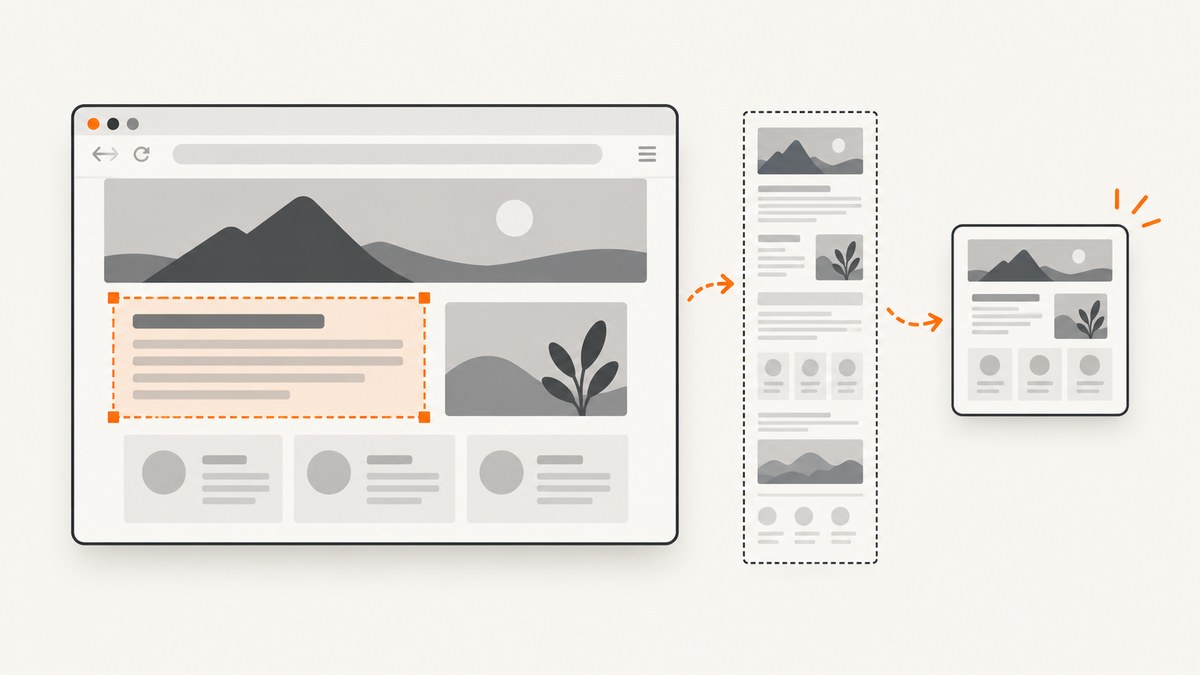
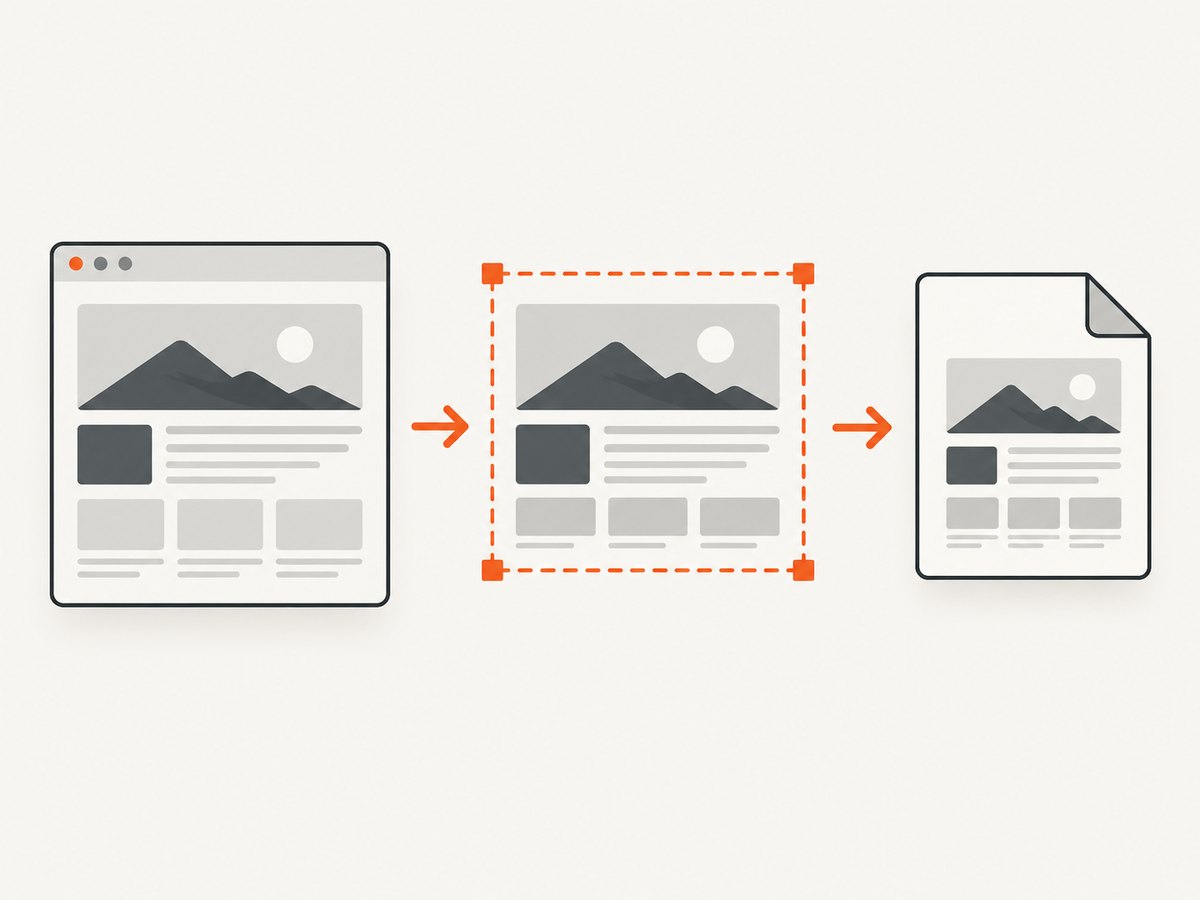
Direct answer: In desktop Firefox, right-click an empty part of the page and choose Take Screenshot. You can also press Ctrl + Shift + S on Windows or Linux, or Command + Shift + S on macOS. Firefox then lets you capture a custom region, a highlighted page element, the full page, or only the visible area. Choose Download to save a PNG or Copy to put it on the clipboard.
Take a screenshot in Firefox
1. Open the page
Navigate to the page you want to capture and wait for the content you need to appear.
2. Open Firefox’s screenshot tool
- Right-click an empty area of the page and select Take Screenshot.
- Use Ctrl + Shift + S on Windows or Linux.
- Use Command + Shift + S on macOS.
If you use the tool often, open More Tools → Customize Toolbar… and drag the Screenshot button onto the toolbar. These entry points are documented by Mozilla Support.
3. Pick a capture mode
| Mode | What it captures | Best for |
|---|---|---|
| Region | An area you drag around | Errors, diagrams, or one section of a page |
| Highlighted element | The page element Firefox detects under your pointer | A card, image, paragraph, or component |
| Save full page | The complete scrollable webpage | Long articles, receipts, and documentation |
| Save visible | Only the current viewport | Exactly what is on screen now |
For a region, drag the crosshair and adjust the markers on its edges. For an automatically highlighted element, move over the page and click the highlighted part; you can then resize the selection.
4. Save or copy the result
Select Download to save the image in Firefox’s default download folder. Mozilla documents a filename pattern similar to Screenshot year-month-day at hour-minute-second Page title.png. Select Copy to place the image on the clipboard for an issue, chat, document, or image editor. Press Esc or use the close control to cancel.
Keyboard controls and accessibility
Firefox’s screenshot interface supports keyboard movement. Use the arrow keys to move the crosshair, Shift plus an arrow to move farther, Space to start or stop a region selection, and Enter to select the currently highlighted element or begin a selection when nothing is highlighted. The selection corners can also be focused and moved with the keyboard.
Mozilla notes one platform limitation: “moving the crosshair does not work on Wayland.” If you use Wayland, drag with the pointer, select a highlighted element, or use the visible/full-page choices instead.
Choosing the right Firefox capture
- Need the whole document? Choose Save full page. It captures content below the fold.
- Need only what a reader sees? Choose Save visible.
- Need exact boundaries? Drag a custom region and adjust its markers.
- Need one component? Hover until Firefox highlights the element, then click it.
- Need to paste immediately? Use Copy instead of downloading.
These are capture choices rather than separate products. Coverage, precision, and output determine which mode is most useful for the task.
When Firefox’s built-in tool is not enough
The built-in feature is convenient for a person at a desktop. It is less suitable when you need repeatable captures across many URLs, a scheduled job, a fixed viewport or device size, custom headers, authenticated pages, PDFs, or an automated pipeline. Firefox’s help pages describe the available modes but do not promise that every website will capture successfully.
Or skip the browser setup
ScreenshotNeo provides a website screenshot API and MCP server. One GET request returns a PNG, JPEG, WebP, or PDF. See the ScreenshotNeo API documentation for the complete option list.
cURL
curl -G "https://api.screenshotneo.com/v1/shot" \
  -d access_key=YOUR_API_KEY \
  --data-urlencode url=https://stripe.com \
  -o shot.webp
Python
import requests

r = requests.get(
    "https://api.screenshotneo.com/v1/shot",
    params={"access_key": "YOUR_API_KEY", "url": "https://stripe.com"},
    timeout=90,
)
r.raise_for_status()
open("shot.webp", "wb").write(r.content)
Node.js
const q = new URLSearchParams({
  access_key: 'YOUR_API_KEY',
  url: 'https://stripe.com'
});
const res = await fetch(`https://api.screenshotneo.com/v1/shot?${q}`);
if (!res.ok) throw new Error(`Screenshot failed: ${res.status}`);
const fs = await import('node:fs/promises');
await fs.writeFile('shot.webp', Buffer.from(await res.arrayBuffer()));
ScreenshotNeo can capture a full page with lazy images loaded, one element by CSS selector, dark mode, any viewport or one of 12 device presets, retina scale, PDFs with paper size, margins, landscape mode and page ranges, HTML/CSS, custom JavaScript and CSS, clicks before capture, hidden selectors, waits for a selector, delay or network idle, blocked ads or resource types, custom headers, cookies, user agents and Authorization, timezone, geolocation, transparent backgrounds, resizing, caching with a chosen TTL, signed image links, asynchronous jobs with signed webhooks, bulk capture of up to 100 URLs per call, usage data, and an OpenAPI specification.
Cookie and consent banners are accepted like a visitor and more than 60 known consent platforms, newsletter popups, and chat widgets are removed before capture; each step can be disabled. Bot checks or CAPTCHAs, blank pages, timeouts, failed loads, and cache hits are not billed. Response headers identify the page verdict and whether the shot was billed.
An MCP server exposes take_screenshot, get_page_info, and capture_pdf to Claude, Cursor, and other MCP clients. The Free plan includes 1,000 shots each month without a card. Paid plans start at $5 for 3,000 shots; yearly billing gives two months free, and every feature is available on every plan. Create a free ScreenshotNeo account.
Troubleshooting Firefox screenshots
| Problem | Likely cause | Fix |
|---|---|---|
| “Take Screenshot” is missing | The context menu was opened over a control or restricted browser page. | Right-click an empty page area, use the keyboard shortcut, or add the toolbar button through Customize Toolbar. |
| The crosshair will not move with arrows | You are running Wayland. | Use pointer dragging, element highlighting, or visible/full-page capture. |
| The capture is the wrong size | The wrong mode was selected or the region markers were not adjusted. | Choose Save visible, Save full page, or resize the region before downloading. |
| Part of a page is missing | The target is below the viewport, lazy-loaded, or not compatible with the capture mode. | Try Save full page, scroll first to trigger content, or capture the element/region directly. |
| The image cannot be pasted | The clipboard operation was not used or another application owns the clipboard. | Choose Copy again, or use Download and attach the saved file. |
| The page will not capture | Some sites or browser pages can restrict capture, and Mozilla does not guarantee universal compatibility. | Try a visible or region capture, use an operating-system screenshot method, or automate the URL with an API. |

Privacy and data handling
Mozilla says Firefox Screenshots collects interaction data such as whether people use Copy or Save full page to understand feature usage. Mozilla’s help page states that this interaction data does not include the URL or details of the captured image. Keep that statement specific to Firefox Screenshots; it is not a claim about every Firefox telemetry system or every screenshot tool.
Performance, reliability, and cost
- Manual speed: The context menu and shortcut are fastest for one-off desktop captures.
- Consistency: Use the same mode and viewport when comparing screenshots. Full-page captures can differ when content loads dynamically.
- Repeatability: An API is more suitable for scheduled, bulk, authenticated, or CI captures than a manual browser action.
- Failure handling: For automated jobs, inspect the response status and ScreenshotNeo’s
X-Page-VerdictandX-Billedheaders. - Cost control: Firefox’s built-in capture has no separate screenshot charge. ScreenshotNeo bills only clean shots; failed loads, bot checks, blank pages, timeouts, and cache hits cost nothing.
FAQ
What is the Firefox screenshot shortcut?
Use Ctrl + Shift + S on Windows or Linux, or Command + Shift + S on macOS.
Can Firefox capture an entire webpage?
Yes. Open Take Screenshot and choose Save full page.
Can I screenshot only one element?
Yes. Hover over the page until Firefox highlights the element, then click it.
Where does Firefox save screenshots?
Downloads go to Firefox’s default download folder unless your browser settings specify another location.
Does Firefox screenshot work on Wayland?
The tool works, but Mozilla says crosshair movement with the arrow keys does not work on Wayland.
When should I use an API instead?
Use an API when captures must run without a person, use consistent settings, handle many URLs, or feed another service. ScreenshotNeo also provides PDF output and an MCP server for AI agents.


