BlogScreenshots on your device
Screenshot on Google Chrome Browser
Learn how to capture your screen, a window, a region, or an entire scrolling webpage in Google Chrome—and where Chrome saves the file.
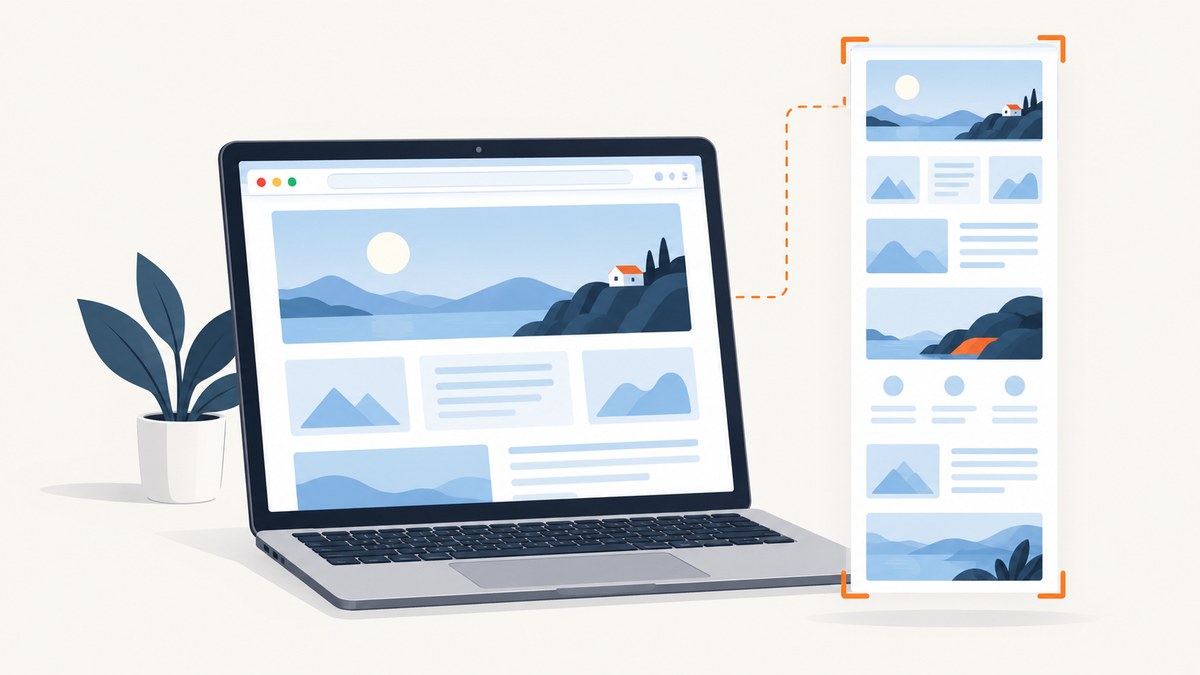
Google Chrome supports several screenshot workflows. On a Chromebook, use the built-in Screen Capture tool for the entire screen, a window, or a selected region. To capture an entire scrolling webpage on desktop Chrome, use DevTools and run Capture full size screenshot. Chromebook screenshots are copied to the clipboard and saved in the Downloads folder by default.
Choose the right Chrome screenshot method
| What you need | Best method | Output and location |
|---|---|---|
| Entire Chromebook screen | Screen Capture or Ctrl + Show windows | Image copied to clipboard and saved in Downloads |
| One area of the screen | Screen Capture partial screenshot or Shift + Ctrl + Show windows | Selected region copied and saved |
| One application window | Screen Capture window screenshot | Window image copied and saved |
| Entire scrolling webpage | Chrome DevTools, Capture full size screenshot | Image file downloaded by Chrome |
Take a screenshot on a Chromebook
Use the Screen Capture toolbar
- Open the Screen Capture tool from the shelf, or press Shift + Ctrl + Show windows. The Show windows key looks like a rectangle with two vertical lines.
- In the toolbar, choose Screenshot.
- Select Full screen, Partial screenshot, or Window screenshot.
- For a partial capture, drag over the area you want. For a window capture, select the window.
- Open the notification or clipboard to use the image immediately.
ChromeOS copies screenshots to the clipboard automatically and saves them in Downloads by default. You can change the destination in Screen Capture settings. Managed devices may disable screenshots or restrict where files can be saved.
Use Chromebook keyboard shortcuts
- Full screen: Ctrl + Show windows
- Partial screenshot: Shift + Ctrl + Show windows
- ChromeOS tablet: press Power + Volume down
If your keyboard has a dedicated Screenshot key, pressing it opens the same capture controls. The exact toolbar can vary by ChromeOS version and device policy.
Capture an entire scrolling webpage in desktop Chrome
A normal screen capture records only the visible viewport. Use DevTools when you need the complete page, including content below the fold.
- Open the page in Chrome.
- Open DevTools with Ctrl + Shift + I on Windows or Linux, or Cmd + Option + I on macOS.
- Open the Command Menu with Ctrl + Shift + P on Windows or Linux, or Cmd + Shift + P on macOS.
- Type
capture full size screenshot. - Choose the command shown by DevTools. Chrome captures the full emulated page and downloads an image.
Chrome’s command names can change between releases. If the command does not appear, update Chrome and search for screenshot in the Command Menu. DevTools may capture the page at the current emulated viewport width, so set the device, dimensions, and device pixel ratio before running the command.
Capture only the visible viewport
Open DevTools, open the Command Menu, and run Capture screenshot. This captures the viewport rather than the complete scrolling document.
Capture one element
In DevTools, inspect the element, then use the Command Menu’s screenshot command when available. If your Chrome version does not expose an element command, use the element’s bounding box with an automation tool or crop the downloaded image.
Where Chrome saves screenshots
On ChromeOS, screenshots and recordings go to Downloads by default and are also copied to the clipboard. Open the Files app and select Downloads to find them. Screen Capture settings let you select another destination.
On desktop Chrome, DevTools screenshots normally download through Chrome’s download system. Check the download bubble or open chrome://downloads to see the exact file path. The destination follows Chrome’s configured download folder and the option asking where to save each file.
Or skip the browser setup
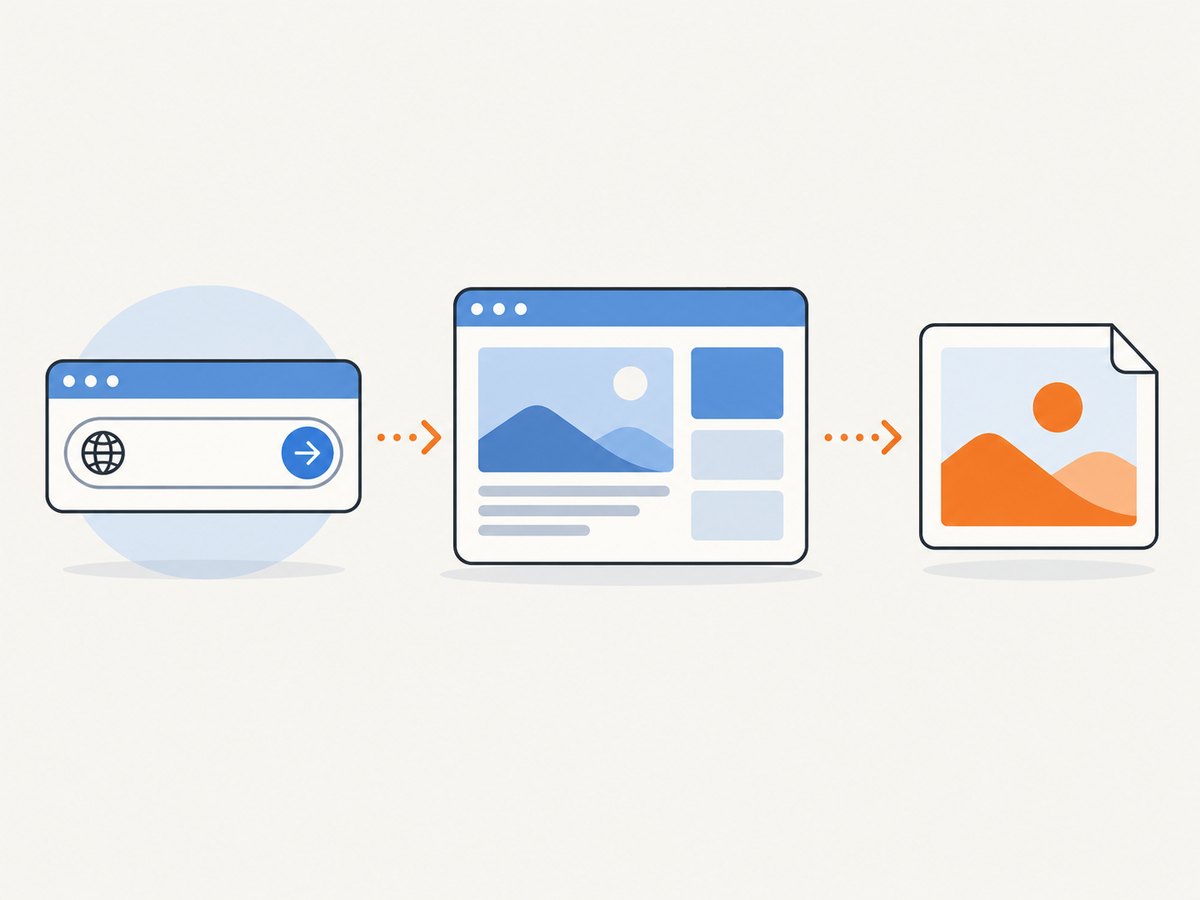
If you need repeatable screenshots in a script, CI job, or backend service, ScreenshotNeo provides a single GET request that returns PNG, JPEG, WebP, or PDF. See the ScreenshotNeo API documentation for all options.
curl -G "https://api.screenshotneo.com/v1/shot" -d access_key=YOUR_API_KEY --data-urlencode url=https://stripe.com -o shot.webpimport requests
r = requests.get(
"https://api.screenshotneo.com/v1/shot",
params={"access_key": "YOUR_API_KEY", "url": "https://stripe.com"},
timeout=90,
)
r.raise_for_status()
open("shot.webp", "wb").write(r.content)const q = new URLSearchParams({ access_key: 'YOUR_API_KEY', url: 'https://stripe.com' });
const res = await fetch(`https://api.screenshotneo.com/v1/shot?${q}`);
if (!res.ok) throw new Error(`HTTP ${res.status}`);
const buffer = Buffer.from(await res.arrayBuffer());
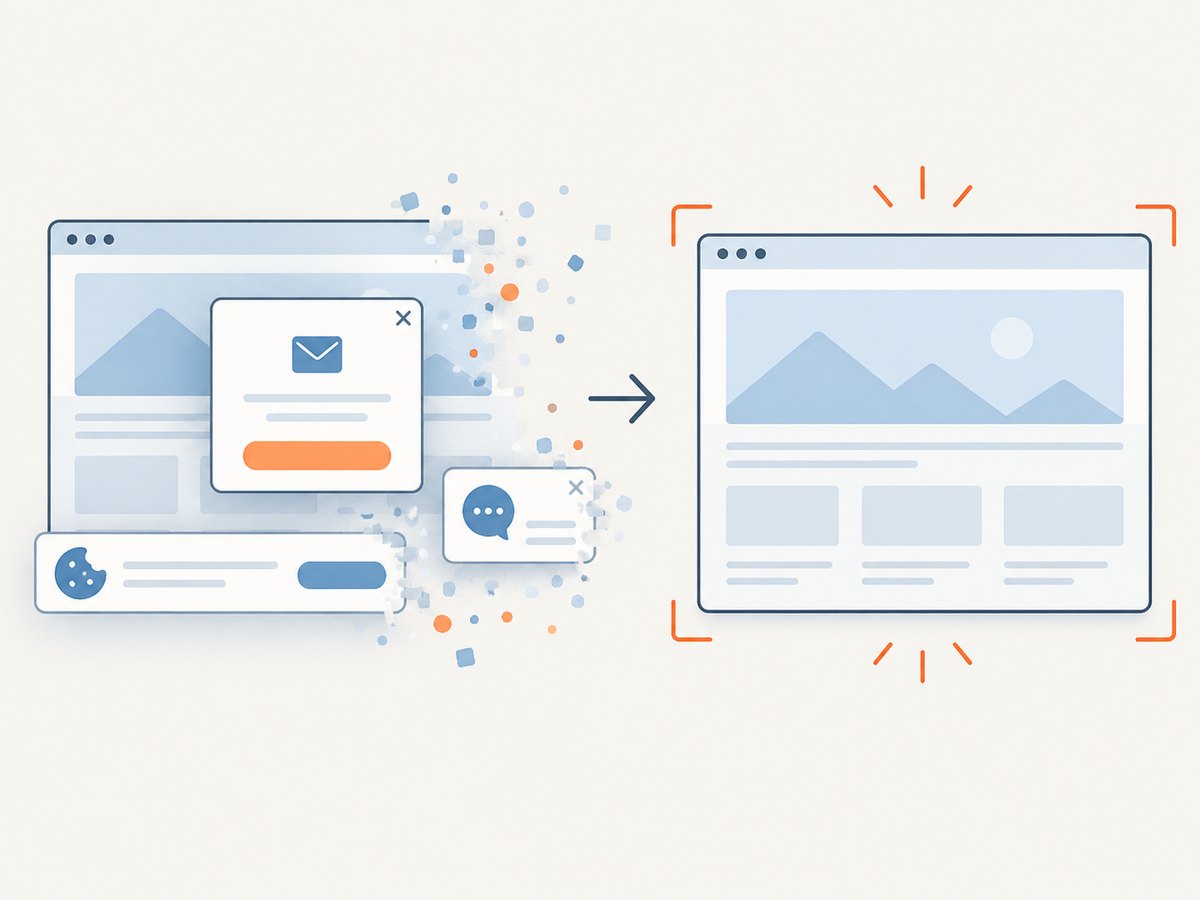
require('fs').writeFileSync('shot.webp', buffer);Cookie banners, newsletter popups, and chat widgets are removed before the shot. Bot checks, blank pages, failed loads, timeouts, and cache hits are not billed, and response headers identify the page verdict and whether it was billed. An MCP server lets Claude, Cursor, and other MCP clients call take_screenshot, get_page_info, and capture_pdf. The free plan includes 1,000 screenshots a month with no card; paid plans start at $5 for 3,000 shots. Create a free ScreenshotNeo account.
Screenshot troubleshooting
The shortcut does nothing
Confirm that you are pressing the Chromebook’s Show windows key, not a standard Windows function key. On a tablet, use Power + Volume down. A school or company administrator may disable screenshots.
The full-page command is missing
Use the DevTools Command Menu, search for screenshot, and update Chrome. Open DevTools before searching; the command is not available in the regular page menu.
The capture contains a blank area
Lazy-loaded images and content triggered by scrolling may not be ready. Scroll through the page first, wait for content to load, then capture again. Pages inside cross-origin frames may also restrict what DevTools can capture.
The screenshot is blurry
Increase the emulated device pixel ratio or capture at a larger viewport. Remember that enlarging a low-resolution screenshot afterward cannot restore detail.
The image is cut off
You probably used a viewport capture. Run Capture full size screenshot for a scrolling page, and check that the page itself has finished rendering.
You cannot find the file
On ChromeOS, check Files > Downloads and the clipboard. On desktop, check chrome://downloads and Chrome’s configured download directory.
Reliability, performance, and cost considerations
- For occasional captures: Chromebook Screen Capture is fastest and requires no setup.
- For long pages: DevTools full-size capture avoids manually stitching many viewport images, but very large pages can take longer and produce large files.
- For repeatable builds: use a fixed viewport, device pixel ratio, URL state, and wait condition. Save the URL and capture time beside each image.
- For private pages: avoid exposing session cookies in screenshots or downloads. Use an authenticated, controlled browser profile or an API that supports the required headers and cookies.
- For automated workloads: ScreenshotNeo supports custom CSS and JavaScript, selectors, waits, blocking rules, headers, cookies, user agents, timezone, geolocation, caching, asynchronous jobs, bulk capture, and PDF output. Select only the options your page needs to reduce waiting and simplify debugging.
FAQ
Can Chrome take a full webpage screenshot?
Yes. On desktop Chrome, use DevTools’ Capture full size screenshot. The Chromebook Screen Capture toolbar is designed for screen, window, and region captures; use a full-page method for a scrolling webpage.
Are Chrome screenshots automatically copied?
ChromeOS copies screenshots to the clipboard automatically. Desktop DevTools captures are downloaded files.
Can I change the Chromebook screenshot folder?
Yes. Open Screen Capture settings and choose a different save destination.
What format does DevTools use?
DevTools downloads an image through Chrome’s download system. If you need a specific PNG, JPEG, WebP, or PDF response in code, use an API such as ScreenshotNeo.
Why does a full-page capture differ from what I see while scrolling?
Pages can load images, animations, advertisements, and personalized content as you scroll. Wait for those resources or use a controlled capture workflow with explicit waits and blocking rules.


