BlogScreenshots on your device
Screenshot Hotkeys in Windows 11
Use the right Windows 11 screenshot shortcut for a region, window, full screen, or saved file, plus fixes when Print Screen is missing.
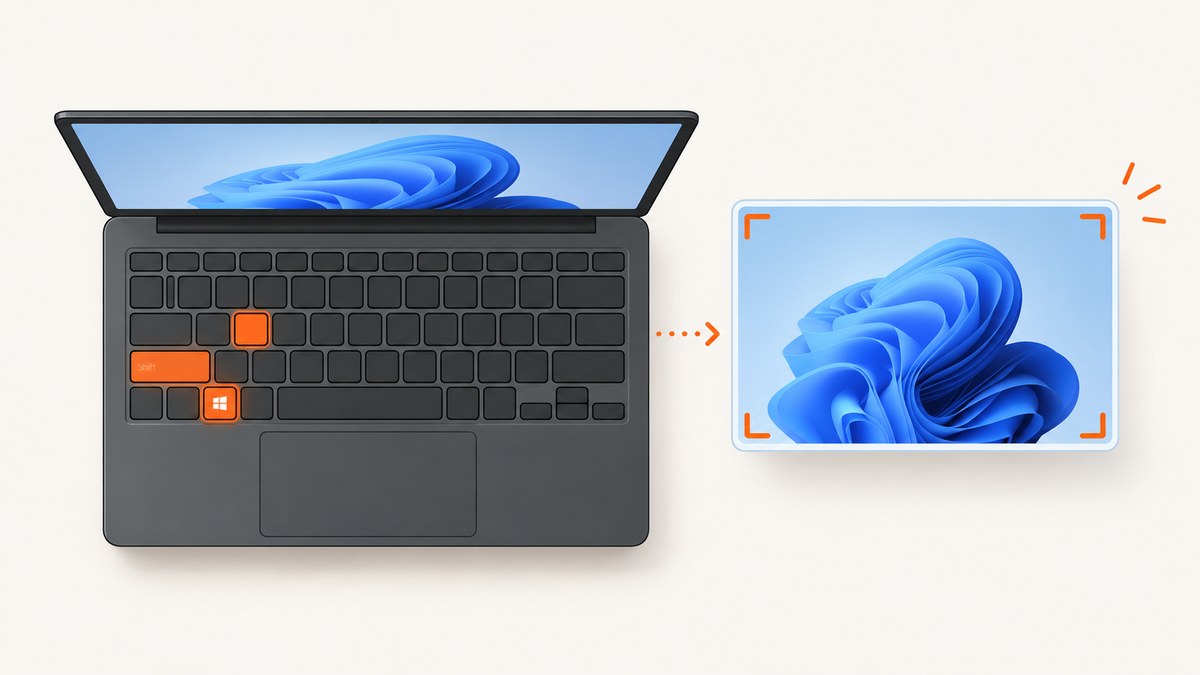
For a selected area, press Windows logo key + Shift + S. For a full-screen image saved automatically, press Windows logo key + PrtScn and open Pictures\Screenshots. To capture only the active window, press Alt + PrtScn, then paste the result. These shortcuts have different outputs: some copy to the clipboard, while one saves a file.
Windows 11 screenshot shortcuts at a glance
| Shortcut | What it captures | Output | Next step |
|---|---|---|---|
| Windows + Shift + S | Rectangle, window, full screen, or freeform selection | Copied to clipboard | Open the notification or Snipping Tool to edit and save |
| Windows + PrtScn | Entire screen | Saved image file | Open Pictures\Screenshots |
| Alt + PrtScn | Active window | Copied to clipboard | Paste into an editor, document, email, or chat |
| PrtScn | Screen snipping on current Windows keyboard defaults | Depends on Snipping Tool setting | Change its behavior in Accessibility keyboard settings |
| Windows + Shift + R | Screen video | Recording overlay | Use for video capture, not a still screenshot |
| Fn + Windows + Space Bar | Full-screen capture on some keyboards without PrtScn | Hardware dependent | Check the device’s key layout if it does not work |
Microsoft documents Snipping Tool as a way to copy words or images from all or part of your PC screen. See Microsoft’s Snipping Tool guide and its Windows keyboard shortcut reference.
1. Capture a region, window, or full screen with Windows + Shift + S
- Press Windows logo key + Shift + S.
- When the Snipping Tool overlay appears, choose a mode: rectangular, window, full screen, or freeform.
- Make the selection. Windows copies the still image to the clipboard.
- Select the capture notification to open the Snipping Tool editor, or paste immediately with Ctrl + V.
- In Snipping Tool, use Ctrl + C to copy and Ctrl + S to save.
This is the best general shortcut when you need a precise area or want to choose the capture mode each time.

Use a delay for menus and transient controls
Open Snipping Tool and set a delay of one to five seconds when a menu disappears as soon as you start the capture. Microsoft lists Alt + D for choosing a delay, Alt + N for a new snip in the same mode, and Alt + M for choosing a snipping mode.
2. Save the entire screen with Windows + PrtScn
- Press Windows logo key + PrtScn.
- Open File Explorer.
- Go to Pictures\Screenshots under your user profile.
This combination writes a file automatically, so there is no paste step. If your Pictures folder is redirected or synchronized, use File Explorer’s search for Screenshots if the folder is not where you expect.
3. Copy only the active window with Alt + PrtScn
- Click the window you want to capture so it is active.
- Press Alt + PrtScn.
- Paste with Ctrl + V into Paint, an image editor, a document, or a message.
- Save from the destination application.
Windows copies this capture to the clipboard; it does not create a file in Pictures\Screenshots automatically.
4. What the standalone PrtScn key does
On current Windows keyboard settings, pressing PrtScn opens screen snipping by default. Microsoft also notes that this behavior can be changed in Settings > Accessibility > Keyboard. If the key copies the entire screen or appears to do nothing, inspect that setting and then try the explicit Windows + Shift + S shortcut.
5. Keyboards without Print Screen
Microsoft suggests Fn + Windows logo key + Space Bar on some devices that lack a PrtScn key. This is hardware dependent: compact keyboards may place the function on another key or require an Fn-lock state. If it fails, use Windows + Shift + S or open Snipping Tool from the Start menu.
6. Clipboard versus saved-file screenshots
| If you need… | Use |
|---|---|
| A quick selection to paste somewhere | Windows + Shift + S |
| An automatically saved full-screen file | Windows + PrtScn |
| Only the current application window | Alt + PrtScn |
| A video instead of a still | Windows + Shift + R |
Clipboard captures can be overwritten by your next copy operation. Save the image from Snipping Tool or paste it into an application when you need to keep it.
Troubleshooting Windows 11 screenshots
The shortcut does nothing
- Try Windows + Shift + S to confirm Snipping Tool opens.
- Check Settings > Accessibility > Keyboard for the Print Screen option.
- On a laptop, hold Fn or test the keyboard’s Fn-lock state.
I cannot find the screenshot
Only Windows + PrtScn saves automatically. Check Pictures\Screenshots. Captures made with Windows + Shift + S and Alt + PrtScn are in the clipboard until you open, paste, and save them.
It captured the wrong window
For Alt + PrtScn, activate the target window first. For a selection, use Windows + Shift + S and choose window mode, then select the correct window.
A menu closes before I capture it
Use Snipping Tool’s delay control (one to five seconds), then open the menu during the countdown.
I used Windows + Shift + R by mistake
That shortcut opens the Snipping Tool video capture overlay. Use Windows + Shift + S for a still image.
Performance, reliability, and privacy considerations
- Use the clipboard shortcuts when speed matters and you will paste immediately.
- Use Windows + PrtScn when repeatable file creation matters because it skips the editor and saves to a known folder.
- Use a delayed snip for menus, tooltips, and other transient interface states.
- Review the image before sharing: a full-screen capture can include other windows, notifications, or sensitive information.

Or skip the browser setup
If you need screenshots of web pages rather than your local Windows desktop, ScreenshotNeo provides a website screenshot API. One GET request returns a PNG, JPEG, WebP, or PDF. It accepts cookie and consent banners like a visitor, then removes more than 60 known consent platforms, newsletter popups, and chat widgets before capture. Bot checks, blank pages, timeouts, failed loads, and cache hits are not billed; response headers identify the page verdict and billing status. An MCP server lets Claude, Cursor, and other MCP clients call take_screenshot, get_page_info, and capture_pdf.
See the ScreenshotNeo API documentation for all options.
cURL
curl -G "https://api.screenshotneo.com/v1/shot" -d access_key=YOUR_API_KEY --data-urlencode url=https://stripe.com -o shot.webpPython
import requests
r = requests.get("https://api.screenshotneo.com/v1/shot", params={"access_key": "YOUR_API_KEY", "url": "https://stripe.com"}, timeout=90)
open("shot.webp", "wb").write(r.content)
Node.js
const q = new URLSearchParams({ access_key: 'YOUR_API_KEY', url: 'https://stripe.com' });
const res = await fetch(`https://api.screenshotneo.com/v1/shot?${q}`);
ScreenshotNeo includes full-page capture with lazy images loaded, CSS-selector element capture, dark mode, device presets, custom viewport and retina scale, PDF paper and margin controls, custom CSS and JavaScript, click and wait actions, request blocking, headers, cookies, user agents, authorization, timezone, geolocation, transparent backgrounds, resizing, caching with a chosen TTL, signed links, asynchronous webhooks, bulk capture, usage reporting, and an OpenAPI specification. Plans include 1,000 free shots per month with no card; paid plans start at $5 for 3,000 shots. Create a free ScreenshotNeo account.
FAQ
What is the fastest Windows 11 screenshot shortcut?
Use Windows + Shift + S for a selected area, or Windows + PrtScn for an automatically saved full-screen file.
Which shortcut captures one window?
Press Alt + PrtScn while that window is active, then paste the clipboard image.
Where are Windows + PrtScn screenshots stored?
In Pictures\Screenshots under your user profile.
Is Windows + Shift + R a screenshot shortcut?
No. It opens Snipping Tool’s video capture overlay.
Can I screenshot without a PrtScn key?
Try Fn + Windows + Space Bar on supported hardware, or use Windows + Shift + S.


