BlogScreenshots on your device
Screenshot Keyboard Shortcuts: How to Capture Your Screen
Use the right screenshot shortcut on Windows, Mac, or Chromebook, find your files, fix common problems, and automate captures with ScreenshotNeo.
Quick answer: On Windows, press Windows + Shift + S for a selectable snip or Print Screen for the whole screen. On Mac, use Shift + Command + 3 for the full screen, Shift + Command + 4 for a selected area, or Shift + Command + 5 for screenshot controls. On Chromebook, press Ctrl + Show windows for the full screen or Shift + Ctrl + Show windows for a selected area.
The correct shortcut depends on your operating system and keyboard. The sections below explain what each key combination captures, where the result goes, how to annotate it, and how to troubleshoot shortcuts that do nothing.
Shortcut reference
| Platform | Full screen | Selected area | Window or controls | Default destination |
|---|---|---|---|---|
| Windows 10/11 | Print Screen copies the entire screen | Windows + Shift + S opens Snipping Tool | Choose window or full-screen mode in the Snipping Tool overlay | Clipboard for Print Screen; Snipping Tool lets you save and share |
| macOS | Shift + Command + 3 | Shift + Command + 4 | Shift + Command + 5 opens Screenshot controls | Screenshot file location is configurable; clipboard capture is available from the thumbnail menu |
| ChromeOS | Ctrl + Show windows | Shift + Ctrl + Show windows | Screen Capture toolbar offers full screen, area, window, and recording | Clipboard and the Downloads folder by default; the destination can be changed |
Windows: capture the screen with Snipping Tool
Capture a region, window, or full screen
- Press Windows + Shift + S. The screen dims and the Snipping Tool overlay appears.
- Choose rectangular, freeform, window, or full-screen snip.
- Select the area or window. The capture is copied so you can paste it into an editor, message, or document.
- Open the notification thumbnail to annotate, save, or share the image.
Microsoft documents Windows + Shift + S as the image capture shortcut and Windows + Shift + R as the video capture shortcut. See Microsoft’s Snipping Tool documentation for the current controls.
Capture the entire screen immediately
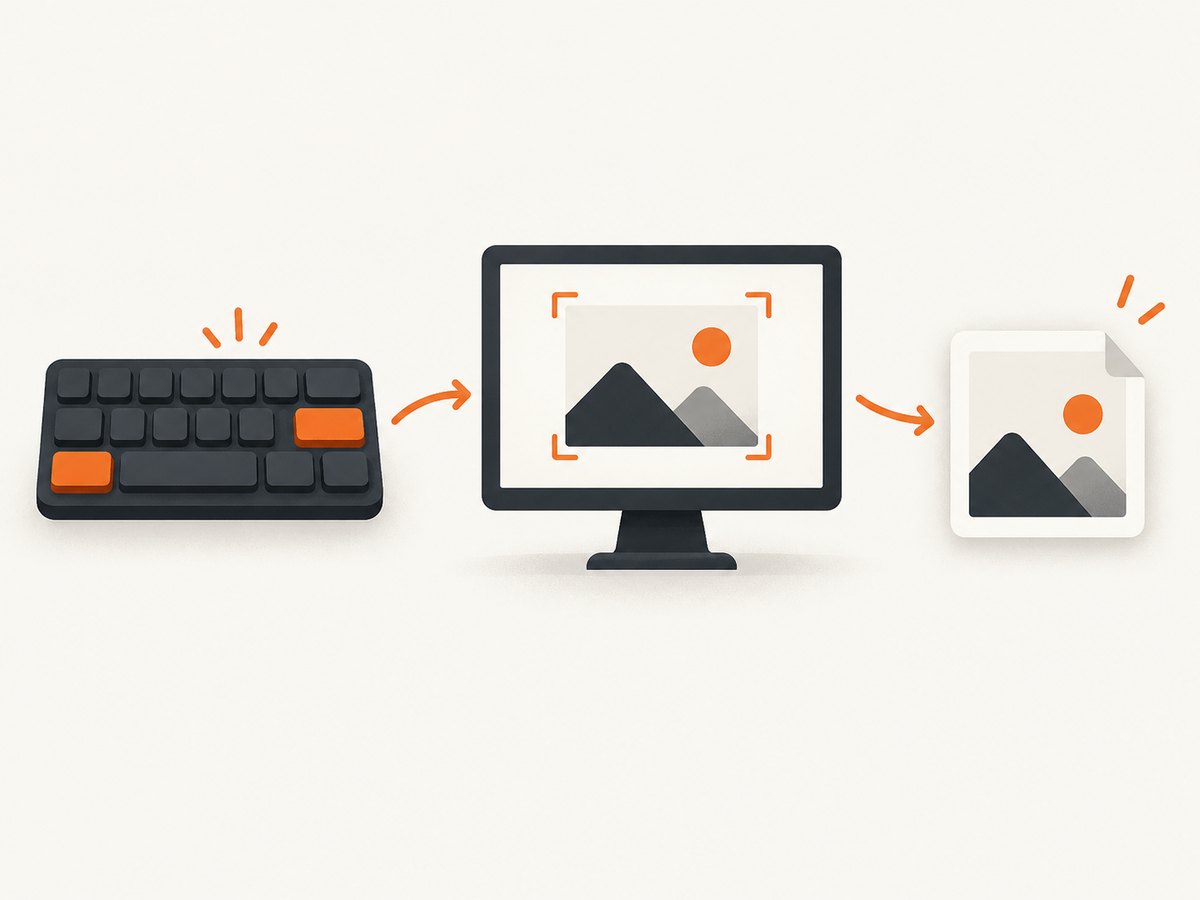
Press Print Screen (also labeled PrtSc or PrtScn). Windows places a static image of the entire screen on the clipboard. Open Paint, an image editor, or a document and press Ctrl + V to paste it, then save the file.
On some keyboards, you must hold Fn while pressing Print Screen. If your keyboard has no Print Screen key, use the Snipping Tool shortcut instead or connect a USB keyboard with a dedicated Print Screen key.
Windows recording
Press Windows + Shift + R to open the Snipping Tool video overlay. Select the region, start recording, and stop when finished. Use this when a still image cannot explain a moving interaction.
Mac: use Screenshot shortcuts
Full-screen screenshot
Press Shift + Command + 3. macOS captures every visible display. Use the thumbnail that appears after capture to mark up the image, move it, or choose a different save action.
Selected area or window
Press Shift + Command + 4, then drag over the area to capture. After the crosshair appears, press Space to switch to window capture and click a window.
Screenshot controls and recording
Press Shift + Command + 5 to open the Screenshot app controls. From there you can select the full screen, a window, or a portion of the screen, and start a screen recording. macOS Mojave 10.14 and later include this Screenshot app. Apple also documents clipboard capture through the thumbnail menu. Some protected apps may block window screenshots; capture a permitted region or use the app’s own export function instead. See Apple’s screenshot and recording instructions.
Chromebook: capture with the Show windows key
Full screen
Press Ctrl + Show windows. The Show windows key looks like a rectangle followed by two vertical lines and is usually on the top row. ChromeOS copies the capture to the clipboard and saves it in Downloads by default.
Partial or window capture
Press Shift + Ctrl + Show windows to open the partial-capture tools. Select a region or choose a window from the Screen Capture toolbar. The toolbar also supports screen recording.
If you are using an external keyboard without a Show windows key, Google documents Ctrl + Shift + F5 as the alternative. You can change the save destination in Screen Capture settings. See Google’s Chromebook screenshot help and Screen Capture settings.
Choose the shortcut by capture goal
| Goal | Windows | Mac | Chromebook |
|---|---|---|---|
| Capture everything visible | Print Screen | Shift + Command + 3 | Ctrl + Show windows |
| Capture one region | Windows + Shift + S | Shift + Command + 4 | Shift + Ctrl + Show windows |
| Capture a window | Choose window in Snipping Tool | Shift + Command + 4, then Space | Choose a window in Screen Capture |
| Record video | Windows + Shift + R | Shift + Command + 5 | Screen Capture toolbar |
Where is my screenshot saved?
Windows
Print Screen produces clipboard content, so it is not a file until you paste and save it. Snipping Tool captures can be opened from the notification thumbnail, where you can annotate and save them. If you cannot find a file, paste the clipboard into Paint and save a copy.
Mac
Use the screenshot thumbnail to open save and sharing actions. The thumbnail menu also offers a clipboard destination. If the thumbnail disappears, press Shift + Command + 5 and review Screenshot options.
Chromebook
Look in Files > Downloads unless you selected another destination in Screen Capture settings. A copy is also available from the clipboard immediately after capture.
Editing, annotation, and sharing
- Crop to the smallest area that answers the question.
- Use arrows, boxes, or highlights to identify the relevant control.
- Hide passwords, tokens, personal data, and customer information before sharing.
- Prefer PNG for text and UI screenshots; use JPEG when file size matters more than sharp edges.
- Paste clipboard captures directly into issue trackers, chat, or documentation when a saved file is unnecessary.
Or skip the browser setup
Keyboard shortcuts are ideal for a screen in front of you. For repeatable website captures, a browser automation setup must handle viewport size, page loading, cookie banners, popups, and dynamic content. ScreenshotNeo provides a single HTTP request for a PNG, JPEG, WebP, or PDF website capture. Read the ScreenshotNeo API documentation for all options.
cURL
curl -G "https://api.screenshotneo.com/v1/shot" -d access_key=YOUR_API_KEY --data-urlencode url=https://stripe.com -o shot.webpPython
import requests
r = requests.get("https://api.screenshotneo.com/v1/shot", params={"access_key": "YOUR_API_KEY", "url": "https://stripe.com"}, timeout=90)
open("shot.webp", "wb").write(r.content)
Node.js
const q = new URLSearchParams({ access_key: 'YOUR_API_KEY', url: 'https://stripe.com' });
const res = await fetch(`https://api.screenshotneo.com/v1/shot?${q}`);
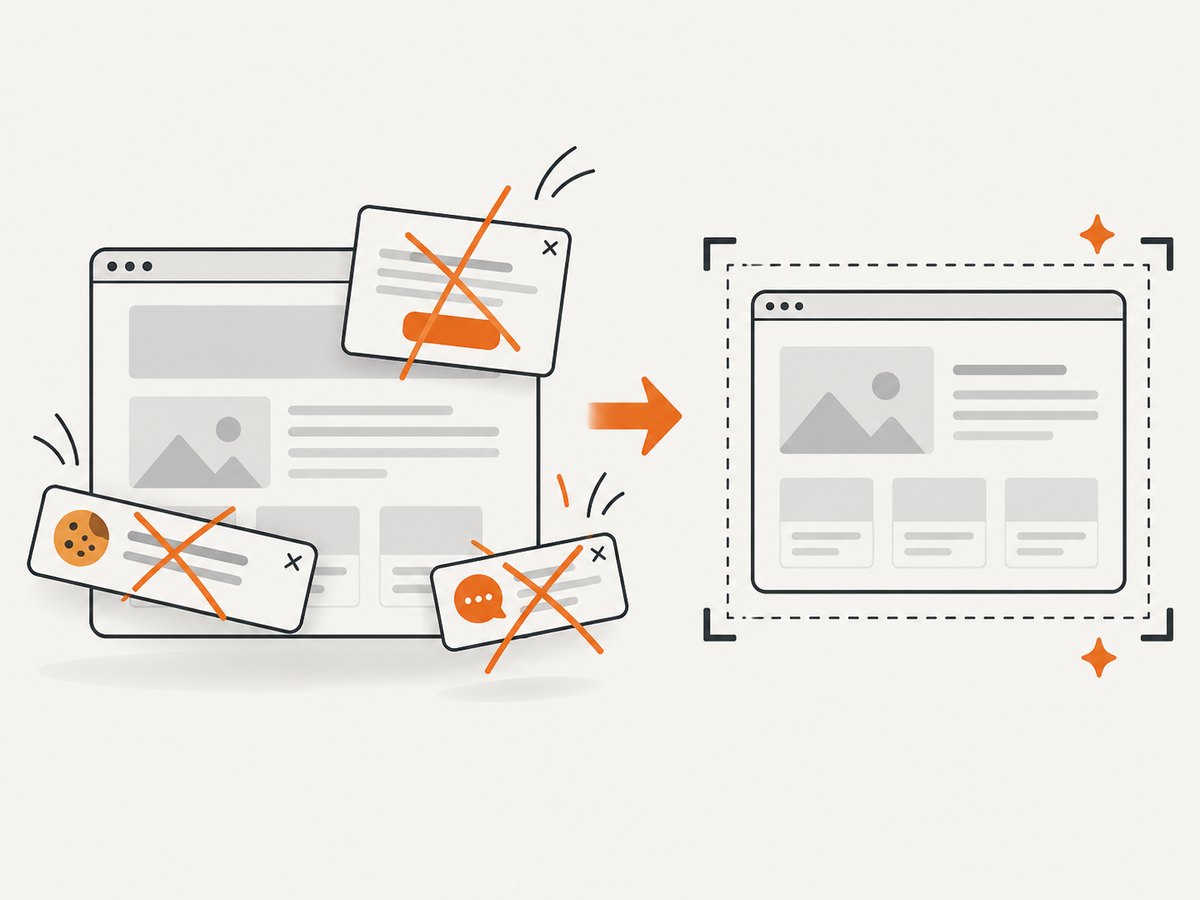
ScreenshotNeo removes cookie and consent banners, newsletter popups, and chat widgets before capture. Bot checks, blank pages, timeouts, failed loads, and cache hits are not billed, and each response reports its result in the X-Page-Verdict and X-Billed headers. Its MCP server includes take_screenshot, get_page_info, and capture_pdf tools for Claude, Cursor, and other MCP clients. One thousand screenshots per month are free with no card; paid plans start at $5 for 3,000 shots. Create a free ScreenshotNeo account.
Troubleshooting
| Problem | Cause | Fix |
|---|---|---|
| Shortcut does nothing on Windows | The keyboard uses an Fn layer, Print Screen is remapped, or Snipping Tool is unavailable. | Try Fn + Print Screen, use Windows + Shift + S, and confirm Snipping Tool is installed and enabled. |
| Only one monitor appears | The selected mode captured one display or one window. | Use full-screen capture for each display or capture the combined desktop with the mode your Windows build provides. |
| Mac window capture is blocked | Some protected apps prevent screenshots. | Capture an allowed region or use the app’s export or sharing command. |
| Chromebook capture is missing | The Show windows key is absent on an external keyboard. | Use Ctrl + Shift + F5 or open Screen Capture from the system shelf. |
| Nothing is in the expected folder | The shortcut copied to the clipboard or the save destination was changed. | Paste into an editor, check the screenshot thumbnail, or review Screen Capture settings. |
| Screenshot contains sensitive data | The capture included the whole screen or an unredacted region. | Recapture a smaller region and redact secrets before sharing. |
Performance and reliability tips
- Use region or window capture when the full desktop contains irrelevant pixels.
- Close notifications and private tabs before capturing.
- For documentation, keep the same display scale and window size so screenshots remain comparable.
- For website automation, wait for the page’s important content before capture and use a stable viewport.
- Keep the original capture until review is complete; edit a copy when possible.
FAQ
What is the fastest full-screen shortcut?
Use Print Screen on Windows, Shift + Command + 3 on Mac, or Ctrl + Show windows on Chromebook.
Can I screenshot only one monitor?
Yes. Use a window or region capture and select the display area you need. Full-screen behavior can vary with multi-monitor settings.
How do I screenshot a webpage without browser chrome?
Use the browser’s own page capture tools or an API such as ScreenshotNeo, which returns a website image or PDF from a URL.
Do keyboard shortcuts capture video?
Yes. Windows uses Windows + Shift + R; Mac uses Shift + Command + 5; ChromeOS provides recording in Screen Capture.
What if my keyboard has no screenshot key?
Use the operating system’s region shortcut. On Chromebook external keyboards, Google documents Ctrl + Shift + F5.


