How to Use a Screenshot MCP Server with Claude Code
Connect a screenshot MCP server to Claude Code, verify it, invoke tools safely, troubleshoot failures, and use ScreenshotNeo when you want a managed API.

Direct answer: Claude Code can use a screenshot MCP server after you add that server at the correct scope, choose the transport its documentation supports, authenticate it, and confirm the connection with claude mcp list, claude mcp get <name>, or /mcp. The screenshot tool name, arguments, target type, permissions, and image handling come from the specific server. There is no universal screenshot tool name or argument schema in MCP.
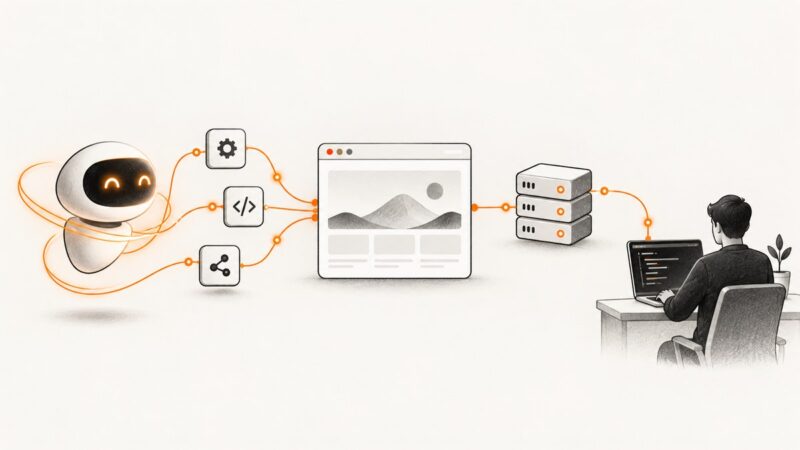
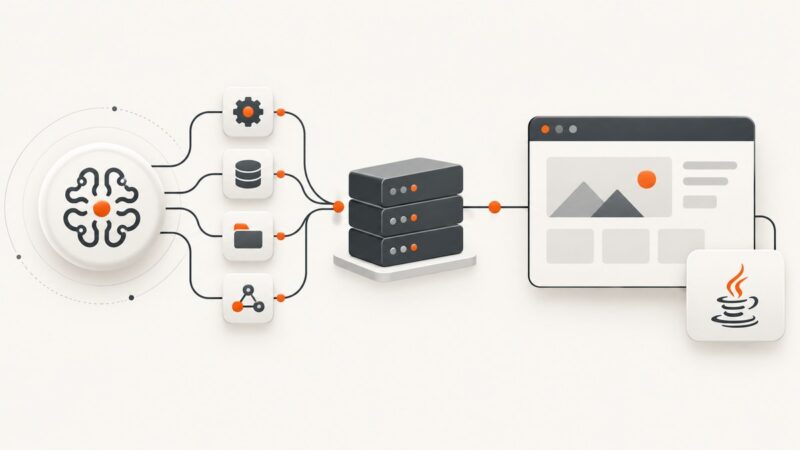
MCP (Model Context Protocol) is a standardized way for AI applications to connect to external systems. Claude Code can discover MCP servers and call the tools they expose. A screenshot server might capture a browser viewport, a desktop display, a page element, or another target, so read its documentation before copying an installation command or asking Claude Code for a capture. See the MCP overview and Anthropic’s Claude Code MCP guide.
What you need before starting
- Claude Code access through an eligible Anthropic plan or supported provider. Check the current setup documentation because eligibility can change.
- The exact screenshot MCP server you intend to use, including its repository or vendor documentation.
- Its supported transport: local stdio, remote HTTP, SSE, WebSocket, or another documented option.
- Any required runtime, operating-system permissions, browser installation, API key, OAuth flow, or environment variables.
- A clear understanding of where captured images go and whether the server stores or uploads them.
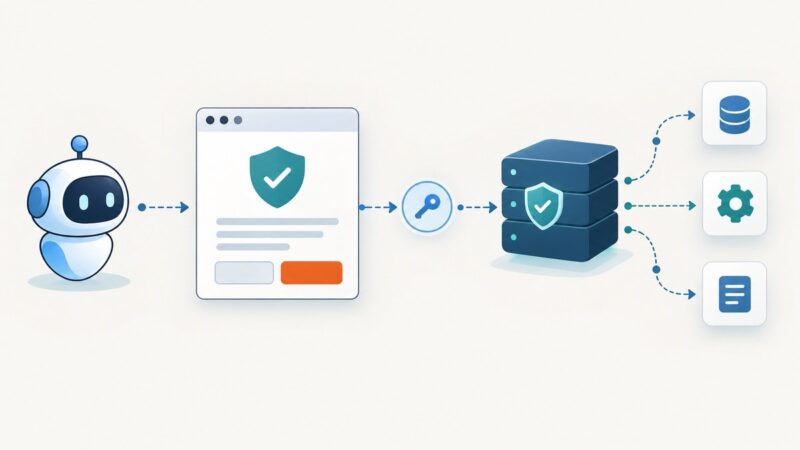
Verify that you trust a server before connecting it. A server that fetches external content can expose a coding session to prompt injection. Treat a project configuration as shared team code, and keep credentials out of committed files.
Choose local or remote deployment
| Deployment | Typical transport | When it fits | Operational detail |
|---|---|---|---|
| Local process | stdio | You have a server command and want captures on the same machine. | Claude Code starts a process. Stdio servers are not automatically reconnected after the process exits. |
| Remote service | HTTP or SSE | The vendor hosts the browser or capture worker. | Use the documented endpoint and authentication. Some transient HTTP/SSE failures receive automatic retries. |
| Remote socket service | WebSocket or vendor-specific transport | The server explicitly documents a persistent socket connection. | Use the server’s exact command and flags; do not substitute an HTTP URL. |
The transport is not a preference you can safely guess. A remote endpoint that expects HTTP will not work as a stdio command, and a local executable will not become an HTTP server merely by placing its path in a URL.
Add the MCP server to Claude Code
Option 1: a local stdio server
Anthropic documents this general pattern:
claude mcp add <name> -- <server-launch-command> <arguments>Replace every placeholder with the command supplied by the selected server. For example, if its documentation says to launch a package with a package runner, the complete command might resemble:
claude mcp add screenshot -- npx <documented-package-name>The package name above is intentionally a placeholder. Do not install an arbitrary package that merely sounds like a screenshot server. Check the project’s official instructions, version requirements, and permissions first.
Option 2: a remote HTTP server
claude mcp add --transport http <name> https://<host>/<path>Use the exact HTTPS endpoint published by the server. If authentication uses OAuth, Claude Code’s /mcp flow can guide authorization when the server supports it. If the service requires a bearer token or another header, follow its documented configuration rather than placing a secret in a repository file.
Choose a configuration scope
Claude Code supports local, project, and user scopes.
- Local scope: useful for a private experiment or a server that only you should see in one checkout.
- Project scope: appropriate when a team should share the server definition through a repository’s
.mcp.json. Claude Code asks for approval before using a project-scoped server from that file. - User scope: makes the server available across your projects.
Use environment-variable expansion where the server and Claude Code support it. Never commit API keys, OAuth refresh tokens, or personal cookies to .mcp.json. A shared configuration can tell teammates which service to use, while each developer supplies credentials through their local environment or the server’s supported login flow.
Verify that Claude Code connected
- List configured servers:
claude mcp list- Inspect one server in detail:
claude mcp get <name>- Inside a Claude Code session, open the MCP status view:
/mcpLook for the configured name, transport, endpoint or launch command, authentication state, and any reported error. A connected status proves discovery and connection only. It does not prove that the server can reach the target page, capture the desired region, or safely handle the resulting image.
Invoke the screenshot tool
After connection, ask Claude Code to use the tool described by the server. Include the target, capture type, and output requirement in ordinary language:
Use the screenshot tool from the connected server to capture https://example.com at a desktop viewport. Return the resulting image and tell me the viewport and capture dimensions.For a page element:
Use the connected screenshot server to capture the element matching the documented CSS selector for the pricing table on https://example.com/pricing. If the selector is missing, report that instead of guessing.For a desktop capture, name the window or display only if the server documents desktop-screen support. For a browser capture, specify the URL and any required wait condition. The actual tool may be called take_screenshot, capture, or something else. Inspect the tool list or server documentation and use its exact name and required arguments.
Make captures repeatable
- State the target precisely: include the full URL, route, or display identifier.
- Define timing: ask the server to wait for a documented selector, network idle state, or fixed delay when the page renders asynchronously.
- Set the viewport: record width, height, device scale, and dark-mode preference if supported.
- Control authentication: use the server’s documented cookie, header, OAuth, or environment-variable mechanism.
- Request a known output: specify PNG, JPEG, WebP, PDF, or the server’s native result format.
- Check the result: confirm that the page is not blank, blocked, partially rendered, or showing a consent overlay.
If an agent will make decisions from the image, ask it to describe what it captured and flag uncertainty. A successful tool call is not evidence that the page content is correct.
Security and privacy checklist
- Verify the server’s provenance and review its source or vendor documentation.
- Understand whether URLs, cookies, headers, screenshots, or page content leave your machine.
- Do not place credentials in prompts, committed configuration, or shell history when the server offers a safer secret mechanism.
- Use a separate account or restricted token for capture jobs that do not need broad access.
- Be cautious with pages containing untrusted text. Fetched content can attempt prompt injection.
- Review captured images before sharing them; screenshots can contain personal data, tokens, customer records, or internal URLs.
- For project-scoped servers, review the proposed configuration before approving it for the repository.
Common errors and fixes
| Error or symptom | Likely cause | Fix |
|---|---|---|
Server does not appear in claude mcp list |
The add command failed, used another scope, or was run outside the expected environment. | Run claude mcp get <name>, repeat the documented add command, and confirm the selected scope. |
| Command not found | The local runtime or server package is missing from PATH. | Install the runtime required by the server, check its version, and run the exact launch command from its documentation. |
| Remote connection unauthorized | OAuth was not completed, a token expired, or the endpoint needs a specific header. | Open /mcp, complete the documented login flow, or configure the required credential without committing it. |
| Connection repeatedly fails | Wrong transport, endpoint path, firewall, DNS, or server outage. | Compare the URL and transport with the vendor instructions, then inspect the detailed status in /mcp. |
| Tool is connected but unavailable | The server exposes different tool names, or a required capability is disabled. | Read the server’s tool list and call the documented operation. Do not assume a universal screenshot name. |
| Blank or incomplete image | The page needs more time, requires authentication, lazy-loads content, or blocks automation. | Use a documented wait condition, supply authorized cookies or headers, and check the page manually. |
| Stdio server stops after one request | The local process crashed or exited instead of staying available. | Run the launch command directly, inspect stderr, verify dependencies, and restart Claude Code. Stdio servers are not automatically reconnected. |
| Project server asks for approval | Claude Code is protecting a shared .mcp.json configuration. |
Review the command, endpoint, and environment references before approving it. |
Performance, reliability, and cost
Capture speed depends on the server’s browser startup, network path, page size, JavaScript, fonts, authentication, and wait conditions. Reusing a remote browser worker can reduce startup work; waiting for network idle can increase consistency while delaying the response. For repeatable automation, keep viewport and timing settings fixed and save the server version with your project notes.
Remote HTTP or SSE services may retry some transient connection failures. That does not guarantee a successful capture: the target page can still time out, return a bot challenge, or render incorrectly. Local stdio processes require a restart after they exit. Build a fallback path in automation and record the server’s status and error output.
Costs are server-specific. Check whether the provider charges per request, browser minute, image, bandwidth, or stored result. Also check whether failed captures are billed. If you need predictable website screenshots without maintaining a browser, ScreenshotNeo is the managed option to try first: it bills only clean shots, while bot checks, blank pages, timeouts, failed loads, and cache hits cost nothing.
Or skip the browser setup
ScreenshotNeo provides a website screenshot API and MCP server for developers. Its MCP tools include take_screenshot, get_page_info, and capture_pdf, so Claude, Cursor, and other MCP clients can request captures without you installing and operating a browser worker.
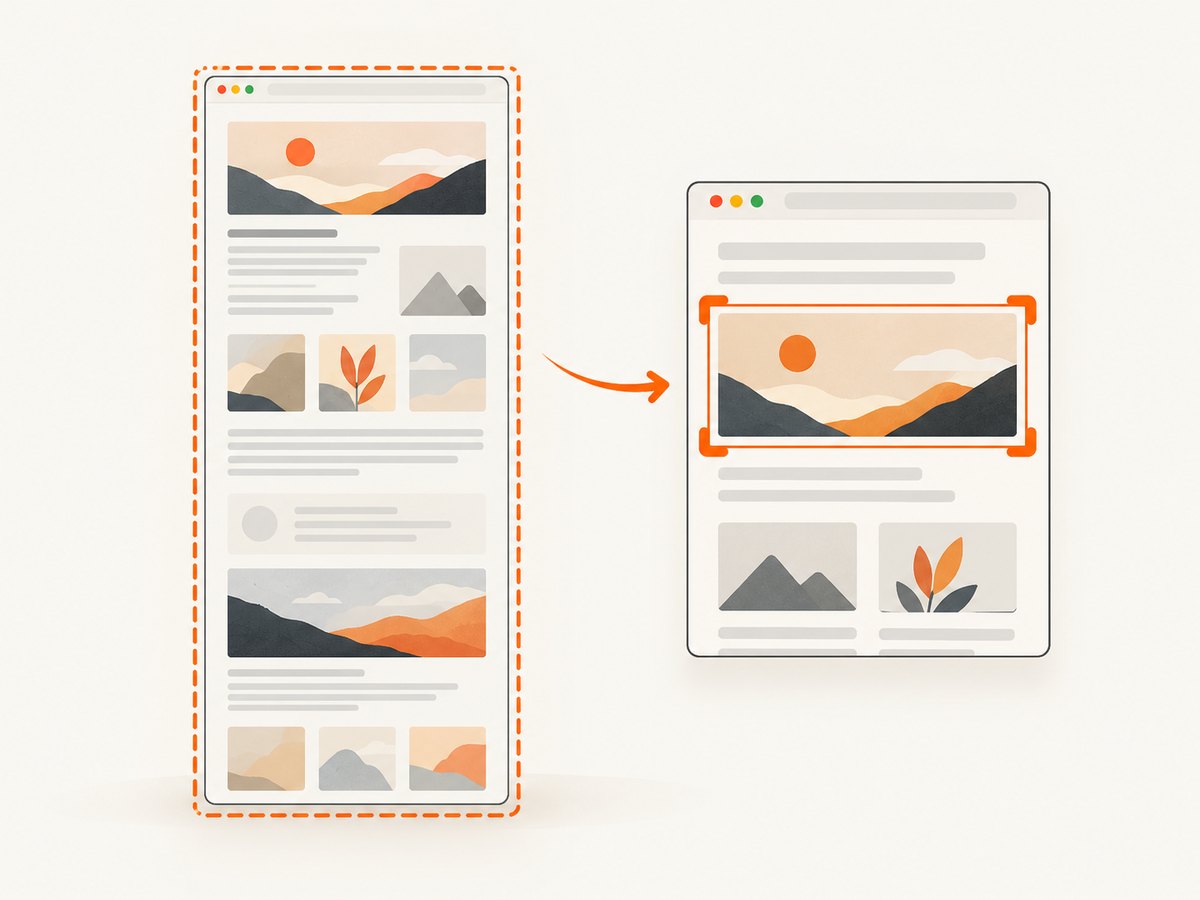
One GET request returns PNG, JPEG, WebP, or PDF. Before capture, ScreenshotNeo accepts cookie or consent banners like a visitor and removes more than 60 known consent platforms, newsletter popups, and chat widgets; each step can be turned off. Clean shots are the only billed shots. Each response reports the result through X-Page-Verdict and X-Billed headers.
Read the complete ScreenshotNeo API and MCP documentation for all options, including full-page screenshots with lazy images loaded, CSS-selector element capture, dark mode, 12 device presets, custom viewports, retina scale, PDF paper sizes and page ranges, custom CSS and JavaScript, clicks, selector or network-idle waits, request blocking, headers, cookies, user agents, authorization, timezone, geolocation, transparent backgrounds, resizing, TTL caching, signed image links, asynchronous jobs with signed webhooks, bulk capture for up to 100 URLs per call, usage reporting, and the OpenAPI specification.
cURL
curl -G "https://api.screenshotneo.com/v1/shot" \\
  -d access_key=YOUR_API_KEY \\
  --data-urlencode url=https://stripe.com \\
  -o shot.webp
Python
import requests

r = requests.get(
    "https://api.screenshotneo.com/v1/shot",
    params={"access_key": "YOUR_API_KEY", "url": "https://stripe.com"},
    timeout=90,
)
r.raise_for_status()
open("shot.webp", "wb").write(r.content)
Node.js
const q = new URLSearchParams({
  access_key: 'YOUR_API_KEY',
  url: 'https://stripe.com'
});
const res = await fetch(`https://api.screenshotneo.com/v1/shot?${q}`);
if (!res.ok) throw new Error(`ScreenshotNeo returned ${res.status}`);
const data = Buffer.from(await res.arrayBuffer());
require('node:fs').writeFileSync('shot.webp', data);
ScreenshotNeo has a free plan with 1,000 screenshots per month and no card. Paid plans start at $5 for 3,000 shots; yearly billing gives two months free, and every feature is available on every plan. Create a free ScreenshotNeo account.
FAQ
Is there one standard screenshot tool in MCP?
No. MCP standardizes the connection pattern; each server defines its own tools, arguments, targets, and output behavior.
Should I use project scope for a team server?
Use project scope when sharing the configuration is useful, but review the file and approval prompt carefully. Keep secrets outside the repository.
Why does a connected server return no image?
Connection and capture are separate. Check the server’s target support, authentication, wait conditions, browser dependencies, and returned error details.
Can Claude Code capture a desktop screen through any screenshot MCP server?
No. Desktop, browser, element, and PDF capture are server-specific capabilities. Confirm the target type in that server’s documentation.
When is a managed API preferable?
Use one when you want a stable HTTP call, configurable waits and browser behavior, clean consent handling, billing visibility, and no local browser setup. ScreenshotNeo also exposes MCP tools for AI clients.