BlogScreenshots on your device
How to Screenshot a Notepad Window with Python
Capture one visible Notepad window in Python with Pillow, find its HWND, handle common errors, and compare screen, region, and native Windows methods.
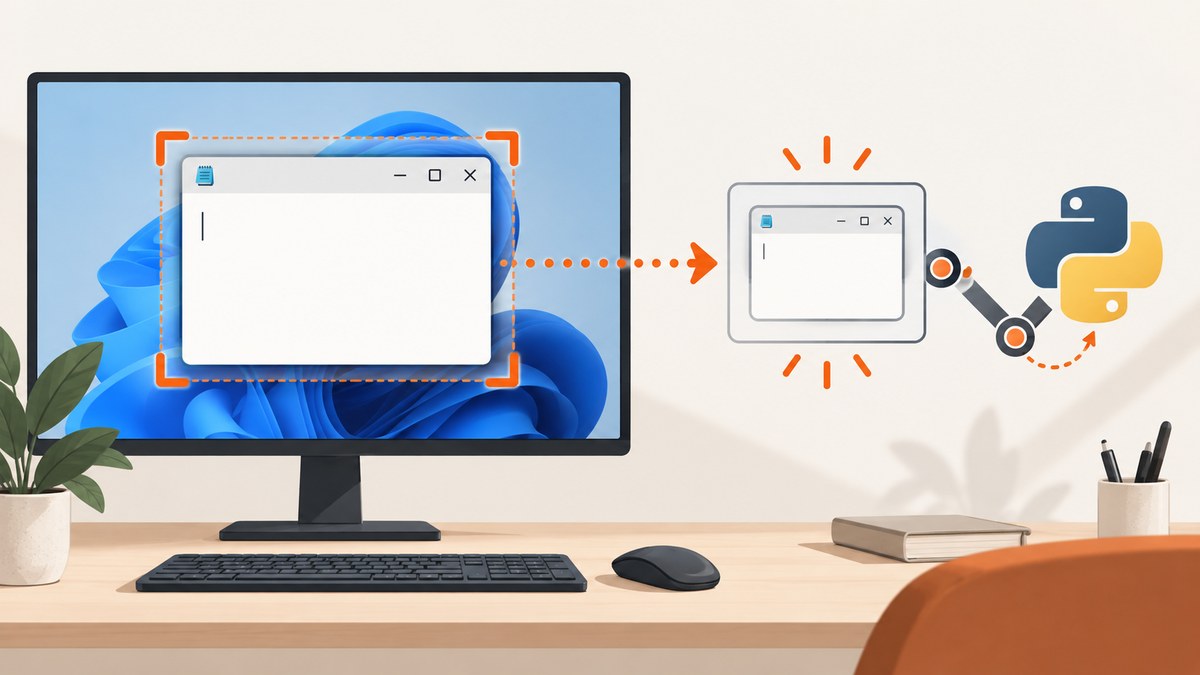
To screenshot only one visible Notepad window on Windows, use Pillow’s ImageGrab.grab(window=hwnd). The window value is the window’s Windows handle (HWND), so the process has two steps: find Notepad’s HWND, then pass it to Pillow. Windows support for this argument was added in Pillow 11.2.1.
Capture a Notepad window with Pillow
1. Install Pillow
python -m pip install "Pillow>=11.2.1"Use a Windows desktop session with Notepad open and visible. The documented API targets a window HWND; it does not establish support for minimized windows, locked desktops, or headless sessions. Check your installed version if the window argument is rejected.
2. Find Notepad’s HWND and save the image
This script searches top-level windows for a title containing Notepad, captures the first visible match, and writes a PNG.
import ctypes
from ctypes import wintypes
from pathlib import Path

from PIL import ImageGrab

user32 = ctypes.windll.user32

EnumWindows = user32.EnumWindows
EnumWindowsProc = ctypes.WINFUNCTYPE(ctypes.c_bool, wintypes.HWND, wintypes.LPARAM)
GetWindowTextLengthW = user32.GetWindowTextLengthW
GetWindowTextW = user32.GetWindowTextW
IsWindowVisible = user32.IsWindowVisible


def find_window_title_contains(text: str) -> int | None:
    """Return the first visible top-level HWND whose title contains text."""
    result = None
    needle = text.casefold()

    @EnumWindowsProc
    def callback(hwnd, _lparam):
        nonlocal result
        if not IsWindowVisible(hwnd):
            return True

        length = GetWindowTextLengthW(hwnd)
        if length == 0:
            return True

        buffer = ctypes.create_unicode_buffer(length + 1)
        GetWindowTextW(hwnd, buffer, length + 1)
        if needle in buffer.value.casefold():
            result = hwnd
            return False
        return True

    EnumWindows(callback, 0)
    return result


hwnd = find_window_title_contains("Notepad")
if hwnd is None:
    raise RuntimeError("No visible Notepad window was found. Open Notepad first.")

image = ImageGrab.grab(window=hwnd)
out = Path("notepad-window.png")
image.save(out)
print(f"Saved {out} ({image.width}x{image.height}) from HWND {hwnd}")
The Pillow reference documents the window parameter as an HWND on Windows: ImageGrab reference. If several Notepad windows are open, make the title search more specific or enumerate all matching handles and choose one.
Use an exact title when needed
# Replace the contains check in the callback with:
if buffer.value == "Notes - Notepad":
    result = hwnd
    return False
Window titles vary by Windows version and by the file currently open. A contains search is usually more robust than an exact match.
How the HWND lookup works
EnumWindowsvisits top-level windows.IsWindowVisiblefilters out hidden windows.GetWindowTextWreads each title.- The matching HWND is passed to
ImageGrab.grab(window=hwnd). - Pillow returns an image object, which is saved with
image.save().
The HWND is an operating-system identifier, not a pixel coordinate. That is why this method follows the chosen window when it moves or changes size, whereas a fixed screen region does not.
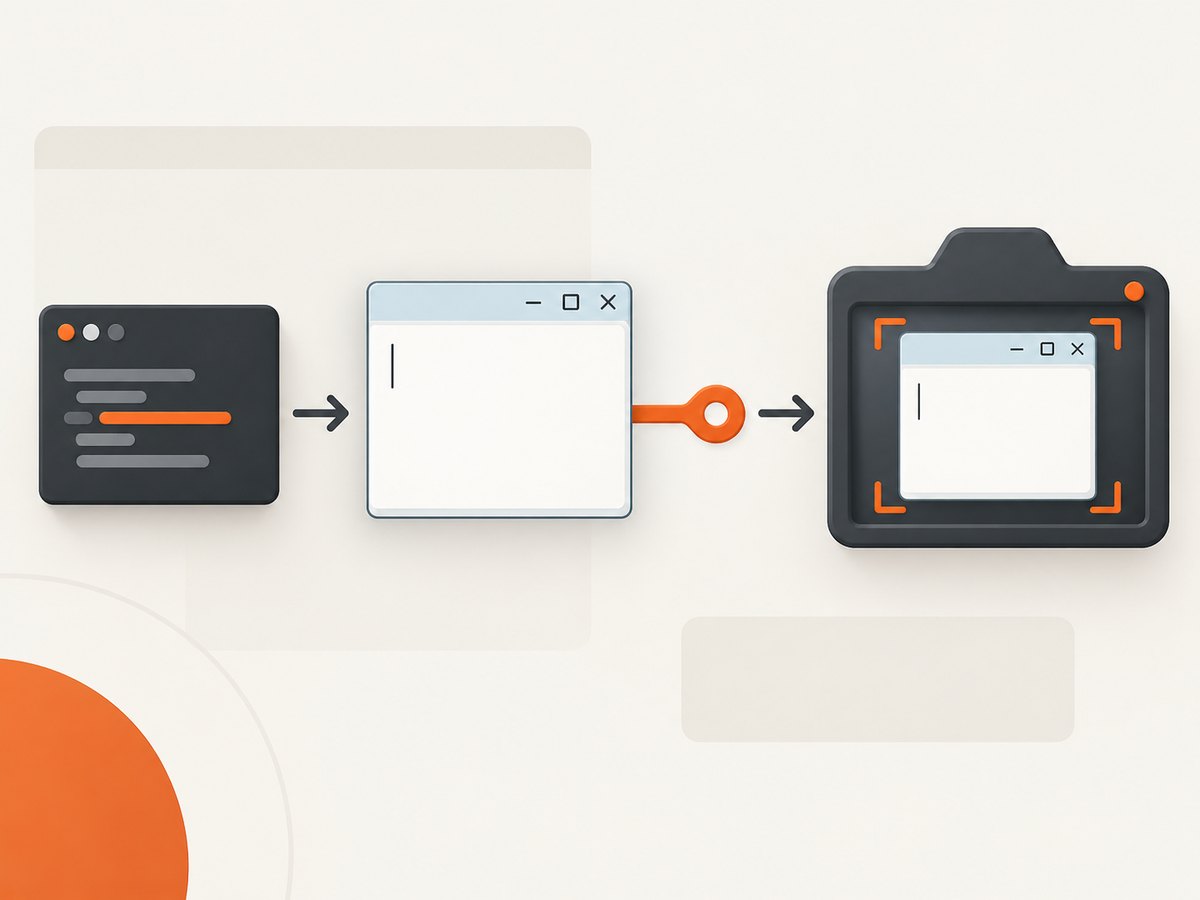
Capture the whole screen or a fixed region with PyAutoGUI
PyAutoGUI is simpler when you need the entire display or a known rectangle. Its documented screenshot function requires Pillow and accepts a region=(left, top, width, height) tuple. It does not select a window by title.
python -m pip install pyautoguiimport pyautogui
# Entire visible display
screen = pyautogui.screenshot()
screen.save("screen.png")
# A known rectangle: left, top, width, height
region = pyautogui.screenshot(region=(100, 100, 900, 650))
region.save("notepad-region.png")
PyAutoGUI’s documentation gives roughly 100 milliseconds as an example capture time for a 1920×1080 screen; treat that as documentation guidance rather than a current-machine benchmark: Screenshot Functions.
Choose the right method
| Method | Best for | Limit |
|---|---|---|
Pillow ImageGrab.grab(window=hwnd) |
One specified visible Notepad window | Requires a valid HWND and Pillow 11.2.1 or newer for Windows window capture |
PyAutoGUI screenshot() |
Whole display capture | Does not choose a window by title |
PyAutoGUI region=... |
A stable, known rectangle | Coordinates become wrong when the window moves, resizes, or display scaling changes |
| Snipping Tool | Interactive human selection | Requires Windows UI interaction |
| Windows.Graphics.Capture | A native Windows application that needs display or application-window capture | More implementation work than a short Python script |
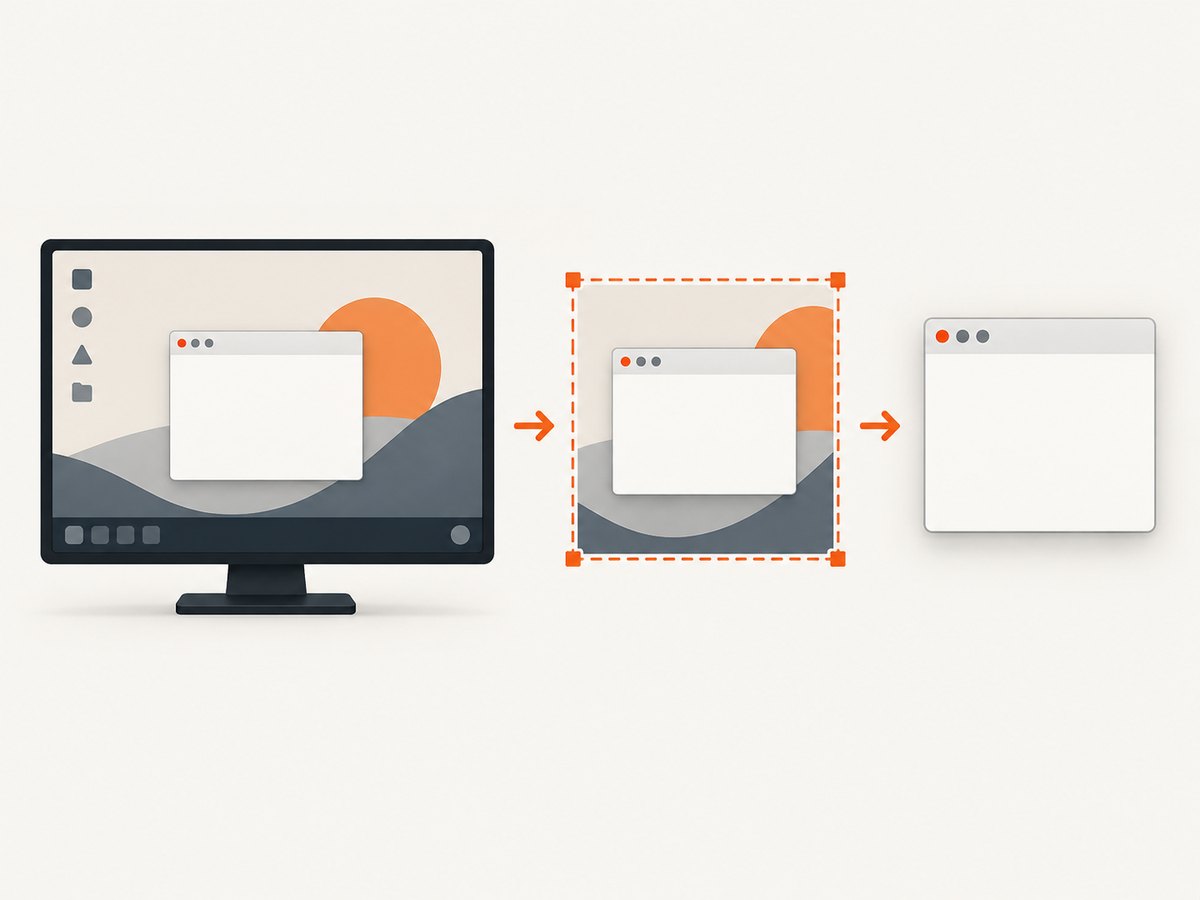
Use Windows Snipping Tool for an interactive capture
Windows Snipping Tool supports window capture through its documented ms-screenclip: launch protocol. It is useful when a person should select the Notepad window manually. Microsoft lists rectangle capture, freeform capture, window capture, screen recording, configurable modes, and optional auto-save in its protocol documentation: Launch Snipping Tool.
There is an important integration constraint: a response callback through redirect-uri requires an MSIX-packaged app. An unpackaged Win32 Python script cannot assume it will receive that callback.
Native Windows capture for larger applications
Windows.Graphics.Capture provides display or application-window capture and uses secure system UI so the user selects the item. It is intended for Windows desktop devices and Windows Mixed Reality immersive headsets. It is a better foundation for a full native application than for a small Pillow utility.
Common errors and fixes
| Error or symptom | Cause | Fix |
|---|---|---|
TypeError or unexpected window argument |
Older Pillow release | Upgrade with python -m pip install --upgrade "Pillow>=11.2.1" and verify python -c "import PIL; print(PIL.__version__)". |
| No Notepad window found | Notepad is closed, hidden, or the title does not contain the searched text | Open a visible window, print all titles while debugging, or use a more suitable title match. |
| Black, blank, or incomplete image | The window is minimized, covered by a protected surface, or the desktop session is unavailable | Restore and activate Notepad in an interactive Windows session. The cited sources do not promise minimized or headless capture. |
| Wrong window selected | Several titles match | Use an exact title, inspect HWNDs, or add a selection rule such as process ID. |
| Region screenshot is offset | Display scaling, multiple monitors, or a moved window | Prefer HWND capture, or recalculate coordinates from the current window position and DPI settings. |
| Permission or access failure | The target application runs at a higher integrity level | Run both processes at compatible privilege levels where appropriate; avoid elevating unnecessarily. |
| File cannot be opened | Output directory does not exist or is not writable | Save to a known writable path and create its parent directory first. |
Performance, reliability, and file choices
- Capture only when needed. Repeated full-window PNGs consume more CPU, memory, and disk than occasional captures.
- PNG is lossless and preserves text sharply. JPEG is smaller but can introduce artifacts around text; Pillow can save other formats when the chosen encoder supports them.
- Keep the Notepad window visible and stable during capture. Moving or resizing it while the grab runs can produce an inconsistent result.
- For unattended jobs, detect the HWND immediately before capture and verify that it is still valid. Log the title, HWND, output path, and image dimensions.
- Do not treat a successful file write as proof that the correct window was captured. Review the selected title and, when needed, add a visual or dimension check.
- Python’s Windows documentation currently describes Python 3.14 as supporting Windows 10 and newer; check your target interpreter and operating system before standardizing deployment: Using Python on Windows.
Or skip the browser setup
The Pillow and PyAutoGUI recipes above capture a local Windows desktop. If what you actually need is a screenshot of a web page, ScreenshotNeo provides a single HTTP request that returns PNG, JPEG, WebP, or PDF. It removes cookie and consent banners, newsletter popups, and chat widgets before capture. Bot checks, blank pages, timeouts, failed loads, and cache hits are not billed, and response headers report the page verdict and billing result. Its MCP server provides take_screenshot, get_page_info, and capture_pdf for Claude, Cursor, and other MCP clients.
See the ScreenshotNeo API documentation for all options.
curl -G "https://api.screenshotneo.com/v1/shot" -d access_key=YOUR_API_KEY --data-urlencode url=https://stripe.com -o shot.webpimport requests
r = requests.get(
"https://api.screenshotneo.com/v1/shot",
params={"access_key": "YOUR_API_KEY", "url": "https://stripe.com"},
timeout=90,
)
r.raise_for_status()
open("shot.webp", "wb").write(r.content)
const q = new URLSearchParams({ access_key: 'YOUR_API_KEY', url: 'https://stripe.com' });
const res = await fetch(`https://api.screenshotneo.com/v1/shot?${q}`);
if (!res.ok) throw new Error(`HTTP ${res.status}`);
const buffer = Buffer.from(await res.arrayBuffer());
await import('node:fs/promises').then(fs => fs.writeFile('shot.webp', buffer));
Every plan includes the features: 1,000 screenshots a month are free with no card; paid plans start at $5 for 3,000. Create a free ScreenshotNeo account.
FAQ
Can Python capture a Notepad window by title without coordinates?
Yes. Find the window’s HWND with the Windows API, then pass it to Pillow’s ImageGrab.grab(window=hwnd).
Does PyAutoGUI select a window named Notepad?
No. Its documented calls capture the display or a coordinate region. Use Pillow with an HWND for title-based window selection.
Can this capture a minimized Notepad window?
The supplied documentation does not establish minimized-window support. Restore the window in a visible interactive desktop before capturing.
What Pillow version is required?
Pillow documents Windows support for the window argument beginning with version 11.2.1.
Should I use Snipping Tool from a Python script?
Use it for interactive user selection. If you need a programmatic callback through its documented protocol, the caller must be an MSIX-packaged app.


