BlogScreenshots on your device
Screenshot Page Hotkeys for Windows, Mac, and Browsers
Find the right shortcut for screen, window, region, or full webpage captures in Windows, macOS, Edge, Firefox, Chrome, and Safari.
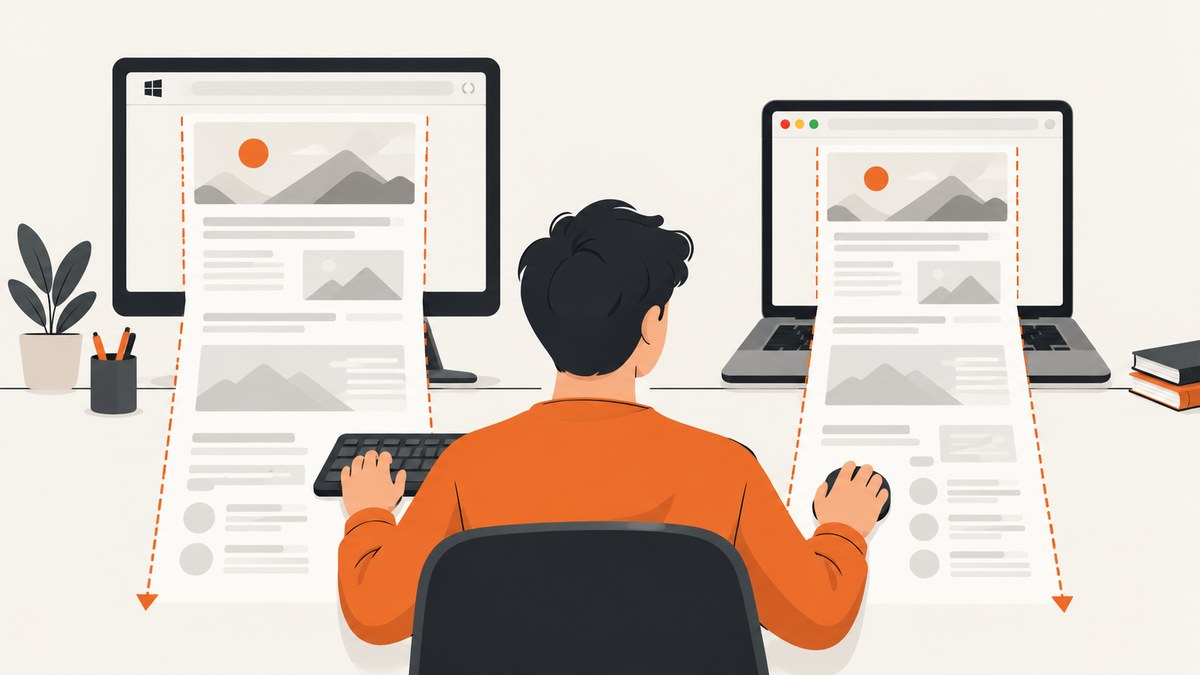
Short answer: operating-system shortcuts capture the visible screen, a window, or a selected region. A full webpage capture needs a browser feature that renders content below the viewport. On Windows use Ctrl+Shift+S in Edge and choose Capture full page; in Firefox use its screenshot tool and choose Save full page; in Chrome use DevTools and Capture a full size screenshot. macOS shortcuts capture the screen, a window, or a region, but the official Apple shortcut list does not establish a Safari full-page image shortcut.
What each shortcut captures
| Platform or browser | Shortcut or entry point | Capture extent | Output |
|---|---|---|---|
| Windows Snipping Tool | Windows+Shift+S | Region, window, full screen, or freeform area | Image through the Snipping Tool save control |
| Windows Print Screen | Print Screen (PrtSc) | Entire visible screen | Copied to clipboard |
| macOS | Shift-Command-3 | Entire visible screen | Screenshot file |
| macOS | Shift-Command-4 | Selected portion | Screenshot file |
| macOS | Shift-Command-5 | Screen, window, or selected area | Screenshot controls and save options |
| Microsoft Edge | Ctrl+Shift+S, then Capture full page | Entire webpage, including content below the viewport | Saved web capture |
| Firefox | Screenshot tool, then Save full page | Entire webpage | Image file; Command+S on macOS or Ctrl+S on Windows/Linux saves it |
| Chrome | DevTools, Command/Ctrl+Shift+P, then Capture a full size screenshot | Entire webpage | Downloaded image |
| Safari | No shortcut confirmed in the cited Apple documentation | Use macOS screen tools for visible content | Screenshot controls |
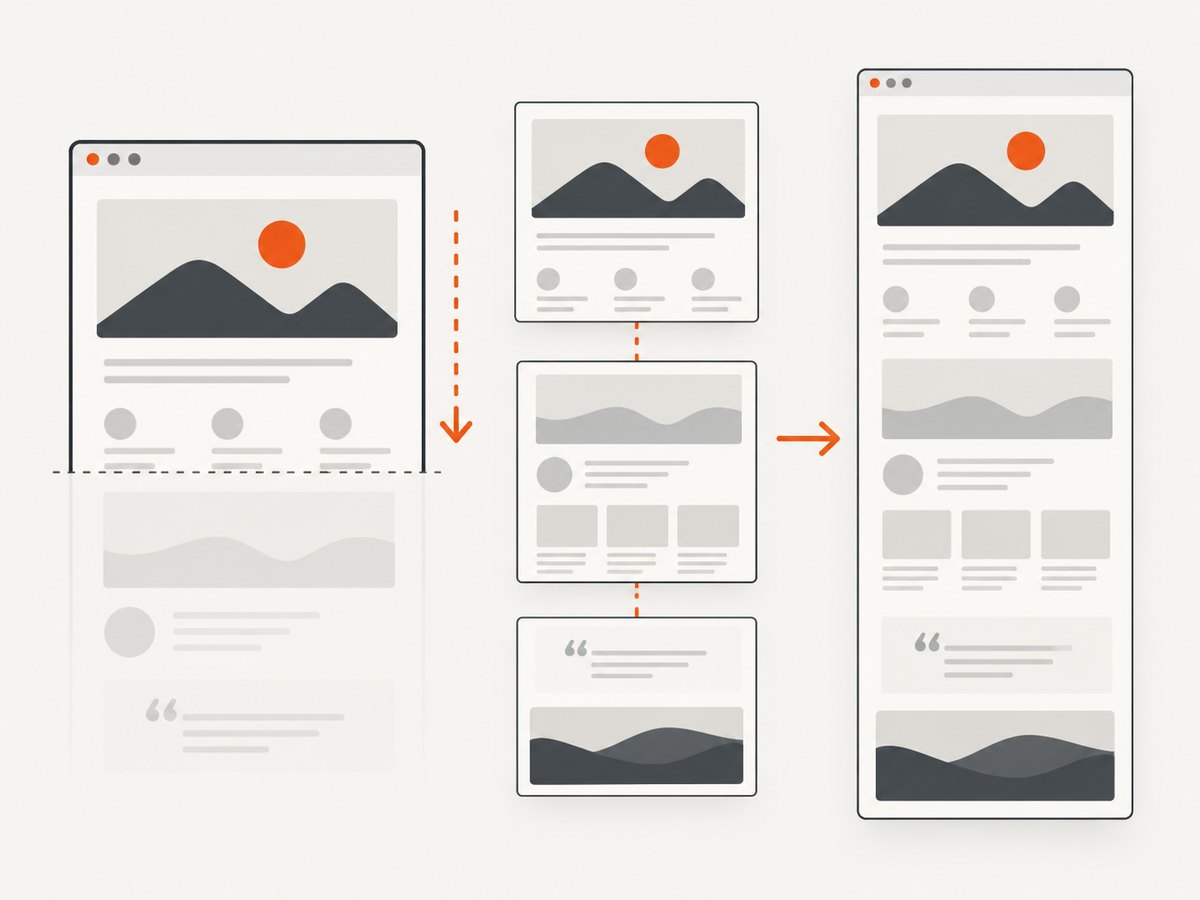
The key distinction is screen capture versus page capture. A screen capture records pixels currently displayed. A full-page capture must ask the browser to render or stitch content that is outside the current viewport.
Windows shortcuts
Windows+Shift+S: open Snipping Tool
Press Windows+Shift+S to open the Snipping Tool overlay. Choose rectangular, window, full-screen, or freeform capture, then use the Snipping Tool save control to write an image file. This captures the desktop view, not the complete webpage when the page continues below the viewport. Microsoft documents this workflow in its Snipping Tool guidance.
Print Screen: copy the visible screen
Press Print Screen to copy a static snapshot of the entire visible screen to the clipboard. Paste it into an image editor or document and save it. It does not create a scrolling webpage image.
When Windows shortcuts are the right choice
- Use Snipping Tool for a quick region, dialog, or window.
- Use Print Screen when another application needs the screenshot directly from the clipboard.
- Use a browser full-page feature when the target extends below the viewport.
Mac shortcuts
Apple’s screenshot controls map to three common jobs. Shift-Command-3 captures the entire screen. Shift-Command-4 lets you select a portion. Shift-Command-5 opens controls for the screen, a window, or a selected area. See Apple’s Mac screenshot instructions.
These shortcuts capture what macOS displays. They are not documented as a scrolling Safari webpage command. Apple also notes that some apps may restrict screenshots of their windows.
Microsoft Edge full-page capture
- Open the webpage in Edge.
- Press Ctrl+Shift+S.
- Choose Capture full page.
- Review the resulting capture and save or copy it.
Edge’s Screenshot tool also supports a selected-area capture. Microsoft describes the full-page option as capturing everything at once without scrolling in its Web Capture documentation.
Firefox full-page capture
- Open the page in Firefox.
- Invoke Firefox’s screenshot feature from the page context menu or browser controls.
- Select Save full page.
- Save the image. On macOS, Command+S saves the screenshot; on Windows and Linux, use Ctrl+S.
Firefox’s support documentation covers the full-page choice and platform-specific save shortcuts: Take screenshots in Firefox.
Chrome full-page capture with DevTools
- Open DevTools with Command+Option+I on macOS or Ctrl+Shift+I on Windows/Linux.
- Open the DevTools Command Menu with Command+Shift+P on macOS or Ctrl+Shift+P on Windows/Linux.
- In Device Mode, open More options.
- Choose Capture a full size screenshot.
The Command Menu shortcut opens DevTools commands; it is not itself a browser-level full-page screenshot shortcut. Chrome documents these steps in Device Mode and full-size screenshots.
Safari: what is confirmed
The cited Apple documentation confirms macOS screen, window, and selected-area shortcuts. It does not confirm a current Safari keyboard shortcut that saves an entire webpage as an image. Use Shift-Command-5 for visible screen content, or use another documented browser workflow when you need the page beyond the viewport. Safari menus and extensions can change, so verify the exact behavior in the Safari version you deploy.
Full-page capture edge cases
Sticky headers and repeated elements
Browsers may repeat a fixed header while stitching a long page. If the result contains duplicates, try the browser’s built-in capture at a different viewport or hide the fixed element with developer tools before capture.
Lazy-loaded images
Images that load only after scrolling may be absent from a capture. Scroll through the page first, wait for images to appear, then run the full-page command.
Infinite scroll
An infinite feed has no fixed end. Capture the loaded portion, or stop loading at a known point before starting the screenshot.
Login and private pages
Keep the browser session authenticated. Never paste session cookies into a screenshot service unless its security and retention behavior meets your requirements.
Very tall pages
Large captures can exceed image dimensions or memory limits. Capture sections, reduce the viewport width, or export a PDF when a paginated document is more useful.
Troubleshooting
| Symptom | Likely cause | Fix |
|---|---|---|
| Only the visible viewport appears | A screen shortcut was used | Use Edge Capture full page, Firefox Save full page, or Chrome DevTools Capture a full size screenshot. |
| Ctrl+Shift+S does not show full page | Focus is outside Edge or the browser version differs | Click the page first, reopen the Screenshot tool, and check the available capture modes. |
| Chrome shortcut does nothing | DevTools is not focused | Open DevTools first, then use the Command Menu shortcut inside DevTools. |
| Firefox saves a normal image | Visible-region mode was selected | Reopen the screenshot tool and select Save full page. |
| Content is missing | Lazy loading, blocked requests, or a page still loading | Wait for network activity to finish, scroll once to trigger lazy content, and retry. |
| A window cannot be captured on Mac | The application restricts screenshots | Capture a selected region or use the application’s own export function. |
| The output is too large | Long page dimensions exceed practical image limits | Capture sections, lower the viewport size, or choose a PDF workflow. |
Performance, reliability, and cost
Built-in browser tools are quick for one-off captures and do not require an API account. Their output depends on the current browser session, loaded assets, login state, extensions, and page behavior. Repeatable automation needs a controlled browser, fixed viewport, explicit waits, and a way to detect incomplete loads.
For recurring jobs, record the URL, viewport, browser version, timestamp, and whether the capture was full-page or viewport-only. Retry transient network failures, but avoid retrying a page that consistently returns a bot check or an empty shell without investigating the cause.
Or skip the browser setup
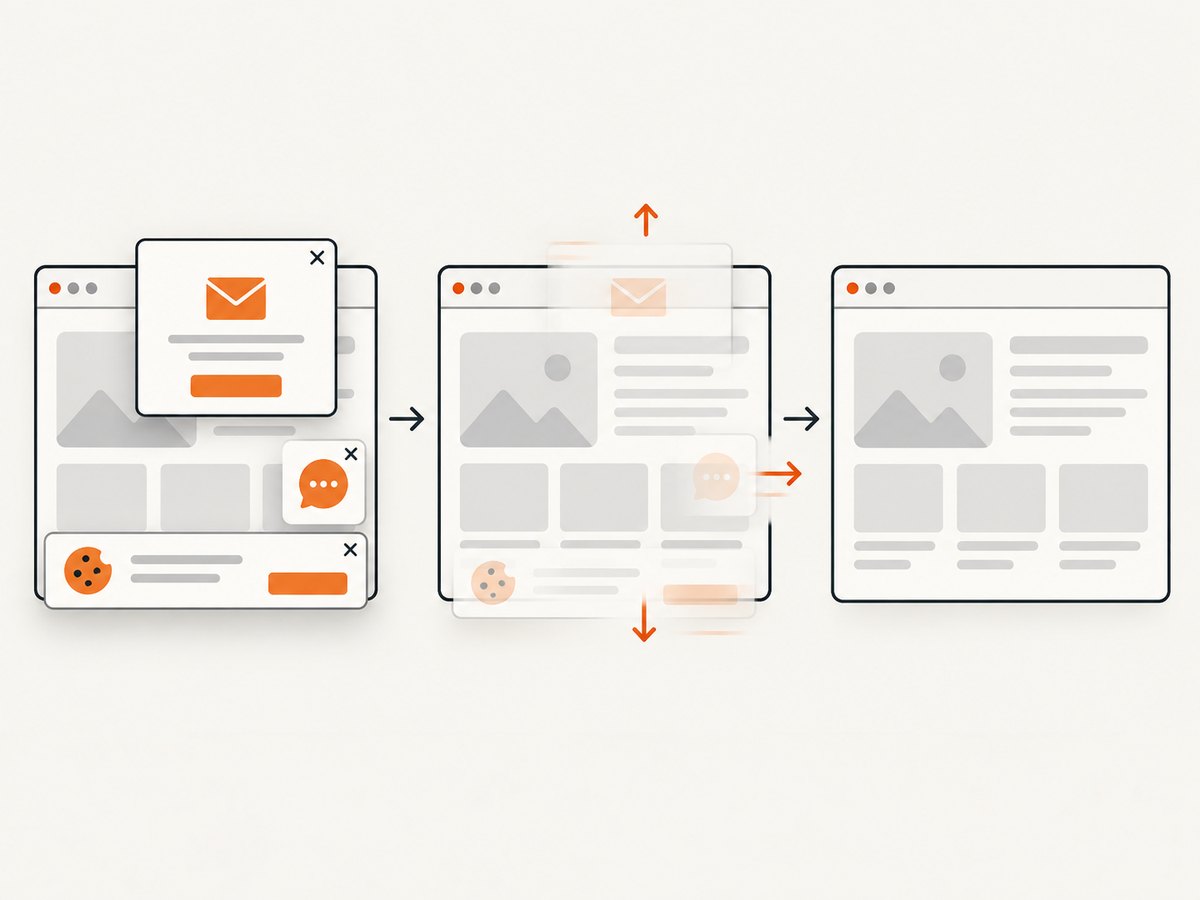
ScreenshotNeo provides a website screenshot API and MCP server. One GET request returns PNG, JPEG, WebP, or PDF. It accepts cookie and consent banners before capture, removes more than 60 known consent platforms along with newsletter popups and chat widgets, and lets you turn each cleanup step off. Bot checks, blank pages, timeouts, failed loads, and cache hits cost nothing; response headers report the page verdict and whether the shot was billed.
See the ScreenshotNeo API documentation for all options, including full-page capture, element selectors, device presets, custom CSS and JavaScript, waits, blocked resources, authentication headers, cookies, geolocation, caching, signed links, asynchronous jobs, bulk capture, and PDF settings.
cURL
curl -G "https://api.screenshotneo.com/v1/shot" -d access_key=YOUR_API_KEY --data-urlencode url=https://stripe.com -o shot.webpPython
import requests
r = requests.get("https://api.screenshotneo.com/v1/shot", params={"access_key": "YOUR_API_KEY", "url": "https://stripe.com"}, timeout=90)
open("shot.webp", "wb").write(r.content)
Node.js
const q = new URLSearchParams({ access_key: 'YOUR_API_KEY', url: 'https://stripe.com' });
const res = await fetch(`https://api.screenshotneo.com/v1/shot?${q}`);
ScreenshotNeo includes an MCP server with take_screenshot, get_page_info, and capture_pdf tools for Claude, Cursor, and other MCP clients. The Free plan includes 1,000 screenshots a month with no card; paid plans start at $5 for 3,000 shots. Create a free ScreenshotNeo account.
FAQ
Is Print Screen a scrolling screenshot?
No. It copies the entire visible screen to the clipboard.
Which browser has the most direct full-page command?
Edge exposes Capture full page directly after Ctrl+Shift+S. Firefox exposes Save full page in its screenshot tool. Chrome uses DevTools.
Does Command+Shift+P capture a Chrome page?
No. In DevTools it opens the Command Menu; choose Capture a full size screenshot from the available commands or Device Mode menu.
Can macOS shortcuts capture a whole webpage?
The documented shortcuts capture the screen, window, or selected area. They do not establish a Safari scrolling-page shortcut.
What should I use for automated screenshots?
Use a controlled browser for local automation, or an API such as ScreenshotNeo when you need repeatable requests, cleanup of consent UI, verdict headers, and optional MCP access.


