BlogScreenshots on your device
How to Screenshot Pictures on Any Device
Learn how to capture, edit, save, and share what is on your screen on Windows, Mac, iPhone, Chromebook, Android, and the web.
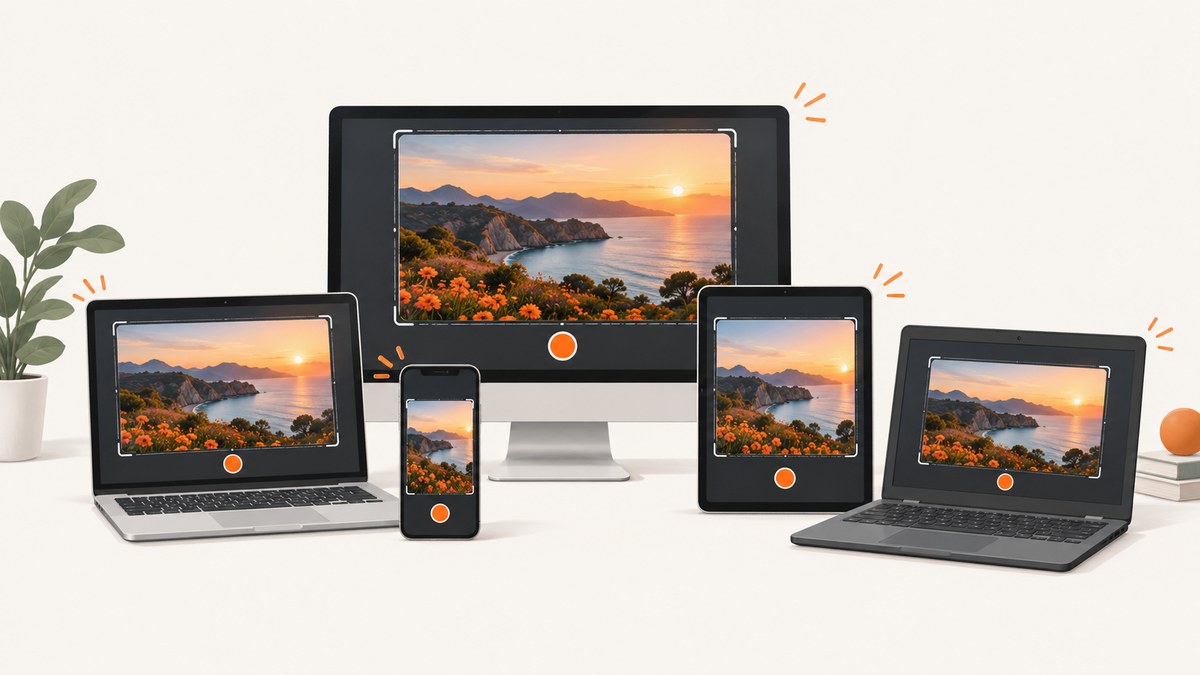
A screenshot captures what your display shows at that moment. It is different from downloading the original picture file: a downloaded image keeps the source file, while a screenshot records the visible pixels, including captions, browser controls, or other items on screen.
Use your device’s built-in capture feature first. The shortcut depends on the operating system, device model, keyboard layout, and sometimes the app you are capturing.
1. Choose the capture you need
| Need | Best choice | Result |
|---|---|---|
| Everything visible | Full-screen screenshot | A file or clipboard image of the display |
| One app window | Window capture | Only the selected window |
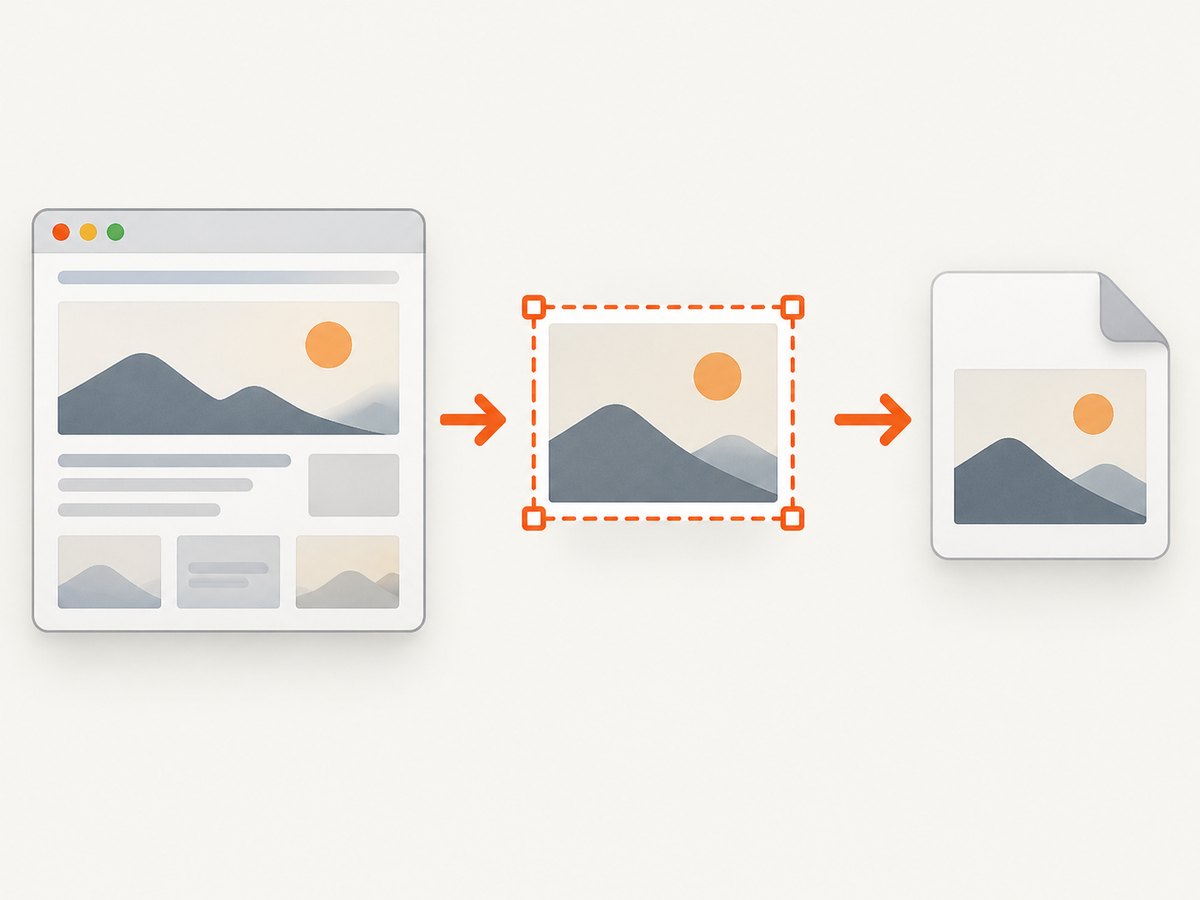
| Part of the screen | Selection or snip | A rectangular or freeform region |
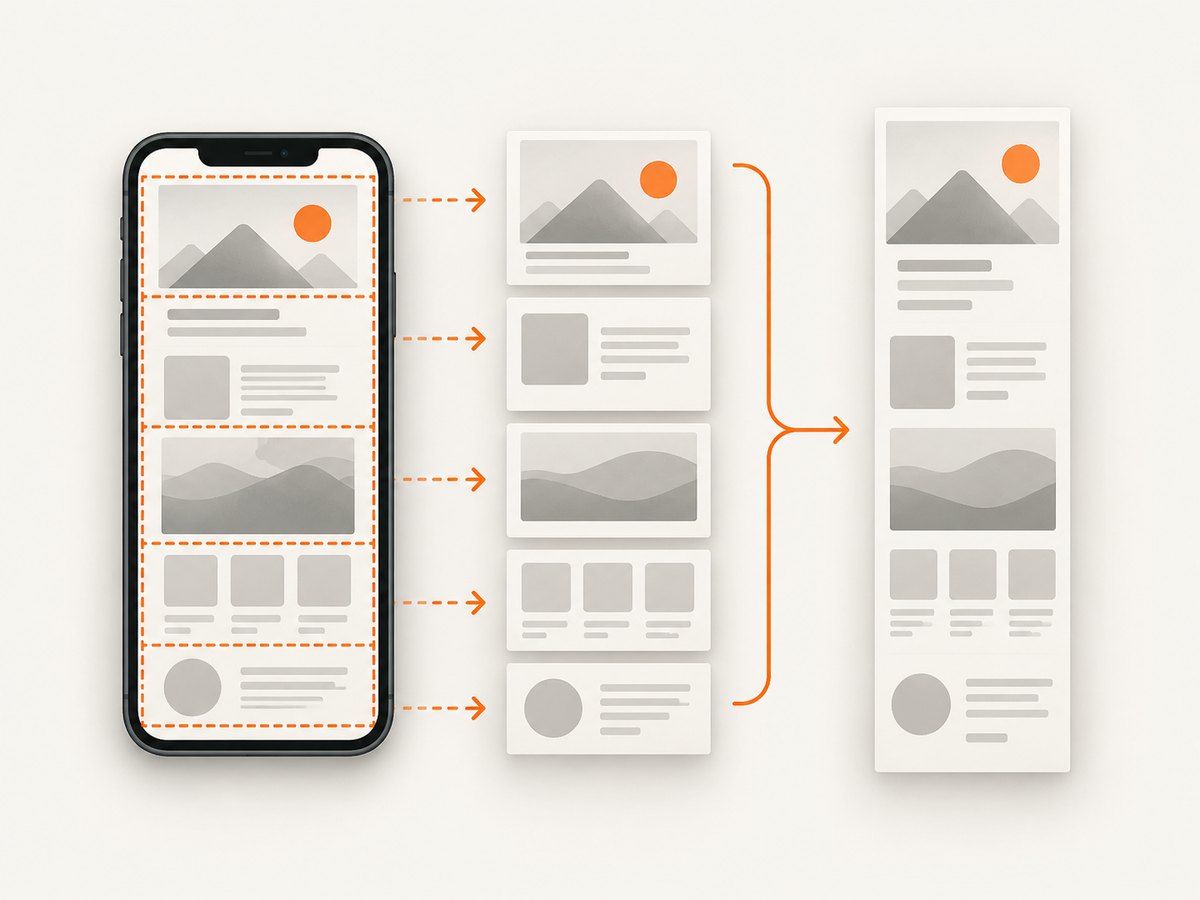
| A long page | Scrolling capture | A taller image containing content below the viewport |
| The original web picture | Download the image | The source file, when the site permits it |
2. Windows
Use Snipping Tool
- Open Snipping Tool from the Start menu.
- Choose a rectangular, window, full-screen, or freeform snip, depending on the controls shown in your Windows version.
- Select the area or window.
- Use the Snipping Tool window to crop, mark up, save, or share the result.
Microsoft’s current Snipping Tool instructions are in its official support documentation. The interface and shortcut behavior can change between Windows releases, so follow the controls shown on your computer.
Useful Windows choices
- Use a window snip when browser tabs or other windows should not appear.
- Use a selection when you need only the picture and not the surrounding page.
- Save a copy before annotating if you need the untouched capture later.
3. Mac
Apple documents these built-in shortcuts:
| Shortcut | What it captures |
|---|---|
| Shift + Command + 3 | The entire screen |
| Shift + Command + 4 | A selected area |
| Shift + Command + 4, then Space | A window |
| Shift + Command + 5 | Screenshot and screen-recording controls |
A thumbnail appears briefly after capture. Select it to crop or mark up the screenshot. Control-click the thumbnail to choose another destination, including the Clipboard instead of the desktop. Apple notes that some apps, including Apple TV, may block screenshots of their windows. See Apple’s screenshot guide.
4. iPhone
iPhone models with Face ID
- Press the Side button and Volume Up at the same time.
- Release both buttons quickly.
- Tap the thumbnail to edit, share, or save, or swipe it away to dismiss the preview.
iPhone models with a Home button
- Press the Side (or Top) button and the Home button together.
- Release both buttons.
- Use the thumbnail to edit, share, or save the image.
The exact button names vary by model. Match the instructions to your physical buttons in Apple’s iPhone screenshot support guide.
5. Chromebook
- Open the Screenshot tool from the Quick Settings panel, or use the screenshot key on a compatible keyboard.
- Choose full screen, a window, or a selected area.
- Capture the image, then open the preview to review, edit, delete, or share it.
Google’s Chromebook screenshot and screen-recording instructions also cover external keyboards. If yours does not have the Show windows key, Google identifies Ctrl + Shift + F5 as an alternative.
6. Android phones and tablets
Standard screenshot
- Press Power and Volume Down simultaneously.
- If that does not work, hold Power for a few seconds and tap Screenshot.
- Open the preview to edit or share the capture.
If neither method works, check the phone manufacturer’s instructions. Button placement and software menus differ between Android devices. Google’s general steps are in its Android screenshot guide.
Scrolling screenshots
On Android 12 and later, most screens that allow scrolling support a longer capture:
- Take a normal screenshot.
- Tap Capture more.
- Drag the crop guides to include the content you need.
- Save or share the result.
This option is not available on every screen. Apps can limit scrolling capture, and the control may have a different name on a manufacturer’s Android version.
Find and edit Android screenshots
In Google Photos, open Collections, then On this device, then Screenshots. On older devices without Photos, use the Gallery app and its Screenshots album. From Photos or Gallery you can crop, annotate, save, and share.
7. Linux and other desktop environments
Linux screenshot shortcuts vary by desktop environment, distribution, and keyboard. GNOME, KDE Plasma, Xfce, and window managers can expose different tools and combinations, so use the screenshot documentation for your specific environment instead of assuming a shortcut.
8. Capture only an image from a web page
If you need the original picture, look for the page’s download control or use the browser’s “Save image as” command when available. A screenshot is the right choice when you need the picture together with visible text, annotations, or the exact appearance of the page.
9. Edit, save, and share a screenshot
- Crop: Remove browser chrome, empty margins, or unrelated content.
- Annotate: Add arrows, highlights, or notes for instructions and bug reports.
- Choose a format: PNG is useful for text and interface captures; JPEG is smaller for photographs.
- Check privacy: Hide passwords, addresses, messages, account numbers, and notification previews before sharing.
- Keep the original: Save an untouched copy before making permanent edits.
10. Troubleshooting
| Problem | Likely cause | Fix |
|---|---|---|
| The shortcut does nothing | Wrong model shortcut, keyboard layout, or modifier key | Use the device’s screenshot tool or check the platform/manufacturer guide. |
| Only part of the page is captured | A normal screenshot captures the viewport | Use a scrolling option where the device and app support it. |
| The screenshot is blank or black | The app may restrict capture, as some protected media apps do | Check the app’s rules or use an approved export/download feature. |
| The image contains unwanted controls | The capture included the full screen or window | Use selection capture or crop the preview. |
| You cannot find the file | The capture was copied to the Clipboard or saved in a different album | Check the screenshot preview, desktop, Pictures/Screenshots, Photos, Gallery, or Clipboard. |
| Scrolling capture is unavailable | The OS version or screen does not support it | Capture several sections and combine them, or use the page’s own export option. |
11. Performance, reliability, and file size
- Selection and window captures are faster to review and produce smaller files than full-screen images.
- Large retina or high-resolution displays create larger files; crop before sharing when practical.
- Scrolling captures depend on the app rendering additional content correctly. Verify that images, fixed headers, and lazy-loaded sections appear in the final file.
- For repeatable website captures, a browser automation script or screenshot API is more consistent than manual shortcuts. Record the URL, viewport, device, and capture time with each output.
12. Or skip the browser setup
ScreenshotNeo is a website screenshot API and MCP server. One GET request returns a PNG, JPEG, WebP, or PDF. Its capture flow accepts cookie and consent banners as a visitor and removes more than 60 known consent platforms, newsletter popups, and chat widgets before the shot; each step can be turned off. Bot checks, blank pages, timeouts, failed loads, and cache hits are not billed, and the response identifies the result with X-Page-Verdict and X-Billed headers.
See the ScreenshotNeo documentation for the complete API reference. This runnable cURL example saves a WebP image:
curl -G "https://api.screenshotneo.com/v1/shot" -d access_key=YOUR_API_KEY --data-urlencode url=https://stripe.com -o shot.webpPython:
import requests

r = requests.get(
    "https://api.screenshotneo.com/v1/shot",
    params={"access_key": "YOUR_API_KEY", "url": "https://stripe.com"},
    timeout=90,
)
r.raise_for_status()
open("shot.webp", "wb").write(r.content)
Node.js:
const q = new URLSearchParams({ access_key: 'YOUR_API_KEY', url: 'https://stripe.com' });
const res = await fetch(`https://api.screenshotneo.com/v1/shot?${q}`);
if (!res.ok) throw new Error(`Screenshot failed: ${res.status}`);
const fs = await import('node:fs/promises');
await fs.writeFile('shot.webp', Buffer.from(await res.arrayBuffer()));
For automated captures, ScreenshotNeo also supports full-page shots with lazy images loaded, CSS-selector element capture, dark mode, device presets or custom viewports, retina scale, PDF paper sizes and page ranges, custom CSS and JavaScript, clicks, selector or network-idle waits, blocked ads and resource types, headers, cookies, user agents, Authorization, timezone, geolocation, transparent backgrounds, resizing, chosen cache TTLs, signed image links, asynchronous jobs with signed webhooks, bulk capture for up to 100 URLs per call, a usage API, and an OpenAPI specification. An MCP server provides take_screenshot, get_page_info, and capture_pdf for Claude, Cursor, and other MCP clients.
There is a free plan with 1,000 screenshots per month and no card. Paid plans start at $5 for 3,000 shots; yearly billing gives two months free, and every feature is included on every plan. Create a free ScreenshotNeo account.
13. FAQ
Does a screenshot save the original image quality?
No. It saves the pixels rendered on your display. Download the source image when you need the original file and metadata.
Can I screenshot a whole web page?
Use a scrolling or full-page capture if your device or browser provides one. Otherwise capture sections or use an automated browser/API workflow.
Why is my screenshot missing part of a page?
A standard screenshot records only the visible viewport. Use a supported scrolling capture or capture the page in sections.
Can an app prevent screenshots?
Yes. Protected media and some secure apps can block or obscure captures. Follow the app’s approved export or sharing method.
Where should I store screenshots?
Keep them in a predictable Screenshots folder or album, use descriptive filenames, and remove sensitive information before sharing.


