BlogScreenshots on your device
Screenshot Plugins for Microsoft Edge
Compare Edge’s built-in screenshot, extensions, and a developer API for full-page captures, annotation, recording, privacy, and automation.

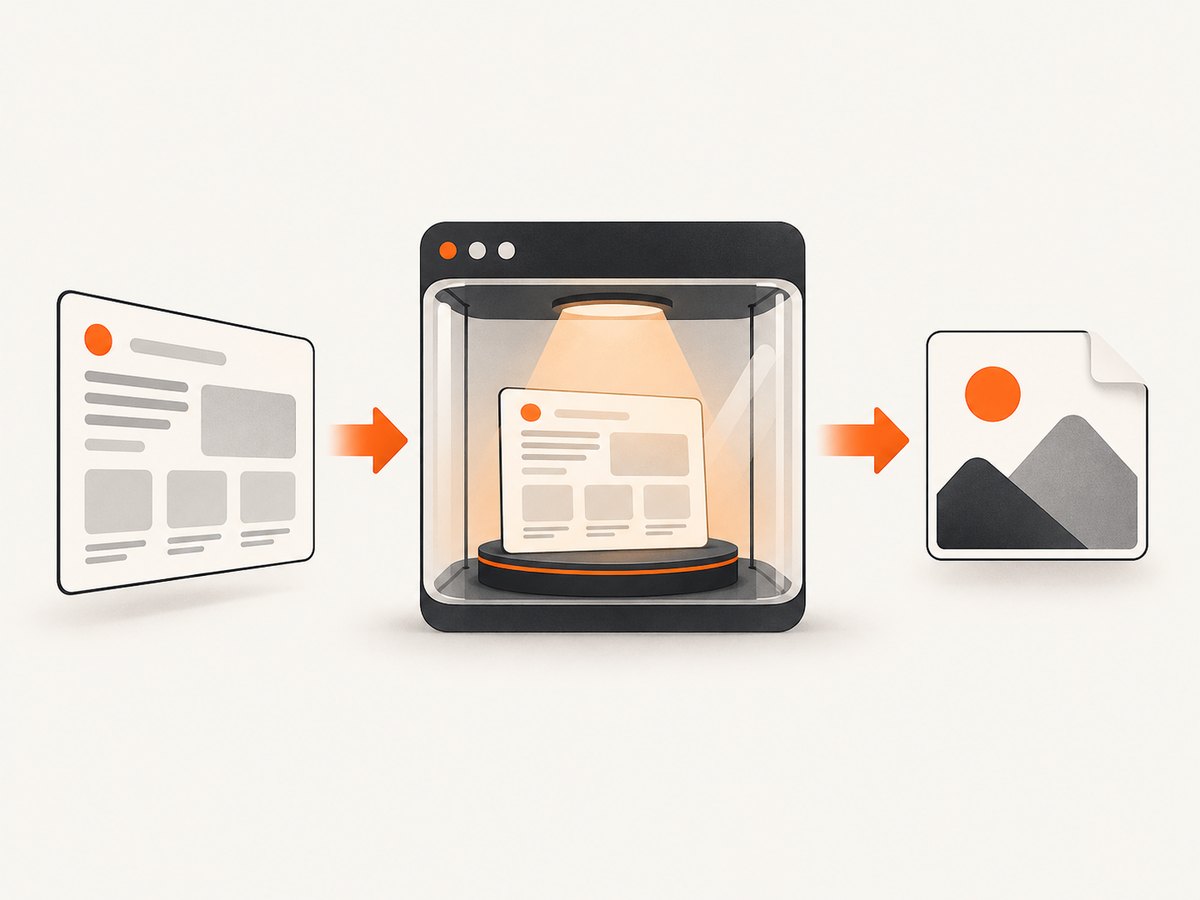
Microsoft Edge already includes a Screenshot feature that captures a full webpage or a selected area, lets you draw on the result, and then copy or save it. Press Ctrl+Shift+S, or open the Settings and more menu or page context menu and choose Screenshot when your organization has not disabled it. Microsoft describes the feature as working with long pages and moving content such as videos, GIFs, and carousels, although exact behavior can vary by Edge version, device, and market. See Microsoft’s Web Capture documentation for the current interface.
Choose the right Edge screenshot method
| Need | Best starting point | Why |
|---|---|---|
| One quick visible or full-page image | Edge Screenshot | Built in, no installation, with markup and copy/save. |
| Long-page export with optional editing | GoFullPage | The Edge Add-ons listing describes full-page image/PDF export and a premium editor. |
| Screenshot plus screen recording | Scrnli | Its listing describes full-page, visible-screen, and area captures, editing, and recording. |
| Area, visible-screen, and scrolling capture with editing | WebSnap | The store listing describes those capture modes and editing tools. |
| Automated captures in a build, script, or backend | ScreenshotNeo | It provides a URL API and MCP server, removes common consent UI before capture, and bills only clean shots. |
| Region, window, or whole monitor | Windows Snipping Tool | Use Windows+Shift+S for screen-level captures and annotation. |
Extension descriptions are vendor claims from the Edge Add-ons listings, not independent speed, safety, or reliability tests. Compare the capture scope, editing tools, output formats, recording support, permissions, and paid-feature requirements before installing.
Use Edge’s built-in Screenshot feature
Full webpage capture
- Open the page you want to capture.
- Press Ctrl+Shift+S. You can also open the page menu and select Screenshot.
- Choose the full-page option. Edge scrolls through content beyond the viewport and creates one image.
- Use the pen or touch tools to mark up the result.
- Select Copy to place it on the clipboard or Save to write an image file.
Full-page capture is useful for documentation, bug reports, and sharing a page that does not fit on screen. Lazy-loaded images and interactive sections can behave differently from a normal scroll. If a page keeps loading content as you scroll, wait until the content you need has appeared before starting the capture.
Selected-area capture
- Start Screenshot with Ctrl+Shift+S.
- Drag around the region to keep.
- Resize the selection if needed.
- Annotate, copy, or save the result.
Area mode is better when the page contains private information outside the part you intend to share. It also avoids producing an unnecessarily tall image.
Moving pages
Microsoft says Edge can capture long or moving webpages, including video, GIF, and carousel content. A moving frame is inherently time-dependent, so pause animation or choose the moment you need when accuracy matters. For a reproducible record, save the result immediately and include the page URL and capture time in your notes.
Install and evaluate an Edge screenshot extension
Extensions are useful when the built-in tool does not match your workflow. Microsoft’s installation sequence is:
- Open Extensions in Edge.
- Select Get Extensions for Microsoft Edge.
- Search for the extension and open its listing.
- Select Get.
- Read the permissions prompt and choose Add extension only when the requested access fits your use.
Edge can also install Chrome Web Store extensions after you enable extensions from other stores. Treat the store origin and permission prompt as part of the decision, not as an afterthought.
What the commonly listed options provide
- GoFullPage: The listing describes full-page capture, image or PDF download, and a premium editor for cropping and annotation. It notes that unusually large pages may be split across images.
- Scrnli: The listing describes full-page, visible-screen, and area screenshots, editing, and screen recording. Review its current privacy disclosure and permissions yourself.
- WebSnap: The store snippet describes area, visible-screen, and scrolling/full-page captures with text and other editing.
Listings and availability can change. Do not assume a premium editor is required for basic capture, and do not infer that one extension is fastest or safest without your own evaluation.
Restrict an extension’s access
Open Manage extensions to enable or disable an add-on, update it, remove it, or change site access. Where Edge offers the choice, set access to On specific sites or On click instead of allowing access everywhere. Grant only the sites needed for your workflow, and remove an extension you no longer use. Microsoft’s extension guidance also recommends checking that Edge and the extension are current when capture stops working.
Windows Snipping Tool for screen-level screenshots
Snipping Tool is a practical alternative when you need a region, window, or entire monitor rather than a webpage-aware scrolling capture. Press Windows+Shift+S, choose the region, window, or full-screen mode, then annotate and save. The cited Microsoft documentation does not describe Snipping Tool as a complete scrolling-webpage capture tool, so use Edge Screenshot or an extension for content below the viewport.
Automate website screenshots with ScreenshotNeo
Browser extensions are interactive tools. For scheduled jobs, regression checks, reports, or an application that accepts a URL and returns an image, an API removes the browser setup. ScreenshotNeo’s documentation covers its URL endpoint and options.
Or skip the browser setup
One GET request returns PNG, JPEG, WebP, or PDF output:
curl -G "https://api.screenshotneo.com/v1/shot" \
  -d access_key=YOUR_API_KEY \
  --data-urlencode url=https://stripe.com \
  -o shot.webp
Python:
import requests

r = requests.get(
    "https://api.screenshotneo.com/v1/shot",
    params={"access_key": "YOUR_API_KEY", "url": "https://stripe.com"},
    timeout=90,
)
r.raise_for_status()
open("shot.webp", "wb").write(r.content)
Node.js:
const q = new URLSearchParams({
  access_key: 'YOUR_API_KEY',
  url: 'https://stripe.com'
});
const res = await fetch(`https://api.screenshotneo.com/v1/shot?${q}`);
if (!res.ok) throw new Error(`HTTP ${res.status}`);
const bytes = Buffer.from(await res.arrayBuffer());
require('fs').writeFileSync('shot.webp', bytes);
ScreenshotNeo removes cookie and consent banners, newsletter popups, and chat widgets before the shot. Bot checks, blank pages, timeouts, failed loads, and cache hits are not billed; response headers identify the page verdict and whether the request was billed. Its MCP server provides take_screenshot, get_page_info, and capture_pdf for Claude, Cursor, and other MCP clients. You get 1,000 screenshots per month free without a card; paid plans start at $5 for 3,000.
Useful capture options
| Option group | Examples | When to use it |
|---|---|---|
| Page scope | Full page, CSS selector element | Capture a complete document or a single chart, card, or component. |
| Appearance | Dark mode, device presets, custom viewport, retina scale, transparent background | Match a device or produce crisp assets. |
| Timing | Wait for selector, fixed delay, network idle | Allow client-rendered content and fonts to finish. |
| Interaction | Click an element, custom CSS, JavaScript, hide selectors | Dismiss a menu, hide consent remnants, or set a presentation state. |
| Network | Block ads, trackers, requests, or resource types; custom headers, cookies, user agent, Authorization | Reduce noise, authenticate, or control third-party resources. |
| Location | Timezone and geolocation | Reproduce locale-sensitive content. |
| Output | PNG, JPEG, WebP, PDF, resizing, paper size, margins, landscape, page ranges | Optimize file size or create a printable document. |
| Operations | TTL caching, signed links, async jobs, signed webhooks, bulk capture up to 100 URLs, usage API | Serve public images, process batches, and monitor consumption. |
Each feature is available on every plan. The API also accepts parameter names used by other screenshot APIs, which can reduce migration work. Keep the access key on your server, set a request timeout, and check the HTTP status before treating the response as an image.
Troubleshooting Edge captures
Screenshot is missing from the menu
Press Ctrl+Shift+S directly, then check the context menu and Settings and more menu. An organization can disable the feature with the WebCaptureEnabled policy. Microsoft documents this policy for Windows and macOS beginning with Edge 87; the policy table lists Android and iOS as unsupported for this feature.

The full-page image is cut off
Update Edge, retry after the page finishes loading, and close overlays that change layout while scrolling. Very large pages may exceed an extension’s limits; GoFullPage’s listing says unusually large pages can be split across images. For repeatable automation, use an API with an explicit wait condition and a fixed viewport.
Images, fonts, or embedded content are absent
Wait for lazy content, scroll the page once, or use a selector wait in an automated workflow. Cross-origin frames and blocked resources may not render the same way in a capture as they do interactively. Check whether an extension has site access and whether the page requires authentication.
An extension cannot capture the page
Confirm it is enabled and current, update Edge, and review its site-access setting. Some protected browser pages and store pages restrict extension scripts. Try a normal HTTPS page to distinguish a page restriction from an installation problem.
The API returns an error or an unexpected file
Verify the access key, URL encoding, and response status. A redirect, bot check, blank page, timeout, or failed load can produce a non-success verdict; inspect X-Page-Verdict and X-Billed rather than assuming every response is a billable image. Increase the wait condition for client-rendered pages, provide cookies or Authorization for protected pages, and use caching when the source does not change often.
Performance, reliability, privacy, and cost
- Performance: Area captures are usually smaller than full-page captures. For automation, block unnecessary ads and trackers, wait for a specific selector instead of an excessive fixed delay, and resize output when the consumer does not need full resolution.
- Reliability: A deterministic viewport, timezone, user agent, cookies, and wait rule makes repeated captures easier to compare. For batches, use async jobs and signed webhooks; for public embeds, use signed links and a chosen cache TTL.
- Privacy: Read each extension’s requested permissions and privacy disclosure. Restrict site access, avoid capturing secrets, and remove unused add-ons. For API requests, keep credentials server-side and limit custom headers and cookies to the target domain.
- Cost: Edge’s built-in tool and Windows Snipping Tool do not add an API charge. Extension pricing depends on the listing and any premium editor. ScreenshotNeo includes 1,000 free shots monthly without a card; plans are Starter $5/3,000, Growth $15/15,000, Pro $39/60,000, Scale $99/250,000, and Business $249/1,000,000. Yearly billing gives two months free.
FAQ
What is the shortcut for a screenshot in Microsoft Edge?
Use Ctrl+Shift+S for Edge Screenshot. For Windows Snipping Tool, use Windows+Shift+S.
Can Edge capture an entire webpage?
Yes. Edge Screenshot includes content beyond the viewport and can also capture a selected area.
Which Edge extension is best?
Choose by workflow: GoFullPage for listed full-page image/PDF export, Scrnli when recording is also needed, and WebSnap for listed area, visible-screen, scrolling, and editing features. The listings are not comparative benchmarks.
Can an administrator disable Edge Screenshot?
Yes. Microsoft documents the WebCaptureEnabled policy for managed Windows and macOS installations.
How do I capture pages automatically without running Edge?
Use ScreenshotNeo’s API or MCP server. It handles consent UI cleanup, supports waits and authentication options, and reports whether a response was billable.
Create a free ScreenshotNeo account for 1,000 screenshots each month with no card, then choose a paid plan starting at $5 for 3,000 when your volume grows.


