BlogScreenshots on your device
How to Take a Screenshot with the Print Screen Key
Learn every Print Screen shortcut in Windows, where captures go, how to save or edit them, and what to do when PrtScn does not work.
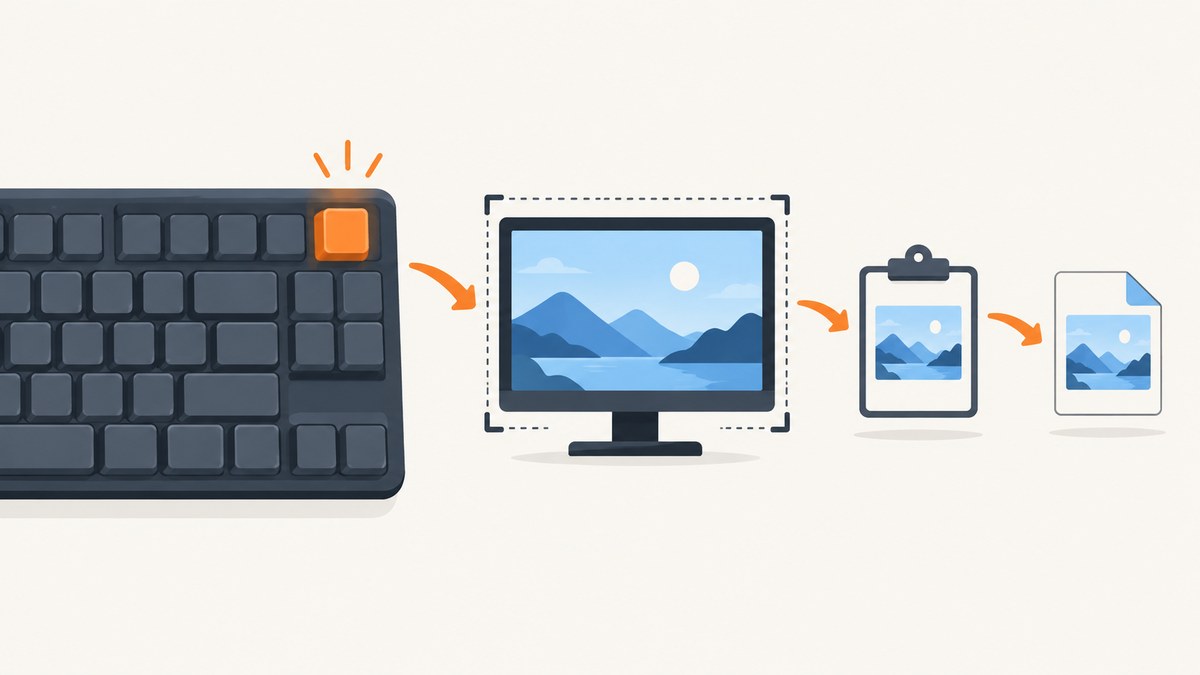
Short answer: press Print Screen (also labeled PrtSc, PrtScn, or PrntScrn) to copy the entire screen to the Windows clipboard. Open Paint, an email, a document, or another image-capable app, press Ctrl+V, and save the pasted image. If you want Windows to save a file automatically, press Windows logo key + Print Screen; the image goes to Pictures\Screenshots.
Which Print Screen shortcut should you use?
Windows has several related shortcuts. Choose based on the area you need and whether you want a clipboard image or an automatically saved file.
| Shortcut | What it captures | Where it goes | Best use |
|---|---|---|---|
| Print Screen | Entire screen | Clipboard | Paste into an app, then edit or save |
| Alt + Print Screen | Active window | Clipboard | Capture one application without the rest of the desktop |
| Windows + Print Screen | Entire screen | Pictures\Screenshots |
Save a full-screen image immediately |
| Windows + Shift + S | Selected region, window, or full screen | Clipboard and Snipping Tool notification | Crop to a precise area or annotate it |
Capture the full screen to the clipboard
- Arrange every window and menu exactly as you want them captured.
- Press Print Screen. The screen may not visibly change; Windows has copied the image to memory.
- Open Paint, an email composer, a chat application, a word processor, or another app that accepts images.
- Press Ctrl+V to paste the capture.
- Save it from that application. In Paint, choose File → Save as and select PNG, JPEG, or another available format.
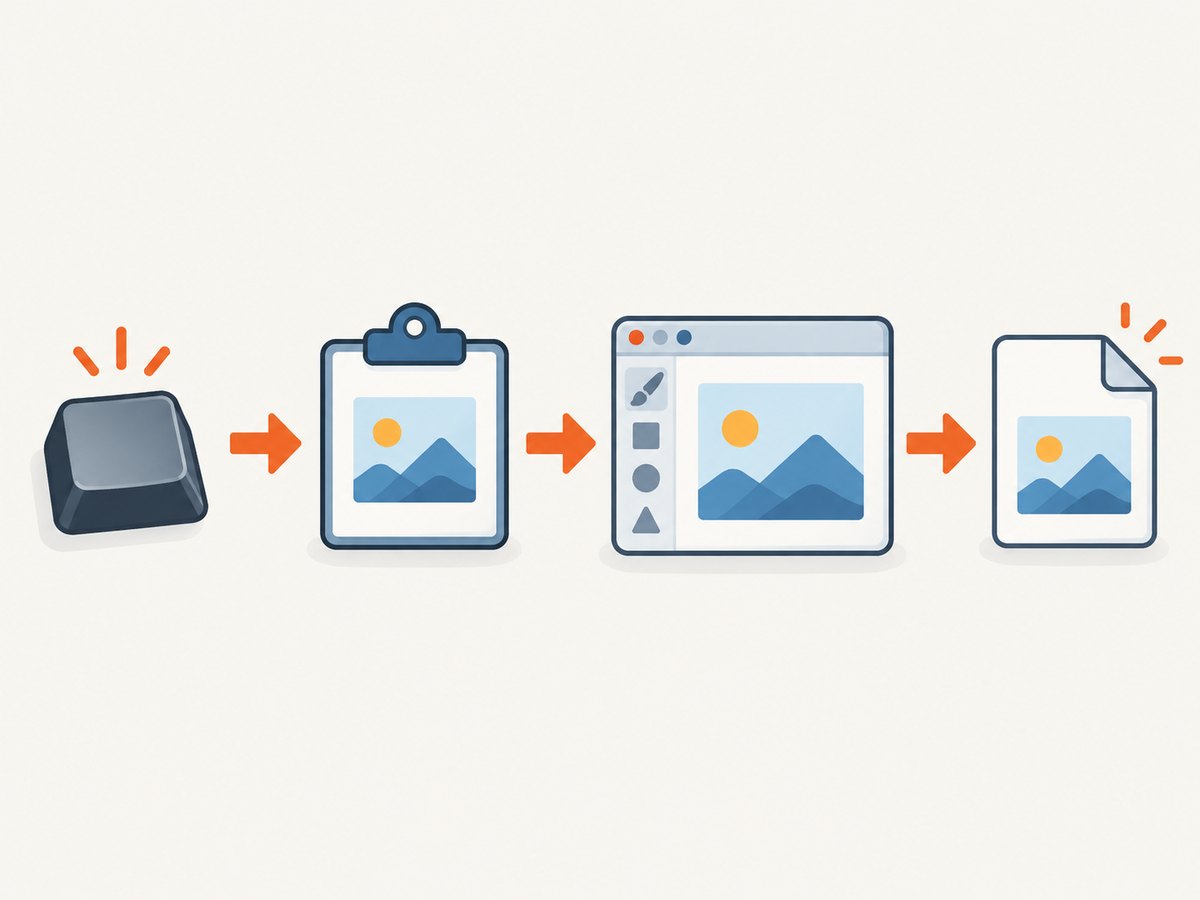
Print Screen by itself does not promise a new file in a folder. It places the image on the clipboard, so a paste step is required. The clipboard can be replaced by the next copy operation, so paste or save the image before copying something else.
What is included?
A full-screen capture includes everything visible on the display at the moment you press the key: application windows, the taskbar, notifications, and the mouse pointer behavior supported by the capture method. On a multi-monitor setup, the result can include the desktop arrangement across displays, depending on the Windows configuration and capture tool in use. If you need only one application, use Alt+Print Screen instead.
Capture only the active window
- Click the window you want to capture so it is active.
- Press Alt + Print Screen.
- Switch to Paint or another image-capable destination.
- Press Ctrl+V, then crop or save the pasted image.
This is useful for a bug report or tutorial screenshot when you do not want to reveal other windows, browser tabs, or desktop content. The active window must be selected first; otherwise, Windows may capture a different window than you intended.
Save a screenshot directly to a file
Press Windows logo key + Print Screen. Windows captures the full screen and saves the image automatically in the Screenshots subfolder of Pictures.
- Press Windows + Print Screen at the same time.
- Open File Explorer.
- Select Pictures, then Screenshots.
- Open, rename, move, or share the resulting image.
If you use OneDrive or another folder backup service, your Pictures folder may be redirected or synchronized. In that case, search File Explorer for “Screenshots” or inspect the location shown in the Pictures folder properties.
Select a region, window, or full screen with Snipping Tool
For a precise selection, press Windows + Shift + S. Windows dims the display and opens the Snipping Tool capture overlay. Depending on the controls shown, choose a rectangular snip, free-form snip, window snip, or full-screen snip.
- Press Windows + Shift + S.
- Choose a capture mode from the overlay.
- Drag around the region, select a window, or choose the full-screen option.
- Use the notification that appears to open the capture in Snipping Tool.
- Annotate, crop, copy, share, or save the image.
The selection is copied to the clipboard, so you can also paste it immediately with Ctrl+V. Snipping Tool is the better choice when you need markup, a crop, or a capture that excludes sensitive parts of the desktop.
Find the Print Screen key on different keyboards
Look along the top row or near the right side of the keyboard for PrtSc, PrtScn, or PrntScrn. The key may share a cap with SysRq. Laptop manufacturers often place Print Screen on a secondary keyboard layer, so you may need to hold Fn while pressing it.
If there is no dedicated Print Screen key, Microsoft documents Fn + Windows logo key + Space for some devices. The exact hardware combination varies by manufacturer. Check the keyboard’s printed legends and, if necessary, its model-specific manual.
When Fn is required
- Try Fn + PrtScn for a full-screen clipboard capture.
- Try Fn + Windows + PrtScn for direct saving if the laptop supports that layer.
- On compact keyboards, inspect secondary labels on keys near Insert, Delete, or the function row.
- Use Windows + Shift + S as a hardware-independent fallback.
Configure what the Print Screen key does
Windows can be configured so pressing Print Screen opens the screen-snipping overlay instead of performing the traditional full-screen clipboard capture. If the key suddenly opens Snipping Tool, check the keyboard accessibility and screenshot settings in Windows Settings and turn the screen-snipping option on or off according to your workflow.
Keep in mind that a configured Print Screen key and the explicit Windows + Shift + S shortcut can lead to the same overlay. If you need a predictable clipboard-only workflow for documentation or support, use the explicit combination or switch the setting back.
How to save, edit, and share the image
Save from Paint
- Paste the capture with Ctrl+V.
- Use Select and Crop to remove unrelated content.
- Choose File → Save as.
- Use PNG for sharp interface text, JPEG for smaller photographic files, or the format required by your destination.
Annotate in Snipping Tool
Open the capture from the notification, then use the available pen, highlighter, crop, and sharing controls. Add arrows or highlights before sending a bug report so the recipient can identify the relevant control quickly.
Protect private information
Review the image before sharing. Full-screen captures can include account names, message previews, browser tabs, internal URLs, notification text, and other windows. Crop or obscure sensitive areas before uploading a screenshot to a ticketing system or public site.
Troubleshooting Print Screen problems
| Problem | Likely cause | Fix |
|---|---|---|
| Nothing appears in a folder | You pressed Print Screen, which copies to the clipboard. | Paste with Ctrl+V and save from the destination app, or use Windows+Print Screen for automatic saving. |
| The key has no effect | The key is on an Fn layer, the wrong key was pressed, or the keyboard lacks PrtScn. | Try Fn+PrtScn, inspect alternate labels, or use Windows+Shift+S. |
| A different window was captured | The target window was not active when Alt+Print Screen was pressed. | Click the target window first, then repeat the shortcut. |
| Print Screen opens Snipping Tool | Windows is configured to open screen snipping for that key. | Change the Print Screen behavior in Windows Settings, or use Windows+Shift+S deliberately. |
| Ctrl+V pastes an older image | The capture did not occur, or another copy operation replaced the clipboard. | Press the shortcut again, then paste immediately into Paint or Snipping Tool. |
| The image is too large to email | A full-resolution bitmap can be large. | Crop unnecessary areas, resize it, or save a suitable JPEG copy when photographic quality is acceptable. |
| A menu disappeared before capture | Switching applications or opening an overlay closed the menu. | Use Windows+Shift+S while the menu is open, or capture the active window without changing focus. |
| The saved file is not in Pictures | Pictures may be redirected or synchronized. | Search for the newest image named “Screenshot” and inspect the Pictures folder location. |
Choose the right Windows capture method
Use this checklist before capturing:
- Whole desktop, paste and edit later: Print Screen.
- One application only: Alt+Print Screen.
- Whole desktop saved immediately: Windows+Print Screen.
- Specific area or window: Windows+Shift+S.
- Markup, crop, or sharing: Snipping Tool.
- Laptop with no visible PrtScn: Fn layer or Windows+Shift+S.
For repeatable documentation, keep the screen at the intended zoom, close unrelated notifications, and capture the same window state each time. A short filename that includes the feature and date makes a folder of screenshots easier to search.
Or skip the browser setup
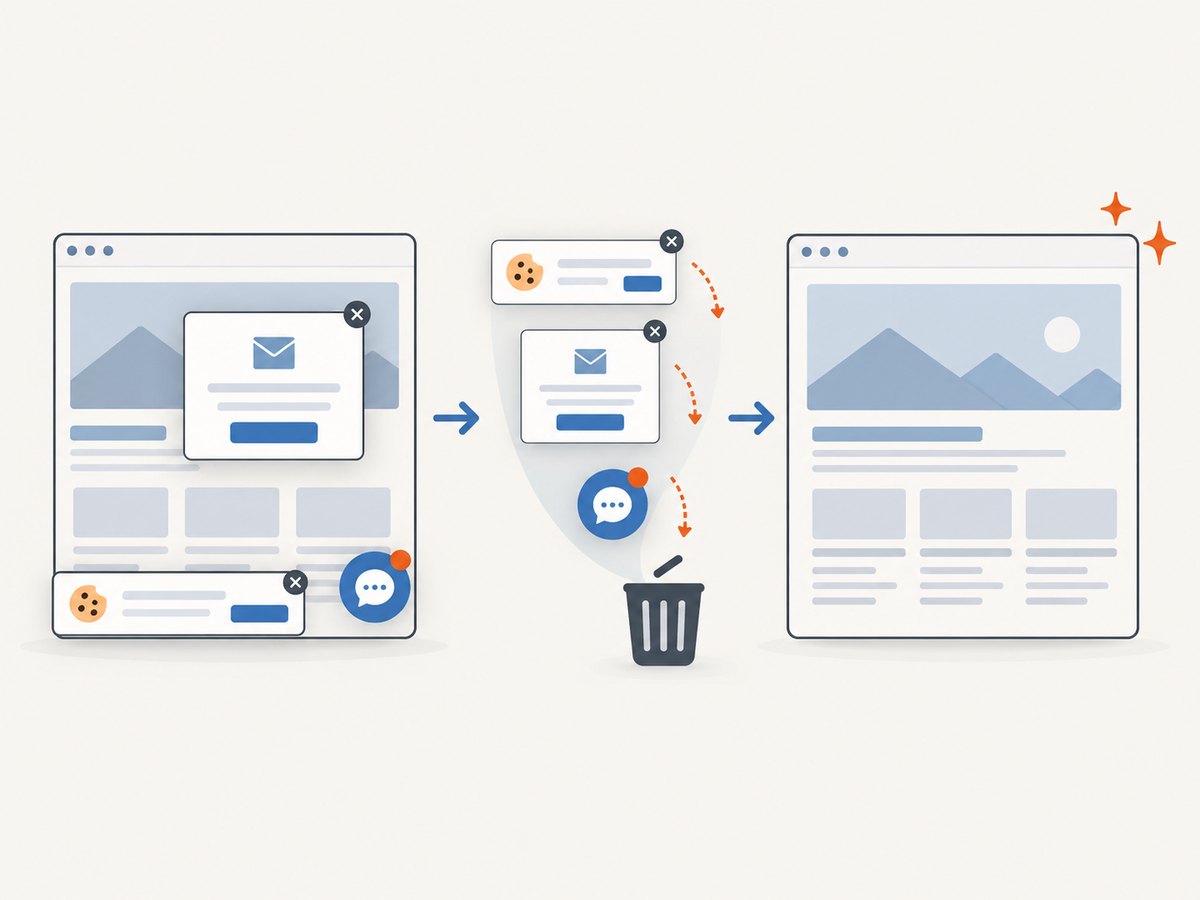
The Print Screen shortcuts are ideal for capturing your own Windows desktop. If you need screenshots of websites from code, a server, a build pipeline, or an AI agent, ScreenshotNeo returns an image or PDF from one GET request. Its cleanup step accepts cookie and consent banners and removes more than 60 known consent platforms, newsletter popups, and chat widgets before capture; each step can be turned off.
Only clean shots are billed. Bot checks and CAPTCHAs, blank pages, timeouts, failed loads, and cache hits cost nothing, and the response identifies the result with X-Page-Verdict and X-Billed headers. ScreenshotNeo also provides an MCP server with take_screenshot, get_page_info, and capture_pdf tools for Claude, Cursor, and other MCP clients.
See the ScreenshotNeo API documentation for the complete parameter reference. The basic request is:
curl -G "https://api.screenshotneo.com/v1/shot" -d access_key=YOUR_API_KEY --data-urlencode url=https://stripe.com -o shot.webpimport requests
r = requests.get("https://api.screenshotneo.com/v1/shot", params={"access_key": "YOUR_API_KEY", "url": "https://stripe.com"}, timeout=90)
open("shot.webp", "wb").write(r.content)const q = new URLSearchParams({ access_key: 'YOUR_API_KEY', url: 'https://stripe.com' });
const res = await fetch(`https://api.screenshotneo.com/v1/shot?${q}`);Options include full-page capture with lazy images loaded, CSS-element capture, dark mode, 12 device presets or a custom viewport, retina scale, PDF paper size and margins, custom CSS and JavaScript, clicks, selector waits, delays, network-idle waits, blocked ads and trackers, custom headers and cookies, user agents, Authorization, timezone, geolocation, transparent backgrounds, resizing, selectable cache TTLs, signed image links, asynchronous jobs with signed webhooks, bulk capture for up to 100 URLs per call, a usage API, and an OpenAPI specification. Parameter names used by other screenshot APIs also work, which simplifies migration.
The free plan includes 1,000 screenshots each month with no card. Paid plans start at $5 for 3,000 shots; yearly billing gives two months free, and every feature is available on every plan. Create a free ScreenshotNeo account to get started.
Performance, reliability, and cost notes
- Clipboard speed: Print Screen is immediate, but saving and uploading depend on the destination application and file size.
- Repeatability: Snipping Tool and direct file capture make selection and storage more consistent than manually pasting into different applications.
- Privacy: Clipboard contents can remain available until replaced; save and clear captures according to your organization’s policy.
- Website automation: Browser rendering, waiting for network activity, loading lazy images, and processing PDFs take longer than a local key press. Use selector waits or a chosen delay when a page is dynamic, and cache stable URLs with an appropriate TTL.
- Billing: ScreenshotNeo’s verdict and billing headers let an application distinguish a clean billed capture from a failed or non-billable result.
FAQ
Does Print Screen automatically save a PNG?
Print Screen alone copies the full screen to the clipboard. Use Windows+Print Screen for automatic saving, or paste into Paint and save in the format you choose.
Where is a Windows+Print Screen image stored?
Windows documents the Screenshots subfolder inside Pictures. If your Pictures folder is redirected, search for the newest screenshot or inspect that folder’s location.
Can I capture just part of the screen?
Yes. Press Windows+Shift+S and choose rectangular, free-form, window, or full-screen capture.
Why does my laptop require Fn?
Many compact keyboards place Print Screen on a secondary key layer. Hold Fn with the key, or use Windows+Shift+S when the hardware shortcut is unclear.
Can Print Screen capture a website without showing cookie banners?
The Windows key captures whatever is visible on your desktop. For automated website captures that remove consent banners, popups, and chat widgets before rendering, use ScreenshotNeo’s API or MCP server.


