BlogScreenshots on your device
How to Take a Screenshot of a Specific Window in Python
Capture a specific window in Python with the right method for Windows, macOS, or Linux. Learn when to use Pillow, a native picker, or a screen crop.
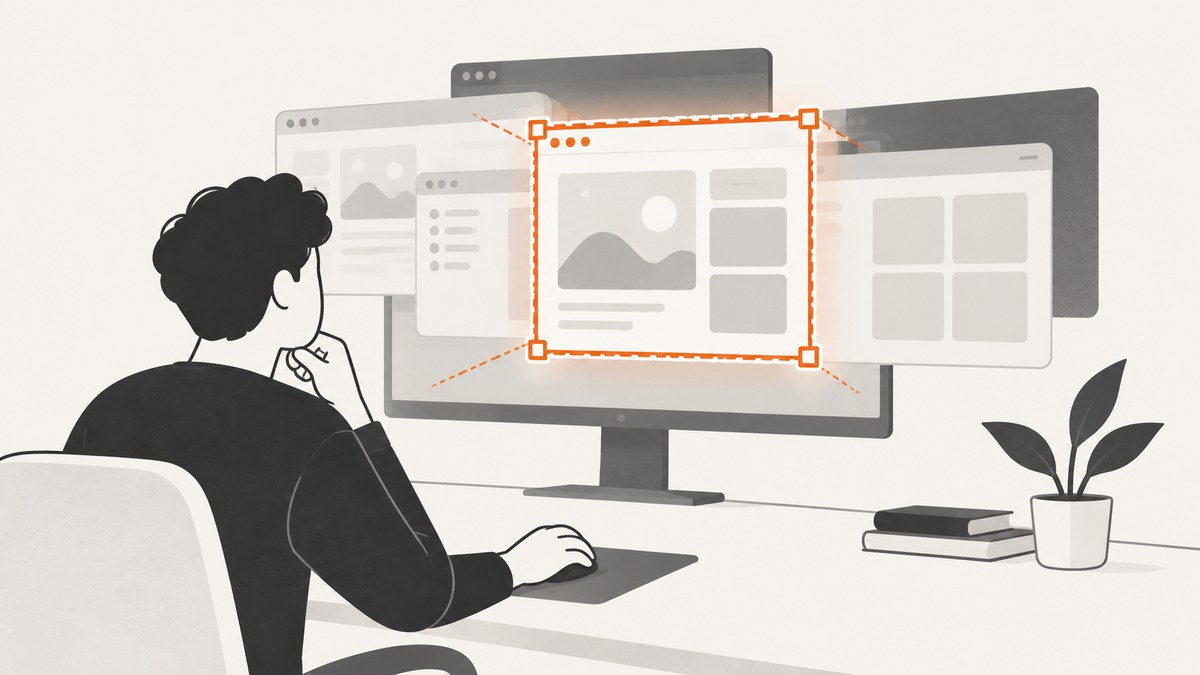
To screenshot a specific window in Python, first choose a method for your operating system and what “specific” means. If a visible window and its current screen pixels are enough, use a window-bounds lookup plus a region screenshot. If you need the operating system to select and capture the window itself, use its native capture interface: Windows.Graphics.Capture, macOS ScreenCaptureKit, or the Linux XDG Desktop Portal. Pillow’s ImageGrab.grab(window=...) is also a Python-level option to evaluate on a compatible Windows/Pillow setup.
There is no single identical Python call that provides native, window-targeted capture on every desktop. A rectangle crop can include other windows if they overlap, and it cannot recover a minimized window’s contents. Check the target OS, desktop session, permissions, and library version before choosing.
1. Choose the capture method
| Need | Method | What to account for |
|---|---|---|
| Visible window, known bounds, crop is acceptable | MSS region capture or PyAutoGUI screenshot | The crop contains current desktop pixels. Occlusion, movement, resizing, and display scaling matter. |
| Capture one window through a Python API | Pillow ImageGrab window option | Confirm the installed Pillow version and its behavior on the exact Windows environment. |
| Let a user select an application window on Windows | Windows.Graphics.Capture | Native Windows API and picker; the documented guide is not a Python recipe. |
| Capture a shareable window on macOS | ScreenCaptureKit | Native framework; a Python bridge or binding is needed. |
| Let a user select a window on Linux | XDG Desktop Portal Screenshot | Portal interface and backend must advertise the needed target. |
Before implementation, answer these questions:

- Must the capture work on one OS or several?
- Can the user choose the window in a system dialog?
- Must a covered or minimized window be captured?
- Is a crop of visible pixels acceptable, or must the source be the window surface?
- Will this run in a desktop session, a sandbox, a remote session, or a headless server?
2. Capture a visible window region with Python
MSS captures a specified screen region; it does not find a window by its title. Pair it with a window-management library or your application’s own window bounds. The following runnable example assumes you already know the window’s screen coordinates. Install MSS with python -m pip install mss.
from pathlib import Path
import mss
import mss.tools

# Replace these values with the window's current screen bounds.
# left/top are screen coordinates; width/height are positive dimensions.
left, top, width, height = 100, 100, 900, 650
output = Path("window.png")

if width <= 0 or height <= 0:
    raise ValueError("Window width and height must be positive")

region = {"left": left, "top": top, "width": width, "height": height}
with mss.mss() as capture:
    shot = capture.grab(region)
    mss.tools.to_png(shot.rgb, shot.size, output=str(output))

print(f"Saved {output.resolve()}")
The coordinates must be in the coordinate system expected by the capture backend. On multi-monitor desktops, a monitor to the left or above the primary display may have negative coordinates. Do not clamp these to zero automatically: doing so can capture the wrong part of the desktop. Get the bounds from a source that reports desktop coordinates, then confirm its scaling convention matches MSS on the target setup.
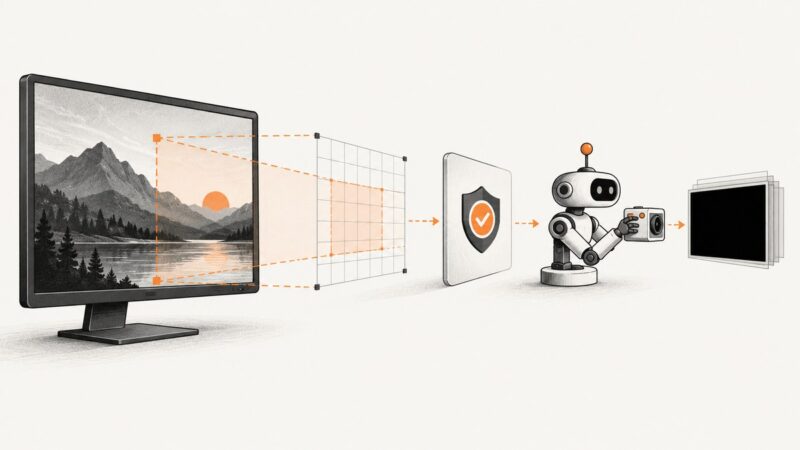
If the window moves or resizes, refresh its bounds immediately before capture. A delay between measuring and grabbing can produce a partial or unrelated image. A crop captures whatever is currently painted in that rectangle, including another window covering the target. It cannot capture a minimized window that is no longer represented by desktop pixels.
Using PyAutoGUI for a known rectangle
PyAutoGUI can return a screenshot image and can save it to a filename. A region is still a screen crop, so the same visibility and coordinate caveats apply. Install it with python -m pip install pyautogui where its platform screenshot dependencies are available.
import pyautogui

left, top, width, height = 100, 100, 900, 650
if width <= 0 or height <= 0:
    raise ValueError("Window width and height must be positive")

image = pyautogui.screenshot(region=(left, top, width, height))
image.save("window.png")
3. Evaluate Pillow’s window capture option
Pillow’s ImageGrab reference includes a window parameter described as capturing a single window. Treat this as an environment-specific route to verify, rather than assuming it behaves identically across operating systems or Pillow releases. Check the current Pillow documentation and test against the exact version and Windows configuration you will deploy.
from PIL import ImageGrab

# Supply the window identifier in the form expected by your installed
# Pillow version and platform. Confirm the identifier and behavior first.
window_id = 123456
image = ImageGrab.grab(window=window_id)
image.save("window.png")
The identifier is not a window title. You need a compatible way to obtain the identifier, and the accepted identifier type is version- and platform-dependent. If the call fails or captures an unexpected target, verify the installed Pillow API and the identifier contract instead of silently falling back to a desktop crop.
4. Use the operating system’s window capture interface
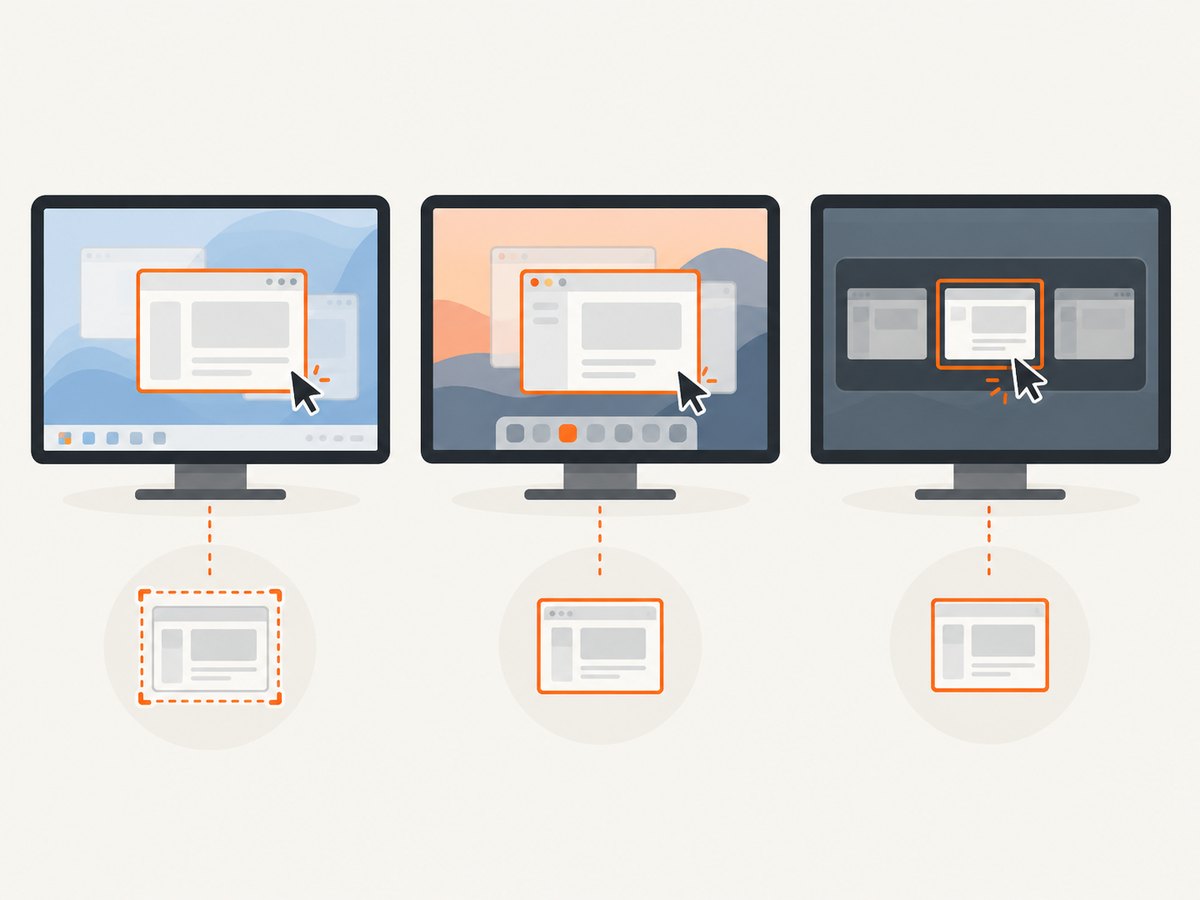
Native capture is a better conceptual fit when the requirement is “capture this application window” rather than “copy pixels from this rectangle.” These interfaces have different integration paths; the platform documentation does not provide one shared Python implementation.
Windows
Microsoft’s Windows.Graphics.Capture API can acquire frames from a display or application window. Its documented workflow invokes secure system UI for the user to pick the item, and the system displays a yellow notification border around the active capture. This is a Windows application API guide, not a turnkey Python snippet. A Python project needs a separate integration route, such as a suitable binding or a small native component that passes frames to Python. Design for picker cancellation and capture-session errors.
macOS
ScreenCaptureKit exposes shareable windows and supports a content filter for a single desktop-independent window. The documented Apple sample obtains shareable content and constructs a filter for the chosen window. It is Swift/native framework guidance, not a Python example. A Python implementation therefore needs an appropriate bridge or binding, plus the required macOS capture permissions. Verify behavior on the macOS versions and app distribution path you support.
Linux desktop
The XDG Desktop Portal Screenshot interface provides a user-selected window target where supported. Its target options include screen, selected window, and area; newer target choices are versioned in the interface documentation. This is a D-Bus desktop interface, and availability depends on the portal version and desktop backend. Check whether the target system advertises the window target. In sandboxed applications, a portal selection flow is generally the relevant integration model; it is not a universal unrestricted desktop API.
For all three native routes, explicitly handle user cancellation, permission denial, unavailable interfaces, session teardown, and frame delivery failures. Save or convert the returned frame using the chosen binding’s documented pixel format; do not assume its buffer is already a PNG byte string.
5. Or skip the browser setup
If your target is a web page rather than a desktop application window, [ScreenshotNeo](https://screenshotneo.com) takes a different route: it captures a URL through a website screenshot API. It does not capture arbitrary native desktop windows. The API supports PNG, JPEG, WebP, or PDF output and has options for full-page capture, a CSS-selected element, viewport and device presets, custom CSS or JavaScript, waits, headers, cookies, caching, and more. See the [ScreenshotNeo API docs](https://screenshotneo.com/docs/) for parameters.
import requests

r = requests.get(
    "https://api.screenshotneo.com/v1/shot",
    params={"access_key": "YOUR_API_KEY", "url": "https://stripe.com"},
    timeout=90,
)
r.raise_for_status()
open("shot.webp", "wb").write(r.content)
Cookie banners, newsletter popups, and chat widgets are removed before the shot, and those cleanup steps can be turned off. Bot checks, blank pages, timeouts, failed loads, and cache hits are not billed; response headers report the page verdict and billing status. An MCP server provides take_screenshot, get_page_info, and capture_pdf tools for AI agents. The free plan includes 1,000 screenshots a month with no card; paid plans start at $5 for 3,000.
Create a free ScreenshotNeo account to get 1,000 screenshots a month with no card.
6. cURL and Node.js examples for web pages
These examples call ScreenshotNeo to capture a website URL. They are not methods for capturing a native desktop window. Use your own API key and encode the target URL as a query parameter.
cURL
curl -G "https://api.screenshotneo.com/v1/shot" \
  -d access_key=YOUR_API_KEY \
  --data-urlencode url=https://stripe.com \
  -o shot.webp
Node.js
const q = new URLSearchParams({
  access_key: 'YOUR_API_KEY',
  url: 'https://stripe.com'
});
const res = await fetch(`https://api.screenshotneo.com/v1/shot?${q}`);
if (!res.ok) throw new Error(`Screenshot request failed: ${res.status}`);
const bytes = Buffer.from(await res.arrayBuffer());
await import('node:fs/promises').then(fs => fs.writeFile('shot.webp', bytes));
For other output formats or capture behavior, consult the API documentation rather than guessing parameter names. ScreenshotNeo accepts parameter names used by other screenshot APIs to ease migration.
7. Reliability, speed, and cost considerations
Reliability
- Refresh geometry: query the window bounds just before a crop and account for movement, resizing, display changes, and scaling.
- Handle unavailable desktop access: a headless process may not have a display server or an interactive portal session. Decide whether to report this clearly or route the work to a desktop process.
- Make cancellation normal: native pickers can be dismissed. Treat cancellation as a user outcome, not a corrupted image.
- Validate output: verify the resulting image can be opened and has nonzero dimensions before downstream processing.
- Keep permissions visible: operating-system capture permissions and session restrictions can block capture. Provide a clear recovery instruction.
Performance
No comparative performance measurements are established here. In general, a region capture reads fewer pixels than a full desktop capture, but actual latency depends on the capture backend, resolution, display setup, pixel conversion, and file encoding. Avoid polling for a moving window at very short intervals without a product need. Reuse a capture session where the selected native API supports it, and measure on the actual operating systems and display configurations you deploy.
Cost
MSS, PyAutoGUI, Pillow, and operating-system capture interfaces do not imply a per-screenshot ScreenshotNeo charge when used locally; your costs instead depend on engineering and deployment choices. A hosted website screenshot API has a service plan. ScreenshotNeo offers 1,000 shots per month free without a card; paid plans are Starter $5 for 3,000, Growth $15 for 15,000, Pro $39 for 60,000, Scale $99 for 250,000, and Business $249 for 1,000,000. Yearly billing gives two months free, and every feature is on every plan.
8. Troubleshooting
| Symptom | Likely cause | What to do |
|---|---|---|
| Crop is offset or cuts off the window | Bounds and capture library use different coordinate scaling, or the window moved. | Re-read bounds immediately before capture; check display scaling and coordinate conventions on that OS. |
| Another app appears in the image | The window was covered; a region grab copies visible desktop pixels. | Use a native window-targeted API if the requirement needs the window surface independent of occlusion. |
| Minimized window produces blank or unrelated pixels | A desktop crop cannot read content that is not currently painted in its screen region. | Restore the window or use a supported native capture path; do not assume minimized capture is available. |
Pillow rejects window or the identifier |
Installed version/platform does not support the expected form, or the identifier is wrong. | Check the installed Pillow reference and obtain the platform-specific window identifier through a compatible method. |
| Linux portal has no window option | Portal interface version or desktop backend does not advertise that target. | Inspect the deployed portal/backend capabilities, update the supported desktop stack, or offer area selection where suitable. |
| Capture permission error on macOS or Windows | OS privacy controls, application setup, or session policy blocks capture. | Enable the relevant permission or use the system picker flow; surface a useful error instead of retrying indefinitely. |
| No display found | Code runs headlessly or outside an interactive desktop session. | Run capture in a user desktop process or choose a server-side webpage capture service for a URL. |
| Image file is empty or unreadable | Frame acquisition or encoding failed, or the returned frame format was mishandled. | Check capture errors, pixel format conversion, output dimensions, and successful file writing before continuing. |
9. FAQ
Can one Python library capture a window on every OS?
There is no single cross-platform call established here with identical native window semantics. Choose and validate an implementation per operating system.
Can I capture a window by its title with MSS?
MSS captures monitors or coordinate regions. Finding a window by title and translating its bounds is a separate step.
Can a screenshot crop include a covered window’s full contents?
No. A crop returns the pixels visible in that desktop rectangle at capture time. Use a window-targeted native interface if occlusion independence is required and supported.
Is ScreenshotNeo a desktop window capture API?
No. It captures web pages from URLs. Use it when the target is a website, not an arbitrary open application window.