BlogScreenshots on your device
How to Screenshot a Tkinter Window That Is Not on Top
Capture a Tkinter window even when another window covers it, using Pillow, PyAutoGUI, temporary topmost mode, or Windows PrintWindow.
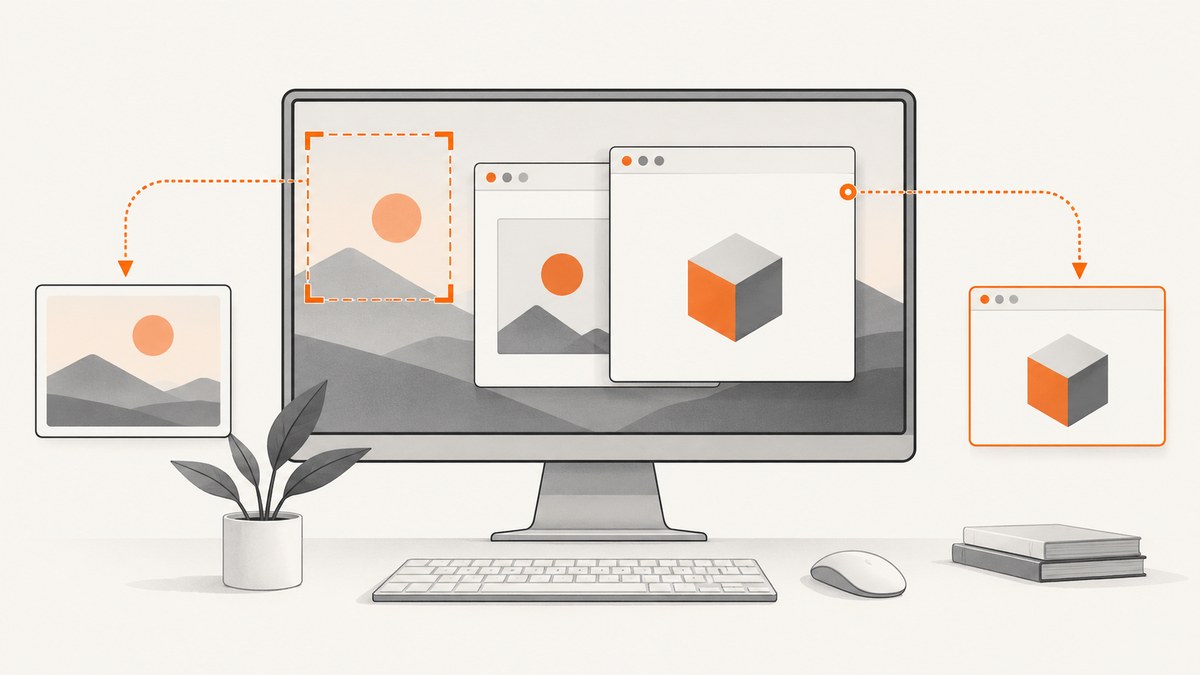
Direct answer: a normal desktop screenshot copies pixels currently visible on the display. If another window covers your Tkinter window, Pillow and PyAutoGUI will capture the covering window. You have three practical choices:
- Temporarily raise the Tkinter window, then capture its screen rectangle.
- On Windows, call
PrintWindowwith the Tk window’s native handle (HWND) so Windows asks the application to render into a device context. - Show or restore the window and use a native visible-capture API when the renderer does not support background printing.
There is no universal cross-platform guarantee for capturing a hidden, minimized, or compositor-specific Tk window. Choose the method that matches whether changing focus is acceptable.
1. Understand what “not on top” means
A rectangle grab has no knowledge of Tkinter widgets. It reads the pixels at coordinates on the desktop. If a browser or another application is in front, those pixels belong to that application. Tkinter’s topmost window-manager attribute requests that a window stay above other windows, while deiconify() maps a withdrawn window and, on Windows, raises it and gives it focus. See the Python Tkinter documentation.
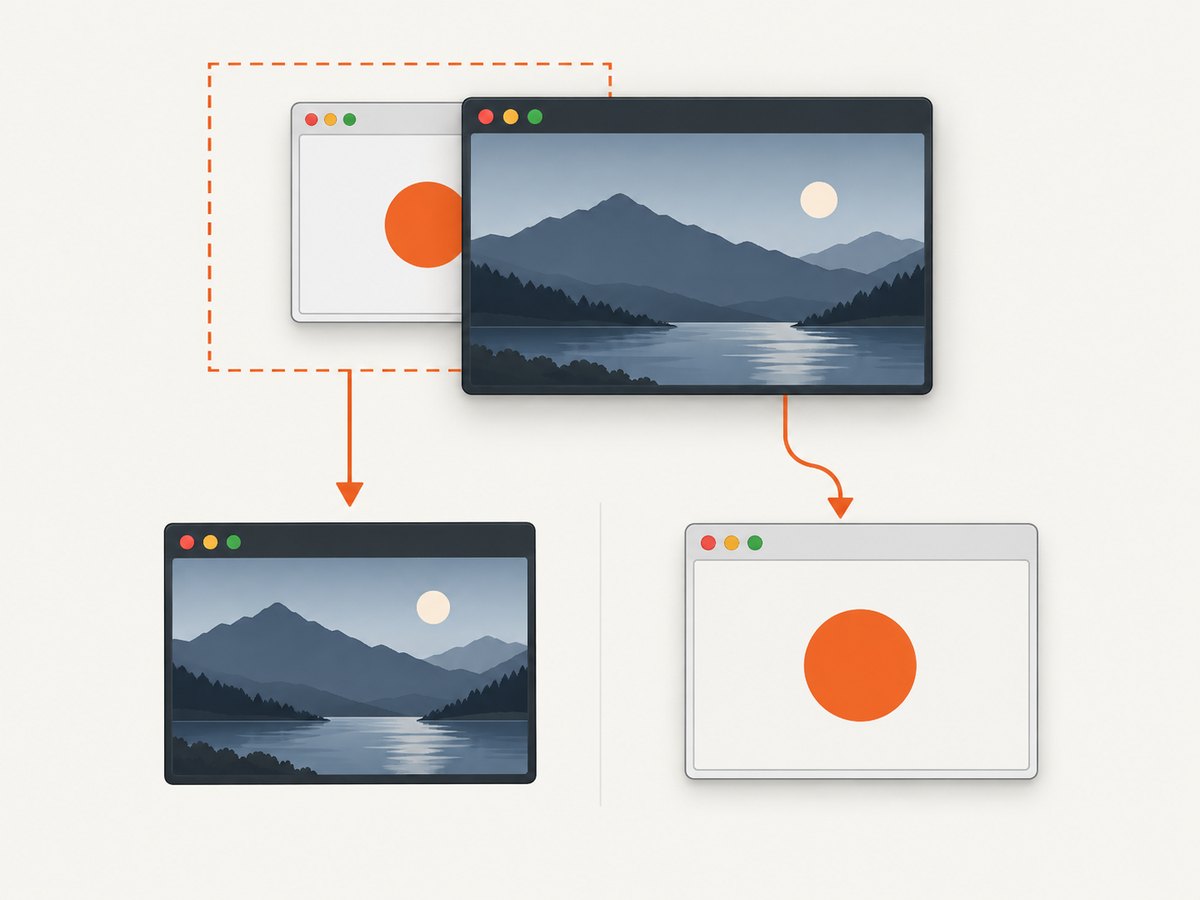
Windows offers a different model: PrintWindow copies a window’s visual output into a supplied device context. It is synchronous and renderer-dependent, so your code must check its return value and handle blank output.
2. Cross-platform capture when the window is visible
Pillow ImageGrab
Use Pillow when the Tk window is visible and unobscured. Measure the window after pending geometry work has completed, then pass the outer rectangle to ImageGrab.grab.
from pathlib import Path
import tkinter as tk
from PIL import ImageGrab


def screenshot_tk(root: tk.Tk, path: str = "tk-window.png") -> None:
    root.update_idletasks()
    left = root.winfo_rootx()
    top = root.winfo_rooty()
    right = left + root.winfo_width()
    bottom = top + root.winfo_height()

    if right <= left or bottom <= top:
        raise ValueError("Tk window has no captureable area")

    image = ImageGrab.grab(bbox=(left, top, right, bottom))
    image.save(Path(path))


root = tk.Tk()
root.title("Capture me")
tk.Label(root, text="Tkinter content").pack(padx=80, pady=60)
root.update_idletasks()
# Call this from a button or another user-triggered action.
screenshot_tk(root)
root.destroy()
bbox is (left, top, right, bottom). Pillow documents RGBA pixels on macOS and normally RGB elsewhere. On Linux, ImageGrab may require an installed fallback such as gnome-screenshot, grim, or spectacle; consult the ImageGrab documentation.
PyAutoGUI region capture
PyAutoGUI accepts (left, top, width, height) and returns a Pillow image. Its Linux screenshot path uses the scrot command, so install scrot where required. See the PyAutoGUI screenshot documentation.
import tkinter as tk
import pyautogui

root = tk.Tk()
root.title("Capture me")
tk.Label(root, text="Tkinter content").pack(padx=80, pady=60)
root.update_idletasks()

region = (
    root.winfo_rootx(),
    root.winfo_rooty(),
    root.winfo_width(),
    root.winfo_height(),
)
if region[2] <= 0 or region[3] <= 0:
    raise ValueError("Tk window has no captureable area")
pyautogui.screenshot("tk-window.png", region=region)
root.destroy()
3. Temporarily raise the Tkinter window
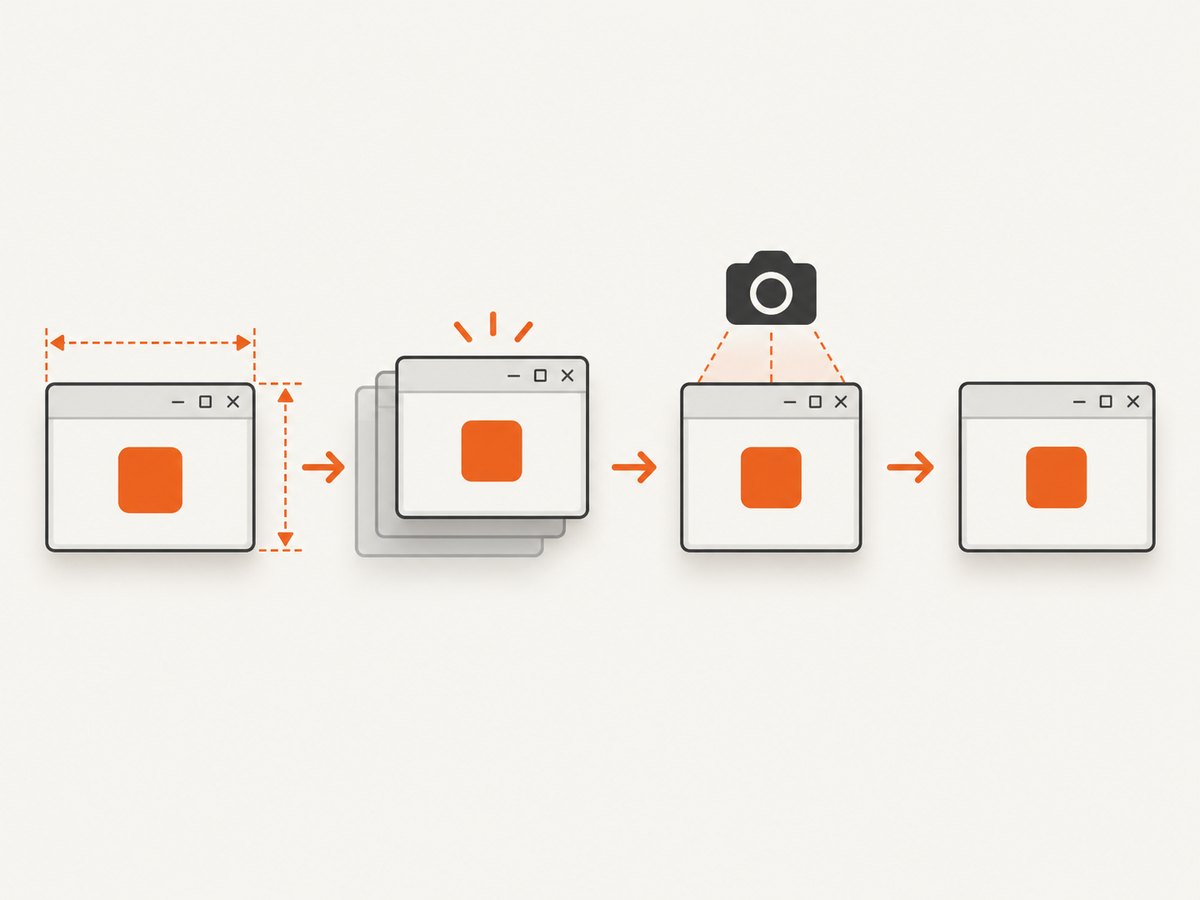
This method keeps the simple screen-grab approach but briefly changes z-order and focus. Restore the previous state in a finally block so a capture does not permanently alter the application.
from pathlib import Path
import tkinter as tk
from PIL import ImageGrab


def screenshot_visible_tk(root: tk.Tk, path="tk-window.png"):
    root.update_idletasks()
    left = root.winfo_rootx()
    top = root.winfo_rooty()
    right = left + root.winfo_width()
    bottom = top + root.winfo_height()
    ImageGrab.grab(bbox=(left, top, right, bottom)).save(Path(path))


def capture_after_raise(root: tk.Tk, path="tk-window.png"):
    old_topmost = root.attributes("-topmost")
    try:
        root.deiconify()
        root.attributes("-topmost", True)
        root.update_idletasks()
        root.update()
        screenshot_visible_tk(root, path)
    finally:
        root.attributes("-topmost", old_topmost)


root = tk.Tk()
tk.Label(root, text="Temporary raise").pack(padx=80, pady=60)
capture_after_raise(root)
root.destroy()
The window can flash or take focus, and another application may be briefly interrupted. This is a visible capture workaround; it does not produce a hidden-window screenshot.
4. Capture a covered window on Windows with PrintWindow
When another window covers the Tkinter window, use the native HWND path on Windows. The complete operation is:
- Obtain the top-level HWND.
- Determine client or outer dimensions.
- Create a compatible memory device context and bitmap.
- Call
user32.PrintWindow. - Convert the bitmap to a Pillow image.
- Release every GDI object and check the Boolean result.
The API sends WM_PRINT, or WM_PRINTCLIENT with the client-only flag, to ask the target application to render. The call can block, so avoid running it directly in a latency-sensitive Tk callback; use a worker thread or a short-lived operation with error handling.
ctypes declaration
import ctypes
from ctypes import wintypes

user32 = ctypes.WinDLL("user32", use_last_error=True)
user32.PrintWindow.argtypes = [wintypes.HWND, wintypes.HDC, wintypes.UINT]
user32.PrintWindow.restype = wintypes.BOOL

PW_CLIENTONLY = 0x00000001

# hwnd and memory_hdc must be created by your GDI setup.
ok = user32.PrintWindow(hwnd, memory_hdc, PW_CLIENTONLY)
if not ok:
    raise OSError("PrintWindow failed")
The declaration above intentionally leaves out device-context and bitmap allocation, which is substantial Win32 GDI code. A pywin32 implementation can simplify handle and resource management. PrintWindow is Windows-only and is not guaranteed for every renderer. If it returns false or creates a blank bitmap, fall back to a visible capture or a native graphics-capture API.
Client area versus outer window
PW_CLIENTONLY requests the client area. If you need the title bar and borders, size the bitmap for the outer window and omit that flag. Keep these coordinate systems separate; mixing them produces cropped borders or an offset image.
5. Selecting the right method
| Situation | Best fit | Trade-off |
|---|---|---|
| Visible and unobscured | Pillow ImageGrab or PyAutoGUI | Simple and cross-platform, but captures whatever is on screen |
| A brief focus change is acceptable | Temporarily set -topmost and capture |
Can flash, raise, or interrupt another application |
| Covered Tk window on Windows | PrintWindow by HWND |
No z-order change, but synchronous and renderer-dependent |
| Minimized, withdrawn, or compositor-specific window | Restore/show it or use a native OS capture API | No single cross-platform hidden-window solution |
6. Geometry, DPI, and window-state edge cases
- Call
update_idletasks()before reading geometry so pending layout changes are applied. - Check for zero or negative width and height after withdrawal or minimization.
- Decide whether you need the outer window or only the client area.
- On high-DPI or multi-monitor systems, verify coordinate scaling before passing a bounding box to Pillow or PyAutoGUI. There is no universal scaling recipe in the cited documentation.
- A minimized window may have no meaningful on-screen pixels. Restore it before a rectangle grab.
- If a grab contains another application, the rectangle method behaved correctly for the pixels visible at those coordinates. Use
PrintWindowor raise the Tk window.
7. Troubleshooting
| Symptom | Likely cause | Fix |
|---|---|---|
| Screenshot shows the covering application | Screen capture reads display pixels | Raise the Tk window temporarily or use Windows PrintWindow |
| Blank or black image from PrintWindow | Renderer does not implement the requested print path, or the call failed | Check the return value, release resources, then use visible or native capture |
| Capture is cropped or shifted | Outer and client coordinates were mixed | Choose one coordinate system and size the bitmap consistently |
| Width or height is zero | Window is withdrawn, minimized, or layout is pending | Call deiconify(), update idle tasks, and verify dimensions |
| Linux ImageGrab error | Desktop screenshot fallback is missing | Install the documented fallback such as gnome-screenshot, grim, or spectacle |
| PyAutoGUI cannot capture on Linux | scrot is not installed |
Install scrot and retry |
| Other application briefly loses focus | Temporary topmost capture changed z-order | Use PrintWindow on Windows or notify users before capture |
| PrintWindow freezes the UI | The call is synchronous | Move capture work off the latency-sensitive Tk callback |
8. Performance, reliability, and cost
Rectangle grabs are usually the simplest path, but they depend on the compositor and current desktop state. Raising a window adds focus and redraw work. PrintWindow avoids z-order changes but can block while the target renders; use timeouts around the operation where your architecture permits and always release GDI resources.
For repeatable automation, record the method, window state, dimensions, DPI configuration, and whether the image was blank. Treat a failed Boolean return or an all-background bitmap as a capture failure rather than a successful screenshot. Local Pillow, PyAutoGUI, and Win32 captures have no ScreenshotNeo API charge; their practical cost is the process time and any required system dependency.
Or skip the browser setup
For website screenshots rather than a local Tkinter window, ScreenshotNeo provides a single HTTP request that returns PNG, JPEG, WebP, or PDF. The API removes cookie and consent banners, newsletter popups, and chat widgets before capture. Bot checks, blank pages, failed loads, timeouts, and cache hits are not billed, and response headers identify the page verdict and billing result. Its MCP server provides take_screenshot, get_page_info, and capture_pdf tools for Claude, Cursor, and other MCP clients.
See the ScreenshotNeo API documentation for all options.
curl -G "https://api.screenshotneo.com/v1/shot" -d access_key=YOUR_API_KEY --data-urlencode url=https://stripe.com -o shot.webpimport requests
r = requests.get("https://api.screenshotneo.com/v1/shot", params={"access_key": "YOUR_API_KEY", "url": "https://stripe.com"}, timeout=90)
r.raise_for_status()
open("shot.webp", "wb").write(r.content)const q = new URLSearchParams({ access_key: 'YOUR_API_KEY', url: 'https://stripe.com' });
const res = await fetch(`https://api.screenshotneo.com/v1/shot?${q}`);
if (!res.ok) throw new Error(`Screenshot failed: ${res.status}`);
const bytes = new Uint8Array(await res.arrayBuffer());
// Write bytes with your runtime's filesystem API.Every feature is on every plan: full-page and element capture, device presets, custom viewport and retina scale, dark mode, waits, blocking rules, headers, cookies, user agents, authorization, timezone, geolocation, custom CSS and JavaScript, caching, signed links, asynchronous jobs, bulk capture, usage data, and PDF output. The Free plan includes 1,000 shots per month with no card; paid plans start at $5 for 3,000 shots.
Create a free ScreenshotNeo account and get 1,000 screenshots a month with no card.
FAQ
Can Pillow capture a covered Tkinter window?
No. Pillow’s rectangle grab captures the pixels currently visible in the selected display rectangle.
Does setting -topmost create a hidden screenshot?
No. It temporarily makes the window visible above others so a screen grab can read it.
Is PrintWindow cross-platform?
No. It is a Windows API that targets an HWND.
Should I capture the title bar?
Choose an outer-window rectangle for borders and title bar, or use client-only dimensions and PW_CLIENTONLY for application content.
What if PrintWindow returns success but the image is blank?
Some renderers do not provide usable output through this path. Treat the bitmap as invalid, then restore/show the window or use a supported native capture API.


