How to Take a Screenshot of a Web Page Behind a Login
Learn how to capture authenticated pages manually or with Playwright, reuse login state safely, troubleshoot failures, and automate reliable full-page screenshots.
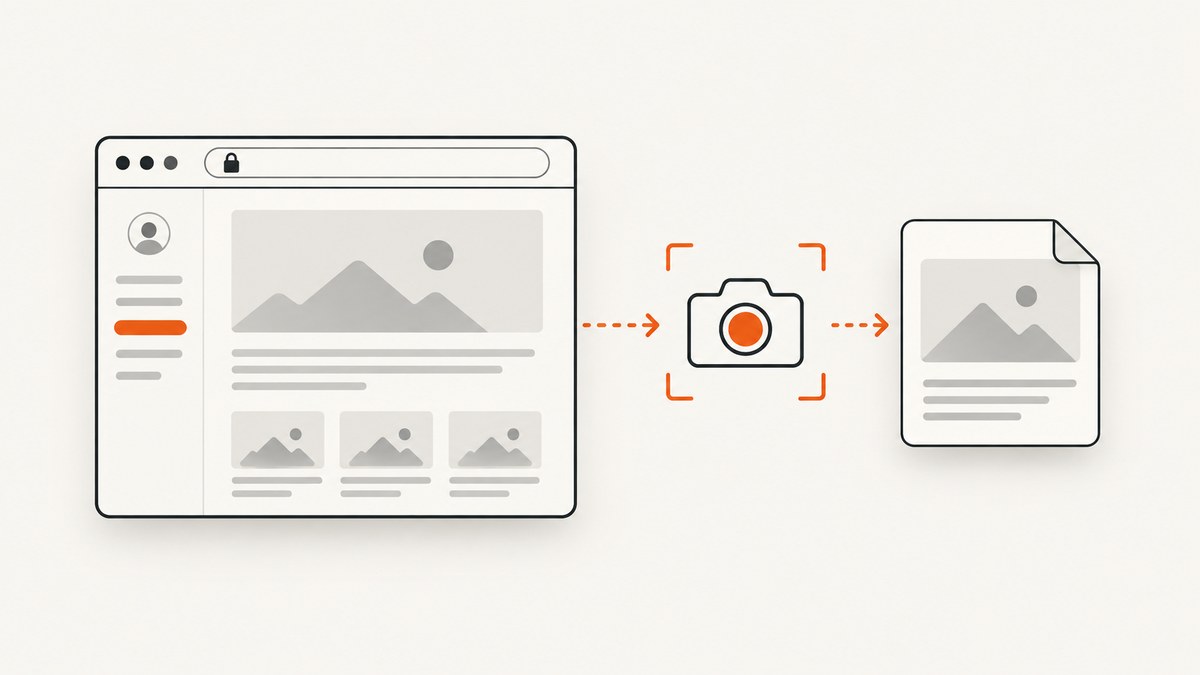
To screenshot a page behind a login, first authenticate normally, open the protected URL, and capture the viewport, an element, or the full page. For a one-off image, Firefox can capture the visible page, the entire scrollable page, or one inspected element. For repeatable work, use Playwright: complete the login in a browser context, save the authenticated browser state, restore it in later runs, wait for a reliable signed-in signal, and then capture the protected page.
This guide covers manual screenshots, automated Playwright captures, secure handling of cookies and tokens, lazy-loaded content, MFA, HTTP Basic Auth, troubleshooting, and an API alternative when you do not want to maintain browser infrastructure.
1. Choose the right capture method
| Situation | Best method | Why |
|---|---|---|
| One screenshot for a document or support ticket | Firefox screenshot tools | No code or setup; authenticate in the normal browser session. |
| Recurring screenshots in CI or a scheduled job | Playwright with saved authentication state | Repeatable login state, viewport, element, and full-page capture. |
| Many URLs or product previews | Screenshot API | No browser fleet, cookie-banner cleanup, and a simple HTTP request. |
Decide what evidence you need before capturing:
- Viewport: the visible screen, useful when URL context and the current screen matter.
- Element: one chart, table, dialog, or component.
- Full page: everything in the scrollable document, including content below the fold.
2. Take a one-off screenshot in Firefox
- Sign in through the site’s normal login page. Complete MFA, consent, or device checks required by the site.
- Open the exact protected URL and confirm that member-only content is visible.
- Right-click an empty area and select Take Screenshot. You can also press Ctrl+Shift+S on Windows or Linux, or Command+Shift+S on macOS.
- Choose the visible area or the entire page, then save the image.
- For an individual component, open Developer Tools, use the Inspector, and choose Screenshot Node.
Firefox documents full-page and element screenshots in its Developer Tools documentation: taking screenshots. Inspect the result for clipped sticky headers, unloaded images, consent banners, chat widgets, or sensitive data before sharing it.
3. Automate authenticated screenshots with Playwright
Playwright’s documented pattern is to authenticate once, save the browser context state, and reuse that state later. The saved file can contain cookies and headers that impersonate the account, so keep it outside source control and treat it like a credential. Playwright supports viewport, element, and full-scrollable-page screenshots. See the authentication guide and screenshot guide.
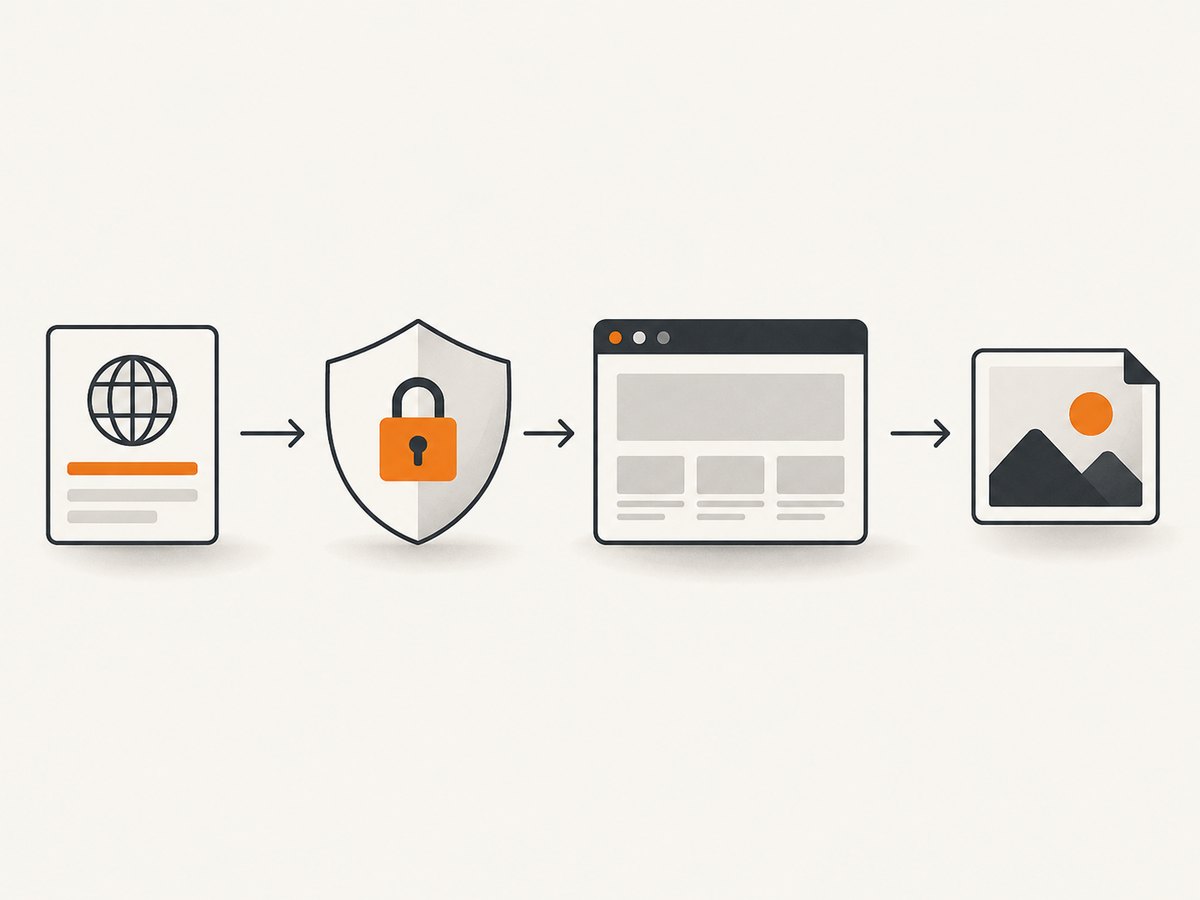
3.1 Install Playwright
npm init -y
npm install -D playwright
npx playwright install chromium
3.2 Log in and save browser state
Use selectors that match your site’s actual form. The example waits for a post-login URL; a visible account control is another reliable signal.
import { chromium } from 'playwright';

const browser = await chromium.launch();
const context = await browser.newContext();
const page = await context.newPage();

await page.goto('https://example.com/login', { waitUntil: 'domcontentloaded' });
await page.getByLabel('Username').fill(process.env.USERNAME);
await page.getByLabel('Password').fill(process.env.PASSWORD);
await page.getByRole('button', { name: /sign in/i }).click();

// Replace this pattern with the site's real post-login URL.
await page.waitForURL(/dashboard|account/);
await page.getByRole('link', { name: /profile|account/i }).waitFor();

await context.storageState({ path: 'playwright/.auth/user.json' });
await browser.close();
Create playwright/.auth in .gitignore. Do not print the file, upload it to logs, or commit it. If the site requires interactive MFA, run this bootstrap step in a controlled environment and renew the state when the session expires.
3.3 Restore state and capture the protected page
import { chromium } from 'playwright';

const browser = await chromium.launch();
const context = await browser.newContext({
  storageState: 'playwright/.auth/user.json',
  viewport: { width: 1440, height: 900 },
});
const page = await context.newPage();

await page.goto('https://example.com/protected-page', {
  waitUntil: 'networkidle',
});
await page.getByText('Members only').waitFor();

// Viewport screenshot
await page.screenshot({ path: 'protected-viewport.png' });

// One element
await page.locator('[data-testid="report"]').screenshot({
  path: 'report.png',
});

// Entire scrollable page
await page.screenshot({ path: 'protected-full-page.png', fullPage: true });

await browser.close();
networkidle can be unsuitable for applications with analytics or long-lived connections. In that case, use waitUntil: 'domcontentloaded' and wait for a specific heading, table, or signed-in control. A targeted wait is usually more meaningful than an arbitrary delay.
4. Handle common authentication patterns
Login redirects
Some applications redirect through several URLs before landing on the account page. Wait for the final URL or a stable signed-in locator, then navigate to the protected page. If the screenshot is a login form, the state may be expired, the redirect may not have completed, or the state file may belong to another domain.
MFA and consent
Complete MFA and consent in the normal flow. Do not attempt to bypass a site’s security controls. After the challenge, save state only after a signed-in UI marker appears. If the site periodically asks for MFA again, make state renewal an explicit maintenance step.
Session storage
Cookies and local storage are covered by Playwright’s storage state, but session storage is domain-specific and is not persisted automatically. If the application keeps its token in session storage, export it during the bootstrap run and restore it with an initialization script before navigation. Verify the application has actually read the value by waiting for a signed-in control.
HTTP Basic Authentication
For a site protected by HTTP Basic Auth, provide credentials when creating the context:
import { chromium } from 'playwright';

const browser = await chromium.launch();
const context = await browser.newContext({
  httpCredentials: {
    username: process.env.BASIC_USER,
    password: process.env.BASIC_PASSWORD,
  },
});
const page = await context.newPage();
await page.goto('https://example.com/private/report');
await page.screenshot({ path: 'basic-auth-page.png', fullPage: true });
await browser.close();
Playwright also documents HTTP credentials for code generation. Never put credentials directly in a committed script.
5. Make full-page captures complete
A full-page screenshot captures the scrollable document, but the page still needs time to render. Lazy images may load only after scrolling, and virtualized tables may render only the visible rows. Before capture:
- Wait for the main content locator.
- Scroll through the page to trigger lazy loading when necessary.
- Wait for images to report
complete. - Hide or disable sticky navigation if it obscures repeated sections.
- Capture an element instead when a full page would expose unrelated private data.
await page.goto('https://example.com/protected-page', {
  waitUntil: 'domcontentloaded',
});
await page.locator('main').waitFor();

await page.evaluate(async () => {
  window.scrollTo(0, document.body.scrollHeight);
  await new Promise(resolve => setTimeout(resolve, 500));
  window.scrollTo(0, 0);
});

await page.waitForFunction(() =>
  Array.from(document.images).every(image => image.complete)
);
await page.screenshot({ path: 'complete-page.png', fullPage: true });
6. Control viewport, device, and sensitive content
Use a fixed viewport for reproducible output. A responsive page can show different navigation, tables, or charts at different widths. For mobile evidence, create a mobile-sized context or use Playwright’s device descriptors. For sensitive pages, prefer an element screenshot and mask or hide fields before capture.
await page.addStyleTag({ content: `
  [data-sensitive], .account-number { visibility: hidden !important; }
` });
await page.locator('[data-testid="invoice"]').screenshot({
  path: 'invoice-redacted.png',
});
7. Troubleshoot authenticated screenshots
| Symptom | Likely cause | Fix |
|---|---|---|
| Screenshot shows the login page | Expired state, wrong domain, or incomplete redirect | Re-authenticate, wait for the final URL or signed-in marker, and save state after login completes. |
| Content below the fold is missing | Viewport capture or lazy loading | Use fullPage: true, scroll to trigger lazy content, and wait for key locators or images. |
| Element screenshot fails | Selector matches nothing, is hidden, or is inside a frame | Wait for the locator, confirm the selector, and use frameLocator for an iframe. |
| Blank or partially rendered page | Capture happened before client rendering finished | Wait for a meaningful UI marker and required network requests; avoid relying only on a fixed timeout. |
| Session works locally but not in CI | State file is absent, expired, or encrypted differently | Provision the state securely in CI, use the same domain, and renew it through the bootstrap flow. |
| Unexpected logout | Session storage or anti-bot/device binding is missing | Restore session storage when required and run the capture in a consistent browser context. |
| Sticky header covers content | Fixed-position UI repeats over the page | Hide it with a temporary style, capture the target element, or adjust the page before the screenshot. |
8. Reliability, performance, and cost considerations
Keep authentication separate from capture. A short bootstrap job can renew state, while capture jobs restore that state and collect images. Use deterministic viewport settings, stable locators, and explicit readiness checks. Retain failure screenshots and browser logs long enough to diagnose redirects, but redact credentials and private data.
Full-page screenshots take more rendering work than viewport captures, especially on long pages with charts, fonts, and lazy images. Capture only the required scope, reuse a browser context for related pages, and avoid unnecessary repeated logins. If the application has rate limits, schedule jobs and limit concurrency to what the site permits.
Browser automation also carries infrastructure costs: browser binaries, memory, patching, and secret storage. An API can be simpler when you only need an image or PDF and can provide the required headers, cookies, or authorization token.
9. Or skip the browser setup
ScreenshotNeo is a website screenshot API and MCP server. Its endpoint accepts one GET request and returns PNG, JPEG, WebP, or PDF. For a protected page, send the authentication material the site expects using custom headers, cookies, user agent, or an Authorization header. See the ScreenshotNeo API documentation for request parameters and response details.

cURL
curl -G "https://api.screenshotneo.com/v1/shot" \
  -d access_key=YOUR_API_KEY \
  --data-urlencode url=https://example.com/protected-page \
  -o protected.webp
Python
import requests

r = requests.get(
    "https://api.screenshotneo.com/v1/shot",
    params={
        "access_key": "YOUR_API_KEY",
        "url": "https://example.com/protected-page",
    },
    timeout=90,
)
r.raise_for_status()
open("protected.webp", "wb").write(r.content)
Node.js
const q = new URLSearchParams({
  access_key: 'YOUR_API_KEY',
  url: 'https://example.com/protected-page'
});
const res = await fetch(`https://api.screenshotneo.com/v1/shot?${q}`);
if (!res.ok) throw new Error(`Screenshot failed: ${res.status}`);
const data = Buffer.from(await res.arrayBuffer());
await import('node:fs/promises').then(fs => fs.writeFile('protected.webp', data));
ScreenshotNeo can load lazy images for full-page captures, capture one element by CSS selector, set dark mode, use 12 device presets or any viewport, and apply retina scale. You can add custom CSS and JavaScript, click an element before capture, wait for a selector, delay, or network idle, and hide selectors. Request controls include blocking ads, trackers, requests, or resource types; custom headers, cookies, user agent, and Authorization; timezone and geolocation; transparent backgrounds; image resizing; and caching with a TTL you choose.
For protected workflows that produce documents, ScreenshotNeo supports PDF paper size, margins, landscape mode, and page ranges. It also supports HTML/CSS to image, signed links for public <img> tags, asynchronous jobs with signed webhooks, bulk capture of 100 URLs per call, a usage API, and an OpenAPI specification. Parameter names used by other screenshot APIs also work, which can simplify migration.
Clean shots are billed only when a usable capture is returned. Bot checks or CAPTCHAs, blank pages, timeouts, failed loads, and cache hits cost nothing, and each response reports the result in X-Page-Verdict and X-Billed headers. Each step in its cookie and consent handling can be turned off; it accepts consent banners and removes more than 60 known consent platforms, newsletter popups, and chat widgets before capture.
An MCP server exposes take_screenshot, get_page_info, and capture_pdf to Claude, Cursor, and other MCP clients. Plans include 1,000 shots per month free with no card; paid plans start at $5 for 3,000 shots. Create a free ScreenshotNeo account to try it.
10. Security checklist
- Keep Playwright state files, cookies, bearer tokens, and API keys out of Git.
- Use environment variables or a secret manager for credentials.
- Restrict capture URLs and outbound access when running untrusted input.
- Capture the smallest useful scope when a page contains personal or financial data.
- Redact sensitive fields before saving or sharing images.
- Rotate expired sessions and revoke credentials that may have appeared in logs.
FAQ
Can I screenshot a page after logging in without saving credentials?
Yes. Log in manually and use Firefox’s screenshot command for a one-off capture. For automation, a saved browser state avoids repeating the form, but it must be protected like a credential.
Why does full-page mode still omit content?
The page may lazy-load or virtualize content. Scroll to trigger loading, wait for the relevant locator or images, and capture the element that contains the complete data when appropriate.
Can I capture only a chart on a private page?
Yes. Use a Playwright locator screenshot or ScreenshotNeo’s CSS selector capture after authentication material has been supplied.
How often should an authenticated state be renewed?
Renew it when the site’s session expires or its MFA and device policies require it. Detect a login redirect and run the normal bootstrap flow again.
Is an API better than Playwright?
Use Playwright when you need browser-specific interaction or a complex login flow. Use an API when you can provide the session material and want repeatable HTTP requests without operating browsers.


