BlogScreenshots on your device
How to Screenshot a Web Page in a Browser Window
Capture the browser window, the visible page, or a full scrolling webpage on Windows, Mac, or Firefox—and learn where the image goes.
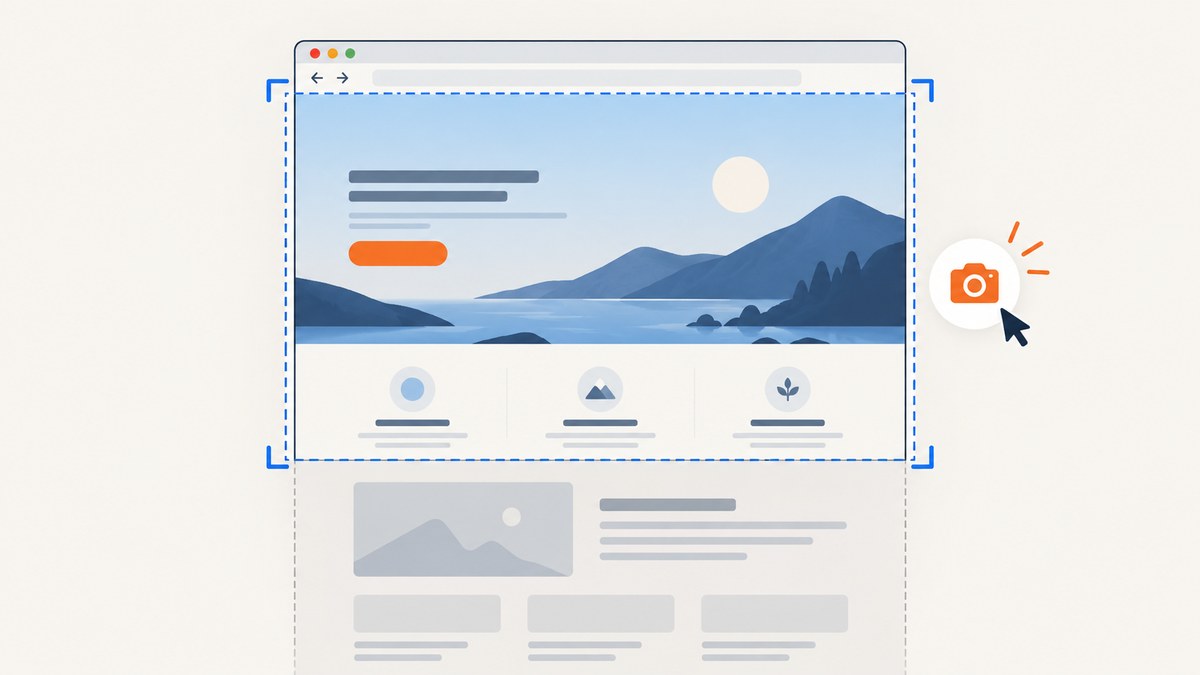
To screenshot the browser window, use your operating system’s capture tool: on Windows, press Windows + Shift + S and choose Window; on Mac, open the Screenshot app and choose a window. These capture what is on screen, so a normal window or area capture does not include the webpage content below the fold. For a full scrolling page, Firefox has a built-in Save full page screenshot option.
The key choice is what you need in the image: the browser frame and page together, only the visible page area, or the entire webpage. Choose the scope first, then use the method that matches your computer and browser.
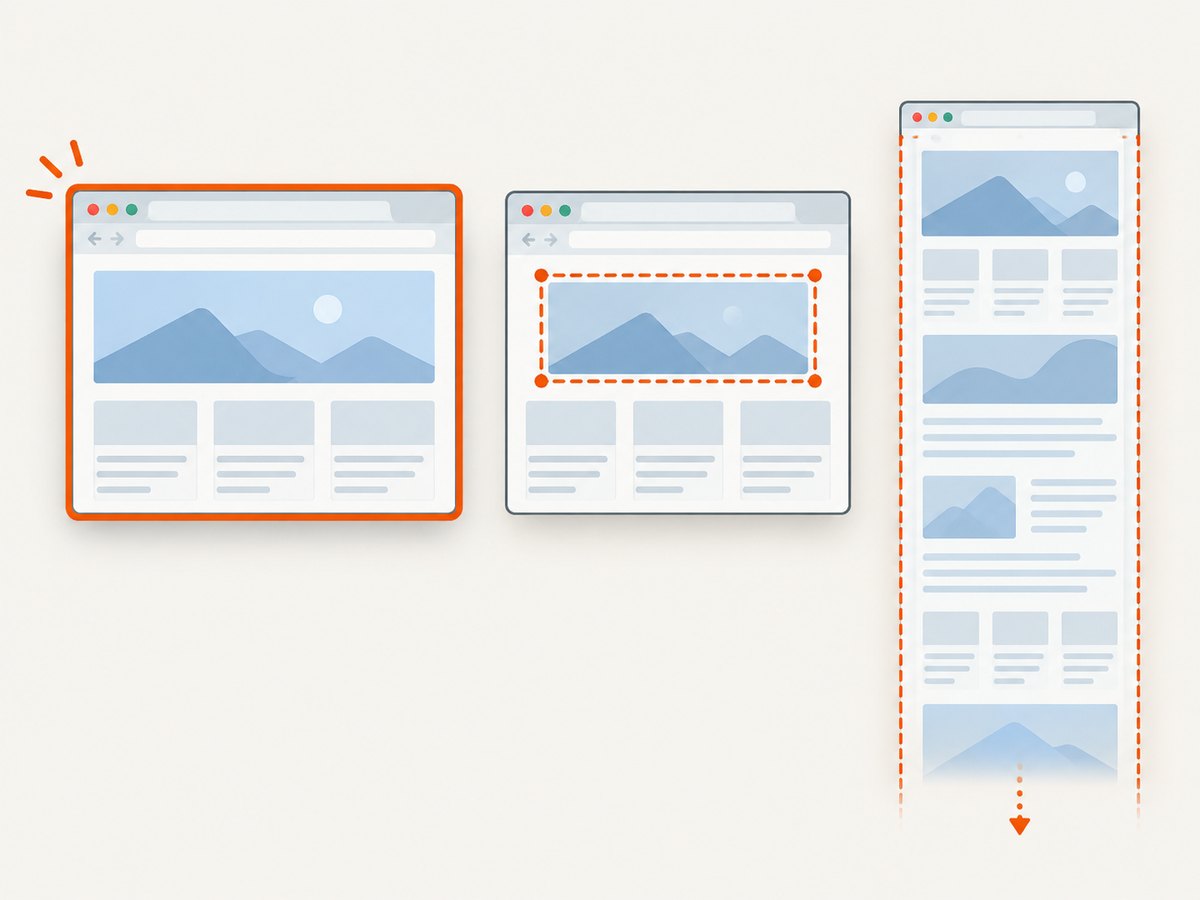
1. Choose what to capture
| What you need | Use | What appears |
|---|---|---|
| Browser window | Windows Snipping Tool: Window; macOS Screenshot: window | The selected browser window as it appears on screen, including its frame |
| Part of a window or page | Rectangle snip or selected area | Only the region you drag over |
| Visible webpage | Firefox: Save visible, or a screen-area capture around the page | The page content currently shown, not the parts below the fold |
| Entire scrolling webpage | Firefox: Save full page | The page beyond the current viewport, subject to the site’s layout |
A browser-window capture is useful when you need to show the address bar or browser context. A page-only image is usually clearer for a bug report, design review, or documentation. A full-page image is the right choice when the order and content below the fold matter.
2. Windows 10 and 11: capture the browser window
- Bring the browser window you want to capture to the foreground.
- Press Windows + Shift + S. The Snipping Tool capture overlay opens.
- Select Window, then select the browser window.
- Use the Snipping Tool notification or window to edit, save, or share the capture. Microsoft says the capture is automatically copied to the Snipping Tool window.
Choose Window if the browser frame should appear. Choose Rectangle if you want only the page or a particular region. The overlay also offers Freeform and Full screen modes. Microsoft’s instructions cover Windows 10 and Windows 11. If you save a browser-window snip as an HTML file, the page URL appears below the snip. Microsoft’s Snipping Tool guide describes the capture modes and workflow.
These are screen captures: they include the visible portion of the browser, not the webpage’s off-screen content. To capture a long page, use a browser full-page feature or a screenshot service that renders the page for you.
3. Mac: capture a browser window or selected area
- Open the Screenshot app. You can find it with Spotlight search, or use Shift + Command + 5 to open the screenshot controls.
- Choose the window-capture mode to include the browser window, or selected-area mode to frame just the page.
- For a window capture, move the camera pointer over the browser window and select it. For a selected area, drag around the part you want.
- Save the capture using the on-screen controls.
Apple documents the Screenshot app for macOS Mojave 10.14 or later. If you need the browser frame, use window mode; if you need a clean page image, use selected-area mode. Some applications restrict window screenshots—for example, Apple notes that Apple TV may do so. This is an app-specific limitation, not a general rule about browsers. See Apple’s screenshot guide for the current controls and modes.
Like Windows screen capture, a Mac window or selection captures what is visible on the display. It will not automatically scroll through the document to include content below the fold.
4. Firefox: save the visible page or the entire page
- Open the webpage in Firefox.
- Right-click an empty part of the page and choose Take Screenshot. You can also use Ctrl + Shift + S on Windows or Linux, or Command + Shift + S on Mac.
- Choose Save visible for the current viewport or Save full page to include the scrolling document. You can also select a region or a detected page part.
- Download the result as an image, or copy it to the clipboard.
Firefox’s built-in tool is the most direct option in this guide when the deliverable is a full webpage rather than a picture of the display. Mozilla documents visible, selected, and full-page capture, as well as saving or copying the result, in its Firefox Screenshots help page.
For a repeatable technical workflow, Firefox Developer Tools also documents a Web Console :screenshot command. Its full-page option includes content outside the current window bounds; the documentation notes that -fullpage is appended to the filename. Use the context-menu tool for a quick manual capture, and consult Firefox’s Web Console command documentation for the command’s supported options and syntax.
5. Check the result before sharing it
A screenshot can be technically successful and still omit or obscure what you meant to show. Before attaching it to a ticket or publishing it, inspect the output at full size.
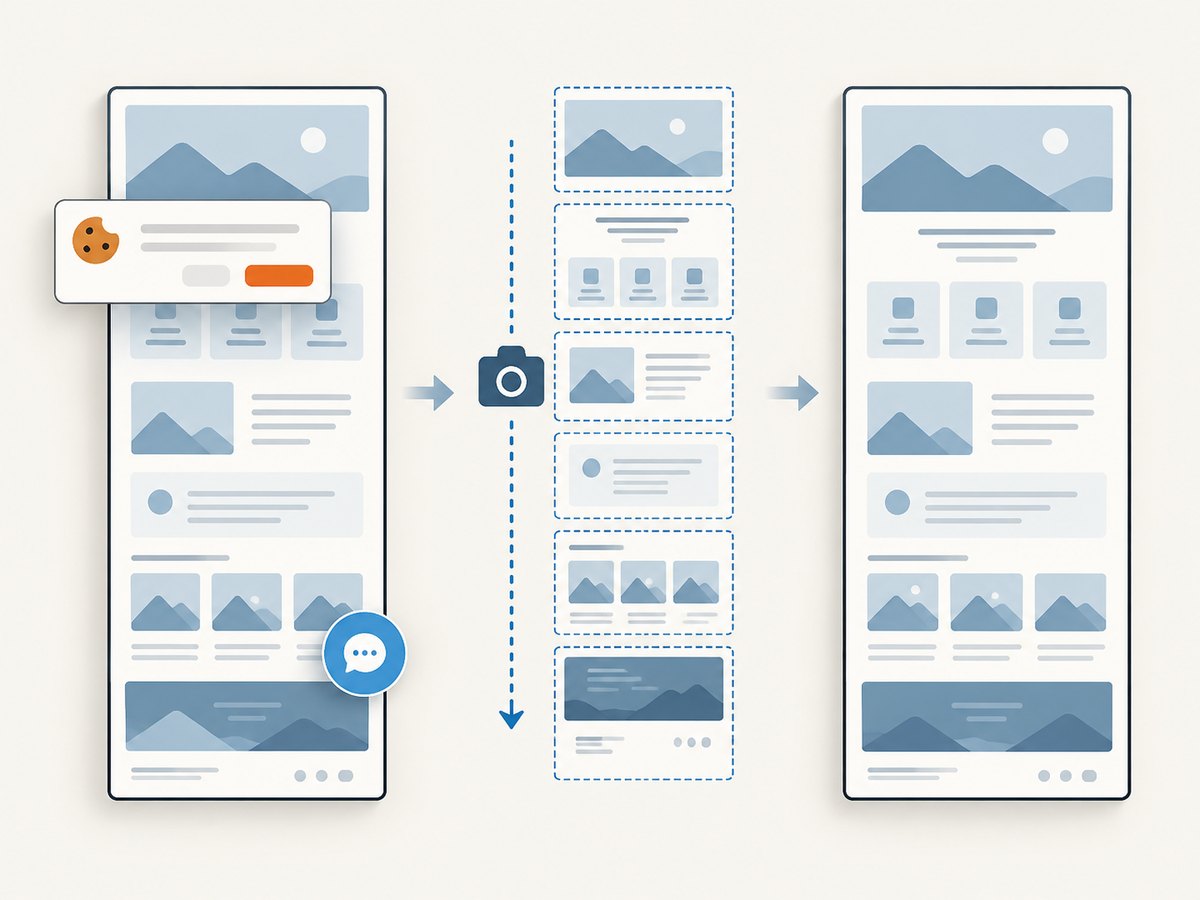
- Sticky headers: A full-page capture may not represent a sticky header exactly as it behaves while scrolling. Check whether it appears once, repeats, or covers content.
- Lazy-loaded images: Some pages load images only as a visitor scrolls. A full-page capture may not show every image if the browser or capture method does not trigger those loads.
- Cookie and consent panels: These may cover page content. Dismiss them if appropriate and permitted before capturing.
- Popups and chat widgets: Close or move them if they obscure the intended content.
- Inner scroll panels: A page may contain a separate scrollable box. A full-page capture of the document does not necessarily expand that box to reveal its hidden contents; capture the panel separately if needed.
- Long pages: Very tall screenshots can be unwieldy to review and share. Consider several focused captures or a PDF when readers need to inspect detail.
Capture controls do not guarantee identical results for every site layout. The page’s scripts, scrolling containers, and loading behavior can affect what appears, so review the actual file rather than assuming that “full page” means every hidden or dynamically loaded element is present.
6. Save, copy, and share the right output
For a quick paste into chat or a document, clipboard output is convenient. For an attachment, archive, or repeatable record, save an image file where you can find it. Firefox offers both download and clipboard actions. Windows Snipping Tool lets you edit, save, and share its capture. The Mac Screenshot app provides on-screen capture controls and a save destination.
If you cannot locate the file, check the save location shown by the app when you capture. The exact default and available controls can vary by operating system version and settings. A clipboard capture is not necessarily saved as a file: paste it into an image editor or document, then save or export it if you need a standalone image.
7. Or skip the browser setup
If you need repeatable screenshots from code, ScreenshotNeo is a website screenshot API and MCP server. One GET request returns an image or PDF, so you do not need to set up a browser automation environment. See the ScreenshotNeo API documentation for parameters and response details.
curl -G "https://api.screenshotneo.com/v1/shot" -d access_key=YOUR_API_KEY --data-urlencode url=https://stripe.com -o shot.webpimport requests
r = requests.get(
"https://api.screenshotneo.com/v1/shot",
params={"access_key": "YOUR_API_KEY", "url": "https://stripe.com"},
timeout=90,
)
open("shot.webp", "wb").write(r.content)const q = new URLSearchParams({ access_key: 'YOUR_API_KEY', url: 'https://stripe.com' });
const res = await fetch(`https://api.screenshotneo.com/v1/shot?${q}`);ScreenshotNeo removes cookie banners, popups, and chat widgets before capture; bot checks, blank pages, and failed loads are never billed. Its MCP server lets AI agents use take_screenshot, get_page_info, and capture_pdf. The free plan includes 1,000 screenshots a month with no card; paid plans start at $5 for 3,000. Other available options include full-page capture with lazy images loaded, CSS element capture, viewport and device presets, custom CSS and JavaScript, wait conditions, request blocking, caching, and async jobs.
Sign up for 1,000 free screenshots a month—no card required.
8. Troubleshooting
| Problem | Likely cause | What to try |
|---|---|---|
| The screenshot shows the desktop, not just the browser | Full-screen capture mode was selected | Repeat the capture and choose Window or Rectangle on Windows, or window/selected-area mode on Mac. |
| The bottom of the page is missing | A screen capture recorded only the visible viewport | In Firefox, choose Take Screenshot, then Save full page. Check that you did not choose Save visible. |
| The shortcut does nothing | The shortcut may differ by operating system, browser version, keyboard layout, or app focus | Open the capture tool from the operating system or browser menu. In Firefox, use the page context menu. Confirm that the browser window is active. |
| The screenshot is on the clipboard but no file is visible | The capture was copied rather than saved | Paste it into an image editor and save it, or use the capture tool’s save action. |
| A panel or image is blank in the full-page result | It may be lazy-loaded, inside a nested scroll area, or drawn after the capture | Scroll the relevant area first, capture the panel separately, or use a capture workflow with an appropriate wait or scrolling behavior. |
| The browser window cannot be captured | The app may restrict screenshots, or the wrong window may be selected | Retry with the browser in front, use a selected area, and check whether the application itself restricts capture. |
Menu names and shortcut labels can change across releases. If the documented action is absent, use the tool’s menu and check the support documentation for the specific browser and operating system version you have installed.
9. Performance, reliability, and cost
For a one-off capture of what is on your monitor, the built-in operating system tool is usually the shortest path: it avoids a separate service and captures the current display directly. Browser full-page tools are better suited to long documents, but the resulting image can be much taller and may need a visual check for sticky elements, lazy content, or nested scroll panels.
For recurring captures, a manual workflow is harder to repeat consistently. A screenshot API can make the target URL and capture settings explicit and can fit into scripts or agent workflows. ScreenshotNeo’s documented product facts include clean-shot handling, full-page capture, device and viewport controls, caching with a chosen TTL, bulk capture, and usage reporting. Its pricing is Free for 1,000 shots/month, Starter $5 for 3,000, Growth $15 for 15,000, Pro $39 for 60,000, Scale $99 for 250,000, and Business $249 for 1,000,000; yearly billing gives two months free. Every feature is available on every plan. Choose based on expected volume and whether automation saves enough manual work for your use case.
Keep credentials such as API keys on the server when calling the API from an application. Avoid putting a secret key into a public page or a client-side script. Check the API documentation for authentication and response handling before integrating it into a production workflow.
Frequently asked questions
Can I capture just the browser window, including its tabs and address bar?
Yes. Choose Window mode in Windows Snipping Tool or the window mode in the Mac Screenshot app. A rectangular page-area capture will omit browser chrome outside the selection.
Does a normal screenshot include content below the fold?
No. A normal screen capture records what is visible. Use Firefox’s Save full page command when you need the scrolling document.
Can I copy the screenshot without saving a file?
Yes. Firefox offers a clipboard option. Windows captures are copied to the Snipping Tool window, where you can edit or save them; the Mac capture controls also offer a capture workflow with a chosen destination.
Why does a full-page screenshot look different from scrolling the page?
Page layout can respond to scrolling, and content may load dynamically or live in a separate scrollable panel. Inspect the image and capture a specific region or panel separately if the full-page result does not show the state you need.
Which method should I use for an automated screenshot?
Use a scripted browser workflow or a screenshot API when captures need to run repeatedly without a person operating the desktop. ScreenshotNeo provides a one-call API and an MCP server for AI clients; its free plan includes 1,000 shots per month without a card.


