BlogScreenshots on your device
How to Screenshot a Webpage on Windows 10
Capture part of a webpage, the entire screen, or a long scrolling page on Windows 10 with shortcuts, Edge, troubleshooting, and automation.
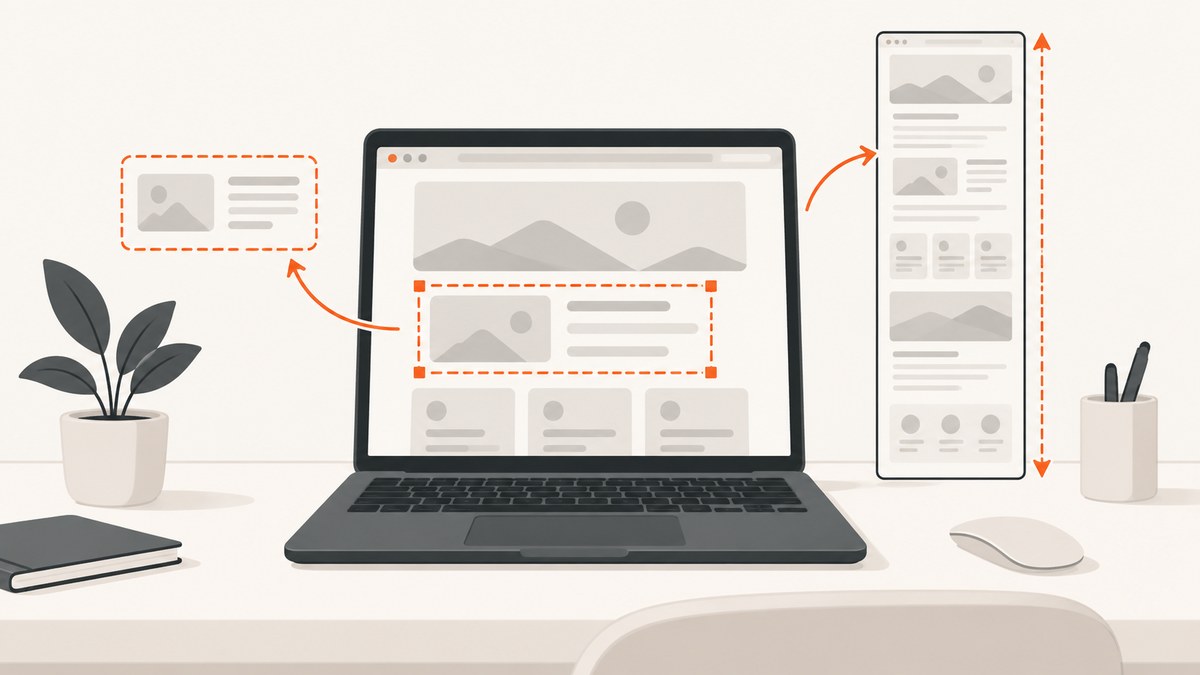
Quick answer: Use Windows+Shift+S to capture a selected area, window, or screen; use Windows+PrtScn to save the entire screen automatically; or use Microsoft Edge’s Screenshot tool and choose full-page capture for a complete scrolling webpage.
The right method depends on what you need to save:
| Goal | Best method | Result |
|---|---|---|
| Part of a page | Windows+Shift+S | Selected image copied to the clipboard |
| Current window or full display | Windows+Shift+S | Window or full-screen selection, then annotate or save |
| Full screen saved immediately | Windows+PrtScn | PNG in Pictures\Screenshots |
| Entire long webpage | Edge Screenshot → full page | Scrollable page captured beyond the visible viewport |
1. Capture part of a webpage with Windows+Shift+S
Windows 10’s Snipping Tool overlay can capture a rectangle, a freeform shape, a single window, or the full screen. Microsoft’s shortcut guidance describes this workflow as a clipboard-first capture that you can then annotate, save, or share.
- Open the webpage and scroll to the content you want.
- Press Windows+Shift+S.
- Choose Rectangular snip, Freeform snip, Window snip, or Fullscreen snip.
- Drag over the page area, select the window, or let Windows capture the full display.
- Click the Snipping Tool notification to mark up and save the image, or paste it directly into an app with Ctrl+V.
The capture initially goes to the clipboard. If you dismiss the notification, paste it into Paint, Word, an email, or an image editor and save it there.
Capture only a browser element
For a paragraph, chart, product card, or navigation area, use rectangular snip and include a small margin around the element. Browser zoom changes the physical pixel size of the selection, so set zoom before capturing if exact dimensions matter.
2. Save the entire screen with Windows+PrtScn
Press Windows+PrtScn. Windows captures the full display and saves the image automatically in Pictures\Screenshots. Open File Explorer and select Pictures → Screenshots.
On some keyboards the key is labelled PrtSc, PrtScn, or Print Screen. Compact keyboards may require Fn+Windows+PrtScn. If the shortcut does nothing, try the keyboard’s Fn modifier or use Snipping Tool instead.
What Print Screen alone does
Pressing PrtScn by itself copies a full-screen image to the clipboard. It does not normally create a file until you paste it into Paint or another application and save it.
3. Capture an entire scrolling webpage in Microsoft Edge
A normal screen snip captures only what is visible. Edge’s Screenshot feature can capture content below the fold, including a long article or page that requires scrolling.
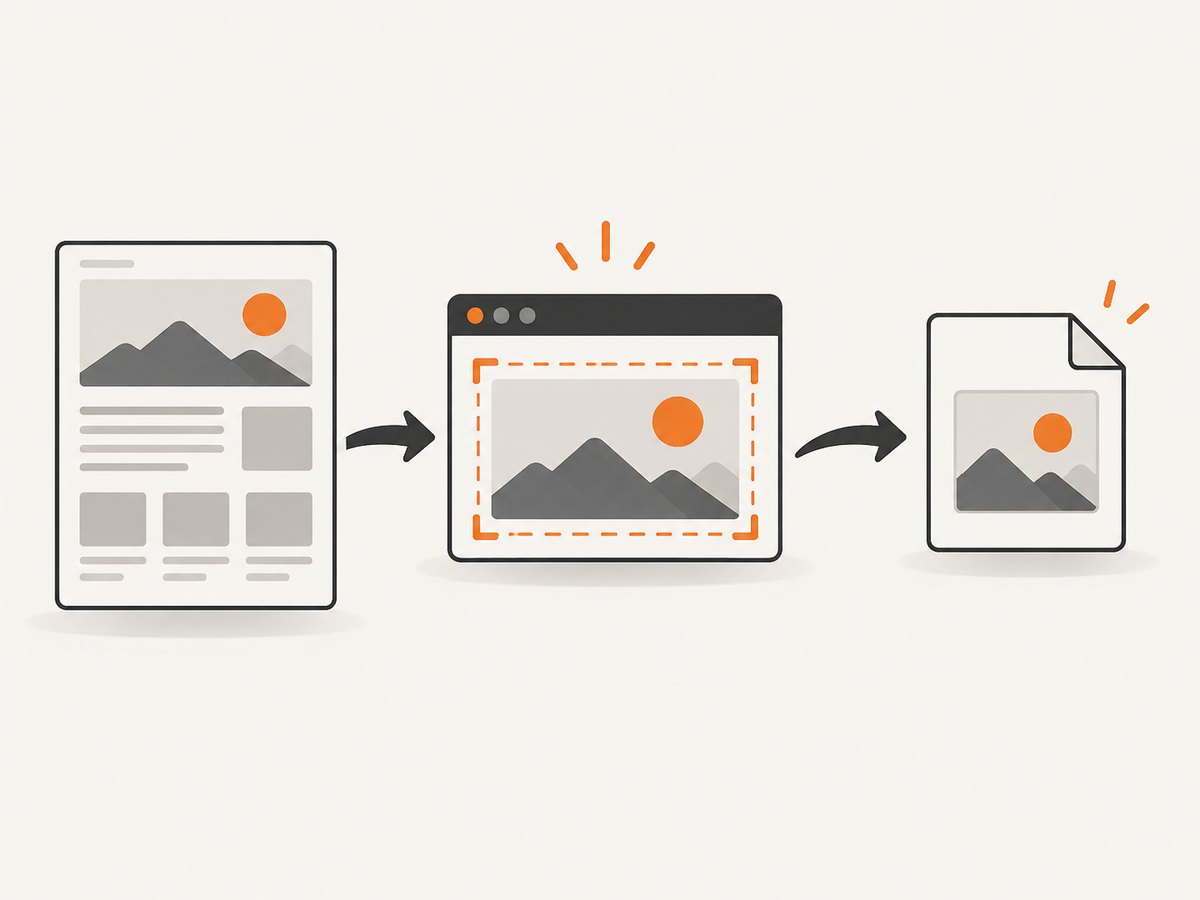
- Open the page in Microsoft Edge.
- Open the page menu or right-click the page and choose Screenshot. You can also press Ctrl+Shift+S.
- Choose the option to capture the full page.
- Review the generated image in Edge’s overlay.
- Use the markup tools if needed, then copy or save the result.
Edge captures content beyond the viewport. Moving content such as GIFs or carousels can remain in whatever state Edge encounters during capture, so pause animations when a stable frame matters.
Microsoft documents the shortcut and full-page workflow in its Edge screenshot guidance. Windows shortcut behavior is documented in Microsoft Support’s Snipping Tool instructions.
4. Choose the method that fits the job
| Requirement | Recommended workflow | Why |
|---|---|---|
| Annotate a small area | Windows+Shift+S, rectangular mode | Fast selection with clipboard and markup |
| Capture one browser window | Windows+Shift+S, window mode | Excludes other applications |
| Save a desktop view immediately | Windows+PrtScn | Creates a file without opening an editor |
| Capture a long article | Edge Screenshot, full page | Includes content that requires scrolling |
| Repeat captures in a script | ScreenshotNeo API | Runs without manual browser selection |
5. Make a clean, readable capture
Before capturing
- Wait for the page to finish loading.
- Dismiss cookie notices, sign-in prompts, and chat bubbles if they cover content.
- Set browser zoom to a level that keeps text legible.
- For a full-page capture, scroll once through the page so lazy-loaded images have a chance to appear.
- Close unrelated tabs or windows when using full-screen capture.
After capturing
- Crop browser chrome when the address bar is not relevant.
- Use markup to circle the exact control or text the reader needs.
- Save a lossless PNG for documentation and a compressed JPEG or WebP for sharing.
- Use descriptive filenames such as
checkout-error-windows10.png.
6. Troubleshooting Windows 10 webpage screenshots
| Problem | Likely cause | Fix |
|---|---|---|
| Windows+Shift+S does nothing | Snipping Tool is unavailable, disabled, or the shortcut was intercepted | Open Start and launch Snipping Tool directly; then try the shortcut again. Check keyboard function-layer keys. |
| The capture is in the clipboard but cannot be found as a file | The shortcut is clipboard-first | Click the notification to save, or paste into Paint and save. |
| Windows+PrtScn creates no visible file | The keyboard needs Fn, or the folder is being viewed elsewhere | Try Fn+Windows+PrtScn and inspect Pictures\Screenshots. |
| Only the visible part of a long page is captured | Snipping Tool selected a screen region | Use Edge’s Screenshot command and choose full page. |
| Edge full-page capture misses images | Images are lazy-loaded or the page is still loading | Wait, scroll through the page once, then run full-page capture again. |
| Sticky headers appear repeatedly | The page fixes the header while scrolling | Use a crop or custom capture tool; Edge may preserve the page’s scrolling behavior. |
| Animated content looks inconsistent | GIFs, carousels, or video changed during capture | Pause the animation or capture a selected frame. |
| Text is blurry | Low display scaling, zoom, or image recompression | Increase browser zoom, capture at native scale, and save PNG for text-heavy images. |
| A protected video is black | Digital-rights or hardware-overlay behavior | Capture surrounding page content instead and follow the site’s usage permissions. |
7. Or skip the browser setup
If you need repeatable screenshots from Windows, a build pipeline, or a script, ScreenshotNeo provides a website screenshot API and MCP server. One GET request returns PNG, JPEG, WebP, or PDF output. Its capture can accept consent banners before removing more than 60 known consent platforms, newsletter popups, and chat widgets. Each step can be turned off.
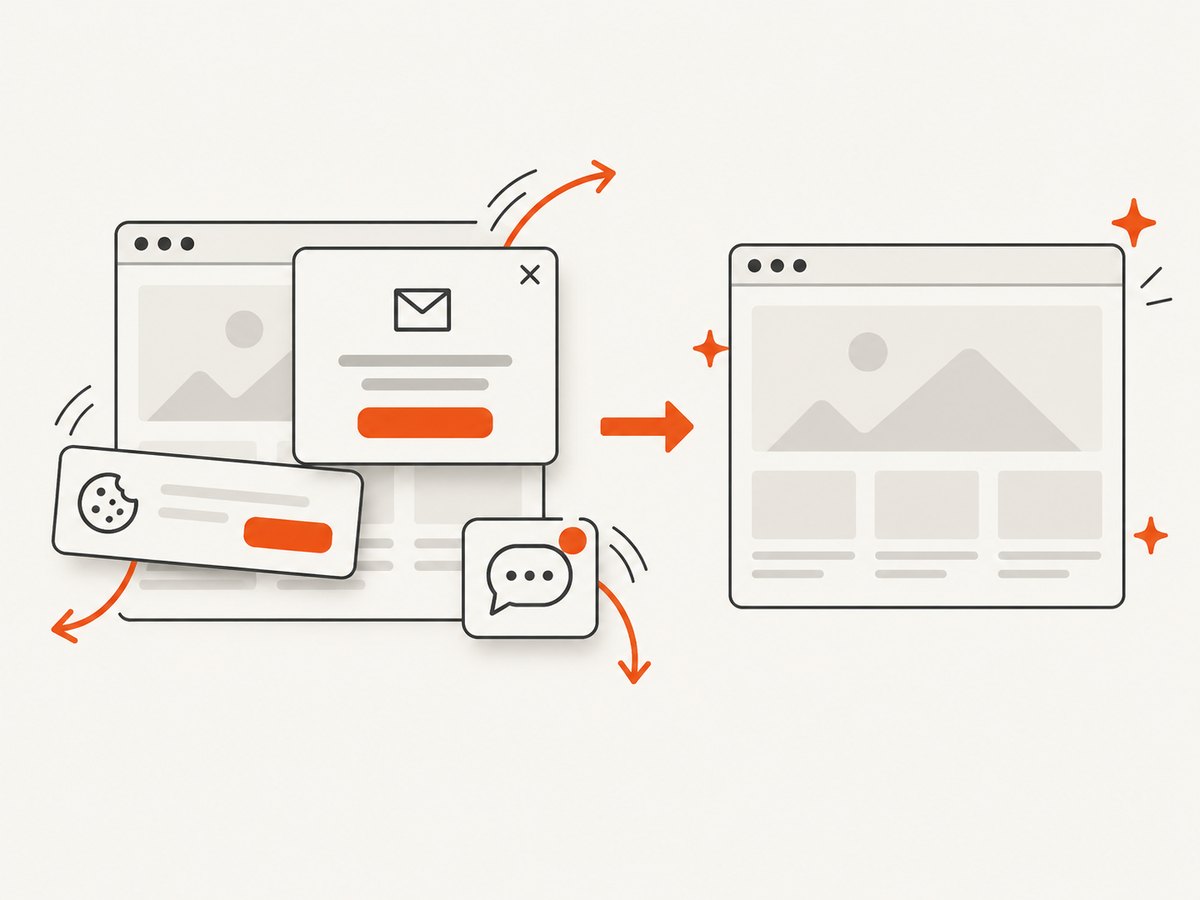
Only clean shots are billed. Bot checks or CAPTCHAs, blank pages, timeouts, failed loads, and cache hits cost nothing, and response headers identify the page verdict and whether the request was billed.
See the ScreenshotNeo API documentation for all options. A basic cURL request is:
curl -G "https://api.screenshotneo.com/v1/shot" \
  -d access_key=YOUR_API_KEY \
  --data-urlencode url=https://stripe.com \
  -o shot.webp
Python
import requests

r = requests.get(
    "https://api.screenshotneo.com/v1/shot",
    params={"access_key": "YOUR_API_KEY", "url": "https://stripe.com"},
    timeout=90,
)
r.raise_for_status()
open("shot.webp", "wb").write(r.content)
Node.js
const q = new URLSearchParams({
  access_key: 'YOUR_API_KEY',
  url: 'https://stripe.com'
});
const res = await fetch(`https://api.screenshotneo.com/v1/shot?${q}`);
if (!res.ok) throw new Error(`Screenshot failed: ${res.status}`);
const fs = await import('node:fs/promises');
await fs.writeFile('shot.webp', Buffer.from(await res.arrayBuffer()));
Useful capture options
- Full-page capture with lazy images loaded.
- Capture one element with a CSS selector.
- Dark mode, 12 device presets, custom viewport, and retina scale.
- PDF paper size, margins, landscape mode, and page ranges.
- Custom CSS and JavaScript, click an element, and waits for a selector, delay, or network idle.
- Block ads, trackers, requests, or resource types.
- Custom headers, cookies, user agent, Authorization, timezone, and geolocation.
- Transparent background, image resizing, and caching with a TTL you choose.
- Signed links for public
<img>tags, asynchronous jobs with signed webhooks, bulk capture of up to 100 URLs per call, a usage API, and an OpenAPI specification.
ScreenshotNeo also has an MCP server with take_screenshot, get_page_info, and capture_pdf tools for Claude, Cursor, and other MCP clients. Its parameter names support the names used by other screenshot APIs, which helps when switching.
Reliability, performance, and cost notes
- Use a selector wait or network-idle wait for pages that render after the initial HTML.
- Use caching with a chosen TTL when the same URL does not change often.
- Use asynchronous jobs and signed webhooks for slow pages or large batches.
- Inspect
X-Page-VerdictandX-Billedwhen logging results. - The Free plan includes 1,000 shots per month without a card. Starter is $5 for 3,000, Growth $15 for 15,000, Pro $39 for 60,000, Scale $99 for 250,000, and Business $249 for 1,000,000. Yearly billing gives two months free, and every feature is on every plan.
Create a free ScreenshotNeo account to get 1,000 screenshots each month with no card. Cookie banners, popups, and chat widgets are removed before the shot; bot checks, blank pages, and failed loads are never billed; and the MCP server lets AI agents take screenshots.
8. FAQ
Where does Windows 10 save screenshots?
Windows+PrtScn saves the image in Pictures\Screenshots. Windows+Shift+S places the capture in the clipboard until you save or paste it.
Can Windows 10 capture an entire webpage?
Yes. Use Microsoft Edge’s Screenshot command and select full-page capture. The standard Snipping Tool shortcut captures the selected screen area, not an automatically scrolling page.
How do I screenshot only part of a webpage?
Press Windows+Shift+S, choose rectangular snip, and drag around the content.
What if my keyboard has no Print Screen key?
Use Windows+Shift+S, launch Snipping Tool from Start, or use an external full-size keyboard with a Print Screen key.
Is a browser automation tool better for repeated captures?
For occasional captures, Windows and Edge are quickest. For scheduled, batch, element-level, PDF, or API-driven work, ScreenshotNeo avoids maintaining a browser setup.


