BlogScreenshots on your device
How to Take a Screenshot of WhatsApp Web
Capture a WhatsApp Web chat on Windows, macOS, ChromeOS, or Linux, then crop and redact private details before sharing.
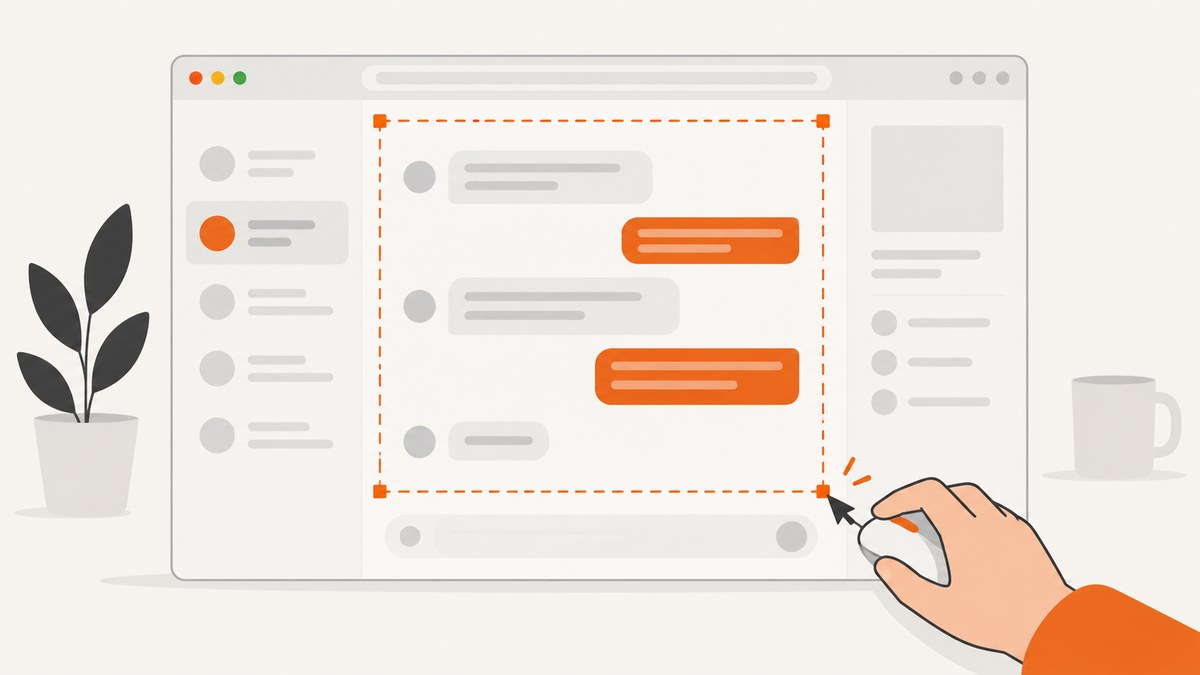
Quick answer: Open WhatsApp Web, link your account with the QR code, open the chat, and use your computer’s built-in screenshot tool. On Windows, press Windows + Shift + S, select the chat area, then save the capture.
1. Prepare WhatsApp Web
- Open web.whatsapp.com in a desktop browser.
- On your phone, open WhatsApp and use the linked-devices option to scan the QR code shown in the browser.
- Open the conversation or screen you need to capture.
- Scroll until every required message is visible. Resize the browser window or zoom the page if that gives you a clearer frame.
- Close unrelated tabs, notifications, and overlays before capturing.
Only capture content you are allowed to access and share. Locked chats can require an additional secret code before they are available on WhatsApp Web.
2. Windows: capture a WhatsApp Web chat
Selected chat area (recommended)
- Press Windows logo key + Shift + S. Windows opens the Snipping Tool overlay.
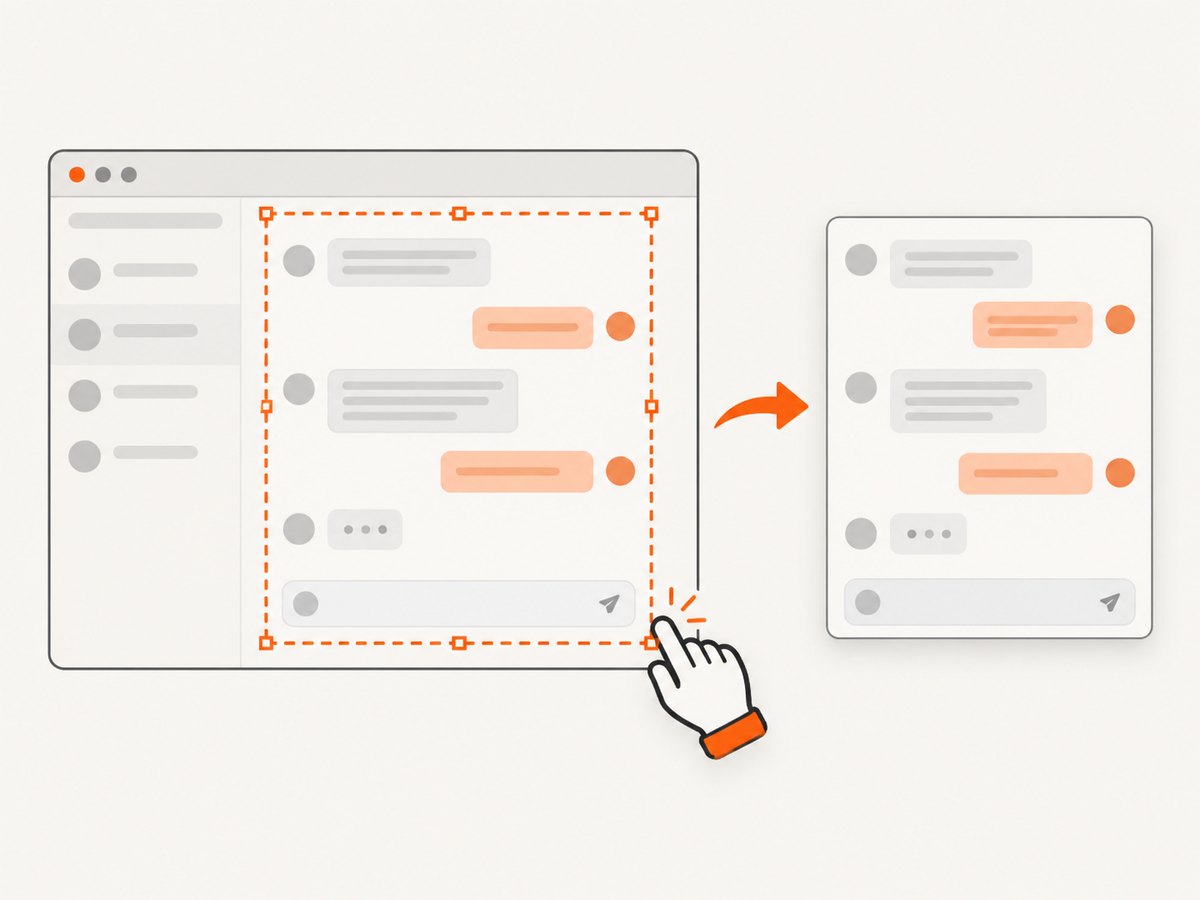
- Choose rectangular snip, then drag around the message pane or the exact content you need.
- Release the mouse button. The image is copied to the clipboard and a notification opens the Snipping Tool editor.
- Select the notification if you want to annotate or crop the image, then choose Save as.
- Choose a location and image format, then review the saved file before sharing.
Microsoft’s Snipping Tool also provides window, full-screen, and freeform modes. The selected-area mode is usually best for a focused chat because it excludes browser tabs, bookmarks, and desktop content.
Full-screen capture
Press PrtSc to copy a full-screen snapshot to the clipboard, paste it into an image editor or document, and save it. A full-screen capture can include unrelated tabs, desktop items, and notifications, so crop it before sending.
Window or freeform capture
- Window: captures the browser window, including surrounding WhatsApp Web context.
- Freeform: lets you draw an irregular outline around content.
- Rectangular: gives the cleanest chat-only result for most uses.
3. macOS, ChromeOS, and Linux
The WhatsApp Web workflow is the same: sign in, open the chat, position the messages, and use the operating system’s built-in screenshot utility. The exact keyboard shortcut depends on the current OS version and desktop environment. Use its screenshot help or system menu to verify the shortcut instead of relying on a copied key combination.
Choose a selection capture when you need only the conversation. Use a full-screen capture only when the surrounding browser context matters, and crop or redact the result afterward.
4. Save, crop, and redact safely
- Open the image at 100% size and check that the intended messages are readable.
- Crop browser chrome, unrelated conversations, desktop icons, and notifications.
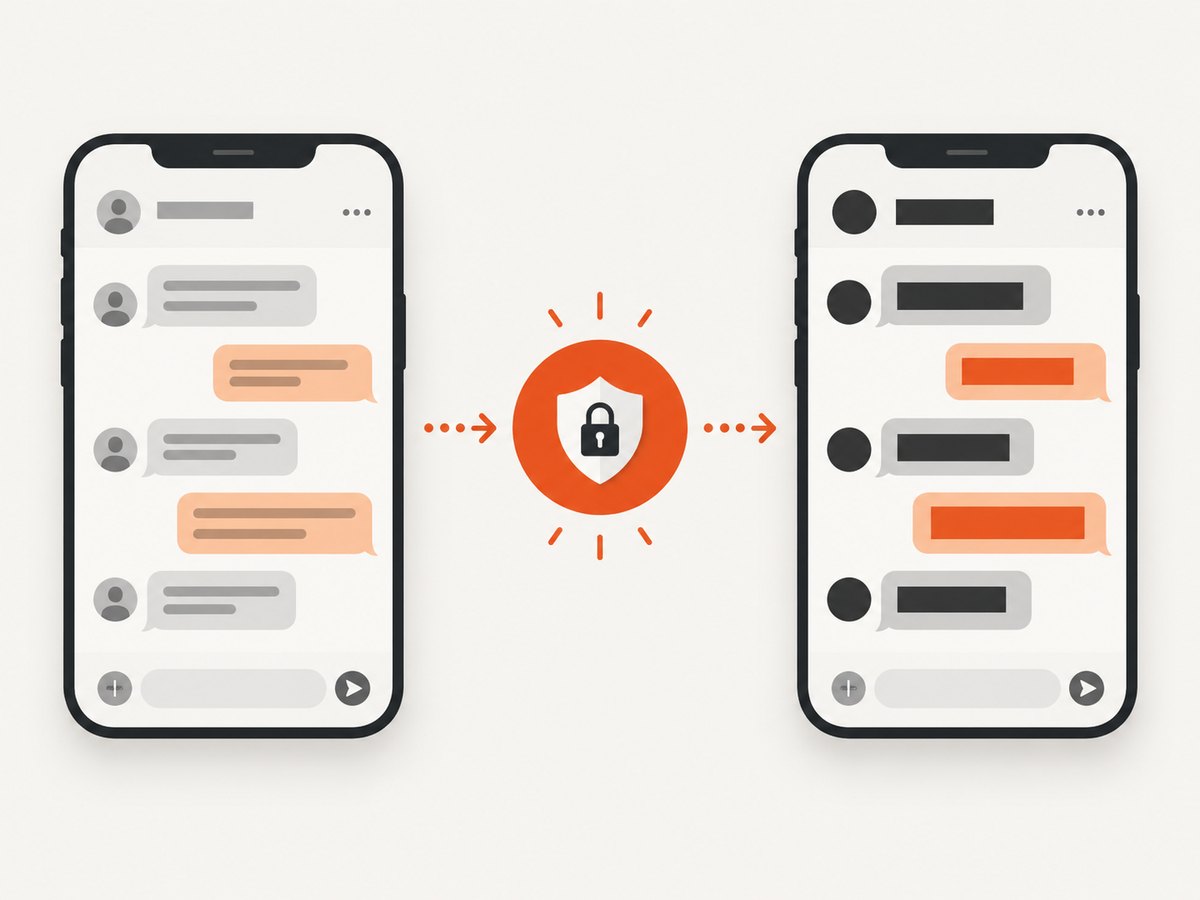
- Hide names, phone numbers, profile photos, addresses, message text, or attachments that recipients do not need.
- Use an opaque blur or filled rectangle for sensitive data. Do not rely on a translucent highlight that can be removed.
- Save a separate redacted copy so the original is preserved only where access is authorized.
WhatsApp has announced screenshot blocking for View Once messages as an added privacy layer. View Once photos and videos are designed to disappear after opening, so do not assume ordinary screenshot shortcuts will capture them or that every browser behaves identically.
5. Common problems and fixes
| Problem | Likely cause | Fix |
|---|---|---|
| The QR code will not link | The phone is offline, the code expired, or the browser session is stale. | Check the phone connection, reload WhatsApp Web, and scan the newly displayed code. |
| The chat is cut off | The required messages were outside the viewport. | Scroll first, reduce zoom slightly, enlarge the window, or take multiple captures with overlapping context. |
| The screenshot includes private material | A window or full-screen mode was used. | Use rectangular selection mode, then crop and redact before sharing. |
| Windows + Shift + S does nothing | Focus is elsewhere, the shortcut is intercepted, or Snipping Tool is unavailable. | Open Snipping Tool from the Start menu and choose New. Check Windows keyboard and app settings if the shortcut remains unavailable. |
| The capture is blank or black | The target content changed while selecting, or protected media prevented capture. | Retry after the chat finishes loading. Do not attempt to bypass View Once protections. |
| Text is unreadable | The selection was too small or the image was compressed. | Capture at a larger browser size, avoid repeated JPEG resaves, and share the original PNG when clarity matters. |
| A locked chat is missing | The chat requires its configured secret code before it appears on Web. | Unlock it through WhatsApp’s supported flow. Do not circumvent the lock. |
6. Choosing a capture method
| Method | Best for | Trade-off |
|---|---|---|
| Selected area | A single chat or message group | Requires careful framing, but protects privacy |
| Full screen | Evidence that includes browser context | Often contains unrelated or sensitive information |
| Clipboard capture | Fast pasting into a document or editor | Can be lost if the clipboard is overwritten |
| Saved image | Archiving or sending as an attachment | Needs a file location and privacy review |
7. Or skip the browser setup
ScreenshotNeo provides a URL screenshot API and MCP server. It can capture a page as PNG, JPEG, WebP, or PDF, with options such as viewport and device presets, full-page loading, custom cookies and headers, waits, hidden selectors, and JavaScript. A private WhatsApp Web conversation still requires an authorized session; a plain API request normally sees the sign-in page rather than your personal browser session. Do not use it to bypass account controls.
See the ScreenshotNeo API documentation for all parameters. The basic request is:
curl -G "https://api.screenshotneo.com/v1/shot" -d access_key=YOUR_API_KEY --data-urlencode url=https://web.whatsapp.com/ -o shot.webpimport requests
r = requests.get("https://api.screenshotneo.com/v1/shot", params={"access_key": "YOUR_API_KEY", "url": "https://web.whatsapp.com/"}, timeout=90)
open("shot.webp", "wb").write(r.content)const q = new URLSearchParams({ access_key: 'YOUR_API_KEY', url: 'https://web.whatsapp.com/' });
const res = await fetch(`https://api.screenshotneo.com/v1/shot?${q}`);Cookie banners, newsletter popups, and chat widgets are removed before a shot. Bot checks, blank pages, failed loads, timeouts, and cache hits are not billed, and response headers identify the page verdict and billing status. Its MCP server lets AI agents use take_screenshot, get_page_info, and capture_pdf. The Free plan includes 1,000 screenshots a month with no card; paid plans start at $5 for 3,000. Create a free ScreenshotNeo account.
8. Performance and reliability tips
- For a local capture, wait until the chat finishes loading before selecting the area.
- Use PNG when text sharpness matters; avoid repeatedly recompressing the file.
- For long conversations, take numbered overlapping captures so message order remains clear.
- Review every image at its final sharing size. Scaling down can make names and timestamps difficult to read.
- For automated URL captures, set an explicit wait condition or delay and provide only the cookies or headers you are authorized to use. Cache repeated public-page captures when appropriate.
FAQ
Can I screenshot WhatsApp Web without installing an app?
Yes. WhatsApp Web runs in a desktop browser, and the operating system’s built-in capture tool is sufficient.
What is the fastest Windows shortcut?
Windows + Shift + S opens Snipping Tool selection capture.
Can I capture an entire WhatsApp conversation in one image?
A normal screen capture covers only what is visible. For a long chat, scroll and take several overlapping images.
Will a screenshot notify the other person?
Do not assume a notification policy. Treat captured content as private and share it only with authorization.
Why does ScreenshotNeo show the WhatsApp login page?
The API does not automatically inherit your personal browser session. An authorized session would need the appropriate cookies or headers, and account protections must not be bypassed.


