BlogScreenshots on your device
Can You Take a Screenshot While a Computer Is Locked?
Usually no: Windows and macOS protect the desktop after locking. Learn what works, what fails, and how to capture the screen safely.
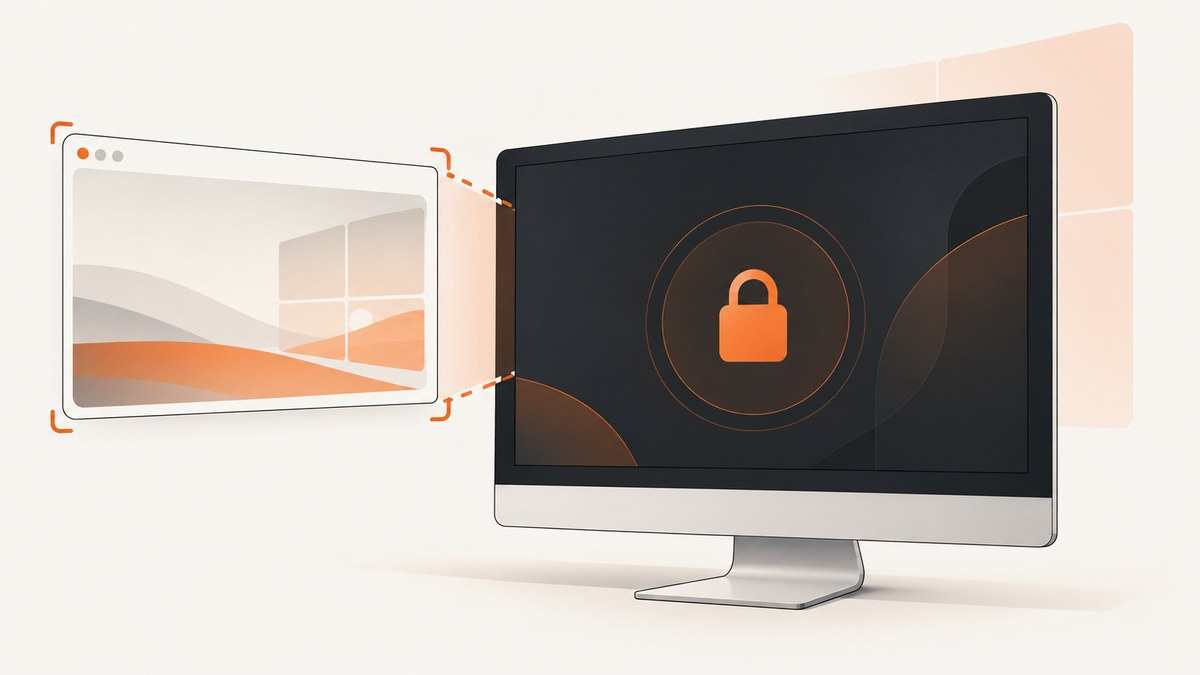
Usually, you cannot take a native screenshot of the desktop while a Windows or macOS computer is locked. Locking changes the operating system into a protected session. Screenshot shortcuts and ordinary capture programs run in the logged-in desktop session, while the lock screen requires authentication before that desktop is available.
Microsoft’s computer-use documentation summarizes the boundary clearly: A locked screen cannot be driven. On any platform.
A camera pointed at the monitor or a capture card connected to the display can record an external image or signal, but neither reveals the protected desktop behind the lock.
If you need the desktop before locking, capture it first. If you need to document the lock-screen appearance, use an external camera or an administrator-provided pre-authentication method. Those produce different kinds of evidence.
1. What a locked computer actually exposes
A lock screen is not just a dimmed desktop. It is a security boundary between the logged-in session and the person or process in front of the machine.
| Method | What it records | Can it reach the desktop behind the lock? | Authentication needed? |
|---|---|---|---|
| Windows Snipping Tool or Print Screen | Native screen pixels from the active session | No | Yes, unlock first |
| macOS Screenshot shortcuts | Native screen pixels from the active session | No | Yes, unlock first |
| Remote desktop or computer-use automation | Input and display access granted by the operating system | Normally no while locked | Yes, or an administrator-controlled pre-login workflow |
| Phone or camera | A photograph of the physical display | No | No, but it only sees what is visibly shown |
| Display capture card | An external video signal | No; it does not defeat session protection | No for the signal, but protected content is still unavailable |
The distinction matters for audits and incident reports. A native screenshot is a file generated by the operating system’s graphics session. A camera photo and a capture-card recording are external observations.
2. Windows: can Print Screen or Snipping Tool work?
Windows shows a lock screen when a PC starts or wakes and requires a biometric gesture, PIN, or password to return to the desktop, as described in Microsoft’s lock-screen documentation.
Microsoft documents Windows + Shift + S for Snipping Tool and Print Screen for copying screen contents in its screen-capture instructions. These instructions assume an active, unlocked desktop. They do not provide a supported way to capture the user’s desktop after Windows has locked it.
What happens if you try
- The shortcut may be ignored because the lock screen owns the secure input session.
- A capture utility may fail to start or may capture only the lock screen.
- A process running before the lock may continue running, but it cannot assume that desktop pixels remain available.
- A remote tool may return a black frame, a lock-screen frame, an error, or no frame at all, depending on its privileges and implementation.
Do not treat a successful-looking image as proof that the desktop was captured. Automation software can receive a plausible lock-screen image instead of the underlying session.
3. macOS: can you capture after locking?
Apple documents Shift + Command + 3 for the entire screen, Shift + Command + 4 for a selection, and Shift + Command + 5 for the Screenshot app in its Mac screenshot guide.
Those shortcuts are intended for the normal logged-in session. When a Mac is locked, macOS switches to a secure session and refuses synthetic input that would operate the desktop. Microsoft’s maintained computer-use setup documentation warns that a capture can look valid while actually showing the lock screen.
Before-login and FileVault cases
The screen shown before a user unlocks a Mac can be a login or disk-unlock interface rather than the user’s desktop. A screenshot of that interface is not evidence of what was open in the session that was locked. If FileVault or another pre-boot security layer is involved, the display may be controlled before macOS has loaded the user’s graphical session at all.
4. The reliable workflow: capture before locking
- Open the exact window, document, or page you need to record.
- Remove private information that should not appear in the image.
- Use the native shortcut while the desktop is unlocked.
- Save the file to a location that remains accessible after the session is locked.
- Verify the saved file before locking the computer.
- Lock the computer only after the capture is complete.
For repeatable evidence, record the timestamp, computer name, signed-in account, display arrangement, and the capture method. A short note stating “captured before lock” prevents later confusion.
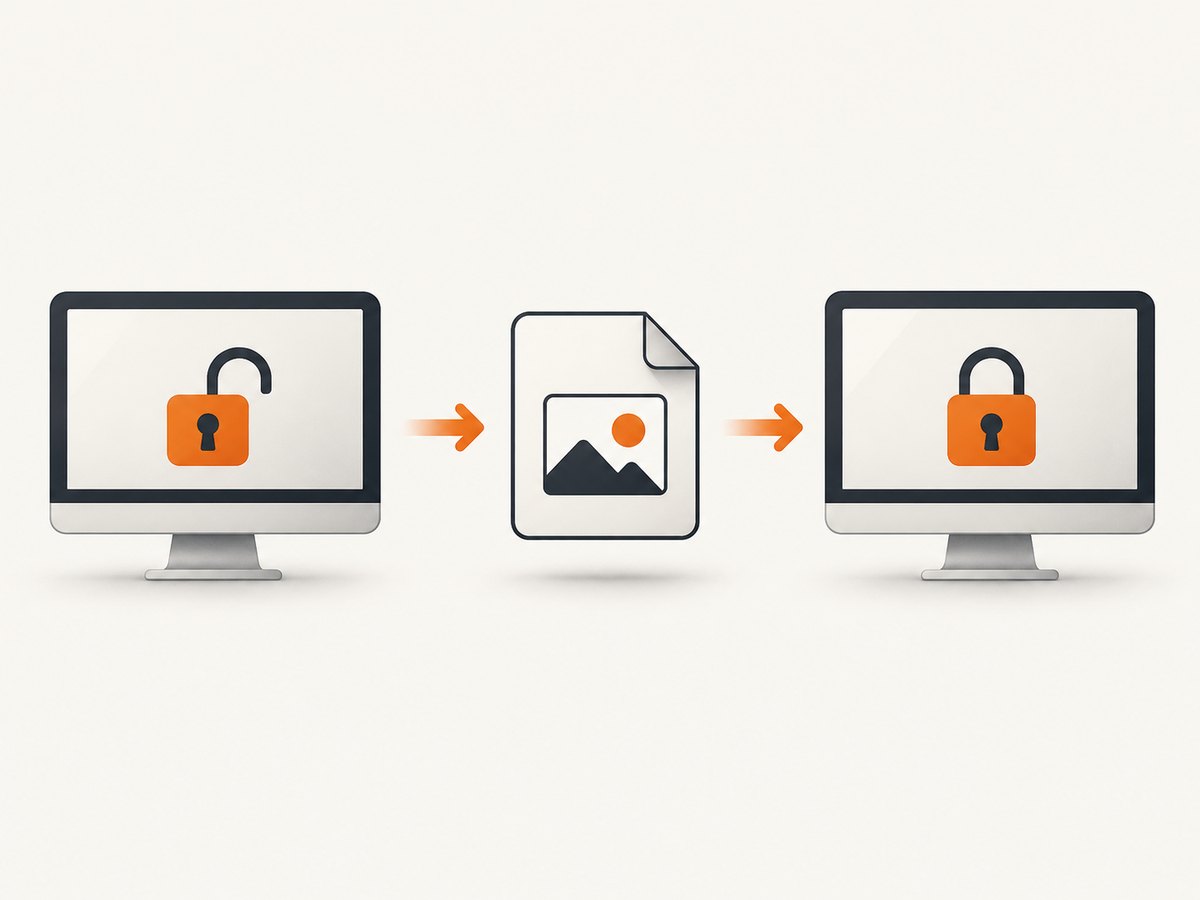
Windows example
1. Unlock Windows and arrange the target window.
2. Press Windows+Shift+S.
3. Select the region or window.
4. Paste into an image editor and save as PNG.
5. Confirm the file opens, then press Windows+L to lock.
macOS example
1. Unlock macOS and arrange the target window.
2. Press Shift-Command-3 for the full display,
   or Shift-Command-4 for a selection.
3. Confirm the file on the desktop (or the configured save location).
4. Lock the Mac after verifying the image.
5. If you need the lock screen itself
Use a phone or camera when the requirement is a photograph of the physical lock screen: for example, documenting a warning message, a background image, a clock, or a test of a kiosk. Keep the camera square to the display, avoid reflections, and preserve the original file metadata.
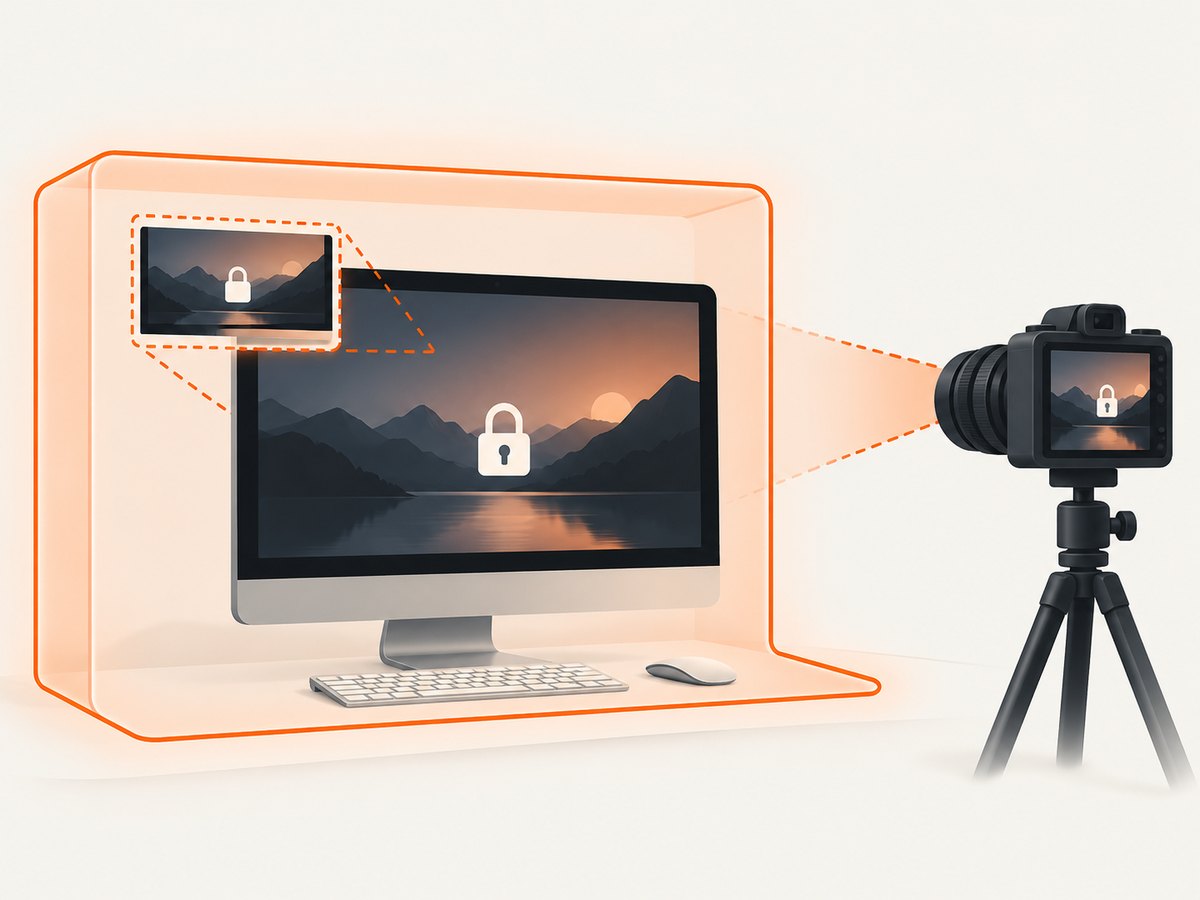
A display capture card is useful when you need an external recording of a video output for a lab or support workflow. It still receives only the signal the computer sends. It cannot authenticate into the session or expose pixels hidden by the operating system’s security boundary.
Organizations sometimes have administrator-controlled pre-login capture or forensic tooling. Use only a documented workflow approved for that machine. Such tooling may capture a pre-authentication screen, a virtual console, or an out-of-band management view; it should not be described as a normal desktop screenshot unless it actually records the desktop session.
6. Why remote desktop and automation usually fail
Remote desktop software, GUI test runners, and computer-use agents generally interact with a logged-in graphical session. Locking can suspend or replace that session, stop input injection, or hide the framebuffer. A service account may remain active in the background while having no permission to read the user’s interactive desktop.
For dependable automation, choose one of these designs:
- Keep a dedicated test machine unlocked inside a restricted network and capture before a separate power or console lock policy applies.
- Run the application under test in a virtual display or browser container that does not depend on a physical user’s session.
- Have a controlled agent unlock the machine using an approved credential flow, then capture and relock it.
- Capture the web page directly instead of capturing the operating-system desktop.
Never store passwords in a screenshot script just to bypass the lock. Use your organization’s credential broker, device-management policy, or test harness.
7. Or skip the browser setup
If what you actually need is a screenshot of a public web page, a locked local computer does not need to be involved. ScreenshotNeo is a website screenshot API and MCP server: one request returns a PNG, JPEG, WebP, or PDF of a URL. It captures the web page in its own browser environment, so it does not unlock or inspect your local desktop.
Use the complete option set in the ScreenshotNeo documentation. It supports full-page shots with lazy images loaded, CSS-element capture, dark mode, 12 device presets or custom viewports, retina scale, PDF paper sizes and page ranges, custom CSS and JavaScript, clicks, selector or network-idle waits, blocked ads and trackers, custom headers/cookies/user agents/Authorization, timezone and geolocation, transparent backgrounds, resizing, selectable cache TTLs, signed image links, asynchronous jobs with signed webhooks, bulk capture for 100 URLs per call, usage reporting, and an OpenAPI specification.
cURL
curl -G 'https://api.screenshotneo.com/v1/shot' \
  -d access_key=YOUR_API_KEY \
  --data-urlencode url=https://stripe.com \
  -o shot.webp
Python
import requests

r = requests.get(
    'https://api.screenshotneo.com/v1/shot',
    params={
        'access_key': 'YOUR_API_KEY',
        'url': 'https://stripe.com',
    },
    timeout=90,
)
r.raise_for_status()
open('shot.webp', 'wb').write(r.content)
Node.js
const q = new URLSearchParams({
  access_key: 'YOUR_API_KEY',
  url: 'https://stripe.com'
});
const res = await fetch(`https://api.screenshotneo.com/v1/shot?${q}`);
if (!res.ok) throw new Error(`HTTP ${res.status}`);
const image = Buffer.from(await res.arrayBuffer());
require('fs').writeFileSync('shot.webp', image);
ScreenshotNeo accepts the parameter names used by other screenshot APIs, which makes migration simpler. Clean shots are billed only when a usable page is captured: bot checks or CAPTCHAs, blank pages, timeouts, failed loads, and cache hits cost nothing. Inspect the X-Page-Verdict and X-Billed response headers so your job can distinguish a clean result from an unsuccessful or free response.
For agents, the MCP server exposes take_screenshot, get_page_info, and capture_pdf to Claude, Cursor, and other MCP clients. Before capture, it can accept consent banners and remove more than 60 known consent platforms, newsletter popups, and chat widgets; each cleanup step can be disabled when required.
The Free plan includes 1,000 shots per month with no card. Paid plans start at $5 for 3,000 shots; yearly billing gives two months free, and every feature is available on every plan. Create a free ScreenshotNeo account to start.
8. Troubleshooting checklist
| Symptom | Likely cause | Fix |
|---|---|---|
| Print Screen does nothing | The lock screen owns the secure session | Unlock, capture, verify the file, then relock. |
| Snipping Tool shows only the lock screen | The tool captured the visible protected session | Do not infer that the desktop was recorded; capture before locking. |
| macOS shortcut appears to run but image is wrong | Capture occurred in the secure or login session | Unlock and repeat; inspect the image contents before relying on it. |
| Remote automation returns black or stale output | The interactive framebuffer is unavailable | Use a virtual display, an approved unlock workflow, or direct web capture. |
| Camera photo has glare or moiré | Reflection, refresh-rate interference, or poor angle | Change angle, lower exposure, stabilize the camera, and keep the original. |
| ScreenshotNeo returns a non-image response | Invalid URL, failed load, bot check, timeout, or access settings | Check the HTTP status and X-Page-Verdict/X-Billed headers; adjust waits, headers, cookies, or access policy. |
9. Performance, reliability, and cost notes
Native screenshots are usually immediate, but they depend on an unlocked interactive session and the correct display. Camera workflows add setup time and produce perspective and lighting variation. Capture cards add hardware and signal-path dependencies.
For web captures, use selector waits or network-idle waits when content is dynamic, and use caching with a TTL when the same URL is requested repeatedly. Full-page captures that load lazy images can take longer than a viewport shot. Bulk capture can reduce request overhead for up to 100 URLs per call. Async jobs and signed webhooks help when a page is slow or a batch should not block a request.
Budget from the billed-result signal rather than counting every request. ScreenshotNeo does not bill bot checks/CAPTCHAs, blank pages, timeouts, failed loads, or cache hits, and the response identifies the verdict. Keep your own request logs so you can reconcile usage with the usage API.
10. Security and privacy considerations
- Do not photograph confidential screens unless the camera and storage are controlled.
- Remove passwords, tokens, personal messages, and customer data before capture.
- Treat screenshots as sensitive records; restrict access and define retention.
- For API captures, use dedicated keys, pass only the headers and cookies required, and avoid putting secrets in URLs.
- Confirm that a page is public or that your authorization method is permitted before sending it to a capture service.
11. FAQ
Can I screenshot the Windows lock screen before logging in?
You can photograph it with another device. A normal Windows screenshot shortcut is not a supported way to capture the pre-login or locked display.
Does Print Screen work while a computer is locked?
It is documented for an active desktop, not for the protected lock session. Unlock first, then capture.
Can a Mac take a screenshot after I press Control-Command-Q?
That locks the Mac. The standard Screenshot shortcuts target the logged-in session and should not be expected to reveal the desktop behind the lock.
Will a webcam show what is behind the lock screen?
No. It can record the physical display, so it sees the lock screen or login screen that is actually visible.
Can ScreenshotNeo capture my locked laptop?
No. ScreenshotNeo captures a web URL in its own browser environment; it does not access or unlock a local computer. It is useful when your real target is a website rather than the operating-system desktop.
12. The practical rule
Locking protects the desktop from normal capture and automation. Capture before locking when you need native desktop pixels; use a camera or approved administrative workflow when you need the visible lock or login screen; and use direct web capture when the subject is a website. This keeps the evidence type clear and avoids treating a lock-screen image as proof of the protected desktop.


