BlogScreenshots on your device
How to Take a Screenshot on Windows 8.1
Capture the whole screen, an active window, or a selected area on Windows 8.1, then find, save, and troubleshoot your screenshot.
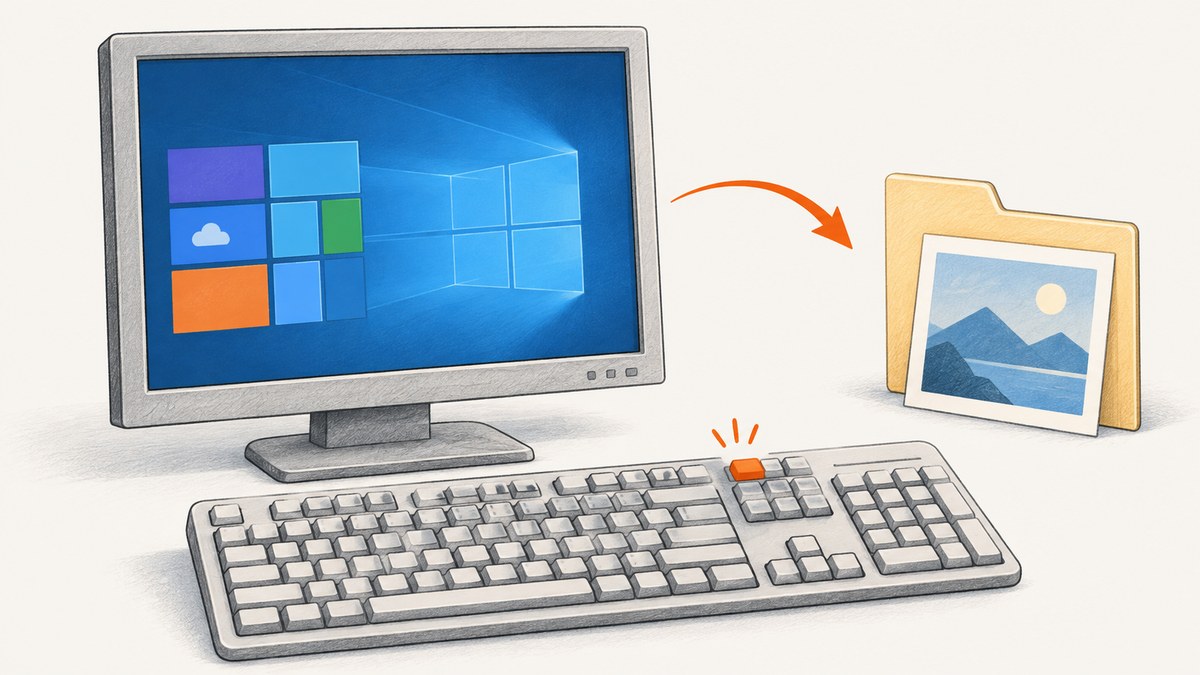
The fastest way to save the entire screen as an image on Windows 8.1 is to press Windows key + Print Screen. Open File Explorer, choose Pictures, and open the Screenshots folder. Windows 8.1-specific Microsoft guidance identifies that folder as the destination.
Use a different method when you need more control:
| Method | What it captures | Where the result goes | Best use |
|---|---|---|---|
| Windows + Print Screen | Entire screen | Automatically saved in Pictures\Screenshots |
Saving a full-screen image quickly |
| Print Screen | Entire screen | Copied to the clipboard | Pasting into Paint, an editor, or a message |
| Alt + Print Screen | Active window | Copied to the clipboard | Excluding the rest of the desktop |
| Snipping Tool | A selected area, window, or full screen | Copied or saved from the tool | Capturing only the relevant part |
1. Save a full-screen screenshot automatically
- Arrange the desktop exactly as you want it captured.
- Press the Windows key and Print Screen at the same time. The key may be labeled
PrtSc,PrtScn, or a similar abbreviation. - Open File Explorer.
- Open Pictures, then Screenshots.
- Open, copy, rename, or move the saved image as needed.
The Windows 8.1-specific Microsoft Q&A guidance supports this shortcut and folder path. It does not establish a guaranteed image format or filename pattern, so check the file’s properties if those details matter.
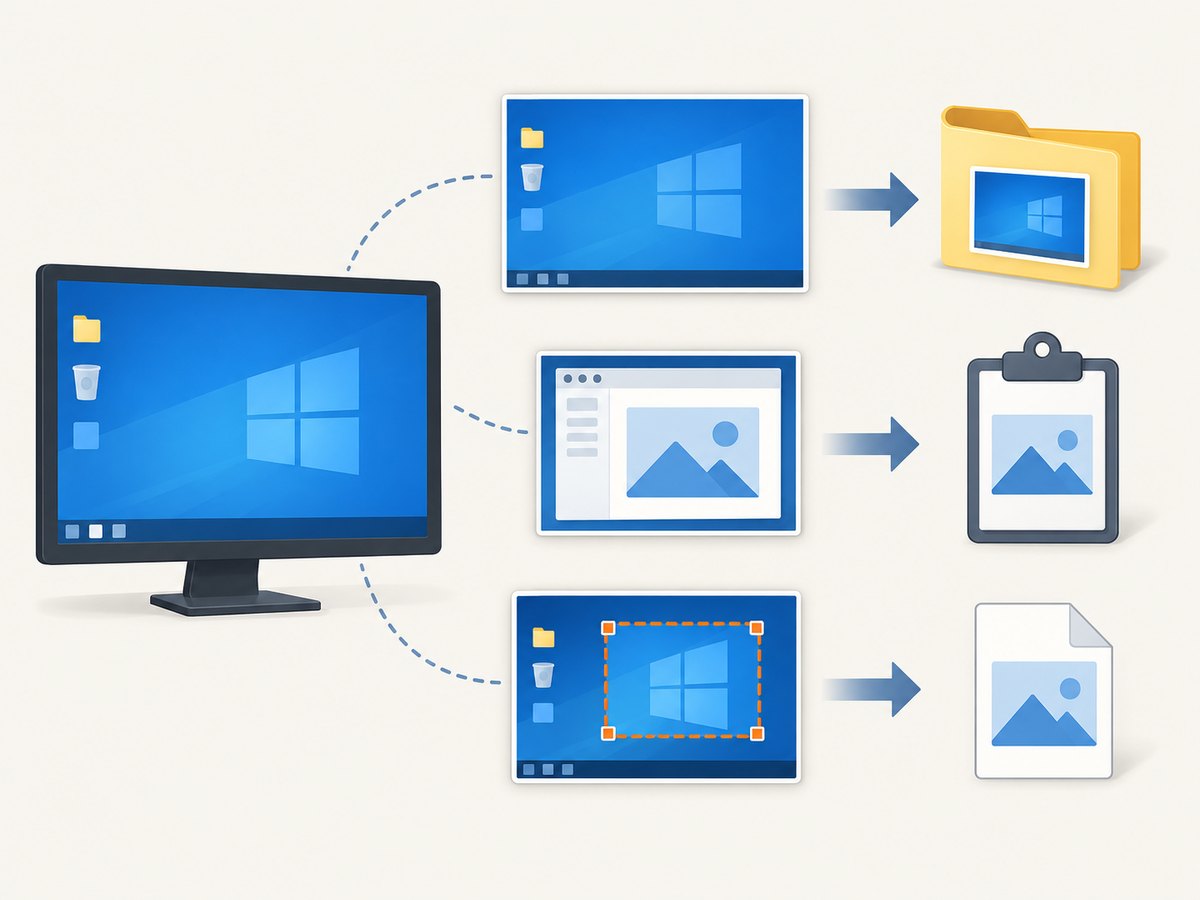
2. Copy the entire screen and save it yourself
Press Print Screen by itself to copy the whole screen to the clipboard. Microsoft documents this clipboard behavior in its general Windows instructions.
- Press Print Screen.
- Open Paint or another image-capable application.
- Press Ctrl + V to paste the capture.
- Use File > Save as, select a location and format, and save.
This route is useful when you want to crop, annotate, or choose the destination before creating a file. A clipboard capture can be replaced by the next item you copy, so paste it before continuing other work.
3. Capture only the active window
- Click the window you want to capture so it is active.
- Press Alt + Print Screen.
- Open Paint or another image editor.
- Press Ctrl + V, then save the result.
This keeps unrelated desktop content out of the image. It captures the active window, including its visible borders and controls, rather than a custom rectangle.
4. Capture a selected region with Snipping Tool
Windows 8.1 includes the built-in Snipping Tool. From the Start screen, search for Snipping Tool and open it. Use the tool’s capture controls to select the part of the screen you need, then copy or save the snip.
Microsoft’s current Snipping Tool documentation describes freeform, rectangular, window, and full-screen snips, but that page is explicitly for Windows 10 and Windows 11. Treat those modes as general context only; do not assume that every newer shortcut, recording feature, or interface element exists on Windows 8.1. In particular, do not rely on Windows + Shift + S as a verified Windows 8.1 shortcut.
5. Find a screenshot you cannot see
- For Windows + Print Screen, check
Pictures\Screenshotsin your user profile. - For Print Screen or Alt + Print Screen, look in the application where you pasted the clipboard image. No file is created until you save it.
- If Pictures is redirected to another drive or network location, open the Pictures folder from File Explorer rather than assuming a physical disk path.
- If you used Snipping Tool, check the save location you selected and the tool window for an unsaved capture.
6. Choose the right method
| Question | Choose |
|---|---|
| Do you need the whole desktop saved immediately? | Windows + Print Screen |
| Do you need to edit before saving? | Print Screen, paste into Paint, then edit |
| Do you need only one application window? | Alt + Print Screen |
| Do you need a rectangle or irregular area? | Snipping Tool |
| Do you need a webpage captured repeatedly by a script? | Use a screenshot API such as ScreenshotNeo |
7. Troubleshooting
Nothing appears after pressing Print Screen
Print Screen normally copies an image rather than opening a dialog. Open Paint and press Ctrl + V. If the key is shared with another function on a laptop keyboard, try the keyboard’s Fn modifier.
The Screenshots folder is missing
Confirm that you used Windows + Print Screen, not Print Screen alone. Then open your user profile’s Pictures folder and look for Screenshots. If it still is not present, use Paint and the clipboard method so you can choose a known save location.
The capture contains the wrong window
For Alt + Print Screen, click the target window immediately before using the shortcut. For a custom area, use Snipping Tool instead.
The screenshot is blank or incomplete
Some applications, protected video surfaces, remote sessions, or hardware-accelerated content may not render normally to a desktop capture. Try capturing the application window instead of a region, or use the application’s own export command.
The screenshot is too large to send
Open the saved image in Paint or another editor, resize it, and save a copy in a suitable format. Keep the original if you may need the full resolution later.
Snipping Tool instructions do not match
Microsoft’s current Snipping Tool page targets Windows 10 and 11. Windows 8.1 may have different controls and shortcuts. Use the Start-screen Snipping Tool application and its visible commands rather than importing newer instructions.
8. Or skip the browser setup
If your real task is taking screenshots of webpages from code, ScreenshotNeo provides a single HTTP request instead of a local browser setup. See the ScreenshotNeo documentation for the complete option list.

cURL
curl -G "https://api.screenshotneo.com/v1/shot" -d access_key=YOUR_API_KEY --data-urlencode url=https://stripe.com -o shot.webpPython
import requests
r = requests.get("https://api.screenshotneo.com/v1/shot", params={"access_key": "YOUR_API_KEY", "url": "https://stripe.com"}, timeout=90)
open("shot.webp", "wb").write(r.content)
Node.js
const q = new URLSearchParams({ access_key: 'YOUR_API_KEY', url: 'https://stripe.com' });
const res = await fetch(`https://api.screenshotneo.com/v1/shot?${q}`);
ScreenshotNeo removes cookie and consent banners, newsletter popups, and chat widgets before capture. Bot checks, blank pages, failed loads, timeouts, and cache hits are not billed, and response headers identify the page verdict and billing status. Its MCP server lets Claude, Cursor, and other MCP clients call take_screenshot, get_page_info, and capture_pdf. The free plan includes 1,000 screenshots per month with no card; paid plans start at $5 for 3,000. Create a free ScreenshotNeo account.
9. Reliability, performance, and file handling
- Use Windows + Print Screen when you need the shortest path from capture to file.
- Use the clipboard methods when you need to remove sensitive content or annotate before saving.
- For repeatable webpage captures, keep the target URL and capture options consistent and select an output format that fits your storage and sharing requirements.
- When a screenshot contains private information, review it before uploading or sharing. Desktop captures include everything visible in the selected scope.
FAQ
What is the Windows 8.1 screenshot shortcut?
Press Windows + Print Screen to save the full screen, or Print Screen to copy it to the clipboard.
Where are screenshots saved on Windows 8.1?
The Windows 8.1-specific guidance places automatic captures in Pictures\Screenshots.
How do I screenshot one window?
Click the window, press Alt + Print Screen, paste into Paint, and save.
Can I screenshot only part of the screen?
Open Snipping Tool and select the required area using the controls available in your Windows 8.1 installation.
Does Print Screen create a file?
Print Screen copies the image to the clipboard. You must paste it into an application and save it yourself.
Sources: Microsoft Learn Q&A guidance for Windows 8.1 screenshot storage; Microsoft Support: Use Snipping Tool to capture screenshots. The Snipping Tool page applies to Windows 10 and Windows 11.


