ScreenshotOne MCP: Complete Setup, Tools, and Troubleshooting Guide
Learn how ScreenshotOne MCP works, choose hosted or local setup, connect AI clients, call its tools, and decide when a direct screenshot API fits better.
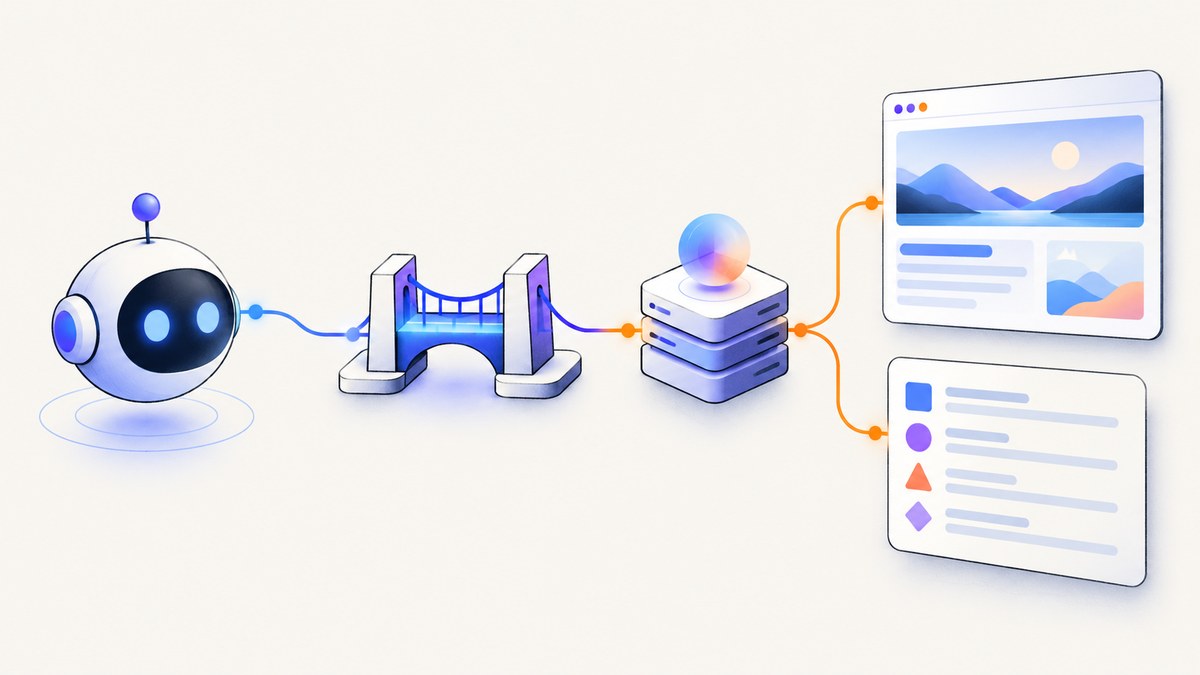
Short answer: ScreenshotOne MCP connects an MCP-compatible AI client to ScreenshotOne’s website rendering service. The hosted server at https://mcp.screenshotone.com uses browser OAuth, so you can add the remote server to a compatible client without copying an API key into that client. ScreenshotOne also publishes a local MCP server for developers who want to run the integration themselves. Its tools render website screenshots, return temporary image URLs, optionally provide Markdown from the same render, and can split very long full-page captures into smaller slices.
This guide explains hosted and local setup, the available workflows, credential handling, example calls, common errors, and the decision between MCP and a direct API integration. The product details below come from ScreenshotOne’s documentation and repository; hosted pricing and credit terms can change, so check the vendor pages before deployment.
What ScreenshotOne MCP does
Model Context Protocol (MCP) gives an AI client a standard way to discover and call tools. ScreenshotOne’s hosted MCP server exposes website-rendering capabilities to an MCP-compatible client such as an agent workspace or coding assistant. Instead of writing browser automation into your agent, you provide a URL and let the remote service render it.
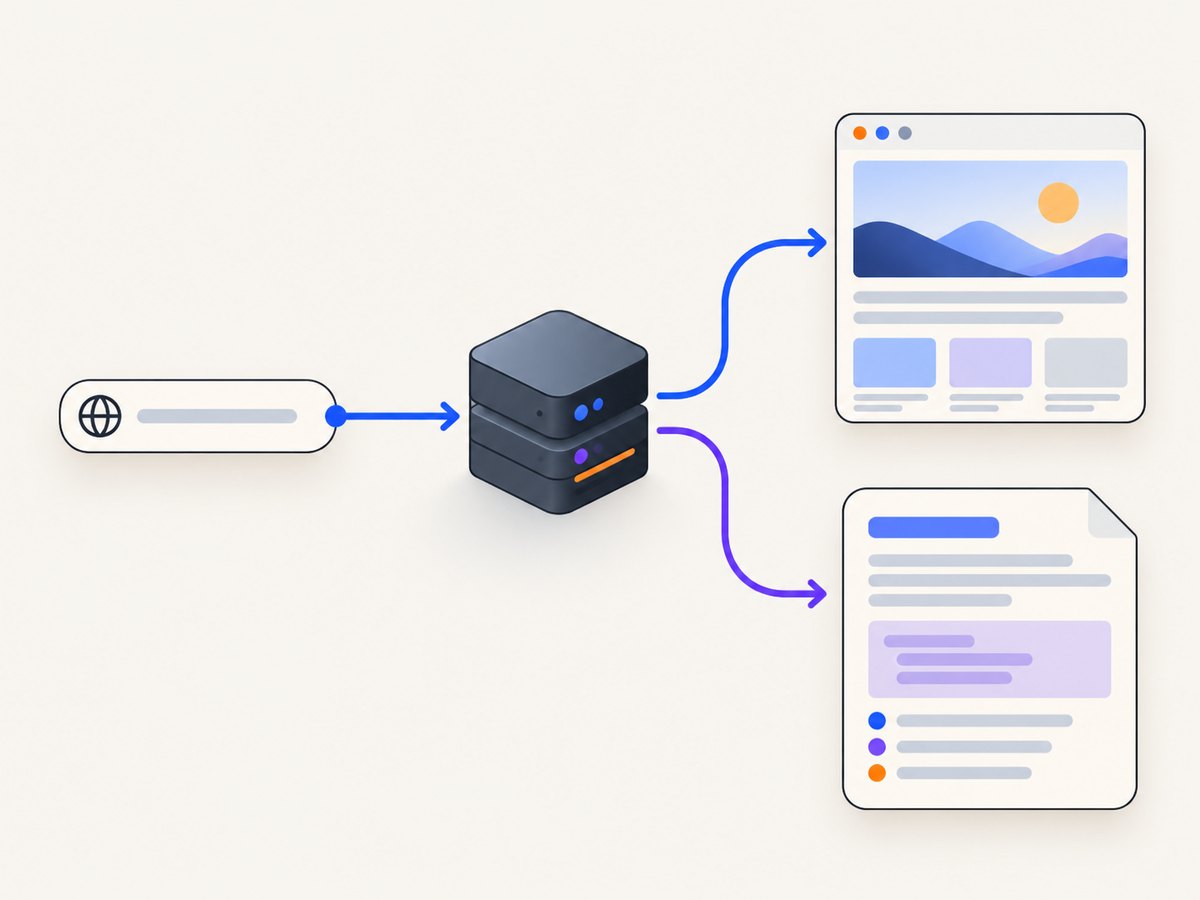
The documented integration supports two related jobs:
- Visual inspection: render a webpage as a screenshot. Results are supplied through temporary URLs.
- Content inspection: request Markdown extracted from the rendered page. A separate Markdown tool accepts a URL and returns cleaned page content directly.
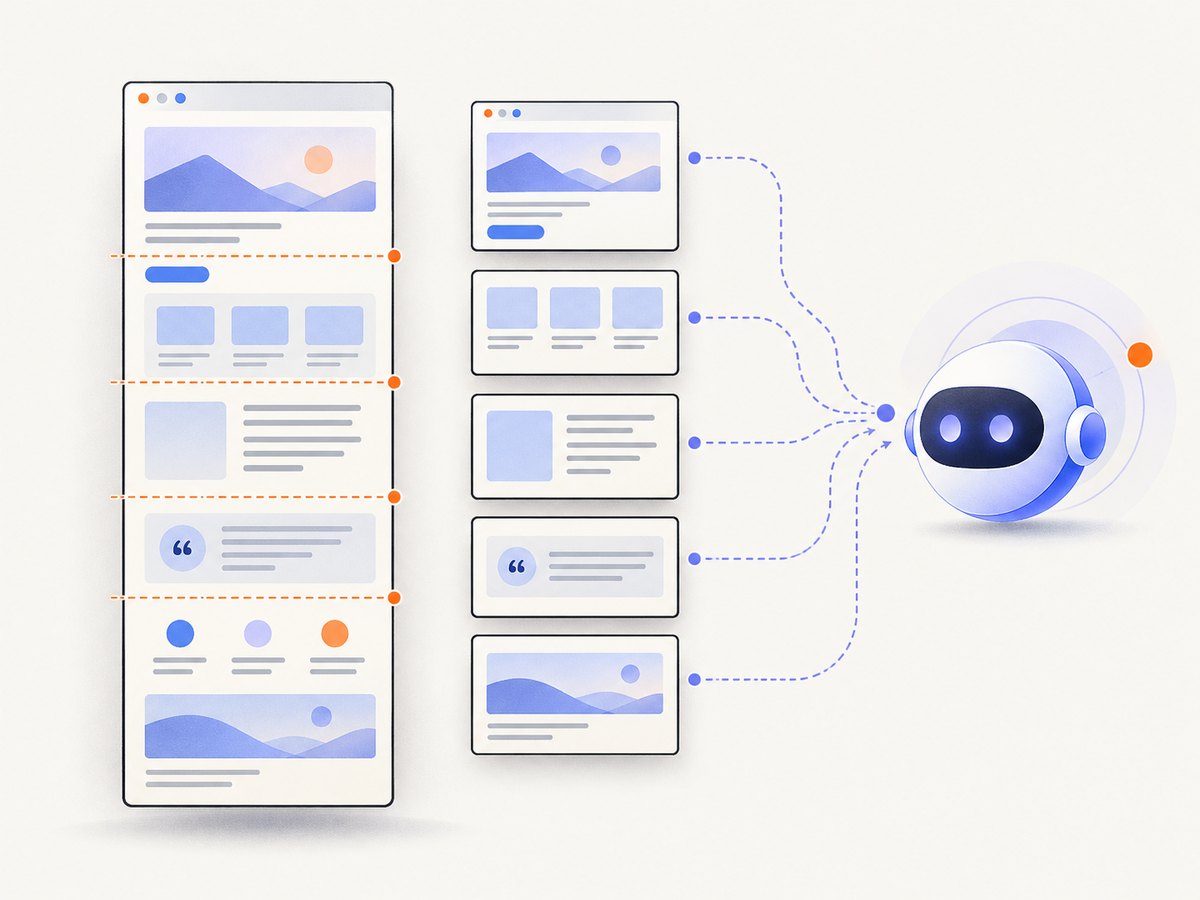
For long pages, the integration can split a full-page screenshot into smaller slices. That is useful when an AI client or a human reviewer needs manageable images instead of one very tall bitmap. These are documented capabilities, not independent performance measurements. See the MCP documentation and integration overview.
Hosted MCP setup
1. Confirm client compatibility
Your AI client must support remote MCP servers and browser-based OAuth authorization. The exact settings screen varies by client, but the workflow is the same: add a remote server, enter the hosted URL, and complete the sign-in and consent flow in a browser.
2. Add the hosted server
- Open your MCP client’s server or integrations settings.
- Add a remote MCP server with this URL:
https://mcp.screenshotone.com. - Save the configuration. The client should open a browser window or provide an authorization link.
- Sign in to ScreenshotOne and approve the connection.
- Return to the client and ask it to use the screenshot or Markdown tool with a test URL.
ScreenshotOne says the hosted path does not require a local server or an API key pasted into the client. OAuth approval connects the client to your account. You can inspect connected clients, rotate your API key, or revoke access from the dashboard’s Integrations area. OAuth avoids placing a copied key in the MCP client configuration, but it does not mean that no request data is processed; review the vendor’s current terms and privacy documentation for your use case.
3. Make a first request
After authorization, use a simple public page first:
Take a screenshot of https://example.com and return the image.Then try content extraction:
Extract the cleaned Markdown from https://example.com.If your client exposes tool names, they may appear under a screenshot-rendering tool and a Markdown tool. Follow the names shown by your client rather than hard-coding a name that may differ between releases.
Local MCP setup
ScreenshotOne’s official MCP server repository contains a local implementation. Its README describes installing dependencies, building the project, and supplying your ScreenshotOne API key through the SCREENSHOTONE_API_KEY environment variable. The repository states that the project is MIT licensed.
Typical local workflow
- Clone the official repository.
- Install the dependencies using the package manager and commands documented in its README.
- Set
SCREENSHOTONE_API_KEYin the environment used by the MCP process. - Build the server if the repository instructions require a build step.
- Register the resulting local command in your MCP client configuration.
- Restart the client and verify that the ScreenshotOne tools are listed.
Keep the key in an environment variable or secret manager. Do not commit it to a repository, place it in a prompt, or include it in screenshots of your configuration. Local hosting gives you control over the process and credential placement, but you are responsible for runtime updates, logs, process supervision, and network access.
Hosted versus local: which should you choose?
| Question | Hosted MCP | Local MCP |
|---|---|---|
| Where does the MCP process run? | ScreenshotOne’s hosted service | Your machine or server |
| How is access authorized? | Browser OAuth | API key in SCREENSHOTONE_API_KEY |
| Do you maintain dependencies? | No local MCP runtime to maintain | You install, build, update, and supervise it |
| Best fit | Interactive AI-client workflows | Controlled development or self-managed environments |
Choose hosted MCP when an AI client is the primary interface and you want the shortest setup. Choose local MCP when your organization needs the process and configuration in its own environment and accepts the maintenance work. Neither option is an independent guarantee of uptime, security, or rendering accuracy; those properties depend on the current service, your network, and the pages you capture.
Screenshot tool workflow
A reliable agent workflow separates discovery from visual review:
- Ask the client to render the target URL.
- Open the temporary screenshot URL returned by the tool.
- If the page is very tall, request full-page slicing or inspect the slices in sequence.
- Ask for Markdown extraction when you need headings, links, or body content rather than visual layout.
- Repeat with a stable URL or a known page when diagnosing a failure.
Temporary URLs are an important operational detail. Download or pass the result to the next step while it is available instead of treating it as permanent storage. If your workflow needs an archive, save the returned image in your own controlled storage and record the source URL and capture time.
Direct API versus MCP
ScreenshotOne positions MCP for a workflow conducted through an AI client. Direct API integration is positioned for a custom server, scheduled job, or automation where your code needs control over requests and responses. The choice is architectural:
- Use MCP when an agent should decide when to inspect a page during a conversation.
- Use the direct API when your application owns retries, queues, persistence, access control, and output processing.
- Use both when developers need interactive investigation but production jobs need deterministic application code.
Credits and cost considerations
ScreenshotOne’s MCP overview states that each tool call uses one ScreenshotOne API credit and lists a free allowance of 100 credits per month without a credit card. Treat those figures as vendor-reported terms that may change; confirm the current account pricing before publishing a budget or promising a quota.
Count calls in your agent design. A single user request can trigger separate screenshot, slice, and Markdown calls. Add guardrails such as URL allowlists, maximum calls per task, and explicit confirmation before crawling many pages. Cache results in your own system when the page and rendering parameters are unchanged, subject to your freshness requirements.
Common errors and fixes
| Symptom | Likely cause | Fix |
|---|---|---|
| Server does not appear in the client | The client does not support remote MCP or the URL was entered in a local-server field. | Update the client, use its remote MCP setting, and enter https://mcp.screenshotone.com exactly. |
| OAuth window never opens | Popup blocking, an expired authorization link, or a browser session already signed into another account. | Allow the popup, start authorization again, and verify the intended ScreenshotOne account. |
| Authorization succeeds but tools are missing | The client has not refreshed its MCP connection. | Reconnect or restart the client, then inspect the discovered tool list. |
| Local server exits immediately | Dependencies were not installed, the build step was skipped, or the environment variable is absent. | Follow the repository README from a clean checkout, build again, and verify SCREENSHOTONE_API_KEY in the MCP process environment. |
| Screenshot result is a temporary URL that no longer works | The URL expired or the client delayed retrieval. | Call the tool again and download the result promptly; store long-term copies yourself. |
| Page is too tall to inspect | A full-page render exceeds the practical size for the client or reviewer. | Request split slices and inspect them in order. |
| Markdown is missing layout details | Markdown extraction is text-first and cannot represent every visual relationship. | Use the screenshot tool for layout and the Markdown tool for text; combine both outputs. |
| Unexpected credit usage | The agent made multiple tool calls or retried automatically. | Log tool invocations, cap retries, and ask for confirmation before bulk inspection. |
Reliability and security checklist
- Use a dedicated ScreenshotOne account or key for automation where practical.
- Revoke disconnected clients from the Integrations dashboard.
- Rotate keys after staff or environment changes.
- Keep URLs and captured content out of logs when they may contain private data.
- Set timeouts in the surrounding agent or job runner and handle a failed tool call explicitly.
- Record the requested URL, tool type, and result status so a human can reproduce an investigation.
- For local MCP, run the process under a restricted service account and update dependencies from the official repository.
Or skip the browser setup
If you need screenshots in application code rather than inside an AI-client conversation, ScreenshotNeo provides a website screenshot API and MCP server. One GET request returns PNG, JPEG, WebP, or PDF. Cookie and consent banners, newsletter popups, and chat widgets are removed before capture; each cleanup step can be turned off. Bot checks, blank pages, timeouts, failed loads, and cache hits cost nothing, and the response identifies the result with X-Page-Verdict and X-Billed headers. Its MCP server includes take_screenshot, get_page_info, and capture_pdf tools for Claude, Cursor, and other MCP clients.
See the ScreenshotNeo API documentation for all options. The basic request is:
curl -G "https://api.screenshotneo.com/v1/shot" -d access_key=YOUR_API_KEY --data-urlencode url=https://stripe.com -o shot.webpimport requests
r = requests.get("https://api.screenshotneo.com/v1/shot", params={"access_key": "YOUR_API_KEY", "url": "https://stripe.com"}, timeout=90)
open("shot.webp", "wb").write(r.content)const q = new URLSearchParams({ access_key: 'YOUR_API_KEY', url: 'https://stripe.com' });
const res = await fetch(`https://api.screenshotneo.com/v1/shot?${q}`);ScreenshotNeo supports full-page captures with lazy images loaded, CSS-element capture, dark mode, device presets and custom viewports, retina scale, PDF paper and page options, custom CSS and JavaScript, clicks, waits, blocking rules, headers, cookies, user agents, authorization, timezone, geolocation, transparent backgrounds, resizing, chosen cache TTLs, signed links, asynchronous jobs with signed webhooks, bulk capture for up to 100 URLs per call, a usage API, and an OpenAPI specification. Its parameter names also match those used by other screenshot APIs, which helps when switching.
The Free plan includes 1,000 screenshots each month with no card. Paid plans start at $5 for 3,000 shots; yearly billing gives two months free. Create a free ScreenshotNeo account and start with the no-card plan.
FAQ
Does hosted MCP require a local installation?
No. The hosted path uses the remote server and browser OAuth. A local installation is available separately from ScreenshotOne’s official repository.
Can MCP return page text as well as an image?
Yes. ScreenshotOne documents Markdown from the same render and a separate Markdown tool for cleaned page content.
Is the hosted server better than the local server?
It depends on your operating requirements. Hosted MCP minimizes local maintenance; local MCP gives you control over the runtime and key environment.
When should I avoid MCP?
Use a direct API integration when a production application needs deterministic request handling, custom retries, persistence, and programmatic response processing.
Where can I verify current credit terms?
Check ScreenshotOne’s current MCP and account pages. The documented 100-credit free allowance is a vendor offer and can change.


