BlogScreenshots on your device
Why Screenshots Are Not Working on Windows PCs and How to Fix Them
Fix Windows screenshot problems by checking the right shortcut, clipboard path, save location, Print Screen setting, and device-specific issues.
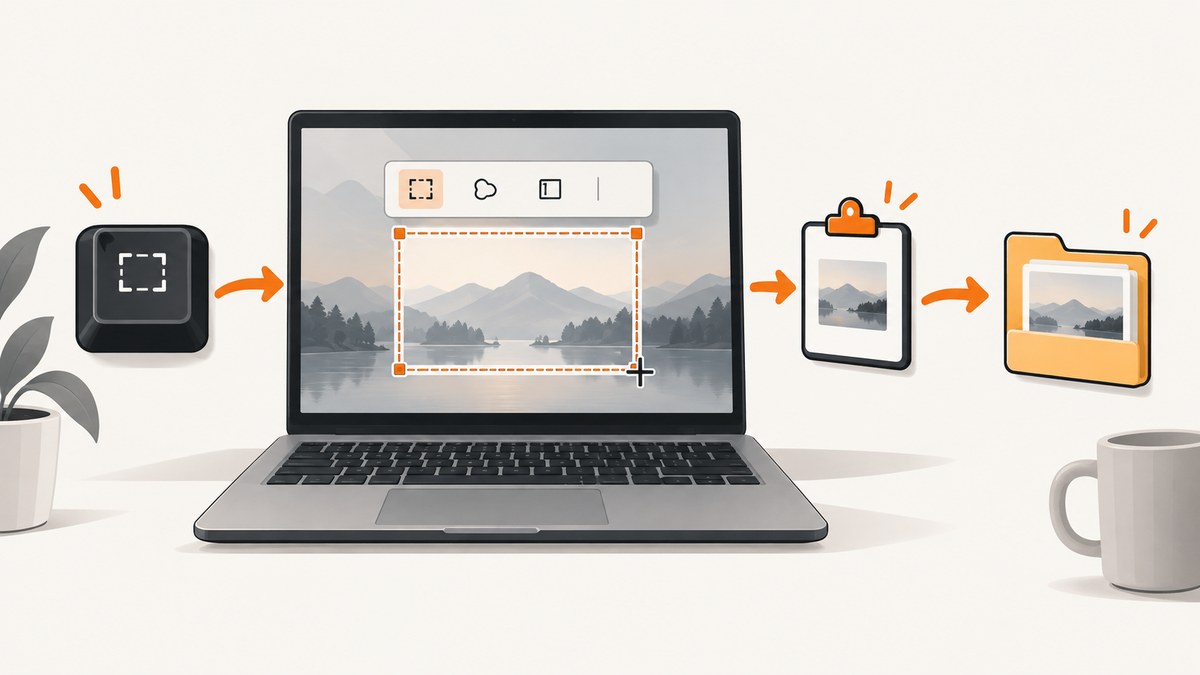
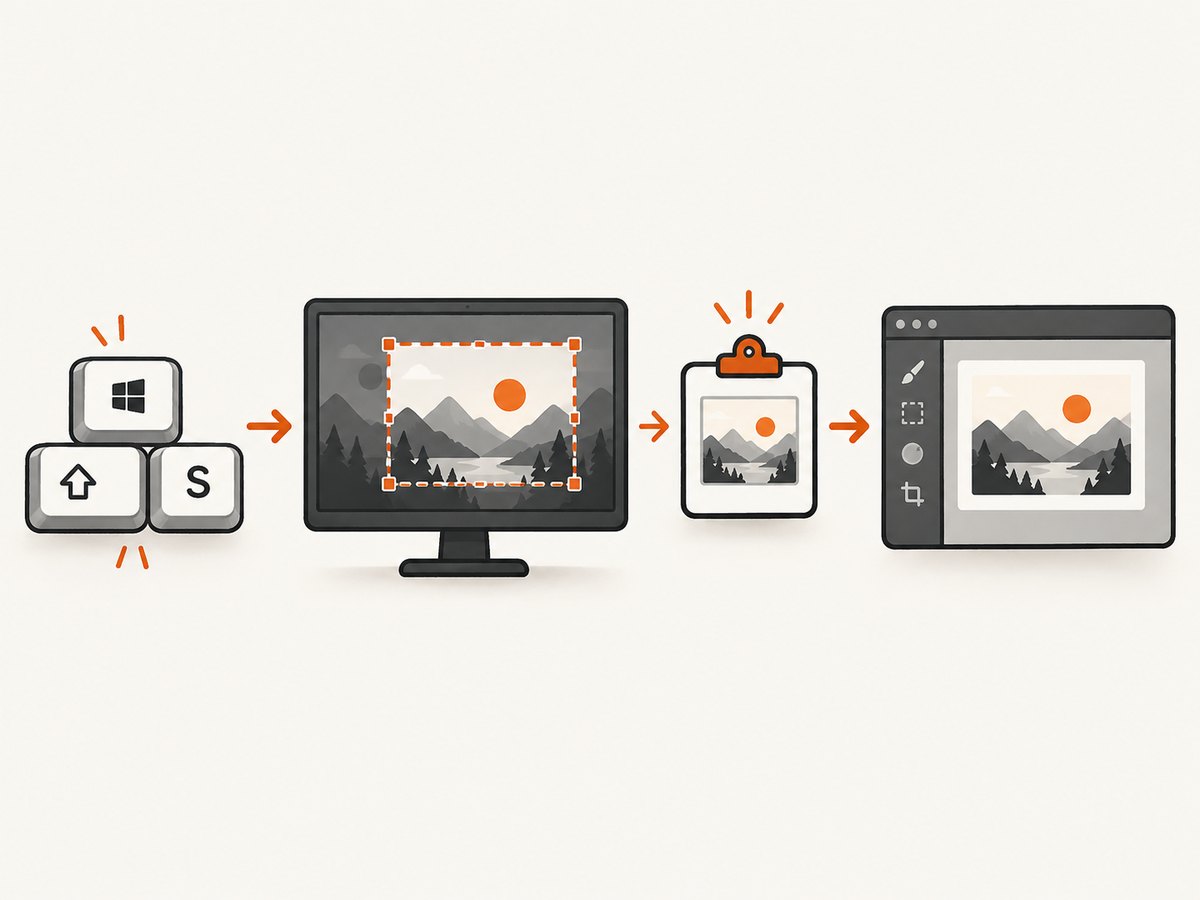
When screenshots are not working on Windows, first identify which capture path you used. Windows + Shift + S opens Snipping Tool and copies a selected snip to the clipboard. Windows + PrtScn saves a full-screen image in Pictures > Screenshots. PrtScn by itself copies the full screen to the clipboard, so it may not create a file at all. Alt + PrtScn copies only the active window.
Run these tests in order:
- Press Windows + Shift + S, select a rectangle, then paste into Paint or another image-capable app.
- Press Windows + PrtScn, then check Pictures > Screenshots.
- Press PrtScn, open Paint, and press Ctrl + V.
- If your keyboard has no dedicated Print Screen key, try Fn + Windows + Space Bar.
Understand where each Windows screenshot shortcut sends the image
| Shortcut | What it captures | Where the result goes |
|---|---|---|
| Windows + Shift + S | Rectangular, freeform, window, or full-screen snip | Clipboard; select the notification to edit or save |
| Windows + PrtScn | Entire screen | Pictures > Screenshots |
| PrtScn | Entire screen | Clipboard |
| Alt + PrtScn | Active window | Clipboard |
| Fn + Windows + Space Bar | Alternate full-screen capture on some keyboards without PrtScn | Device-dependent; test by pasting or checking Screenshots |
Fix “nothing happens” when you press PrtScn
A silent key press does not prove the capture failed. PrtScn normally places an image on the clipboard without opening a window or saving a file.
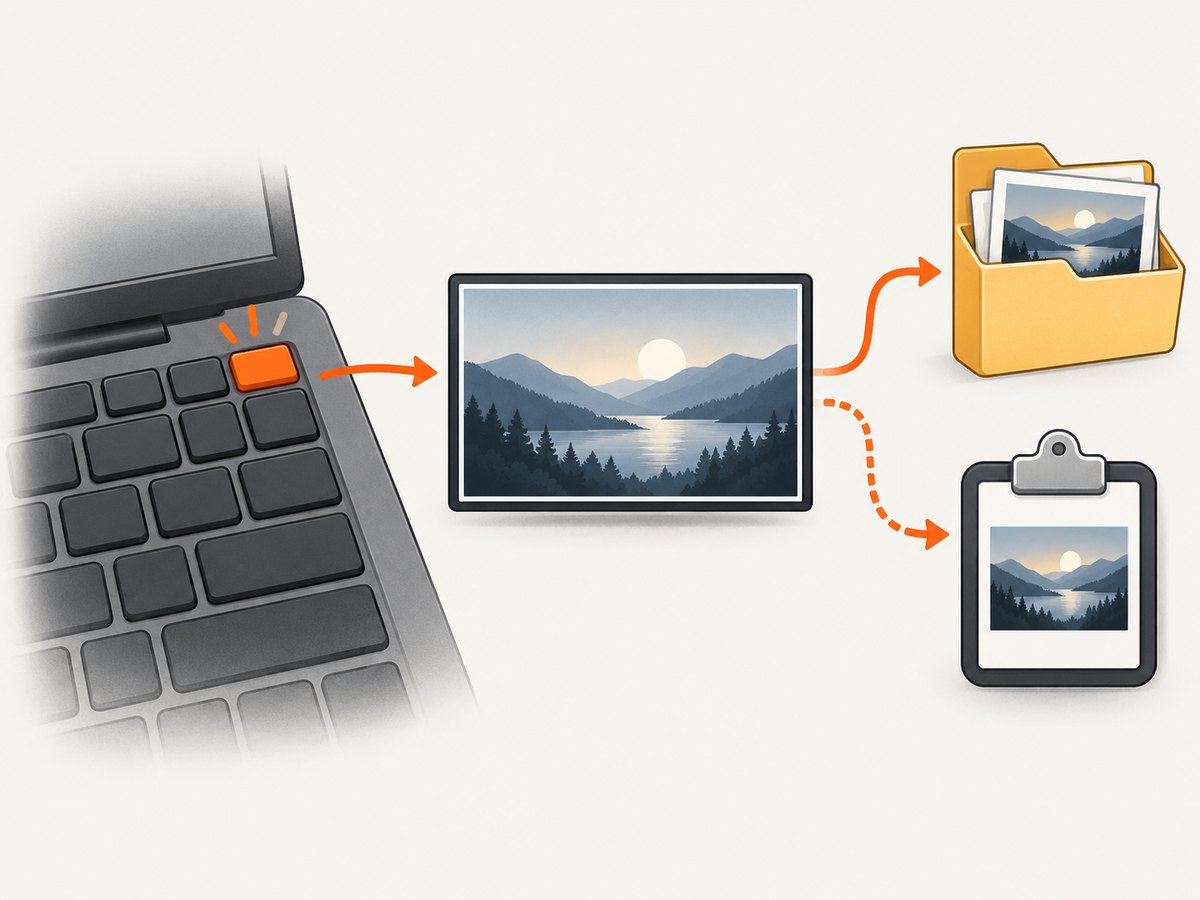
- Press PrtScn.
- Open Paint, Word, or another app that accepts images.
- Press Ctrl + V.
- If an image appears, the shortcut worked; save it from that application.
- If nothing appears, try Windows + Shift + S to test Snipping Tool independently.
On laptops, the key may be shared with another function. Try the device’s Fn modifier and check the manufacturer’s keyboard instructions if the documented alternate does not match your layout.
Fix Windows screenshots that are not saving
Use Windows + PrtScn when you want an automatic file. Open File Explorer and check Pictures > Screenshots. If you used PrtScn alone, there is no required file destination: paste the clipboard image into Paint and save it yourself.
Snipping Tool captures also require an explicit save action. Select the notification after taking the snip, open the editor, and use its save control.
Fix screenshots that are not copying to the clipboard
- Take a fresh capture with Windows + Shift + S.
- Immediately paste it into Paint.
- If you want previous clipboard items, press Windows + V.
- Enable clipboard history when Windows prompts you.
Clipboard history is an optional list of previous items. Ordinary copy and paste does not require history to be enabled. If a paste fails, test a new snip in a simple image-capable application before changing history settings.
When PrtScn opens Snipping Tool instead
Windows can be configured so the Print Screen button opens the screen-snipping overlay. If pressing PrtScn opens a selection tool, that behavior is a setting rather than proof that the key is broken.
- Open Settings.
- Go to Accessibility > Keyboard.
- Review the control for using the Print Screen button to open screen snipping.
- For an automatically saved full-screen image, use Windows + PrtScn.
Use Snipping Tool as an independent test
Windows + Shift + S should display an overlay with capture modes. Choose rectangular, freeform, window, or full-screen capture. After selecting the area, Windows copies the result to the clipboard and shows a notification. Select that notification to annotate or save the image.
If this path works while PrtScn does not, the problem is likely limited to the Print Screen key, its modifier state, or the Print Screen setting. If both paths fail, test another desktop area and continue with device-specific checks.
Check keyboard and device-specific causes
- No PrtScn key: Try Fn + Windows + Space Bar. Keyboard layouts vary, so consult the device maker when it does not work.
- Wireless or external keyboard: Confirm that the key works in another simple text or shortcut test and that the keyboard is connected.
- Function-lock mode: On some laptops, the Print Screen function shares a key with another action. Try the Fn modifier.
- Only one application fails: Capture another visible desktop area. If built-in capture works elsewhere, investigate that application or its content restrictions.
The official Windows guidance does not establish one universal driver or system-file cause for every failed screenshot. Avoid changing unrelated system components until you isolate whether the failure is the keyboard, clipboard, save destination, or a particular application.
When an app cannot save or access the image
If a third-party screenshot or editing app cannot read or write image files, review its access to relevant libraries such as Pictures, Videos, or Documents. Desktop applications may not appear in exactly the same permission lists as Microsoft Store apps. These permissions concern that application’s file access; they do not explain every failure of Windows’ built-in shortcuts.
Black, blank, or unavailable captures in one app
If only a video player, protected document, remote session, or one application produces a black or blank image:
- Capture the desktop or another ordinary window.
- Try Snipping Tool instead of the application’s own shortcut.
- Compare the result with a different visible area.
If ordinary desktop captures work, the remaining cause is specific to that app or content. The Windows shortcut documentation does not establish a general setting that overrides application or content restrictions.
Fast troubleshooting checklist
- Did you use Windows + Shift + S and paste the result?
- Did you check Pictures > Screenshots after Windows + PrtScn?
- Did you remember that PrtScn alone copies instead of saving?
- Did you try Fn + Windows + Space Bar on a keyboard without PrtScn?
- Is Print Screen configured to open screen snipping?
- Does a fresh snip paste into Paint?
- Does the problem happen everywhere or only in one application?
- Does the app that should save the image have access to the relevant library?
Performance, reliability, and workflow tips
- Use Windows + PrtScn for repeatable full-screen files because it has a documented destination.
- Use Windows + Shift + S when you need a region or window and want to inspect it before saving.
- Paste immediately when diagnosing clipboard behavior; this separates capture from later clipboard-history questions.
- For a repeatable process, use one shortcut consistently and record whether the output is a file or clipboard image.
- When a single app behaves differently, validate the Windows capture path on the desktop before changing system settings.
Or skip the browser setup
If you need screenshots of web pages rather than your Windows desktop, ScreenshotNeo provides a website screenshot API. It handles the browser capture step with one request and supports PNG, JPEG, WebP, and PDF output.
cURL (see the ScreenshotNeo API documentation):
curl -G "https://api.screenshotneo.com/v1/shot" -d access_key=YOUR_API_KEY --data-urlencode url=https://stripe.com -o shot.webpPython:
import requests
r = requests.get("https://api.screenshotneo.com/v1/shot", params={"access_key": "YOUR_API_KEY", "url": "https://stripe.com"}, timeout=90)
open("shot.webp", "wb").write(r.content)
Node.js:
const q = new URLSearchParams({ access_key: 'YOUR_API_KEY', url: 'https://stripe.com' });
const res = await fetch(`https://api.screenshotneo.com/v1/shot?${q}`);
Cookie banners, newsletter popups, and chat widgets are removed before the shot. Bot checks, blank pages, timeouts, failed loads, and cache hits are not billed, and response headers report the page verdict and billing result. ScreenshotNeo also includes an MCP server so Claude, Cursor, and other MCP clients can take screenshots with take_screenshot, inspect pages with get_page_info, and create PDFs with capture_pdf. The free plan includes 1,000 screenshots each month with no card; paid plans start at $5 for 3,000. Create a free ScreenshotNeo account.
FAQ
Why does PrtScn seem to do nothing?
It usually copies the screen to the clipboard without opening a window. Paste into Paint or another image-capable app.
Where are Windows screenshots saved?
Windows + PrtScn saves full-screen captures in Pictures > Screenshots. Other shortcuts may place the image only on the clipboard.
Do I need clipboard history for screenshots?
No. Clipboard history, opened with Windows + V, is an optional list of previous items. Normal copy and paste works without it.
What if my keyboard has no Print Screen key?
Try Fn + Windows + Space Bar, then check your device maker’s instructions because layouts differ.
Why does pressing Print Screen open a selection overlay?
The Print Screen setting can be configured to open screen snipping. Use Windows + PrtScn when you want a saved full-screen file.
Can Windows capture every application or video?
No universal setting is documented for overriding app-specific or content-specific capture behavior. Test another desktop area to isolate the scope.


