BlogScreenshots on your device
How to Take Screenshots in Windows 11 Without Snipping Tool
Use Windows 11 keyboard shortcuts to save the whole screen, copy a region, capture a window, or record a game frame without Snipping Tool.
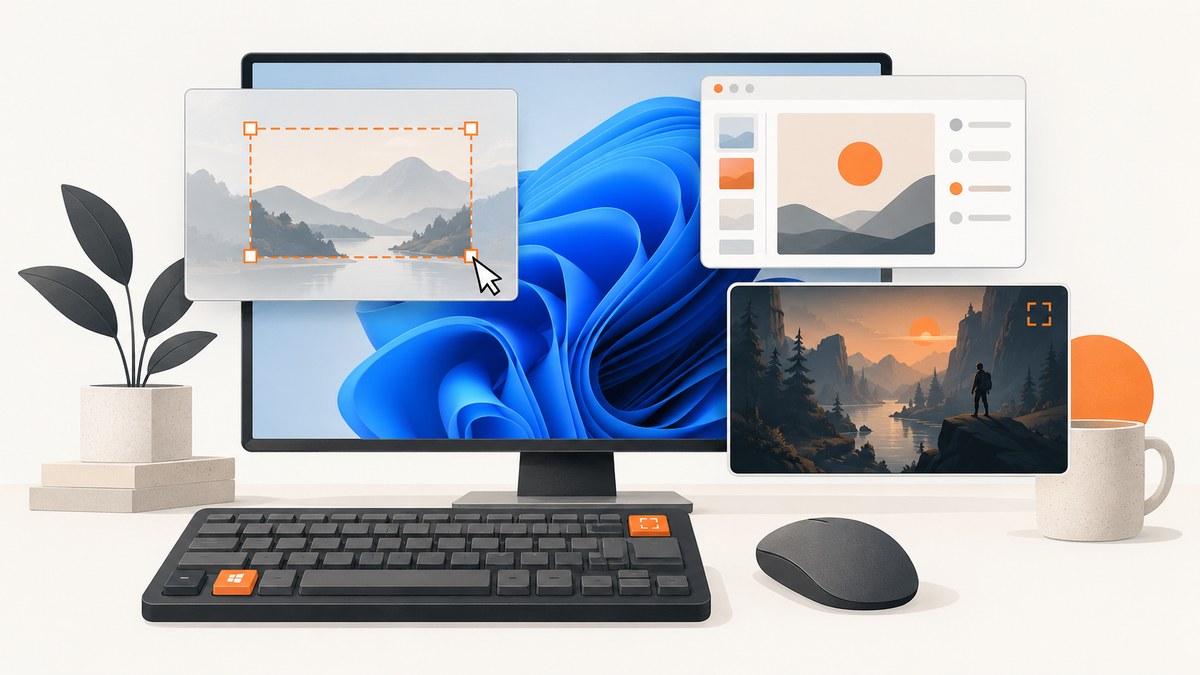
Windows 11 can capture your screen without opening Snipping Tool. Use Windows + PrtScn to save the entire screen automatically, PrtScn to copy the entire screen, Windows + Shift + S to select a region or window, or Windows + G to capture a game frame.
Choose the shortcut that matches your goal
| Goal | Shortcut or control | Result | Best use |
|---|---|---|---|
| Save the entire screen immediately | Windows + PrtScn | A PNG file in Pictures\Screenshots |
Archiving a complete desktop |
| Copy the entire screen | PrtScn | Image copied to the clipboard | Pasting into Paint, Word, email, or chat |
| Capture a region or window | Windows + Shift + S | Your selection is copied to the clipboard | Tutorials, error messages, and partial screens |
| Capture a game frame | Windows + G, then the camera button | Game Bar saves the capture | PC games and full-screen gameplay |
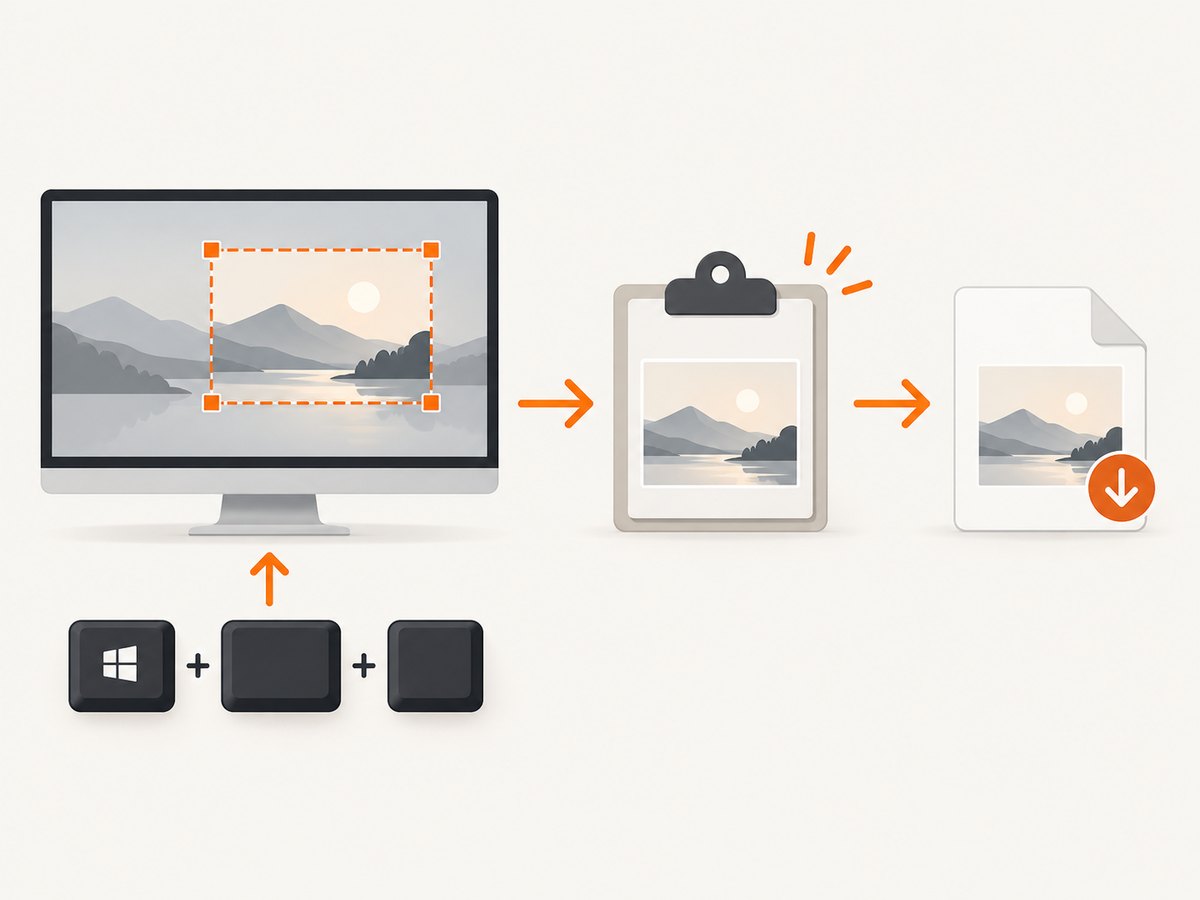
1. Save a full-screen screenshot automatically
- Show the content you want to capture.
- Press Windows + PrtScn together. The display may briefly dim.
- Open File Explorer and go to
Pictures\Screenshots. On some systems, Pictures is inside OneDrive, so also checkOneDrive\Pictures\Screenshots.
This shortcut captures every visible monitor area as one full-screen image and writes it to a file. It is the fastest option when you do not need to select or edit anything.
2. Copy the entire screen to the clipboard
- Press PrtScn (also labeled PrtSc, Print Scr, or similar).
- Open Paint, Word, an email, or another image-capable application.
- Press Ctrl + V to paste the image.
- Save or send it from that application.
This method does not automatically create a file. If nothing appears after pasting, take another capture before copying other content, because the clipboard can be replaced by the next copy operation.
3. Capture a selected region or window
- Press Windows + Shift + S.
- Choose a mode from the capture bar: rectangle, freeform, window, or full screen.
- Drag around a region, click a window, or choose the full-screen option.
- Paste with Ctrl + V, or use the notification that appears to open the capture and save it.
A window capture is useful when you want one application without the taskbar or another monitor. A rectangle capture is usually best for an error message or a small part of a web page. Open menus and dialogs before pressing the shortcut so they remain visible while you select the area.
4. Capture a game frame with Xbox Game Bar
- Start the game and display the frame you want.
- Press Windows + G.
- In the Capture widget, select the camera-shaped Take screenshot control.
- Open the capture location from the widget, or check
Videos\Captures.
Xbox Game Bar is built into Windows for screenshots and clips while playing PC games. If the game blocks overlays, use the game’s own screenshot command or switch to a borderless/windowed mode.
Where Windows 11 puts the screenshot
- Windows + PrtScn: normally
Pictures\Screenshots. - PrtScn: clipboard only until you paste and save it.
- Windows + Shift + S: clipboard first; save it from the capture notification or the app where you paste it. Current Windows 11 versions can be configured to automatically save these captures in the Screenshots folder.
- Game Bar: normally
Videos\Captures.
To find a recent file quickly, open File Explorer and search for *.png, then sort by Date modified. If OneDrive backup is enabled, look under the OneDrive version of your Pictures folder.
Keyboard variations and accessibility settings
When the key is labeled differently
Look for PrtSc, PrtScn, or Print Scr. Laptop keyboards may require Fn as well, such as Fn + Windows + PrtScn. If your keyboard has no practical Print Screen key, use Windows + Shift + S or Game Bar.
When PrtScn opens the capture overlay
Windows can assign the Print Screen key to screen snipping. Go to Settings > Accessibility > Keyboard and turn off Use the Print Screen button to open screen snipping. Pressing PrtScn will then copy the full screen again.
Using more than one monitor
A full-screen capture includes all visible desktop monitors. For one application, use the window mode in Windows + Shift + S. For one monitor, maximize a window on that monitor and use window capture, or select that monitor’s area with rectangle mode.
Capturing menus, dialogs, and timed states
Open the menu or dialog first, then launch the capture shortcut. If the menu closes when you try to select it, open the capture interface from the Start menu and use its delay control. The Windows capture tool supports delays from one to five seconds, which gives you time to open a context menu or hover state.
For text extraction, open the capture in Snipping Tool after taking it and use its Text actions feature. This performs local OCR when available. You can still take the image with the keyboard shortcut without using Snipping Tool to start the capture.
Common problems and fixes
| Problem | Likely cause | Fix |
|---|---|---|
| Nothing happens with PrtScn | The key requires Fn, or another utility owns the shortcut. | Try Fn + PrtScn, then test Windows + Shift + S. |
| PrtScn opens the overlay | Print Screen is configured to open screen snipping. | Disable that option under Settings > Accessibility > Keyboard. |
| The screenshot cannot be found | You used a clipboard shortcut, or Pictures is redirected to OneDrive. | Paste into Paint and save, then check both local and OneDrive Pictures folders. |
| The capture is black | Some protected video, remote desktop, or hardware-accelerated content prevents capture. | Try windowed mode, disable hardware acceleration where appropriate, or use the application’s own capture function. |
| A menu disappears | The menu closed when focus changed. | Use a one-to-five-second delay, or capture the whole window after opening the menu. |
| Game Bar does not open | Game Bar is disabled or the app is not recognized as a game. | Check Settings > Gaming > Xbox Game Bar, then try Windows + G again. |
| The image is blurry | The source was scaled, or the screenshot was compressed after capture. | Capture at the display’s native scale and save as PNG before resizing or sending. |
Quality, privacy, and workflow tips
- Close unrelated windows and notifications before a full-screen capture.
- Use window or rectangle mode to avoid exposing other applications, messages, or personal data.
- PNG is best for text and interface screenshots; convert to JPEG only when a smaller file is required.
- For repeatable documentation, keep the same display scaling and window size between captures.
- Review screenshots for passwords, access tokens, addresses, and private conversations before sharing them.
Or skip the browser setup
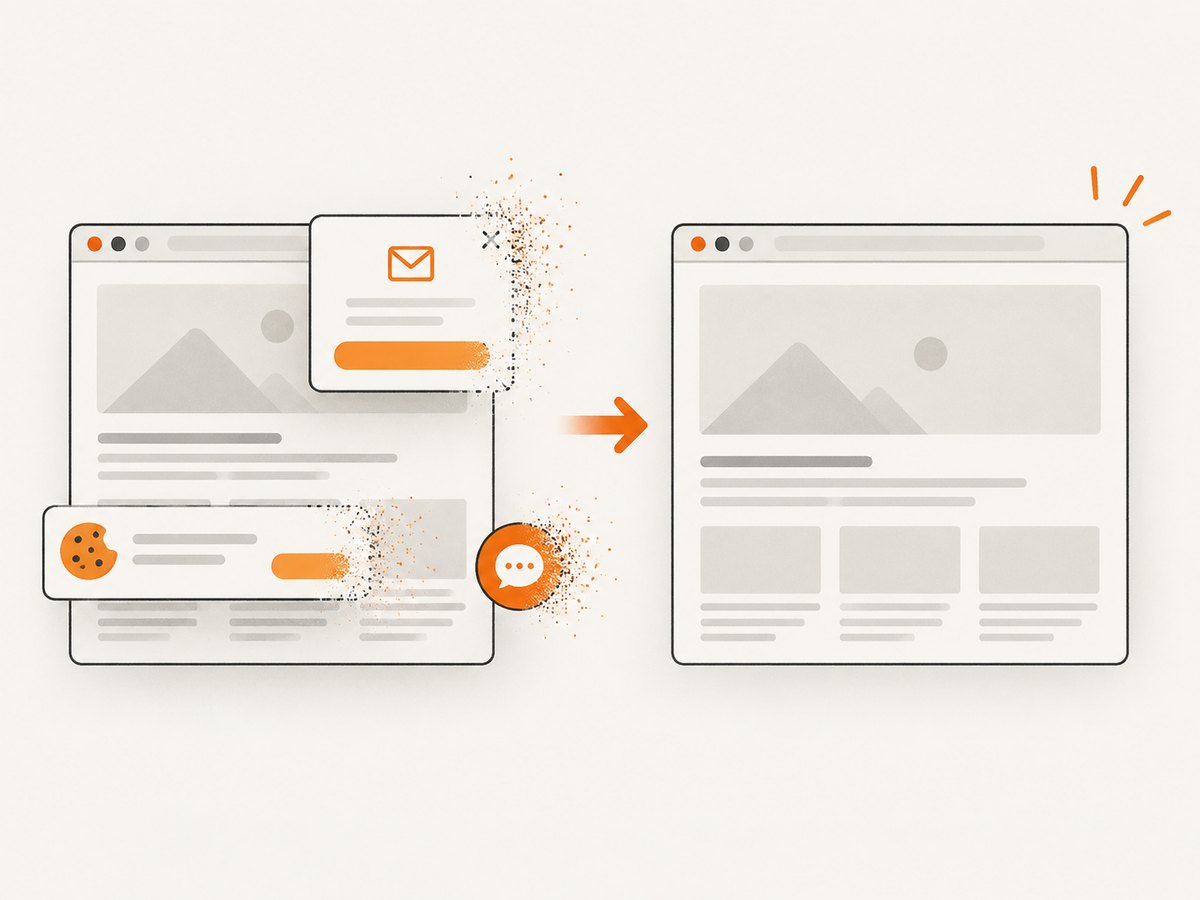
If you need a screenshot of a web page rather than your Windows desktop, ScreenshotNeo returns a PNG, JPEG, WebP, or PDF from one GET request. It accepts consent banners like a visitor, removes more than 60 known consent platforms plus newsletter popups and chat widgets, and lets you turn each cleanup step off. Bot checks, blank pages, timeouts, failed loads, and cache hits are not billed; the response identifies the result with X-Page-Verdict and X-Billed headers.
See the ScreenshotNeo API documentation for the full option list, including full-page and element capture, device presets, retina scale, dark mode, custom CSS and JavaScript, waits, request blocking, headers, cookies, authentication, geolocation, caching, signed links, asynchronous jobs, webhooks, bulk capture, usage data, and PDF settings.
cURL
curl -G "https://api.screenshotneo.com/v1/shot" -d access_key=YOUR_API_KEY --data-urlencode url=https://stripe.com -o shot.webpPython
import requests

r = requests.get(
    "https://api.screenshotneo.com/v1/shot",
    params={"access_key": "YOUR_API_KEY", "url": "https://stripe.com"},
    timeout=90,
)
r.raise_for_status()
open("shot.webp", "wb").write(r.content)
Node.js
const q = new URLSearchParams({
  access_key: 'YOUR_API_KEY',
  url: 'https://stripe.com'
});
const res = await fetch(`https://api.screenshotneo.com/v1/shot?${q}`);
if (!res.ok) throw new Error(`HTTP ${res.status}`);
const data = Buffer.from(await res.arrayBuffer());
require('fs').writeFileSync('shot.webp', data);
An MCP server also provides take_screenshot, get_page_info, and capture_pdf tools for Claude, Cursor, and other MCP clients. The Free plan includes 1,000 screenshots each month with no card; paid plans start at $5 for 3,000.
Create a free ScreenshotNeo account and start with the 1,000-shot monthly allowance.
FAQ
Can I screenshot only one application without Snipping Tool?
Yes. Press Windows + Shift + S, choose window mode, and click the application.
Does Windows + PrtScn save a file?
Yes. It normally saves a full-screen PNG in Pictures\Screenshots.
Why is my screenshot not in Screenshots?
You may have used a clipboard shortcut, or your Pictures folder may be redirected to OneDrive. Paste the image into Paint or search both Pictures locations.
Can I capture a right-click menu?
Yes. Open the menu first and use a delayed capture or window/rectangle selection so it remains visible.
What is the fastest shortcut for an error message?
Use Windows + Shift + S, select the message, then paste it into your support ticket or chat.


