BlogScreenshots on your device
How to Take Screenshots Without Writing Them to Disk
Capture screenshots to the clipboard or an in-memory image buffer on Windows, macOS, Linux and the web—without creating a file.
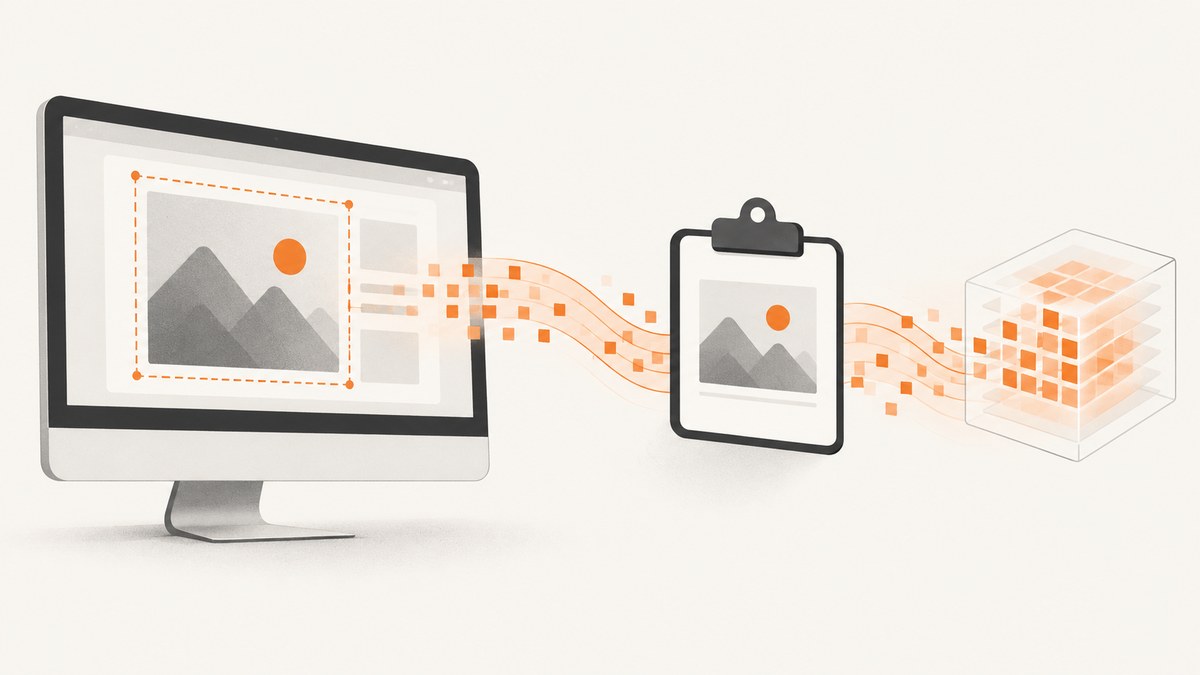
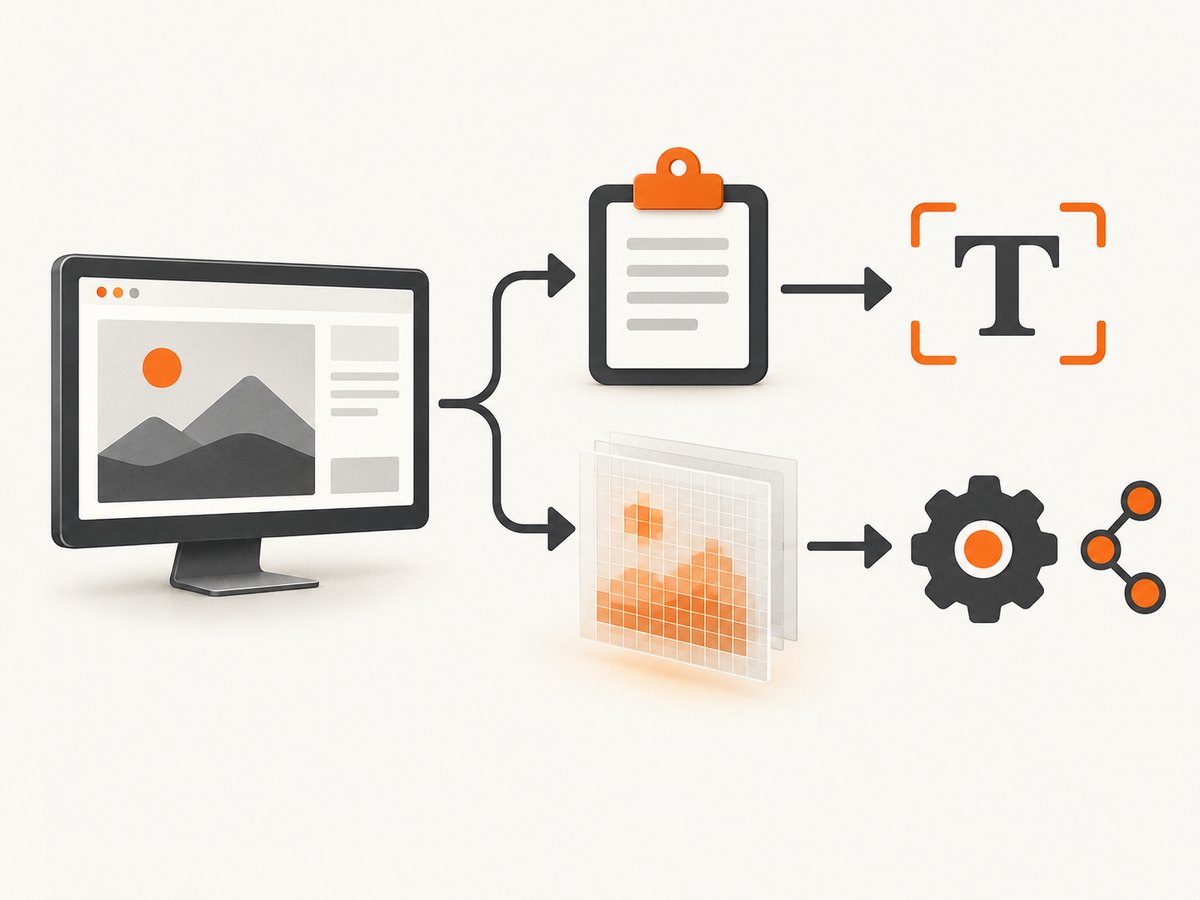
Yes—you can take a screenshot without creating a file. Send the pixels to the system clipboard for immediate pasting, or keep them in an application-managed image object or frame buffer for OCR, computer vision, editing or automation. The image is transient until you explicitly export it.
1. Choose the destination
| Need | Use | Trade-off |
|---|---|---|
| Paste once into chat, a document or an issue | System clipboard | Another copy operation can replace it; clipboard managers may retain it |
| Process pixels in code | In-memory image or frame buffer | Uses RAM and requires platform permissions |
| Capture from a browser and paste on the web | Async Clipboard API | Requires a secure context, permission and usually a user gesture |
| Keep the image after the process exits or after reboot | Explicit export to a file or object store | Persistence necessarily writes data somewhere |
“Without writing to disk” still means the full-resolution pixels occupy memory. A 4K RGBA frame can consume tens of megabytes before image encoding.
2. Windows: capture to the clipboard
For a one-off capture, hold Ctrl while using the normal Snipping Tool shortcuts. Microsoft documents the ms-screenclip://capture/image protocol for rectangle, freeform and window captures. Omitting the optional auto-save flag does not request automatic saving. The redirect callback path requires a packaged MSIX app; an unpackaged Win32 process cannot receive that redirect response.
ms-screenclip://capture/imageUse the resulting clipboard image directly in the destination app. If you are building software, Windows.Graphics.Capture provides a programmatic path: invoke the secure picker, create a frame pool and capture session, acquire a frame, then process the snapshot in memory. See Microsoft’s Windows.Graphics.Capture API reference.
Windows implementation checklist
- Request capture through the system picker so the user chooses a display or window.
- Create a frame pool with a pixel format and size matching the selected item.
- Start the capture session and handle frame-arrived events.
- Copy the needed frame into your own buffer before releasing the frame.
- Run OCR, encoding or computer vision on that buffer; do not call a file export method.
- Dispose the frame pool and session when finished to release GPU and RAM resources.
3. macOS: use the pasteboard or a clipboard shortcut
Press Control-Command-Shift-3 for the entire screen or Control-Command-Shift-4 for a selection. The Control modifier puts the PNG on the clipboard instead of creating a desktop screenshot.
In a macOS app, NSPasteboard.general accepts image objects directly. A typical flow is to capture pixels, create an image object, clear the pasteboard and write that object:
import AppKit

func copyImageToClipboard(_ image: NSImage) {
    let pasteboard = NSPasteboard.general
    pasteboard.clearContents()
    pasteboard.writeObjects([image])
}

// Pass an NSImage created by your screen-capture API.
// No image file is required.
Apple’s NSPasteboard documentation describes reading and writing objects that conform to NSPasteboardWriting and NSPasteboardReading.
4. Python: keep the screenshot as a Pillow image
Pillow’s ImageGrab.grab() returns a PIL image object. It does not write a file unless you call save().
from PIL import ImageGrab

# Entire screen, kept in memory
image = ImageGrab.grab()
print(image.size, image.mode)

# Region: (left, top, right, bottom)
region = ImageGrab.grab(bbox=(100, 100, 900, 700))

# Process the objects here. Deliberately no image.save(...).
Install Pillow with python -m pip install pillow. Pillow supports Windows and macOS; Linux support was added in version 7.1.0. On Linux, if the default X11 display cannot provide a snapshot, Pillow may invoke gnome-screenshot, grim or spectacle when installed. Pass xdisplay="" to disable that fallback:
from PIL import ImageGrab

image = ImageGrab.grab(xdisplay="")
print(image.size)
Clipboard output is separate from capture. Use a platform clipboard library that accepts the in-memory image, then release the object when processing is complete. The Pillow ImageGrab reference lists the supported arguments and platform behavior.
5. Browser JavaScript: write PNG bytes to the clipboard
A web page can render or capture pixels into a PNG Blob and write it with ClipboardItem. This requires HTTPS (or localhost), permission and a user gesture such as a button click.
async function copyCanvasAsPng(canvas) {
  const blob = await new Promise(resolve =>
    canvas.toBlob(resolve, "image/png")
  );
  if (!blob) throw new Error("The browser could not encode the canvas");

  await navigator.clipboard.write([
    new ClipboardItem({ "image/png": blob })
  ]);
}

document.querySelector("button").addEventListener("click", async () => {
  try {
    const canvas = document.querySelector("canvas");
    await copyCanvasAsPng(canvas);
    console.log("Screenshot copied");
  } catch (error) {
    console.error("Clipboard write failed", error);
  }
});
The Clipboard API documentation covers secure-context and permission rules. Browsers can sanitize clipboard data, and support for image formats varies, so keep a visible fallback such as a download or server-side export when the paste operation is essential.
6. Avoiding files in an automated web-capture pipeline
If your source is a URL rather than the current desktop, capture the response bytes in memory and pass them to the next operation. Do not stream them to a temporary path unless a downstream tool requires a filename. For large pages, cap dimensions, release buffers promptly and avoid retaining multiple full-resolution frames.
7. Or skip the browser setup
ScreenshotNeo returns a website screenshot or PDF from one GET request, so your program can keep the response bytes in memory. Full API details are in the ScreenshotNeo API docs.

cURL
curl -G "https://api.screenshotneo.com/v1/shot" -d access_key=YOUR_API_KEY --data-urlencode url=https://stripe.com -o shot.webpThe command above writes a file for convenience. To keep the response in a Unix pipeline, send it to standard output and pipe it to an in-memory consumer instead of -o.
Python
import requests

r = requests.get("https://api.screenshotneo.com/v1/shot", params={"access_key": "YOUR_API_KEY", "url": "https://stripe.com"}, timeout=90)
r.raise_for_status()
image_bytes = r.content  # process or upload these bytes; no file is created
Node.js
const q = new URLSearchParams({ access_key: 'YOUR_API_KEY', url: 'https://stripe.com' });
const res = await fetch(`https://api.screenshotneo.com/v1/shot?${q}`);
if (!res.ok) throw new Error(`HTTP ${res.status}`);
const imageBytes = Buffer.from(await res.arrayBuffer());
Before capture, ScreenshotNeo can accept consent banners and remove more than 60 known consent platforms, newsletter popups and chat widgets; each step can be disabled. Bot checks, blank pages, timeouts, failed loads and cache hits are not billed, and the response identifies the result with X-Page-Verdict and X-Billed headers. Its MCP server exposes take_screenshot, get_page_info and capture_pdf for Claude, Cursor and other MCP clients. The Free plan includes 1,000 screenshots per month with no card; paid plans start at $5 for 3,000. Create a free ScreenshotNeo account.
8. Reliability, performance and privacy
- Memory: raw RGBA storage is width × height × 4 bytes, before copies and encoded PNG overhead. Reuse buffers and downsize when full resolution is unnecessary.
- Clipboard lifetime: clipboard data is replaceable and may be persisted by clipboard managers or cloud-sync utilities. Treat sensitive captures accordingly.
- Permissions: macOS screen recording permission, Windows picker permissions and browser clipboard policies can block capture even when code is correct.
- Linux display servers: X11 and Wayland compositor support differ. Test the exact desktop session and provide an explicit fallback.
- Automation: wait for the page or frame to be ready, handle timeouts, and release image objects after each job to prevent leaks.
- Persistence: if you need an audit trail, reproducible artifact or later reopening, export explicitly to a file or durable object store.
9. Troubleshooting
| Symptom | Likely cause | Fix |
|---|---|---|
| Clipboard write throws a permission error | No secure context or user gesture | Serve over HTTPS, call from a click/keypress handler and request clipboard permission |
| Python capture fails on Linux | Unsupported compositor/display or missing helper | Check X11/Wayland support, install the documented helper, or use a native compositor API |
| Windows protocol opens Snipping Tool but no callback arrives | App is unpackaged Win32 | Package as MSIX for the redirect flow, or use Windows.Graphics.Capture |
| Screenshot appears in the wrong app | Clipboard was replaced by another process | Paste immediately or keep an in-memory copy in your application |
| Memory usage grows during repeated captures | Frames or image objects remain referenced | Dispose frame resources, overwrite collections and avoid retaining encoded copies |
| ScreenshotNeo response is not an image | HTTP error or page verdict such as a bot check | Check status and X-Page-Verdict/X-Billed; retry transient failures and inspect the target URL |
10. FAQ
Can a screenshot exist without any storage?
It must exist somewhere while being displayed or processed: RAM, GPU memory or the clipboard. “No disk” means no persistent file write.
Is clipboard capture safer than saving a PNG?
It avoids a deliberate file, but clipboard managers, synchronization and receiving applications may retain the image. Use the least persistent destination appropriate for the data.
Can I paste a Pillow image directly?
Pillow supplies the image object; clipboard insertion requires a separate platform clipboard integration.
When should I export a file?
Export when another process needs a path, when you need durable evidence, or when the image must survive process termination.


