BlogScreenshots on your device
How to Capture a Scrolling Screenshot on MacBook
Capture an entire webpage on a MacBook with browser tools, Safari options, and an API workflow for reliable full-page screenshots.

Short answer: MacBook screenshot shortcuts capture the visible display, a window, or a selected region. They do not provide the same workflow as a full-page webpage capture that scrolls below the fold. To capture an entire webpage, use a browser feature or a browser extension such as GoFullPage in Chrome or FireShot in Safari. If you need a repeatable developer workflow, an API such as ScreenshotNeo can render a full page and return an image or PDF.
This guide explains each method, when to use it, how to handle lazy-loaded content and popups, and how to troubleshoot captures that stop early or look incomplete.
1. Understand what a MacBook screenshot captures
Apple’s documented screenshot controls capture the screen, a window, or a selected area. Apple describes the available choices as capturing “the entire screen, a window or just a portion of the screen.” These controls are useful for ordinary screenshots, but they do not automatically scroll through a webpage.
| Shortcut | What it captures | Best use |
|---|---|---|
| Shift-Command-3 | The entire display | A visible desktop or full monitor view |
| Shift-Command-4 | A rectangle you select | A section of a webpage or app |
| Shift-Command-4, then Space | A window or menu | A browser window without manually selecting its edges |
| Shift-Command-5 | The Screenshot app | Capture and recording controls, timers, and save-location settings |
After a capture, macOS normally saves the file to the desktop. With Shift-Command-5, open Options to choose another destination or a timer. Click the thumbnail that appears briefly to mark up the image before it is saved. These controls are documented in Apple’s Take a screenshot on Mac guide.
2. Capture a full webpage in Chrome
For a scrolling screenshot in Chrome, install a full-page capture extension from the Chrome Web Store. GoFullPage is one example listed there. Its listing describes capturing the current page and downloading the result as an image or PDF.
- Open the GoFullPage listing in the Chrome Web Store.
- Review the current permissions and compatibility information, then install the extension.
- Open the webpage you want to capture in a normal browser tab.
- Scroll the page once if the site only loads content after an initial interaction. This can trigger lazy images or infinite-scroll sections.
- Click the extension icon and start the full-page capture.
- Wait while the extension scrolls through the page and assembles the result.
- Download the final image or PDF from the extension’s result view.
Keep the tab active during capture. A page with sticky navigation, animated sections, ads, or an infinite feed can produce a result that differs from what you see in a static page. Check the entire output, especially the bottom edge, before sharing it.
Chrome edge cases
- Lazy-loaded images: Images may appear only after their section enters the viewport. Let the capture process scroll naturally, and verify that image placeholders are gone.
- Infinite scrolling: There may be no final page height. Stop the capture after the intended content or use a fixed-height export method.
- Sticky headers: A fixed header can be repeated at every scroll segment. Crop or remove it if your extension supports that option.
- Embedded frames: Content inside an iframe may not be included in the same way as the surrounding document.
- Protected pages: Login screens, bot checks, and pages that require interaction can prevent a complete capture.
3. Capture a full webpage in Safari
Safari users can use a third-party Mac app that supports full-page capture. The Mac App Store listing for FireShot: Web Page Screenshots describes full-page, visible-part, and custom-selection modes for Safari on Mac.
- Open the current FireShot listing in the Mac App Store.
- Check the listing for current macOS compatibility, permissions, price, and in-app purchase details.
- Install and enable the Safari extension or companion app as instructed by the listing.
- Open the target webpage in Safari.
- Choose the full-page mode, then wait for the page to be processed.
- Save the output in the image or PDF format offered by the current version.
App-store details can change, so use the live listing as the authority for compatibility and pricing. Do not assume that every dynamic page, embedded frame, or authenticated application will capture correctly.
4. Save the page when you need an archive instead of an image
A long screenshot is not always the right artifact. Safari can save a page as a Web Archive or as Page Source. In Safari, choose File > Save As, then select the format you need. Apple’s Save part or all of a web page in Safari on Mac guide says a Web Archive can preserve graphics and working links, while Page Source saves the HTML source.
| Output | Use it when | Limit |
|---|---|---|
| PNG, JPEG, or WebP screenshot | You need one visual document for review, a ticket, or documentation | Text is not directly editable and very long pages can become unwieldy |
| You need a printable or shareable document with pages | Web layouts can reflow for paper dimensions | |
| Web Archive | You want to preserve a page with graphics and links | It is a saved webpage, not one long image |
| Page Source | You need the HTML source for inspection | It does not represent the rendered visual appearance |
Some websites can prevent saving items shown on the page. If Safari cannot save a complete archive, use a browser capture workflow or an API that renders the page in a controlled browser.
5. Or skip the browser setup
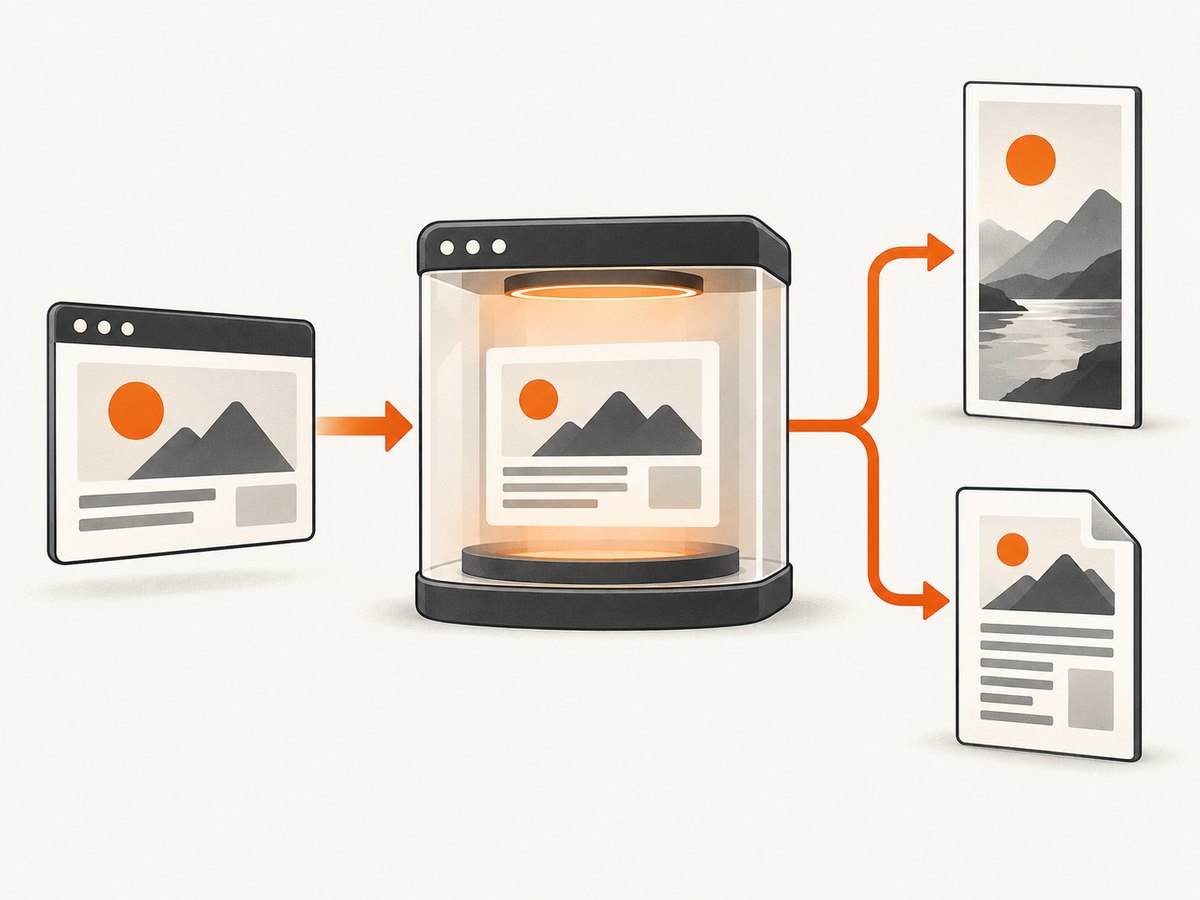
For automated jobs, CI pipelines, documentation builds, or many URLs, use ScreenshotNeo’s website screenshot API. It supports full-page capture with lazy images loaded and can return PNG, JPEG, WebP, or PDF. The API base is https://api.screenshotneo.com/v1/shot. See the ScreenshotNeo API documentation for the complete parameter list.
cURL
curl -G "https://api.screenshotneo.com/v1/shot" -d access_key=YOUR_API_KEY --data-urlencode url=https://stripe.com -o shot.webpPython
import requests

r = requests.get(
    "https://api.screenshotneo.com/v1/shot",
    params={"access_key": "YOUR_API_KEY", "url": "https://stripe.com"},
    timeout=90,
)
r.raise_for_status()
open("shot.webp", "wb").write(r.content)
Node.js
const q = new URLSearchParams({ access_key: 'YOUR_API_KEY', url: 'https://stripe.com' });
const res = await fetch(`https://api.screenshotneo.com/v1/shot?${q}`);
if (!res.ok) throw new Error(`Screenshot failed: ${res.status}`);
const buffer = Buffer.from(await res.arrayBuffer());
require('fs').writeFileSync('shot.webp', buffer);
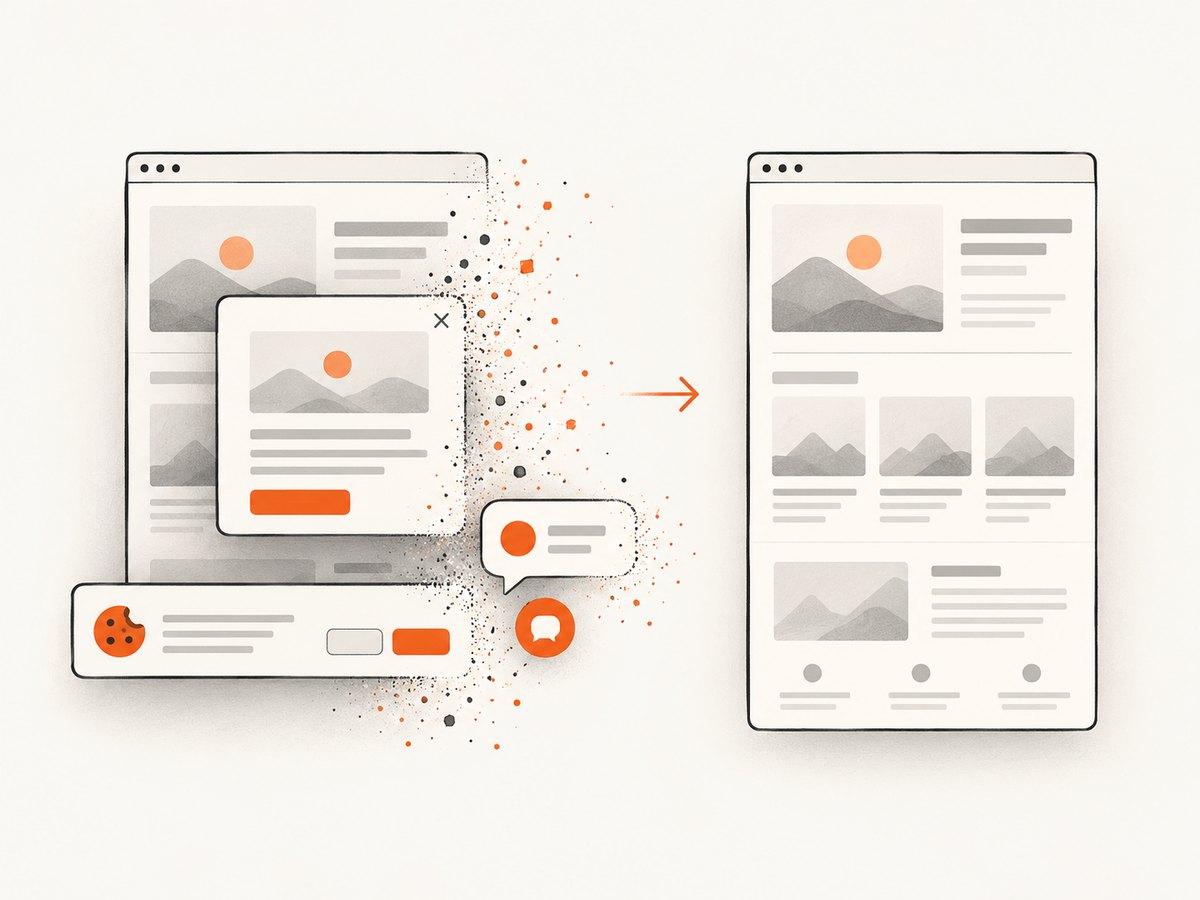
ScreenshotNeo removes cookie and consent banners, newsletter popups, and chat widgets before the capture. Each cleanup step can be turned off. It bills only clean shots: bot checks or CAPTCHAs, blank pages, timeouts, failed loads, and cache hits cost nothing. The response identifies the result with X-Page-Verdict and X-Billed headers.
Useful ScreenshotNeo options for a scrolling page
- Full page: Capture content below the viewport and load lazy images.
- Viewport and devices: Select one of 12 device presets or provide any viewport size.
- Retina scale: Increase pixel density for sharper documentation images.
- Element capture: Capture one element with a CSS selector instead of the whole document.
- Timing: Wait for a selector, a fixed delay, or network idle before capture.
- Page control: Run custom JavaScript, click an element, hide selectors, or provide custom CSS.
- Network control: Block ads, trackers, requests, or resource types.
- Identity and location: Set headers, cookies, user agent, Authorization, timezone, or geolocation.
- Output: Choose PNG, JPEG, WebP, or PDF. PDF supports paper size, margins, landscape mode, and page ranges.
- Delivery: Resize images, select a cache TTL, create signed links for public image tags, submit async jobs with signed webhooks, or capture up to 100 URLs in one bulk call.
ScreenshotNeo also provides an MCP server with take_screenshot, get_page_info, and capture_pdf tools for Claude, Cursor, and other MCP clients. That lets an AI agent capture and inspect pages without a separate browser extension.
You can start with 1,000 screenshots per month free with no card. Paid plans start at $5 for 3,000 shots; yearly billing gives two months free, and every feature is available on every plan. Create a free ScreenshotNeo account.
6. Make full-page captures reliable
Wait for the content that matters
A screenshot taken immediately after navigation can contain skeleton loaders or missing images. In a browser extension, allow the page to finish loading before starting. In an API workflow, wait for a distinctive selector, use a short delay for client-side rendering, or wait for network idle. A selector wait is usually more precise than adding a large fixed delay.
Control page state
Dismiss consent dialogs before capture, or use a service that handles them. Hide sticky headers, cookie buttons, and chat launchers when they obscure content. If the page changes based on location, timezone, cookies, or authentication, provide the same state on every run.
Choose an output that fits the page
Use WebP or JPEG for compact image delivery, PNG for crisp text and transparency, and PDF when readers need pagination or printing. Very tall raster images can be difficult to open or embed; a PDF or a series of section captures may be more practical.
7. Troubleshooting checklist
| Symptom | Likely cause | Fix |
|---|---|---|
| Only the visible viewport is saved | You used a standard macOS shortcut | Use a full-page browser extension, Safari capture app, or ScreenshotNeo. |
| The bottom of the page is missing | Capture ended before lazy content loaded | Scroll manually first, increase the wait, or wait for a selector/network idle. |
| Repeated headers appear | A sticky element was included in every segment | Hide the selector or remove the header with custom CSS before capture. |
| A consent banner covers the page | The banner requires interaction | Accept or dismiss it manually, or enable ScreenshotNeo’s consent cleanup. |
| A blank or partially loaded image is returned | Timeout, bot check, failed request, or blocked resource | Check the page in a normal browser, review network restrictions, and inspect ScreenshotNeo’s X-Page-Verdict and X-Billed headers. |
| Safari capture is unavailable | Extension permissions or macOS compatibility changed | Open the current Mac App Store listing and verify installation, Safari extension access, and permissions. |
| Dynamic content differs between runs | Ads, timers, personalization, or location-dependent data | Set cookies, headers, timezone, and geolocation; block irrelevant requests; use a cache TTL when appropriate. |
| An infinite feed never finishes | The document has no stable bottom | Capture a defined element, set a fixed viewport strategy, or stop after the required content. |
8. Performance, reliability, and cost considerations
Capture time grows with page length, image count, JavaScript work, and any wait conditions. Full-page images also consume more memory than viewport shots. To keep jobs predictable, remove unnecessary third-party requests, block ads and trackers, wait for a meaningful selector, and avoid excessive fixed delays.
For repeated captures, caching can reduce duplicate work; choose a TTL that matches how often the page changes. For large batches, ScreenshotNeo supports up to 100 URLs per call and asynchronous jobs with signed webhooks. Use asynchronous delivery when a single request does not fit your job timeout.
Cost depends on whether a clean shot is produced. ScreenshotNeo does not bill bot checks or CAPTCHAs, blank pages, timeouts, failed loads, or cache hits, and the response says whether the result was billed. This makes it easier to reconcile usage than counting every attempted navigation.
9. FAQ
Can Shift-Command-5 capture a scrolling webpage?
It opens Apple’s Screenshot app and provides capture controls, but Apple’s documented modes are the screen, a window, or a selected area. Use a browser full-page feature for a scrolling webpage.
Is a Web Archive the same as a full-page screenshot?
No. A Web Archive preserves webpage content such as graphics and links. A screenshot is a rendered visual image, while a PDF is a paginated document.
Which browser should I use?
Use the browser in which the page and required extension are supported. GoFullPage is a Chrome Web Store example; FireShot is listed for Safari on Mac. Check each current official listing for permissions and compatibility.
Can I capture a page that requires login?
Browser tools can capture a page after you sign in if the extension has access to that tab. For automated work, provide the required cookies, headers, or Authorization data and follow the site’s access rules.
Can an AI agent take the screenshot?
Yes. ScreenshotNeo includes an MCP server with screenshot, page-info, and PDF tools for Claude, Cursor, and other MCP clients.
10. Choosing the right method
- Use Shift-Command-3, -4, or -5 for a visible screen, window, or region.
- Use a Chrome full-page extension when you need a quick image or PDF from an open tab.
- Use a Safari capture app when Safari is your primary browser and its current listing supports your Mac.
- Use Safari Web Archive or Page Source when preserving the webpage matters more than producing one image.
- Use ScreenshotNeo when you need repeatable full-page rendering, cleanup of banners and widgets, batch jobs, PDFs, signed links, or an AI-agent workflow.
For a one-off capture, a browser tool is often enough. For documentation, monitoring, or production automation, define the page state, wait for the content you need, verify the output, and record the verdict and billing headers.


