BlogScreenshots on your device
How to Take a Scrolling Screenshot with Snipping Tool
Snipping Tool captures visible screens, windows and full screens, but Microsoft does not document automatic scrolling capture. Here are your options.

Short answer: Microsoft’s current Snipping Tool documentation lists freeform, rectangular, window and full-screen image snips. It does not document a scrolling screenshot mode that automatically scrolls through a long webpage and combines the result into one tall image. A normal snip captures only what is visible in the selected area.
If you need one image containing an entire scrollable webpage, use a capture method that explicitly supports full-page capture. Snipping Tool remains useful for ordinary screen, window and region screenshots.
What Snipping Tool can capture
Microsoft documents these image modes for Windows 10 and Windows 11:
| Mode | What it captures | Scrolling page? |
|---|---|---|
| Freeform | A region you draw by hand | No |
| Rectangle | A rectangular region of the visible screen | No |
| Window | A selected application window | No; it captures the window as displayed |
| Full screen | The visible contents of your displays | No; it does not extend below the viewport |
See Microsoft’s Snipping Tool guide for the supported modes, editing tools, OCR and video snips.
How to take a standard screenshot with Snipping Tool
- Open Snipping Tool from the Start menu.
- Select New.
- Choose Freeform, Rectangle, Window or Full screen.
- Select the area or window to capture.
- Use the editor to annotate or crop the image.
- Save or share the result.
For a faster image capture, press Windows logo key + Shift + S. The image capture overlay then lets you select a rectangular or freeform area, a window or the full screen.
Window capture versus full-page capture
Window mode captures the application window that is currently visible. It does not mean “capture every scrollable part of this window.” If a webpage continues below the bottom edge, those lower sections are outside the captured image.
Video snip is not a scrolling still image
Snipping Tool also has a video feature that records a selected rectangular area. That creates a recording, not one tall still image containing the complete page. Do not use video snipping when your deliverable is a single full-page PNG, JPEG or WebP.
Why Snipping Tool does not produce one tall webpage image
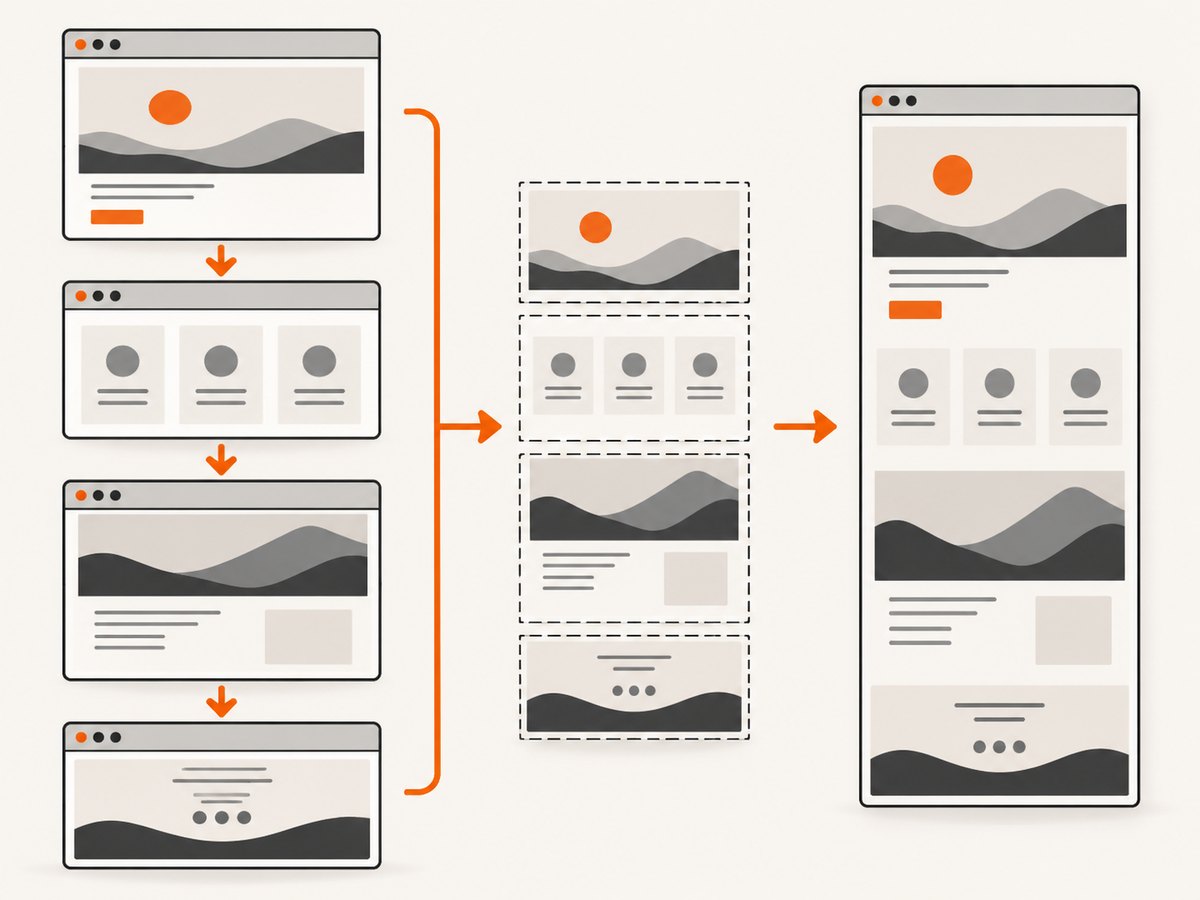
A scrolling screenshot requires software to perform several operations: scroll through the document, wait for content to render, capture each viewport and combine the pieces while avoiding duplicated or missing sections. The documented Snipping Tool image modes do not include that workflow.
Microsoft 365’s screenshot instructions describe inserting an available window screenshot or selecting a clipping from the visible screen. They also do not describe automatic full-page scrolling capture. See the Microsoft 365 screenshot instructions and window and screen copying guidance.
What to use when you need a full-page screenshot
Choose a method that explicitly says it supports full-page, scrolling or entire-page capture. Before capturing, check these details:
- Output: confirm that it creates a still image if you need PNG, JPEG or WebP rather than video.
- Lazy-loaded content: long pages may load images only after scrolling. A reliable full-page method should allow time for those images to appear.
- Fixed headers: sticky navigation can repeat at every viewport section unless the capture method handles it.
- Consent dialogs and popups: dismiss them before capture or use a service that removes them.
- Very long pages: check maximum page height, memory use and image dimensions before exporting.
- Privacy: avoid sending private pages to a third-party service unless its handling meets your requirements.
Snipping Tool is still the right built-in choice for a visible region, a window or the current screen. It simply is not documented as a full-page scrolling capture tool.
Or skip the browser setup
ScreenshotNeo captures a webpage with one GET request and can return a PNG, JPEG, WebP or PDF. Full-page capture loads lazy images, and you can also capture one element with a CSS selector, choose a device or viewport, set retina scale, wait for a selector, delay or network idle, add custom CSS or JavaScript, hide selectors, block ads and trackers, set headers or cookies, and choose caching or signed links. See the ScreenshotNeo API documentation for request options.

cURL
curl -G "https://api.screenshotneo.com/v1/shot" -d access_key=YOUR_API_KEY --data-urlencode url=https://stripe.com -o shot.webpPython
import requests

r = requests.get(
    "https://api.screenshotneo.com/v1/shot",
    params={"access_key": "YOUR_API_KEY", "url": "https://stripe.com"},
    timeout=90,
)
r.raise_for_status()
open("shot.webp", "wb").write(r.content)
Node.js
const q = new URLSearchParams({ access_key: 'YOUR_API_KEY', url: 'https://stripe.com' });
const res = await fetch(`https://api.screenshotneo.com/v1/shot?${q}`);
if (!res.ok) throw new Error(`HTTP ${res.status}`);
const data = Buffer.from(await res.arrayBuffer());
require('fs').writeFileSync('shot.webp', data);
ScreenshotNeo removes cookie and consent banners, newsletter popups and chat widgets before capture. Bot checks, blank pages, timeouts, failed loads and cache hits are not billed, and each response reports its result in X-Page-Verdict and X-Billed headers. Its MCP server lets Claude, Cursor and other MCP clients call take_screenshot, get_page_info and capture_pdf.
The Free plan includes 1,000 shots per month with no card. Paid plans start at $5 for 3,000 shots; every feature is available on every plan. Create a free ScreenshotNeo account.
Troubleshooting
| Problem | Cause | Fix |
|---|---|---|
| The result stops at the bottom of the screen | Snipping Tool captures the visible viewport only | Use a method that explicitly supports full-page or scrolling capture. |
| The whole app window is captured but not the document below | Window mode means the visible window, not all scrollable contents | Scroll and capture sections manually, or use a full-page method. |
| A video was saved instead of an image | Video snip was selected | Choose an image snip mode and select New again. |
| The shortcut does nothing | The overlay did not open or keyboard focus is elsewhere | Open Snipping Tool from Start and select New; then try Windows logo key + Shift + S again. |
| Lower-page images are missing in an automated capture | Images are lazy-loaded or the page needs more time | Enable full-page capture and add a selector wait, delay or network-idle wait. |
| A capture contains a consent dialog or chat bubble | The overlay appeared before the page was cleaned | Dismiss it manually or use ScreenshotNeo’s consent, popup and widget removal. |
Performance, reliability and cost notes
- Manual Snipping Tool: quick for a visible area, but a long page requires repeated captures and manual stitching.
- Long automated pages: rendering time increases with page length, scripts, fonts and images. Use an explicit wait when content appears after scrolling.
- Repeatability: keep viewport, device, timezone, user agent and page state consistent when comparing captures.
- Failure handling: inspect the HTTP status and, with ScreenshotNeo, read
X-Page-VerdictandX-Billedto distinguish a clean shot from a bot check, blank page, timeout, failed load or cache hit. - Cost: Snipping Tool is built into Windows. ScreenshotNeo bills only clean shots; bot checks, blank pages, timeouts, failed loads and cache hits cost nothing.
FAQ
Can I make Snipping Tool scroll while I select?
Microsoft’s current documentation does not list a scrolling image mode. A normal selection captures the area visible when you make the snip.
Does full-screen mode include the entire webpage?
No. It captures the full visible screen or screens, not content below the current viewport.
Can OCR create a scrolling screenshot?
No. OCR extracts text from a captured image; it does not extend the capture through a scrollable document.
Is a video snip a substitute?
No. Video snipping records a selected rectangle. It does not create one tall still image of the page.
What is the simplest automated option?
Use a capture API that supports full-page screenshots. ScreenshotNeo provides a one-call endpoint, removes common overlays before capture and offers 1,000 free shots each month without a card.


