Why Selenium Screenshots Are Sometimes Completely White with Firefox and geckodriver
A white Firefox screenshot is a symptom, not a diagnosis. Use this version, rendering, logging, packaging, and timing checklist to find the cause.

A completely white PNG does not identify one universal Firefox or geckodriver bug. First determine whether Firefox rendered the page, then compare headed and headless runs, record the complete version and environment tuple, inspect geckodriver logs, and check whether sandboxed packaging can access the generated profile.
A useful first split is:
- Firefox itself is blank: investigate navigation, JavaScript, authentication, site behavior, or Firefox rendering.
- Firefox displays the page but the PNG is white: reduce the case to one URL and one capture, preserve logs, and investigate the driver, browser, display mode, profile, and capture timing.
Selenium 4 requires Firefox 78 or newer and recommends the latest geckodriver. See the official Selenium Firefox documentation.
1. What a white screenshot can mean
The image alone cannot distinguish among several states:
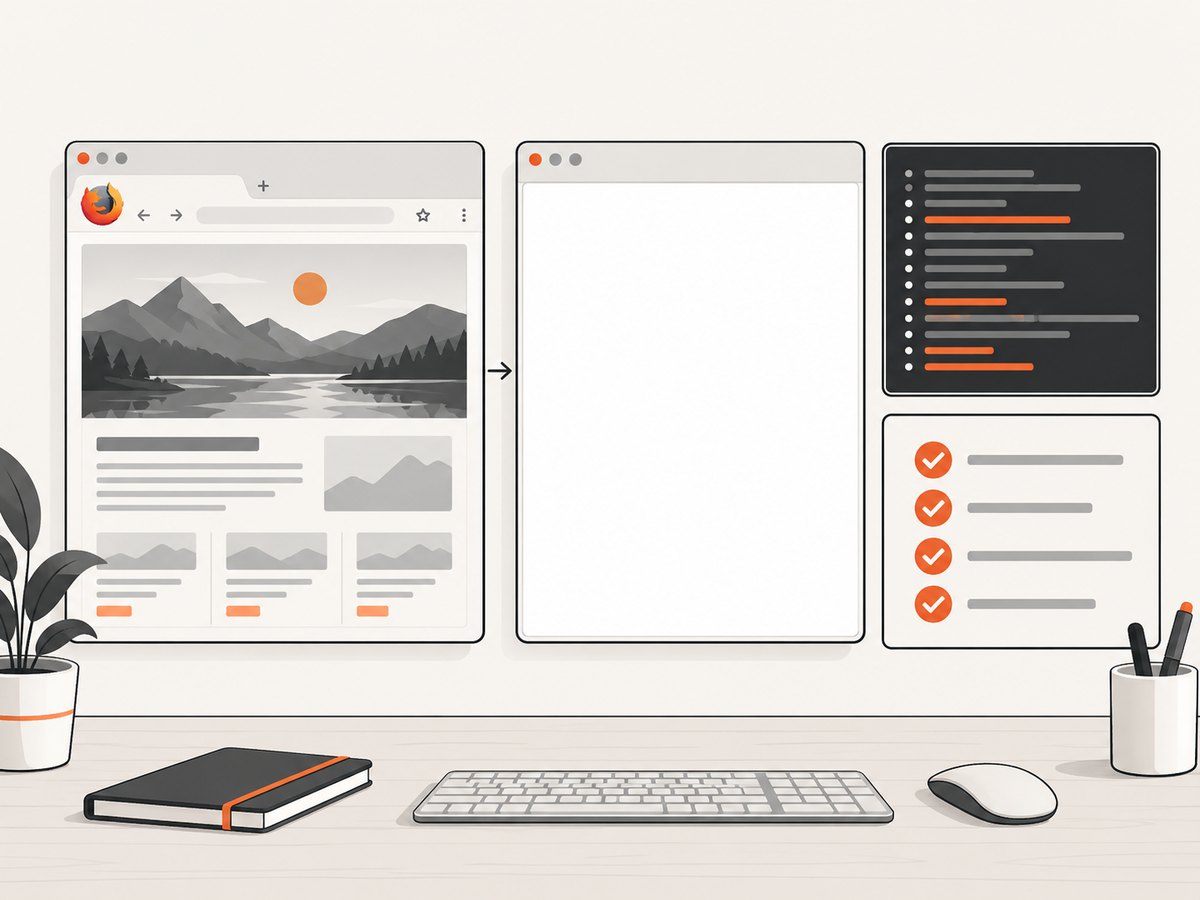
| Observed state | Likely investigation |
|---|---|
| Firefox window is also white | Page loading, site behavior, JavaScript errors, blocked resources, or Firefox rendering. |
| Headed Firefox is correct; headless image is white | Headless-specific timing, viewport, graphics, or environment differences. |
| Both modes display the page, but the file is white | Capture timing, driver/session state, profile access, or a minimal reproduction is needed. |
| Only one site is affected | That site’s scripts, redirects, authentication, bot checks, or rendering path. |
| Every URL is affected | Version compatibility, browser startup, profile permissions, packaging, or the capture environment. |
These are diagnostic inferences. Official Selenium and Mozilla documentation explains Firefox options, logging, profiles, and sandbox-related failures, but does not assign one guaranteed cause to every white screenshot.
2. Capture the evidence before changing variables
Write down this tuple for every failing run:
- Selenium language binding and version
- Firefox version and binary path
- geckodriver version and executable path
- Operating system, architecture, and container or CI image
- Headed or headless mode, display server, and viewport size
- Firefox package source, especially Snap or Flatpak on Linux
- Target URL, redirects, authentication state, and capture timestamp
- When the screenshot is taken and what ready condition was used
- geckodriver and browser logs
Change one variable at a time. Keep the URL, code, viewport, and wait condition constant while comparing headed versus headless, package sources, or driver versions.
3. Minimal runnable Selenium reproduction in Python
This example saves a screenshot and an HTML dump, waits for a document-ready state, and records geckodriver output. Replace the URL with the failing page.
from pathlib import Path
import time
from selenium import webdriver
from selenium.webdriver.firefox.options import Options
from selenium.webdriver.firefox.service import Service
from selenium.webdriver.support.ui import WebDriverWait

URL = 'https://example.com'
OUT = Path('firefox-repro')
OUT.mkdir(exist_ok=True)

options = Options()
# Start headed while diagnosing. Set True only for a headless comparison.
options.headless = False
options.add_argument('--width=1280')
options.add_argument('--height=900')

service = Service(log_output=str(OUT / 'geckodriver.log'))
driver = webdriver.Firefox(options=options, service=service)
try:
    driver.get(URL)
    WebDriverWait(driver, 30).until(
        lambda d: d.execute_script('return document.readyState') == 'complete'
    )
    time.sleep(1)
    print('current_url:', driver.current_url)
    print('title:', driver.title)
    print('body_text_length:', len(driver.find_element('tag name', 'body').text))
    driver.save_screenshot(str(OUT / 'page.png'))
    (OUT / 'page.html').write_text(driver.page_source, encoding='utf-8')
finally:
    driver.quit()
If the headed browser is populated but page.png is white, run exactly the same script with options.headless = True. Preserve both images, the HTML dump, and the log.
4. Headless, headed, and timing checks
Compare the live page with the saved image
Do not treat navigation completion as proof that a dynamic application has finished drawing. Inspect the window before capture when possible. For an application-specific ready condition, wait for a stable element rather than an arbitrary long sleep:
from selenium.webdriver.common.by import By
from selenium.webdriver.support import expected_conditions as EC

WebDriverWait(driver, 30).until(
    EC.visibility_of_element_located((By.CSS_SELECTOR, '[data-page-ready]'))
)
If no reliable marker exists, wait for a known content condition, verify that the body contains expected text, and capture after the page’s own loading sequence has completed. A blank result can simply be a capture taken before the application paints.
Check viewport and page geometry
Log the viewport and document dimensions before saving:
print(driver.execute_script('''return {
  innerWidth: window.innerWidth,
  innerHeight: window.innerHeight,
  scrollWidth: document.documentElement.scrollWidth,
  scrollHeight: document.documentElement.scrollHeight,
  visibility: document.visibilityState
}'''))
A zero-sized or unexpected viewport, a page hidden by application logic, or a document with no content changes the interpretation of a white file. Fix the environment or page state before blaming the screenshot command.
5. Verify Selenium, Firefox, and geckodriver compatibility
Use the current compatible releases for all three components. Selenium’s Firefox guide states that Selenium 4 requires Firefox 78 or greater and recommends the latest geckodriver. Print versions from the same environment that runs the test:
python -c 'import selenium; print(selenium.__version__)'
firefox --version
geckodriver --version
which firefox
which geckodriver
Do not assume that a system geckodriver is the one Selenium actually launches. Check the path, permissions, architecture, and container image. If a recent upgrade introduced the failure, reproduce with the previous known-good tuple and then upgrade one component at a time.
6. Enable and read geckodriver logs
Selenium documents Firefox driver logging and configurable levels. The Python Service object above writes logs to a file. For more detail, launch geckodriver with debug or trace logging when appropriate:
geckodriver --log debug --port 4444Look around navigation and screenshot time for profile startup failures, Marionette connection errors, process exits, permission errors, or requests that never complete. Keep the complete log with the image and version tuple. A log line is evidence about that run; it is not proof that the same cause explains every white screenshot.
7. Check Snap, Flatpak, containers, and profile access
Sandboxed Firefox packages can see a different filesystem from the host. Mozilla’s geckodriver usage documentation says that, on Ubuntu with the default Snap Firefox, the driver path under /snap/bin is important so geckodriver runs in the correct Snap environment. It also documents using a profile root accessible to both processes. See Mozilla’s geckodriver usage guide and the profile-root flag documentation.
Mozilla’s documented checks are:
- Confirm whether Firefox came from Snap or Flatpak.
- Use the matching packaged geckodriver where the package requires it, such as
/snap/bin/geckodriverfor the documented Ubuntu Snap setup. - Ensure the temporary profile directory is readable and writable by both Firefox and geckodriver.
- Set
--profile-rootto a shared writable directory when the default temporary directory is outside the sandbox’s view. - On Unix, set
TMPDIRto a shared writable directory when that is the documented workaround for the installed versions.
mkdir -p "$HOME/firefox-profile-root"
chmod 700 "$HOME/firefox-profile-root"
geckodriver --profile-root "$HOME/firefox-profile-root" --log debug
Mozilla release notes describe historical sandbox profile-access failures and workarounds involving --profile-root or TMPDIR. Verify the guidance against your installed Firefox and geckodriver versions instead of treating profile access as the universal explanation.
8. A focused troubleshooting table
| Symptom | Cause to check | Action |
|---|---|---|
| Firefox never starts or hangs | Profile directory is inaccessible in a Snap, Flatpak, or container. | Check package paths and use a shared --profile-root; inspect startup logs. |
| Headed works, headless is white | Headless timing, viewport, graphics, or page behavior differs. | Keep the same URL and dimensions, compare logs and DOM state, and add an application-specific wait. |
| Browser window is white too | The page did not render or the site returned blank content. | Inspect redirects, page source, body text, console or network behavior, and authentication. |
| Only dynamic pages fail | Capture occurs before the application paints. | Wait for a stable selector or content condition, then verify it before capture. |
| Only one environment fails | Different binary, package, permissions, display, or versions. | Print the full tuple and reproduce in a controlled environment. |
| Driver exits during capture | Session startup, Marionette, process, or resource failure. | Read the geckodriver log, reduce to one URL, and check browser and driver compatibility. |
| Image is white but DOM contains expected text | Rendering or capture-path issue rather than navigation. | Save HTML, preserve the visible headed comparison, and report a minimal reproduction with logs. |
9. Reduce the case to a reportable minimal reproduction
- Use one public URL or a local static page.
- Use one browser session and one screenshot call.
- Run headed and headless with the same viewport.
- Use a fresh temporary profile.
- Wait for a specific ready condition.
- Save the PNG, page source, current URL, dimensions, versions, package details, and geckodriver log.
- Change only one variable per comparison.
This evidence separates a page-rendering problem from a driver or environment problem and prevents an unverified workaround from being presented as a confirmed fix.
10. Performance, reliability, and cost considerations
- Keep browser sessions short and isolate failures to reduce profile and state leakage.
- Use a deterministic viewport and ready condition so image differences are meaningful.
- Cache dependencies in CI, but record the exact Firefox and geckodriver versions used by each job.
- Retain logs and failed images for intermittent failures; otherwise timing problems are difficult to distinguish from rendering problems.
- Do not add large fixed sleeps everywhere. A condition tied to the application usually reduces unnecessary wait time while preserving correctness.
- For high-volume capture, account for browser startup, memory, profile creation, and retries. A retry should preserve the original failure evidence.
11. Or skip the browser setup
If you need website images rather than a Firefox debugging session, ScreenshotNeo provides a single HTTP request for PNG, JPEG, WebP, or PDF output. Its capture pipeline accepts cookie and consent banners like a visitor, then removes more than 60 known consent platforms, newsletter popups, and chat widgets before the shot; each step can be turned off.
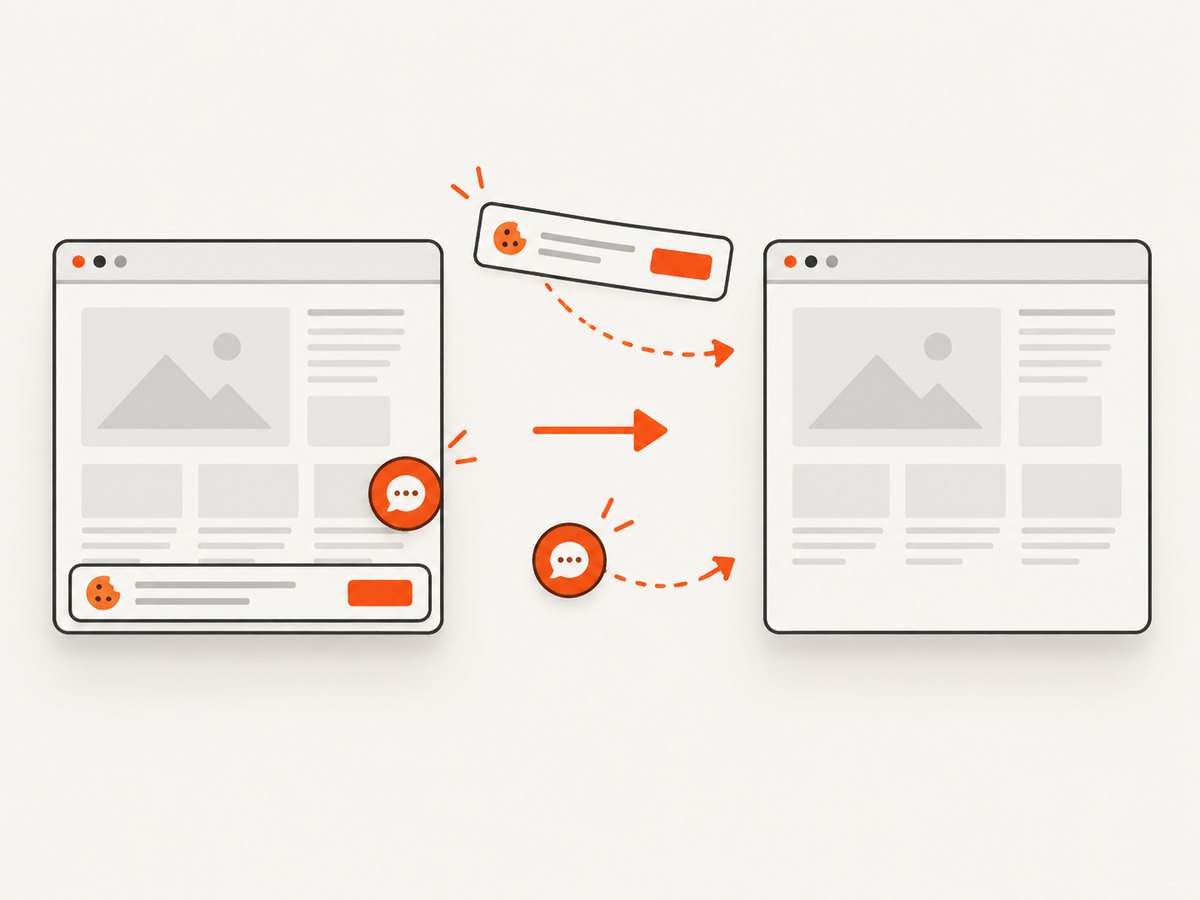
Only clean shots are billed. Bot checks or CAPTCHAs, blank pages, timeouts, failed loads, and cache hits cost nothing, and each response reports the result through X-Page-Verdict and X-Billed headers. It also provides an MCP server for Claude, Cursor, and other MCP clients with take_screenshot, get_page_info, and capture_pdf tools.
See the ScreenshotNeo API documentation for all options.
cURL
curl -G 'https://api.screenshotneo.com/v1/shot' -d access_key=YOUR_API_KEY --data-urlencode url=https://stripe.com -o shot.webpPython
import requests
r = requests.get('https://api.screenshotneo.com/v1/shot', params={'access_key': 'YOUR_API_KEY', 'url': 'https://stripe.com'}, timeout=90)
open('shot.webp', 'wb').write(r.content)
Node.js
const q = new URLSearchParams({ access_key: 'YOUR_API_KEY', url: 'https://stripe.com' });
const res = await fetch(`https://api.screenshotneo.com/v1/shot?${q}`);
Plans include 1,000 screenshots a month free with no card; paid plans start at $5 for 3,000 shots. Every feature is on every plan. Create a free ScreenshotNeo account.
12. FAQ
Does a white PNG prove geckodriver is broken?
No. It only proves that the saved pixels were white. Compare the live headed page, DOM state, logs, and a minimal reproduction.
Should I always use headless Firefox?
No. Use headed mode as a diagnostic comparison, then choose the mode that is reliable in your deployment environment.
Is Snap Firefox unsupported?
Not automatically. Mozilla documents package-specific filesystem and driver-path considerations. Confirm that both processes can access the generated profile.
What should I include in a bug report?
Include the URL or a reproducible test page, PNG, page source, headed/headless result, Selenium, Firefox, and geckodriver versions, package source, operating system, viewport, capture timing, and logs.


