Where Selenium’s getScreenshotAs Method Is Defined and How It Works
Learn where Selenium's getScreenshotAs method is declared, how WebDriver captures images, which OutputType to choose, and how to handle common failures.
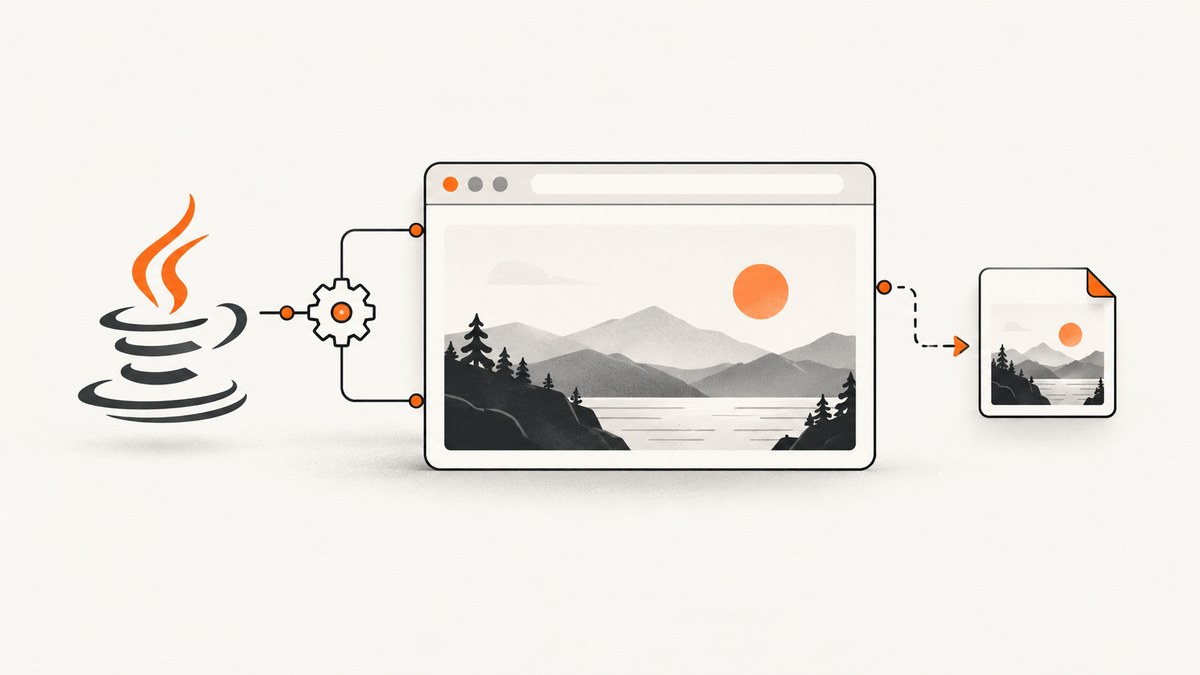
Direct answer: Selenium’s Java getScreenshotAs method is declared by the org.openqa.selenium.TakesScreenshot interface. Drivers such as RemoteWebDriver implement that interface, and WebElement is a known subinterface. The method signature is <X> X getScreenshotAs(OutputType<X> target). The OutputType argument determines whether Java returns a temporary File, a Base64 String, or a byte[]. It does not change what part of the page the browser captures.
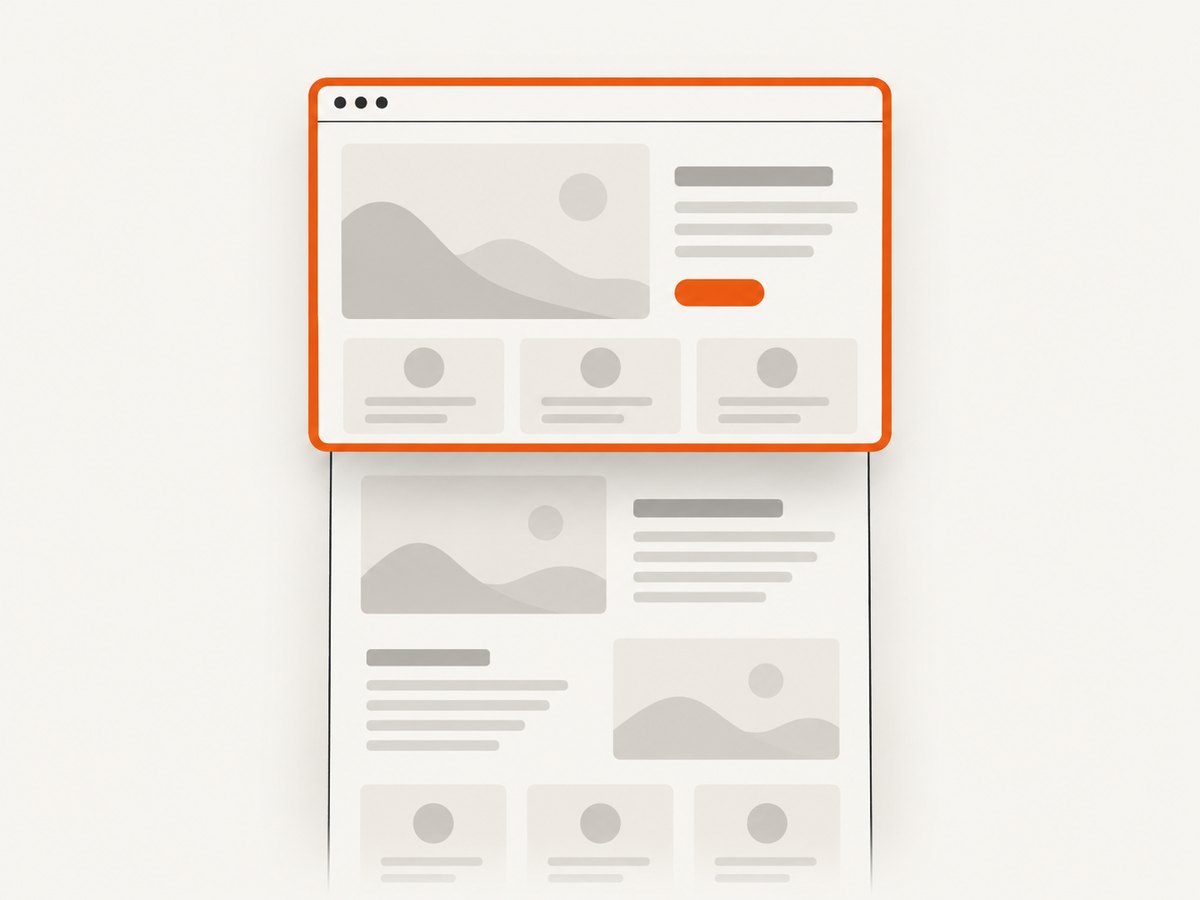
The normal driver screenshot is a PNG of the visual viewport. It is not automatically a full, scrollable-page screenshot. Element screenshots use a separate WebDriver endpoint and capture the element’s visible region after Selenium scrolls it into view. Firefox also documents a separate full-page extension called getFullPageScreenshotAs.
Primary references are the Selenium Java API for TakesScreenshot, the Selenium screenshot guide, and the W3C WebDriver specification.
1. Where the method is defined
The declaration lives in Selenium’s TakesScreenshot interface:
package org.openqa.selenium;

public interface TakesScreenshot {
    <X> X getScreenshotAs(OutputType<X> target)
        throws WebDriverException;
}
An interface declares a capability. The concrete object you call it on supplies the implementation. A typical browser driver is therefore used through a cast:
import org.openqa.selenium.OutputType;
import org.openqa.selenium.TakesScreenshot;
import org.openqa.selenium.WebDriver;
import org.openqa.selenium.chrome.ChromeDriver;

WebDriver driver = new ChromeDriver();
File image = ((TakesScreenshot) driver)
        .getScreenshotAs(OutputType.FILE);
RemoteWebDriver provides a public implementation for remote and local sessions. Drivers and elements that support screenshot capture implement TakesScreenshot. Selenium documents that W3C-conformant implementations follow the WebDriver screenshot behavior; older or nonconformant implementations may provide browser-dependent, best-effort results.
2. What happens during a capture
At the protocol level, Selenium sends a screenshot command to the active session. The standard endpoint is GET /session/{session id}/screenshot. The remote end captures the top-level browsing context’s visual viewport and returns a lossless PNG encoded as Base64. Selenium decodes or converts that response according to the requested OutputType.
- Your test navigates to a URL and performs any required waits or interactions.
- Selenium sends the driver screenshot command.
- The browser driver captures the current viewport, including the rendered pixels visible in that viewport.
- The driver returns PNG data to Selenium.
- Selenium exposes that data as a file, byte array, or Base64 string.
The standard driver command does not promise the entire document height. A page can be much taller than the viewport, and content below the fold is normally absent. Full-page behavior varies by browser and driver. Treat Firefox’s getFullPageScreenshotAs as a separate capability instead of assuming that getScreenshotAs scrolls and stitches every browser automatically.
3. Choosing FILE, BYTES, or BASE64
| OutputType | Java result | Use it when | Important detail |
|---|---|---|---|
FILE |
java.io.File |
You want a filesystem-oriented workflow | The file is temporary and is deleted when the JVM exits. Copy it to a permanent path. |
BYTES |
byte[] |
You will upload, hash, process, or write the PNG yourself | Avoids an intermediate temporary file. |
BASE64 |
String |
An API, JSON document, or HTML data URL expects Base64 | It is encoded image data, not a filesystem path. |
Saving a permanent file
import java.io.File;
import org.apache.commons.io.FileUtils;
import org.openqa.selenium.OutputType;
import org.openqa.selenium.TakesScreenshot;

File temporary = ((TakesScreenshot) driver)
        .getScreenshotAs(OutputType.FILE);
File destination = new File("artifacts/home.png");
FileUtils.copyFile(temporary, destination);
Create the destination directory before copying, and give each parallel test a unique filename. If you only need the bytes, Java NIO avoids the temporary-file lifecycle:
import java.nio.file.Files;
import java.nio.file.Path;
import org.openqa.selenium.OutputType;
import org.openqa.selenium.TakesScreenshot;

byte[] png = ((TakesScreenshot) driver)
        .getScreenshotAs(OutputType.BYTES);
Files.write(Path.of("artifacts", "home.png"), png);
For an inline HTML image, prepend data:image/png;base64, to the Base64 result. The representation changes; the screenshot scope does not.
4. Driver screenshots versus element screenshots
A driver screenshot captures the viewport. An element screenshot uses the endpoint GET /session/{session id}/element/{element id}/screenshot. Selenium scrolls the target element into view, then captures the region described by its bounding rectangle. Depending on the implementation, the result may be the visible portion or the complete element content.
import org.openqa.selenium.By;
import org.openqa.selenium.OutputType;
import org.openqa.selenium.WebElement;

WebElement card = driver.findElement(By.cssSelector(".pricing-card"));
byte[] cardPng = card.getScreenshotAs(OutputType.BYTES);
Files.write(Path.of("artifacts", "pricing-card.png"), cardPng);
Element capture is useful for assertions and focused documentation images. It can still be affected by sticky headers, clipping, CSS transforms, animations, and lazy content. Wait for the element to be present and visible, and disable motion when pixel stability matters.
5. Full-page capture and viewport limits
Do not infer full-page behavior from the method name. Standard WebDriver capture is viewport-oriented. If you need a complete page, choose a documented browser-specific capability or build a controlled scroll-and-stitch workflow.
Firefox full-page extension
import java.io.File;
import org.openqa.selenium.firefox.FirefoxDriver;
import org.openqa.selenium.firefox.FirefoxOptions;
import org.openqa.selenium.OutputType;

FirefoxDriver driver = new FirefoxDriver(new FirefoxOptions());
File fullPage = driver.getFullPageScreenshotAs(OutputType.FILE);
FileUtils.copyFile(fullPage, new File("artifacts/full-page.png"));
This API is separate from TakesScreenshot.getScreenshotAs. Verify support in the exact browser and driver versions used by your CI environment.
When stitching is unavoidable
A custom stitcher must account for fixed headers, overlapping pixels, device scale factor, scrollbars, lazy-loaded images, and content that changes while scrolling. A page that loads more content at each scroll position may never have one stable height. For visual regression, prefer a deterministic page state and a browser capability that explicitly documents full-page behavior.
6. A complete Java example
import java.nio.file.Files;
import java.nio.file.Path;
import java.time.Duration;

import org.openqa.selenium.By;
import org.openqa.selenium.OutputType;
import org.openqa.selenium.TakesScreenshot;
import org.openqa.selenium.WebDriver;
import org.openqa.selenium.WebElement;
import org.openqa.selenium.chrome.ChromeDriver;
import org.openqa.selenium.support.ui.ExpectedConditions;
import org.openqa.selenium.support.ui.WebDriverWait;

public class CaptureScreenshot {
    public static void main(String[] args) throws Exception {
        Path outputDir = Path.of("artifacts");
        Files.createDirectories(outputDir);

        WebDriver driver = new ChromeDriver();
        try {
            driver.manage().window().setSize(new org.openqa.selenium.Dimension(1440, 900));
            driver.get("https://example.com");

            WebDriverWait wait = new WebDriverWait(driver, Duration.ofSeconds(15));
            wait.until(ExpectedConditions.presenceOfElementLocated(By.tagName("body")));

            byte[] viewport = ((TakesScreenshot) driver)
                    .getScreenshotAs(OutputType.BYTES);
            Files.write(outputDir.resolve("viewport.png"), viewport);

            WebElement heading = driver.findElement(By.tagName("h1"));
            byte[] headingImage = heading.getScreenshotAs(OutputType.BYTES);
            Files.write(outputDir.resolve("heading.png"), headingImage);
        } finally {
            driver.quit();
        }
    }
}
The example waits for a stable DOM landmark, sets a repeatable viewport, saves bytes directly, and always closes the session. In a real test, wait for the specific application state that makes the pixels meaningful: fonts loaded, data rendered, animations finished, and overlays dismissed.
7. Common errors and fixes
| Symptom | Likely cause | Fix |
|---|---|---|
ClassCastException |
The driver does not implement TakesScreenshot. |
Check driver support and use a W3C-conformant browser driver. |
UnsupportedOperationException |
The underlying implementation does not support screenshots. | Use a supported driver/version or a different capture strategy. |
WebDriverException |
The browser session, transport, or screenshot command failed. | Check session logs, driver compatibility, browser startup, and remote connectivity; retry only after identifying transient failures. |
| Blank or partially rendered image | Capture happened before the page settled. | Wait for a meaningful selector, network completion, fonts, images, or application-specific readiness. |
| Only the visible portion appears | That is normal for standard element and driver screenshots. | Use a documented full-page API or implement controlled stitching. |
| File disappears later | OutputType.FILE returns a temporary file. |
Copy it immediately to a permanent destination. |
| Different pixels in CI | Viewport, scale factor, fonts, timezone, animations, or browser versions differ. | Pin browser settings, set the window size, disable motion, install identical fonts, and compare within a controlled environment. |
8. Reliability and performance practices
- Wait for state, not arbitrary time. A selector or application-ready condition is usually more reliable than a fixed sleep.
- Control the viewport. Set width and height explicitly so responsive breakpoints do not change between machines.
- Freeze motion. Inject a test stylesheet that disables transitions and animations when visual comparisons require stable pixels.
- Use bytes for pipelines.
BYTESavoids temporary-file cleanup and is convenient for object storage or image comparison. - Keep artifacts on failure. Save screenshots, browser logs, and the URL when a test fails.
- Limit retries. Retrying a failed capture can hide deterministic defects such as unsupported commands or bad selectors.
- Budget memory. Large viewport dimensions and high device pixel ratios produce larger PNGs. Release byte arrays after upload and avoid retaining every screenshot in a long-running suite.
- Parallelize safely. Use isolated driver sessions and unique output paths; a screenshot command is tied to one session’s current browsing context.
9. Security, authentication, and sensitive pages
Selenium captures whatever the active session can see, including authenticated data, personal information, and secrets rendered in the DOM. Store artifacts in access-controlled locations, avoid logging Base64 payloads, and remove screenshots from shared CI logs when they contain sensitive content. Use test accounts and synthetic data for repeatable runs.
Cookies, local storage, HTTP authentication, and custom headers must be established in the browser session before capture. A screenshot does not prove that a page finished loading or that an API request succeeded; it only records rendered pixels at the moment of capture.
10. Or skip the browser setup
If you need a screenshot service instead of managing WebDriver sessions, ScreenshotNeo provides one GET request that returns PNG, JPEG, WebP, or PDF. Its API and examples are documented at the ScreenshotNeo docs.
curl -G "https://api.screenshotneo.com/v1/shot" -d access_key=YOUR_API_KEY --data-urlencode url=https://stripe.com -o shot.webpimport requests
r = requests.get("https://api.screenshotneo.com/v1/shot", params={"access_key": "YOUR_API_KEY", "url": "https://stripe.com"}, timeout=90)
open("shot.webp", "wb").write(r.content)const q = new URLSearchParams({ access_key: 'YOUR_API_KEY', url: 'https://stripe.com' });
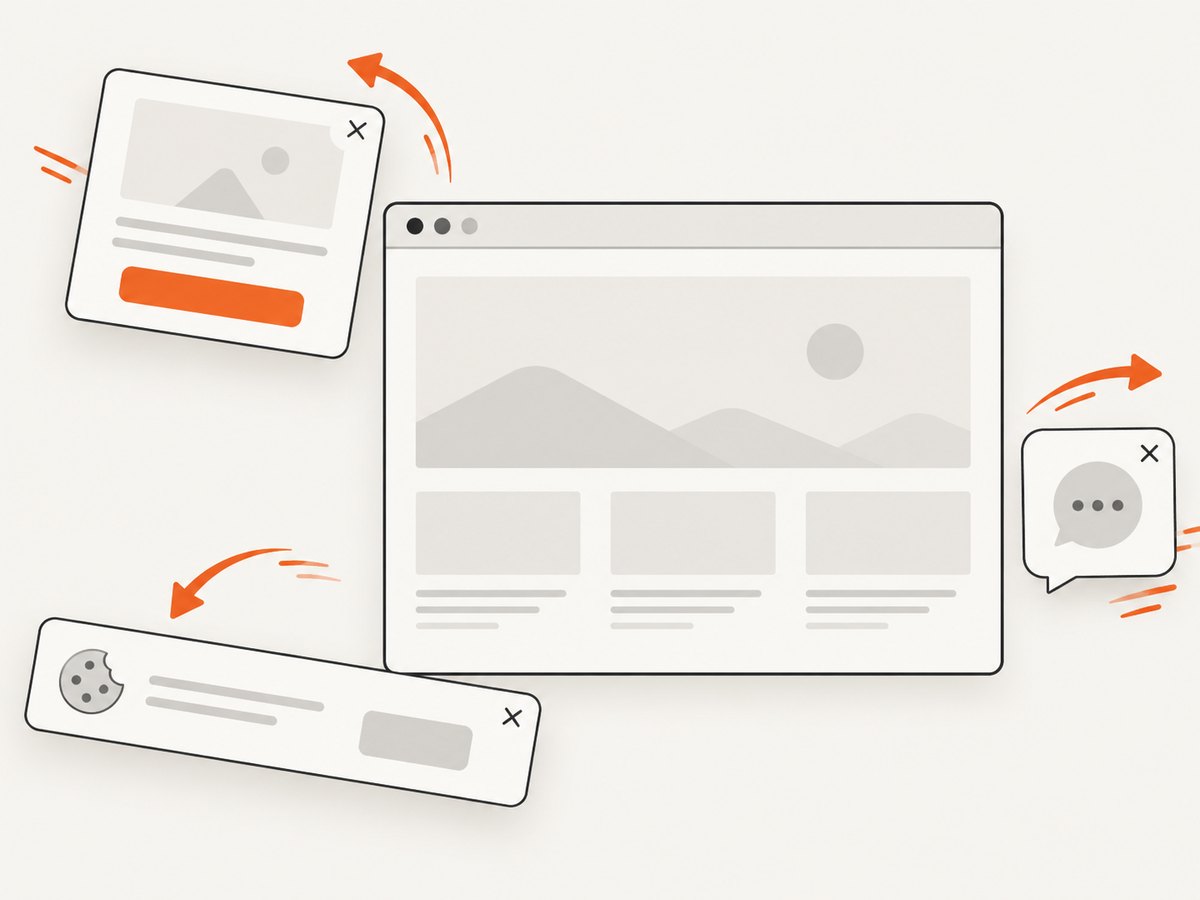
const res = await fetch(`https://api.screenshotneo.com/v1/shot?${q}`);ScreenshotNeo removes cookie and consent banners, newsletter popups, and chat widgets before capture. Bot checks, blank pages, timeouts, failed loads, and cache hits are not billed, and response headers identify the page verdict and billing result. It also offers an MCP server with take_screenshot, get_page_info, and capture_pdf tools for Claude, Cursor, and other MCP clients. You can use full-page capture, element selectors, device presets, custom CSS and JavaScript, waits, request blocking, headers, cookies, user agents, geolocation, caching, signed links, asynchronous jobs, bulk capture, and PDF settings without running a browser yourself. The free plan includes 1,000 screenshots per month with no card; paid plans start at $5 for 3,000 screenshots. Create a free ScreenshotNeo account.
11. Cost and architecture decisions
Self-hosted Selenium costs more than the API call alone: you maintain browser binaries, drivers, machines, fonts, sandbox settings, parallel capacity, artifact storage, and failure recovery. It remains the right choice when a test must interact deeply with an application, execute custom in-browser code, or validate behavior inside your own test harness.
An API is attractive for scheduled previews, documentation images, content pipelines, and high-volume URL capture. Compare total operating cost, required authentication controls, acceptable latency, and whether you need a browser session that persists across multiple actions. For either approach, cache deterministic pages and avoid capturing more often than the consumer needs.
12. FAQ
Is getScreenshotAs a static method?
No. It is an instance method declared by TakesScreenshot and implemented by supported drivers or elements.
Does OutputType.BYTES create a JPEG?
No. The WebDriver screenshot response is a PNG. The output type changes the Java representation, not the image format.
Can I call it before navigation?
Usually, but the result will reflect the current document, such as the initial blank page. Navigate and wait for the intended state first.
Why does my screenshot omit content below the fold?
Standard driver capture is viewport-oriented. Use a documented full-page capability or a deliberate stitching workflow.
Can every browser capture an element?
Support and scope depend on the driver implementation. W3C-conformant drivers follow the element screenshot endpoint; nonconformant implementations may vary.
13. Practical checklist
- Cast the driver or element to
TakesScreenshot. - Choose
FILE,BYTES, orBASE64based on the consumer. - Copy temporary files before the JVM exits.
- Wait for application readiness and disable unstable animation.
- Set viewport dimensions and browser versions consistently.
- Expect viewport scope unless a full-page capability is explicitly documented.
- Handle
WebDriverExceptionandUnsupportedOperationException. - Protect screenshots that contain authenticated or personal data.


