Why Selenium Screenshot Results Can Be False After Capture
Selenium can save a valid PNG while the page is still changing. Learn why screenshots are blank, stale or wrong—and how to capture a verified state.

A Selenium screenshot can be a valid image file and still show the wrong page state. Selenium captures the browser’s current rendered pixels; it does not prove that JavaScript, network requests, fonts, animations, lazy images or canvas rendering have finished.
The reliable fix is to wait for the application condition that defines readiness, then verify the capture surface and image itself. Do not use document.readyState === "complete" or a successful save_screenshot() call as visual proof.
What “false after capture” means
A false screenshot is visually misleading even though Selenium reports success. Typical examples include:
- A blank shell before an SPA inserts its data.
- The old page immediately after clicking a link or submitting a form.
- A spinner, transition frame or partially moved component.
- Text rendered with fallback fonts before web fonts arrive.
- Images, canvas or WebGL content that appears after the DOM condition passes.
- A valid screenshot from the wrong window, iframe, scroll position or viewport.
Selenium’s waits documentation explains that readyState covers assets declared in HTML, while loaded JavaScript can continue changing the page and race with the next command (Selenium waits documentation).
The capture sequence that avoids false screenshots
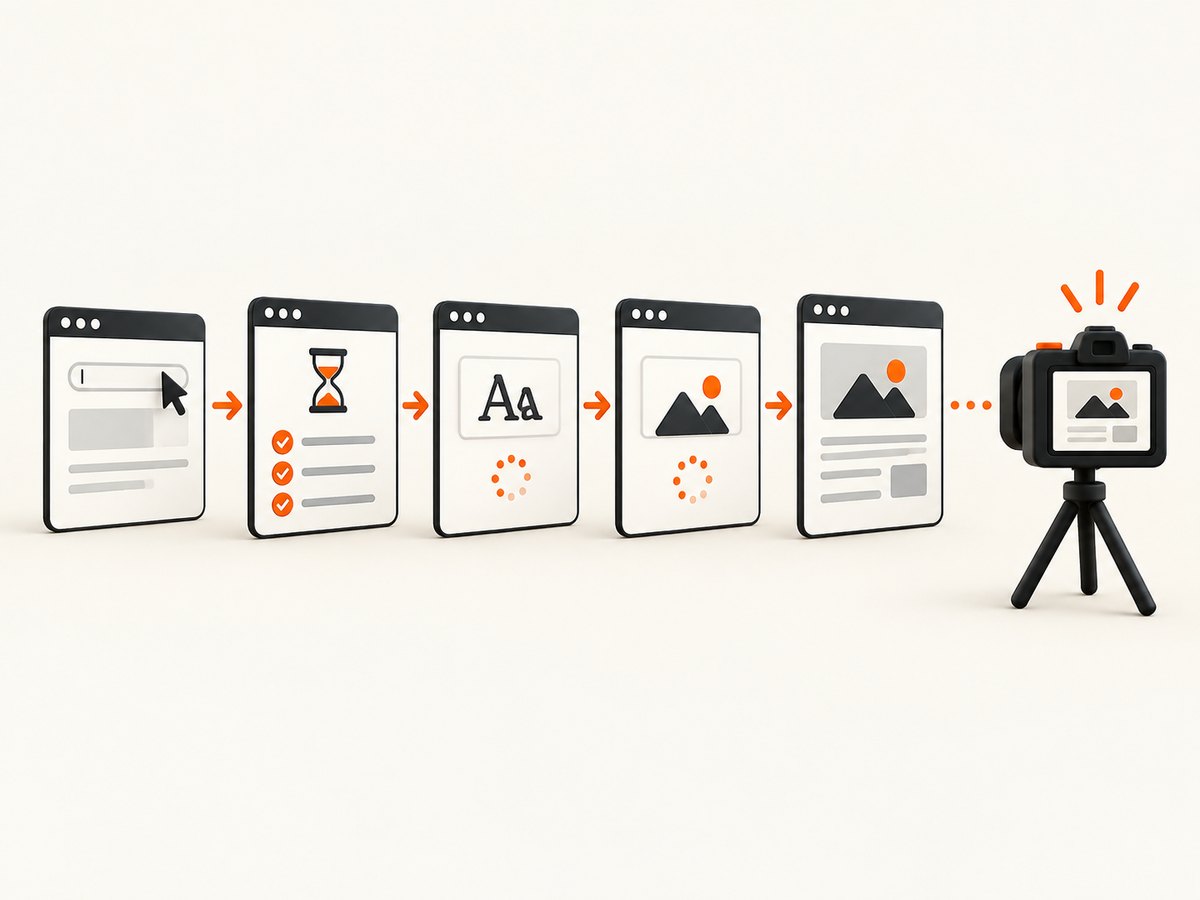
- Navigate or perform the user action.
- Wait for an application-specific readiness marker: expected text, a visible result element, a stable attribute or a loading mask disappearing.
- Wait for fonts and relevant images, canvas or WebGL content.
- Disable animations where possible, or wait until geometry and styles stop changing.
- Confirm the intended window, frame, viewport, scroll position and device scale factor.
- Capture the screenshot.
- Validate the file path, byte size, dimensions and (for regression tests) pixels.
Python: a complete, condition-based example
Install Selenium with pip install selenium. Recent Selenium releases can manage a compatible browser driver automatically.
from pathlib import Path
import time
from selenium import webdriver
from selenium.webdriver.common.by import By
from selenium.webdriver.support.ui import WebDriverWait
from selenium.webdriver.support import expected_conditions as EC

URL = "https://example.com/dashboard"
OUT = Path("artifacts/dashboard.png").resolve()
OUT.parent.mkdir(parents=True, exist_ok=True)

options = webdriver.ChromeOptions()
options.add_argument("--headless=new")
options.add_argument("--window-size=1440,1000")
options.add_argument("--force-device-scale-factor=1")

driver = webdriver.Chrome(options=options)
wait = WebDriverWait(driver, 30, poll_frequency=0.2)
try:
    driver.get(URL)

    # Replace these selectors with signals from your application.
    wait.until(EC.visibility_of_element_located((By.CSS_SELECTOR, "[data-page-ready='true']")))
    wait.until(EC.invisibility_of_element_located((By.CSS_SELECTOR, ".loading-mask")))
    wait.until(EC.text_to_be_present_in_element((By.CSS_SELECTOR, "h1"), "Dashboard"))

    # Wait for fonts and images used by the captured surface.
    wait.until(lambda d: d.execute_script("return document.fonts ? document.fonts.status === 'loaded' : true"))
    wait.until(lambda d: d.execute_script("""
        return [...document.images].every(img => img.complete &&
            (img.naturalWidth > 0 || img.src.startsWith('data:')));
    """))

    # Freeze CSS motion for deterministic output.
    driver.execute_script("""
        const style = document.createElement('style');
        style.id = 'screenshot-freeze';
        style.textContent = `*, *::before, *::after {
          animation: none !important;
          transition: none !important;
          caret-color: transparent !important;
        }`;
        document.head.appendChild(style);
    """)

    # Require the layout signature to be identical in two polls.
    def stable_layout(d):
        signature = d.execute_script("""
            const el = document.querySelector('[data-page-ready="true"]');
            if (!el) return null;
            const r = el.getBoundingClientRect();
            return [r.x, r.y, r.width, r.height,
                    getComputedStyle(el).opacity].join('|');
        """)
        if not hasattr(stable_layout, "last") or stable_layout.last != signature:
            stable_layout.last = signature
            stable_layout.count = 0
        stable_layout.count += 1
        return signature if signature and stable_layout.count >= 2 else False

    wait.until(stable_layout)

    # Make the intended capture context explicit.
    assert len(driver.window_handles) == 1
    assert driver.execute_script("return window.top === window.self")
    driver.execute_script("window.scrollTo(0, 0)")

    assert driver.save_screenshot(str(OUT))
    assert OUT.exists() and OUT.stat().st_size > 0
    print(f"saved {OUT} ({OUT.stat().st_size} bytes)")
finally:
    driver.quit()
The selectors are examples. Your readiness contract should come from the application, such as a server-rendered marker, a framework state flag or a result count that only appears after data loading.
Node.js Selenium example
Install the bindings with npm install selenium-webdriver.
const { Builder, By, until } = require('selenium-webdriver');
const chrome = require('selenium-webdriver/chrome');
const fs = require('node:fs/promises');
const path = require('node:path');

(async () => {
  const options = new chrome.Options()
    .addArguments('--headless=new', '--window-size=1440,1000', '--force-device-scale-factor=1');
  const driver = await new Builder().forBrowser('chrome').setChromeOptions(options).build();
  const output = path.resolve('artifacts/dashboard.png');
  try {
    await fs.mkdir(path.dirname(output), { recursive: true });
    await driver.get('https://example.com/dashboard');

    await driver.wait(until.elementIsVisible(
      await driver.findElement(By.css("[data-page-ready='true']"))
    ), 30000);
    await driver.wait(async () => {
      return await driver.executeScript("return !document.querySelector('.loading-mask')");
    }, 30000);
    await driver.wait(async () => {
      return await driver.executeScript("return document.fonts ? document.fonts.status === 'loaded' : true");
    }, 30000);
    await driver.wait(async () => {
      return await driver.executeScript(`return [...document.images].every(img =>
        img.complete && (img.naturalWidth > 0 || img.src.startsWith('data:')))`);
    }, 30000);

    await driver.executeScript(`
      const s = document.createElement('style');
      s.textContent = '*,:before,:after{animation:none!important;transition:none!important;caret-color:transparent!important}';
      document.head.appendChild(s);
      window.scrollTo(0, 0);
    `);

    const image = await driver.takeScreenshot();
    await fs.writeFile(output, image, 'base64');
    const stat = await fs.stat(output);
    if (!stat.size) throw new Error('Screenshot is empty');
    console.log(`saved ${output} (${stat.size} bytes)`);
  } finally {
    await driver.quit();
  }
})();
Why common waiting strategies fail
Waiting for readyState === "complete"
This only describes document loading. Framework code can fetch data, mount components and replace placeholders afterward. Use a condition tied to the state you need.
Sleeping for a fixed number of seconds
sleep(2) may be too short on a busy worker and wastes time on a fast run. Explicit waits poll until a condition is true and expose the condition that failed.
Waiting for one element to exist
Presence in the DOM does not mean visibility, correct text, final dimensions or completed data binding. Combine visibility with the expected content and disappearance of loading UI.
Waiting for network idle alone
Some applications keep analytics or WebSocket requests open; others render from cached data after network activity stops. Network state is useful only when it matches your application’s readiness definition.
Fonts, images, canvas and animations
Fonts and layout shift
Web fonts can load after WebDriver considers the page loaded, changing glyph widths, line wrapping and element positions. WebdriverIO documents this asynchronous font behavior in its visual testing guidance (WebdriverIO visual testing documentation). Wait for document.fonts.ready or an equivalent application signal.
Lazy-loaded images
Intersection observers may not request an image until it enters the viewport. Scroll through the page or trigger the application’s loading path, then verify each relevant image has complete === true and a nonzero naturalWidth. A broken image can satisfy complete, so check dimensions too.
Canvas and WebGL
Canvas pixels are not represented by ordinary DOM readiness. Wait for the application’s render-complete flag, a known frame counter or a stable pixel-producing state. For WebGL, keep browser, GPU and headless settings consistent.
Transitions and animations
A capture during a fade or movement is an intermediate state. Inject a test stylesheet that disables animation and transition when the product allows it. Otherwise wait for a final class, opacity, transform or bounding rectangle and verify it remains unchanged across two polls.
Capture surface: window, frame, viewport or full page
Screenshot behavior is implementation-scoped. Selenium documents a best-effort order that can involve the entire page, current window, visible frame or display for non-conforming implementations (Selenium screenshot documentation). Confirm what your driver supports before treating an image as a full-page baseline.
- Window: verify the active window handle and window size.
- Frame: switch into the intended iframe before locating or capturing its content, then switch back when needed.
- Viewport: set width, height and device scale factor explicitly.
- Full page: use a driver feature that supports it, or scroll and stitch deliberately; do not assume a viewport screenshot contains the document.
- Scroll position: set it explicitly before capture, especially after lazy loading.
File success is not visual validation
Python’s save_screenshot() return value is an I/O result. It indicates that the file was saved, not that the pixels are correct (Selenium Python API).
Record the absolute path, timestamp, byte size and image dimensions. For visual regression, compare pixels against a baseline in a controlled environment and retain the actual artifact plus diagnostic metadata. A valid PNG with the wrong content should fail a visual assertion.
Environment differences that change pixels
Headed and headless runs, operating systems, browser and driver versions, device scale factors, hardware, power settings and browser settings can all affect rendering. Playwright’s screenshot documentation lists these sources of variance (Playwright screenshots documentation).
- Pin the browser and driver versions.
- Use a fixed viewport and device pixel ratio.
- Run comparisons in the same container or worker image.
- Use the same headless mode and font packages.
- Control timezone, locale and reduced-motion settings.
- Store browser logs, console errors and network failures with the image.
Troubleshooting checklist
| Symptom | Likely cause | Fix |
|---|---|---|
| Blank white page | SPA shell captured before data or route rendering | Wait for a route-specific marker, expected text and loading mask removal; inspect console and network errors. |
| Old page after a click | Capture ran before navigation or client-side transition finished | Wait for URL change plus a new-page marker, or wait for the old marker to disappear. |
| Spinner or overlay visible | Loading state is still active | Wait for the overlay to become invisible, not merely present in the DOM. |
| Text wraps differently | Font loading or environment drift | Wait for fonts, install identical fonts and pin browser, OS and DPR. |
| Images missing | Lazy loading, blocked requests or broken URLs | Trigger viewport loading, verify natural dimensions and inspect failed requests. |
| Element is cut off | Wrong viewport, scroll position or capture mode | Set dimensions explicitly and confirm whether the driver captures viewport or full page. |
save_screenshot() returns true but image is wrong |
Only the file write succeeded | Inspect dimensions and pixels; save an absolute path and compare against a baseline. |
| Intermittent differences | Animation, timing, fonts, random data or environment variance | Freeze motion, wait for stable geometry, seed data and pin the execution environment. |
| Screenshot from another page | Multiple windows or an unexpected iframe context | Assert window handles, switch to the intended frame and verify URL before capture. |
Fixed sleep versus explicit waits
| Approach | Determinism | Speed | Diagnosis |
|---|---|---|---|
| Fixed sleep | Weak when load time varies | Always pays the full delay | Failure does not identify the missing condition |
| Explicit condition | Strong when the condition represents readiness | Returns as soon as ready | Timeout names the condition to investigate |
Or skip the browser setup
If you need a clean website image rather than browser-level interaction, ScreenshotNeo provides a GET screenshot API and MCP server. See the ScreenshotNeo API documentation for all options.
curl -G "https://api.screenshotneo.com/v1/shot" -d access_key=YOUR_API_KEY --data-urlencode url=https://stripe.com -o shot.webpimport requests
r = requests.get("https://api.screenshotneo.com/v1/shot", params={"access_key": "YOUR_API_KEY", "url": "https://stripe.com"}, timeout=90)
open("shot.webp", "wb").write(r.content)const q = new URLSearchParams({ access_key: 'YOUR_API_KEY', url: 'https://stripe.com' });
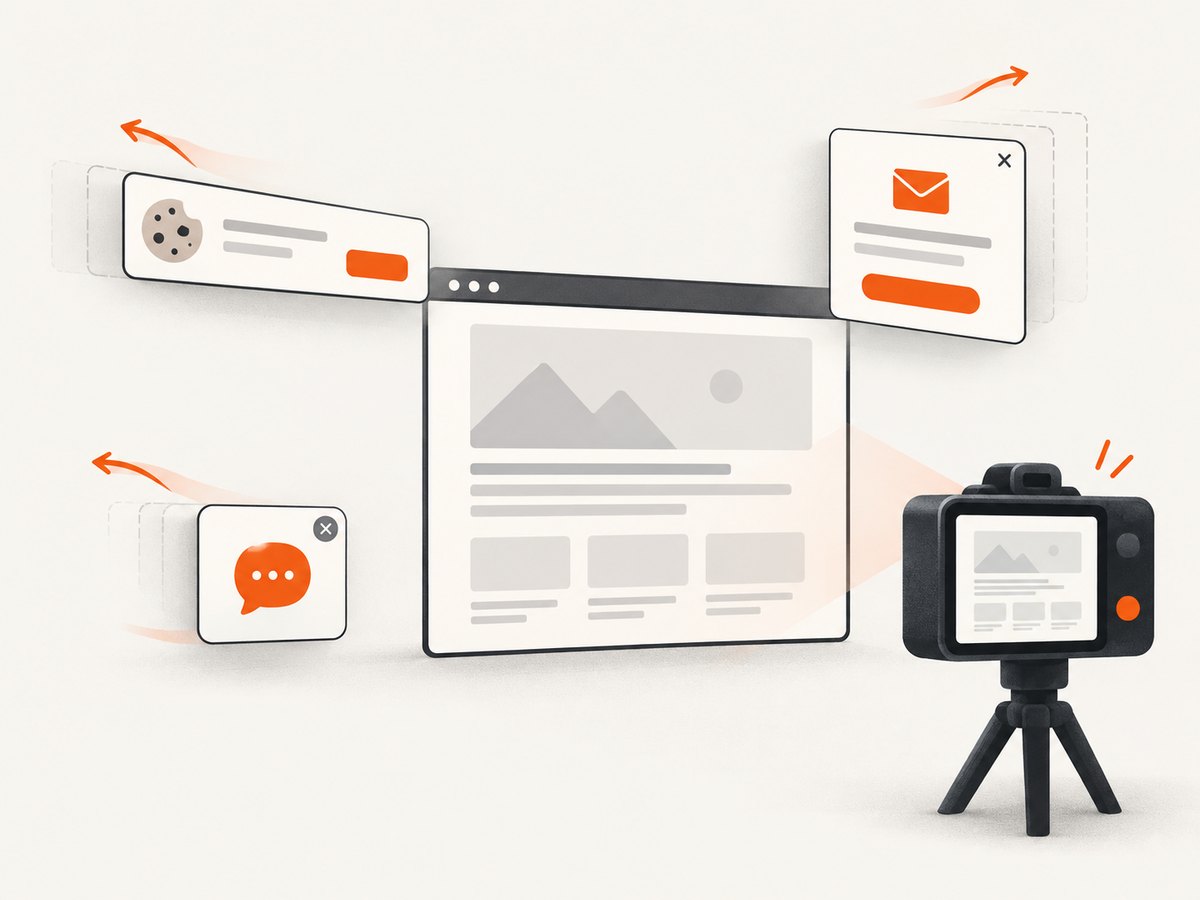
const res = await fetch(`https://api.screenshotneo.com/v1/shot?${q}`);ScreenshotNeo removes cookie banners, newsletter popups and chat widgets before capture. Bot checks, blank pages and failed loads are never billed, and response headers report the page verdict and billing result. Its MCP server lets Claude, Cursor and other MCP clients call take_screenshot, get_page_info and capture_pdf. The free plan includes 1,000 screenshots each month with no card; paid plans start at $5 for 3,000.
Create a free ScreenshotNeo account.
FAQ
Does a successful Selenium screenshot prove the page is ready?
No. It proves that Selenium wrote an image. Readiness and visual correctness require application-specific waits and image validation.
Should I always wait for network idle?
No. Use network idle only when it matches the application. A domain-specific marker is usually more meaningful.
Why do screenshots differ only in CI?
CI often uses different fonts, browser versions, headless settings, viewport sizes or hardware. Pin and standardize the rendering environment.
How can I detect a blank screenshot automatically?
Check dimensions and byte size, then calculate simple pixel statistics or compare with a baseline. Also assert a required readiness marker before capture.
When should I use a screenshot API instead of Selenium?
Use Selenium when you need interactive flows, custom browser control or application-specific assertions. Use an API when you need repeatable URL-to-image capture without maintaining browser drivers.


