Why Selenium Scroll Behavior Differs Between Firefox and PhantomJS
Firefox and PhantomJS do not share the same automation stack or scroll commands. Identify the scrolling surface and command first, then reproduce the result with matching conditions.

Short answer: Selenium scrolling in Firefox and scrolling in PhantomJS can differ because they are not necessarily the same operation. A Selenium JavaScript call runs in the currently selected frame or window; Selenium wheel actions are a separate input API; and PhantomJS exposes its own page API, including page.scrollPosition. The browser, driver, frame, scrollable element, viewport, starting position, and timing can all change the result.
There is no documented universal Firefox-versus-PhantomJS scroll discrepancy or root cause. Treat a difference as specific to your reproducible setup, record its versions and command, and compare the same scrolling surface under the same conditions. PhantomJS development is suspended, so it is a legacy comparison point rather than a current browser baseline. The PhantomJS project site states this directly.
1. What differs between the two automation paths
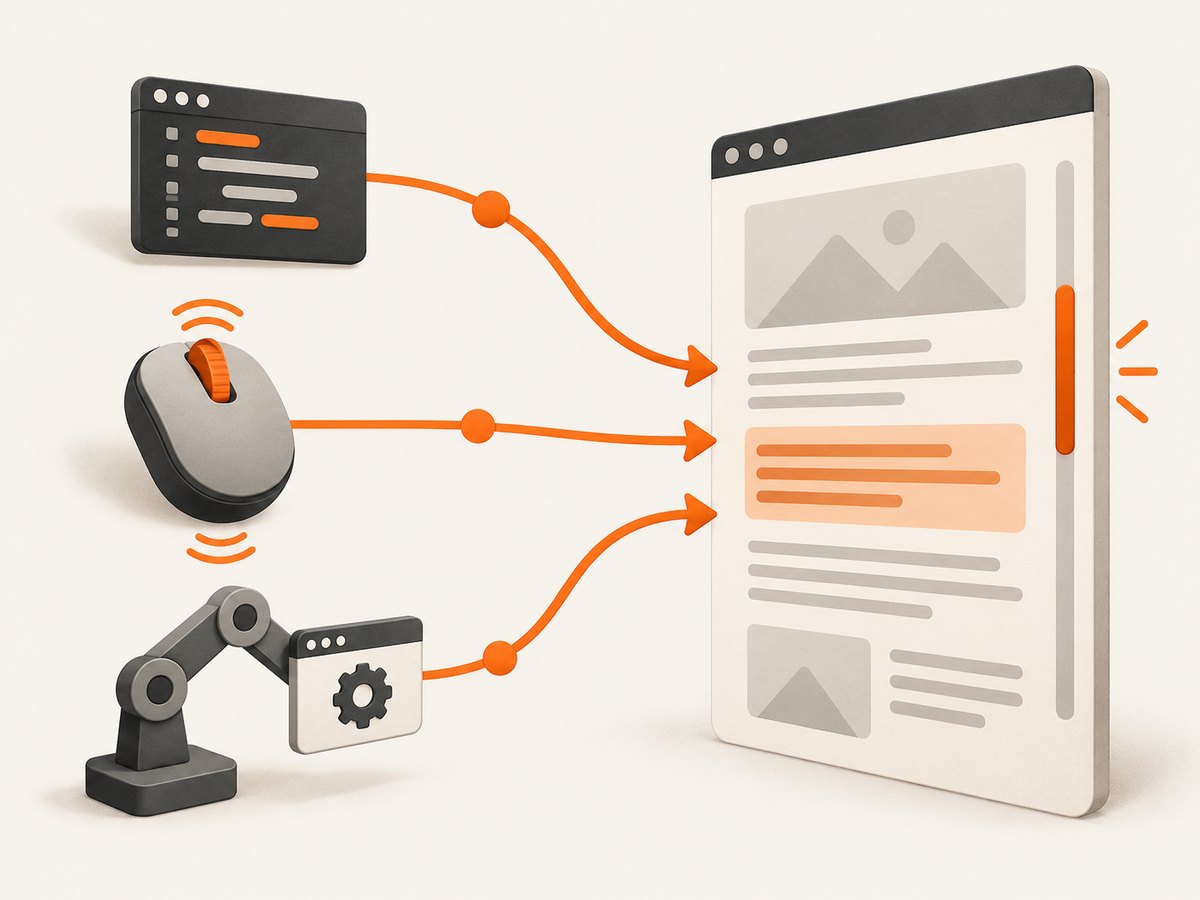
The word “scroll” can refer to several different actions. Before comparing results, identify which one your code sends.
| Path | What it does | What to check |
|---|---|---|
| JavaScript through Selenium | Runs script in the currently selected frame or window context. For example, window.scrollTo changes the window viewport position. |
Selected window/frame, script target, and whether the target is the document or a nested element. |
| Selenium wheel action | Sends a wheel input action, such as scrolling by a delta or toward an element. | Binding/API version and browser support. Selenium’s documented wheel examples are explicitly scoped to Chromium. |
| PhantomJS page API | Uses PhantomJS’s page automation interface; page.scrollPosition reports a left and top position. |
Exact PhantomJS build and page context. This is not Selenium wheel input. |
| Element interaction | A click or typing command may cause the browser to bring an element into view as part of interaction. | Do not assume this is equivalent to an explicit scroll command. |
Selenium documents script execution as occurring in the currently selected frame or window, where the script can refer to that document. Its actions documentation describes wheel inputs and notes that ordinary element interactions do not automatically scroll a target into view in every situation. These distinct paths are enough to explain why two test scripts that both appear to “scroll” may produce different positions. They do not establish that Firefox always scrolls farther, slower, or less reliably than PhantomJS.
References: Selenium WebDriver JavaScript API: executeScript, Selenium Actions API, and PhantomJS page automation API.
2. Diagnose the actual scrolling surface
A page can have more than one scroll position. The top-level document may stay still while a panel with overflow: auto scrolls; a frame has its own document; and a window has its own viewport. Looking only at window.scrollY can therefore hide the movement you care about.
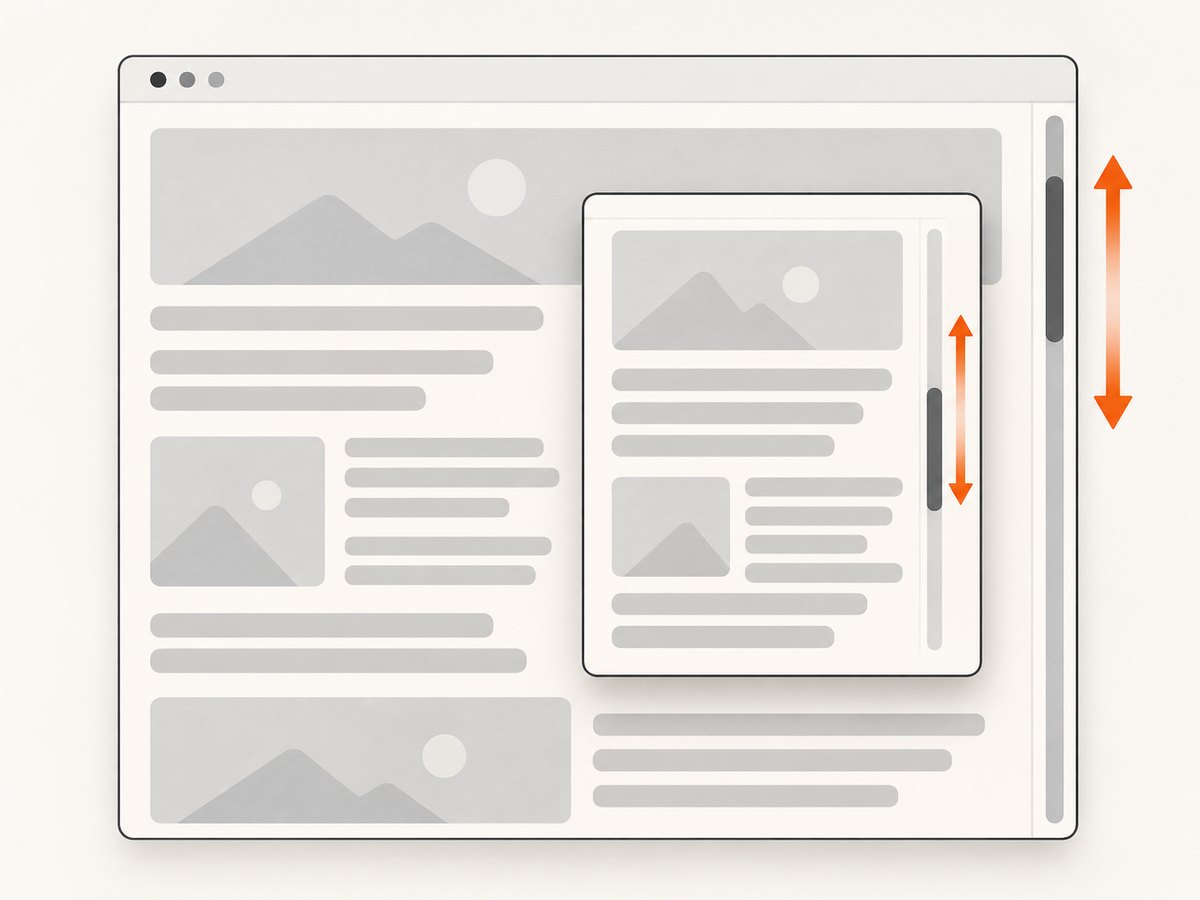
- Name the target. Is it the top-level document, a frame’s document, or a nested scrollable element?
- Name the command. Is the test using JavaScript, a WebDriver wheel action, an element click or key input, or PhantomJS’s page API?
- Check the context. Confirm the active window and frame before executing script. If a frame is expected, switch into it explicitly and switch back after the operation.
- Measure both positions. Capture the document position and the target element’s
scrollTop/scrollLeftbefore and after. - Match the conditions. Use the same URL, viewport, starting point, destination or delta, content state, and wait condition.
- Record versions and mode. Log Selenium binding/version, Firefox, geckodriver, PhantomJS, operating system, and headed/headless mode.
Mozilla describes geckodriver as a proxy that translates WebDriver calls to Firefox’s remote protocol and notes that it is not feature complete. That is useful context when investigating a Firefox automation issue; it does not, by itself, identify the cause of any particular scroll result. Check the geckodriver support documentation for compatibility information relevant to your installed versions.
3. Reproduce the scroll in Selenium with Java
For deterministic document positioning, start with JavaScript and measure the result. This example scrolls the top-level document to a fixed vertical coordinate, waits for the script to return, and prints the resulting position. It uses Selenium 4’s Java API and a locally available Firefox/geckodriver setup.
import org.openqa.selenium.JavascriptExecutor;
import org.openqa.selenium.WebDriver;
import org.openqa.selenium.firefox.FirefoxDriver;
import org.openqa.selenium.firefox.FirefoxOptions;

public class ScrollDiagnostic {
  public static void main(String[] args) {
    FirefoxOptions options = new FirefoxOptions();
    // Set headless mode only if your test environment requires it.
    // options.addArguments("-headless");

    WebDriver driver = new FirefoxDriver(options);
    try {
      driver.get("https://example.com");
      JavascriptExecutor js = (JavascriptExecutor) driver;

      js.executeScript("window.scrollTo(0, 500)");
      Object position = js.executeScript(
          "return {x: window.scrollX, y: window.scrollY, " +
          "height: document.documentElement.scrollHeight, " +
          "viewport: window.innerHeight};");
      System.out.println(position);
    } finally {
      driver.quit();
    }
  }
}
Replace the example URL and destination with the page and target from your failing test. If the page is shorter than the requested position, the browser cannot reach that coordinate; compare the resulting value rather than assuming the requested number was achieved. For a nested container, execute against the element instead:
WebElement panel = driver.findElement(By.cssSelector(".scroll-panel"));
js.executeScript("arguments[0].scrollTop = 400", panel);
Object actual = js.executeScript("return arguments[0].scrollTop", panel);
System.out.println("panel scrollTop=" + actual);
Add imports for By and WebElement when using this fragment. A fixed position is useful for isolating layout and context issues. If the test must model a person using a wheel, test a wheel action separately rather than treating it as interchangeable with JavaScript. Selenium’s documented scroll actions include scroll-to-element and scroll-by-amount patterns, but that documentation labels the examples Chromium-only; verify support for the exact browser, Selenium binding, and version before relying on them in Firefox.
4. Compare PhantomJS using its page API
PhantomJS does not use Selenium’s Firefox/geckodriver path in this example. Its page automation API exposes scrollPosition as an object containing left and top. Here is a minimal PhantomJS script that opens a URL, scrolls, reads the position, and renders an image:
var page = require('webpage').create();
page.viewportSize = { width: 1280, height: 800 };

page.open('https://example.com', function (status) {
  if (status !== 'success') {
    console.log('Page load failed: ' + status);
    phantom.exit(1);
    return;
  }

  page.evaluate(function () {
    window.scrollTo(0, 500);
  });

  window.setTimeout(function () {
    console.log(JSON.stringify(page.scrollPosition));
    page.render('phantom-scroll.png');
    phantom.exit();
  }, 250);
});
This uses a short delay to make the sequence visible and allow a page to settle; it is not a universal readiness guarantee. For pages that load content asynchronously, wait for a page-specific condition instead of assuming a fixed delay is sufficient. The documented page property reports a position; when investigating a nested scroll container, inspect that element’s position inside page.evaluate as well.
PhantomJS’s project page says development is suspended, and maintainer Ariya Hidayat’s March 2018 announcement described the lack of active contributions and identified 2.1.1 as the last known stable release at that time. Those are historical project facts, not proof that a particular scroll behavior is a PhantomJS bug. See the maintainer’s announcement.
5. Build a minimal cross-environment comparison
Reduce the test until the only meaningful variables are the browser and automation path. A small local HTML page avoids differences caused by third-party scripts and changing remote content.
<!doctype html>
<meta charset="utf-8">
<style>
  body { margin: 0; height: 2400px; }
  #panel { height: 240px; width: 360px; overflow: auto; border: 1px solid; }
  #inside { height: 900px; }
</style>
<div id="panel"><div id="inside">Scrollable panel</div></div>
<script>
  window.reportScroll = () => ({
    x: window.scrollX, y: window.scrollY,
    panelTop: document.querySelector('#panel').scrollTop,
    panelLeft: document.querySelector('#panel').scrollLeft,
    height: document.documentElement.scrollHeight,
    viewport: window.innerHeight
  });
</script>
Use the same explicit command in each environment and record the returned values. Run separate trials for window scrolling and panel scrolling. Save screenshots only as supporting evidence: an image can show where content appears, but the numeric values help distinguish a wrong target from a timing or rendering issue. Do not compare a Selenium wheel delta in one environment with a JavaScript destination in another and conclude the browser itself is responsible.
6. Common errors and fixes
| Symptom | Likely cause | What to try |
|---|---|---|
| Window position stays at zero | The page does not overflow, the script ran in another frame/window, or a nested element is the actual scroller. | Check document height, selected context, and the element’s scrollTop. |
| Panel does not move | The selector found the wrong element, the panel is not scrollable, or content has not loaded. | Check the matched element, computed overflow, scroll height, and current position before scrolling. |
| Scroll reaches a different final coordinate | The requested coordinate exceeds available content, layout changed, or a different scroll surface received the command. | Compare scroll height and viewport size and log the actual coordinate after the page settles. |
| Wheel action errors or behaves differently | The action API or browser support differs from the documented Chromium-specific examples. | Check the exact Selenium binding/version and browser support. For controlled positioning, use JavaScript; for user-input fidelity, verify wheel support explicitly. |
| Script runs but nothing visible changes | The page may be in a frame, content may be fixed, or an application may restore the previous position. | Confirm context and target; read position immediately and again after application updates. |
| Firefox session fails before scrolling | Firefox/geckodriver/Selenium versions are incompatible or the driver cannot start the browser. | Record all versions, consult Mozilla’s compatibility guidance, and reproduce with supported current components. |
| PhantomJS result differs from a modern page | The legacy browser engine may not handle the page like the current target browser; project development is suspended. | Keep a minimal reproduction and consider migrating the test to a maintained browser automation stack. |
| Fixed wait is flaky | Network and application readiness vary; the delay expires before the target is ready. | Wait for a specific element, state, or measurable condition, then scroll and verify the resulting position. |
7. Performance, reliability, and cost considerations
A scroll command itself is usually only one step in a browser session. In a diagnostic test, the more important costs are often starting the browser, navigating, waiting for dynamic content, and capturing or inspecting output. The dossier provides no controlled Firefox-versus-PhantomJS performance comparison, so avoid inferring a speed or reliability winner from one local timing.
For repeatable runs, keep the viewport, content state, and wait condition fixed; collect actual coordinates; and preserve the versions in logs. Prefer a maintained browser and current WebDriver path for new automation. If a legacy PhantomJS suite is still required, pin its environment and treat any migration as a separate engineering decision. Reproducing a result matters more than choosing a scroll API by name.
8. Or skip the browser setup
If your goal is a screenshot rather than reproducing browser input, ScreenshotNeo is a website screenshot API and MCP server from Yorker Media. One GET request returns an image or PDF; its API documentation covers the request options.
curl -G "https://api.screenshotneo.com/v1/shot" -d access_key=YOUR_API_KEY --data-urlencode url=https://stripe.com -o shot.webpimport requests
r = requests.get("https://api.screenshotneo.com/v1/shot", params={"access_key": "YOUR_API_KEY", "url": "https://stripe.com"}, timeout=90)
open("shot.webp", "wb").write(r.content)const q = new URLSearchParams({ access_key: 'YOUR_API_KEY', url: 'https://stripe.com' });
const res = await fetch(`https://api.screenshotneo.com/v1/shot?${q}`);- Cookie banners, newsletter popups, and chat widgets are removed before the shot; each cleanup step can be turned off.
- Bot checks, blank pages, timeouts, failed loads, and cache hits cost nothing. Response headers indicate the page verdict and billing status.
- An MCP server lets AI agents, including Claude, Cursor, and other MCP clients, take screenshots.
- The free plan includes 1,000 screenshots each month with no card; paid plans start at $5 for 3,000.
Sign up free for 1,000 screenshots a month, no card required.
9. FAQ
Does this mean Firefox scrolling is broken?
No. The documented sources explain different automation interfaces and Firefox’s WebDriver stack, not a general Firefox scrolling defect.
Is PhantomJS a good baseline for current Firefox?
It can help reproduce an existing legacy test, but its development is suspended. Record the exact build and avoid treating it as a maintained compatibility baseline.
Should I use JavaScript scrolling or wheel input?
Use JavaScript when you need a specific position and want to measure it. Use wheel input when the test specifically needs to model wheel interaction, after checking support for your browser and binding.
Can scrolling the window scroll a nested panel?
Not necessarily. Address and inspect the nested element itself when it is the intended scrolling surface.
Why does the same destination produce different screenshots?
Compare the actual scroll coordinates, viewport, frame, content readiness, and layout. A matching requested destination does not guarantee that both pages had the same available content or state.


