Why Selenium Python input.send_keys() Fails Under www-data and How to Fix It
Diagnose Selenium send_keys() failures under www-data by separating element, WebDriver, and browser startup problems, then apply a least-privilege fix.
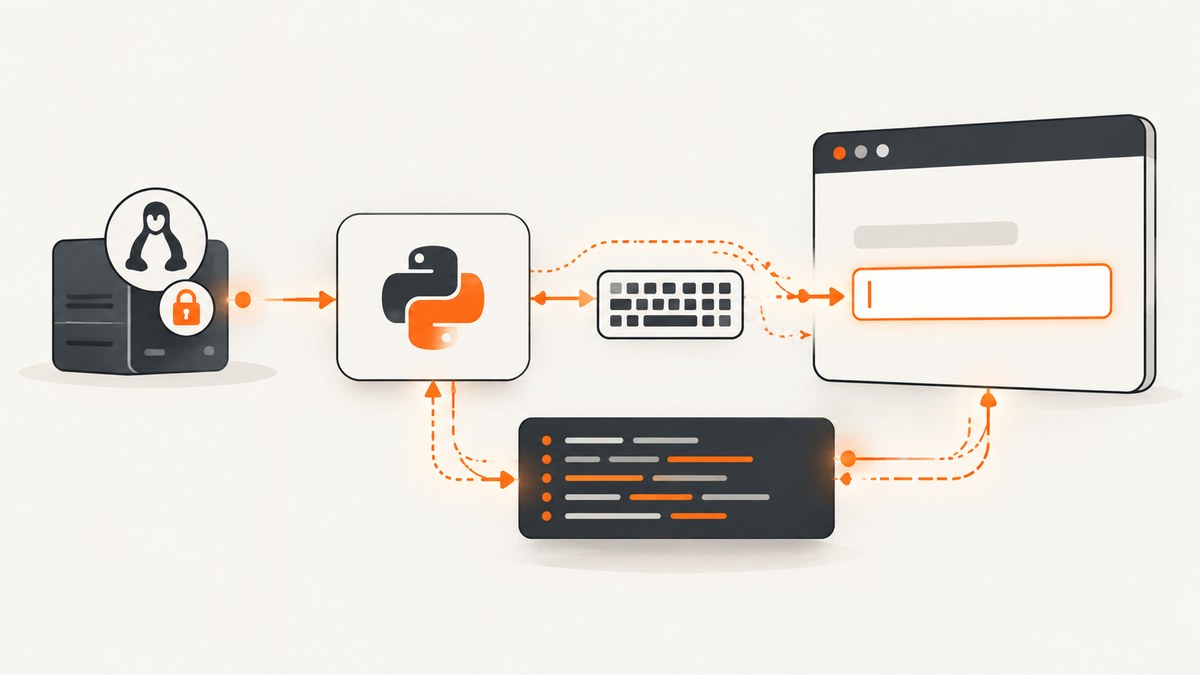
Direct answer: Selenium’s Python WebElement.send_keys() simulates typing into a DOM element. The username www-data is not documented as a special case, so the account name alone does not explain a failure. First determine whether the error occurs while finding the element, interacting with it, starting WebDriver, or launching the browser. Then reproduce the browser launch with the same account, paths, environment, and arguments, and inspect the driver logs.
This guide answers the literal questions developers ask: “Why does Selenium Python input.send_keys() fail under www-data?” and “How do I fix Selenium send_keys when running as www-data?” The supplied evidence does not establish one universal root cause or a success rate. Your complete traceback and deployment details are required for a specific diagnosis.
What send_keys() actually does
Selenium documents send_keys() as a WebDriver operation that simulates typing. It can send key events to a text control, fill form fields, and set a file input by passing a local file path. The method acts on a particular WebElement; it does not type into an arbitrary page region. See the Selenium WebElement API documentation.
from selenium import webdriver
from selenium.webdriver.common.by import By
from selenium.webdriver.chrome.options import Options

options = Options()
options.add_argument("--headless=new")
driver = webdriver.Chrome(options=options)
try:
    driver.get("https://example.test/login")
    field = driver.find_element(By.NAME, "email")
    field.send_keys("user@example.test")
finally:
    driver.quit()
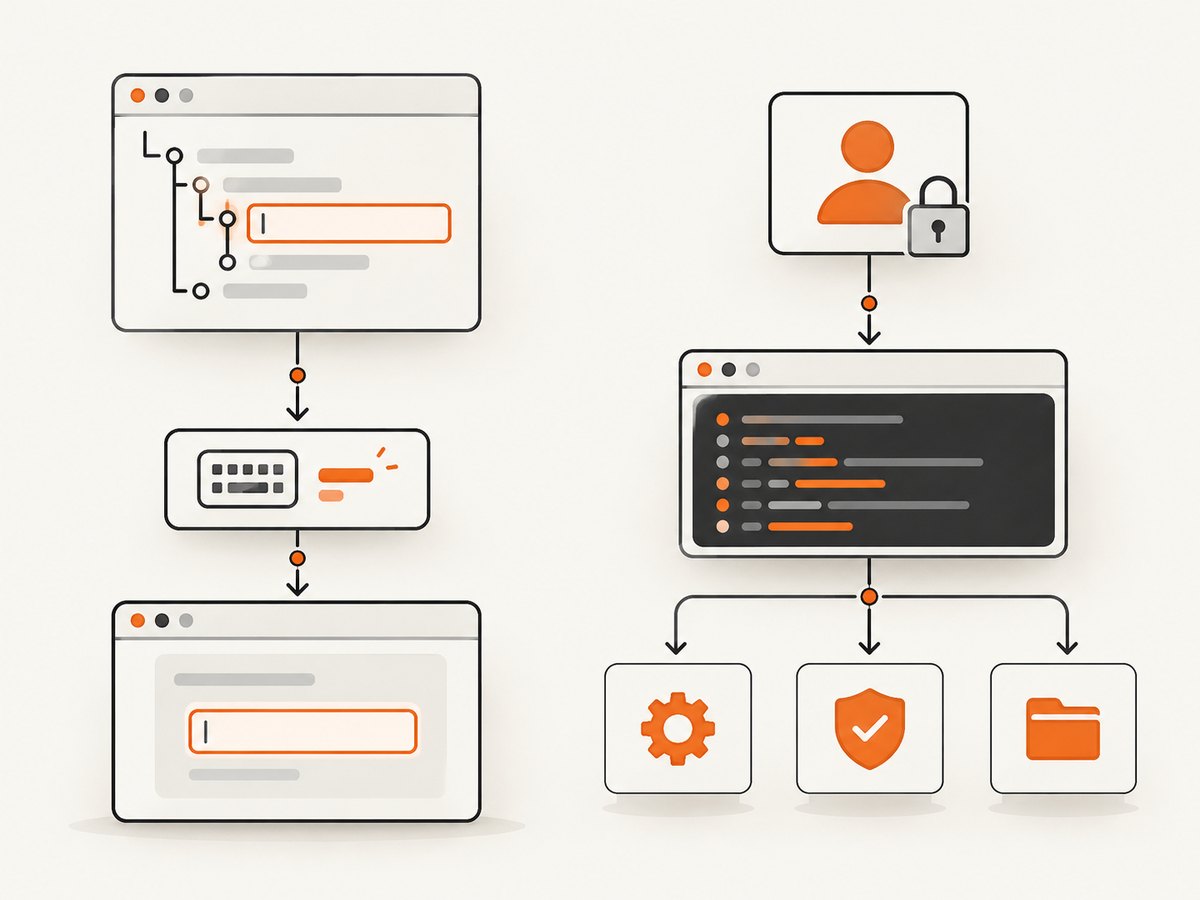
If find_element() fails, the problem is locating the element. If it succeeds but send_keys() raises an exception or the value remains unchanged, investigate the element’s state, page timing, frame context, overlays, and browser session. If the browser never starts, the failure is earlier than send_keys().
Separate the failure stage before changing permissions
- Capture the complete traceback. Preserve the exception class, message, stack, failing command, URL, browser version, ChromeDriver version, Selenium version, and whether the process is a daemon, CGI worker, queue consumer, or container.
- Check whether the session starts. Add a log line immediately after
webdriver.Chrome(...). A crash or timeout there is a startup problem, even if the final application log mentionssend_keys(). - Check whether the element is found. Log the selector and use an explicit wait. A stale, hidden, disabled, or replaced element requires a different fix from a missing browser binary.
- Check whether the value changes. Read the element’s
valueattribute after typing. Some controls are custom widgets and require an event sequence or interaction with a nested input. - Compare accounts. Run the smallest reproduction interactively as your normal user and then as
www-data, with the same working directory, environment, browser binary, driver, profile location, and arguments.
A diagnostic Selenium script for www-data
Use a minimal script that writes its own diagnostics. Give the service account a writable output directory before running it. Do not put credentials in the script or logs.
import os
import platform
import sys
import traceback
from pathlib import Path

from selenium import webdriver
from selenium.webdriver.chrome.options import Options
from selenium.webdriver.chrome.service import Service
from selenium.webdriver.common.by import By
from selenium.webdriver.support import expected_conditions as EC
from selenium.webdriver.support.ui import WebDriverWait

LOG_DIR = Path("/var/tmp/selenium-www-data")
LOG_DIR.mkdir(parents=True, exist_ok=True)
log_path = LOG_DIR / "chromedriver.log"

options = Options()
options.add_argument("--headless=new")
options.add_argument("--window-size=1365,900")
# Use a profile directory that www-data can write to. Keep it isolated per job.
options.add_argument(f"--user-data-dir={LOG_DIR / 'profile'}")

service = Service(
    executable_path="/usr/local/bin/chromedriver",
    log_output=str(log_path),
    # env defaults to the process environment; set it explicitly when needed.
    env=os.environ.copy(),
)

driver = None
try:
    print("uid:", os.getuid())
    print("cwd:", os.getcwd())
    print("python:", sys.version)
    print("platform:", platform.platform())

    driver = webdriver.Chrome(service=service, options=options)
    driver.get("https://example.test/form")

    wait = WebDriverWait(driver, 20)
    field = wait.until(EC.visibility_of_element_located((By.NAME, "message")))
    field.clear()
    field.send_keys("diagnostic input")
    print("value:", field.get_attribute("value"))
except Exception:
    traceback.print_exc()
    print("driver log:", log_path)
    raise
finally:
    if driver is not None:
        driver.quit()
The current Selenium Python Chrome Service API exposes executable_path, env, and log_output. Its env value defaults to the process environment, so a daemon with a sparse environment can behave differently from an interactive shell. See the Chrome Service API documentation.
Element-level causes and fixes
The selector matches nothing
Confirm the URL completed, the selector is correct, and the element is in the current document. Use an explicit wait rather than a fixed sleep. If the page places the field inside an iframe, switch into it first:
from selenium.webdriver.support import expected_conditions as EC
from selenium.webdriver.support.ui import WebDriverWait

wait = WebDriverWait(driver, 20)
frame = wait.until(EC.presence_of_element_located((By.CSS_SELECTOR, "iframe.login")))
driver.switch_to.frame(frame)
field = wait.until(EC.element_to_be_clickable((By.CSS_SELECTOR, "input[name='email']")))
field.send_keys("user@example.test")
driver.switch_to.default_content()
The element is stale
Modern applications frequently replace an input after rendering or validation. A reference obtained before that replacement raises StaleElementReferenceException. Locate the element again immediately before typing, and wait for the replacement to finish.
The element is not an editable control
send_keys() is intended for elements that accept keyboard input, such as an input, textarea, contenteditable region, or file input. A styled div may display a text box while the actual input is a child element. Inspect the DOM and target the real control. For a file input, pass an absolute path that the service account can read:
file_input = driver.find_element(By.CSS_SELECTOR, "input[type='file']")
file_input.send_keys("/var/tmp/selenium-www-data/upload.pdf")
An overlay or focus script intercepts input
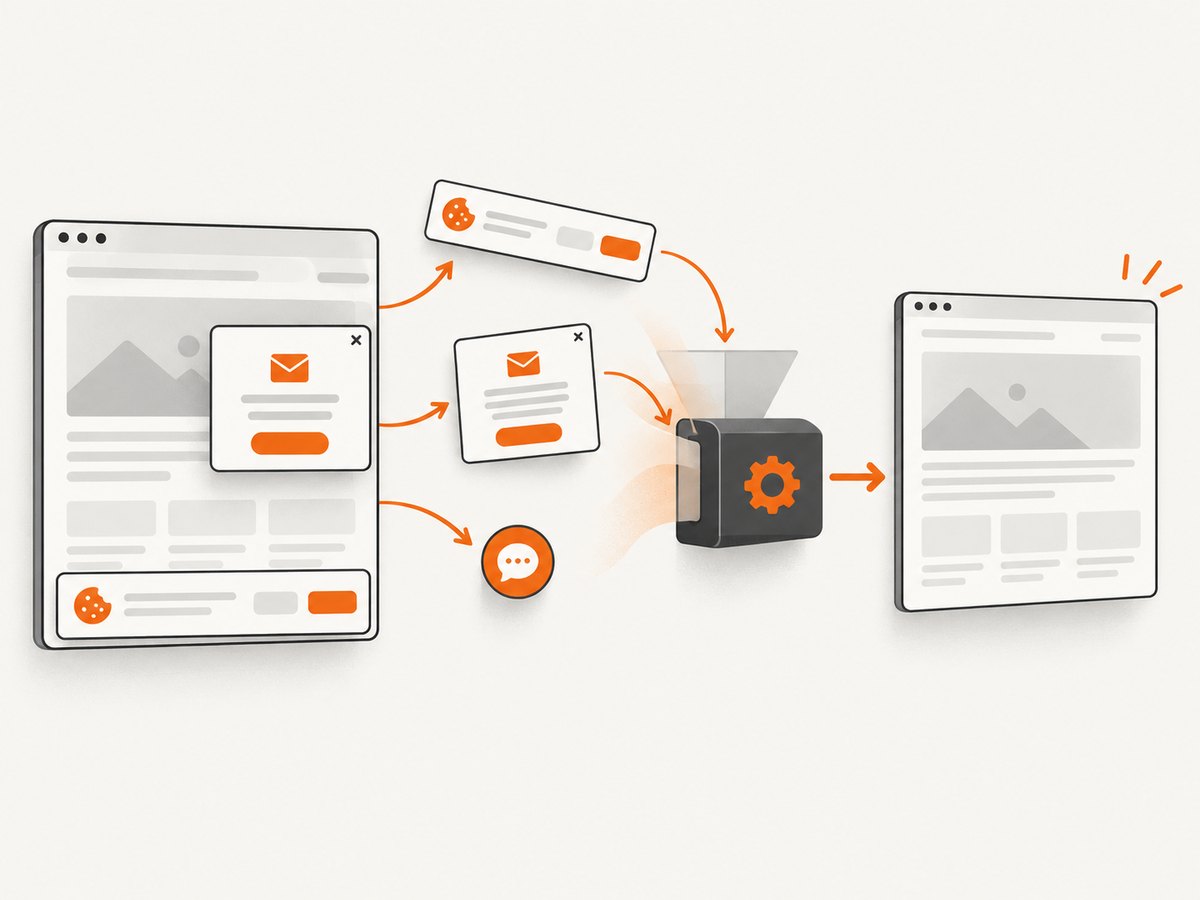
Cookie dialogs, newsletter popups, chat widgets, and modal backdrops can cover a field. Wait for the overlay to disappear or close it, then use element_to_be_clickable. Avoid JavaScript assignment as a first fix: setting a value directly may bypass the keyboard and input events that the application uses for validation.
The page is controlled by a framework
React, Vue, and other frameworks can re-render after each key event. Type into the current element, verify its value, and wait for the application state you need. If the control uses a shadow DOM, obtain the shadow root and locate the nested input there.
Browser startup and www-data service context
If the session cannot start, compare the launch conditions rather than changing send_keys(). Run the exact browser binary as www-data with the same arguments and a temporary profile. Check that the account can execute the browser and driver, read required browser resources, and write only to the profile, cache, temporary, and output directories your setup uses.
ChromeDriver’s troubleshooting guidance recommends reproducing launch conditions in the special environment and examining service logs. Its security guidance says to use a test account without sensitive local or network access, a protected environment, and least privilege. ChromeDriver should never be run with a privileged account. Read ChromeDriver security considerations and the troubleshooting page on Chrome not starting or crashing.
Check paths and permissions narrowly
- Use absolute paths for the browser, ChromeDriver, profile, temporary directory, and downloaded files.
- Verify execute permission on the browser and driver and read permission on their dependencies.
- Create a unique writable profile for each concurrent session; do not share a locked profile.
- Ensure the account can write the directory used by
log_output. - Confirm DNS, proxy, certificates, and outbound network policy for the service account.
- Compare environment variables such as
PATH,HOME, proxy settings, and locale.
Do not make –no-sandbox a default answer
Do not prescribe --no-sandbox as a generic www-data fix. ChromeDriver describes that option as unsupported and highly discouraged when used to work around running Chrome as root. The title does not establish that the process is root or that this flag is relevant. Investigate the actual launch error and use an appropriately restricted non-privileged account.
Service configuration example
For a systemd worker, make the runtime conditions explicit and keep the writable surface small:
[Service]
User=www-data
Group=www-data
WorkingDirectory=/srv/my-automation
Environment=HOME=/var/lib/my-automation
Environment=TMPDIR=/var/lib/my-automation/tmp
ExecStart=/usr/bin/python3 /srv/my-automation/check_form.py
NoNewPrivileges=true
PrivateTmp=true
Create and restrict the referenced directories, then verify the same command manually through the service manager. The exact hardening directives depend on your distribution and application; do not grant broad ownership of system directories merely to make Chrome start.
Common errors and their fixes
| Observed error | Likely stage | First fix |
|---|---|---|
SessionNotCreatedException |
Browser or driver startup | Check browser/driver versions, executable paths, profile location, and ChromeDriver logs under www-data. |
WebDriverException: unknown error: cannot find Chrome binary |
Startup | Set the correct binary path and verify www-data can execute it. |
NoSuchElementException |
Element lookup | Wait for the page, correct the selector, switch into the required iframe, and confirm the URL. |
ElementNotInteractableException |
Element state | Wait for visibility/clickability, remove an overlay, and target the actual editable control. |
StaleElementReferenceException |
DOM replacement | Locate the element again after the framework finishes rendering. |
| No exception, unchanged value | Widget or event handling | Read the value, inspect nested/shadow DOM, and verify you selected the input rather than a display element. |
| Timeout only under www-data | Service environment | Compare DNS, proxy, certificates, locale, HOME, profile, and network policy; inspect logs. |
Reliability, performance, and cost considerations
Explicit waits usually improve reliability because they synchronize with a condition instead of an arbitrary delay. Reuse a browser session for a small batch when isolation permits, but use separate profiles for concurrent jobs. Keep driver logs for failed runs, include a job identifier, and capture the URL and selector without exposing passwords or personal data. Browser startup is often the expensive part of a short job; a long-lived worker can reduce startup overhead, while a fresh profile per job reduces state leakage. Measure your own workload rather than assuming a universal timing.
Network failures, bot checks, consent dialogs, and dynamic rendering are page conditions, not Unix permission errors. Add bounded retries only for transient navigation or startup failures, with backoff and a maximum attempt count. Do not blindly retry invalid selectors or authentication failures.
Or skip the browser setup
If your goal is a clean image or PDF of a page rather than interactive form automation, ScreenshotNeo provides a single HTTP request. It accepts cookie and consent banners like a visitor and removes more than 60 known consent platforms, newsletter popups, and chat widgets before capture; each cleanup step can be disabled. Bot checks/CAPTCHAs, blank pages, timeouts, failed loads, and cache hits cost nothing, and response headers identify the page verdict and whether it was billed. It also offers an MCP server with take_screenshot, get_page_info, and capture_pdf for Claude, Cursor, and other MCP clients.
See the ScreenshotNeo API documentation for all options. The basic call is:
curl -G "https://api.screenshotneo.com/v1/shot" -d access_key=YOUR_API_KEY --data-urlencode url=https://stripe.com -o shot.webpimport requests
r = requests.get("https://api.screenshotneo.com/v1/shot", params={"access_key": "YOUR_API_KEY", "url": "https://stripe.com"}, timeout=90)
open("shot.webp", "wb").write(r.content)const q = new URLSearchParams({ access_key: 'YOUR_API_KEY', url: 'https://stripe.com' });
const res = await fetch(`https://api.screenshotneo.com/v1/shot?${q}`);Options cover full-page capture with lazy images loaded, CSS-element capture, dark mode, 12 device presets or any viewport, retina scale, PDF paper size/margins/landscape/page ranges, HTML/CSS rendering, custom CSS and JavaScript, clicks, selector waits, delays, network idle, request blocking, headers, cookies, user agents, Authorization, timezone, geolocation, transparent backgrounds, resizing, cache TTLs, signed links, asynchronous webhooks, bulk capture of 100 URLs per call, usage reporting, and an OpenAPI specification. Parameter names used by other screenshot APIs also work, which can simplify migration.
Every feature is on every plan: 1,000 shots per month free with no card; Starter is $5 for 3,000, Growth $15 for 15,000, Pro $39 for 60,000, Scale $99 for 250,000, and Business $249 for 1,000,000. Yearly billing provides two months free. Create a free ScreenshotNeo account and get 1,000 screenshots each month with no card.
Checklist before deploying
- Record the full traceback and classify the failing stage.
- Verify the selector, frame, element type, visibility, and DOM freshness.
- Run the same browser and driver as www-data with absolute paths.
- Give the account only the read, execute, and narrowly scoped write access it needs.
- Set an isolated writable profile and capture ChromeDriver logs.
- Compare environment variables, network access, certificates, and proxy settings.
- Avoid privileged execution and unsupported security workarounds.
- Use bounded waits and retries, then remove diagnostic secrets from logs.
FAQ
Is www-data blocked from using send_keys()?
No general Selenium rule says that. The account can be relevant to browser startup, filesystem access, environment variables, or network policy, but the traceback identifies which.
Should I run Chrome as root to make it work?
No. ChromeDriver’s security guidance says it should never run with a privileged account. Use a restricted test or service account and diagnose the launch conditions.
Does adding a sleep fix the problem?
It can hide a timing issue temporarily. Prefer an explicit wait for the exact element or page condition you need.
Can JavaScript set the input instead?
It can change a DOM value, but it may bypass keyboard and input events. Use it only when you understand the page’s event model and have verified the resulting application state.
Where should I look first when the browser crashes?
Run the exact browser command as www-data, verify binary and driver compatibility, check the profile and temporary directories, and inspect the configured ChromeDriver log.


