Why Selenium WebDriver Cannot Access a Website After the URL Is Rejected
A rejected page after driver.get() is not automatically a Selenium failure. Learn how to identify the rejecting layer and fix the right problem.
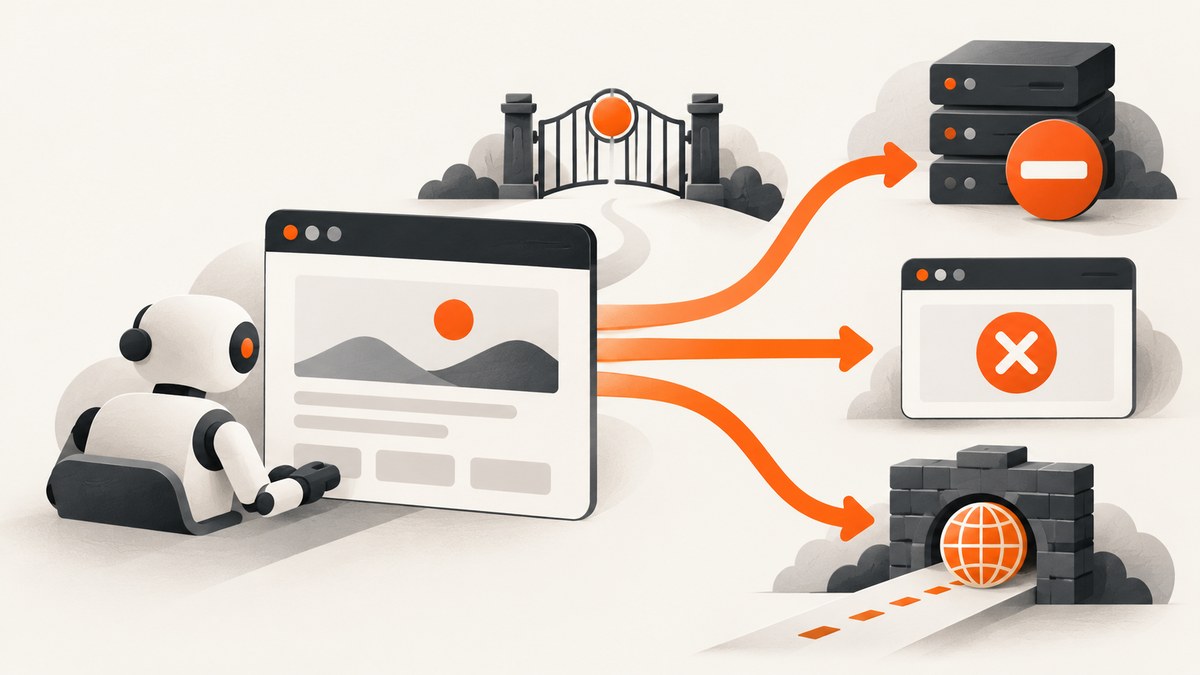
Short answer: Selenium WebDriver does not grant access to a website. It drives a browser and asks that browser to navigate. If driver.get(url) or driver.navigate().to(url) ends on a rejection page, the destination, browser, network intermediary, or session state may be responsible. The page alone does not identify the cause.
Start by recording what actually happened: the final URL after redirects, the complete rejection text, the HTTP or browser error if available, browser and driver versions, and whether Selenium threw an exception or successfully loaded a document containing a rejection message. Those are different failure modes and require different fixes.
What Selenium navigation actually does
WebDriver is a W3C-standard interface for driving browsers locally or remotely. Selenium’s navigation methods include driver.get(url) and driver.navigate().to(url). They request browser navigation; they do not promise that the remote site will authorize the request. Selenium documents WebDriver as native browser automation, and its navigation command follows server redirects and HTML meta redirects before returning according to the configured page-load strategy.
That distinction explains why a browser can be working correctly while the page is rejected. The browser may have received a valid response from the website, a corporate proxy, an authentication gateway, or another intermediary. Selenium then reports a successful navigation because a document loaded, even though the document says access is denied.
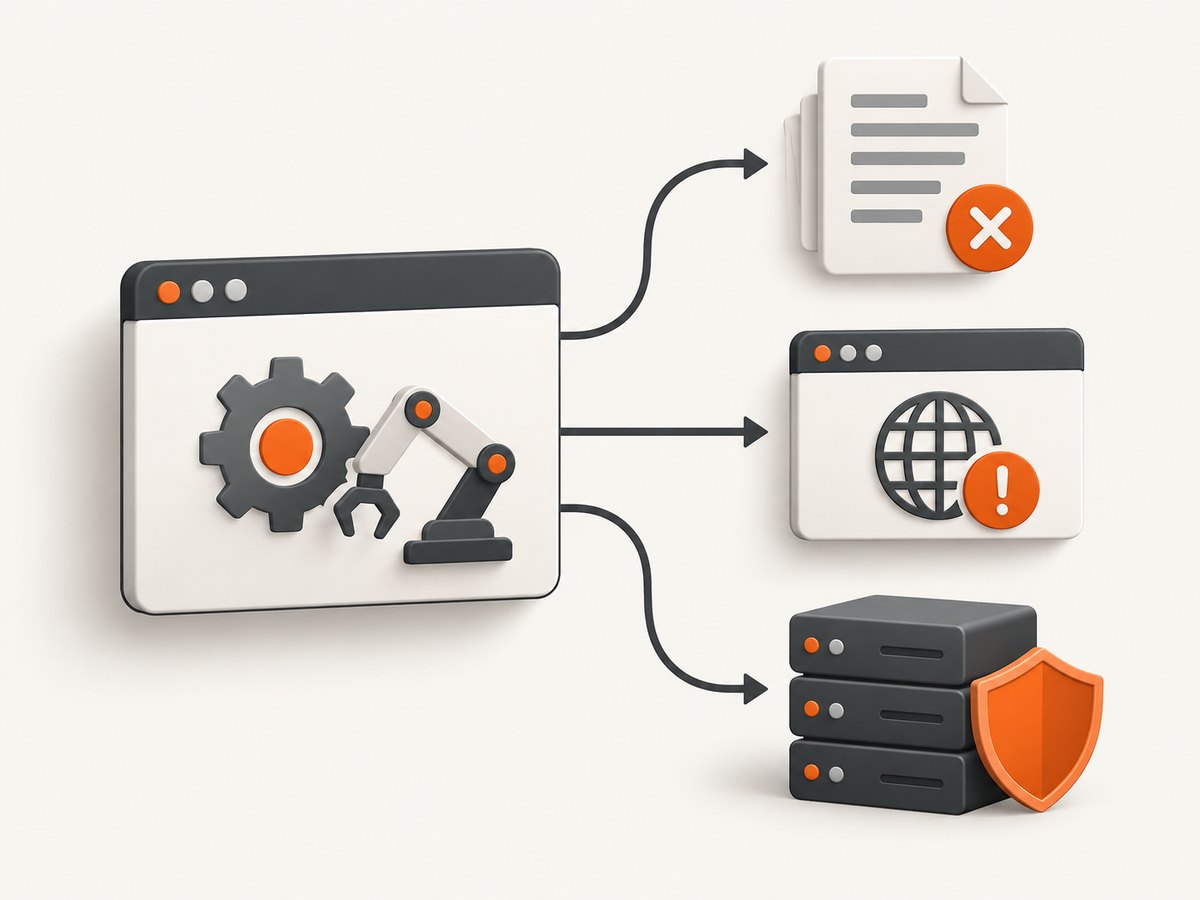
First classify the failure
| What you observe | Likely layer to investigate | Useful next step |
|---|---|---|
get() throws a WebDriver exception |
Browser process, driver, timeout, DNS, TLS, or network path | Capture exception type and message, then compare with manual navigation in the same environment. |
| A browser-generated network error appears | DNS, certificate validation, connection, proxy, firewall, or browser policy | Record the browser error code and test the same URL outside WebDriver on the same machine. |
| A normal document loads with “access denied” or similar text | Website policy, authentication, session state, or an intermediary response | Save the final URL, page title, visible text, and response details; do not call this a Selenium navigation failure yet. |
| The URL redirects to a login, challenge, or policy page | Authentication, authorization, bot controls, or network gateway | Compare redirect chains and cookies between a permitted manual session and the automated session. |
A repeatable diagnostic procedure
1. Capture the exact result
Log the requested URL and the browser’s final URL after navigation. Also save the page title, a short body excerpt, and the exception if one occurred. A message generated by the target site is evidence of a loaded response; a driver timeout is evidence of a command that did not finish in time.
from selenium import webdriver
from selenium.common.exceptions import WebDriverException, TimeoutException

options = webdriver.ChromeOptions()
driver = webdriver.Chrome(options=options)
driver.set_page_load_timeout(45)

url = "https://example.com/protected"
try:
    driver.get(url)
    print("final_url:", driver.current_url)
    print("title:", driver.title)
    print("body_prefix:", driver.find_element("tag name", "body").text[:500])
except TimeoutException as exc:
    print("navigation_timeout:", repr(exc))
except WebDriverException as exc:
    print("webdriver_error:", repr(exc))
finally:
    driver.quit()
Keep the output with the browser version, driver version, operating system, execution mode (local or remote), and timestamp. Without those details, “Selenium cannot access it” is too broad to troubleshoot.
2. Repeat the test manually in the same context
Open the URL in the same browser profile, machine, network, and account context. If manual navigation is also rejected, investigate the site’s permissions, authentication, URL correctness, or network policy before changing Selenium code. If manual navigation works while automation does not, document the differences rather than assuming a single cause. Cookies, extensions, account state, browser flags, IP egress, and proxy routing can all differ.
3. Inspect redirects and session state
Many “rejected URL” reports are redirects. The requested address may send the browser to a sign-in page, a regional policy page, or a challenge endpoint. Compare driver.current_url with the original URL and inspect cookies only where you are authorized to do so. A fresh WebDriver profile does not contain the cookies or local storage from your normal browser.
4. Check network and proxy configuration
Selenium documents proxy configuration for complex network topologies and restrictive corporate environments. A browser connection failure in such an environment can mean that the required proxy was not configured. Ask the environment owner for the correct settings and verify them with a controlled test. Do not switch to an arbitrary proxy or assume that changing IP addresses is an appropriate fix; the supplied evidence does not establish that a proxy caused any particular rejection.
from selenium import webdriver
from selenium.webdriver.common.proxy import Proxy, ProxyType

proxy = Proxy()
proxy.proxy_type = ProxyType.MANUAL
proxy.http_proxy = "proxy.example.internal:8080"
proxy.ssl_proxy = "proxy.example.internal:8080"

options = webdriver.ChromeOptions()
options.proxy = proxy
driver = webdriver.Chrome(options=options)
try:
    driver.get("https://example.com")
    print(driver.current_url)
finally:
    driver.quit()
Use a real proxy value supplied by your network administrator. A proxy setting that is valid for HTTP may still be wrong for HTTPS, authentication, or a remote Selenium grid.
5. Separate waiting behavior from authorization
Selenium page-load strategies are normal, eager, and none. They control when the navigation command returns: after the document is complete, after the document is interactive, or without waiting for readiness. Changing the strategy can make a test return sooner or avoid waiting on long-running resources, but it does not authorize a rejected request or remove a site’s access control.
import org.openqa.selenium.WebDriver;
import org.openqa.selenium.chrome.ChromeDriver;
import org.openqa.selenium.chrome.ChromeOptions;

public class NavigationStrategy {
  public static void main(String[] args) {
    ChromeOptions options = new ChromeOptions();
    options.setPageLoadStrategy("eager");
    WebDriver driver = new ChromeDriver(options);
    try {
      driver.get("https://example.com/protected");
      System.out.println("Final URL: " + driver.getCurrentUrl());
      System.out.println("Title: " + driver.getTitle());
    } finally {
      driver.quit();
    }
  }
}
Common causes and fixes
The site returned a rejection document
Symptoms: get() returns, current_url points to a page, and the body contains an access-denied message.
Cause: The remote service or an intermediary made an access decision. WebDriver successfully displayed the result.
Fix: Identify the responding host, verify authentication and permissions, and ask the site owner for authorized access. Do not describe this as proof that Selenium is broken.
A corporate proxy or firewall blocks the route
Symptoms: Connection reset, proxy authentication errors, DNS failures, or browser-generated network pages.
Cause: The automated browser may not inherit desktop proxy settings, credentials, certificates, or allowlisted routes.
Fix: Confirm required proxy, certificate, DNS, and firewall settings with the network owner. Configure Selenium’s proxy options only with approved values.
The automated session lacks login state
Symptoms: A normal browser reaches the page, while a new WebDriver session is redirected to sign-in or denied.
Cause: Different cookies, local storage, account, or identity-provider state.
Fix: Use a documented test account or an approved setup flow. Avoid copying personal browser profiles into automation unless your security and test policies permit it.
The command times out
Symptoms: A page-load timeout occurs even though the browser window may show partial content.
Cause: The selected page-load strategy waits for resources that never become complete, or the route is slow.
Fix: Capture the current browser state, review the timeout threshold, and choose eager or none only when your test can safely work with a partially loaded document. A shorter wait does not change the server’s decision.
The URL itself is wrong or environment-specific
Symptoms: Redirects to an unexpected host, 404 responses, or a policy page for one region.
Cause: A typo, expired path, required locale, internal hostname, or environment-specific route.
Fix: Verify the URL independently, record every redirect, and use the documented environment URL for your test.
What not to conclude
- A rejection page does not prove that Selenium caused the rejection.
- A successful
get()call does not prove that the target granted access. - A different page-load strategy does not bypass authorization.
- A proxy can be a legitimate configuration requirement, but changing proxies without evidence is not a diagnosis.
- The available Selenium documentation does not provide a universal method for bypassing a site’s restriction, and you should use an authorized test environment or request access from the owner.
Or skip the browser setup
If your goal is a rendered screenshot rather than an interactive browser test, ScreenshotNeo provides a single HTTP request for a PNG, JPEG, WebP, or PDF. It accepts the URL, renders it, and returns the asset without requiring you to manage WebDriver, drivers, browser binaries, or page-load timing.
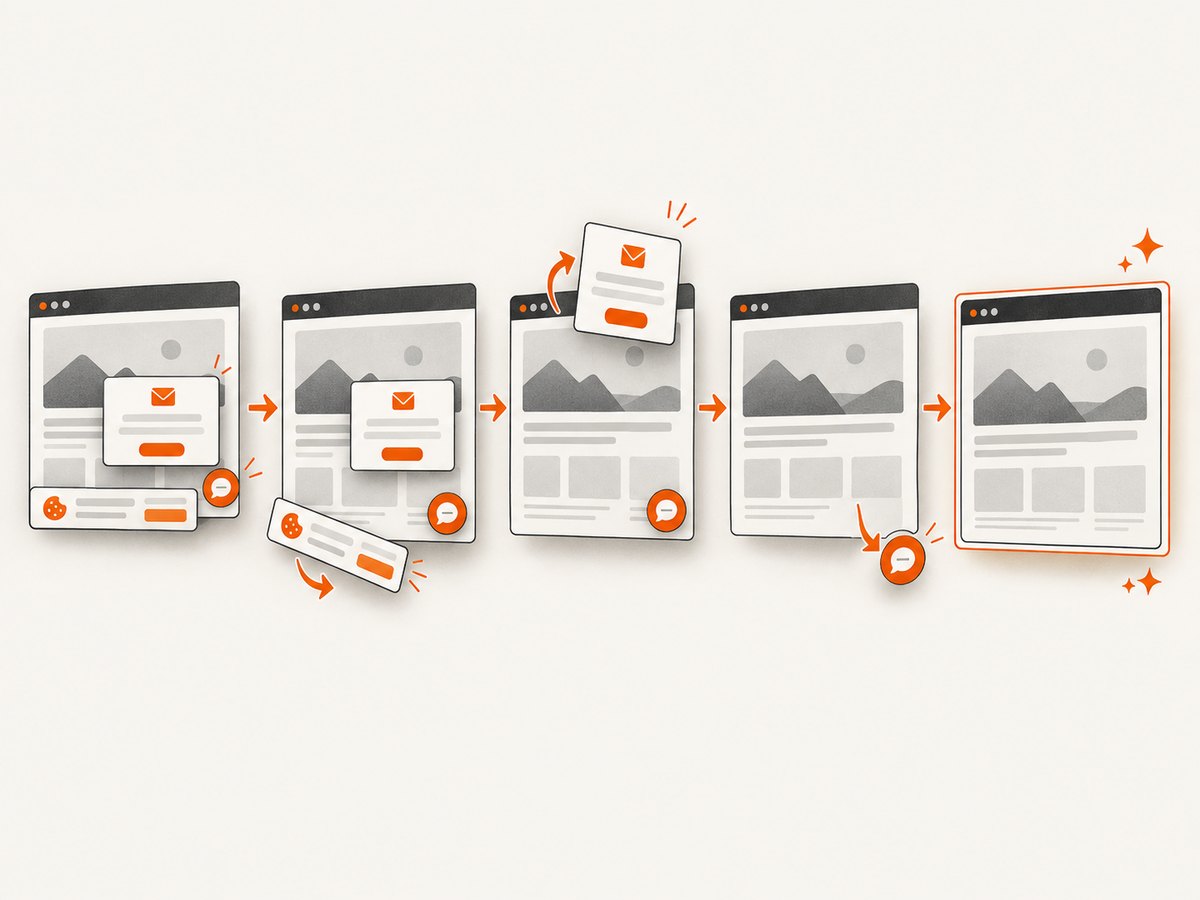
ScreenshotNeo is useful when a page contains consent banners, newsletter popups, or chat widgets: it accepts the cookie or consent banner like a visitor and removes more than 60 known consent platforms, newsletter popups, and chat widgets before capture. Each step can be turned off. Bot checks or CAPTCHAs, blank pages, timeouts, failed loads, and cache hits are not billed; response headers identify the page verdict and whether the request was billed.
It also provides an MCP server for Claude, Cursor, and other MCP clients, with take_screenshot, get_page_info, and capture_pdf tools. The free plan includes 1,000 shots per month with no card; paid plans start at $5 for 3,000 shots.
See the ScreenshotNeo API documentation for all options, including full-page capture with lazy images loaded, CSS-element capture, dark mode, device presets, retina scale, PDF paper and margin settings, custom CSS and JavaScript, clicks, waits, request blocking, headers, cookies, user agents, authorization, timezone, geolocation, transparent backgrounds, resizing, caching, signed links, asynchronous jobs, webhooks, bulk capture, usage, and the OpenAPI specification.
cURL
curl -G "https://api.screenshotneo.com/v1/shot" \
  -d access_key=YOUR_API_KEY \
  --data-urlencode url=https://stripe.com \
  -o shot.webp
Python
import requests

r = requests.get(
    "https://api.screenshotneo.com/v1/shot",
    params={"access_key": "YOUR_API_KEY", "url": "https://stripe.com"},
    timeout=90,
)
r.raise_for_status()
open("shot.webp", "wb").write(r.content)
Node.js
const q = new URLSearchParams({
  access_key: 'YOUR_API_KEY',
  url: 'https://stripe.com'
});
const res = await fetch(`https://api.screenshotneo.com/v1/shot?${q}`);
if (!res.ok) throw new Error(`Screenshot failed: ${res.status}`);
const fs = await import('node:fs/promises');
await fs.writeFile('shot.webp', Buffer.from(await res.arrayBuffer()));
Create a free account at ScreenshotNeo to use the 1,000 monthly screenshots with no card.
Performance, reliability, and cost considerations
For Selenium
- Reuse a driver for related captures when isolation requirements allow it; browser startup is separate overhead from navigation.
- Set explicit page-load and script timeouts so a stalled resource cannot hold a worker indefinitely.
- Record final URLs and outcomes, not only exceptions, so rejected documents are visible in reports.
- Keep browser, driver, and operating-system versions together in run metadata to make environment changes explainable.
- Use a controlled concurrency level. More browser processes increase CPU, memory, network, and session contention.
For ScreenshotNeo
- Use caching with a TTL you choose when repeated captures can reuse the same result.
- Use asynchronous jobs and signed webhooks for slow or high-volume work.
- Bulk capture supports up to 100 URLs per call.
- Only clean shots are billed. The
X-Page-VerdictandX-Billedheaders let a pipeline distinguish a successful billable capture from a bot check, blank page, timeout, failed load, or cache hit. - Plans are Free (1,000/month), Starter ($5 for 3,000), Growth ($15 for 15,000), Pro ($39 for 60,000), Scale ($99 for 250,000), and Business ($249 for 1,000,000). Yearly billing gives two months free, and every feature is available on every plan.
Production checklist
- Save the original URL and final URL.
- Classify the result as exception, browser network error, or loaded rejection document.
- Record browser, driver, Selenium, operating-system, and proxy context.
- Repeat manually in the same machine, profile, account, and network.
- Verify authentication, cookies, redirects, DNS, certificates, and corporate policy.
- Change one variable at a time and retain the before-and-after logs.
- Use an authorized environment and request permission from the site owner when access is denied.
- If the deliverable is a screenshot, consider an API capture path that reports clean, failed, and non-billable outcomes explicitly.
FAQ
Does a 403 always mean Selenium is blocked?
No. A 403 is an access decision, but the responding service might be the target site or an intermediary. Confirm the host, response body, redirect chain, and same-context manual result.
Should I change the user agent?
Only when your authorized test requires a specific user agent and you understand the effect. A changed user agent is not a general fix for an unspecified rejection.
Will pageLoadStrategy: none bypass the rejection?
No. It changes when Selenium returns control. It does not change authorization or network policy.
Can I reuse cookies from my normal browser?
Only under an approved test and security process. Prefer a dedicated test account and explicit session setup so results are reproducible.
When should I contact the website owner?
When the URL is correct, the request is authorized, and the same environment is still denied. Provide the timestamp, final URL, response or visible message, account context, and network details they need to investigate.


