Why Selenium WebDriver Cannot Find an Element That Selenium IDE Finds
Selenium IDE waits and switches context for you. Learn why WebDriver misses the same element and how to fix timing, frames, windows, shadow DOM, and locators.
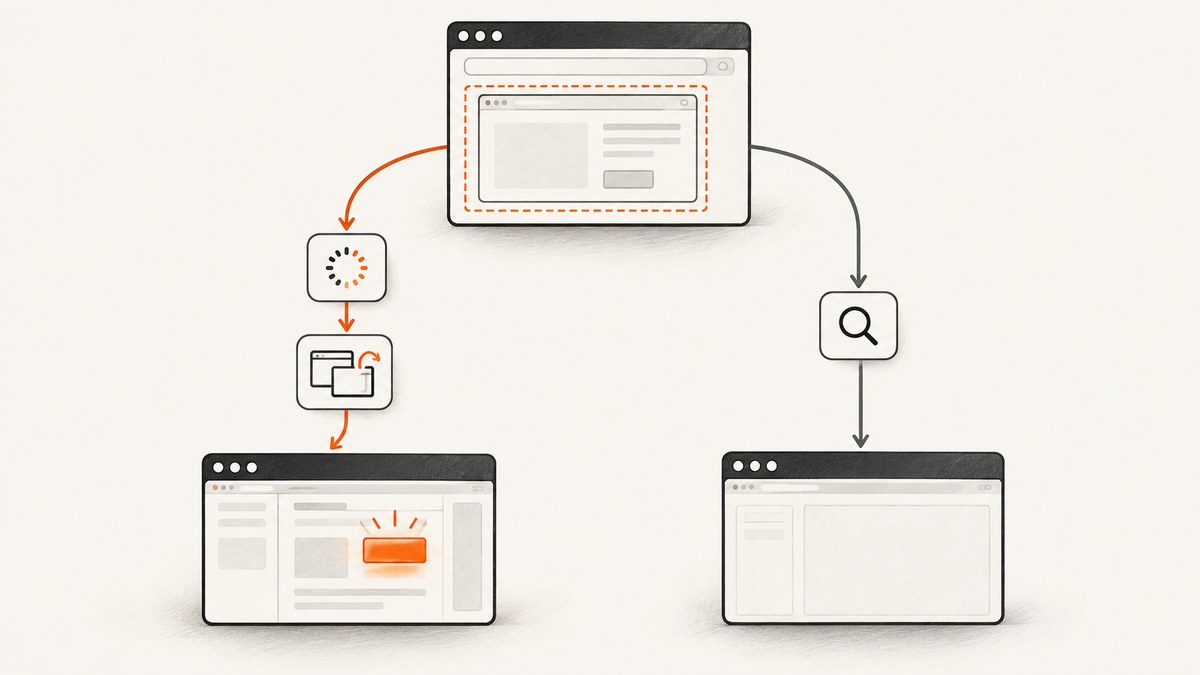
Selenium IDE can find an element while an apparently identical Selenium WebDriver call raises NoSuchElementException because the two executions are not necessarily doing the same work. IDE recordings commonly include waits, frame selection, window selection, and locator fallbacks. WebDriver searches the current search context immediately unless your code changes context and synchronizes with the page.
The reliable fix is to check four things in order: context (window, frame, or shadow root), timing (whether the element exists yet), locator quality, and interaction state (present, visible, enabled, and unobstructed). This guide shows a repeatable diagnostic process and complete Python examples, then covers equivalent cURL, Python, and Node.js options for capturing a diagnostic page image with ScreenshotNeo.
What IDE is doing that a direct WebDriver call may not do
A recorded IDE flow is a sequence of commands, not just a selector lookup. It may wait for an element to be present or visible, select an iframe, switch to a newly opened tab, and retry a locator after the application renders. If your code only executes driver.find_element(By.CSS_SELECTOR, "...") immediately after navigation, it is asking a narrower question: “Does this node exist in the current document right now?”
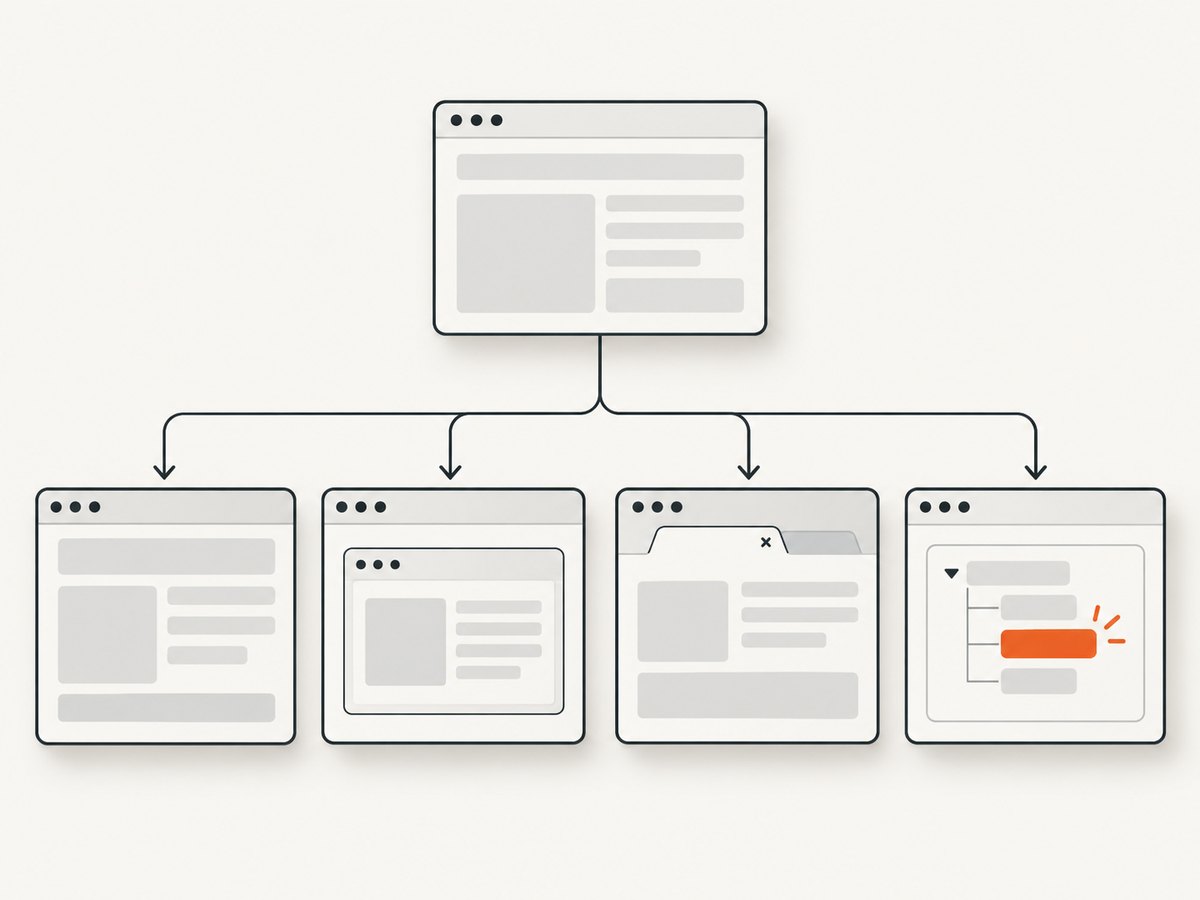
Selenium models the top document, each iframe, and each shadow root as separate search contexts. A selector that works in one context fails in another even when the HTML eventually contains the expected element. Selenium’s documentation describes WebDriver, WebElement, and ShadowRoot as search contexts and demonstrates locating a shadow host before searching its shadow root (element finders).
A deterministic diagnostic workflow
- Reproduce the same state. Use the same URL, browser, account, feature flags, cookies, and navigation path as the IDE run. A login redirect or consent dialog can change the DOM.
- Capture the active window. Print
driver.current_url, the window handle, and the page title. If a click opened a tab, switch to the new handle before searching. - Inspect the rendered DOM. Page-load completion only means navigation reached its configured milestone. JavaScript can create or reveal the target later.
- Test the locator in the intended context. Confirm that the element is in the top document, an iframe, or a shadow root.
- Use an explicit wait for the required state. Wait for presence when you only need a node, visibility when it must be displayed, and clickability when you will click it.
- Re-find after updates. Front-end frameworks often replace nodes. A previously stored
WebElementcan become stale after navigation or a component re-render.
Timing: why an immediate lookup fails
The default implicit wait is 0. Selenium therefore returns an error immediately when an element is absent at the instant of the lookup (waits). A page can be visually loaded while an API response, hydration step, animation, or lazy component is still pending.
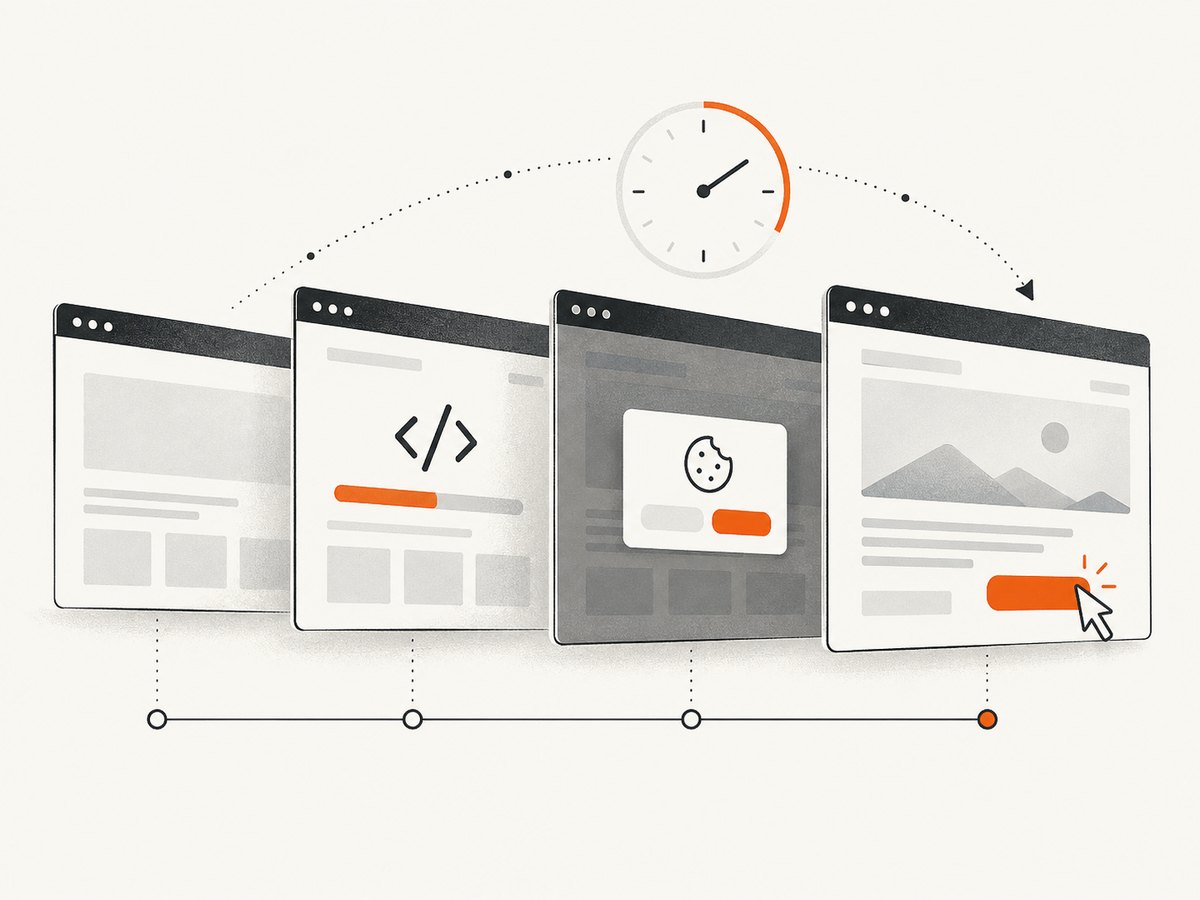
Use an explicit wait tied to a meaningful condition instead of a fixed sleep. Selenium also warns that mixing implicit and explicit waits can produce unpredictable timeout behavior, so choose explicit waits for a test suite that needs precise synchronization.
from selenium import webdriver
from selenium.webdriver.common.by import By
from selenium.webdriver.support.ui import WebDriverWait
from selenium.webdriver.support import expected_conditions as EC
from selenium.common.exceptions import TimeoutException

 driver = webdriver.Chrome()
 wait = WebDriverWait(driver, 20)
 try:
     driver.get("https://example.com/app")
     button = wait.until(
         EC.element_to_be_clickable((By.CSS_SELECTOR, "button[data-testid='save']"))
     )
     button.click()
 finally:
     driver.quit()
Choose the condition deliberately:
presence_of_element_located: the node is in the DOM, even if hidden.visibility_of_element_located: the node has rendered and is visible.element_to_be_clickable: visible and enabled, suitable before a click.text_to_be_present_in_element: useful after an asynchronous status update.staleness_of: useful when waiting for an old node to be replaced.
Frames and nested frames
An iframe has its own document. WebDriver starts in the top-level document and cannot locate descendants of a frame until you switch into it. Selenium IDE’s select frame commands may be present in the recording, which explains why the same locator appears to work there.
from selenium.webdriver.common.by import By
from selenium.webdriver.support.ui import WebDriverWait
from selenium.webdriver.support import expected_conditions as EC

wait = WebDriverWait(driver, 20)

# Switch by a WebElement, name/id, or frame index.
frame = wait.until(EC.presence_of_element_located((By.CSS_SELECTOR, "iframe.payment")))
driver.switch_to.frame(frame)

card_number = wait.until(
    EC.visibility_of_element_located((By.NAME, "cardnumber"))
)
card_number.send_keys("4242424242424242")

# Return to the parent document before working elsewhere.
driver.switch_to.default_content()
For nested frames, switch one frame at a time. You can combine availability and switching with frame_to_be_available_and_switch_to_it. Always return to default_content() when leaving the frame tree; otherwise later lookups continue in the old context.
# Nested frame example
wait.until(EC.frame_to_be_available_and_switch_to_it((By.ID, "outer-frame")))
wait.until(EC.frame_to_be_available_and_switch_to_it((By.CSS_SELECTOR, "iframe.inner")))
wait.until(EC.element_to_be_clickable((By.CSS_SELECTOR, "button.confirm"))).click()
driver.switch_to.default_content()
Windows, tabs, and pop-up flows
A new tab or window has a different browsing context. A successful click does not automatically move WebDriver to it.
from selenium.webdriver.support.ui import WebDriverWait

original = driver.current_window_handle
before = set(driver.window_handles)
driver.find_element(By.LINK_TEXT, "Open report").click()

wait = WebDriverWait(driver, 15)
wait.until(lambda d: len(d.window_handles) > len(before))
new_handle = (set(driver.window_handles) - before).pop()
driver.switch_to.window(new_handle)
wait.until(lambda d: d.execute_script("return document.readyState") == "complete")

# Search in the new tab here, then optionally return.
driver.switch_to.window(original)
Shadow DOM: locate the host, then the root
Web components can hide their internal markup inside a shadow root. A selector evaluated against the document does not cross that boundary. Selenium 4 exposes the shadow root as a search context.
host = wait.until(
    EC.presence_of_element_located((By.CSS_SELECTOR, "user-profile"))
)
shadow = host.shadow_root
email = shadow.find_element(By.CSS_SELECTOR, "input[type='email']")
email.send_keys("dev@example.com")
If the component uses nested shadow roots, repeat the host-to-root operation at each boundary. If the application attaches a closed shadow root, ordinary WebDriver selectors cannot inspect its internals; interact through the component’s public controls or an application-supported test hook.
Locator quality: make the selector survive markup changes
Selenium recommends a unique, stable ID when one is available. Otherwise use a compact CSS selector. XPath is supported, but long absolute paths and broad traversal are harder to debug and tend to break when layout markup changes (locator strategies).
| Choice | Good use | Common failure |
|---|---|---|
| Unique ID | #checkout-submit |
Generated IDs that change each run |
| Stable CSS | button[data-testid='save'] |
Classes used only for styling or hashed builds |
| Relative XPath | //button[@aria-label='Save'] |
Text or attributes localized by language |
| Absolute XPath | Only when structure is genuinely fixed | Any wrapper insertion breaks it |
Check uniqueness in the browser console with document.querySelectorAll("your-selector").length. A selector matching zero nodes means the context or timing is wrong. A selector matching several nodes needs a more specific condition.
Presence is different from interactability
An element can be present but hidden by CSS, covered by a modal, disabled, outside the viewport, or still animating. Selenium states that an element must be present and displayed before it can be interacted with. Wait for the state your action requires, then diagnose overlays if a click is intercepted.
save = wait.until(EC.visibility_of_element_located((By.ID, "save")))
wait.until(lambda d: save.is_enabled())
driver.execute_script("arguments[0].scrollIntoView({block: 'center'});", save)
save.click()
Do not use JavaScript clicks as the first fix. They can bypass the real user interaction path and conceal an overlay or timing defect. Use them only when the application intentionally requires script-level interaction and the test’s purpose allows it.
Stale elements after re-rendering
StaleElementReferenceException means the node you stored is no longer attached to the current document. Locate it again after navigation, a route change, a form submission, or a framework update.
from selenium.common.exceptions import StaleElementReferenceException

for attempt in range(3):
    try:
        wait.until(EC.element_to_be_clickable((By.CSS_SELECTOR, "button.refresh"))).click()
        break
    except StaleElementReferenceException:
        if attempt == 2:
            raise
Common errors and fixes
| Error or symptom | Likely cause | Fix |
|---|---|---|
NoSuchElementException immediately |
Zero implicit wait or wrong context | Use an explicit wait; inspect frames, windows, and shadow roots. |
| IDE works, code times out | IDE has a wait or a later navigation step | Recreate the IDE sequence and wait for the same state. |
| Selector works in DevTools but not WebDriver | DevTools is focused inside a frame or shadow root | Switch to that frame or obtain the shadow root first. |
ElementClickInterceptedException |
Overlay, cookie banner, or animation covers it | Wait for the overlay to disappear, close it, scroll into view, and wait for clickability. |
TimeoutException on a frame |
Frame is injected later, hidden, or cross-flow state differs | Wait for frame availability and verify the URL, account, and frame selector. |
StaleElementReferenceException |
Framework replaced the node | Discard the reference and locate the element again. |
| Works locally, fails in CI | Different viewport, browser version, network, or account state | Log URL, title, window handles, viewport, and screenshots; use state-based waits instead of sleeps. |
Logging that makes the mismatch visible
def log_state(driver, label):
    print({
        "label": label,
        "url": driver.current_url,
        "title": driver.title,
        "handles": driver.window_handles,
        "current_handle": driver.current_window_handle,
        "ready_state": driver.execute_script("return document.readyState"),
    })

log_state(driver, "before lookup")
try:
    element = wait.until(EC.visibility_of_element_located((By.CSS_SELECTOR, "#target")))
except TimeoutException:
    driver.save_screenshot("lookup-timeout.png")
    print(driver.page_source[:2000])
    raise
Performance and reliability practices
- Use one explicit wait object with a sensible upper bound, and keep conditions specific so failures happen close to their cause.
- Prefer stable test IDs or accessibility attributes over styling classes.
- Keep frame and window switching in small helper functions that return to a known context.
- Capture diagnostics only on failure in large suites; screenshots and full page source add I/O.
- Use a consistent viewport and timezone in CI when responsive layouts change selectors.
- Do not increase every timeout globally. A long timeout can hide a dead request and slow every failure.
Or skip the browser setup
When your goal is a page image rather than an interaction test, ScreenshotNeo provides a single request. It accepts the cookie or consent banner like a visitor and removes more than 60 known consent platforms, newsletter popups, and chat widgets before capture; each step can be turned off. Bot checks, CAPTCHAs, blank pages, timeouts, failed loads, and cache hits are not billed, and response headers report the page verdict and billing status.
cURL
curl -G "https://api.screenshotneo.com/v1/shot" -d access_key=YOUR_API_KEY --data-urlencode url=https://stripe.com -o shot.webpPython
import requests
r = requests.get("https://api.screenshotneo.com/v1/shot", params={"access_key": "YOUR_API_KEY", "url": "https://stripe.com"}, timeout=90)
open("shot.webp", "wb").write(r.content)
Node.js
const q = new URLSearchParams({ access_key: 'YOUR_API_KEY', url: 'https://stripe.com' });
const res = await fetch(`https://api.screenshotneo.com/v1/shot?${q}`);
ScreenshotNeo also has an MCP server with take_screenshot, get_page_info, and capture_pdf tools for Claude, Cursor, and other MCP clients. Other options include full-page capture with lazy images loaded, CSS-element capture, device presets or custom viewports, dark mode, retina scale, custom CSS and JavaScript, clicks, selector waits, network-idle waits, request blocking, headers, cookies, user agents, authorization, timezone, geolocation, transparent backgrounds, resizing, TTL caching, signed image links, asynchronous jobs with signed webhooks, bulk capture for 100 URLs per call, usage reporting, and an OpenAPI specification.
There is a free allowance of 1,000 screenshots per month with no card. Paid plans start at $5 for 3,000 screenshots; yearly billing gives two months free, and every feature is available on every plan. Create a free ScreenshotNeo account and start with the no-card monthly allowance.
FAQ
Why does adding a sleep sometimes fix it?
It gives the application time to render, but it waits a fixed duration regardless of actual state. An explicit condition is faster when the page is ready early and clearer when it is not.
Should I set an implicit wait instead?
You can, but Selenium warns against mixing implicit and explicit waits. Explicit waits make each synchronization point visible and predictable.
Can WebDriver search across an iframe automatically?
No. Switch into the containing frame, search its document, then switch back when finished.
Does Selenium IDE guarantee that its locator is correct?
No. It can find a matching node in one recorded state. You still need a stable locator and a wait that matches your application’s behavior.
What should I log first in a failing test?
Log the current URL, title, window handle, available handles, ready state, locator, and whether the expected iframe or shadow host exists. Save a screenshot at the failure point.


