How to Set Up Agent Infra’s MCP Browser Server
Configure Agent Infra’s MCP browser server locally, remotely, and in popular clients, with options, troubleshooting, and a ScreenshotNeo shortcut.

Direct answer: install Node.js 18 or newer, use an MCP-compatible client, and add @agent-infra/mcp-server-browser as a stdio server. The smallest working configuration runs the package with npx:
{
  "mcpServers": {
    "browser": {
      "command": "npx",
      "args": ["@agent-infra/mcp-server-browser@latest"]
    }
  }
}
Save that configuration in your client’s MCP settings, restart the client, and ask the agent to open a page. Agent Infra’s package uses Puppeteer’s structured accessibility data for normal browser interaction and offers an optional vision mode for layouts that need visual understanding. The package README describes it as a lightweight MCP server with local or remote browser support and configurable browser engines. See the official npm README for release-specific details.
What you need before installing
- Node.js 18 or newer. Check with
node --version. - An MCP client. The package documentation names VS Code, Cursor, Windsurf, and Claude Desktop. Other clients can work if they support MCP stdio or HTTP transports.
- A browser runtime. The server can select Chrome, Edge, or Firefox, or use a specific executable path. In many local installations Puppeteer can find a compatible browser automatically, but controlled environments often need an explicit path.
- Permission to launch a browser. Containers and locked-down Linux machines may require a virtual display, sandbox adjustment, or a system-installed browser.
Run these checks first:
node --version
npm --version
npx --version
If Node is older than 18, upgrade it before debugging MCP. A client that does not expose an MCP server configuration cannot load this package until an MCP extension or a newer client is installed.
Install the local server with stdio
1. Add the server to your MCP client
For clients that accept a JSON configuration, add the browser entry shown below. The @latest tag follows the package’s current npm release, so pin a tested version in a controlled deployment if your client supports versioned arguments.
{
  "mcpServers": {
    "browser": {
      "command": "npx",
      "args": ["@agent-infra/mcp-server-browser@latest"]
    }
  }
}
Use the client’s own configuration location. Do not assume that a configuration file path from one client applies to another; the package README provides client-specific directions.
2. VS Code
The README documents a CLI shortcut:
code --add-mcp '{"name":"browser","command":"npx","args":["@agent-infra/mcp-server-browser@latest"]}'After adding it, reload the VS Code window if the server does not appear immediately. Inspect the MCP output panel for startup messages and errors.
3. Cursor
- Open Cursor Settings.
- Choose MCP and select Add new MCP Server.
- Create a command-type server using
npx @agent-infra/mcp-server-browser, or paste the equivalent JSON configuration. - Restart or reload Cursor, then confirm that the browser tools are listed for the agent.
Cursor’s labels and settings layout can change, so treat the current client UI as authoritative.
4. Claude Desktop and Windsurf
Claude Desktop uses the same mcpServers object in its MCP configuration. Windsurf has its own MCP settings flow; use the client’s current documentation and enter the same command and arguments. In all cases, the executable is npx, and the package name is the argument.
5. Make a first request
Ask the agent to navigate to a public page, summarize its accessible controls, click a harmless link, or take a screenshot. Start with a page that does not require login. The package README lists tools for navigation, clicking, form filling, JavaScript evaluation, screenshots, tab management, and browser shutdown. It also describes resources for console logs, downloads, and screenshots; the exact tool list can vary by release.
How the browser interaction model works
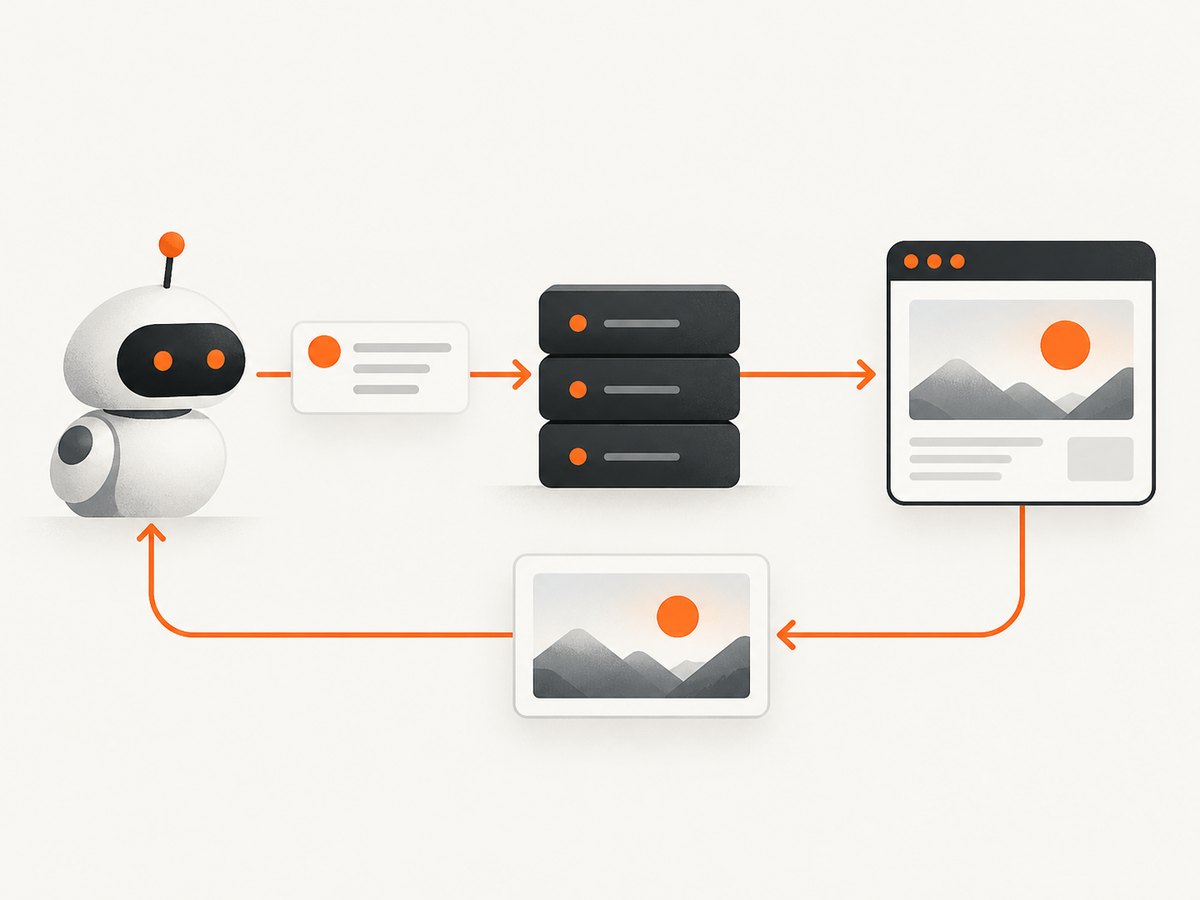
Agent Infra presents structured accessibility information as its normal interaction path. Instead of asking a model to infer every coordinate from pixels, the server can expose page roles, names, and relationships that an agent can use to identify links, buttons, fields, and other controls. This is useful for forms and conventional web applications.
Vision mode is an optional path for complex layouts or visual details that are difficult to express through structured accessibility data. Enable it only when the agent needs visual interpretation. The documentation does not provide an independent speed or accuracy benchmark, so choose based on the page and your task rather than assuming one mode is universally better.
Important command-line options
The CLI exposes settings for the browser process, network, page defaults, and server transport. Names and defaults can change, so run the package help command for the version you install:
npx @agent-infra/mcp-server-browser@latest --help| Area | Options documented by the package | When to use them |
|---|---|---|
| Browser engine | --browser or channel selection for Chrome, Edge, or Firefox |
Match the engine your application supports or reproduce a browser-specific issue. |
| Connection | CDP and WebSocket endpoints | Attach to a browser managed by another process or service. |
| Executable | Executable path | Use a system browser in a container or a nonstandard installation. |
| Display | Headless mode and display environment | Run on servers without a desktop, or connect to a virtual display. |
| Server | Host and port | Expose a remote MCP transport instead of local stdio. |
| Network | Proxy server and proxy bypass | Route traffic through an enterprise proxy or exclude internal hosts. |
| Identity | User agent and user data directory | Reproduce a browser profile or test server-side user-agent behavior. |
| Page defaults | Viewport size and output directory | Control responsive layouts and where artifacts are written. |
| Understanding | Vision mode | Handle visual layouts that structured page data does not describe well. |
Runtime HTTP headers can also set a viewport size with x-viewport-size, vision coordinate factors with x-vision-factors, and a user agent with x-user-agent. Header names are case-insensitive. Keep these values consistent across requests when you need reproducible screenshots or form behavior.
Run the server remotely
The README documents starting a remote server with a port argument, for example:
npx @agent-infra/mcp-server-browser@latest --port 8089It describes Streamable HTTP at /mcp and SSE at /sse, with Streamable HTTP recommended. The README’s displayed examples contain an apparent extra colon in the host and port, such as http://127.0.0.1::8089/mcp. Do not copy that spelling. Verify the intended address in the current repository or release documentation before configuring a client; a normal host-and-port URL has one colon, such as http://127.0.0.1:8089/mcp, if that is what the current release specifies.
For a remote deployment, bind only to an interface reachable by trusted clients, place authentication and TLS at an appropriate proxy, and restrict firewall access. The package documentation establishes the transport paths but does not define an authentication scheme, so do not assume that exposing the port publicly is safe by default.
Virtual displays, profiles, and custom browser connections
Headless and VNC environments
A server without a desktop can run headless. The README also shows starting with DISPLAY=:0 for a VNC or virtual-display environment:
DISPLAY=:0 npx @agent-infra/mcp-server-browser@latestUse a virtual display when a task depends on a visible desktop session or when your browser build requires one. If the process exits immediately, check that the display exists and that the account running Node can access it.
Persistent profiles
A user data directory lets the browser reuse a profile. This can preserve preferences and local storage, but it also preserves cookies and logged-in sessions. Use a dedicated profile for automation. Never point an untrusted agent at your personal browser profile.
CDP and WebSocket endpoints
When another process owns the browser, configure the documented CDP or WebSocket endpoint instead of launching a second browser. Confirm that the endpoint is reachable from the MCP server process and that the browser was started with the matching remote-debugging configuration.
In-memory use from JavaScript or TypeScript
The README describes an in-memory option using the Model Context Protocol SDK and InMemoryTransport. This embeds the server in a JavaScript or TypeScript application and avoids requiring end users to install the CLI. The exact import paths and server factory API are release-specific, so copy the current example from the package repository for the version you pin. The architecture is:
- Create an in-memory client and server transport pair.
- Start the Agent Infra server on one side of the pair.
- Connect your application’s MCP client on the other side.
- Pass browser settings through the server options or your process environment.
This approach is useful for a desktop application, an integration test harness, or a service that controls the MCP lifecycle itself.
Common errors and fixes
| Symptom | Likely cause | Fix |
|---|---|---|
npx: command not found |
Node.js or npm is missing, or not on PATH. |
Install Node.js 18+ and open a new terminal. Verify with node --version and npx --version. |
| Client shows no tools | Malformed JSON, wrong settings file, or client not reloaded. | Validate the JSON, confirm the command is npx, restart the client, and inspect its MCP logs. |
| Package download fails | Registry, proxy, or network policy blocks npm. | Run the same npx command in a terminal, configure the approved npm registry or proxy, and retry. |
| Browser executable not found | The environment has no compatible browser or Puppeteer cannot locate it. | Install a supported browser or set the documented executable-path option. |
| Browser exits in Docker | Sandbox, shared-memory, or display restrictions. | Use the container’s supported browser configuration, provide adequate shared memory, or run with a virtual display. Check the browser process log before changing flags. |
| Remote connection refused | Wrong host, port, path, bind address, or firewall rule. | Confirm the process is listening, test the port locally, and verify the current release’s /mcp or /sse URL. Remember the README’s extra-colon typo. |
| Clicks target the wrong item | Dynamic content changed the accessibility tree or the page contains duplicate names. | Ask the agent to inspect the current page, use a more specific label or selector, and wait for the relevant content before clicking. |
| Vision actions miss coordinates | Viewport scaling differs from the model’s coordinate assumptions. | Keep the viewport stable and configure the documented x-vision-factors header when required. |
| Authentication behaves unexpectedly | Wrong profile, missing cookies, or an expired session. | Use a dedicated user data directory, authenticate deliberately, and never reuse a personal profile with an untrusted agent. |
Reliability, performance, and operating costs
Reliability checklist
- Pin a package version after validating an upgrade instead of allowing an unattended production change through
@latest. - Use explicit browser, executable, viewport, proxy, and profile settings when reproducibility matters.
- Capture console logs and screenshots when diagnosing a failed workflow.
- Make navigation and form actions idempotent where possible; retries can otherwise submit a form twice.
- Close tabs and browsers when a workflow ends, especially for long-running agents.
- Separate credentials and browser profiles by environment.
Performance considerations
Startup time includes launching Node, the MCP server, and the browser. A long-lived server avoids repeated browser startup, while a persistent profile avoids repeated setup. Smaller viewports and fewer tabs reduce work, but page complexity, network conditions, and browser engine behavior vary by site. Vision mode adds a visual interpretation step; use it for pages that need it rather than enabling it globally without a reason. The research dossier contains no independent benchmark, so measure your own workflow if latency is a requirement.
Cost considerations
The npm package itself is software distributed through npm. Your operational costs come from the machine, browser process, network egress, proxy, and any model or MCP client you use. A remote service may add hosting and TLS costs. Keep browser lifetimes bounded and limit concurrent tabs to the level your host can support.
Or skip the browser setup
If your agent only needs reliable website screenshots, ScreenshotNeo provides a direct API and an MCP server. It removes cookie and consent banners, newsletter popups, and chat widgets before capture. Bot checks, blank pages, failed loads, timeouts, and cache hits are not billed, and response headers identify the page verdict and billing status.
Use the MCP tools take_screenshot, get_page_info, and capture_pdf from Claude, Cursor, or another MCP client. ScreenshotNeo supports full-page and element captures, device presets, custom viewports, retina scale, dark mode, PDF output, custom CSS and JavaScript, clicks, waits, request blocking, headers, cookies, user agents, geolocation, caching, signed links, asynchronous jobs, bulk capture, and a usage API. Every feature is available on every plan.
See the ScreenshotNeo API documentation for request options. A one-call capture looks like this:
curl -G "https://api.screenshotneo.com/v1/shot" \
  -d access_key=YOUR_API_KEY \
  --data-urlencode url=https://stripe.com \
  -o shot.webp
import requests
r = requests.get("https://api.screenshotneo.com/v1/shot", params={"access_key": "YOUR_API_KEY", "url": "https://stripe.com"}, timeout=90)
open("shot.webp", "wb").write(r.content)const q = new URLSearchParams({ access_key: 'YOUR_API_KEY', url: 'https://stripe.com' });
const res = await fetch(`https://api.screenshotneo.com/v1/shot?${q}`);The Free plan includes 1,000 screenshots each month with no card. Paid plans start at $5 for 3,000 screenshots; yearly billing gives two months free. Create a free ScreenshotNeo account and start with the included monthly shots.
FAQ
Can I use Firefox instead of Chrome?
Yes. The package documents browser and channel selection for Chrome, Edge, and Firefox. Confirm the option name and compatibility in the version’s help output.

Should I use stdio or HTTP?
Use stdio for a local client on the same machine. Use Streamable HTTP when a client needs to reach a separately hosted server, and verify the current endpoint and security configuration first.
Does the server control an existing logged-in browser?
It can connect through documented CDP or WebSocket settings, but the security impact depends on the browser session. Chrome’s own DevTools MCP documentation warns that an agent connected to an existing session may access logged-in accounts, cookies, and other data. Use only trusted agents and isolated profiles.
Can I run it without a visible desktop?
Yes. Use headless operation or a virtual display such as the documented DISPLAY=:0 pattern when your environment provides one.
Where do I find the exact current tool names?
Check the package README and the tool list exposed by your MCP client after startup. The published listing describes navigation, clicks, form filling, JavaScript evaluation, screenshots, tabs, and browser closing, but it may not enumerate every tool in every release.