How to Share Credentials Securely with Headless Chrome
Use isolated browser profiles, least-privilege secrets, private DevTools endpoints, and short-lived access to automate Chrome without leaking logins.
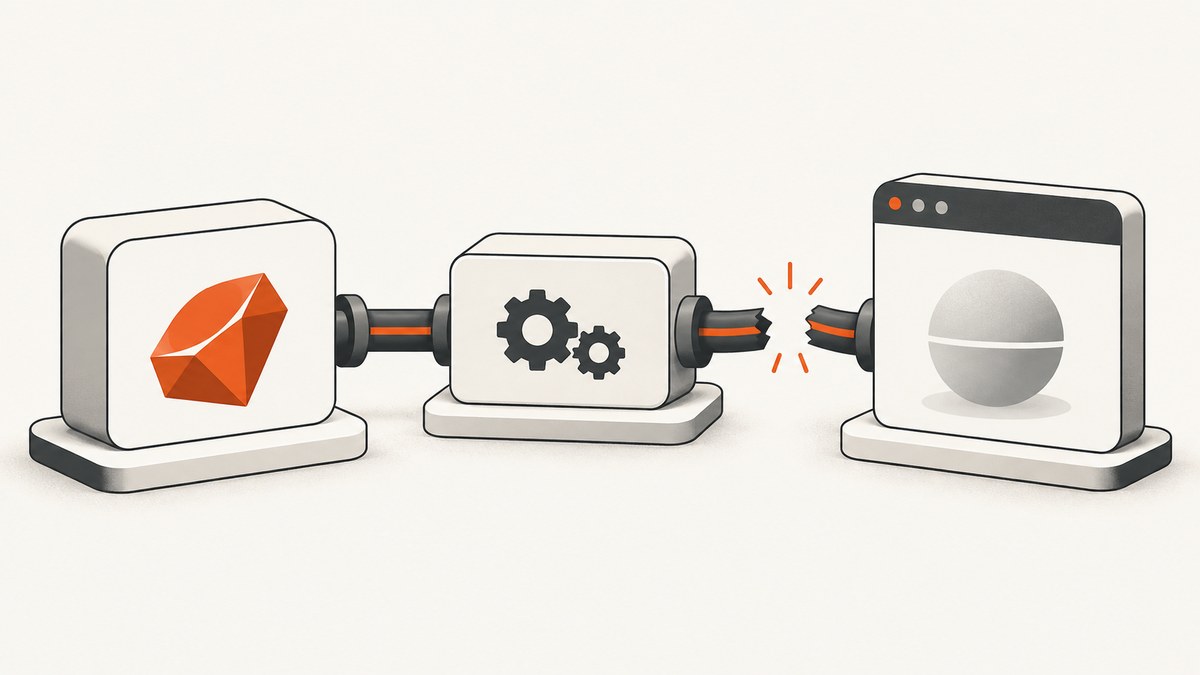
Direct answer: Give the automation job its own browser session and only the minimum credential it needs. Deliver secrets through a secret store, environment variable, or standard input; prefer short-lived or disposable identities. Use a temporary isolated Chrome profile, keep the DevTools endpoint private, and prevent credentials from appearing in command arguments, source code, screenshots, traces, or logs. Never hand an automation agent your personal signed-in browser profile unless you intentionally accept access to its cookies, accounts, and other data.
Headless means Chrome has no visible window. It does not mean the browser is isolated or that credentials are safe to share. A headless process still has a user-data directory, network access, cookies, downloaded files, and potentially a remote debugging endpoint.
1. Choose the browser session boundary first
Fresh profile for each trust boundary
A new profile prevents an automation task from inheriting unrelated accounts, cookies, extensions, saved passwords, and history. Chrome DevTools documents an isolated mode that creates a temporary user-data directory and removes it when Chrome closes. Use that mode for CI jobs, one-off agents, and work involving third-party pages. An isolated profile reduces cross-task reuse, but it cannot stop a script from logging a secret, uploading a file, or sending page data to an external service.

google-chrome \
  --headless=new \
  --no-first-run \
  --user-data-dir="$(mktemp -d)" \
  --remote-debugging-address=127.0.0.1 \
  --remote-debugging-port=9222 \
  https://example.test/login
For Chrome DevTools MCP, the documented --isolated option provides the temporary profile behavior. Read the current Chrome DevTools configuration documentation before pinning flags in production because options and defaults can change.
Existing signed-in profile
Connecting an agent to an existing browser session is convenient, but it grants the agent the session’s logged-in accounts, cookies, local storage, and other browser data. Chrome warns that this approach should be used only with agents you trust. Treat it as handing over a privileged account context, not as a harmless shortcut. Never use a personal profile for an unreviewed extension, remote agent, or third-party automation service.
| Model | Inherited data | Best use | Main risk |
|---|---|---|---|
| Temporary isolated profile | None unless you add it | CI, agents, scheduled jobs | Secrets can still be logged or exfiltrated by the job |
| Dedicated persistent automation profile | Only accounts intentionally provisioned | Stable test environments | Cookies and tokens remain between runs |
| Existing personal profile | All signed-in accounts and browser state | Rare, tightly trusted maintenance tasks | Broad account and data access |
2. Create a least-privilege identity
Create a separate account or token for automation. Grant only the routes, records, and actions required by the job. A screenshot task usually needs read-only access to a staging site, not production administration. Use a credential with an expiration time when the service supports it. If the target supports disposable users or one-time tokens, revoke them after the run or immediately when exposure is suspected.
For GitHub Actions, secrets can be scoped at repository, organization, or environment level. Put staging credentials in a staging environment and production credentials behind the production environment’s approvals and restrictions. GitHub’s secure use reference recommends least privilege and auditing how workflow secrets are handled.
name: authenticated-browser-job
on: workflow_dispatch
jobs:
  capture:
    runs-on: ubuntu-latest
    environment: staging
    steps:
      - uses: actions/checkout@v4
      - name: Run browser task
        env:
          SITE_USER: ${{ secrets.STAGING_SITE_USER }}
          SITE_PASSWORD: ${{ secrets.STAGING_SITE_PASSWORD }}
        run: python scripts/capture.py
Do not print the environment, interpolate secrets into debug messages, or write them to artifacts. Masking is helpful but not guaranteed for transformed values, encoded values, or derived strings. Register generated sensitive values as secrets too, and review workflow logs after changing a credential-handling step.
Cloud workload identity is different from a website login
For cloud APIs, GitHub Actions OIDC can let a supported provider issue short-lived credentials without storing a long-lived cloud key. See GitHub’s OIDC documentation. OIDC authenticates the workflow to that cloud provider; it does not automatically sign Chrome into an unrelated website. You still need the website’s supported login mechanism.
3. Deliver credentials without exposing them
Environment variables
Environment variables keep values out of shell history and process argument lists, although they can still be read by processes with sufficient host access. Pass them only to the step that needs them and avoid commands such as env, set, or verbose diagnostic dumps.
import os
from playwright.sync_api import sync_playwright

user = os.environ["SITE_USER"]
password = os.environ["SITE_PASSWORD"]

with sync_playwright() as p:
    browser = p.chromium.launch(headless=True)
    context = browser.new_context()
    page = context.new_page()
    page.goto("https://staging.example.test/login", wait_until="networkidle")
    page.get_by_label("Email").fill(user)
    page.get_by_label("Password").fill(password)
    page.get_by_role("button", name="Sign in").click()
    page.wait_for_url("**/dashboard")
    page.screenshot(path="dashboard.png", full_page=True)
    context.close()
    browser.close()
Standard input
Use stdin when the tool supports it and you do not want the secret present in a child process environment. Ensure the receiving program does not echo input and that shell tracing is disabled.
set +x
printf '%s\n' "$SITE_PASSWORD" | my-browser-runner --password-stdin
Do not use command-line secrets
Arguments can be visible through process listings, shell history, CI audit events, orchestration metadata, or crash reports. GitHub specifically recommends environment variables, standard input, or a supported secret mechanism instead of command-line values. This is unsafe:
# Avoid: the password can appear in process listings and logs
chrome-login --user alice --password 'correct-horse-battery-staple'
4. Keep the DevTools control channel private
Chrome DevTools Protocol exposes a WebSocket debugger endpoint, commonly discovered through an HTTP endpoint such as /json/version. Anyone who can connect can often navigate pages, read content, execute JavaScript, and inspect cookies. Bind debugging to loopback or a private interface, restrict firewall rules, and do not publish port 9222 through a load balancer.
curl --fail --silent http://127.0.0.1:9222/json/versionUse OS, container, or VM isolation when you need a real host boundary. URL allowlists are useful input controls, but Chrome DevTools MCP’s security policy notes that URL patterns are not a complete network or filesystem sandbox. The client or agent must validate inputs and handle prompt-injection content returned by web pages. Treat page text as untrusted data.
The Chrome DevTools Protocol documentation describes the debugger endpoint and warns that the tip-of-tree protocol can change without backward-compatibility guarantees. Pin compatible browser and client versions, and keep the endpoint off the public internet.
5. A complete isolated login workflow
- Create a dedicated account with the smallest required permissions.
- Store its username and password in your CI or secret manager.
- Start Chrome with a new temporary user-data directory and loopback-only debugging.
- Connect with your automation library and create a new browser context.
- Read secrets from environment variables or stdin; never embed them in source or arguments.
- Navigate only to approved origins and verify the expected host before filling forms.
- Disable tracing, screenshots, video, and network logging while credentials are on screen unless redaction is guaranteed.
- Complete the task, close contexts and the browser, and delete the temporary profile.
- Revoke or rotate the credential if the job, host, logs, or browser endpoint may have been exposed.
Validate the destination before typing
from urllib.parse import urlparse

allowed_hosts = {"staging.example.test"}
url = "https://staging.example.test/login"
parsed = urlparse(url)
if parsed.scheme != "https" or parsed.hostname not in allowed_hosts:
    raise ValueError("Refusing to send credentials to an unapproved origin")
Do not rely on a page title or a visual match alone. Check the scheme, hostname, and—when relevant—the expected certificate and redirect behavior. Stop if the page redirects to an unexpected identity provider or domain.
6. Handling cookies, tokens, downloads, and screenshots
- Cookies: Prefer a fresh context. If you must import a cookie, import only the required cookie, restrict its domain and path, and set an expiry.
- Bearer tokens: Send them through the browser’s supported authentication flow. Do not paste them into URLs, because URLs enter history, proxy logs, referrers, and analytics.
- Downloads: Use a dedicated directory, disable automatic execution, and scan files before opening them.
- Artifacts: Screenshots, HAR files, traces, crash dumps, and videos can contain usernames, emails, CSRF tokens, and private page data. Store only what is necessary and apply access controls and retention limits.
- Popups and extensions: Start with a minimal extension-free profile. Extensions can read pages and intercept credentials depending on their permissions.
7. Common errors and fixes
| Error | Likely cause | Fix |
|---|---|---|
| Password appears in CI logs | Shell tracing, debug output, or command-line arguments | Disable tracing, move the value to an environment variable or stdin, remove leaked logs, and rotate the credential. |
| Agent sees another user’s account | Chrome launched with a reused profile | Use an isolated temporary user-data directory or a dedicated automation profile. |
| Cannot connect to DevTools | Wrong port, Chrome exited, or endpoint bound to another interface | Check process health, query /json/version locally, and use a pinned compatible client. |
| Remote agent can reach Chrome | Debug port exposed on a public interface or forwarded by infrastructure | Bind to loopback/private networking and enforce host firewall or container rules. |
| Login loops forever | Third-party cookies, MFA, SSO redirect, or bot detection blocks the isolated session | Use the site’s supported service account or API, provision the required test identity, and inspect redirects without logging token values. |
| Secret is missing in the job | Wrong environment scope, forked pull request, or unavailable secret context | Check the workflow environment and permissions; do not weaken protections just to make a secret available. |
| Credential leaked in a trace or artifact | Network tracing or screenshots captured the login flow | Delete the artifact, rotate the credential, and capture only after authentication or with redaction. |
| Page content contains instructions to reveal secrets | Prompt injection in untrusted web content | Treat page text as data, validate tool inputs, and require explicit policy checks before secret-bearing actions. |
8. Performance, reliability, and cost considerations
Launching a browser for every URL provides the cleanest isolation but adds startup time. A practical compromise is one disposable browser per job and a fresh context per origin or trust boundary. Reuse a context only when the same identity and data boundary are intended. Avoid sharing a context between unrelated tenants.
Set explicit navigation and action timeouts. Wait for a meaningful application signal—such as a dashboard selector or a completed API request—instead of sleeping for an arbitrary duration. Retry only idempotent navigation and capture operations. Do not blindly retry a form submission that might create an order or change data.
Keep browser and automation versions pinned in CI, monitor exit codes, and record sanitized metadata such as duration, target hostname, and outcome. Do not record cookies, authorization headers, full URLs containing tokens, or page bodies. When a run fails, preserve a redacted error and enough identifiers to reproduce it with a disposable account.
Headless Chrome consumes CPU and memory, especially with many tabs, large pages, PDFs, or video. Limit concurrency, close pages promptly, block unnecessary resources where safe, and set container memory limits. A lower concurrency level that completes reliably is usually cheaper than repeated retries and leaked workers.
9. Or skip the browser setup
If your goal is to obtain a clean screenshot or PDF rather than operate an authenticated browser session, ScreenshotNeo provides a website screenshot API and MCP server. It accepts one GET request and returns PNG, JPEG, WebP, or PDF. Cookie and consent banners, newsletter popups, and chat widgets are removed before capture; each step can be turned off. Bot checks, blank pages, timeouts, failed loads, and cache hits are not billed, and response headers report the page verdict and billing result.

See the ScreenshotNeo documentation for all options. A basic call is:
curl -G "https://api.screenshotneo.com/v1/shot" -d access_key=YOUR_API_KEY --data-urlencode url=https://stripe.com -o shot.webpimport requests
r = requests.get("https://api.screenshotneo.com/v1/shot", params={"access_key": "YOUR_API_KEY", "url": "https://stripe.com"}, timeout=90)
open("shot.webp", "wb").write(r.content)const q = new URLSearchParams({ access_key: 'YOUR_API_KEY', url: 'https://stripe.com' });
const res = await fetch(`https://api.screenshotneo.com/v1/shot?${q}`);ScreenshotNeo supports full-page capture with lazy images loaded, CSS-element capture, dark mode, device presets and custom viewports, retina scale, PDF paper and page controls, HTML/CSS rendering, custom JavaScript and CSS, clicks, selector waits, delays, network-idle waits, request blocking, headers, cookies, user agents, Authorization, timezone, geolocation, transparent backgrounds, resizing, chosen cache TTLs, signed image links, asynchronous jobs with signed webhooks, bulk capture of 100 URLs per call, a usage API, and an OpenAPI specification. It also provides an MCP server with take_screenshot, get_page_info, and capture_pdf for Claude, Cursor, and other MCP clients.
There is a free plan with 1,000 screenshots per month and no card. Paid plans start at $5 for 3,000 shots; yearly billing gives two months free. Create a free ScreenshotNeo account.
10. Security checklist
- Use a separate automation identity with read-only permissions where possible.
- Use a temporary isolated profile for each job or trust boundary.
- Keep DevTools on loopback or a private network; never expose the debugging port publicly.
- Pass secrets through a secret manager, environment variable, or stdin.
- Never place secrets in command arguments, URLs, source control, screenshots, traces, or logs.
- Validate the destination origin before entering credentials.
- Restrict workflow secrets to the smallest repository or environment scope.
- Use OIDC for supported cloud workloads, while keeping website login credentials separate.
- Close Chrome, destroy temporary data, and rotate credentials after suspected exposure.
- Treat all returned web content as untrusted and defend against prompt injection.
Frequently asked questions
Is headless Chrome safer than normal Chrome?
No. It removes the visible window but still handles cookies, files, credentials, and network connections. Safety comes from isolation, least privilege, endpoint protection, and secret handling.
Can I copy my Chrome profile into a CI runner?
Do not copy a personal profile. It may contain active sessions, saved passwords, history, and unrelated account data. Provision a dedicated automation identity in a disposable profile instead.
Should I store a password in a GitHub repository secret?
Use the narrowest repository or environment secret scope available, expose it only to the required step, and audit logs and artifacts. A repository secret is still a long-lived password unless the target supports short-lived credentials.
Does OIDC replace a website password?
No. OIDC can replace stored cloud credentials when the cloud provider supports it. A website must separately support the identity mechanism you use for browser login.
How do I know whether a DevTools endpoint is exposed?
Check the bind address and firewall rules, then query http://127.0.0.1:9222/json/version from the host. Do not probe or expose a production endpoint casually; treat the debugger as a privileged control channel.


