BlogScreenshots on your device
How to Use a Shortcut to Capture a Full-Page Screenshot
Capture an entire webpage with Firefox, Edge, or iPhone Safari shortcuts, then automate full-page screenshots with ScreenshotNeo.

Short answer: Use your browser’s built-in full-page capture. In Firefox, press Ctrl+Shift+S on Windows/Linux or Command+Shift+S on macOS, then choose Save full page. In Microsoft Edge, press Ctrl+Shift+S and choose Capture full page. On iPhone Safari, take a normal screenshot, tap its preview, select Full Page, and save or crop it.
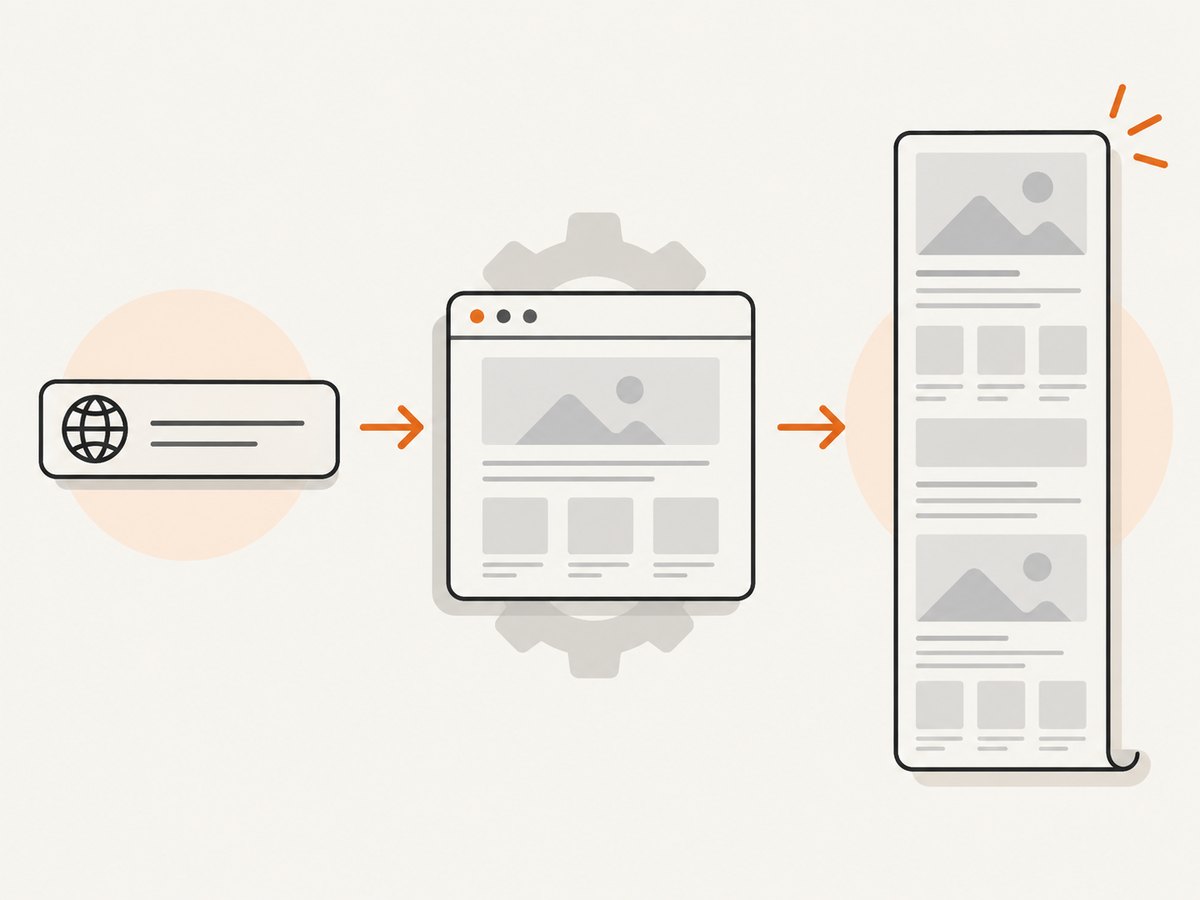
A full-page screenshot captures content below the visible viewport, including the part you would normally reach by scrolling. A regular screenshot captures only what is currently on screen.
Which shortcut should you use?
| Platform | Shortcut or action | Result |
|---|---|---|
| Firefox, Windows/Linux | Ctrl+Shift+S | Open screenshot panel, then select Save full page |
| Firefox, macOS | Command+Shift+S | Open screenshot panel, then select Save full page |
| Microsoft Edge | Ctrl+Shift+S | Select Capture full page |
| iPhone Safari | Take a screenshot, then tap Full Page | Save or crop the entire webpage |
Shortcut names and behavior can change with browser, device, operating-system, and browser-version updates. If the key combination does nothing, use the browser menu or context menu.
How to capture a full webpage in Firefox
- Open the webpage you want to capture.
- Press Ctrl+Shift+S on Windows/Linux, or Command+Shift+S on macOS.
- In the screenshot panel, choose Save full page.
- Download the image or copy it to the clipboard.
You can also right-click an empty part of the page and choose Take Screenshot. Mozilla documents both full-page and visible-page choices in its Firefox screenshot guide.
Firefox Developer Tools option
Firefox also has a Developer Tools command named Take a screenshot of the entire page. To enable it:
- Open Developer Tools.
- Open Developer Tools settings.
- Under Available Toolbox Buttons, enable the screenshot button.
- Click the new button and choose the entire-page capture option.
Firefox saves the result to your Downloads folder.
How to capture a full webpage in Microsoft Edge
- Open the webpage.
- Press Ctrl+Shift+S, or open Edge’s screenshot command from the browser menu or context menu.
- Select Capture full page.
- Use the overlay to mark up, copy, or save the capture.
Edge describes this as capturing an entire webpage, including content that extends beyond the screen. See Microsoft’s webpage screenshot documentation for the current menu location.
How to capture an entire webpage in iPhone Safari
- Open the page in Safari.
- Take a normal iPhone screenshot.
- Tap the screenshot preview before it disappears.
- At the top of the editor, select Full Page.
- Crop the capture if necessary, then save it.
Apple’s Safari screenshot instructions cover full-page webpage captures. The option appears for webpages that support this workflow; it is not a general replacement for every app’s scrolling capture.
Full page versus visible page
| Choice | Includes | Use it when |
|---|---|---|
| Visible-page screenshot | Only the current viewport | You need the exact state visible on screen |
| Full-page screenshot | Content above and below the viewport | You need a documentation page, article, landing page, or audit in one image |
Before capturing, scroll through the page once if it uses lazy loading. Some pages load images, charts, or embedded content only after they approach the viewport.
When the shortcut does not work
- The shortcut opens another command: A browser extension, operating-system shortcut, or keyboard layout may be intercepting it. Use the browser menu’s screenshot command.
- You only get the visible viewport: Choose Save full page or Capture full page; a normal screenshot command is a different action.
- Images are missing: Wait for the page to finish loading and scroll through it once to trigger lazy-loaded assets.
- The page is extremely long: Save as an image only if you need a single bitmap. For reading or archiving, print to PDF may be smaller and easier to navigate.
- Sticky headers repeat: Fixed navigation can appear at every stitched section. Try the browser’s built-in capture after the page settles, or hide the fixed element with a capture tool.
- Animations produce inconsistent frames: Pause the animation or wait until the desired state is visible before starting the capture.
- Login content is absent: Confirm you are signed in in the same browser profile and that the page is not blocked by an iframe or cross-origin policy.
- Mobile Safari has no Full Page tab: Confirm the screenshot was taken in Safari on a webpage, then open the screenshot preview and check the tabs at the top.
Or skip the browser setup
For repeatable captures, a screenshot API avoids manual shortcuts and browser state. ScreenshotNeo returns a PNG, JPEG, WebP, or PDF from one GET request. Its full-page mode loads lazy images, and you can also select one element, set a viewport or device preset, use retina scale, wait for a selector, delay, or network idle, and provide custom CSS or JavaScript. See the ScreenshotNeo API documentation for all options.
cURL
curl -G "https://api.screenshotneo.com/v1/shot" -d access_key=YOUR_API_KEY --data-urlencode url=https://stripe.com -o shot.webpPython
import requests

r = requests.get(
    "https://api.screenshotneo.com/v1/shot",
    params={"access_key": "YOUR_API_KEY", "url": "https://stripe.com"},
    timeout=90,
)
r.raise_for_status()
open("shot.webp", "wb").write(r.content)
Node.js
const q = new URLSearchParams({ access_key: 'YOUR_API_KEY', url: 'https://stripe.com' });
const res = await fetch(`https://api.screenshotneo.com/v1/shot?${q}`);
if (!res.ok) throw new Error(`Screenshot failed: ${res.status}`);
const data = Buffer.from(await res.arrayBuffer());
require('fs').writeFileSync('shot.webp', data);
ScreenshotNeo removes cookie and consent banners, newsletter popups, and chat widgets before capture. Bot checks, blank pages, timeouts, failed loads, and cache hits are not billed; response headers identify the page verdict and billing result. An MCP server provides take_screenshot, get_page_info, and capture_pdf tools for Claude, Cursor, and other MCP clients.
The Free plan includes 1,000 screenshots per month with no card. Paid plans start at $5 for 3,000 shots; every feature is available on every plan. Create a free ScreenshotNeo account.
Performance, reliability, and cost notes
- Browser capture: Best for one-off, interactive work. It uses your current cookies, login, viewport, and extensions, but results can vary with page timing.
- Automation: Use an API when captures run in CI, on a schedule, or across many URLs. Set an explicit wait condition for pages that render asynchronously.
- Long pages: Full-page images can be very tall and memory-heavy. Prefer WebP or JPEG when transparency is unnecessary; use PDF when readers need pagination.
- Caching: Reuse a chosen cache TTL when the same URL is captured repeatedly. This reduces load and can return cache hits without billing.
- Dynamic pages: Set timezone, geolocation, user agent, cookies, headers, or authorization when the page changes by visitor context.
FAQ
What shortcut captures an entire webpage?
Firefox and Edge use Ctrl+Shift+S on Windows/Linux, followed by their full-page option. Firefox uses Command+Shift+S on macOS.
Does a full-page screenshot include content below the fold?
Yes. It stitches the page beyond the current viewport into one capture.
Can I capture a full page on an iPhone?
Yes. In Safari, take a screenshot, open its preview, choose Full Page, then save or crop it.
Why is my capture blank or incomplete?
The page may still be loading, may require authentication, or may load content only after scrolling. Wait for the page, verify access, and trigger lazy-loaded sections before capturing.
Is there a universal Chrome or Android shortcut?
Shortcut availability varies by version and device. Check the current vendor documentation or use a browser menu command or dedicated capture utility.


