BlogScreenshots on your device
Snipping Tool for Linux Ubuntu
Find Ubuntu’s Snipping Tool equivalent: built-in GNOME Screenshot, Flameshot annotations, Wayland fixes, Spectacle, and automated web captures.

Short answer: Ubuntu already includes a screenshot workflow in GNOME. Press Print Screen to open the capture overlay, then choose the entire screen, a window, or a rectangular region. For drawing arrows, blurring details, and sharing from one editor, install Flameshot. KDE users can use Spectacle instead.
The right choice depends on your desktop session (GNOME or KDE) and whether you need annotation. Wayland can also change how capture permissions work, so check the session before troubleshooting.
1. Check your Ubuntu desktop and session
Open Settings → About and note your Ubuntu release. In a terminal, identify the session type:
echo "$XDG_CURRENT_DESKTOP"
echo "$XDG_SESSION_TYPE"
gnome or a GNOME-based value usually means Ubuntu’s built-in screenshot interface is the natural first choice. wayland or x11 describes the display protocol. KDE Plasma users should start with Spectacle. Package names and behavior can differ between Ubuntu releases, so verify commands against the release you run.
2. Use Ubuntu’s built-in screenshot tool
On current GNOME desktops, press Print Screen. The overlay lets you choose:
- the whole screen or all monitors;
- one application window;
- a user-defined rectangular area;
- where to save or copy the result.
Keyboard shortcuts vary by GNOME version and keyboard layout. If the key does nothing, open the application overview and search for Screenshot, or check Settings → Keyboard → View and Customize Shortcuts.
Command-line capture with gnome-screenshot
The Jammy manual describes gnome-screenshot as a utility for the entire screen, a window, or a user-defined area. Typical commands are:
# Entire screen; write to a named file
gnome-screenshot -f "$HOME/Pictures/screen.png"

# Active window
gnome-screenshot -w -f "$HOME/Pictures/window.png"

# Let you select an area
gnome-screenshot -a -f "$HOME/Pictures/area.png"

# Copy a capture to the clipboard instead of saving it
gnome-screenshot -c

# Delay capture (seconds), useful before opening a menu
gnome-screenshot -d 5 -f "$HOME/Pictures/menu.png"

# Include the pointer when supported by your installed version
gnome-screenshot -p -f "$HOME/Pictures/with-pointer.png"
Run gnome-screenshot --help on your machine because option availability and defaults follow the package shipped by your Ubuntu release. The Jammy manual documents full-screen, active-window, and area capture plus clipboard, delay, pointer, and file-output options.
3. Install Flameshot for capture plus annotation
Flameshot is a practical Ubuntu choice when you need to select a region and immediately add arrows, boxes, highlights, text, or pixelation. Its project overview also lists customizable appearance, D-Bus integration, and an Imgur upload option. The official installation guidance lists Ubuntu 18.04 and newer with:

sudo apt update
sudo apt install flameshot
Ubuntu packages can lag upstream releases. If you need a particular fix or feature, compare the installed version with the current build information on the official Flameshot site. The project also documents AppImage and Flatpak installation paths.
Start and configure Flameshot
- Launch Flameshot from the application menu.
- Use its tray icon or assign a keyboard shortcut in Settings → Keyboard to run
flameshot gui. - Drag across the region to capture it.
- Use the on-screen tools to annotate, then choose copy or save.
# Open an interactive region capture
flameshot gui

# Capture the full screen and save it (check --help for release-specific flags)
flameshot full --path "$HOME/Pictures"
Use flameshot --help for the exact flags in your package. Do not assume a command copied from another Ubuntu release has identical behavior.
4. Wayland: why Flameshot may show a permission or capture error
Flameshot’s maintainers describe GNOME Wayland support as experimental. Screenshot portals can ask for permission, and an “Unable to capture” message can occur even when the same command worked under X11. Their troubleshooting guidance covers Ubuntu and Fedora GNOME cases.
- Confirm the session with
echo "$XDG_SESSION_TYPE". - Read the current Wayland troubleshooting instructions on the official project site; portal behavior is version-dependent.
- Check that a desktop portal service is installed and running for your Ubuntu release.
- Test GNOME’s built-in Screenshot tool. If it works while Flameshot does not, the issue is likely integration or permissions rather than your display hardware.
- On a managed machine, ask the administrator before changing portal permissions.
Switching to an X11 session can change the result, but it also changes the security and desktop behavior of your login. Treat that as a diagnostic step, not a universal fix.
5. Spectacle for KDE Plasma
Spectacle fits KDE environments and supports whole-desktop, monitor, active-window, cursor-window, and rectangular-area capture, with annotation tools. Install and verify the package for your Ubuntu release, then launch spectacle from the application menu or terminal. Ubuntu’s Questing manual page is release-specific, so check availability and integration on your system before standardizing a command.
6. Choose the tool by task
| Need | Start with | Reason |
|---|---|---|
| One quick full-screen, window, or region shot | GNOME Screenshot | Built into a GNOME Ubuntu desktop; no extra install for basic capture. |
| Arrows, text, blur, or pixelation while selecting | Flameshot | Editing tools are available in the capture UI. |
| KDE Plasma workflow | Spectacle | Designed around KDE capture modes and annotation. |
| Automated screenshots of web pages from a script or CI job | ScreenshotNeo | One HTTP request returns an image or PDF without maintaining a browser. |
7. A reliable screenshot workflow
- Decide what must be visible. Use a region for a focused bug report; use a window when surrounding desktop content is sensitive.
- Hide private data. Close password managers, terminals with tokens, and unrelated notifications before capture.
- Capture at a predictable size. Maximize the target window and keep display scaling consistent when screenshots will be compared.
- Annotate a copy. Save the original first, then add arrows or redactions to a second file.
- Verify the output. Open the saved image and confirm menus, pointer position, and text are readable before sharing.
8. Troubleshooting checklist
| Symptom | Likely cause | Fix |
|---|---|---|
| Print Screen does nothing | Shortcut remapped or intercepted | Open Keyboard settings, search for screenshot shortcuts, and launch Screenshot from the app overview. |
| Only a black image is saved | Protected surface, compositor issue, or Wayland portal problem | Test the built-in tool, confirm the session type, and follow current Flameshot Wayland guidance. |
| Flameshot says “Unable to capture” | GNOME Wayland permissions or experimental integration | Check portal services and the project troubleshooting page; test an X11 session only as a diagnostic. |
sudo apt install flameshot cannot find a package |
Stale package indexes or release repository configuration | Run sudo apt update, confirm your Ubuntu release repositories, and use the documented AppImage or Flatpak option if needed. |
| Screenshot is delayed or includes the wrong menu | Capture started after the menu closed | Use gnome-screenshot -d 5 or the tool’s delay setting, then open the menu during the countdown. |
| Annotations are missing after saving | Copied the pre-edit image or saved from the wrong action | Use Flameshot’s save action after editing and reopen the file to verify. |
9. Or skip the browser setup
Desktop tools are ideal for a person at an Ubuntu screen. For scheduled captures, documentation builds, CI, or many URLs, ScreenshotNeo provides a website screenshot API and MCP server. The request below returns a WebP image; see the API docs for the full option set.
curl -G "https://api.screenshotneo.com/v1/shot" -d access_key=YOUR_API_KEY --data-urlencode url=https://stripe.com -o shot.webpimport requests
r = requests.get("https://api.screenshotneo.com/v1/shot", params={"access_key": "YOUR_API_KEY", "url": "https://stripe.com"}, timeout=90)
open("shot.webp", "wb").write(r.content)const q = new URLSearchParams({ access_key: 'YOUR_API_KEY', url: 'https://stripe.com' });
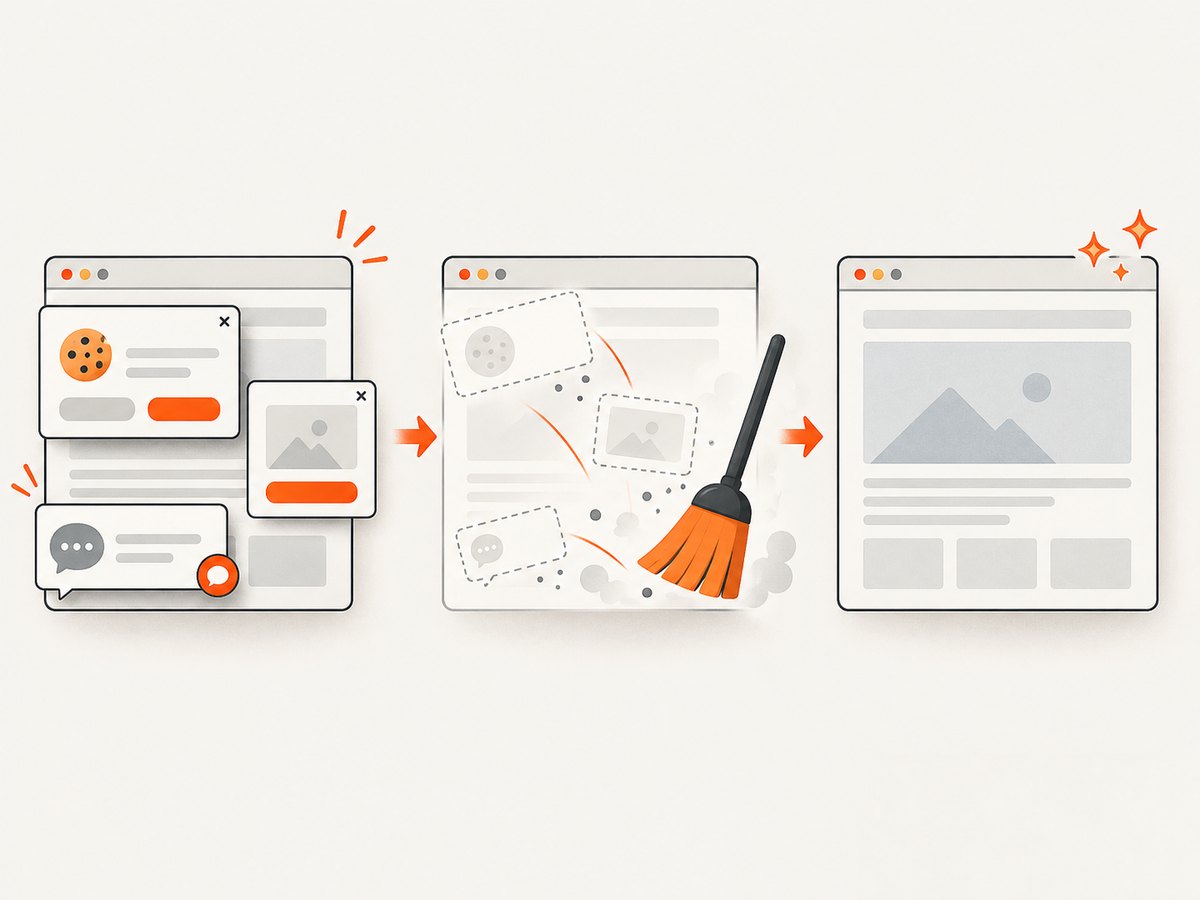
const res = await fetch(`https://api.screenshotneo.com/v1/shot?${q}`);ScreenshotNeo removes cookie banners, newsletter popups, and chat widgets before the shot. Bot checks, blank pages, failed loads, timeouts, and cache hits are not billed, and response headers report the page verdict and billing result. Its MCP server lets Claude, Cursor, and other MCP clients call take_screenshot, get_page_info, and capture_pdf. You can start with 1,000 screenshots a month free with no card; paid plans start at $5 for 3,000.
Create a free ScreenshotNeo account and use the same API from your Ubuntu scripts or CI jobs.
10. Performance, reliability, and cost notes
- Local capture: GNOME Screenshot, Flameshot, and Spectacle are immediate for the current desktop and do not send the image to a web service unless you choose an upload feature.
- Wayland reliability: Portal permissions and desktop integration can vary by release; keep the built-in tool available as a fallback.
- Automation: An API avoids running a graphical session and browser automation stack, but network access and the target site’s load time still matter.
- Cost: Local tools have no service charge. ScreenshotNeo bills only clean shots; failed loads, bot checks, blank pages, timeouts, and cache hits cost nothing. Choose caching and wait settings to control repeat work.
FAQ
Is there an official Microsoft Snipping Tool for Ubuntu?
No. Ubuntu’s GNOME Screenshot is the built-in equivalent for basic screen, window, and region captures.
Which Ubuntu screenshot tool is best for annotations?
Flameshot is the practical first choice when you want to draw or redact immediately after selecting a region.
Can I take a screenshot of a web page without showing my Ubuntu desktop?
Yes. Use ScreenshotNeo’s API for automated web-page images or PDFs, or run a browser automation tool locally when you need full control of a browser session.
Why does the same Flameshot command behave differently after an Ubuntu upgrade?
Ubuntu package versions, GNOME, Wayland portals, and keyboard shortcuts can change. Check the installed version and the current project guidance for your release.


