BlogScreenshots on your device
Snipping Tool for Windows 10
Use Snipping Tool in Windows 10 to capture, edit, save and share screenshots, with shortcuts, save locations, fixes and alternatives.
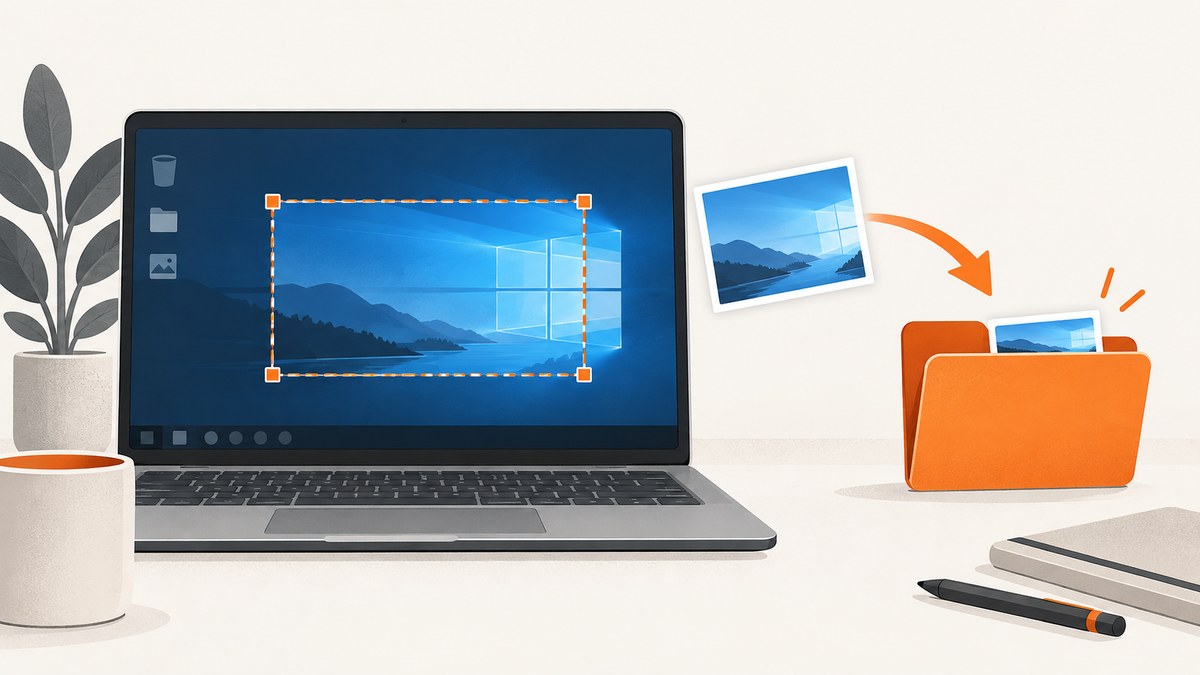
Quick answer: Press Windows + Shift + S, choose a snip mode, select the area, then annotate, copy, save or share the result. You can also open Start, search for Snipping Tool, and launch it directly. Microsoft documents these workflows for Windows 10 and Windows 11 in its Snipping Tool guide.
1. Take a screenshot with the Windows 10 Snipping Tool
- Press Windows + Shift + S.
- Choose Rectangle, Freeform, Window or Full screen from the overlay.
- Select the region or window. A notification opens the capture in Snipping Tool.
- Use the pen or highlighter if needed.
- Select Copy, Save or Share.
For a menu that disappears when you click elsewhere, open Snipping Tool, open the menu, press Ctrl + PrtScn, then select the capture mode and area.
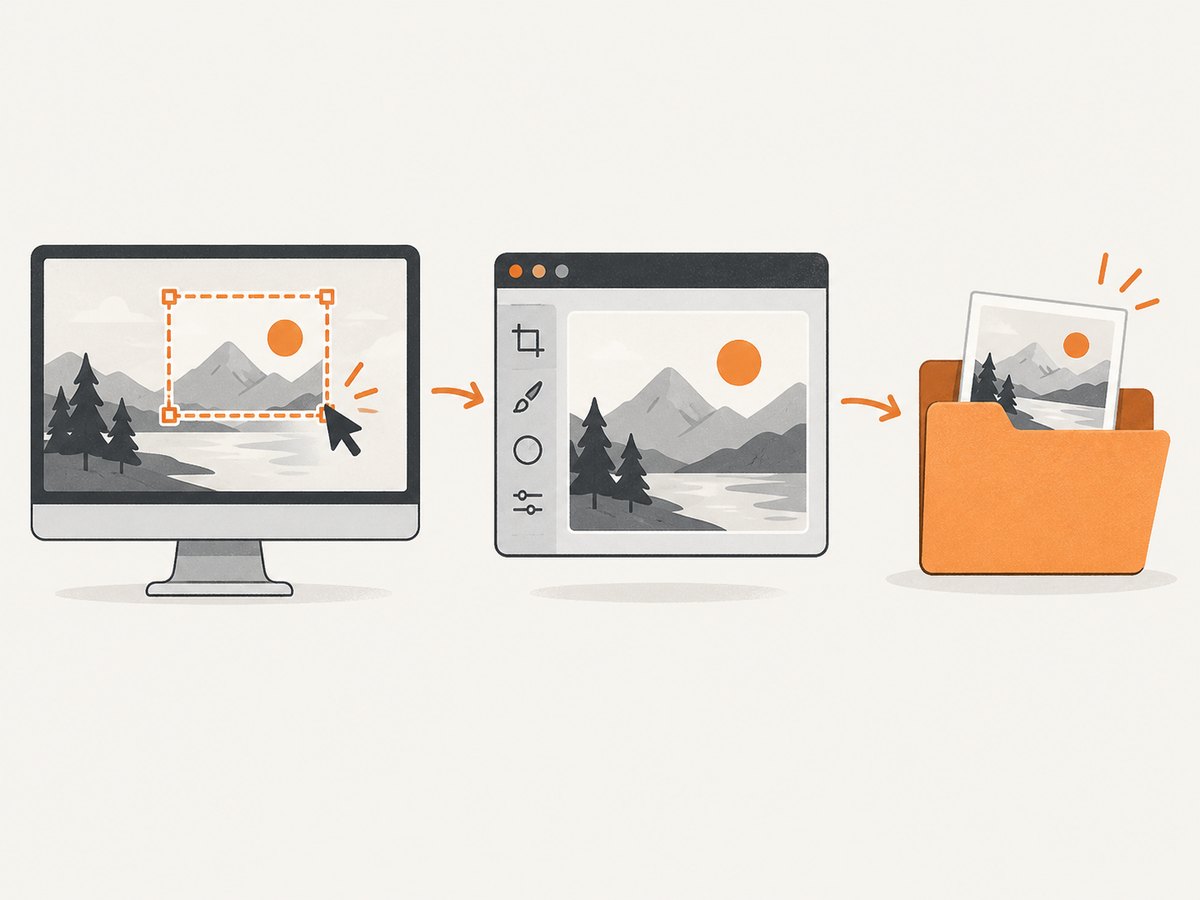
2. Choose the right capture mode
| Mode | Use it for | How it works |
|---|---|---|
| Rectangle | A precise region | Drag a rectangular selection. |
| Freeform | An irregular object | Draw around the area by hand. |
| Window | One app window | Select the window from the desktop. |
| Full screen | Everything on the display | The entire screen is captured immediately. |
The captured image is copied into the Snipping Tool editor, where you can annotate, save and share it. Some current Snipping Tool builds also expose text actions or OCR; availability depends on your Windows 10 version and installed updates.
3. Other Windows 10 screenshot shortcuts
Windows + PrtScn: save the whole screen
Press Windows + PrtScn to capture the complete display and save it automatically. Microsoft identifies Pictures > Screenshots as the destination for this workflow. Open File Explorer and check Pictures\Screenshots.
PrtScn: copy the screen to the clipboard
Press PrtScn to copy a full-screen image. Paste it into Paint, an email, a document or another image editor with Ctrl + V. On some systems, the Print Screen key is configured to open the Snipping Tool overlay instead; check Settings > Ease of Access > Keyboard.
Devices without a PrtScn key
Keyboard layouts vary. Microsoft documents Fn + Windows + Spacebar as an alternative on supported hardware. On a laptop, try the key combination printed on the keyboard or consult the device manual.
4. Where screenshots are saved
- Snipping Tool captures: choose the location and filename with Save. Do not assume every build auto-saves to the same folder.
- Windows + PrtScn: normally saves to
Pictures\Screenshots. - PrtScn or Snipping overlay copy: the image may exist only on the clipboard until you paste or save it.
If you cannot find a capture, press Windows + V to inspect clipboard history (if enabled), then save the image from the application where you pasted it.
5. Edit, annotate and share
- Use Pen or Highlighter to mark details.
- Use Eraser to remove annotations.
- Select Copy for a quick paste into another app.
- Select Save and pick an image format and destination.
- Select Share to send the image through an available Windows sharing target.
When saving a browser capture as HTML, Snipping Tool can include the page URL below the image. Clear Include URL below snips (HTML only) in Snipping Tool options if you do not want that metadata.
6. Still images versus video on Windows 10
Microsoft’s general Snipping Tool page describes video snips, but Microsoft’s Surface guidance tells Windows 10 users to use Clipchamp for screen recording. Availability therefore depends on your Windows build and app version. For a still image, use Windows + Shift + S; for video, check the installed Snipping Tool and use Clipchamp when the recording control is unavailable.
7. Troubleshooting
The shortcut does nothing
- Confirm you are pressing the Windows logo key, not Ctrl or Alt.
- Try opening Start and launching Snipping Tool manually.
- On a laptop, test Fn with the Print Screen key.
- Check whether keyboard utilities or accessibility software remapped the shortcut.
There is no Snipping Tool result
Search Start for the exact name Snipping Tool. If it is missing, install or repair the app through your organization’s approved Windows app source, or use PrtScn/Windows + PrtScn where supported.
The screenshot is black or incomplete
Protected video, remote desktop policies, hardware overlays and GPU-rendered content can block capture. Try a window or full-screen mode, disable protected playback where permitted, or capture the content from its source application.
The image was copied but not saved
Clipboard capture and file saving are separate actions. Paste the image into Paint or another editor, then use Save as. For automatic files, use Windows + PrtScn.
The wrong monitor was captured
Use Window mode for one application, or select the intended display carefully in Full screen mode. Multi-monitor behavior can vary by Windows version and display arrangement.
8. Reliability and workflow checklist
- Decide whether you need a region, window or full display before pressing the shortcut.
- Save immediately when the image matters; clipboard contents can be replaced.
- Use descriptive filenames such as
checkout-error-2026-10-01.png. - Check scaling and text legibility before sharing.
- Remove passwords, tokens and personal data from the capture.
9. Windows 10 support status
Windows 10 reached end of support on October 14, 2025. Microsoft says technical assistance, feature updates and security updates are no longer provided after that date. The Snipping Tool can still work on an existing installation, but plan upgrades or extended-security coverage according to your organization’s requirements. See Microsoft’s Windows 10 support notice.
10. Or skip the browser setup
If you need screenshots of websites rather than your local desktop, ScreenshotNeo returns a PNG, JPEG, WebP or PDF from one GET request. It accepts cookie banners and removes more than 60 known consent platforms, newsletter popups and chat widgets before capture. Bot checks, blank pages, timeouts, failed loads and cache hits are not billed, and response headers identify the page verdict and billing result.

See the ScreenshotNeo API docs for all options.
cURL
curl -G "https://api.screenshotneo.com/v1/shot" -d access_key=YOUR_API_KEY --data-urlencode url=https://screenshotneo.com -o shot.webpPython
import requests
r = requests.get("https://api.screenshotneo.com/v1/shot", params={"access_key": "YOUR_API_KEY", "url": "https://screenshotneo.com"}, timeout=90)
r.raise_for_status()
open("shot.webp", "wb").write(r.content)
Node.js
const q = new URLSearchParams({ access_key: 'YOUR_API_KEY', url: 'https://screenshotneo.com' });
const res = await fetch(`https://api.screenshotneo.com/v1/shot?${q}`);
if (!res.ok) throw new Error(`HTTP ${res.status}`);
const fs = await import('node:fs/promises');
await fs.writeFile('shot.webp', Buffer.from(await res.arrayBuffer()));
ScreenshotNeo also supports full-page captures with lazy images loaded, CSS element capture, device presets, custom viewports, retina scale, PDFs, custom CSS and JavaScript, clicks, waits, blocked resources, headers, cookies, user agents, geolocation, caching, signed links, async jobs, webhooks, bulk capture and an MCP server for AI agents. The free plan includes 1,000 screenshots per month with no card; paid plans start at $5 for 3,000. Create a free ScreenshotNeo account.
FAQ
What is the fastest Windows 10 screenshot shortcut?
Windows + Shift + S opens the selection overlay immediately.
Can I capture only one application?
Yes. Choose Window mode and select the application window.
Does Snipping Tool always save automatically?
No. Clipboard captures require you to paste and save; Windows + PrtScn normally writes to Pictures\Screenshots.
Why does my laptop need Fn?
Some keyboards share Print Screen with another function key. Use the printed key combination or the hardware maker’s documentation.


