How to Speed Up React Screenshots with Web Workers
Move canvas processing off React’s main thread without breaking DOM capture. Learn the worker boundary, OffscreenCanvas pattern, tuning, errors, and alternatives.

Direct answer: Web Workers can make React screenshot workflows feel more responsive when they move canvas drawing, image transforms, or encoding away from the main thread. They cannot access the DOM, so a DOM-based library such as html2canvas must capture the React element in the window context first. Then transfer a canvas or image representation to a worker for processing that supports workers.
This split is an architecture to measure, not a guaranteed speedup. Profile DOM traversal, image loading, drawing, transformations, and encoding separately before changing the design.
What a React screenshot library actually does
html2canvas does not request the browser’s native rendered pixels. It walks the DOM, reads styles, loads images, and reconstructs the result on a canvas. Fidelity therefore depends on the CSS and browser features the library supports. Same-origin and CORS rules also affect images and iframes. See the html2canvas documentation and its FAQ.
The API accepts an element and returns a Promise for a canvas:
import html2canvas from 'html2canvas';

const canvas = await html2canvas(element, {
  backgroundColor: '#ffffff',
  useCORS: true,
  scale: window.devicePixelRatio
});
Because the library reads document, styles, layout, and element geometry, putting that call inside a dedicated worker is not supported by the reviewed documentation. Keep the capture boundary explicit: window-side DOM capture, worker-side canvas or image processing.
Recommended architecture
- Use a React ref to identify the smallest meaningful element.
- Capture that element with html2canvas on the main thread.
- Create a transferable representation, such as an
ImageBitmap. - Send it to a worker with a transfer list so pixel data is not copied unnecessarily.
- Let the worker draw, resize, filter, or encode with
OffscreenCanvas. - Return a Blob or an
ArrayBufferto the window and release resources.
OffscreenCanvas is broadly available across browsers, with MDN documenting availability across browsers since March 2023. It enables canvas rendering in a worker; it does not make DOM APIs available there.
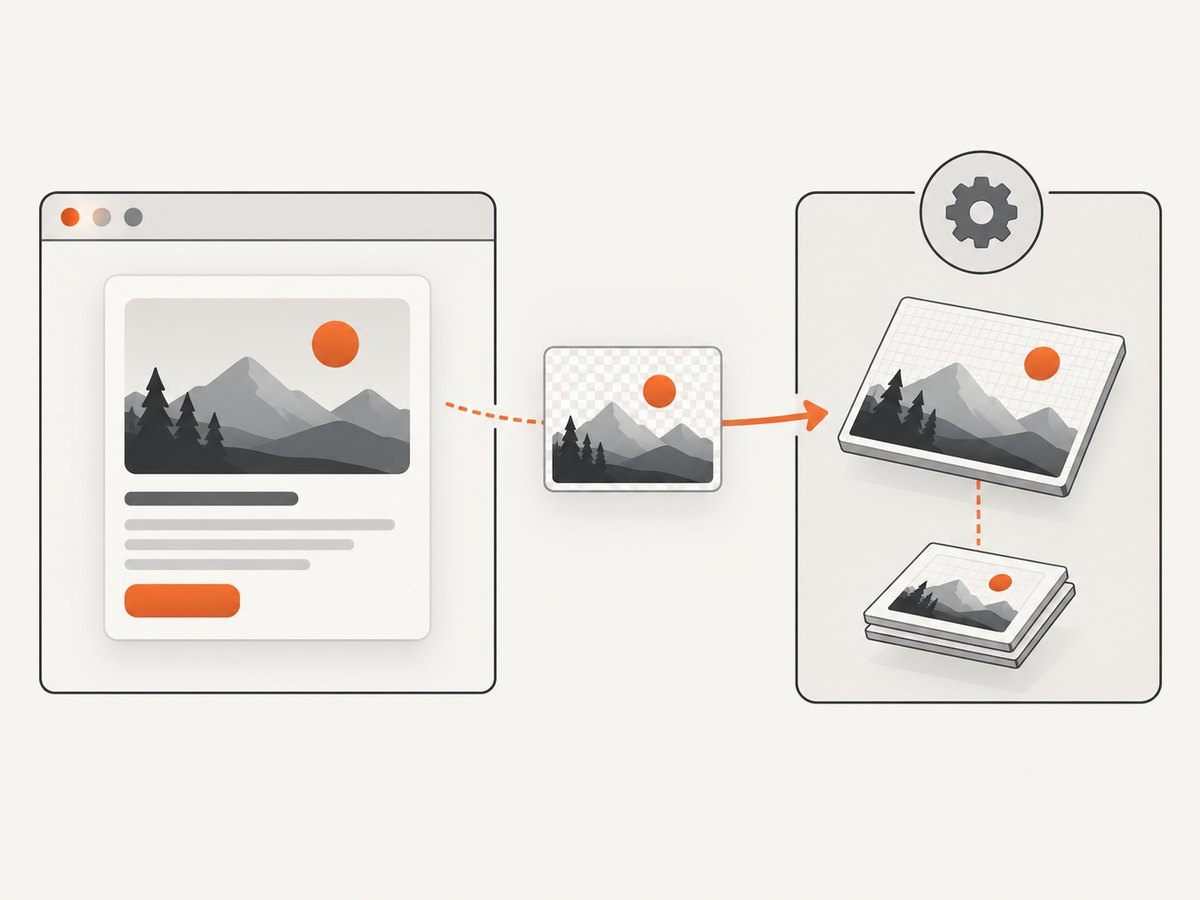
Complete React example: capture in the window, process in a worker
Install html2canvas in a Vite or other React application:
npm install html2canvasCreate image-worker.js. This worker receives an ImageBitmap, draws it to an OffscreenCanvas, and encodes a WebP image.
self.onmessage = async (event) => {
  const { bitmap, width, height, quality = 0.9 } = event.data;

  try {
    const canvas = new OffscreenCanvas(width, height);
    const context = canvas.getContext('2d', { alpha: true });
    context.drawImage(bitmap, 0, 0, width, height);
    bitmap.close();

    const blob = await canvas.convertToBlob({
      type: 'image/webp',
      quality
    });

    const buffer = await blob.arrayBuffer();
    self.postMessage({ ok: true, buffer, type: blob.type }, [buffer]);
  } catch (error) {
    self.postMessage({ ok: false, error: String(error) });
  }
};
Use the worker from a React component:
import { useRef, useEffect, useState } from 'react';
import html2canvas from 'html2canvas';

export default function ScreenshotDemo() {
  const targetRef = useRef(null);
  const workerRef = useRef(null);
  const [imageUrl, setImageUrl] = useState('');
  const [busy, setBusy] = useState(false);
  const [error, setError] = useState('');

  useEffect(() => {
    const worker = new Worker(
      new URL('./image-worker.js', import.meta.url),
      { type: 'module' }
    );
    workerRef.current = worker;
    return () => worker.terminate();
  }, []);

  async function capture() {
    setBusy(true);
    setError('');
    try {
      const element = targetRef.current;
      const worker = workerRef.current;
      if (!element || !worker) throw new Error('Capture is not ready');

      // This is the DOM-dependent stage and must stay on the window side.
      const canvas = await html2canvas(element, {
        backgroundColor: '#ffffff',
        useCORS: true,
        scale: Math.min(window.devicePixelRatio || 1, 2),
        logging: false
      });

      // ImageBitmap is transferable; the worker receives ownership.
      const bitmap = await createImageBitmap(canvas);
      const result = await new Promise((resolve, reject) => {
        const onMessage = (event) => {
          worker.removeEventListener('message', onMessage);
          resolve(event.data);
        };
        worker.addEventListener('message', onMessage);
        worker.postMessage({
          bitmap,
          width: canvas.width,
          height: canvas.height,
          quality: 0.9
        }, [bitmap]);
      });

      if (!result.ok) throw new Error(result.error);
      const blob = new Blob([result.buffer], { type: result.type });
      setImageUrl((oldUrl) => {
        if (oldUrl) URL.revokeObjectURL(oldUrl);
        return URL.createObjectURL(blob);
      });
    } catch (captureError) {
      setError(captureError instanceof Error ? captureError.message : String(captureError));
    } finally {
      setBusy(false);
    }
  }

  return (
    <main>
      <section ref={targetRef} style={{ padding: 32, background: 'white' }}>
        <h1>Capture this React card</h1>
        <p>The DOM is captured in the window; encoding runs in a worker.</p>
      </section>
      <button onClick={capture} disabled={busy}>
        {busy ? 'Capturing…' : 'Capture'}
      </button>
      {error && <p role="alert">{error}</p>}
      {imageUrl && <img src={imageUrl} alt="Captured card" />}
    </main>
  );
}
The worker removes encoding and worker-compatible canvas work from the UI thread. It does not remove html2canvas’s DOM traversal, layout inspection, or resource loading cost.
Using transferControlToOffscreen
If you own a visible canvas and want a worker to render into that canvas directly, transfer control before calling getContext(). Calling it after a context has been created throws.
// window.js
const canvas = document.querySelector('#preview');
const offscreen = canvas.transferControlToOffscreen();
const worker = new Worker(new URL('./render-worker.js', import.meta.url), { type: 'module' });
worker.postMessage({ canvas: offscreen, width: canvas.width, height: canvas.height }, [offscreen]);
// render-worker.js
self.onmessage = ({ data }) => {
  const context = data.canvas.getContext('2d');
  context.fillStyle = '#202124';
  context.fillRect(0, 0, data.width, data.height);
};
That transfer is one-way for the canvas setup. Create the worker canvas and transfer it before acquiring a rendering context. See MDN’s transferControlToOffscreen reference.
Choosing what to move into a worker
| Stage | Worker suitable? | Practical action |
|---|---|---|
| React render and layout | No | Keep React and DOM updates on the window side. |
| html2canvas DOM traversal | No | Capture a focused element and avoid unnecessary repeats. |
| ImageBitmap drawing | Yes | Draw with OffscreenCanvas. |
| Resize, filters, compositing | Often | Move pixel operations to the worker and profile. |
| PNG/WebP encoding | Often | Use convertToBlob() where supported. |
| File download or DOM insertion | No | Return a Blob and create the object URL in the window. |
Performance plan
- Measure each stage. Record timings around DOM capture, image loading, worker transfer, processing, and encoding. A worker can reduce main-thread contention without reducing total work or end-to-end latency.
- Capture less. Prefer a component ref over the entire document. Do not capture unchanged content repeatedly.
- Bound pixel dimensions. Device-pixel scaling multiplies memory and encoding work. Cap the scale for very large cards or pages.
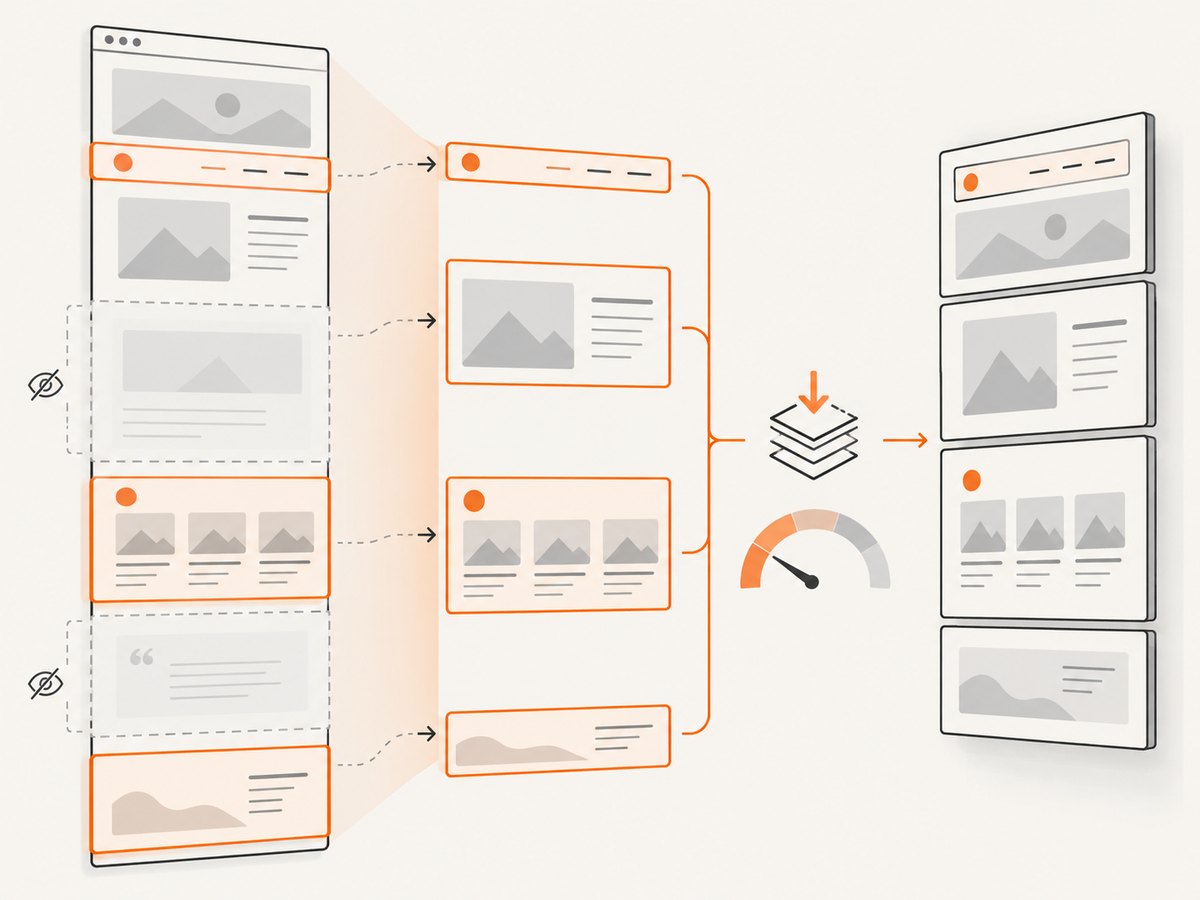
- Test culling. For viewport-sized captures of long pages, html2canvas’s
cullOffscreenoption can skip fully offscreen elements. Transformed, fixed, and sticky elements are still painted, so inspect the output. See the configuration reference. - Transfer ownership. Transfer
ImageBitmapand buffers instead of cloning them. Callbitmap.close()after use. MDN notes thattransferToImageBitmap()allocates an ImageBitmap resource; consume it or close it rather than retaining many. - Compare real browsers. Benchmark Chrome, Firefox, and Safari versions used by your audience. Worker support does not guarantee equal encoding performance.
Configuration options that affect capture time and fidelity
| Option | Effect | When to use |
|---|---|---|
scale |
Controls output pixel density and memory. | Use device pixel ratio for sharp output, capped for large captures. |
backgroundColor |
Sets the canvas background. | Use a solid color when transparent output is unnecessary. |
useCORS |
Attempts CORS-enabled image loading. | Enable only when remote servers send suitable CORS headers. |
allowTaint |
Allows tainted canvases but prevents safe pixel export. | Usually leave false when you need an exportable image. |
cullOffscreen |
Skips fully offscreen elements in supported workflows. | Evaluate for long viewport captures; verify fixed and transformed elements. |
onclone |
Edits the cloned document before rendering. | Hide transient controls or stabilize content for capture. |
Browser and security constraints
- Cross-origin images: An image without appropriate CORS headers can taint the canvas. Use CORS-enabled assets or a proxy where appropriate.
- Cross-origin iframes: An inaccessible iframe’s
contentDocumentcannot be rendered by a page script. - CSS fidelity: Unsupported CSS effects, filters, fonts, and browser-rendered features may differ from what users see.
- Memory pressure: A tall page at a high scale can allocate a very large bitmap. Reduce the target, scale, or output dimensions.
- Worker availability: Feature-detect
Worker,OffscreenCanvas, andcreateImageBitmap; retain a window-side fallback when a target browser lacks one.
Fallback when OffscreenCanvas is unavailable
const canUseWorkerPipeline =
  typeof Worker !== 'undefined' &&
  typeof OffscreenCanvas !== 'undefined' &&
  typeof createImageBitmap === 'function';

if (!canUseWorkerPipeline) {
  // Keep the html2canvas result and encode on the window side.
  const blob = await new Promise((resolve, reject) =>
    canvas.toBlob((value) => value ? resolve(value) : reject(new Error('Encoding failed')), 'image/png')
  );
}
Troubleshooting
| Symptom | Cause | Fix |
|---|---|---|
document is not defined |
DOM code was bundled into a worker. | Run html2canvas and all DOM queries in the window; send only transferable image data to the worker. |
InvalidStateError from transferControlToOffscreen |
The canvas already has a context or was transferred. | Transfer immediately after creating the canvas, before getContext(); create a new canvas for another pipeline. |
| Worker receives a blank image | The bitmap dimensions or draw operation are wrong. | Use the source canvas’s pixel dimensions, draw at 0,0,width,height, and wait for the worker response before releasing resources. |
| SecurityError or failed export | A cross-origin image tainted the canvas. | Serve the asset with CORS headers, enable useCORS, or use an approved proxy. Do not expect toBlob() to export a tainted canvas. |
| Fonts or images missing | Capture started before resources finished loading. | Wait for required fonts and images, or capture after the UI reports ready. |
| Sticky or transformed content disappears with culling | Those elements are still painted or positioned specially. | Disable culling for that case or verify and adjust the captured layout. |
| UI still freezes | DOM traversal, layout, or image loading remains on the main thread. | Capture a smaller element, reduce scale, avoid repeated captures, and profile before moving more code. |
| Memory grows after many captures | Object URLs or ImageBitmaps remain alive. | Call URL.revokeObjectURL(), bitmap.close(), and terminate unused workers. |
Reliability and cost considerations
A worker changes where processing runs; it does not change html2canvas’s security model or guarantee pixel-perfect output. Add cancellation for captures users abandon, serialize or limit concurrent jobs, and show a useful error when a worker fails. For very large screenshots, queue work so multiple bitmaps do not occupy memory at once.
Browser-side screenshots consume the user’s CPU, memory, and bandwidth for image resources. A server screenshot API can move that work to an external service and provide a stable image response, but it introduces request latency and service pricing. Compare fidelity, DOM/CSS compatibility, main-thread responsiveness, total completion time, worker and transfer overhead, browser support, cross-origin handling, and memory use with your own pages. The reviewed sources provide no universal speedup percentage.
Or skip the browser setup
ScreenshotNeo provides a website screenshot API and MCP server. One GET request returns PNG, JPEG, WebP, or PDF. Cookie and consent banners are accepted and removed before capture, along with more than 60 known consent platforms, newsletter popups, and chat widgets; each cleanup step can be turned off. Bot checks, blank pages, timeouts, failed loads, and cache hits are not billed, and response headers identify the page verdict and whether it was billed.
Use the ScreenshotNeo API documentation for all options. A minimal call:
curl -G "https://api.screenshotneo.com/v1/shot" -d access_key=YOUR_API_KEY --data-urlencode url=https://stripe.com -o shot.webpimport requests
r = requests.get("https://api.screenshotneo.com/v1/shot", params={"access_key": "YOUR_API_KEY", "url": "https://stripe.com"}, timeout=90)
open("shot.webp", "wb").write(r.content)const q = new URLSearchParams({ access_key: 'YOUR_API_KEY', url: 'https://stripe.com' });
const res = await fetch(`https://api.screenshotneo.com/v1/shot?${q}`);ScreenshotNeo also has an MCP server with take_screenshot, get_page_info, and capture_pdf tools for Claude, Cursor, and other MCP clients. It supports full-page and element capture, dark mode, device presets and custom viewports, retina scale, custom CSS and JavaScript, waits, request blocking, headers, cookies, user agents, authorization, timezone, geolocation, transparent backgrounds, resizing, TTL caching, signed links, asynchronous jobs, webhooks, bulk capture, usage data, and an OpenAPI specification.
Free accounts include 1,000 screenshots per month with no card. Paid plans start at $5 for 3,000 screenshots; every feature is included on every plan. Create a free ScreenshotNeo account.
FAQ
Can a Web Worker capture a React component directly?
No. A worker cannot access the page DOM. Capture the component in the window context, then transfer a canvas or image representation.
Does OffscreenCanvas guarantee faster screenshots?
No. It can improve responsiveness by moving eligible work off the main thread, while transfer and encoding overhead can offset gains. Measure your workload.
Should I use native browser screenshots instead?
For a web page running in the browser, html2canvas is a DOM reconstruction tool rather than a native pixel capture API. Choose based on required fidelity, security constraints, and whether you control the capture environment.
What is the safest first optimization?
Capture the smallest stable element, avoid repeated captures, cap pixel scale, and profile before introducing a worker.
When is a server API a better fit?
Use one when you want a single HTTP request, scheduled or bulk captures, PDF output, or to avoid shipping browser capture code to every client. Review the provider’s handling of consent UI, failed pages, cross-origin resources, and billing.


