BlogScreenshots on your device
How to Take Desktop Screenshots in Java
Use Java Robot and ImageIO to capture windows, monitors, virtual desktops, and HiDPI displays, with fixes for permissions and headless errors.
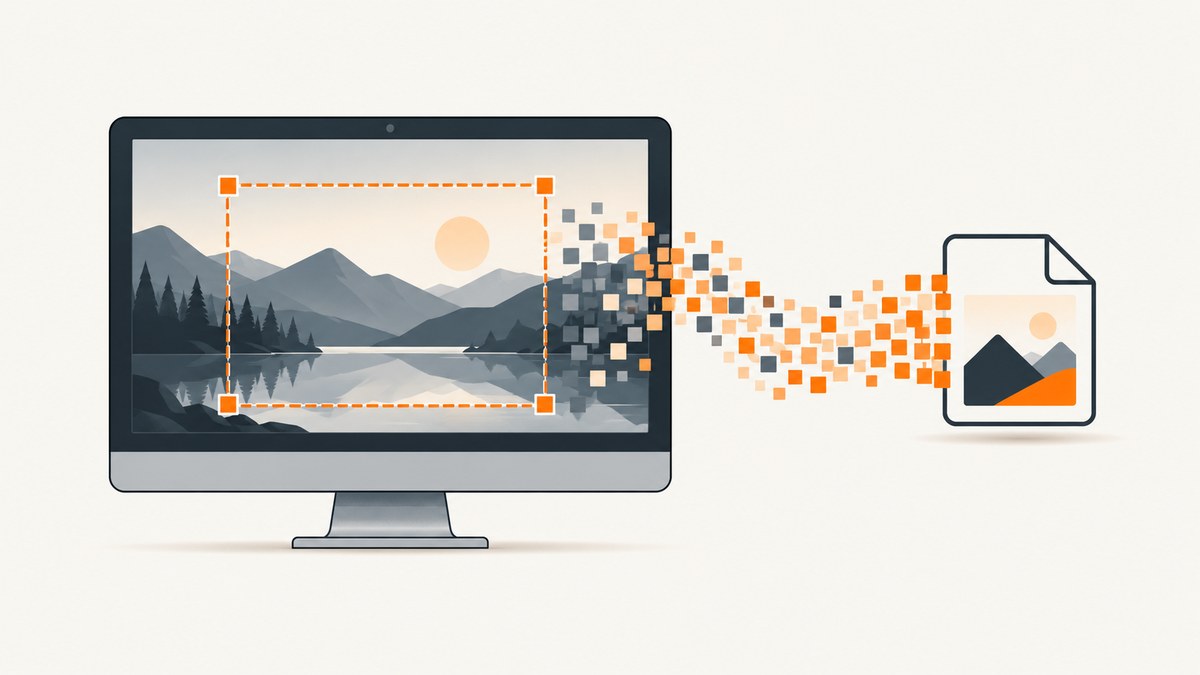
Java can capture desktop pixels with the standard library. The core sequence is java.awt.Robot.createScreenCapture(Rectangle) to obtain a BufferedImage, followed by ImageIO.write to save PNG, JPEG, or another installed image format. The rectangle uses screen coordinates, must have positive width and height, and the program must run in a graphical desktop session.
This guide covers a selected region, the whole virtual desktop, one monitor, high-DPI displays, file formats, permissions, threading, and failure recovery. At the end, ScreenshotNeo provides a browser-based alternative when what you need is a website image rather than pixels from your local desktop.
1. Minimal Java screenshot
The following complete program captures the rectangle from (0,0) through (1279,719) and writes screenshot.png in the current directory.
import java.awt.AWTException;
import java.awt.GraphicsEnvironment;
import java.awt.Rectangle;
import java.awt.Robot;
import java.awt.image.BufferedImage;
import java.io.File;
import java.io.IOException;

public class Screenshot {
    public static void main(String[] args) {
        if (GraphicsEnvironment.isHeadless()) {
            throw new IllegalStateException("A graphical desktop is required");
        }

        Rectangle area = new Rectangle(0, 0, 1280, 720);
        try {
            Robot robot = new Robot();
            BufferedImage image = robot.createScreenCapture(area);
            boolean written = javax.imageio.ImageIO.write(
                image, "png", new File("screenshot.png"));
            if (!written) {
                throw new IOException("No writer available for PNG");
            }
        } catch (AWTException | IOException | SecurityException ex) {
            ex.printStackTrace();
        }
    }
}
Robot reads pixels from the operating system display. Oracle documents createScreenCapture as creating an image containing pixels read from the screen. ImageIO.write chooses an installed writer for the requested format and returns false when no writer supports that format. See the Robot API and ImageIO API.
2. Capture a specific area
A Rectangle is expressed in screen coordinates. Its origin is the display coordinate at the rectangle’s top-left corner, not necessarily the top-left of your primary monitor. Width and height must both be greater than zero.
Rectangle area = new Rectangle(200, 120, 900, 600);
BufferedImage image = new Robot().createScreenCapture(area);
ImageIO.write(image, "png", new File("region.png"));
Validate coordinates when they come from user input. A rectangle that extends beyond a display can produce platform-dependent results, so intersect it with known device bounds when you need predictable output. Keep the capture off Swing’s AWT Event Dispatch Thread: obtaining display pixels can take time, particularly while an operating system permission prompt is being handled.
3. Capture every attached monitor
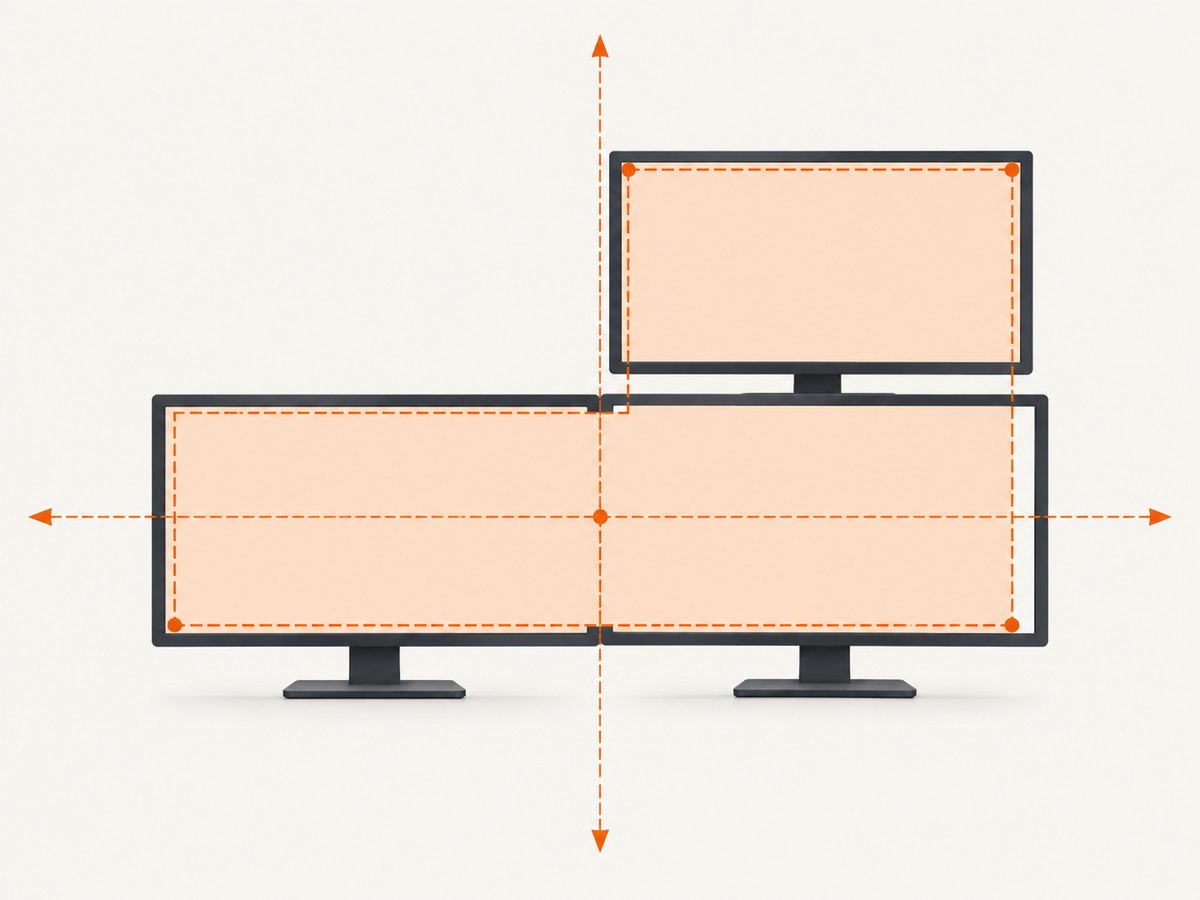
For a screenshot of the complete virtual desktop, union the bounds reported by every GraphicsDevice. A monitor placed to the left or above the primary display commonly has a negative x or y origin. Using (0,0) would crop that monitor.
import java.awt.GraphicsDevice;
import java.awt.GraphicsEnvironment;
import java.awt.Rectangle;
import java.awt.Robot;
import java.awt.image.BufferedImage;
import javax.imageio.ImageIO;
import java.io.File;

GraphicsEnvironment ge = GraphicsEnvironment.getLocalGraphicsEnvironment();
Rectangle virtualBounds = null;
for (GraphicsDevice device : ge.getScreenDevices()) {
    Rectangle bounds = device.getDefaultConfiguration().getBounds();
    virtualBounds = virtualBounds == null
        ? new Rectangle(bounds)
        : virtualBounds.union(bounds);
}
if (virtualBounds == null || virtualBounds.width <= 0 || virtualBounds.height <= 0) {
    throw new IllegalStateException("No usable display bounds");
}
BufferedImage desktop = new Robot().createScreenCapture(virtualBounds);
if (!ImageIO.write(desktop, "png", new File("desktop.png"))) {
    throw new IllegalStateException("PNG writer unavailable");
}
The resulting image includes the gaps between monitors if the physical arrangement has gaps. That is a consequence of representing the desktop as one bounding rectangle; it is often preferable to capturing each device separately when you need tightly packed images.
4. Capture one monitor
Choose a device from getScreenDevices(), use its default configuration bounds, and construct Robot with that device. Coordinates passed to that robot are interpreted in the device’s coordinate system.
GraphicsEnvironment ge = GraphicsEnvironment.getLocalGraphicsEnvironment();
GraphicsDevice[] devices = ge.getScreenDevices();
if (devices.length == 0) {
    throw new IllegalStateException("No monitors found");
}
GraphicsDevice target = devices[0];
Rectangle monitor = target.getDefaultConfiguration().getBounds();
Robot robot = new Robot(target);
BufferedImage image = robot.createScreenCapture(monitor);
ImageIO.write(image, "png", new File("monitor-1.png"));
Do not assume array index zero is a particular physical monitor. If a user selects a display, show its device bounds or match another property in your own UI, then capture that device’s reported rectangle.
5. HiDPI and scaled displays
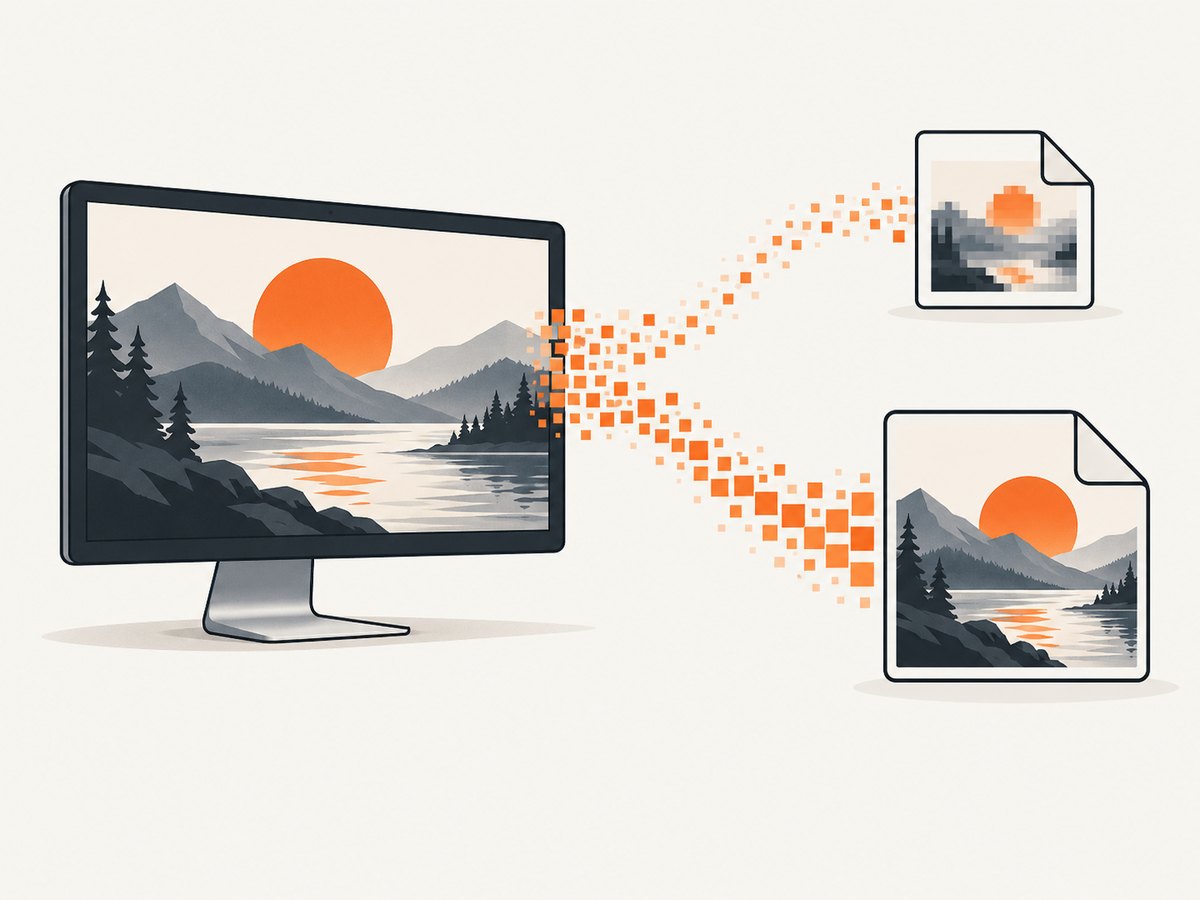
Display scaling creates a distinction between user-space dimensions and native device pixels. Java provides createMultiResolutionScreenCapture(Rectangle), which returns a MultiResolutionImage containing a base user-size image and, where available, a native-resolution variant.
import java.awt.Rectangle;
import java.awt.Robot;
import java.awt.image.MultiResolutionImage;
import java.awt.Image;

Robot robot = new Robot();
Rectangle area = new Rectangle(0, 0, 1280, 720);
MultiResolutionImage multi = robot.createMultiResolutionScreenCapture(area);
for (Image variant : multi.getResolutionVariants()) {
    System.out.println(variant.getWidth(null) + "x" + variant.getHeight(null));
}
Select the variant that matches your output requirement. Use the base image when your downstream layout expects logical dimensions; use the native-resolution variant when preserving the physical pixel detail is more important. The exact variants depend on the platform’s scaling configuration.
6. Save PNG, JPEG, or another format
ImageIO.write accepts a format name and a File, OutputStream, or ImageOutputStream. PNG is lossless and generally best for text, code, and UI edges. JPEG is smaller for photographic content but introduces lossy compression. Always inspect the boolean return value and handle IOException.
File output = new File("capture.jpg");
boolean written = ImageIO.write(image, "jpg", output);
if (!written) {
    throw new IOException("No ImageIO writer for jpg");
}
For a byte array, write to a ByteArrayOutputStream; for a network response, stream the bytes from that output. Ensure the destination directory exists and is writable. ImageIO.read(File) can decode the saved file back into a BufferedImage when you need to inspect or transform it.
7. Run captures safely
- Check
GraphicsEnvironment.isHeadless()before constructingRobot. - Run capture work on a worker thread in Swing or JavaFX applications.
- Keep one
Robotinstance for a batch of captures instead of constructing one per frame. - Use a bounded capture frequency; full-screen images consume memory proportional to width × height × color depth.
- Close streams with try-with-resources and write to a temporary file before replacing an existing output when partial files would be harmful.
Desktop capture is inherently environment-dependent. Screen locks, remote sessions, compositor restrictions, and permission prompts can change the returned pixels even when Java code is correct.
8. Troubleshooting common errors
| Symptom | Cause | Fix |
|---|---|---|
AWTException |
The platform cannot create a Robot, commonly because the process is headless. |
Run inside a graphical session, configure the display for the service, and check isHeadless(). Oracle specifies that this exception is always thrown when the environment is headless. |
SecurityException |
Desktop security or OS display-pixel permission denied access. | Grant the application screen-recording or equivalent permission, then restart it if the platform requires a new permission decision. |
IllegalArgumentException |
Rectangle width or height is zero or negative. | Validate dimensions before calling createScreenCapture. |
| Blank or undefined pixels | The desktop requires approval, is locked, or the compositor does not expose pixels to the session. | Approve access, capture an unlocked display, and test in the same session where the monitor is visible. |
| Wrong monitor or clipped image | Assuming every display starts at (0,0) or ignoring negative origins. |
Use each GraphicsDevice‘s configuration bounds and union them for the virtual desktop. |
| Soft or unexpectedly sized HiDPI output | The logical-size image was selected on a scaled display. | Use createMultiResolutionScreenCapture and select the native-resolution variant when appropriate. |
| No output file | The directory is not writable, an IOException occurred, or no writer supports the format. |
Check the path, catch the exception, and verify the ImageIO.write return value. |
9. Performance, reliability, and cost considerations
A larger rectangle means more pixels to copy and encode. Capture only the area you need, choose PNG or JPEG according to fidelity requirements, and avoid repeated full-desktop captures when a smaller region works. If you need a sequence, process or compress each image before retaining the next one so heap usage does not grow without bound.
Reliability depends on the desktop session and permissions as much as on Java. A scheduled service running without an interactive display cannot use Robot successfully. For unattended jobs, record the operating system, display bounds, scaling, permission state, and selected rectangle alongside each output so a clipped or blank image can be diagnosed.
The Java API itself has no per-capture service charge. Your practical costs are CPU, memory, storage, and the resources required to keep a graphical session available.
10. Or skip the browser setup
If your goal is a screenshot of a public or authenticated website rather than your local desktop, ScreenshotNeo provides a single HTTP request that returns PNG, JPEG, WebP, or PDF. Its capture service accepts cookie and consent banners as a visitor and removes more than 60 known consent platforms, newsletter popups, and chat widgets before the shot. Each step can be disabled.
Only clean shots are billed. Bot checks and CAPTCHAs, blank pages, timeouts, failed loads, and cache hits cost nothing, and the response identifies the result with X-Page-Verdict and X-Billed headers. ScreenshotNeo also has an MCP server with take_screenshot, get_page_info, and capture_pdf tools for Claude, Cursor, and other MCP clients.
See the ScreenshotNeo API documentation for the complete parameter list. This is a runnable cURL request:
curl -G "https://api.screenshotneo.com/v1/shot" \
  -d access_key=YOUR_API_KEY \
  --data-urlencode url=https://stripe.com \
  -o shot.webp
Python:
import requests

r = requests.get(
    "https://api.screenshotneo.com/v1/shot",
    params={"access_key": "YOUR_API_KEY", "url": "https://stripe.com"},
    timeout=90,
)
r.raise_for_status()
open("shot.webp", "wb").write(r.content)
Node.js:
const q = new URLSearchParams({
  access_key: 'YOUR_API_KEY',
  url: 'https://stripe.com'
});
const res = await fetch(`https://api.screenshotneo.com/v1/shot?${q}`);
if (!res.ok) throw new Error(`HTTP ${res.status}`);
const bytes = new Uint8Array(await res.arrayBuffer());
await Bun.write('shot.webp', bytes);
Beyond the basic URL, ScreenshotNeo supports full-page capture with lazy images loaded, CSS-selector element capture, dark mode, 12 device presets and custom viewports, retina scale, PDF paper settings and page ranges, HTML/CSS input, custom CSS and JavaScript, clicks, selector waits, delays, network-idle waits, request blocking, headers, cookies, user agents, Authorization, timezone, geolocation, transparent backgrounds, resizing, selectable cache TTLs, signed public image links, asynchronous jobs with signed webhooks, bulk capture of 100 URLs per call, a usage API, and an OpenAPI specification. Existing parameter names used by other screenshot APIs also work.
The Free plan includes 1,000 screenshots each month with no card. Starter is $5 for 3,000, Growth $15 for 15,000, Pro $39 for 60,000, Scale $99 for 250,000, and Business $249 for 1,000,000; yearly billing provides two months free. Every feature is available on every plan. Create a free ScreenshotNeo account and start with 1,000 screenshots a month without a card.
11. Java desktop capture checklist
- Confirm the process has a graphical display and required OS permission.
- Choose a rectangle, monitor, or virtual-desktop union from reported bounds.
- Account for negative monitor origins and display scaling.
- Capture away from the AWT Event Dispatch Thread.
- Choose PNG for lossless UI output or JPEG for photographic content.
- Check the
ImageIO.writeresult and handle bothIOExceptionandSecurityException. - For website images in unattended workflows, use an HTTP screenshot service instead of maintaining a browser desktop.
12. FAQ
Can Java capture a window by title?
Robot captures rectangles, not semantic windows. Find the window bounds with platform-specific tooling or your UI framework, then pass those bounds as the rectangle.
Can this run on a server?
Only when the server provides a usable graphical display and grants pixel access. A genuinely headless runtime cannot construct Robot.
Why does my second monitor have negative coordinates?
Operating systems place displays in a shared virtual coordinate space. A monitor positioned left or above the primary display receives a negative origin; use the bounds returned by GraphicsDevice.
Which format should I use for automated visual comparisons?
PNG avoids lossy artifacts and is usually the safest baseline. Keep the viewport, scaling mode, and capture rectangle consistent between runs.
Does ScreenshotNeo capture my local desktop?
No. ScreenshotNeo captures web pages from a URL. Use Java Robot for local display pixels and ScreenshotNeo for repeatable website screenshots, PDFs, and API or MCP workflows.


