BlogScreenshots on your device
How to Take a Screenshot and Print It
Capture your screen on Windows, Mac, iPhone, Android, or Chromebook, find the saved image, and print it with the right settings.

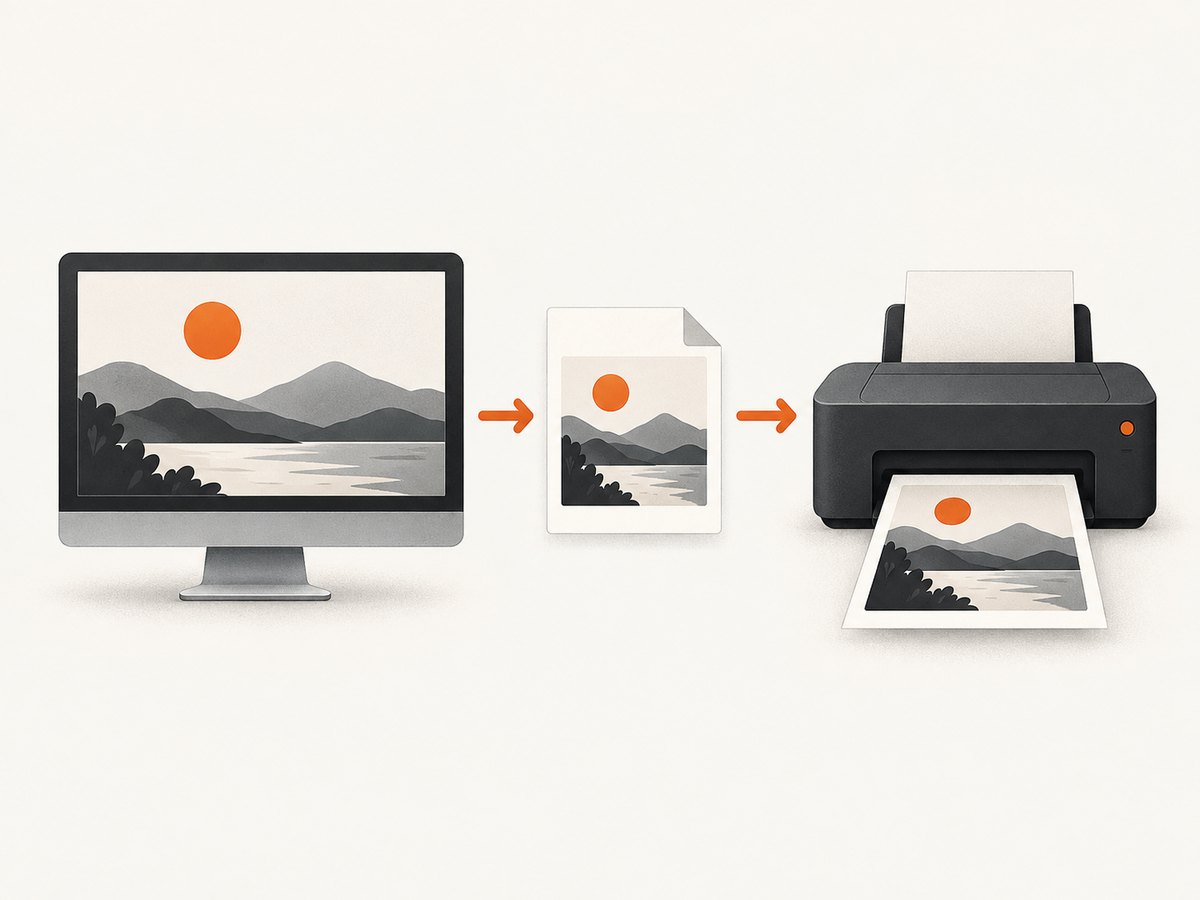
The quickest way to take a screenshot and print it depends on your device: use its built-in capture shortcut, find the saved image or clipboard copy, then open the image and choose Print. The steps below cover Windows, Mac, iPhone, Android, and Chromebook. If you are trying to print a webpage from a server or automate browser captures, see the ScreenshotNeo option near the end; it is a website screenshot API, not a way to capture your device’s screen.
1. Choose what you need to capture
Before pressing a shortcut, decide whether you need the whole screen, one window, a selected area, or a long page. Also check whether the capture is saved as a file or copied to the clipboard. A file is easiest to print later; a clipboard capture must first be pasted into an app and saved or printed from there.
| Capture | Useful when | Watch for |
|---|---|---|
| Full screen | You need everything currently visible. | Menus, notifications, and unrelated windows may appear. |
| Window | You need one app or browser window. | Some apps prevent screenshots of protected content. |
| Selected area | You want just a chart, error, or detail. | Leave enough margin so labels are not clipped. |
| Scrolling or full page | You need content longer than the visible screen. | Support depends on platform, app, and page. |
For a routine printout, the built-in capture feature is usually enough. Capture the image, locate it, open it in an app that can print, and check the preview before sending it to paper.
2. Take and print a screenshot on Windows
Capture the screen
- Press Windows+Shift+S to open the Snipping Tool capture overlay, or press Print Screen.
- Choose rectangle, window, full-screen, or freeform capture, then make the capture.
- Save the snip so you can find it later. In Snipping Tool, use Ctrl+S, choose a filename, location, and file type.
Microsoft describes Snipping Tool as a way to copy words or images from all or part of a PC screen. If you captured to the clipboard without saving, open an image app or document, paste with Ctrl+V, and save the result.
Print it
Open the saved image and choose File > Print, or right-click the image in its folder and choose Print. Select the printer and review paper size, orientation, scaling, and color options in the print dialog. Use the preview to make sure the screenshot fits and the content is readable.
3. Take and print a screenshot on Mac
Capture the screen
- Shift+Command+3: capture the full screen.
- Shift+Command+4: drag to select an area. To capture a window or menu, press Shift+Command+4, then press Space and click it.
- Shift+Command+5: open the Screenshot app on macOS Mojave 10.14 or later. Choose a capture mode, set a timer if needed, and choose where to save the result.
The default save location is the Desktop unless you select another location. Open the image in a print-capable app and choose File > Print; in Chrome, Command+P opens the print dialog.
Some apps restrict screenshots. Apple notes that apps such as Apple TV may not allow captures of their windows. If the result is black or missing, the app may be protecting its content; use an allowed export or print option instead.
4. Take and print a screenshot on iPhone
Capture and locate it
- Face ID models: press the Side button and Volume Up together, then release quickly.
- Touch ID with a side button: press Side and Home together.
- Models with a top button: press Top and Home together.
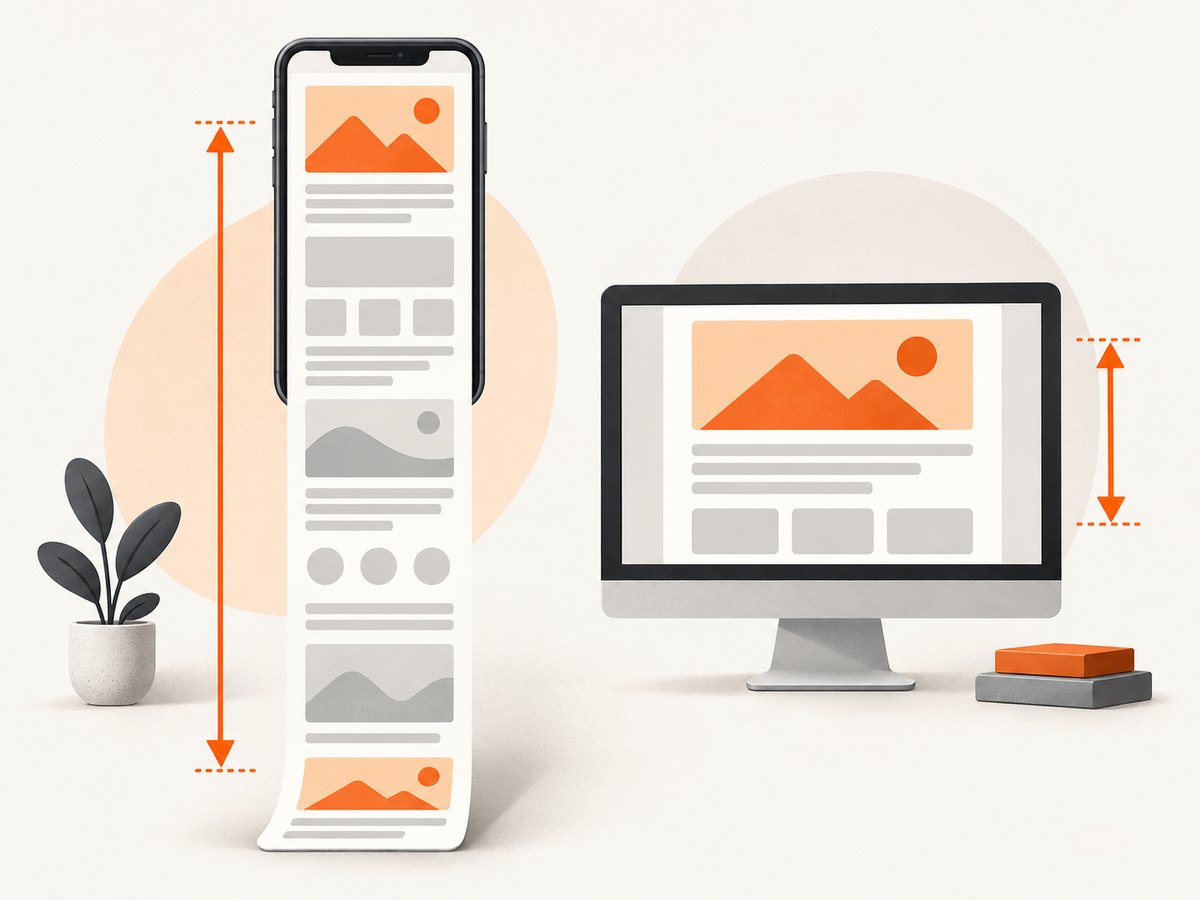
Find saved screenshots in Photos under Collections > Media Types > Screenshots. iOS 26 shows screenshot tools after capture; iOS 18 and earlier show a temporary thumbnail. For supported long content, such as a webpage in Safari, Apple’s Full Page option can capture beyond the visible screen.
Print the image
Open the screenshot in Photos, then use the share or app actions to reach a print command. Choose an available printer or print destination and review the preview and paper settings. Printer availability and setup depend on the printer and device; follow the printer manufacturer’s instructions if it does not appear.
5. Take and print a screenshot on Android
Capture and find it
On most Android phones, press Power and Volume Down at the same time. Some phones also let you hold Power and tap Screenshot. Controls vary by manufacturer, so consult the phone maker’s support instructions if neither method works.
A preview appears after capture. Find the image in Google Photos under Collections > On this device > Screenshots; on older versions, check the Gallery app’s Screenshots album.
Capture a scrolling page
On Android 12 and later, scrolling screenshots work on most screens that support scrolling. Take a screenshot, then tap Capture more in the preview and extend the selection. If that control is absent, the app or screen may not support scrolling capture.
Print it
Open the image in a photo or file app with a print action. Select an available printer or other destination, then check the preview, layout, and paper options. If no printer is listed, follow the printer manufacturer’s setup instructions for your model.
6. Take and print a screenshot on Chromebook
Press the dedicated Screenshot key if your keyboard has one. Otherwise, open Settings > Screen Capture or press Shift+Ctrl+Show windows. With an external keyboard that lacks Show windows, use Ctrl+Shift+F5.
Choose full-screen, partial, or window capture. By default, screenshots save to Downloads; Screen Capture settings let you choose another folder. Open the image in a print-capable app, invoke its print command, choose the destination, and review the preview before printing.
7. Print settings that keep screenshots readable
A screenshot’s dimensions are fixed at capture time. Printing it larger than the available paper area can make small text look soft or tiny. Use the print preview to catch clipping before printing.
- Scale: “Fit to page” keeps the whole image visible, while actual size may leave margins or crop depending on the image and paper.
- Orientation: choose portrait or landscape to match the screenshot’s shape.
- Paper size: select the paper actually loaded in the printer.
- Color: choose color for charts and colored annotations; grayscale can work for plain text and reduce color ink use.
- Copies and pages: check these before printing, especially if the app treats an image as a multi-page document.
Chrome on Windows or Linux uses Ctrl+P to open its print dialog; on Mac use Command+P. A standard printer must be available and configured. Follow its manufacturer’s setup steps if it does not appear as a destination.
8. Or skip the browser setup
If your goal is to capture a webpage from code rather than print what is on your device, ScreenshotNeo takes a website URL and returns a screenshot or PDF. See the ScreenshotNeo API documentation for request options.
curl -G "https://api.screenshotneo.com/v1/shot" -d access_key=YOUR_API_KEY --data-urlencode url=https://stripe.com -o shot.webpimport requests
r = requests.get("https://api.screenshotneo.com/v1/shot", params={"access_key": "YOUR_API_KEY", "url": "https://stripe.com"}, timeout=90)
open("shot.webp", "wb").write(r.content)const q = new URLSearchParams({ access_key: 'YOUR_API_KEY', url: 'https://stripe.com' });
const res = await fetch(`https://api.screenshotneo.com/v1/shot?${q}`);ScreenshotNeo removes cookie banners, newsletter popups, and chat widgets before the shot. Bot checks, blank pages, and failed loads are never billed; response headers say whether the page was clean and billed. Its MCP server lets AI agents take screenshots. The free plan includes 1,000 screenshots a month with no card; paid plans start at $5 for 3,000. These are website captures, not screenshots of a phone or computer display. Sign up free for 1,000 screenshots a month, no card required.
9. Troubleshooting
| Problem | Likely cause | What to do |
|---|---|---|
| I cannot find the screenshot. | It may be in the clipboard, a default folder, or a custom save location. | Check the clipboard by pasting into an app; then check Desktop on Mac, Downloads on Chromebook, or the Screenshots album on a phone. Revisit capture settings for a custom location. |
| The shortcut does nothing. | Shortcuts and keyboard layouts differ by device; a phone maker may use different controls. | Use the platform’s capture app or on-screen controls. For Android, check the manufacturer’s support site. |
| The screenshot is blank or blocked. | The app may restrict capture of protected content. | Use the app’s permitted export or print feature. Some protected windows cannot be captured normally. |
| The print destination is missing. | The printer is not available or configured. | Follow the printer manufacturer’s setup instructions and check that it appears in the print dialog. |
| The print is cropped or too small. | Image proportions and paper orientation do not match, or scaling is unsuitable. | Try the other orientation, use fit-to-page, and inspect preview. For small text, capture a tighter area or print on larger paper if available. |
| A scrolling screenshot stops early. | The screen may not support scrolling capture, or the OS/app version lacks the option. | On Android 12 or later, try Capture more on a scrollable screen. On iPhone, use Full Page only where the app offers it. |
10. Reliability, speed, and cost
For a one-off screenshot, built-in tools avoid installing another app and work offline for the capture itself. The main reliability risk is losing track of where the file went, so save it to a known folder when the image must be printed later. The print step still depends on an available, configured printer or another destination.
Long pages can take longer to capture and may produce an image whose text is too small to read on a single sheet. Capture only the relevant area when possible, or use a supported full-page feature and check the result at print size. Before printing multiple copies, print one page or review the preview to catch layout problems and avoid wasting paper and ink.
A ScreenshotNeo API call is useful for repeatable website captures in scripts or services, but it does not capture your local desktop. ScreenshotNeo bills clean shots only; failed loads, bot checks, blank pages, and cache hits cost nothing. Its plans are Free: 1,000 per month; Starter: $5 for 3,000; Growth: $15 for 15,000; Pro: $39 for 60,000; Scale: $99 for 250,000; Business: $249 for 1,000,000. Yearly billing gives two months free, and every feature is available on every plan.
11. Frequently asked questions
Can I print a screenshot directly from the clipboard?
Usually you need to paste it into an image or document app first, then print from that app. Saving it as a file makes it easier to find and reuse.
Will a screenshot include content below the visible page?
A normal screenshot captures the visible screen. Use a supported full-page or scrolling capture option where available; support varies by device and app.
Why does a printed screenshot look less sharp than the screen?
The image may be enlarged beyond its captured dimensions, or the original text may already be small. Capture a closer area and choose a scale that fits the page.
Can ScreenshotNeo print my computer screen?
No. ScreenshotNeo captures websites from a URL and can return an image or PDF. Use your device’s built-in screenshot and print workflow for the local screen.


