BlogScreenshots on your device
How to Take a Screenshot of Your Monitor
Capture your whole monitor, a window, or a selected area on Windows, macOS, and GNOME Linux, then save or copy the image.
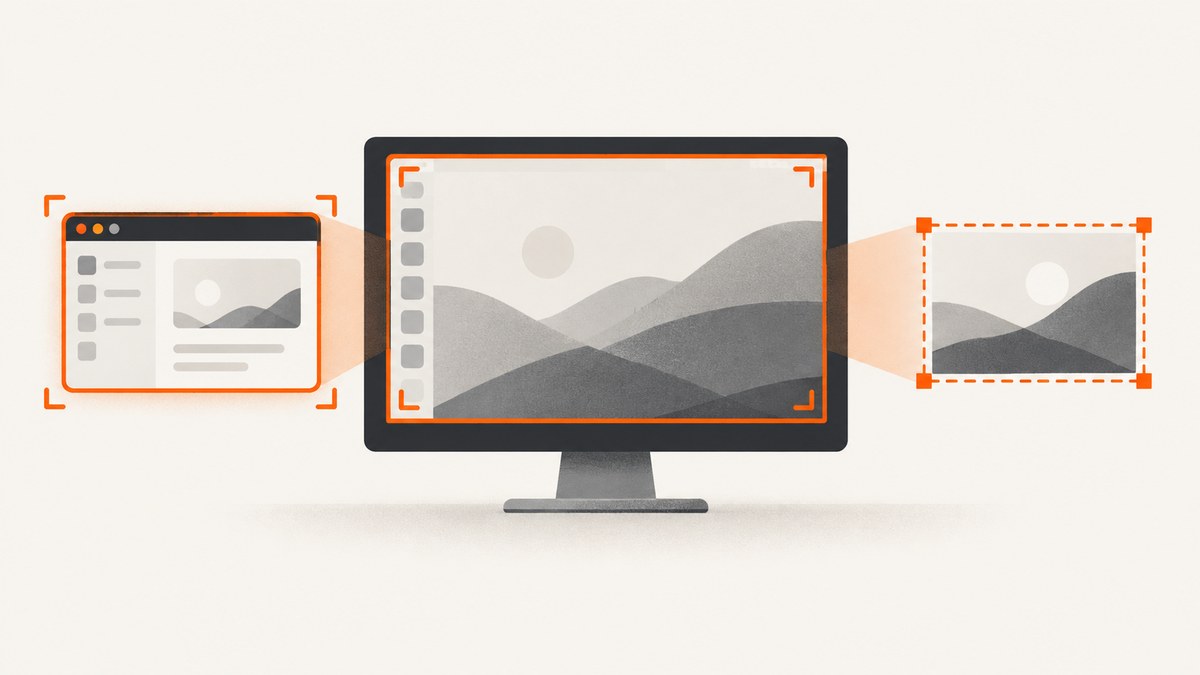
To take a screenshot of your monitor, use the shortcut for your operating system: press Windows+Shift+S on Windows, Shift-Command-3 on macOS, or Print in GNOME Linux. Choose a full-screen capture when you need everything visible, or use the capture interface to select a window or region. Then save the image or copy it to the clipboard.
The exact steps depend on your operating system. A full-screen shortcut may capture more than one display, so if you have multiple monitors, use the system’s capture interface and check which screen or area is selected before saving.
1. Choose what to capture
Before pressing a shortcut, decide whether you need the whole screen, one window, or just a portion. That choice affects the shortcut, what appears in the image, and whether you need to crop it later.

| Capture | Use it for | What to check |
|---|---|---|
| Entire screen | Showing the overall desktop or a full-screen app | On a multi-monitor setup, confirm which displays are included. |
| Window | Sharing one app without unrelated desktop content | Bring the target window forward. Some apps restrict screenshots. |
| Selected region | Showing a specific error, chart, or part of a page | Drag around the content, leaving enough context to understand it. |
Also decide whether you want a file or a clipboard image. Saving creates an image you can attach or keep. Copying is faster when you intend to paste directly into a message or document.
2. Take a screenshot on Windows 10 or Windows 11
Windows 10 and Windows 11 include Snipping Tool. The quickest way to open its image-capture overlay is Windows+Shift+S. The overlay lets you select a rectangle, a window, the full screen, or a freeform shape. Choose a mode and capture the desired content. Microsoft documents the steps in its Snipping Tool guide.
Save or copy the snip
- Press Windows+Shift+S.
- Choose rectangle, window, full-screen, or freeform capture from the overlay.
- Select the area or window, or capture the full screen.
- Open the resulting snip in Snipping Tool if needed. Press Ctrl+C to copy it or Ctrl+S to save it.
For a full-screen image copied directly to the clipboard, press Print Screen (PrtSc). On a device without a PrtScn key, Microsoft lists Fn+Windows+Space as an alternative. Screenshots saved through the Windows workflow can be found in Pictures > Screenshots in File Explorer. See Microsoft’s Windows keyboard shortcuts reference for the documented Print Screen alternative.
Capture a menu or a brief on-screen state
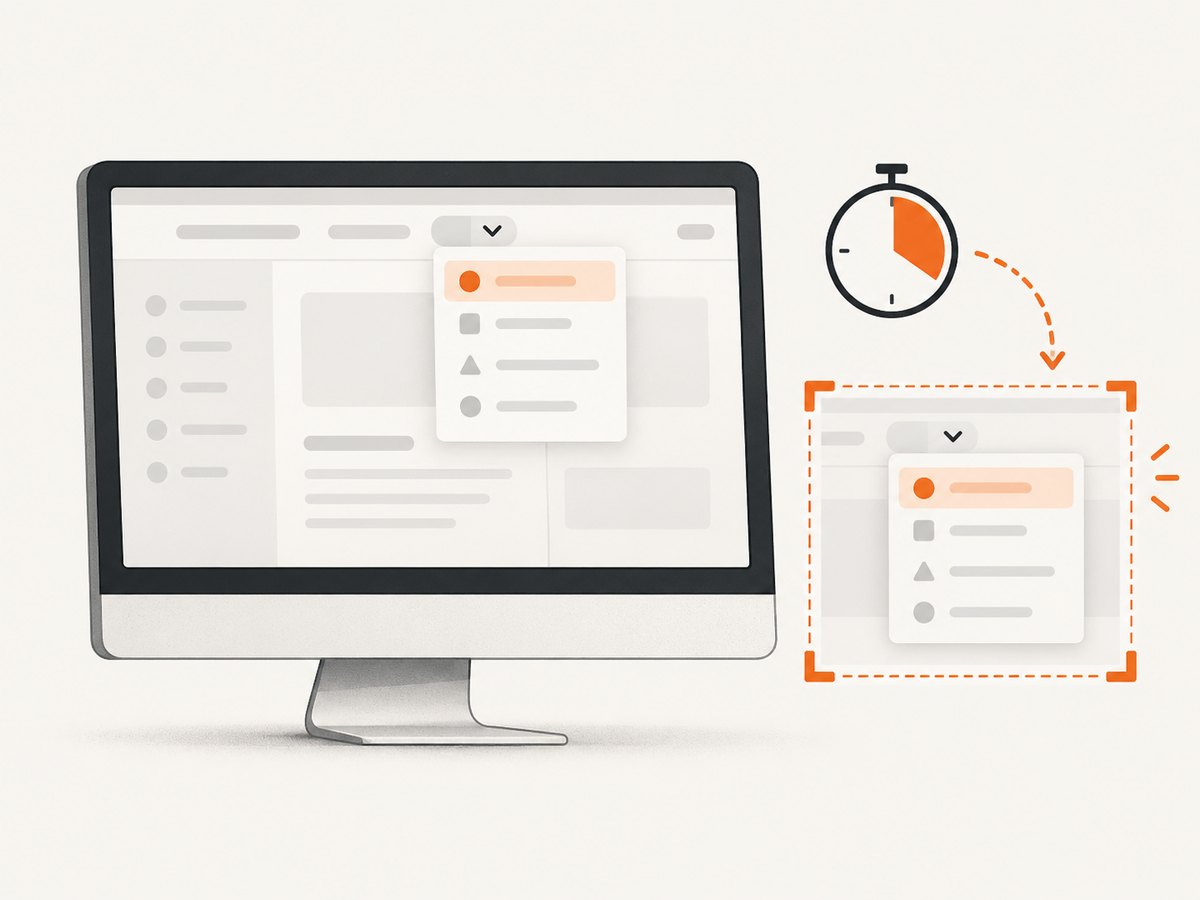
If a menu closes when you interact with the capture tool, use Snipping Tool’s delay option. Set a short delay, open the menu or arrange the transient state, and capture when the timer finishes. This is useful for context menus and other items that disappear when focus changes.
Windows+Shift+R is for video snipping, not a still screenshot. Use Windows+Shift+S for an image capture.
3. Take a screenshot on macOS
macOS has separate shortcuts for a full screen, a selected portion, and a window. Apple documents these in Take a screenshot on your Mac.
| What you need | Shortcut | How it works |
|---|---|---|
| Entire screen | Shift-Command-3 | Captures the entire screen. |
| Selected portion | Shift-Command-4 | Drag the crosshair over the area. Press Escape to cancel. |
| Window or menu | Shift-Command-4, then Space | Open the target, switch to camera-style selection with Space, then click it. |
| Capture controls | Shift-Command-5 | Opens the Screenshot app on macOS Mojave 10.14 or later. |
By default, macOS saves screenshots to the desktop. In the Screenshot app, you can set a timer, choose a save location, and choose whether to show the pointer or floating thumbnail. To copy a capture to the clipboard instead of saving it as a file, hold Control along with the screenshot shortcut, or use the clipboard option on the thumbnail.
Window capture is not supported by every app. Apple notes that some apps, including Apple TV, may restrict screenshots of their windows. If a window capture is unavailable, try capturing a selected area instead. On supported Mac models running macOS Tahoe 26 or later, Apple also documents an option for SDR/PNG or HDR/HEIF capture format. That setting is optional; it is not needed for a basic screenshot.
4. Take a screenshot in GNOME Linux
These shortcuts apply to the GNOME desktop environment; other Linux desktops may use different defaults. GNOME’s screenshot help documents these shortcuts:
- Print opens the screenshot tool.
- Alt+Print captures a window.
- Shift+Print captures the entire screen.
In the screenshot tool, choose an area, screen, or window, then capture. Shortcut captures are saved under Pictures/Screenshots in your home folder. The screenshot tool can also copy the image to the clipboard.
If these defaults do not work, check your GNOME keyboard shortcut settings. Shortcuts can be customized, and the Print key may have a different action on your system.
5. Save, copy, and share the image
The capture may be saved automatically, copied to the clipboard, or opened in an editor, depending on the shortcut and platform. If you cannot find a file, check the default folder for your operating system:
| System | Default location or behavior |
|---|---|
| Windows | Saved screenshots: Pictures/Screenshots. Print Screen copies a full-screen capture to the clipboard. |
| macOS | Desktop by default. Hold Control with a screenshot shortcut to copy to the clipboard. |
| GNOME | Shortcut captures: ~/Pictures/Screenshots. The tool also offers clipboard copying. |
For a support report, capture enough surrounding content to show where the problem occurred, but review the image for private information before sharing. A region or window capture often makes the relevant detail easier to see than an image of the entire desktop.
6. Troubleshoot common screenshot problems
| Problem | Likely cause | What to try |
|---|---|---|
| The shortcut does nothing | You may be using instructions for another operating system, the key may be unavailable, or the shortcut may have been changed. | Confirm the operating system and use its capture interface. On Windows devices without PrtScn, try Fn+Windows+Space. In GNOME, check keyboard shortcut settings. |
| You captured too much or too little | You used a full-screen shortcut when you needed a window or region. | Open the interactive capture tool and select the appropriate mode before capturing. |
| The screenshot is not where you expected | Save locations vary by platform, and a shortcut may copy to the clipboard instead of creating a file. | Check Pictures/Screenshots on Windows or GNOME, and the desktop on macOS. Try pasting into an app to see whether the image is on the clipboard. |
| A menu disappeared before capture | Opening the capture controls changed focus or dismissed the menu. | On Windows, use Snipping Tool’s delay option and capture after opening the menu. |
| A window capture is blank or unavailable | The app may restrict window screenshots, or the wrong window may have been selected. | Bring the target forward and try a selected-area capture. Some macOS apps restrict screenshots of their windows. |
| The capture includes multiple displays | Your chosen full-screen command may capture more than the one monitor you intended. | Use the capture interface and verify the selected screen or region before saving. Multi-monitor behavior varies; do not assume one shortcut selects exactly one monitor. |
7. Or skip the browser setup
The built-in tools above capture what is visible on your own monitor. If you need an image of a web page by URL instead, ScreenshotNeo is a website screenshot API and MCP server. One GET request returns an image or PDF; see the API documentation.
curl -G "https://api.screenshotneo.com/v1/shot" -d access_key=YOUR_API_KEY --data-urlencode url=https://stripe.com -o shot.webpimport requests
r = requests.get(
"https://api.screenshotneo.com/v1/shot",
params={"access_key": "YOUR_API_KEY", "url": "https://stripe.com"},
timeout=90,
)
open("shot.webp", "wb").write(r.content)const q = new URLSearchParams({ access_key: 'YOUR_API_KEY', url: 'https://stripe.com' });
const res = await fetch(`https://api.screenshotneo.com/v1/shot?${q}`);
if (!res.ok) throw new Error(`Screenshot request failed: ${res.status}`);
await Bun.write('shot.webp', res);Replace YOUR_API_KEY with your key. The Node.js example uses Bun’s file writer to save the response body; in Node, you can write the response bytes with fs/promises.
ScreenshotNeo removes cookie banners, newsletter popups, and chat widgets before the capture. Bot checks, blank pages, failed loads, timeouts, and cache hits are not billed; response headers report the page verdict and billing status. Its MCP server gives AI agents tools to take screenshots, get page info, and capture PDFs. The free plan includes 1,000 shots per month with no card; paid plans start at $5 for 3,000 shots. Plans also include Growth at $15 for 15,000, Pro at $39 for 60,000, Scale at $99 for 250,000, and Business at $249 for 1,000,000. Yearly billing gives two months free, and every feature is on every plan.
Sign up for ScreenshotNeo’s free plan to get 1,000 screenshots a month with no card.
8. FAQ
Can I take a screenshot without a Print Screen key?
Yes. Windows offers Windows+Shift+S and documents Fn+Windows+Space for devices without PrtScn. macOS and GNOME have their own capture shortcuts and tools.
How do I screenshot just one monitor?
Use your operating system’s capture interface and check the selected screen or region before saving. The documented shortcuts do not establish one cross-platform method that always captures exactly one display in a multi-monitor setup.
Is a screenshot the same as a screen recording?
No. A screenshot is a still image. A screen recording captures video over time; on Windows, Windows+Shift+R opens video snipping.
Can I capture a web page without taking a screenshot of my desktop?
Yes. A browser capture tool or screenshot API can render a page from its URL. ScreenshotNeo provides a one-call API and an MCP server for AI agents, while the built-in shortcuts here capture your monitor.


