BlogScreenshots on your device
How to Take Screenshots with Java
Capture the desktop or a screen region in Java with AWT Robot, save it as an image, and handle headless, permission, multi-monitor, and HiDPI issues.
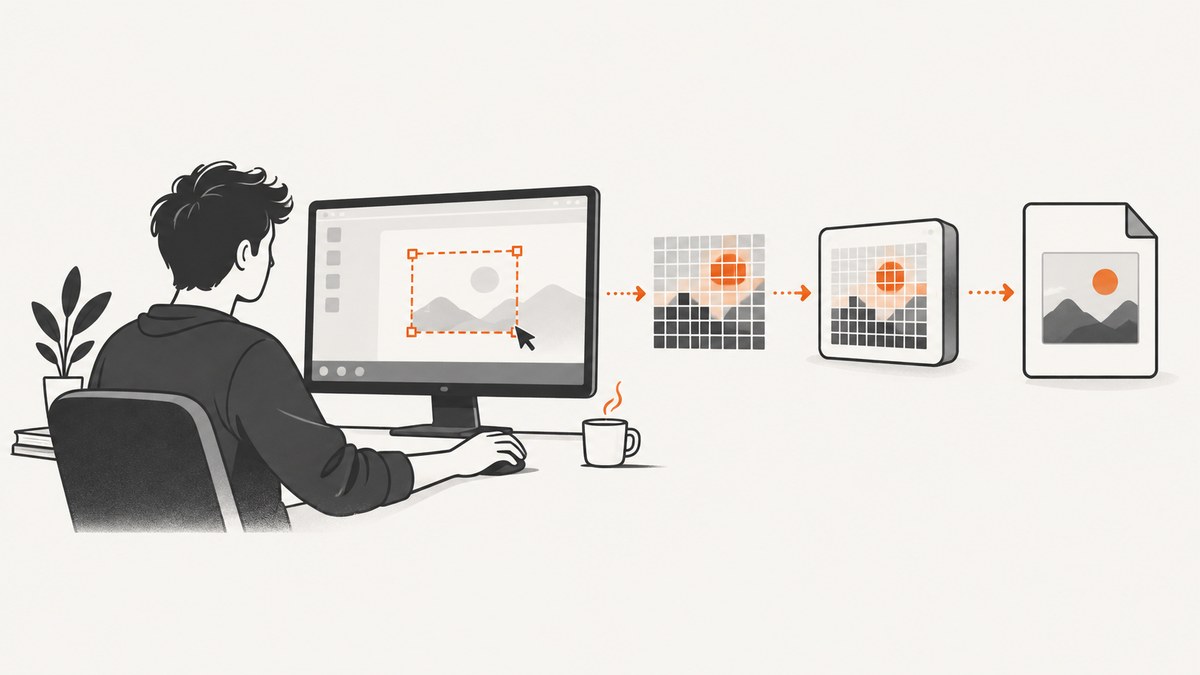
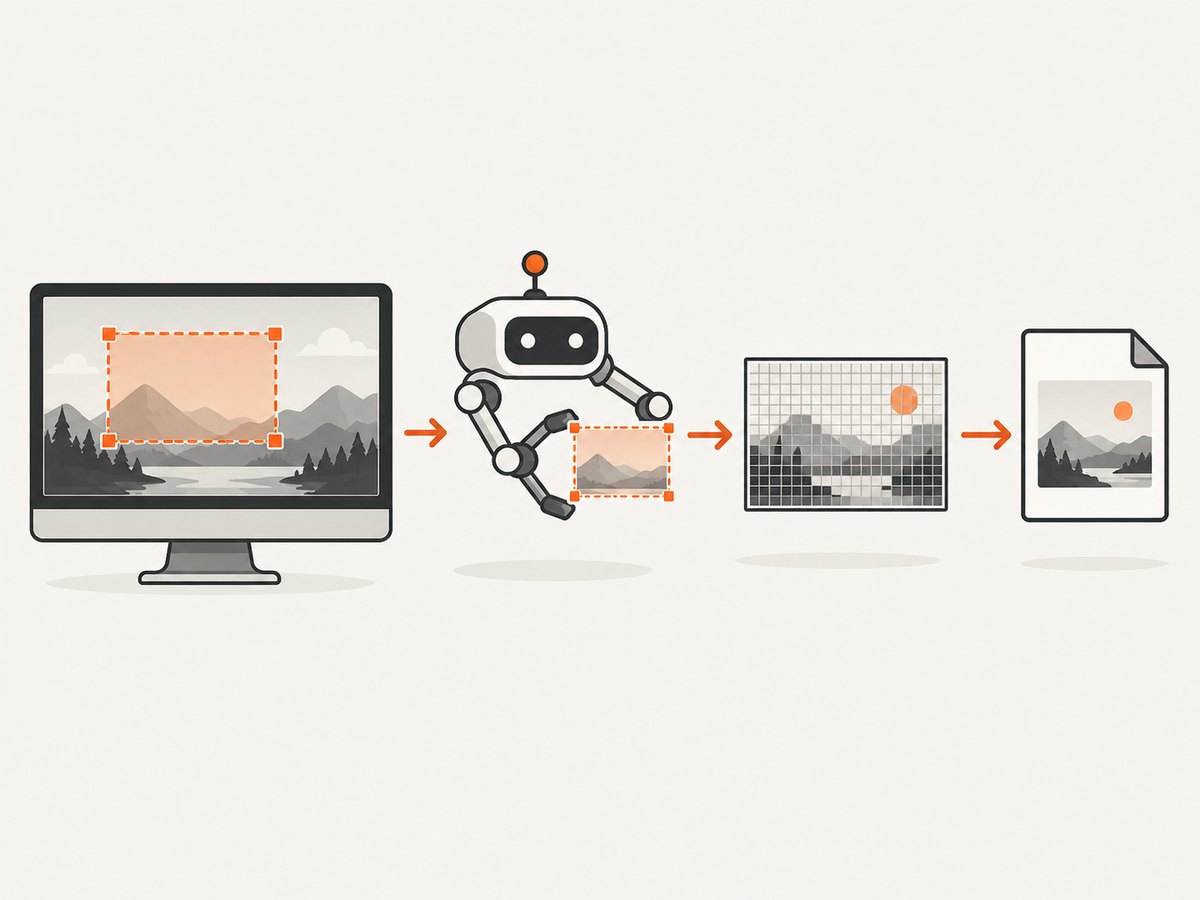
Use java.awt.Robot to capture desktop pixels in ordinary Java desktop code. Call createScreenCapture(new Rectangle(x, y, width, height)); it returns a BufferedImage that you can save with ImageIO. The same method captures the full display when the rectangle matches the screen bounds. It requires a graphical desktop and may require screen-recording permission, so it is not a general-purpose way to capture a website on a headless server.
For a JavaFX application, use javafx.scene.robot.Robot on the JavaFX Application Thread. Its capture result is a WritableImage. This guide shows both runnable approaches, explains region coordinates and output formats, then covers the constraints that commonly cause blank captures or exceptions.
1. Capture and save the screen with AWT Robot
Save this as Screenshot.java. It captures a rectangle in the primary screen’s coordinate system and writes a PNG. The example accepts optional x, y, width, height, and output filename arguments; with no arguments it captures the primary display bounds.
import java.awt.AWTException;
import java.awt.GraphicsEnvironment;
import java.awt.Rectangle;
import java.awt.Robot;
import java.awt.Toolkit;
import java.awt.image.BufferedImage;
import java.io.IOException;
import java.nio.file.Path;
import javax.imageio.ImageIO;

public class Screenshot {
    public static void main(String[] args) throws AWTException, IOException {
        if (GraphicsEnvironment.isHeadless()) {
            throw new IllegalStateException(
                "Screen capture needs a graphical desktop; this process is headless.");
        }

        Rectangle area;
        String filename;
        if (args.length == 0) {
            area = new Rectangle(Toolkit.getDefaultToolkit().getScreenSize());
            filename = "screenshot.png";
        } else if (args.length == 5) {
            int x = Integer.parseInt(args[0]);
            int y = Integer.parseInt(args[1]);
            int width = Integer.parseInt(args[2]);
            int height = Integer.parseInt(args[3]);
            if (width <= 0 || height <= 0) {
                throw new IllegalArgumentException("width and height must be positive");
            }
            area = new Rectangle(x, y, width, height);
            filename = args[4];
        } else {
            throw new IllegalArgumentException(
                "Usage: java Screenshot [x y width height output.png]");
        }

        Robot robot = new Robot();
        BufferedImage image = robot.createScreenCapture(area);
        Path output = Path.of(filename);
        if (!ImageIO.write(image, "png", output.toFile())) {
            throw new IOException("No ImageIO writer is available for PNG");
        }
        System.out.printf("Saved %dx%d image to %s%n",
            image.getWidth(), image.getHeight(), output.toAbsolutePath());
    }
}
Compile and run on a machine with an active graphical session:
javac Screenshot.java
java Screenshot
java Screenshot 100 100 800 600 region.png
Use the command-line values as screen coordinates, not coordinates relative to a Java window. Coordinates and bounds depend on the display arrangement and platform. A rectangle with zero or negative dimensions is invalid; a rectangle outside a screen’s bounds may also produce an error or an unusable result depending on the desktop implementation, so begin with a known on-screen area.
Choose the output format
createScreenCapture returns pixels; the filename extension does not choose an encoder. ImageIO.write takes the format name separately. PNG is a safe default for text and sharp edges. JPEG is lossy and does not preserve transparency; use it when a smaller photographic image is more useful than pixel-perfect text. Verify that ImageIO.write returns true, because it returns false if no writer is available for the named format.
ImageIO.write(image, "png", Path.of("capture.png").toFile());
ImageIO.write(image, "jpeg", Path.of("capture.jpg").toFile());
Standard Java ImageIO installations commonly provide PNG and JPEG writers. Do not assume a WebP writer is installed; check for a writer or add a suitable library if your application needs WebP. The capture itself and encoding are separate steps, so you can also pass the BufferedImage to an image-processing pipeline without writing a file.
2. Capture a specific monitor or region
The no-argument Robot() constructor uses the primary screen. To create a Robot for a particular display device, enumerate the devices and pass the selected GraphicsDevice to new Robot(device). This constructor gives the Robot the coordinate system associated with that device. Display layouts differ: monitors may share a virtual coordinate space, and a display positioned left or above the primary screen can have negative coordinates.
import java.awt.GraphicsDevice;
import java.awt.GraphicsEnvironment;
import java.awt.Rectangle;
import java.awt.Robot;
import java.awt.image.BufferedImage;
import javax.imageio.ImageIO;

GraphicsDevice[] devices = GraphicsEnvironment
    .getLocalGraphicsEnvironment().getScreenDevices();
for (int i = 0; i < devices.length; i++) {
    GraphicsDevice device = devices[i];
    Rectangle bounds = device.getDefaultConfiguration().getBounds();
    System.out.printf("%d: %s bounds=%s%n", i, device.getIDstring(), bounds);
}

int selected = 0; // choose after inspecting the printed device list
GraphicsDevice device = devices[selected];
Rectangle bounds = device.getDefaultConfiguration().getBounds();
Robot robot = new Robot(device);
BufferedImage image = robot.createScreenCapture(bounds);
ImageIO.write(image, "png", Path.of("monitor.png").toFile());
Run this in the same desktop session where the target application is visible. If display configuration changes, re-read the devices and bounds; do not keep assuming old coordinates are valid. For a region, construct a rectangle using the device’s coordinate system and make sure it intersects the intended screen area.
HiDPI and physical pixels
On scaled displays, logical screen coordinates and physical image pixels may not have a one-to-one relationship. Inspect the returned image’s getWidth() and getHeight() rather than assuming they equal the requested logical dimensions. Java 9 and later also provide createMultiResolutionScreenCapture(Rectangle), which returns a MultiResolutionImage that can expose a base image and a higher-resolution variant when the platform scaling transform applies. Use this when downstream rendering needs the appropriate resolution variant; use ordinary createScreenCapture when a single BufferedImage is enough. See Oracle’s Robot API reference.
3. Use JavaFX Robot in a JavaFX application
JavaFX has its own Robot API. Construct it and call capture methods on the JavaFX Application Thread. The following is the capture portion of a JavaFX application’s start method. Add JavaFX graphics and controls modules to your runtime as appropriate for your project setup.
import javafx.application.Application;
import javafx.scene.Scene;
import javafx.scene.image.WritableImage;
import javafx.scene.robot.Robot;
import javafx.stage.Stage;
import javafx.embed.swing.SwingFXUtils;
import javax.imageio.ImageIO;
import java.nio.file.Path;

public class FxScreenshot extends Application {
    @Override
    public void start(Stage stage) throws Exception {
        stage.setScene(new Scene(new javafx.scene.layout.StackPane(), 400, 250));
        stage.show();

        Robot robot = new Robot();
        WritableImage captured = robot.getScreenCapture(
            null, 0, 0, 800, 600, true);
        ImageIO.write(SwingFXUtils.fromFXImage(captured, null),
            "png", Path.of("javafx-screen.png").toFile());
    }

    public static void main(String[] args) {
        launch(args);
    }
}
SwingFXUtils is in the JavaFX Swing module (javafx.swing); include it when using this conversion route. Alternatively, encode or display the JavaFX image using APIs in your application. The region is relative to the primary screen. With scaleToFit set to true, the returned image is scaled to the requested width and height. With false, actual image pixel dimensions can differ on HiDPI displays. Read the resulting image dimensions when physical pixel size matters. The overload without the boolean is equivalent to scaling to fit. See the JavaFX Robot API reference.
4. Threading, permissions, and environment constraints
- AWT Event Dispatch Thread: do not perform screen capture on Swing’s EDT if it can block interaction. Oracle notes that capture can take time, including while acquiring screen permissions. Run it in a worker thread, then send UI updates back to the EDT.
- JavaFX Application Thread: JavaFX Robot construction and calls must happen on this thread; off-thread use raises
IllegalStateException. - Headless execution: AWT Robot construction throws
AWTExceptionwhenGraphicsEnvironment.isHeadless()is true. A server, container, or CI worker with no display cannot be assumed to support desktop capture. - Desktop permission: operating systems can require the user to grant screen recording or accessibility permissions. A denied request may produce
SecurityException; in some documented cases, the returned image contents can be undefined. Handle exceptions and inspect output in the actual deployment environment. - Capture timing: Robot captures what is on screen at the moment of the call. It does not wait for an application to finish loading or for a desired window to appear. Coordinate capture with your app’s own readiness state and ensure the target window is visible and unobscured.
For Swing, a simple worker pattern is to run the capture and image write inside an executor, then use SwingUtilities.invokeLater only to update the interface. For JavaFX, schedule capture with Platform.runLater if the request starts on a background thread, and move expensive post-processing off the JavaFX thread after the pixels have been obtained.
5. Browser page screenshots are a different task
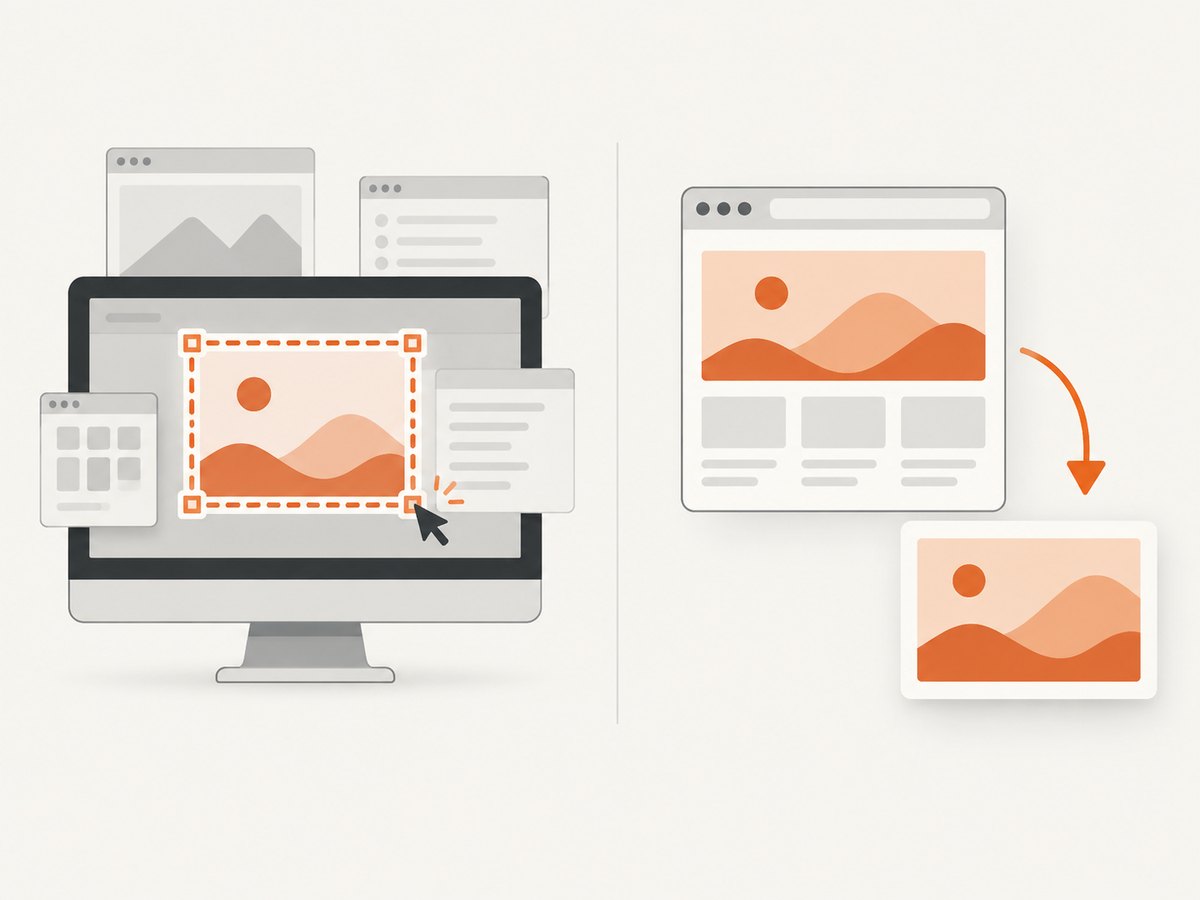
AWT Robot captures the desktop display, which can include browser chrome, other windows, notifications, or an obscured page. It does not render an arbitrary website in a clean browser session. If the actual goal is a webpage image—rather than screen pixels from the machine running Java—you need a browser automation setup or a screenshot service. Choose based on whether you need the entire desktop, a Java application’s screen region, or a URL rendered remotely.
6. Troubleshooting
| Symptom | Likely cause | Fix |
|---|---|---|
AWTException: headless environment |
No graphical display is available to the process. | Run inside an interactive desktop session, or use a browser-based capture service for a URL. Checking GraphicsEnvironment.isHeadless() before constructing Robot lets you fail clearly. |
SecurityException or black/undefined pixels |
The desktop denied screen access or requires an OS permission. | Grant the relevant screen-recording permission to the Java runtime or host application, restart it if required by the OS, and retry in the same logged-in session. |
| Image is blank, stale, or shows another window | The target was not visible, a window covered it, capture ran before rendering completed, or coordinates targeted another monitor. | Bring the intended window to the foreground, wait for application readiness, print monitor bounds, and test a small known region. |
| Region is clipped or shifted | Coordinates were treated as window-relative or logical coordinates while Robot expects screen coordinates for its device. | Print device bounds, use the correct screen coordinate system, and recheck bounds after monitor layout or scaling changes. |
| Output file is missing | Relative paths resolve from the process working directory, or the parent directory does not exist. | Print Path.toAbsolutePath(), create parent directories if needed, and ensure the process can write there. |
| Unsupported image format | No ImageIO writer is installed for the requested format, or the code used a filename extension as the format name. | Pass the format explicitly, check the boolean returned by ImageIO.write, and add a writer library for formats not provided by the runtime. |
| UI freezes during capture | Capture or image encoding is running on the UI thread. | Move capture and file encoding to a background worker; marshal only UI changes back to the framework thread. |
JavaFX throws IllegalStateException |
Robot was constructed or used outside the JavaFX Application Thread. | Perform the call from start, an event handler, or a task posted with Platform.runLater. |
7. Performance, reliability, and cost
Capture cost grows with the number of pixels read, and image encoding adds work proportional to image size and format. A full high-resolution desktop capture uses more memory and produces a larger file than a tight region. Capture only the rectangle needed, avoid repeatedly grabbing the full desktop in a rapid loop, and reuse downstream buffers where your image pipeline supports it. If taking multiple shots, keep filenames unique and make writes explicit so concurrent captures do not overwrite each other.
Reliability depends on the desktop session: permissions, display availability, window focus, coordinate layout, and UI timing all matter. AWT Robot is not a substitute for a deterministic page renderer when the requested artifact is a website screenshot. Desktop capture itself has no per-call service charge, but your application bears the compute, storage, and operational cost of maintaining a graphical environment and handling image files. For website capture, a hosted API trades that setup for request-based service pricing; compare the required behavior, quotas, and failure semantics before choosing.
8. Or skip the browser setup
If you need a website screenshot by URL instead of pixels from a Java desktop, ScreenshotNeo is a website screenshot API and MCP server. One GET request returns a PNG, JPEG, WebP, or PDF. Its request options include full-page screenshots with lazy images loaded, element capture by CSS selector, viewport and device presets, retina scale, custom CSS and JavaScript, wait conditions, headers and cookies, and more. See the ScreenshotNeo API documentation for parameter names and setup.
curl -G "https://api.screenshotneo.com/v1/shot" \
  -d access_key=YOUR_API_KEY \
  --data-urlencode url=https://stripe.com \
  -o shot.webp
import requests
r = requests.get(
"https://api.screenshotneo.com/v1/shot",
params={"access_key": "YOUR_API_KEY", "url": "https://stripe.com"},
timeout=90,
)
r.raise_for_status()
open("shot.webp", "wb").write(r.content)const q = new URLSearchParams({
access_key: 'YOUR_API_KEY',
url: 'https://stripe.com'
});
const res = await fetch(`https://api.screenshotneo.com/v1/shot?${q}`);
if (!res.ok) throw new Error(`Screenshot request failed: ${res.status}`);
await Bun.write('shot.webp', res);Replace the example URL with the page you want. In Node.js, the request uses built-in fetch; the final file-writing line above uses Bun. With Node.js, use this alternative after the fetch to save the returned bytes:
import { writeFile } from 'node:fs/promises';
const bytes = new Uint8Array(await res.arrayBuffer());
await writeFile('shot.webp', bytes);
ScreenshotNeo accepts cookie and consent banners like a visitor and removes more than 60 known consent platforms, newsletter popups, and chat widgets before capture; each cleanup step can be turned off. Bot checks, CAPTCHAs, blank pages, timeouts, failed loads, and cache hits cost nothing, and responses identify the page verdict and billing status in headers. Its MCP server provides take_screenshot, get_page_info, and capture_pdf for Claude, Cursor, and other MCP clients. The Free plan includes 1,000 shots per month with no card; paid plans start at $5 for 3,000 shots. Sign up for 1,000 free screenshots a month, with no card.
9. FAQ
Can Java save the screenshot directly as a byte array?
Robot returns a BufferedImage, not encoded PNG or JPEG bytes. Encode it into a ByteArrayOutputStream with ImageIO.write when an in-memory byte array is needed.
Does AWT Robot capture the mouse cursor?
The cited API documentation does not establish whether the pointer appears in the captured pixels. Do not make cursor visibility a requirement without checking on the target OS and desktop.
Can I use the same code in a serverless function?
Only if the runtime provides a usable graphical desktop and permits capture. Headless runtimes generally cannot construct AWT Robot; for a URL screenshot, use a browser-rendering service designed for remote capture.
Should I use AWT or JavaFX?
Use AWT for standard desktop Java code that needs a BufferedImage. Use JavaFX Robot when the application is already JavaFX and can capture on its required application thread.


